


 Video Dönüştürücü Ultimate
 Ekran kaydedicisi
 Video Onarımı
 Güvenli İndirme
Windows Media Player'ın Windows 7/8/10 Üzerinde Çalışmamasını Düzeltmenin 5 Yolu
Windows Media Player çalışmayı durdurdu. Programın doğru çalışmasına engel olan bir problem oluştu. Ayrıca ses çalacak, ancak video çalmayacak. Bu sorun nasıl çözülür?
Windows Media Player çalışmayı durdurduğunda, hakkında herhangi bir özel bilgi olmadan “Window Media Player çalışmayı durdurdu” hatası alabilirsiniz veya “Dosya türü desteklenmiyor” şeklinde bilgilendirilirsiniz. Hatta istem yok ve tıklamalarınız çalışmıyor.
Windows Media Player’ın çalışmamasına neden olan pek çok sebep vardır. En yaygın sorun, dosyaların desteklenmemesidir; bu da videoların görüntüsüz, ya da sessiz, ya da altyazısız oynatılmasına yol açar. Bunun dışındaki nedenler ise genellikle belirli bir uyarı vermeden, oldukça çeşitli olabilir. Bu durumda, bu karmaşık hatayı gidermek için aşağıdaki makalede listelenen tüm olası sorunları tek tek kontrol etmeniz gerekir. Ancak en iyi ve pratik yol olarak, herhangi bir videoyu sorunsuz ve kısıtlama olmadan izlemek için alternatif bir video oynatıcı kullanmayı da tercih edebilirsiniz.

Bölüm 1: Kaçırmamanız Gereken En İyi Alternatif Medya Oynatıcı
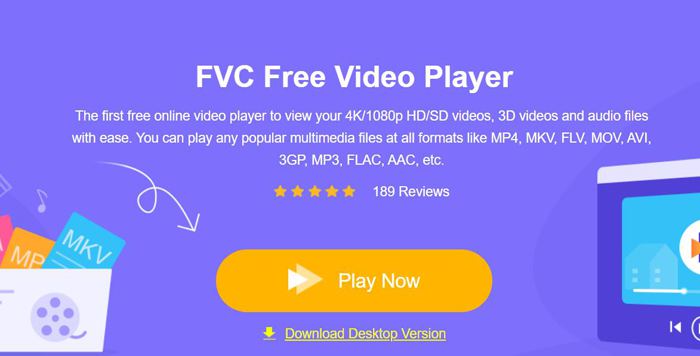
Windows Media Player’ın çalışmaması sorunundan kaçınmak için, profesyonel bir alternatif seçmeniz daha iyi olur. FVC Free Video Player, Windows Media Player kullanırken karşılaşabileceğiniz tüm sorunları çözecek ücretsiz bir çevrim içi video oynatıcıdır. Biçim ve çözünürlük sınırlaması olmadan video oynatmayı destekler. Ayrıca başka bir yazılım indirmeden tüm video formatlarını akıcı biçimde oynatabilirsiniz.
- 1. FLV, MKV, RMVB ve DVD veya Blu-ray dosyaları dahil olmak üzere hemen hemen tüm formatları oynatmayı destekler.
- 2. 4K çözünürlüğe ulaşan yüksek kalitede videolar oynatın.
- 3. Farklı dillerdeki ses parçalarını ve altyazıları ayarlayabilme.
- 4. Video oynatırken istediğiniz zaman ekran görüntüsü alın.
Adım 1: Herhangi bir tarayıcıda FVC Free Video Player sitesine gidin. Ardından başlatıcıyı yüklemek için Şimdi Oynat (Play Now) düğmesine tıklayın. Birkaç dakika sonra, FVC Free Video Player’ı başlatmak için Şimdi Oynat düğmesine yeniden tıklayın.
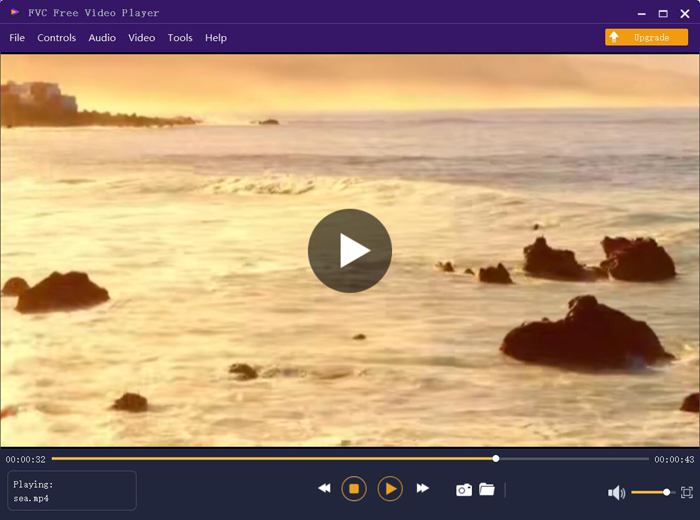
Adım 2: İstediğiniz videoyu seçmek için Dosya Aç düğmesine tıklayın. Ardından video otomatik olarak oynatılmaya başlayacaktır. Kontrol menüsünde sesi ayarlamak için kullanabileceğiniz kısayol tuşlarını görebilirsiniz. Ayrıca ihtiyacınıza göre ses veya video parçalarını da seçebilirsiniz. Dahası, Araçlar düğmesine tıklayıp Efekt seçeneğini tercih ederseniz, tonu, parlaklığı, karşıtlığı, doygunluğu ve gama değerini bile ayarlayabilirsiniz.
Bölüm 2: Windows 7/8/10 Üzerinde Çalışmıyor Windows Media Player Nasıl Onarılır
Daha önce de belirtildiği gibi, birçok neden Windows Media Player'ın çalışmamasına neden olabilir ve bu sorunu farklı durumlarda düzeltmenin 3 yöntemi vardır.
Yöntem 1: Windows Media Player'ın sorun gidericisini başlatın
Windows Media Player'ınız tıklamalardan sonra yanıt vermediğinde, bu yöntem sorunu çözmenize yardımcı olacaktır.
Adım 1: Klavyenizdeki Windows ve R tuşlarına basarak Çalıştır penceresini açın. Ardından arama çubuğuna msdt.exe -id WindowsMediaPlayerConfigurationDiagnostic komutunu kopyalayıp yapıştırın. Windows Media Player Ayarları sorun gidericisine gitmek için Tamam düğmesine tıklayın. Sonra başlatmak için İleri düğmesine tıklayın.
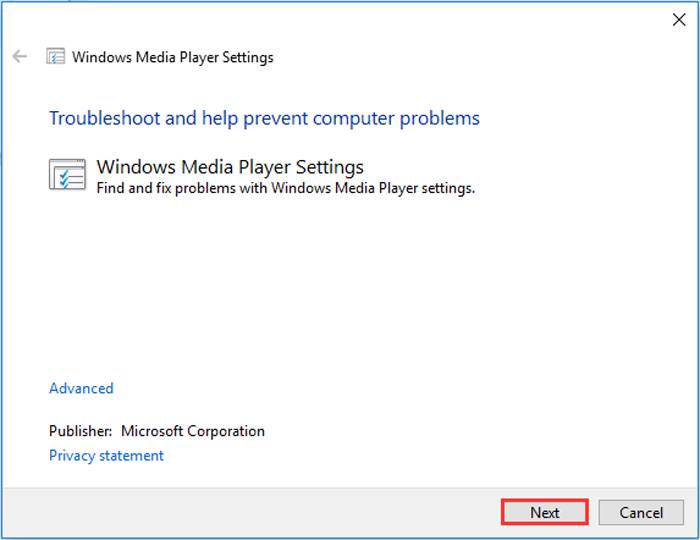
Adım 2: Pencere açıldıktan sonra, Windows Media Player’ı varsayılan ayarlara sıfırlamak için Bu düzeltmeyi uygula düğmesine tıklayın. Ardından Windows Media Player’ı yeniden başlatmayı deneyebilirsiniz.
Yöntem 2: Windows Media Player'a diğer kod çözücüleri yükleyin
Windows Media Player'ınız bazı özel videolar veya seslerle çalışmıyorsa, bu videoları oynatmak için yanıt veren kod çözücüyü indirebilirsiniz.
Adım 1: Bilgisayarınızda Microsoft Store’u açın. Ara düğmesine tıklayın ve arama çubuğuna Video Extension yazın. İstediğiniz video uzantı paketini bilgisayarınıza indirebilirsiniz.
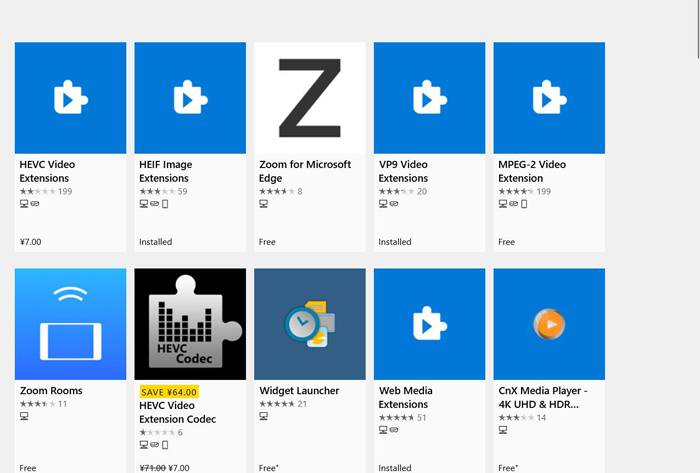
Adım 2: Kurulum tamamlandıktan sonra videoları yeniden Windows Media Player üzerinden açın. Ancak FLV, RMVB vb. dahil hâlâ desteklenmeyen birçok biçim olduğunu unutmamalısınız.
Yöntem 3: Windows Media Player'ı yeniden yükleyin.
Bahsedilen yöntem işe yaramazsa, Windows Media Player çalışmayı bıraktığında yazılımı yeniden yüklemeyi denemelisiniz.
Adım 1: Klavyenizdeki Windows ve R tuşlarına basarak Çalıştır penceresini açın. Ardından arama çubuğuna optionalfeatures.exe yazın. Bir özelliği açıp kapatmak için Tamam düğmesine tıklayın. Sonrasında Windows Media Player onay kutusundaki işareti kaldırabilirsiniz.
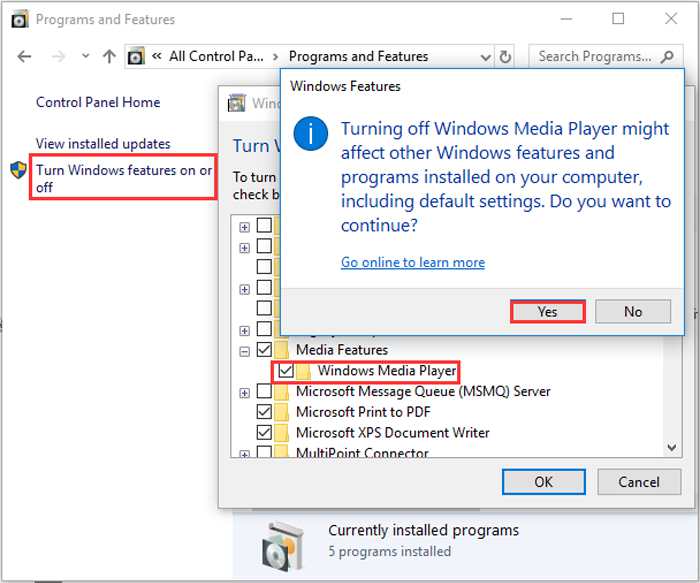
Adım 2: Bilgisayarınızı yeniden başlatın ve önceki işlemi tekrarlayın. Daha sonra Windows Media Player kutusunu yeniden işaretleyin. Ardından bilgisayarınızı tekrar yeniden başlatın; yazılım bilgisayarınıza otomatik olarak yeniden kurulacaktır.
Bu sorunların dışında Windows Media Player'ın birçok dezavantajı da vardır. Video oynatma hızını ayarlayamazsınız ve kısayol tuşları her zaman işe yaramaz. Öyleyse neden tüm sorunları çözmek için ücretsiz çevrimiçi video oynatıcıyı seçmiyorsunuz?
Bölüm 3: Windows Media Player'ın Çalışmamasıyla İlgili SSS
1. FLV video dosyaları neden Windows Media Player'da oynatılamıyor?
Windows Media Player, bazı alışılmadık formatlardaki videoları oynatmak için birden fazla codec yüklemeyi desteklese de FLV formatını desteklemez. Bu durumda, Windows Media Player alternatiflerini indirmeyi ya da video formatlarını dönüştürmeyi deneyebilirsiniz.
2. Windows 10 güncellemelerinden sonra Windows Media Player'ım neden çalışmıyor?
Güncellemeden sonra Windows Media Player bozulmuş olabilir. Windows Media Player'ı yeniden yüklemek için bahsedilen yöntem 3'ü deneyebilirsiniz.
3. Window Media Player'da altyazı parçaları nasıl seçilir?
Ne yazık ki, Windows Media Player'da farklı altyazılar, video ve ses parçaları seçme seçeneği yoktur. Videoları oynatmak için diğer alternatifleri seçebilirsiniz.
Sonuç
Windows Media Player'ın çalışmamasının nedenleri çok karmaşık olacaktır, bu da bu sorunu çözmeyi zorlaştıracaktır. Böylece, videoları yüksek kalitede sorunsuz bir şekilde oynatmak için en iyi alternatif medya oynatıcıyı - FVC Free Video Player'ı indirebilirsiniz. Bu şekilde Windows Media Player'ın sonsuza kadar çalışmamasını önleyebilirsiniz.
-
 2021'de Windows Media Player'da DVD Nasıl Oynanır?
 DVD'im neden Windows Media Player'da oynatılmıyor? Windows 7 medya oynatıcıda DVD nasıl oynanır? Bu gönderi, WMP ile veya WMP'siz DVD oynatmanın 3 yolunu paylaşıyor.
-
 Chrome'da Oynatılmayan Videoları Düzeltmek için 6 Doğrulanmış Çözümler
 Videoların Chrome'da oynatılmaması sorununu çözmek için tek yapmanız gereken sorun giderme yazımızı okumak ve doğrulanmış çözümleri tek tek gerçekleştirmek.
-
 İPad'de Oynatılmayan Videoları Düzeltmek için 5 100% Çalışma Çözümleri
 Videolarınız iPad'de oynatılmıyor mu? İşte bu sorundan kurtulmanıza yardımcı olacak beş çözüm ve ardından en sevdiğiniz videoların keyfini telefonda kolayca çıkarabilirsiniz.
