


 Video Dönüştürücü Ultimate
 Ekran kaydedicisi
 Video Onarımı
 Güvenli İndirme
VLC Rip DVD: VLC Kullanarak DVD'yi Kolayca Nasıl Dönüştürebilirsiniz [2024]
Elbette, bir DVD oynatıcıda film izlemek bir zamanlar hayatınızın bir parçasıydı? Bize söyleyin, çocukken ilk çizgi filminizi veya filminizi nerede izlediniz? Nostaljik bir his, değil mi? Bugün, Netflix tüm medya akış platformlarını alt ederken, film izlemek hiç olmadığı kadar kolay ve erişilebilir. Bununla birlikte, birçok disk artık göz ardı ediliyor ve zamanla çürümeyi bekliyor.
Şimdi, koleksiyonlarınızı saklamanın bir yolunu arıyorsanız, bunu yapmanın tek yolu her birini VLC yardımıyla kopyalamaktır. VLC, kullanıcılara çeşitli türde videoları oynatma, dönüştürme ve onarma olanağı tanıyan ücretsiz bir multimedya oynatıcıdır. Bunun dışında, bu araç DVD’leri kopyalayarak içlerindeki medya içeriğini çıkarabilir. Bu nedenle, bu makalede sizin için VLC kullanarak DVD kopyalama konusunda yardımcı olacak bir kılavuz hazırladık. Ayrıca, makalenin sonunda daha kolay ve gelişmiş özellikler sunabilecek bir VLC alternatifi sizi bekliyor. Daha ne bekliyorsunuz? Hemen aşağı kaydırın ve makaleye dalın.

Bölüm 1. DVD'yi VLC'ye kopyalayın
VLC, Windows, macOS ve Linux kullanıcıları için mevcut bir medya oynatıcı yazılım uygulamasıdır. Bu araç, kullanıcıların yalnızca çeşitli videoları oynatmasına değil, aynı zamanda DVD'yi kopyalayarak farklı cihazlarda daha erişilebilir ve oynatılabilir hale getirmesine olanak tanıyan yan özellikleriyle yaygın olarak bilinir. Bu aracın yaptığı şey, içeriği diskten çıkarmak ve ardından kolayca depolanabilen veya paylaşılabilen dijitalleştirilmiş bir video dosyasına dönüştürmektir.
Fiyat: 100% ücretsiz
İşte VLC kullanarak DVD kopyalamanın adım adım kılavuzu:
Adım 1: Öncelikle, cihazınıza VLC’yi indirip kurmanız gerekir. Ardından diski yerleştirin.
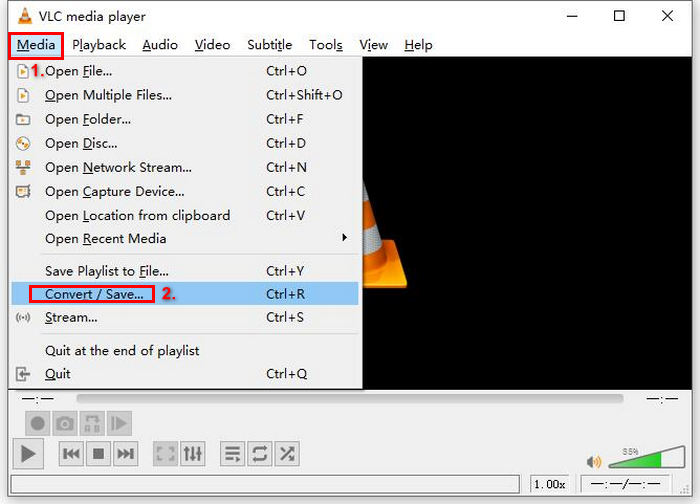
Adım 2: Sonra, Medya sekmesine gidin ve listeden Dönüştür/ Kaydet seçeneğini seçin.
Adım 3: Ardından, üst sekmeden Disk seçeneğine tıklayın, DVD seçeneğini etkinleştirin ve Disk aygıtı bölümünde kopyalamak istediğiniz DVD’yi seçin.
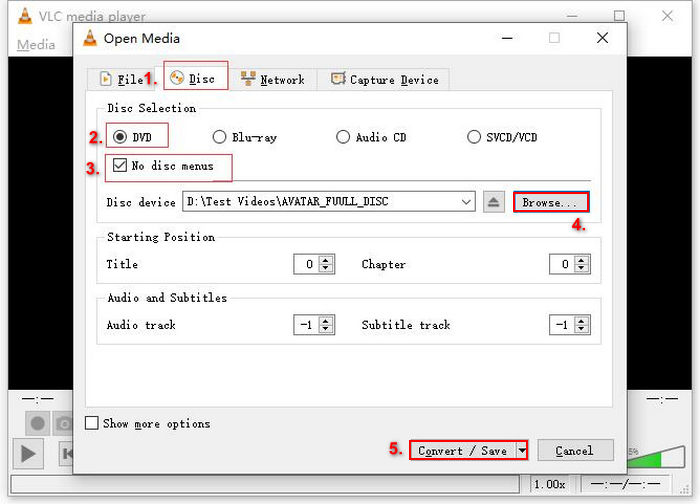
Adım 4: Şimdi, Dönüştür/ Kaydet düğmesine tıklayın ve aşağıdaki profil açılır menüsüne tıklayarak çıktı formatını MKV olarak ayarlayın.
Adım 5: Daha sonra, aşağıdaki Hedef bölümünde Gözat düğmesine tıklayın, bir klasör seçin ve çıktı dosyasına bir ad verin.
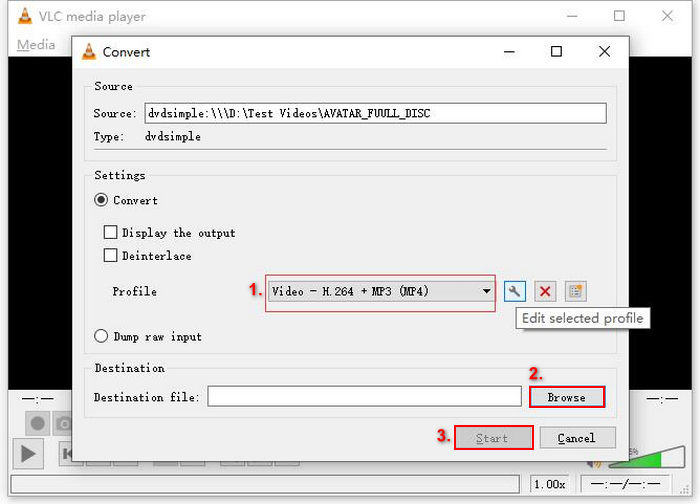
Adım 6: Her şey ayarlandığında, DVD’yi VLC ile kopyalamak için Başlat düğmesine tıklayın.
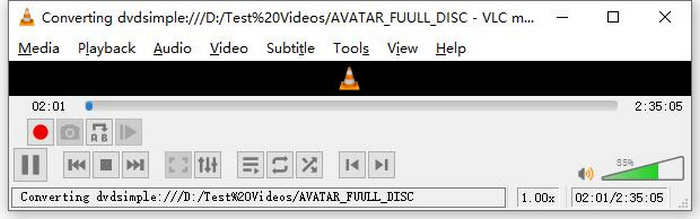
Not: Alt kısımda Dönüştürme ilerleme çubuğunu görebilirsiniz. VLC’nin kopyalama işlemini bitirmesini beklemeniz yeterlidir.
Yorum:
VLC Media Player'da sevdiğimiz şey, özellikle DVD'leri kopyalamak için ücretsiz bir seçenek arayan kullanıcılar için gerçekten güvenilir ve çok yönlü olmasıdır. Ancak, bu özelliğine rağmen, arayüzü yeni başlayanlar için biraz teknik olabilir ve süreç daha uzmanlaşmış ve özel DVD kopyalama yazılımlarına kıyasla uzun görünebilir. Ayrıca, bazı kopya korumalı disklerle mücadele edebilir ve bu durumlarda etkinliğini sınırlayabilir. Yine de, DVD'leri VLC'de kopyalamak hala önerilir.
Bölüm 2. VLC DVD Ripper Alternatifleri
VLC'ye alternatif bir DVD kopyalama aracı arıyorsanız, AnyMP4 DVD Ripper tam size göre. Bu VLC DVD kopyalama alternatifi, MP4, MOV, AVI, MKV ve daha birçok yaygın kullanılan video çıkış formatını destekleyen, tam özellikli bir araçtır. Bununla, DVD'lerinizi kalite kaybı olmadan çeşitli cihazlarda oynatmak için kolayca dijital formatlara dönüştürebilirsiniz. DVD kopyalama yeteneği olağanüstüdür ve ev yapımı, ticari, egzersiz ve 99 başlıklı DVD'ler gibi her türlü DVD'yi dönüştürmeyi destekler.
Ücretsiz İndirWindows 7 veya üstü içinGüvenli İndirme
Ücretsiz İndirmacOS 10.7 veya üstü içinGüvenli İndirme
AnyMP4 DVD Ripper kullanarak bir DVD'yi nasıl kopyalayacağınızla ilgili adımlar:
Adım 1: Öncelikle, aracı cihazınıza indirip kurmanız gerekir. Bilgisayarınızdaki DVD sürücüsüne DVD’yi takmayı unutmayın ve algılanması için birkaç dakika bekleyin.
Ücretsiz İndirWindows 7 veya üstü içinGüvenli İndirme
Ücretsiz İndirmacOS 10.7 veya üstü içinGüvenli İndirme
Adım 2: Şimdi, aracı başlatın ve diski yüklemek için "DVD Yükle"ye tıklayın.
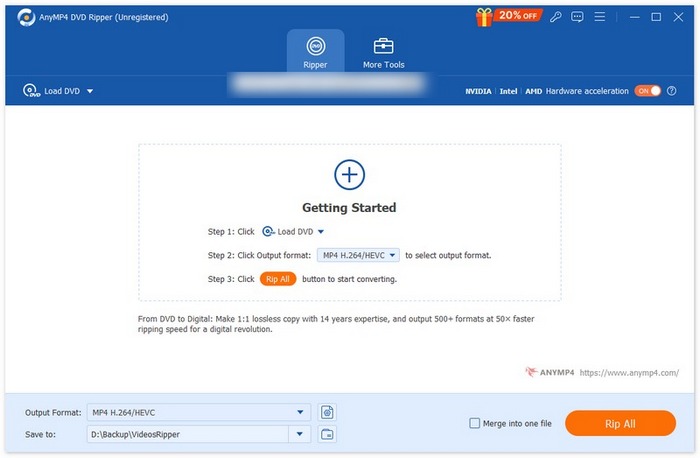
Adım 3: Ardından, aşağıdaki "Çıktı Biçimi"ne tıklayın ve "Video" sekmesinden istediğiniz video formatını seçin. Bu işlemle, DVD’nizi çeşitli cihazlar tarafından daha erişilebilir ve daha fazla desteklenen bir video dosyası formatına dönüştürebilirsiniz. İşiniz bittiğinde, DVD’nizi kopyalamaya başlamak için sadece "Tümünü Kopyala" düğmesine tıklayın.

Çok daha kolay, değil mi? AnyMP4 DVD Ripper, VLC DVD kopyalama programına gerçekten harika bir alternatif. Arayüzünden, kopyalama işlemine ve diğer gerekli özelliklerine kadar, bu araç oyunun kurallarını değiştiriyor ve VLC'nin DVD kopyalama yönteminden çok daha iyi.
Bölüm 3. DVD'leri VLC'ye Kopyalama Hakkında SSS
DVD'yi kopyalamak için en iyi format hangisidir?
Bir DVD'yi kopyalamak için en iyi format, kullanıcının cihazına bağlıdır. Ancak, MP4 yaygın ve yaygın olarak kullanılan bir video formatıdır. Bu nedenle, bir DVD'yi kopyalarken seçebileceğiniz en güvenli format MP4'tür.
Windows 7'de DVD kopyalayabilir miyim?
Evet. VLC Media Player kullanarak Windows 7'de bir DVD kopyalayabilirsiniz. VLC, Windows 7 dahil olmak üzere çeşitli işletim sistemlerini destekler. VLC'de DVD kopyalamaya gelince, diğer Windows sürümlerinde yaptığınız işlemin aynısını izleyin. Ancak uyumluluk sorunlarından kaçınmak için DVD sürücünüzün çalışır durumda olduğundan ve VLC'nin güncel olduğundan emin olun.
Bir DVD'yi kopyalamak ne kadar zaman alır?
Bir DVD’yi kopyalamanın süresi çeşitli faktörlere bağlı olarak değişir. DVD’nin boyutunu, DVD sürücünüzün hızını ve kopyalama için seçtiğiniz ayarları (örneğin çözünürlük, format vb.) dikkate almak gerekir. Ancak genellikle, standart bir DVD’yi kopyalamak 20 dakikadan bir saate kadar sürebilir. Daha yüksek kaliteli kopyalar ve daha büyük dosya boyutları genellikle daha uzun işlem süresi gerektirir. VLC’nin oynatma hızını merak ediyorsanız, buradan kontrol edebilirsiniz.
Kopyalamaya karşı korumalı DVD'leri VLC ile kopyalayabilir miyim?
Hayır. Şifreleme ve dijital haklar yönetimi korumaları nedeniyle herhangi bir yazılımın kopyalanmaya karşı korumalı DVD'leri kopyalaması zordur.
Sonuç
Artık VLC kullanarak DVD’leri nasıl kopyalayacağınızı bildiğinize göre, tüm DVD’lerinizi sonsuza kadar saklamanıza gerek yok. Bu kılavuzu izleyerek tüm disklerinizi istediğiniz yerde ve istediğiniz cihazda oynatabileceğiniz dijital dosyalara dönüştürebilirsiniz. Bu arada, VLC sizin tarafınızda çalışmazsa, alternatif olarak AnyMP4 DVD Ripper’ı deneyebilirsiniz. Hazır mısınız? Hadi buna dalalım ve kopyalamaya başlayalım.
-
 Chromecast ile PC/Mac'ten TV'ye DVD Filmleri Nasıl Aktarılır
 Chromecast aracılığıyla DVD filmlerini TV'de nasıl izleyeceğinizi bilmiyor musunuz? Bu makale, DVD filmlerinizi PC'den TV'ye Chromecast aracılığıyla aktarmanın en kolay yolunu gösterir.
-
 Android DVD Oynatıcı - Android Cep Telefonlarında DVD Videoları Nasıl Oynatılır
 Android cep telefonlarında DVD dosyaları nasıl oynatılır? Herhangi bir Android DVD oynatıcı var mı? Bu makalede, DVD videolarını harici sürücüyle veya harici sürücü olmadan Android cep telefonlarında oynatmanın 3 yolunu öğreneceksiniz.
-
 PC'de DVD Videoları Oynatmak için DVDFab Oynatıcıya En İyi 3 Alternatif
 DVDFab Player satın almaya değer mi? 4K videoları oynatabilir mi? Ücretli sürümüne ne dersiniz? Bu makale, özelliklerini ayrıntılı olarak tanıtacak ve aralarından seçim yapabileceğiniz DVDFab Player'a en iyi 3 alternatif var.
