


 Video Dönüştürücü Ultimate
 Ekran kaydedicisi
 Video Onarımı
 Güvenli İndirme
Windows ve Mac Bilgisayarlarda Zoom Kaydını MP4'e Dönüştürme
Zoom, toplantılar ve çevrimiçi dersler gibi görüntülü aramalar yapmanızı sağlayan bir platformdur. Normalde kayıtları, MP4 gibi çoğu cihazda oynatılabilen bir formatta kaydeder. Ancak, kaydı yanlışlıkla çok erken durdurursanız, dosya platformun orijinal biçimi olan .zoom formatında kalabilir ve bunu hemen açamazsınız. Bu durum, Zoom’un dosyayı otomatik olarak MP4’e dönüştürme fırsatı bulamamasından kaynaklanır. Eğer bu başınıza gelirse, platform içinde veya dışında Zoom’u MP4’e dönüştürmeniz gerekir. Neyse ki Zoom’un bu dönüştürme işlemini tamamlamasını sağlamanın birkaç yolu vardır. Size, hem Zoom programının kendisini hem de Zoom’la birlikte gelen özel bir aracı kullanarak nasıl yapacağınızı adım adım göstereceğiz. Eğer bunlar da işinize yaramazsa, bunun yerine kullanabileceğiniz başka bir aracı da listeledik. Öyleyse hemen içeriğe geçelim!

Bölüm 1. MP4'te Yakınlaştırma Kayıtları Mıdır?
Her şeyden önce Zoom, varsayılan kurulumu olan MP4 kayıtları üretir. Ancak bu bir anda olmayacak. Demek istediğimiz, kayıt sırasında ham görüntünüz henüz sandığınız MP4 formatında değil. Nitekim yukarıda da belirttiğimiz gibi süreçteki çekimler hala platformun özel formatı olan .zoom formatında olup, ancak kayıt yapılıp dönüşüm tamamlandıktan sonra MP4'e çevrilecektir. Bu özellikle kayıtları yanlışlıkla durdurduğunuzda geçerlidir.
Bölüm 2. Zoom Kaydını Zoom ile MP4'e Dönüştürmenin 3 Yolu
Şimdi platformda yoksa Zoom kayıtlarını MP4'e dönüştürmenize yardımcı olacak etkili araçlara geçelim.
1. Zoom İstemcisi (Masaüstü)
Zoom'un masaüstü istemci uygulaması içindeki tüm kayıtlarınızı takip ettiğini biliyor muydunuz? Kayıtlarınıza kolayca erişmekle kalmaz, Zoom aynı zamanda yerleşik bir dönüştürücü de sağlar. Bu, çoğu cihazda oynatma uyumluluğunu sağlayacaktır. Bu nedenle, nasıl kullanılacağından emin değilseniz Zoom kayıtlarınızı nasıl bulacağınız ve MP4 formatına nasıl dönüştüreceğinize dair ayrıntılı bir dökümü burada bulabilirsiniz.
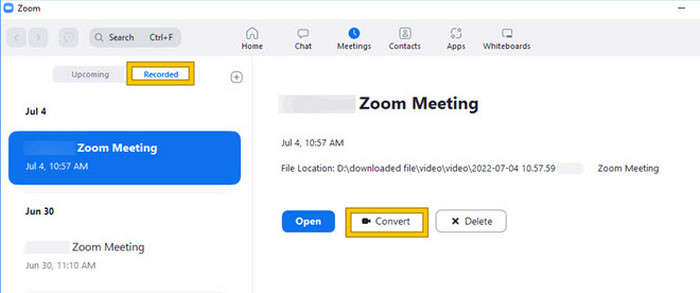
Adım 1. Zoom’u masaüstünüzde çalıştırın ve hemen toplantı geçmişinizi açmak için Meetings (Toplantılar) bölümünü bulun.
Adım 2. Açıldıktan sonra kaydedilmiş toplantılarınızın listesini göreceksiniz. Dönüştürmek istediğiniz kaydı bulun ve seçmek için üzerine tıklayın.
Adım 3. Seçtikten sonra, ekranın sağ tarafında bir seçenek bölümü belirecektir. Convert (Dönüştür) düğmesine tıklayın ve MP4 biçimine dönüştürülmüş son çıktıyı bekleyin.
2. Kod dönüştürme (macOS)
Mac kullanıcısıysanız ve Zoom'un otomatik kaydı MP4'e dönüştürmesi başarısız olursa, işte size yardımcı olacak Transcode adlı kullanışlı bir araç. Bu araç, bu .zoom dosyasını manuel olarak MP4 dosyalarına dönüştürmenize olanak tanır; bu, başarısız otomatik dönüştürme nedeniyle düzgün şekilde oynatılamayabilir. Transcode, özünde, otomatik süreç beklendiği gibi çalışmadığında Mac kullanıcılarına Zoom kayıtlarının erişilebilir ve kullanılabilir olmasını sağlamak için manuel bir çözüm sunuyor.
Adım 1. .zoom dosyanızı bulun, üzerine çift tıklayın ve açılan pencereden Choose Application (Uygulama Seç) seçeneğini seçin. Ardından, dosyayı Transcode uygulamasıyla açın; bu uygulamayı, dosyalarınız için her zaman kullanılması üzere de ayarlayabilirsiniz.
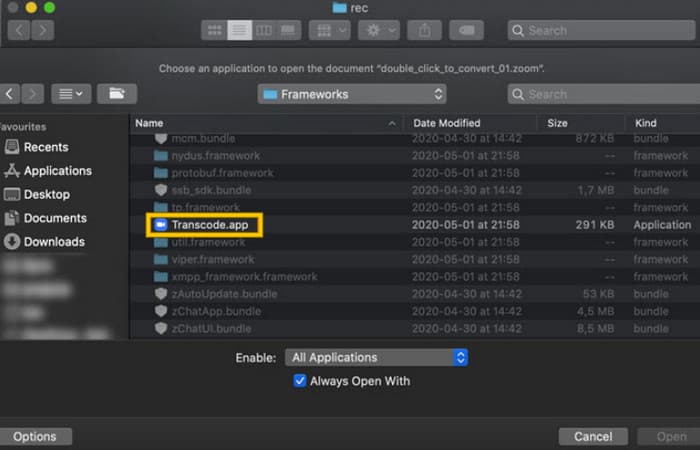
Adım 2. Uygulamayı seçtikten hemen sonra dönüştürme işlemi otomatik olarak başlayacaktır.
Adım 3. Dönüştürme işlemi tamamlandığında, çıktıyı kaydetmek istediğiniz klasörü seçin.
3.zTscoder (Masaüstü)
Masaüstünüz için öncekine benzer bir araç istiyorsanız zTscoder'ı öneririz. zTscoder, Mac kullanıcılarının benzer durumlar için kullandığı program olan Transcode'un Windows sürümüdür. Her iki araç da Zoom dosyalarınızı manuel olarak düzgün oynatılamayabilecek standart MP4 formatına dönüştürmenize olanak tanır. Bu nedenle, artık masaüstünüze bakıyorsanız aşağıdaki adımları izleyin.
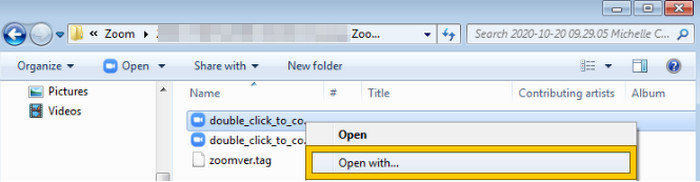
Adım 1. Zoom kayıtlarınızın kaydedildiği klasörü bulun ve dönüştürmeniz gereken kaydı seçin. Dosyaya sağ tıklayın ve zTscoder ile açın.
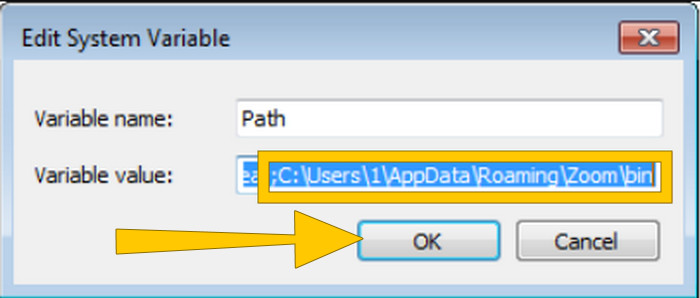
Adım 2. Eğer araç yanıt vermiyorsa, Denetim Masası’na gidin, Sistem ve Güvenlik > Sistem yolunu izleyin ve ardından Gelişmiş Sistem ayarlarını açın. Buradan değişken değerine C:\Users\*kullanıcı adınız*\AppData\Roaming\Zoom\bin yolunu ekleyin ve Tamam’a tıklayın.
Adım 3. Dosya, araçla açılacak şekilde ayarlandıktan sonra dönüştürme işlemi otomatik olarak başlayacaktır.
Bölüm 3. Yakınlaştırma Toplantılarını MP4'te 4K Kaliteye Kadar Kaydedin
Zoom toplantılarınızı doğrudan MP4 olarak almak için iyi bir çözüm mü arıyorsunuz? Onları FVC Screen Recorder ile kaydedin! Bu kaydedici, yalnızca Zoom toplantılarıyla sınırlı kalmayan, çok yönlü bir çözüm sunar. Bu araç, çevrimiçi derslerinizi, konferanslarınızı, eğitim videolarınızı ya da Zoom ekranınızda yer alan herhangi bir içeriği kaydetmenize imkân tanır. Ayrıca, sunduğu ayarlar sayesinde tüm ekranı ya da yalnızca belirli bir pencereyi kaydetme esnekliğine sahipsiniz. Önceden ayarlarını yapmanız koşuluyla, mikrofon sesini, sistem sesini ve hatta web kamerası görüntünüzü de yakalayabilir. Bu yazılım hem Mac hem de Windows bilgisayarlarla uyumludur ve kayıtlarınızı 4K’ya kadar yüksek kaliteli formatlarda kaydetmenizi sağlar. FVC’yi sevmeniz için bir diğer önemli neden de, kayıt sırasında önemli noktaları vurgulamanıza olanak tanıyan açıklama/işaretleme araçları sunmasıdır. Bu arada, işte Zoom kayıtlarını MP4’e dönüştürmenin yolu.
Adım 1. Kaydediciyi masaüstünüze kurun. Aşağıda verilen İndir düğmesini kullanabilirsiniz. Kurulum işlemi devam ederken, MP4 olarak kaydetmek istediğiniz Zoom toplantısını açın.
Ücretsiz İndirWindows 7 veya üstü içinGüvenli İndirme
Ücretsiz İndirMacOS 10.7 veya üstü içinGüvenli İndirme
Adım 2. Dönüştürücüyü başlatın ve Video Recorder aracına tıklayın. Ardından, ekran gösterimini tüm Zoom toplantı arayüzünü kapsayacak şekilde ayarlamanız gerekir. İsterseniz Sistem sesi ve Mikrofon sesini de ayarlayabilirsiniz.
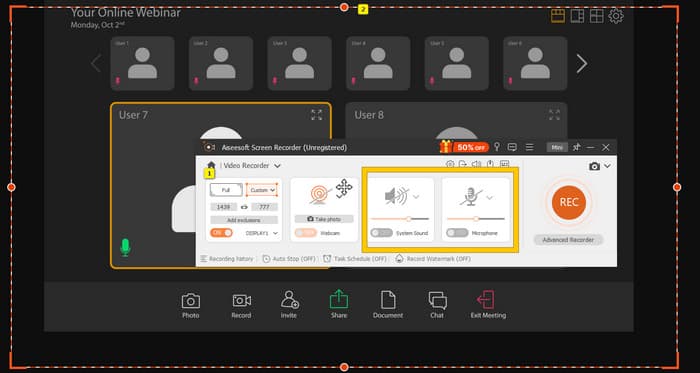
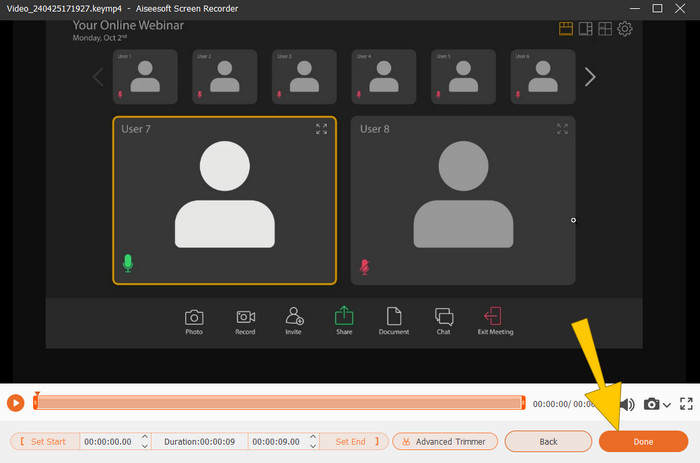
Adım 3. Sonrasında, kaydı başlatmak için REC düğmesine tıklayın. Toplantı bittiğinde, kayan çubuktan Durdur düğmesine tıklayın. Ardından yeni pencerede küçük ayarlamalar yapın. Aksi halde, kaydı kaydetmeye devam etmek için DONE düğmesine tıklayın.
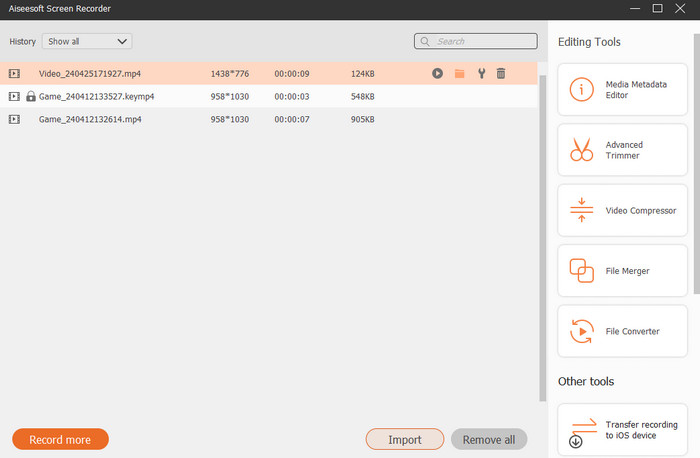
Adım 4. Daha fazla düzenleme seçeneği için araç sizi, kayıt listenizi göreceğiniz kütüphanesine yönlendirecektir. Serbestçe kullanabileceğiniz düzenleme araçları da burada yer alır.
Ek Okuma:
2024’ün Ücretsiz ve Ücretli 6 Harika MP4 Kayıt Aracı
Zoom Toplantılarını Kaydetmek için En İyi 5 Zoom Toplantı Kaydedicisi [2024]
Bölüm 4. Yakınlaştırma Kaydı Dönüşümü hakkında SSS
Zoom kayıtları MP4 mü?
Evet. Ancak kayıtlar yanlışlıkla durdurulursa MP4 formatında olmayabilir.
MP4'e dönüştürebileceğim kayıtların süresinde bir sınır var mı?
Duruma göre değişir. Ücretsiz hesapların depolama alanı ve dönüştürme seçenekleri konusunda sınırlamaları olabilirken, ücretli hesaplar genellikle daha fazla esneklik ve daha yüksek limitler sunar.
Zoom kaydını MP4'e nasıl dönüştürebilirim?
Dahili bir dönüştürme özelliğine sahip olduğundan, Zoom istemcisini kullanarak bir Zoom kaydını MP4'e dönüştürebilirsiniz. Kaydı açtığınızda Dönüştür düğmesine tıklamanız yeterlidir.
Sonuç
Varsayılan olarak Zoom toplantıları MP4 biçiminde kaydedilir, ancak kayıtlar düzgün kaydedilmediyse, yine de Zoom kayıtlarını MP4’e dönüştürmeniz gerekir. Neyse ki bu yazıda, dönüştürmeyi yapmanın etkili yolları sunuldu. Umarız sizin için faydalı olmuştur.
-
 Tüm Platformlarda Erişilebilen Muhteşem Ses Kaydediciden 7'si
 Ses kaydı yapmayı öğrenmek ister misiniz? O zaman ihtiyaçlarınıza uygun en iyi ses kaydedici hakkında konuşurken bu makaleye gidin.
-
 CamStudio 2025 İncelemesi: CamStudio Kullanmanın Artıları ve Eksileri
 CamStudio, ekran görüntülerinizi kaydetmek için harika, ücretsiz ve açık kaynaklı bir ekran yakalama programıdır. CamStudio ekran kaydedici güvenli midir? Bu inceleme, CamStudio'nun tüm özelliklerini keşfetmenize yardımcı olacaktır.
-
 VLC Player ile Ses Kaydetmenin Uygulanabilir Yolları
 Makaleyi okuyarak VLC oynatıcı ve diğer pratik araçlarla Ses kaydetmenin en iyi yollarını öğrenin.
