


 Video Dönüştürücü Ultimate
 Ekran kaydedicisi
 Video Onarımı
Dahili / Harici Kamerayla Video Kaydetmek için iMovie Nasıl Kullanılır
iMovie, macOS, iOS ve iPadOS kullanıcıları için ücretsiz bir ekran kaydedici ve video düzenleyicidir. Apple Mac ve iOS aygıtlarınızda iMovie ile ekran videosunu ücretsiz olarak kaydedebilir ve düzenleyebilirsiniz. Ayrıca, kayıtlı video ve sesi doğrudan mevcut iMovie dosyanıza yerleştirebilirsiniz. Bir iMovie ekran video kayıt eğitimi almak istiyorsanız, okumaya devam edebilir ve buradan daha fazla ayrıntı alabilirsiniz.

Bölüm 1: iMovie'de Video Nasıl Kaydedilir
iMovie'yi yalnızca ekran videosunu değil, aynı zamanda ses ve web kamerası yerleşimini kaydetmek için de kullanabilirsiniz. Böylece tüm video ve ses dosyalarını Mac'e kaydedebilirsiniz. Ayrıca çevrimiçi konferansları hem dahili hem de harici sesli olarak kaydedebilirsiniz. İşte Mac'te iMovie'de video kaydetmek için ayrıntılı eğitim.
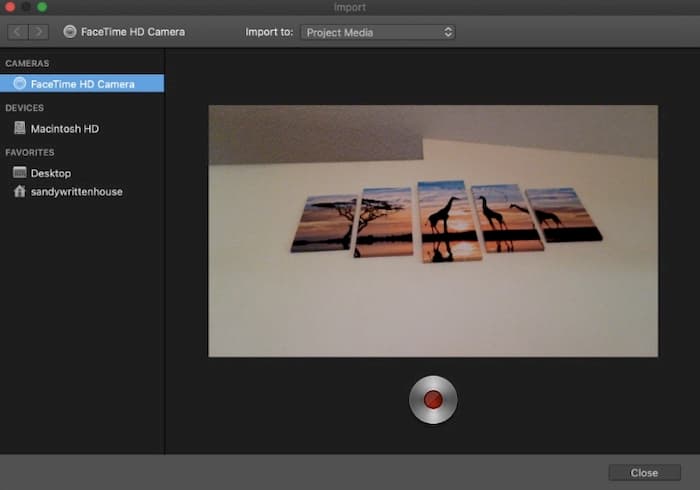
Adım 1: Mac bilgisayarınızda iMovie uygulamasını açın. Araç çubuğundaki İçe Aktar düğmesine tıklayın. İçe Aktar düğmesini, önce üst araç çubuğundaki Ortam düğmesine tıklayarak bulabilirsiniz.
Adım 2: Eğer iMovie’de kendinizi kaydetmek istiyorsanız, Kameralar bölümünden yerleşik kamerayı seçebilirsiniz. İçe Aktar penceresinde canlı bir video görüntüsü belirir.
Adım 3: İçe aktarılacak konum listesinden, ihtiyacınıza göre mevcut bir olayı seçebilir, yeni bir olay oluşturabilir ve açık projeyi seçebilirsiniz.
Adım 4: Canlı video görüntüsünün altındaki Kaydet düğmesini bulun ve tıklayın. Seçilen alanla iMovie’yi kullanarak video kaydedebilirsiniz.
Adım 5: iMovie video kaydını sonlandırmak için aynı yerdeki Durdur simgesine tıklayın.
Adım 6: Daha ileri düzenleme işlemlerine devam etmek için iMovie ana arayüzüne geri dönün.
Bölüm 2: iMovie Çalışmıyor mu? FVC Ücretsiz Ekran Kaydediciyi Kullanın
Windows için bir iMovie sürümü yoktur. Ayrıca, iMovie en son Mac işletim sistemini gerektirir. Mac işletim sistemini yükseltmek istemiyorsanız veya bir Windows kullanıcısıysanız, FVC Free Screen Recorder sizin için en iyi iMovie alternatifiniz olabilir. Windows ve Mac’te herhangi bir video ve sesi ücretsiz olarak kaydedebilirsiniz. Filigran veya maksimum süre sınırı yoktur. Böylece, saatlerce videoyu hiçbir maliyet olmadan kaydedebilirsiniz.
- 1. Videoyu tam ekran, 1280 × 720, 854 × 480, 1024 × 768 ve özel bölge ile kaydedin.
- 2. Bilgisayar sesi ve anlatımı ile ekran yakalama.
- 3. Kayıttan önce video formatını, çözünürlüğü, kodlayıcıyı, kaliteyi, kare hızını ve diğer ayarları yapın.
- 4. Video kayıt dosyanıza filigran eklenmeyecektir.
- 5. Maksimum zaman sınırı yok. Ekran videosunu sesli olarak sınırsız olarak kaydedebilirsiniz.
- 6. Windows 10/8/7 / Vista / XP ve macOS 1-.7 veya üstü ile uyumludur.
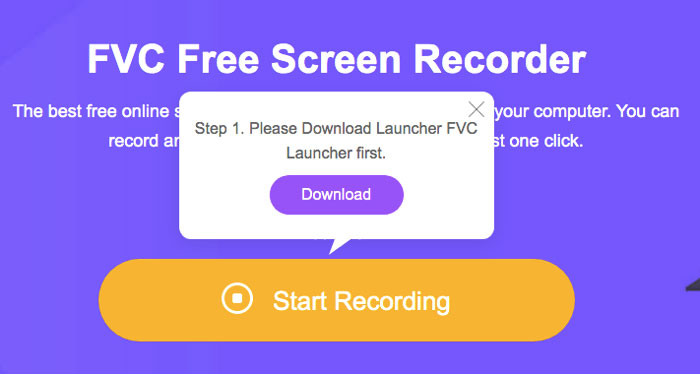
Adım 1: Tarayıcınızda FVC Free Screen Recorder web sitesini ziyaret edin. Ana arayüzde Kaydı Başlat düğmesine tıklayın. iMovie’nin Windows alternatifiyle ilk kez kayıt yaptığınızda, İndir’e tıklayıp FVC başlatıcısını kurmanız gerekir.
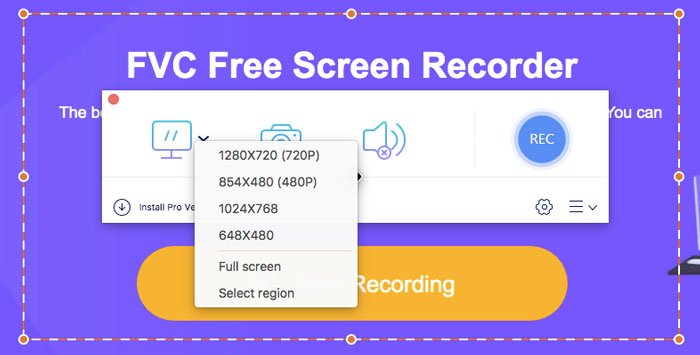
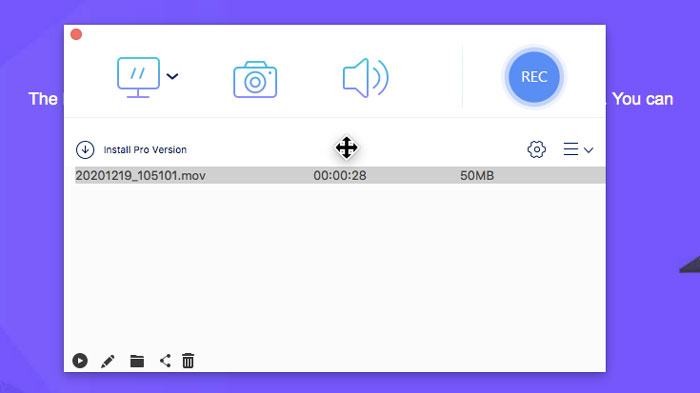
Adım 2: Ekran simgesini genişletin. Buradan hazır bölge ön ayarlarını seçebilirsiniz. Ya da farenizin sol tuşu ile çizerek özel ekran boyutu ayarlayabilirsiniz. Ses’e tıklayarak ses kaydını da etkinleştirin.
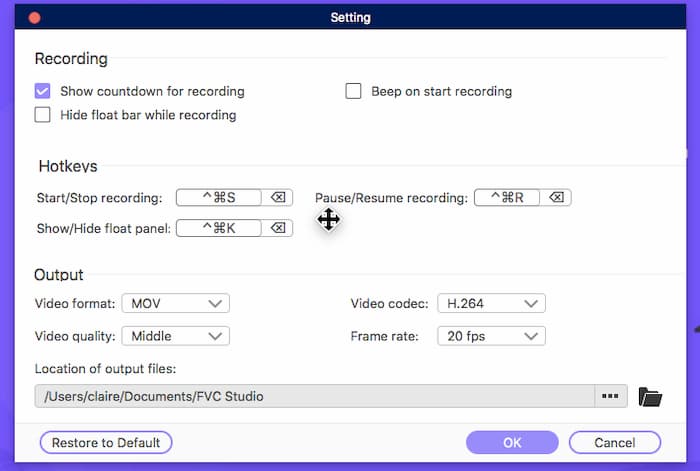
Adım 3: Sağ alt köşedeki Ayarlar simgesine tıklayın. Burada kısayol tuşları, geri sayım, kayan çubuğun gizlenmesi, video formatı ve daha fazlası dahil olmak üzere ekran kaydı ayarlarını değiştirebilirsiniz. Değişiklikleri kaydetmek için Tamam’a tıklayın.
Adım 4: Özelleştirmelerden sonra, ekran videosu kaydını başlatmak için REC’e tıklayın. Kaydı sınırsız şekilde duraklatıp devam ettirebilirsiniz.
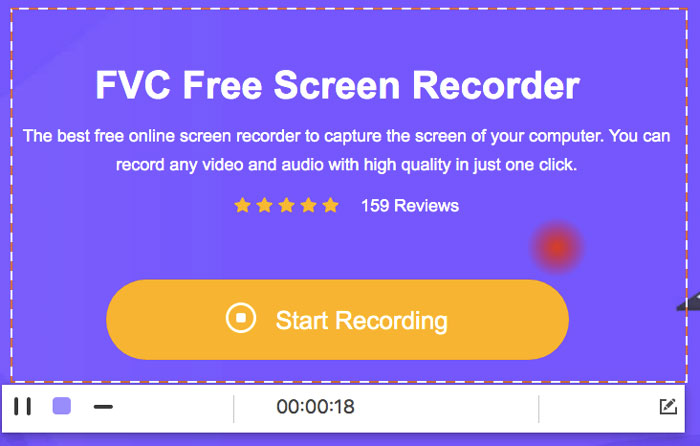
Adım 5: Ekran kaydını bitirmek için Durdur’a tıklayın. Kaydedilen videoyu doğrudan kayıt geçmişi açılır listesinden bulabilirsiniz. Ardından yeniden adlandırabilir, önizleyebilir, düzenleyebilir, paylaşabilir ve silebilirsiniz.
Bölüm 3: iMovie'de Kayıtla İlgili SSS
İPhone ekranınızı iMovie ile nasıl kaydedebilirsiniz?
iMovie uygulamasında, kayıt klibini eklemek istediğiniz yeri seçin. Soldaki + simgesine dokunun. Ardından Kamera ve Video veya Fotoğraf seçeneklerini belirleyin. Artık iPhone’unuzdaki iMovie uygulamasıyla bir ekran videosu (screencast) veya ekran görüntüsü oluşturabilirsiniz. Ayrıca, QuickTime Player ile veya iOS 11 ekran kaydı özelliğini kullanarak da ekran kaydı oluşturabilirsiniz. Sadece bir USB kablosu kullanarak iPhone’u Mac bilgisayarınıza bağlayın.
İMovie'ye video içeren bir ekran kaydı nasıl yerleştirilir?
iMovie’nin Dosya açılır listesinden Yeni Film seçeneğini seçin. Tema Yok seçeneğini belirleyin ve bir dosya adı ayarlayın. Ortamı İçe Aktar seçeneğini seçin. iMovie’ye bir video göz atıp içe aktarın.
İMovie'de kaydı ne kadar süreyle görüntüleyebilirsiniz?
İMovie kaydı için belirli bir zaman sınırı yoktur. Genel olarak, iMovie videolarını 60 dakikaya kadar kaydedebilirsiniz.
Sonuç olarak, iMovie'yi Mac ve iOS cihazlarınızda ücretsiz olarak video ve ses kaydetmek için kullanabilirsiniz. 1 saatten daha uzun ekran videosu kaydetmek istiyorsanız, FVC Free Screen Recorder'a göz atabilirsiniz. Windows ve Mac kullanıcıları için iMovie'ye alternatif ücretsiz bir ekran kaydedicidir. İMovie kayıt uzunluğu sınırını ve işletim sistemi kısıtlamasını atlayabilirsiniz.
Dahası, FVC Free Screen Recorder tamamen ücretsiz, güvenli ve kullanımı kolaydır. İMovie'den farklı olarak, bunalmış filtreler ve seçeneklerle karıştırılmayacaksınız. Tüm ekran kayıt araçlarını hafif arayüzünden hızlı bir şekilde bulabilirsiniz. Büyük bir yazılım paketini indirmeye gerek yoktur. Tüm ekran video ve ses kaydı için 1MB'den daha az bir FVC başlatıcısı kurabilirsiniz.
-
 ShareX Ekran Kaydedici İncelemesi ve ShareX ile Ekran Nasıl Kaydedilir
 ShareX ekran kaydedici ne için kullanılır? Ekranımı ShareX'e nasıl kaydederim? Bu gönderi, bir ShareX incelemesi verir ve ShareX ile ekranın nasıl kaydedileceğini gösterir.
-
 Movavi Ekran Kaydedici İncelemesi - Artıları / Eksileri / Fiyat / Eğitim / Alternatif
 Bu eksiksiz bir Movavi Ekran Kaydedici incelemesidir. Movavi Screen Recorder'ın ekran kaydında iyi bir iş çıkardığını anlayabilirsiniz. Dahası, filigran olmadan ekran görüntüsüne ücretsiz bir alternatif alabilirsiniz.
-
 Snagit 2021 İncelemesi - Artıları, Eksileri ve En İyi Alternatif
 Snagit'e en iyi alternatif nedir? Snagit gibi bir ekran yakalama aracı var mı? Bu gönderi Snagit'i inceleyecek ve ekranı yakalamak için Snagit'e en iyi alternatifi paylaşacaktır.
