


 Video Dönüştürücü Ultimate
 Ekran kaydedicisi
 Video Onarımı
OBS Ses Gecikmesi İkilemiyle İlgili Yararlı Şema
Yarın sınıfınıza sunmak ya da iş toplantılarınızda göstermek için bir video sunumu kaydetmek istiyorsunuz. Bunu yapmak için kaydı gerçekleştirmek ve bilgisayarınıza kaydetmek amacıyla OBS Studio’yu kullanıyorsunuz. Ancak sunuma bazı ayrıntılar eklemek için videoyu düzenlemeye başladığınızda, sesin geciktiğini ve senkron dışı olduğunu fark ediyorsunuz. Bu yazıda, neden OBS sesinin senkron dışı olduğunu öğreneceksiniz. Ayrıca bu durumdan nasıl kurtulacağınızı bilmiyorsanız, ses gecikmesini düzeltmek için erişilebilir yöntemler de sunuyoruz.

Bölüm 1. OBS Sesi Neden Senkronize Değil?
Çoğu yayıncının temel sorunu seslerinin senkron dışı olmasıdır; ilk birkaç dakika her şey normal görünür, ancak sonraki saat içinde dudaklarınızın açılmasıyla uyuşmayan bir ses gecikmesi başlar. Yayının belirsizliğini çaresizlik içinde düzeltmeye çalışırken bazıları gelişmiş ses özelliklerine gidip yalnızca belirli bir süre için ses kaynağına gecikme ekleyebilen senkronizasyon ofsetini ayarlamaya çalışır; bu ise önerilmez. Bunun yerine, OBS sesinin senkron dışı olmasının nedeni örnekleme hızının (sample rate) uyuşmamasıdır.
Bölüm 2. OBS Ses Gecikmesini Düzeltmek için 7 Kolay Adım
Ses gecikmesi herhangi bir durumda gerçekleşir; akış platformlarında, kayıtlı sunumlarda ve hatta canlı yayınlarda olabilir. Bunun olmasının çoğu nedeni, bağlantı sorunları, teknik zorluklar ve hatalı programlanmış uygulamalardır. Örneğin, akış etkinliğiniz için bir platform olarak OBS stüdyosunu kullanıyorsunuz ve akışını yaptığınız her video çıkışının bir miktar gecikmesi oluyor. İyi ki aynı platformu kullanarak bu durumları önlemenin mükemmel yolları var. İşte izlemesi kolay adımlar:
Adım 1: Ayarları Bulun
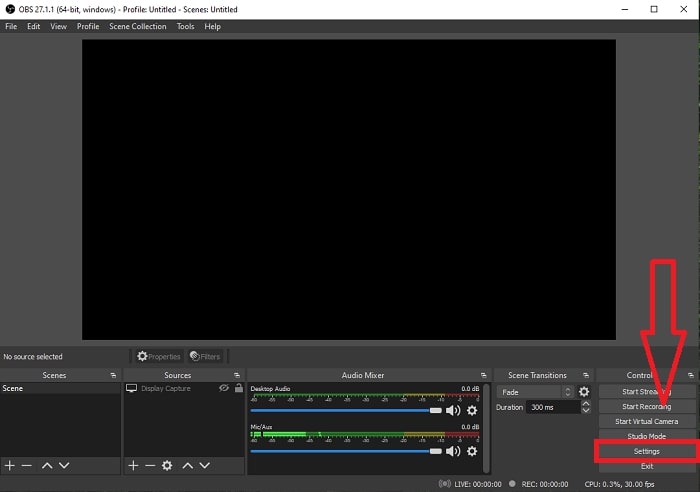
Uygulama arayüzüne devam etmek için OBS Studio'yu açın ve sağ alt köşedeki Ayarlar'a tıklayın.
Adım 2: Ses Ayarlarına Erişin
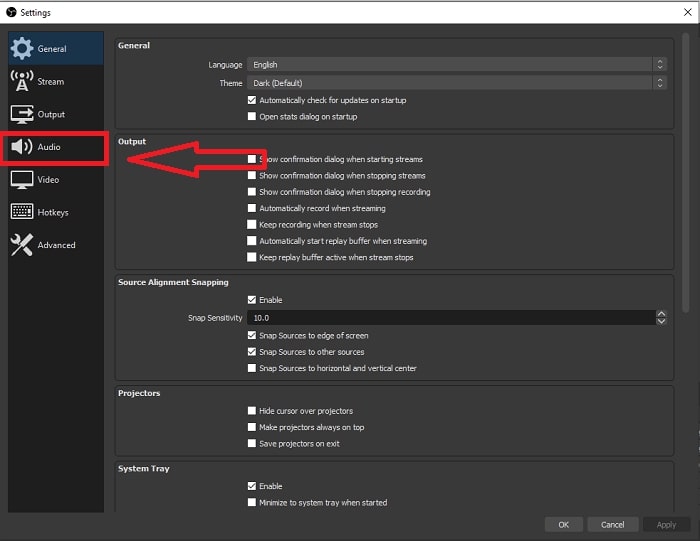
Ayarlar’a tıkladıktan sonra, ekranınızda başka bir arayüz açılacaktır. Bu arayüz, OBS Studio’nun genel ayarlarına genel bir bakış sunar. Ancak OBS Studio’daki ses gecikmesini düzeltmek için devam etmek üzere, arayüzün sol köşesindeki Ses sekmesine tıklayın.
Adım 3: Uygun Bir Örnekleme Hızı Seçin
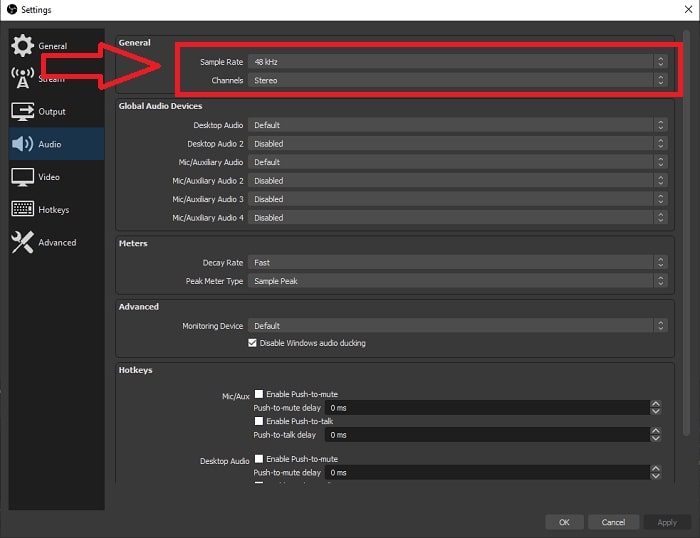
Masaüstünüzün ve kayıt cihazlarınızın tercih edilen örnekleme hızına göre örnekleme hızını düzenleyin. Kayıt cihazınızın biraz eski olduğunu ve eski bir kurulumunuz olduğunu varsayalım. Bu durumda, cihazınızın tercih ettiği örnekleme hızını gözlemlemek istiyorsanız, örnekleme hızını standart örnekleme hızı olan 48 kHz'den düşürmeniz ve ayarını 48 kHz'den artırmanız daha iyi olacaktır. Videonun örnekleme hızı ne kadar yüksek olursa, orijinal sesi o kadar yakın oluşturur. Ayrıca, videoyu oynatmak için kullandığınız araca bağlı olarak kanallar seçeneğini yalnızca değiştirebilirsiniz.
Adım 4: Ses Ayarlarını Açın
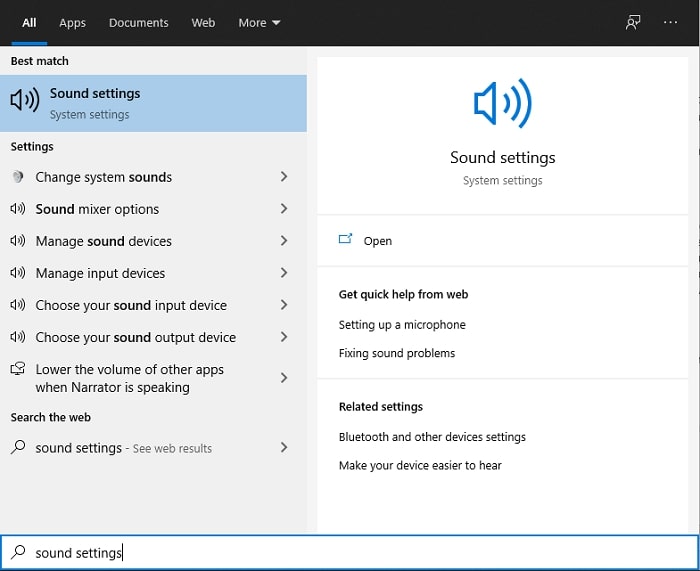
OBS Studio’da istediğiniz örnekleme hızını ayarladıktan sonra, görev çubuğundaki arama çubuğuna Ses Ayarları yazın, Ses Ayarları’nı bulun ve masaüstü ayarlarınıza ilerlemek için tıklayın.
Adım 5: Ses Denetim Masasını Bulun
Ses Denetim Masası’na tıklayın. Bunu açtıktan sonra, ekranınızda ses çıkışlarıyla ilgili tüm kullanılabilir aygıtların genel görünümünü sunan başka bir ses arayüzü belirecektir.
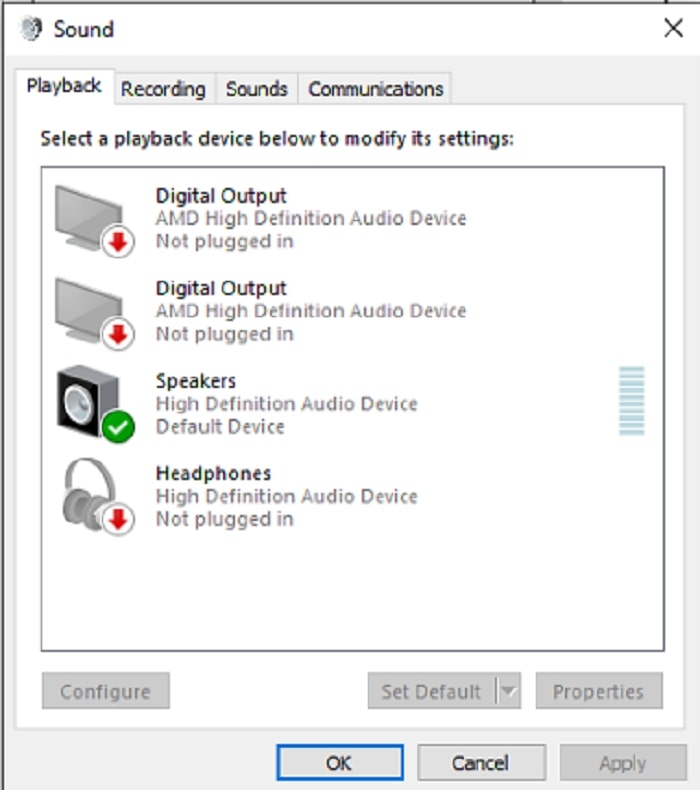
Adım 6: Ses Çıkışları için Aygıt Seçin
Mevcut seçenekler, ister hoparlör ister kulaklık olsun, kayıt kurulumunuzda bulunan cihazlardır. Sesi senkronize olmayan cihazı seçin ve ardından özellikleri tıklayın.
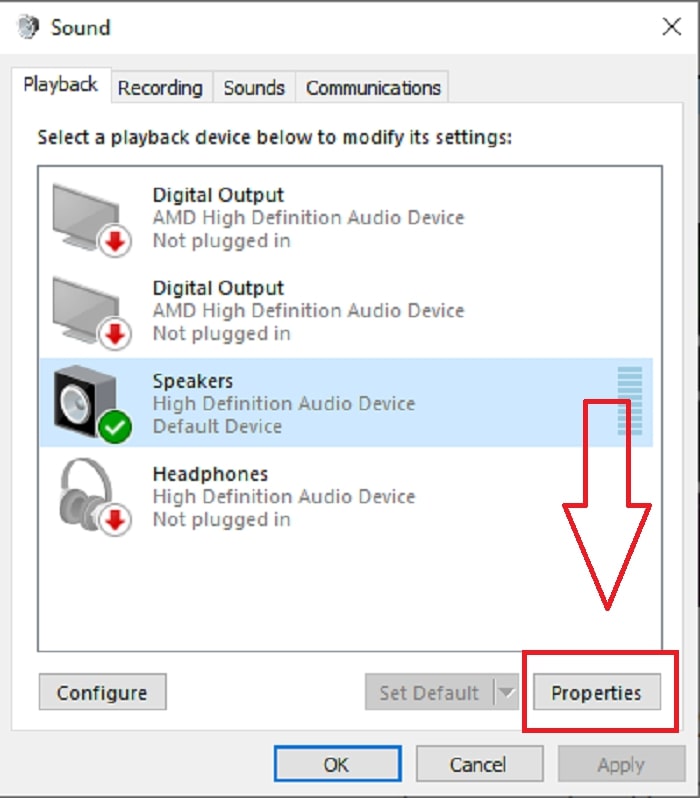
Adım 7: Gelişmiş Ayarlarda Devam Edin
Buna göre, ses çıkışı için istediğiniz aygıtın özelliklerine tıkladıktan sonra Gelişmiş sekmesine tıklayın; burada varsayılan biçimi göreceksiniz. Seçeneklerdeki her biçimi test edin ve sesi senkron dışı yapmayan biçimi seçin.
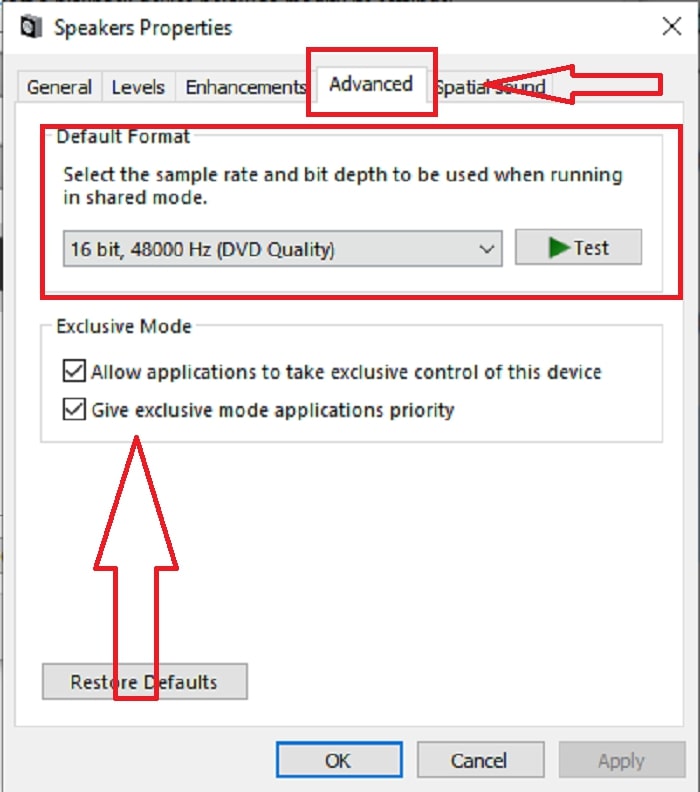
Bölüm 3. OBS Ses Gecikmesini Düzeltmenin En İyi Yolu
Yukarıdaki çözüm, OBS Studio’yu kullanarak ses gecikmesinin nasıl önleneceğini açıklıyor, peki ya sorun sunmak ya da yüklemek istediğiniz kaydedilmiş sesin senkron dışı olmasıysa? Bunun için, bir video klibi geliştirmek üzere çeşitli özelliklere sahip bir yazılım olan FVC Video Converter Ultimate’ı kullanın. Sunulan özelliklerden biri, gecikmesini ayarlayarak bir video klibin ses senkronunu düzeltebilir. Yazılımın nasıl kullanılacağını öğrenmek için aşağıdaki adımları izleyin:
Adım 1: Yazılımı bilgisayarınızın sabit diskine kaydetmek için Ücretsiz İndir düğmesine tıklayın. Ardından yazılımı kurabilir ve ayarları isteğinize göre özelleştirebilirsiniz.
Ücretsiz İndirWindows 7 veya üstü içinGüvenli İndirme
Ücretsiz İndirMacOS 10.7 veya üstü içinGüvenli İndirme
Adım 2: Yazılımı başlattıktan sonra Araç Kutusu özelliğine tıklayın ve ardından Ses Senkronu’na tıklayarak devam edin.
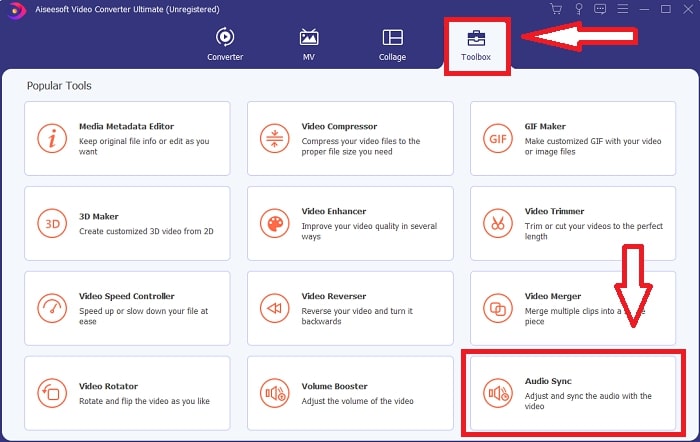
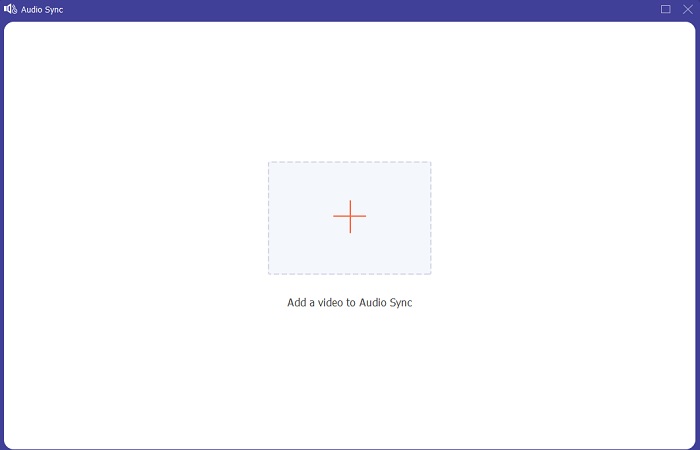
Adım 3: Ses senkronuna tıkladıktan sonra + düğmesine tıklayın ve video klibi düzenlemeye başlayın.
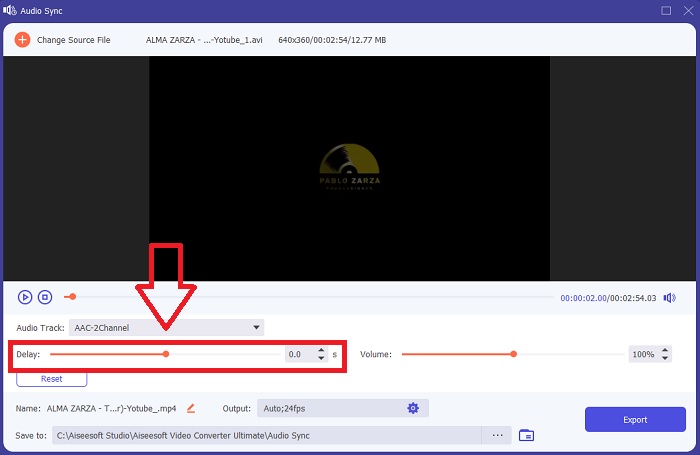
Adım 4: Video kliple senkronlamak için sesin Kaydırıcısını ayarlayın. Bununla birlikte, çıkış aygıtını da değiştirebilir ve video klibinizin ses düzeyini özelleştirmeye başlayabilirsiniz.
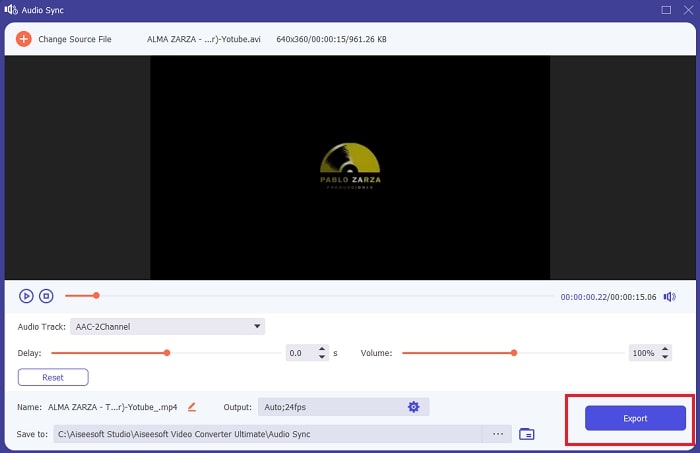
Adım 5: Düzenlemeyi bitirdikten sonra Dışa Aktar’a tıklayın ve dosyanızı nereye kaydedeceğinizi seçin.
İlgili:
Bölüm 4. OBS Ses Gecikmesi Hakkında SSS
Örnekleme hızı uyumsuzluğu nedir?
Kilohertz cinsinden ifade edilen ses örnekleme hızı, sistemin bu ölçümleri alma hızıdır. Ses örnekleme hızı, dijital seste yakalayabileceğiniz frekans aralığını belirler; çoğu DAW'da ses tercihlerinizdeki örnekleme hızı değişir. Örnekleme hızını değiştirmek sesinizin kalitesini etkiler. Bununla birlikte, örnekleme hızı uyumsuzluğu, kaynağa eşit olmayan bir ses örnekleme hızı alma ve göndermedir. Bu olay her zaman, hoparlör çıkışı ve kulaklık çıkışı ses gecikmesine neden olan örnekleme hızıyla aynı değilse meydana gelir.
Örnekleme hızını ayarlarsam ses kalitesini kaybeder miyim?
Video klibinizdeki sesi dinlemek ve değiştirmek istemiyorsanız, örnekleme hızı değişiyor. FVC Video Converter Ultimate'ı kullanırken, sesini senkronize etmek için yalnızca video klibin ses gecikmesini değiştireceksiniz. Artık örnekleme hızını ayarlamayacaksınız ve ses kalitesini kaybetmekten korkmayacaksınız.
Düşük kaliteli ses çıkışı kullanırsam hangi örnekleme hızı tercih edilir?
Ses kalitesi, ses çıkışına bağlıdır. Mikrofonunuz veya hoparlörünüz yalnızca düşük frekanslı ses hızını destekliyorsa, standart örnekleme hızını 48 Hz'e ayarlamaktansa 44,1 kHz'e düşürmek daha iyidir. Çıkış ve giriş için eşit frekans akışı yoksa, örnekleme hızı ses senkronizasyon gecikmesini etkileyebilir.
Sonuç
Özetle, ses gecikmesi sorunu, OBS Studio’da sık sık ortaya çıksa da farklı yollarla çözülebilir. Örnekleme hızı uyuşmazlığını ve farklı ses çıkışlarını ele aldık, ancak sesi senkron dışı olma sorununa çözüm sunmanın en iyi yolu FVC Video Converter Ultimate’ı kullanmaktır. Ses senkronunu düzeltebilen özelliğinin yanı sıra, video klibinizi iyileştirmenize yardımcı olabilecek daha birçok özelliğe sahiptir.
-
 Windows Media Player'ın DVD Oynatmama Sorununu Çözmek İçin En İyi 2 Çözüm
 DVD videoları Windows Media Player üzerinden oynatmak istediğinizde ancak yalnızca “Dosya türü desteklenmiyor” hatasını aldığınızda, Windows Media Player'ın DVD oynatmamasını düzeltmenin 3 kolay yolunu öğrenebilirsiniz.
-
 [Çözüldü] iPhone'da Oynatılmayan Videoları Ayrıntılı Adımlarla Nasıl Düzeltebilirim?
 Galerideki yerel videolar, varsayılan video oynatıcı aracılığıyla iPhone'unuzda oynatılamıyor mu? İPhone'da oynatılmayan çevrimiçi YouTube videoları her zaman mı oluyor? İşte bu makalede size yardımcı olacak 5 çözüm.
-
 Android Telefonlarda Oynatılmayan Videoları Onarma Rehberi
 Android cihazınızda videoların oynatılamamasının sebeplerinin neler olduğunu bilmek ister misiniz? Ve eğer öyleyse, sorunu kendi başınıza çözmenin herhangi bir yolu var mı? Daha fazlasını öğrenmek için okumaya devam edin.
