


 Video Dönüştürücü Ultimate
 Ekran kaydedicisi
 Video Onarımı
AVI dosyalarını Mac OS'de iMovie'ye Nasıl Aktaracağınızı Anlayın
As we all know, iMovie is notorious for editing videos on Mac. If you use this tool, you can see why it is one of the best in editing. But as we speak about the beauty of iMovie, there are some cases where you can't import videos to edit. This incident is very common when you import AVI file format. Because of its wide scale covered codec AVI format became popular to the users. Yet, it is very challenging to use this format especially when the codec is not supported by the tool you use. So here you are wondering how to convert AVI to iMovie format to edit the video later. In the list below, here are some tools you can use to convert AVI format and learn why you can't load video files on iMovie.

Bölüm 1. iMovie Neden AVI Dosya Biçimini İçe Aktaramadı?
Her ne kadar iMovie yalnızca Mac'te geçerlidir, bu nedenle Windows'un kodeklerinin sağladığı önceliğin daha az olmasını bekleyin. Ancak videoları içe aktaramamanızın bazı nedenleri vardır. Listede, iMovie'ye başka bir formatı içe aktaramamanızın 2 nedeni hakkında konuşacağız.
First reason: iMovie only supports a small scale of codecs. This might be the reason why you can't do editing to iMovie because of the codec compatibility. In the case of AVI format it should be encoded into MJPEG data or else the file will not be imported.
Second reason: Your iMovie is or your Mac OS is not updated. This reason is easy to understand because if your software or operating system is not up to date. Then there is a chance that it can't support up to date formats.
These are the most common reasons why you can't edit into iMovie but in every problem, there is always a solution. For that reason, here are some ways to fix this problem and you'll need to learn how to convert AVI files to iMovie accessible format and codec presented.
Bölüm 2. En İyi AVI Dönüştürücülerinin Yardımıyla AVI'yi iMovie Uyumlu Formata Dönüştürün
1. FVC Ücretsiz Çevrimiçi Video Dönüştürücü
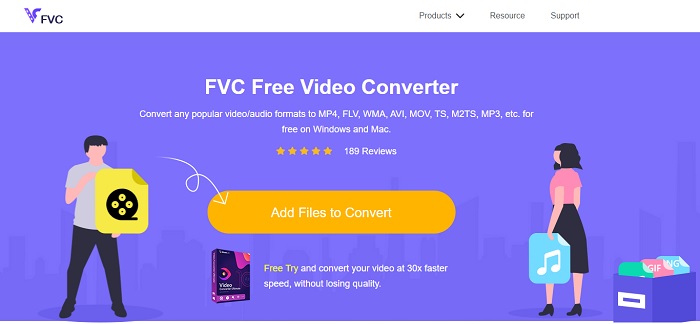
This free AVI to iMovie can do the task of converting. Unlike the tool below FVC Free Video Converter is free to access and no download needed. Also, this online tool is the free version of the tool below. As being said, they provide good compression but the difference between the two is that. This tool doesn't have the major features like the premium tool provides and the other formats to choose on. Nevertheless, it is still the best online tool compared to the other converter you can depend on. So, before anything else let's now proceed how this tool works by following these easy steps below.
Step 1. Click this link to go to the main webpage of the tool.
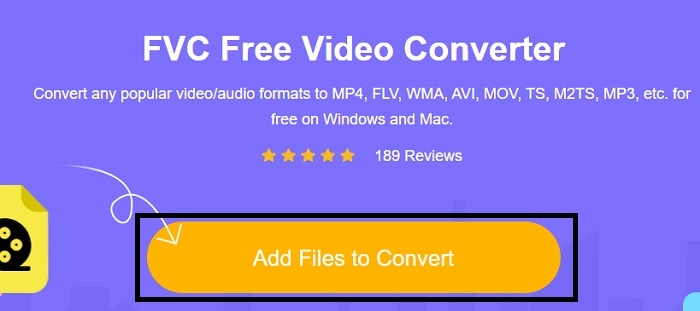
Step 2. Press the Add Files to Convert to launch the online converter.
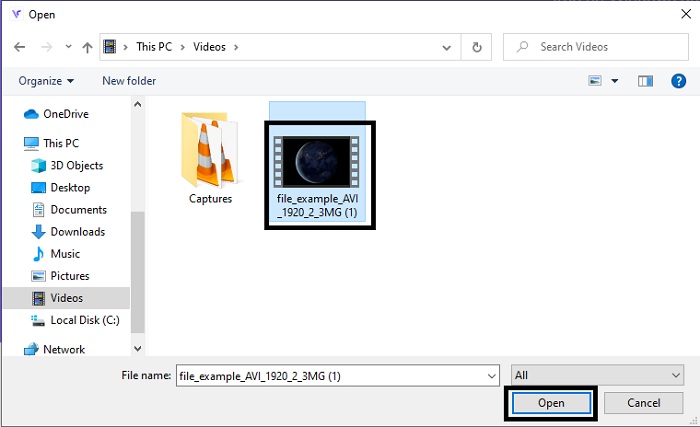
Step 3. As we proceed, cull the AVI file and press open to insert it into the interface.
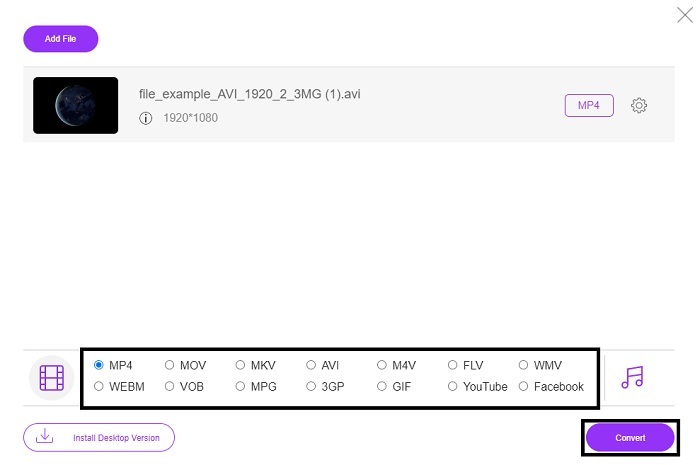
Step 4. Choose what iMovie format you want it to be. After choosing, click the Convert to start the process.
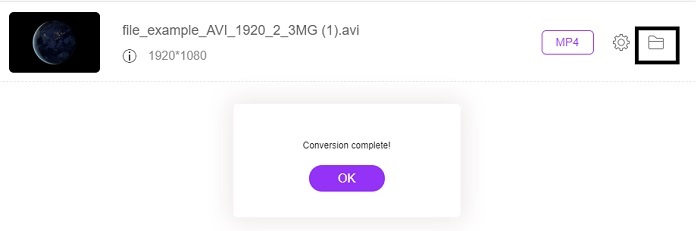
Step 5. Go to the file manager and search for the finished product.
2. FVC Video Dönüştürücü Ultimate
Daha önce de söylediğimiz gibi, çevrimiçi araç size düzenleme özelliklerini ve diğer formatı da vermiyor. FVC Video Converter Ultimate, özellikle düzenleme konusunda iMovie'ye alternatif olarak kullanılabilir. Kullanıcılara ve müşterilere her medya dosyasını değiştirme ve geliştirme, düzenleme veya daha yeni bir sürüm oluşturma yeteneği verir. Ancak bu aracın ödenmesi gerekiyor, ancak maliyetli değil bu yüzden endişelenmenize gerek yok çünkü bu araç için ödeyeceğiniz her kuruş yine de buna değer.
So, after you convert AVI to iMovie format later you can enhance it before bringing it in iMovie or you can also not bring it there and do the editing here. If we talk about how perfect this tool is, we might need roughly two or more articles to explain it properly. So, without any more delay let's proceed on our journey to successfully convert AVI into a new format by copying these steps below.
Step 1. Before you can use this tool, you'll need to download it to your desktop. Choose the right operating system that supports your desktop. After the downloading process follow the set-up next and click finish to launch the tool.
Ücretsiz İndirWindows 7 veya üstü içinGüvenli İndirme
Ücretsiz İndirMacOS 10.7 veya üstü içinGüvenli İndirme
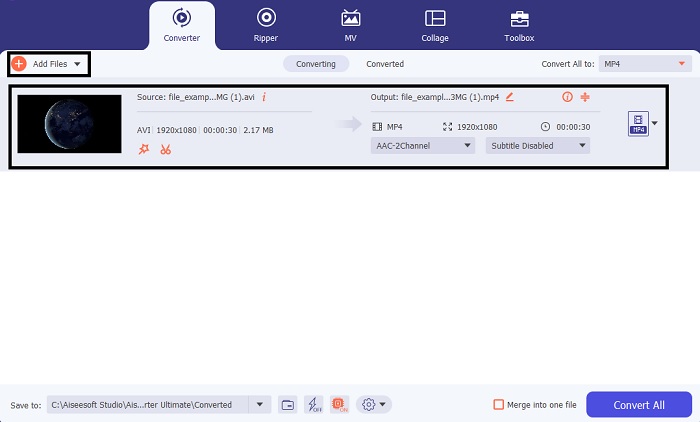
Step 2. To insert the AVI file to convert click the Add Files or the plus sign whether what you choose between the two is okay. Select the file that you wanted to be converted and click open to proceed.
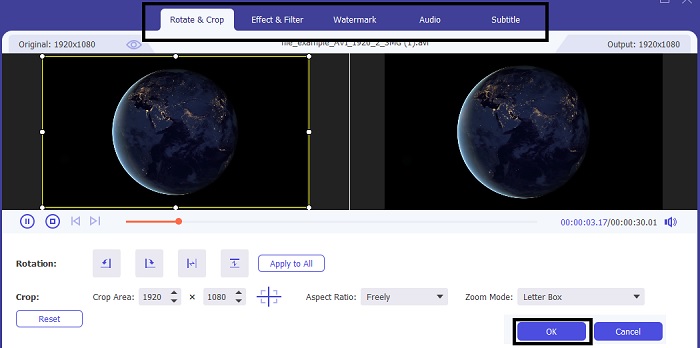
Step 3. On the interface of the FVC tool, you will see a magic wand-like shaped button there, then click it. A new interface will be shown to your screen, where you can edit the video into a better one. Reminder, this step is only a bonus if you want to do editing before you convert. So, later you will not need the iMovie to edit if you want. Press OK to save.
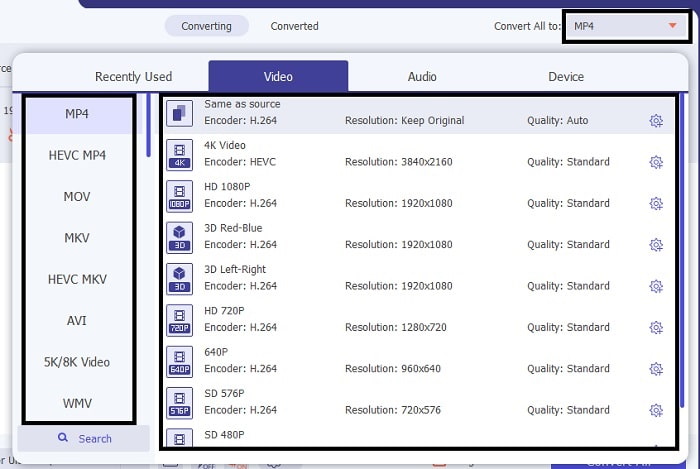
Step 4. After all the process, click the drop-down button and choose what iMovie format you want it to be. If you already choose the new AVI format you must click the Convert All to give the tool the signal to start the conversion.
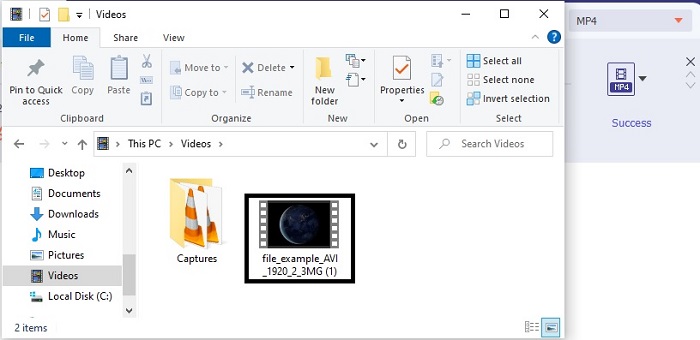
Step 5. The conversion will only take a couple of seconds, after it is done. And a folder containing your new format will be shown onto your screen. Click the file to watch it and congrats you can now edit it in iMovie.
Bölüm 3. AVI to iMovie hakkında SSS
iMovie'nin yaratıcısı kimdir?
iMovie, Apple Inc. tarafından tescilli düzenleme aracı olarak oluşturuldu. Apple Inc. ile ilgili diğer gerçekler, Mac kullanıcıları için yerel medya oynatıcıları ve formatı olarak QuickTime oynatıcı ve MOV formatını da geliştirdiler.
Mac'te AVI formatı için en iyi alternatif nedir?
It is probably the MOV format because it was intended to be used on Mac. Do you want to know how to convert AVI files into a MOV format? Then click this link to learn more about the AVI to MOV converters.
AVI formatı kullanmanın dezavantajı nedir?
Yukarıda, bu formatın farklı kodekler içerebileceği söylendi ve bu iyi. Ancak AVI formatı sıkıştırılmamış, bu nedenle 2 ila 3 dakikalık bir videoya sahip olmak çok büyük bir dosya boyutu bekliyor. Yine de, AVI hakkında daha fazla bilgi edinmek istiyorsanız, AVI'nin ne olduğunu öğrenmek için buna tıklayın.
Sonuç
Before we were blind and confused because we didn't have any idea how to deal with this problem. But now, it is clear to us that you will need to convert the AVI file to edit it on iMovie. So, now no more asking about how to import AVI files into iMovie and edit it later. If you have chosen the FVC Video Converter Ultimate then you deserve an applause for yourself. Because you chose the tool that provides a solution in all your converting, merging, enhancing, compressing, and more problems you may encounter in the future. Decide what's the best for you and that best is the FVC Video Converter Ultimate.
-
 AVI'yi FLV'ye Ücretsiz Dönüştürmenize Yardımcı Olacak Somut Kılavuz
 AVI'yi FLV'ye dönüştürmek için güçlü bir video dönüştürücüye ihtiyacınız var. Neyse ki, bu tek makaleden ikisini ve adım adım kılavuzunu öğrenebilirsiniz.
-
 AVI Videolarını Windows/Mac'te Animasyonlu GIF Dosyalarına Dönüştürme
 GIF memleri oluşturmak için ilginç AVI bölümlerini seçmek ister misiniz? Bu makale, AVI videolarını kırpmak ve AVI'yi ücretsiz olarak animasyonlu GIF dosyalarına dönüştürmek için en iyi 2 yöntemi anlatacaktır.
-
 [2 En İyi Çözüm] AVI Filmleri iPhone/iPad'de Kolayca Nasıl Oynatılır
 AVI filmlerini iPhone/iPad'inizde oynatamıyor ve üçüncü taraf video oynatıcıları indirmek istemiyor musunuz? AVI videolarını iPhone'da oynatmak için dönüştürmenin 2 etkili yolunu öğrenebilirsiniz.
