


 Video Dönüştürücü Ultimate
 Ekran kaydedicisi
 Video Onarımı
Profesyonel Gibi Bir Tiktok Video Gönderisine Nasıl Resim Eklenir Hakkında Kısa Tartışma
Tiktok dünya genelinde şimdiden bir milyardan fazla indirme aldı ve bugün hâlâ büyümeye devam ediyor. Kullanıcılar bu uygulamayı kullanmaktan memnun, çünkü 3 dakika veya daha kısa videolar çekmemize ve tüm dünyadaki diğer insanların videolarını izlememize olanak tanıyor. Daha iyi olmayı hedeflerken, Tiktok videonuzu benzersiz kılmak için kullanabileceğiniz pek çok özellik sunuyor; bunlardan biri de videoya görsel eklemek. Ancak Tiktok’ta çekim yaparken görsel eklemek bazı kullanıcılar için biraz zor olabilir. Neyse ki, üç yöntemle bir TikTok videosuna nasıl resim ekleyeceğinizi adım adım gösterecek bir yol bulduk ve bundan öğrenebilirsiniz.

Bölüm 1. İki Yerleşik Tiktok Özelliğini Kullanarak TikTok Videosuna Nasıl Fotoğraf Koyulur
Başlamadan önce, bu yazıda eklediğimiz iki yolun Tiktok'ta zaten olduğunu bildirmek isteriz. Şimdi, lütfen en çok hangi yöne uyacağınızı seçin ve videonuzu görüntüsü ile çekmenin keyfini çıkarın.
1. Yol. Fotoğraf Tiktok Videoda Arka Plan Olarak Nasıl Kullanılır
Sahip olduğunuz resmi arka plan olarak kullanmak istediğinizi varsayalım; peki, seni koruduk. Lütfen aşağıda verdiğimiz ayrıntılı adımları okuyun ve Tiktok'ta video ve resimleri nasıl bir araya getireceğinizi öğrenin.
Adım 1. Play Store veya App Store’dan Tiktok uygulamasını indirin, ardından açın.
Adım 2. Daha sonra + düğmesine tıklayın ve Efektler bölümüne gidin.
Adım 3. Seçenekleri görmek için menüyü kaydırın, Yeşil Ekran efektini bulun ve tıklayın. Seçenekler arasından birini işaretleyin, ardından arka plan olarak kullanmak istediğiniz görseli seçin.
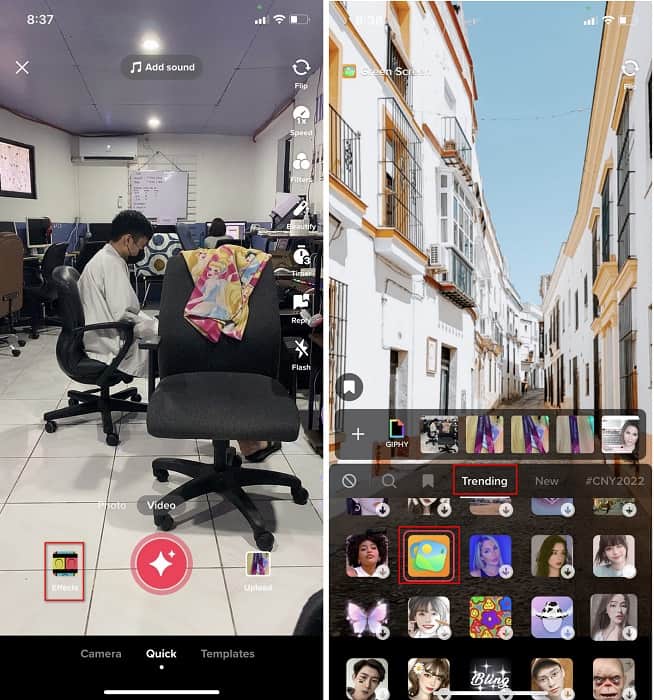
Adım 4. Görsel arka planla video çekmek için yuvarlak KAYIT düğmesine tıklayın, durdurmak için tekrar tıklayın, İleriye dokunun ve hesabınızın klasörüne kaydetmek için Taslakları seçin.
2. Yol. Videoları Çekerken Tiktok'a Nasıl Resim Eklenir?
Çoğu kullanıcı favori sanatçılarının, arkadaşlarının, ailesinin, gadget'larının vb. eklenmiş bu resmini kullandığından bu yöntem modadır. Belki de zaten bir fikriniz vardır ve şimdi size bir TikTok videosuna nasıl fotoğraf ekleyeceğinizi öğretmek için aşağıdaki adımları izleyin.
Adım 1. Play Store veya App Store’dan Tiktok’u indirin ve ardından aşağıdaki adımları uygulamak için açın.
Adım 2. + düğmesine basın ve ardından Efektlere tıklayın.
Adım 3. Trend bölümüne girin, bu görsel simgesini bulun ve tıklayın. Sonra istediğiniz görseli seçin ve ekranda dilediğiniz yere yerleştirin.
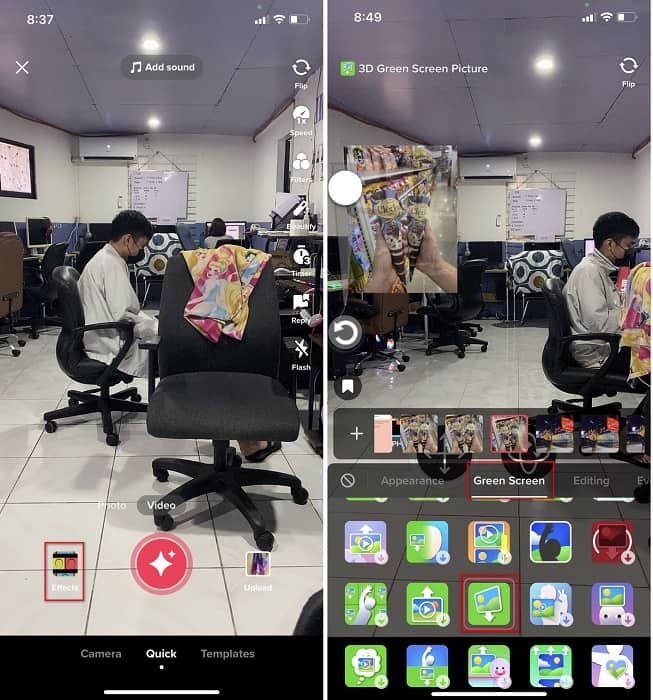
Adım 4. Kaydı başlatmak için kırmızı düğmeye dokunun; kaydı bitirdiğinizde durdurmak için aynı düğmeye tekrar tıklayın. İleriye, ardından da videonun henüz hesabınızda paylaşılmaması için Taslaklara basın.
Bölüm 2. Windows ve Mac'te Ultimate Way Kullanarak TikTok Videosuna Resim Nasıl Eklenir
Bir sırrı öğrenip bir TikTok videosuna nasıl resim konulduğunu bilmek mi istiyorsunuz? Tiktok’un sunduğu yerleşik düzenleyiciden memnun değil misiniz? Öyleyse, Video Converter Ultimate kullanmanız gerekir. Düzenleme yapmaktan hoşlanıyorsanız, Tiktok’a yüklemeden önce bu aracı kullanarak videolarınıza görsel, efekt, filtre ve daha fazlasını ekleyebilirsiniz.
Bu araçla, diğer kullanıcıları nihai çıktıyla etkilemek için etkileyici bir video yapabilirsiniz. Ancak, desteklenmediği için aracı telefonunuza indiremezsiniz. Ancak bir masaüstünüz ve bu aracınız varsa daha fazlasını yapabilirsiniz. Tiktok videolarınıza görsel eklemek ister misiniz? Tiktok videosuna nasıl resim ekleneceğini öğrenmek için aşağıdaki öğreticiyi takip edin.
Adım 1. Aşağıdaki indirme düğmesine tıklayarak Windows ve Mac’inize doğrudan Ultimate’ı indirebilirsiniz. Ardından hızlıca kurun ve aracı açarak sisteminizde çalıştırın. Sonraki adımlara geçmeden önce, aracın arayüzüne biraz alışmanız gerekecek. Arayüze zaten aşina iseniz, bir sonraki adıma geçin.
Ücretsiz İndirWindows 7 veya üstü içinGüvenli İndirme
Ücretsiz İndirMacOS 10.7 veya üstü içinGüvenli İndirme
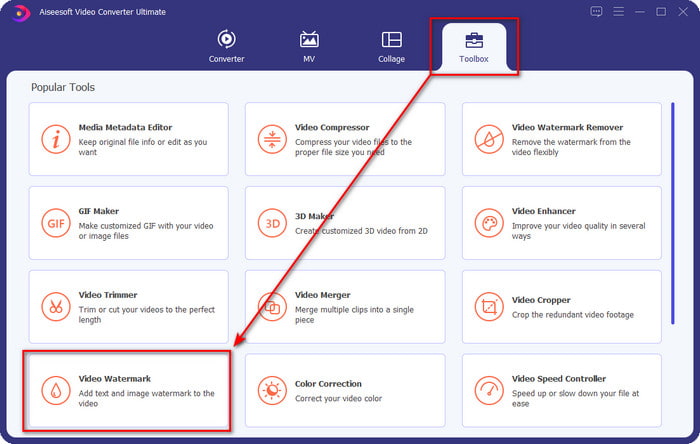
Adım 2. Araç Kutusu bölümüne tıklayın ve Video Filigranını bulun.
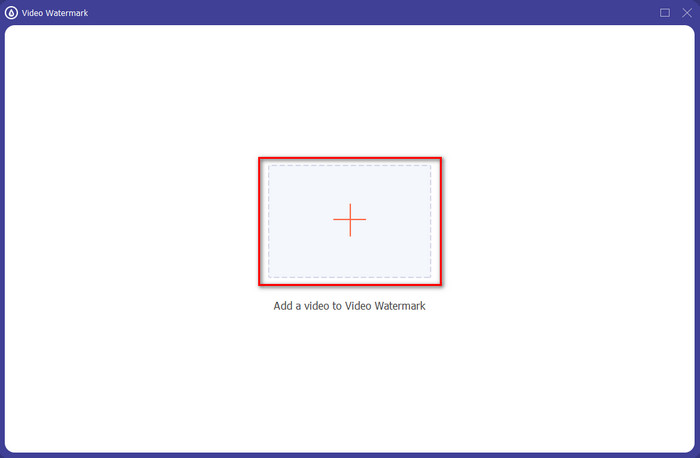
Adım 3. + işaretine tıklayarak video dosyasını ekleyin, ekranda açılacak klasörden dosyayı bulun, tıklayın ve yüklemek için Aça basın.
Adım 4. Yeni pencerede Görsel Filigrana tıklayın. Ekranınızda başka bir bilgisayar klasörü açılacak; eklemek istediğiniz görseli bulun ve Aça basın.
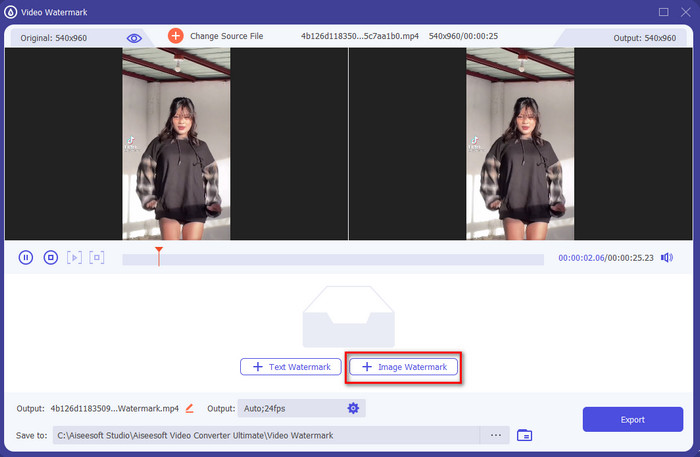
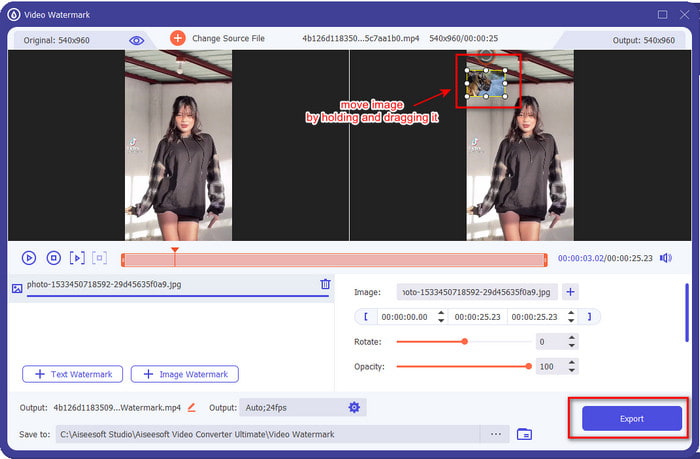
Adım 5. Görselin çerçeve oranını sürükleyerek boyutunu ayarlayın. Görseli tutun ve taşıyın, istediğiniz yere yerleştirin. Tüm işlemler bittiğinde, resmi içeren TikTok videosunu kaydetmek için Dışa Aktar düğmesine tıklayın.
Bölüm 3. TikTok Videolarına Fotoğraf Ekleme Hakkında SSS
Tiktok filigranını nasıl kaldırabilirim?
Tiktok’un filigranını nasıl kaldıracağınızı öğrenmek için bu makaleye tıklayıp okuyabilirsiniz; içinde bunu yapmanın yöntemini bulacaksınız. Bu yazıdaki ayrıntılar, dışa aktarılan videodaki TikTok filigranını kaldırmanın etkili bir yolunu sunar; endişelenmenize gerek yok, çünkü adımlar kolay takip edilir ve anlaşılır.
TikTok'u kullanmak güvenli mi?
TikTok'u kullanmak güvenlidir. Bununla birlikte, bazı videolar diğer kullanıcıları her yaş için güvenli olmayan ölüme meydan okuyan gösteriler yapmaya zorlar. Ayrıca, uygulamada uçtan uca şifreleme yoktur, bu nedenle alıcı ve gönderen arasındaki iletişim şifrelenmez veya basitçe korunur. Buna ek olarak, bazı kanıtlar TikTok'un kullanıcıların biyometrik bilgilerini topladığını söylüyor; Spesifik olmak gerekirse, ses izlerini ve yüzleri çalar. Bu nedenle, uygulamayı akıllıca kullanmayı unutmayın ve asla kendiniz hakkında çok fazla önemli bilgi eklemeyin.
Tiktok neden zehirli oldu?
Tiktok kullanıcılarının bu nesilde oluşturduğu kültür zehirli hale geldi ve bazı kullanıcılar video paylaşım uygulamasını özellikle küçük çocuklar için sağlıksız buluyor. Bir kişinin uyruğu hakkında önyargı, cinsiyetçilik, herkes için güzellik standardı, zorbalık gibi uygunsuz içeriklerin görülmesi kaçınılmaz hale geldi. Bu kaçınılmaz olsa da, hala tüm TikTok kullanıcılarının toksik olmadığını kanıtlayan içerik var. Ve hala bu toksisiteyi değiştirmek ve onu barışçıl ve sevgi dolu bir topluluğa dönüştürmek için bir şans olduğuna inanıyoruz.
Sonuç
Artık bir Tiktok videosuna nasıl resim ekleyeceğimizi bildiğimize göre, iyi hisler uyandıran ya da herkese farklı gelen benzersiz Tiktok videolarınızı görsellerle birlikte paylaşma zamanı. Ancak, doğrudan resimle çekim yapmak hareketlerinizi sınırlayabilir, çünkü görsel ekranın bir kısmını kapatır. Ama üzülmeyin; önce videoyu çekip bilgisayarınıza aktarabilir ve görseli sonradan eklemek için Video Converter Ultimateı kullanabilirsiniz. Bu sayede Tiktok videolarınız üzerinde çok daha fazla şey yapabilir ve onları diğer videolardan daha etkileyici hale getirebilirsiniz. Öyleyse ne bekliyorsunuz? Masaüstünüze hemen indirin ve en iyi, en etkileyici Tiktok videolarını hazırlamaya başlayın!
-
 Windows ve Mac'te Photoshop'ta Bir Videoya Filigran Eklemenin En İyi Yolu
 Photoshop'ta bir videoya nasıl filigran ekleneceğini bilmek ister misiniz? Bu durumda, bu makale size bilmeniz gereken bir veya iki şeyi sağlayacaktır.
-
 Videolardan Filigranı Kolayca Kaldırma Konusunda En İyi 3 Çözüm
 Videodaki can sıkıcı filigranı kaldırmak ister misiniz? Bu blog ile bir videodaki filigranı kaldırmayla ilgili farklı fikirleri öğrenebilirsiniz.
-
 Herhangi Bir Videoya Hızlı Bir Şekilde Filigran Eklemenin En İyi 4 Yolu
 Bu makaleyi okuduysanız, Windows, Mac, Online, iOS ve Android'deki herhangi bir videoya nasıl filigran ekleneceğini ayrıntılı adımlarla öğrenelim.
