


 Video Dönüştürücü Ultimate
 Ekran kaydedicisi
 Video Onarımı
Adımları İzlemesi Kolay iMovie'de Bir Videoya Nasıl Metin Yapılır ve Eklenir
iMovie ile harika bir video oluşturmak için ihtiyaç duyduğunuz karmaşık düzenlemelerin çoğunu yapabilirsiniz, bu yüzden iMovie'de videoya metin eklemek çocuk oyuncağıdır. Ama asıl soru bunu nasıl yapacağınız. Apple’ın sunduğu en iyi editörlerden birini kullanarak videoya metin eklemek zor mu? Bu soruların hepsinin yanıtını, bu makaleyi baştan sona dikkatlice okursanız aşağıda bulacaksınız. Endişelenmenize gerek yok; okuma hızınıza bağlı olarak yalnızca 5 dakikanızı ya da daha azını alacak, ama yine de kendinize zaman tanıyın. Ve bu yazının sonunda videonuza nasıl metin ekleyeceğinizi biliyor olacaksınız. Öyleyse kemerleri bağlayalım ve vakit kaybetmeden yolculuğa başlayalım.

Bölüm 1. Mac'te iMovie'de Videoya Metin Nasıl Eklenir
Bir Mac'iniz varsa adımları anlamak çok kolay olacaktır çünkü sunduğumuz bu eğitim, videonuza metin filigranı ekleme konusunda sizi başarıya götürecektir. Tam olarak izleyin ve Mac'inizi kullanarak iMovie'de bir videoya nasıl metin ekleyeceğinizi anlayın.
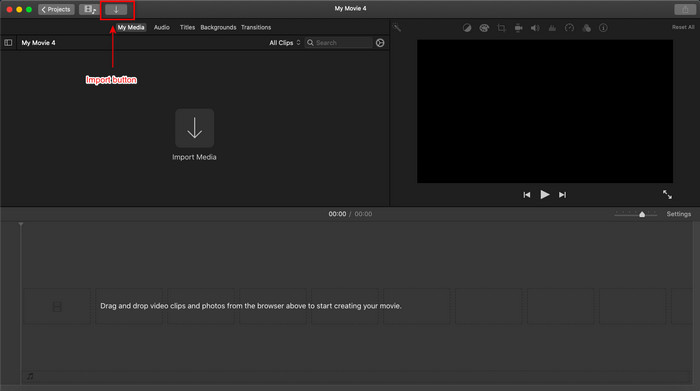
Adım 1. Finder’da iMovie’yi bulun ve açın. Ardından metin filigranı ekleyeceğiniz video dosyasını yüklemek için İçe Aktar düğmesine tıklayın. Dosyayı video zaman çizelgesine sürükleyip bırakın.
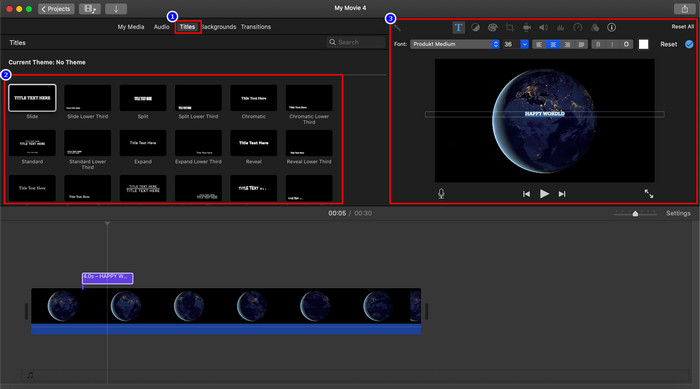
Adım 2. Başlıklar’a tıklayın ve kullanmak istediğiniz animasyonlu metni seçin; animasyonlu başlığa iki kez tıklayın, böylece otomatik olarak zaman çizelgesine eklenecektir. Önizleme bölümünde, metin başlığına tıklayın ve eklemek istediğiniz metni yazın. Bu alanda yazı tipi stilini, hizalamayı, rengi ve metinle ilgili daha pek çok şeyi düzenleyebilirsiniz. Metni istediğiniz yere sürükleyerek konumunu ayarlayın.
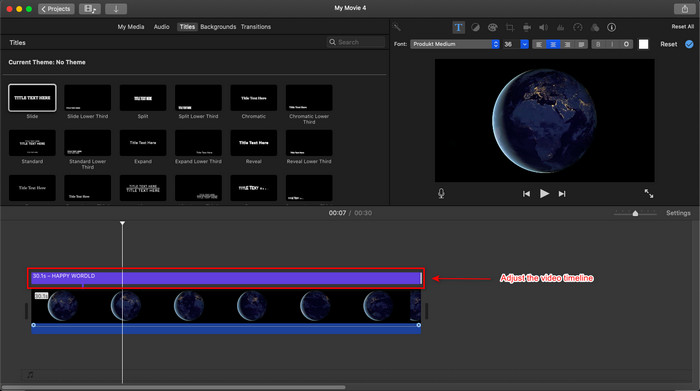
Adım 3. Zaman çizelgesine geri dönerek süresini ayarlamak için metin klibinin son kısmını sürükleyin. Metnin tüm video boyunca görünmesini istiyorsanız, onu videonun sonuna kadar sürükleyebilir ve isteğinize göre sınırlandırabilirsiniz.
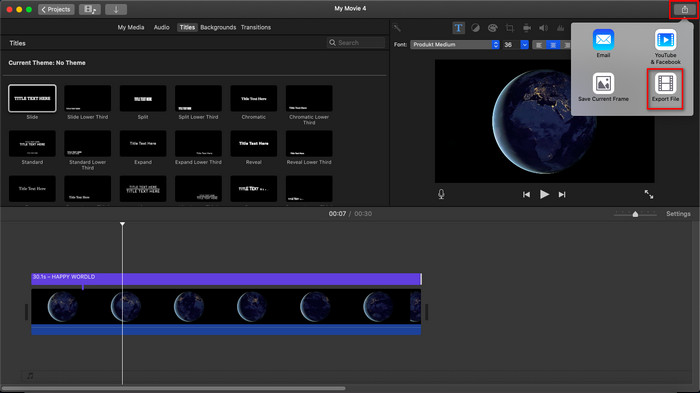
Adım 4. Mac’te iMovie’de videoya metin eklemeyi bitirdikten sonra, dosyayı dışa aktarma zamanıdır. Arayüzün sağ üst köşesindeki dışa aktarma düğmesine ve ardından Dosyayı Dışa Aktar seçeneğine tıklayın.
Bölüm 2. iPhone Kullanarak iMovie'de Videonun Üstüne Metin Nasıl Yerleştirilir
Artık bir iPhone'unuz varsa, iMovie'ye metin filigranı eklemek yerine bu kılavuzu takip edebilirsiniz. Bu kılavuza eklediğimiz adımlar, iPhone'daki iMovie hakkındaki gerçeklere dayanmaktadır. Şimdi, metin filigranı eklemek için iPhone'unuzda iMovie'yi nasıl kullanacağınızı öğrenmek istiyorsanız, aşağıdaki adımları izleyin.
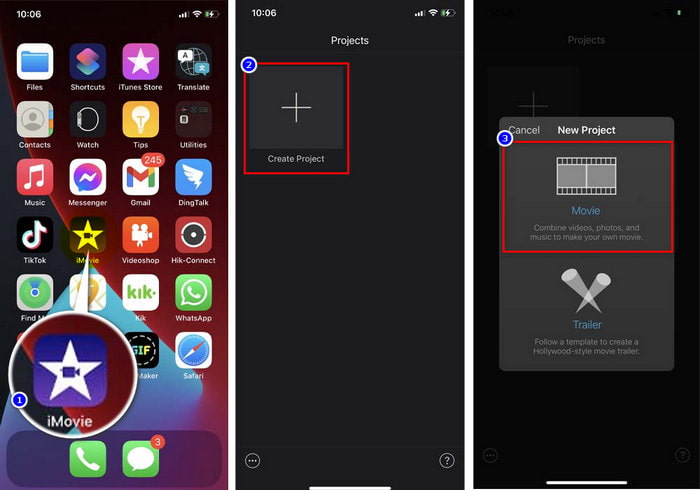
Adım 1. Size iPhone’da iMovie’de videoya nasıl metin ekleyeceğinizi anlatmadan önce, uygulamayı cihazınızda açmanız gerekir. Uygulamayı açtıktan sonra + simgesine tıklayın, Film’e dokunun, galerinizden videoyu seçin ve devam etmek için +’ya dokunun.
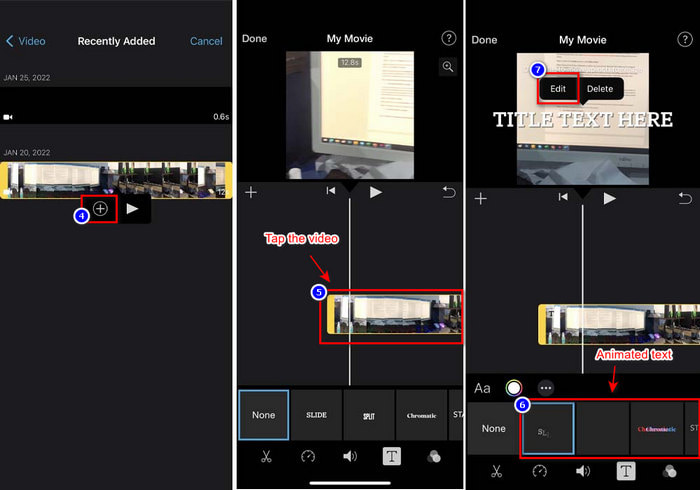
Adım 2. Zaman çizelgesinde videoya tıklayın; aşağıda bir dizi düzenleme aracı görünecektir. Metin filigranı eklemek için T simgesine dokunun. Sağa kaydırın ve metin filigranı olarak kullanmak istediğiniz animasyonu seçin. Animasyonlu metni seçtikten sonra, örnek metne dokunun ve Düzenle seçeneğine tıklayın, eklemek istediğiniz metni yazın, ardından kaydetmek için Bitti’ye dokunun. Bundan sonra, altta görünen düzenleme seçenekleriyle metni düzenleyin. Metni basılı tutup sürükleyerek videoda istediğiniz yere yerleştirin.
Adım 3. Düzenleme ve ekleme işlemini bitirdiyseniz, Bitti, ardından dışa aktarma düğmesi ve Dosyalara Kaydet seçeneklerine tıklayın.
Bölüm 3. Video Converter Ultimate ile Mac'te Videoya Metin Eklemenin En Kolay Yolu
iMovie ile neler yapabildiğiniz inanılmaz değil mi? Kesinlikle öyle. Ancak bazı Apple kullanıcıları iMovie’yi kullanmayı zahmetli buluyor. iMovie’de metin filigranı eklemek için adımları sunmuş olsak da, kullanımı biraz zorlayıcı gelebilir. Ama aynı iMovie’deki gibi bir metin filigranı elde ederken kullanımı daha az zorlayıcı bir araç istiyorsanız, Video Converter Ultimate’ı tercih etmelisiniz. Bu araç, Mac’te herhangi bir video formatına filigran eklemek için tartışmasız en iyi seçimdir. iMovie’de videonun üzerine metin eklemeyi, ama daha az zahmetle yapmak mı istiyorsunuz? Aşağıda sunduğumuz eğitim, her kullanıcı için son derece kolay takip edilir niteliktedir.
Adım 1. Lütfen Mac’inize en iyi video düzenleyiciyi indirmek için indirme düğmesine tıklayın. Kurulum yönergelerini izleyin ve aracı masaüstünüzde açmak için Hemen Başlat’a tıklayın.
Ücretsiz İndirWindows 7 veya üstü içinGüvenli İndirme
Ücretsiz İndirMacOS 10.7 veya üstü içinGüvenli İndirme
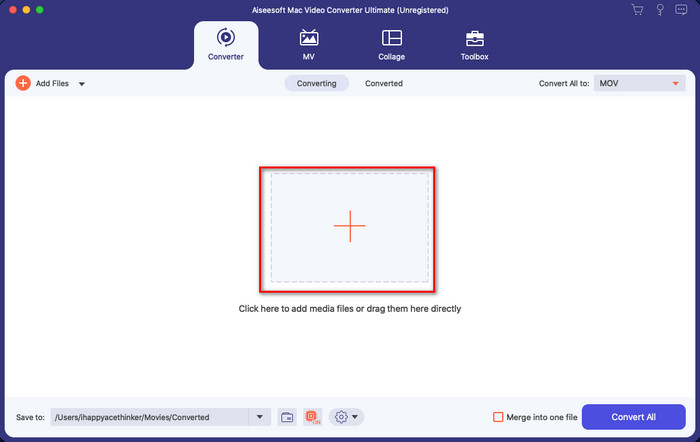
Adım 2. Aracın ana arayüzünde klasörü açmak ve video dosyasını yüklemek için + düğmesine tıklayın; kuyruğa eklemek için Aç’a tıklayın.
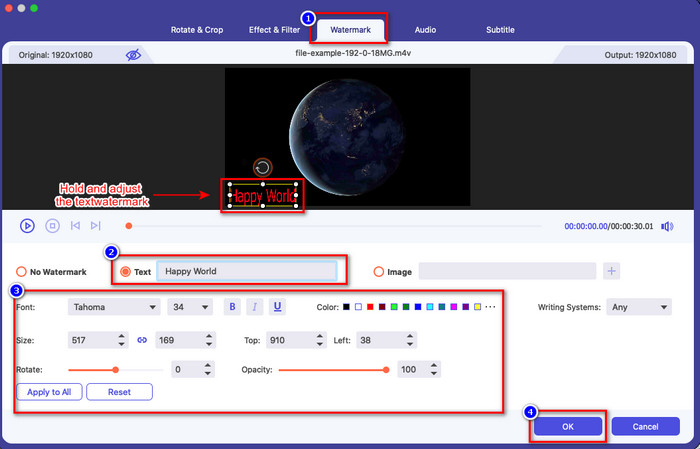
Adım 3. Videonuza sihirli bir metin filigranı eklemeye başlamak için sihirli değnek düğmesini bulun. Filigran bölümünü bulun ve ona tıklayın. Filigran altında iki seçenek mevcuttur, ancak şimdilik Metin Filigranına tıklayın. Metin kutusuna tıklayarak filigran olarak eklemek istediğiniz metni girebilirsiniz. Ardından metin filigranınız üzerinde düzenleme veya ayarlama yapın; bu düzenleme alanında yazı tipinin rengini, stilini ve boyutunu ayarlayabilirsiniz. Metinden memnun kaldıktan sonra, filigranı istediğiniz doğru konuma yerleştirme zamanı gelir. Metni önizleme videosu penceresi üzerinde basılı tutup sürükleyerek taşıyın.
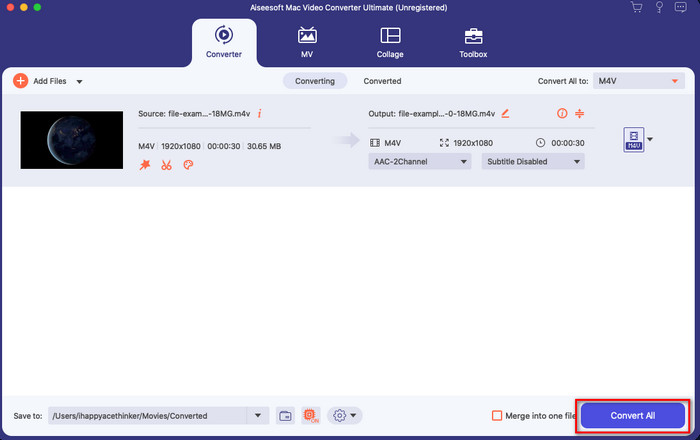
Adım 4. Tüm ayarlamaların ardından, metin filigranlı videoyu kaydetmek için Tümünü Dönüştür’e tıklayın.
Bölüm 4. iMovie'de Videonun Üzerine Metin Ekleme Hakkında SSS
iMovie animasyonlu metni destekliyor mu?
Evet, Apple'daki en iyi video düzenleyici, videonuzda ücretsiz olarak kullanabileceğiniz animasyonlu metin filigranlarını destekler. Animasyonlu metin başlığın altındadır; videonuzu benzersiz kılmak için birkaç animasyonlu metin örneği kullanabilirsiniz.
Resim filigranı eklemek için iMovie'yi kullanabilir miyim?
Evet, iMovie’de kişiselleştirilmiş bir görseli filigran olarak kullanabilirsiniz. Ancak bu işlem, iMovie’de metin filigranı eklemekten daha karmaşıktır. Yine de bunu yapmak istiyorsanız, bu bağlantıya tıklayıp iMovie’de görsel filigran nasıl eklenir öğrenebilirsiniz.
AVI'mi iMovie ile nasıl uyumlu hale getirebilirim?
iMovie, AVI formatını destekler. Ancak, kullandığı kodekler nedeniyle .avi videoyu yükleyemediğiniz zamanlar olabilir. Farklı bir araç denemek yerine neden AVI’yi dönüştürmüyorsunuz? Neyse ki, bu bağlantıya tıklayarak yeni bir sekme açabilir ve orada AVI formatını iMovie’nin desteklediği bir formata nasıl dönüştüreceğinizi öğrenebilirsiniz.
Sonuç
Yukarıdaki araştırmalara dayanarak, iMovie’de isterseniz ve üstelik ücretsiz olarak metin filigranı eklemenin kolay olduğunu görebiliyoruz. İster iPhone ister Mac kullanıyor olun, yukarıdaki eğitim başarıya ulaşmanız için size yol gösterecektir. Ancak hâlâ yukarıdaki eğitimde zorlanıyorsanız, alternatif olarak metin filigranı eklemek için FVC Video Converter Ultimate’ı kullanmanızı öneririz. Her ne kadar araç sisteminizde yerleşik olmasa da, yine de yukarıdaki indirme düğmesine tıklayarak onu indirip keyifle kullanabilirsiniz. Daha ne bekliyorsunuz? Hemen tıklayın ve indirin.
-
 Bilgisayarınızda / Telefonunuzda Ücretsiz Olarak Videoya Ses ve Müzik Ekleme
 Bu makale, videoya ücretsiz olarak ses eklemenin 4 kolay yolunu gösterir. Videonuza eklemek istediğiniz ses parçası ne olursa olsun, burada tatmin edici sonuçlar elde edebilirsiniz.
-
 GIF'i Video Formatına Dönüştürün: GIF Mem'lerini Videoya Dönüştürün [2021]
 Aşağıda listelenen araçlar yardımıyla GIF'in video formatına nasıl dönüştürüleceğini belirleyin. Hangisini seçin ve onlar hakkında yeterli kanıt topladıkça nasıl yapılacağını öğrenin.
-
 Android ve iOS Cihazlar için Video Uygulamalarına Muhteşem GIF
 Telefonunuzu kullanarak GIF'leri istediğiniz herhangi bir video formatına dönüştürebileceğinizi biliyor muydunuz? Android veya iOS'unuzdaki en iyi uygulamaları seçin.
