


 Video Dönüştürücü Ultimate
 Ekran kaydedicisi
 Video Onarımı
iTunes'da iD3 Etiketlerini Nasıl Düzenleyeceğinizi Öğrenin [En Hızlı ve En Kolay Yol]
iTunes, bir medya oynatıcı, medya kitaplığı, yönetim aracı ve Apple cihazları için istemci uygulaması olarak kullanabileceğiniz çok amaçlı bir yazılımdır. Başlangıçta yazılım yalnızca satın alınabilir türdeki müzik koleksiyonuna odaklanıyordu. Ancak diğer özelliklere yönelik talep arttığından, yazılım sisteminde büyük bir yükseltme yaptı. Böylece, araç artık yukarıda bahsedilen diğer işleri de yapabiliyor. Dolayısıyla, eğer iTunes’ta ID3 etiketleri nasıl düzenlenir öğrenmek istiyorsanız, bu yazı tam size göre; daha fazlasını öğrenmek için okumaya devam edin.

Bölüm 1. 3 Farklı Yöntem Kullanarak iTunes'da ID3 Etiketlerini Düzenlemenin Etkili Yolları
iTunes kullanarak meta verileri nasıl düzenleyeceğinizi bilmiyorsanız, Mac'te iTunes meta verilerini düzenlemek için üç farklı yöntem kullanabilirsiniz. Aşağıdaki adımlara göz atabilir ve kullanmak istediğiniz yöntemi seçebilirsiniz; Seçtiğiniz üçünden hiçbiri için meta verileri iTunes kullanarak güncelleyeceğinizi garanti ederiz.
Yöntem 1. iTunes'da Düzenle'yi kullanın
Adım 1. Mac’inizde iTunes uygulamasını açın.
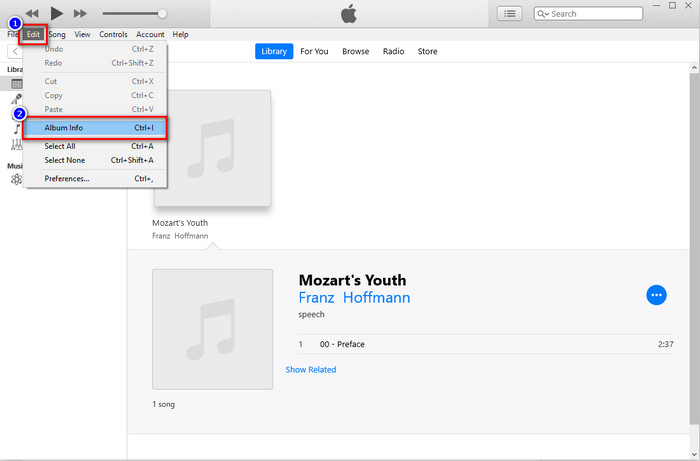
Adım 2. Ortam dosyasına bir kez tıklayın, Edit seçeneğine tıklayın ve altındaki Album Infoya tıklayın.
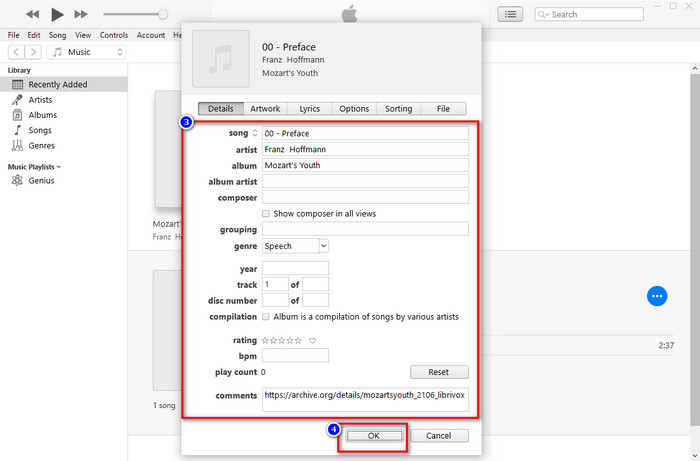
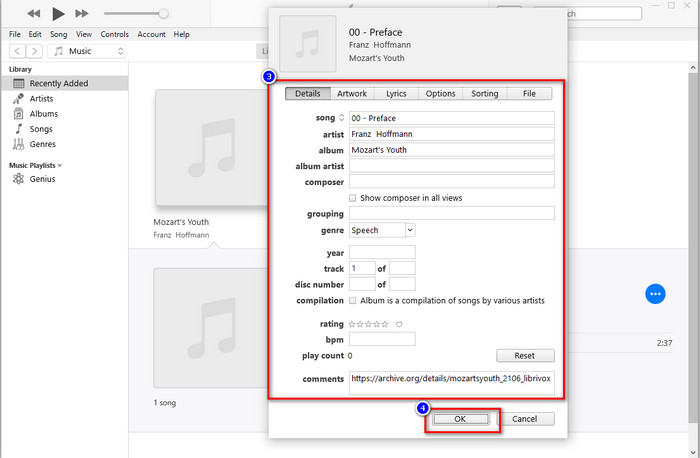
Adım 3. Ekranınızda, dosyaların etiketlerini değiştirebileceğiniz yeni bir panel görünecektir. Bilgileri düzenlediyseniz, yaptığınız değişiklikleri kaydetmek için artık OK düğmesine tıklayabilirsiniz.
Yöntem 2. iTunes'da Sağ Tıklamayı Kullanın
Adım 1. iTunes’u başlatın ve ortam dosyasını bulun.
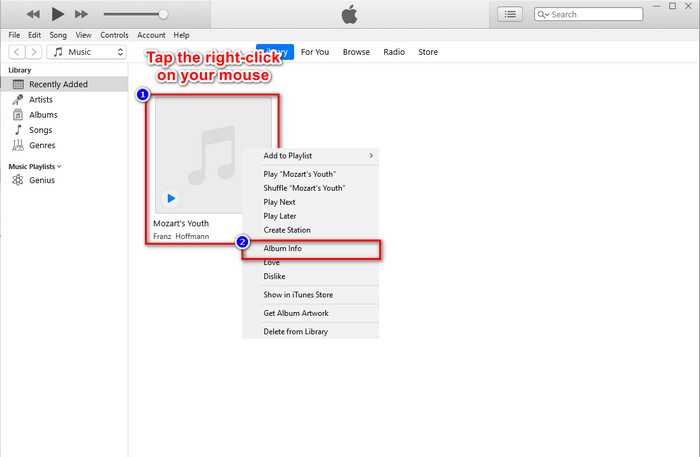
Adım 2. Edit’e gitmek yerine farenizin sağ tıklamasını kullanın ve Album Infoya tıklayın.
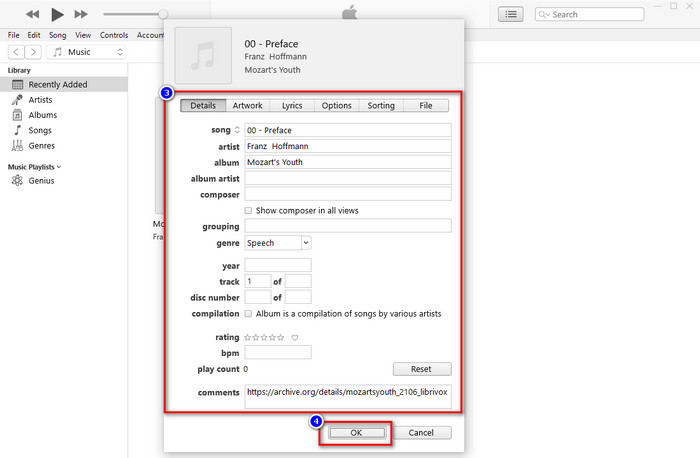
Adım 3. iTunes’ta metaveriyi güncellemek için paneldeki metin kutusunu doldurarak metaveriyi değiştirin ve işiniz bittiğinde kaydetmek için OK düğmesine tıklayın.
Yöntem 3. iTunes'da Üç Noktayı Kullanın
Adım 1. Finder’da iTunes’u arayın ve açmak için üzerine tıklayın.
Adım 2. Yazılımı başlattıktan sonra dosyaya bir kez tıklayın. Ekranınızda üç nokta belirecektir, ona tıklayın ve Album Infoyu seçin.
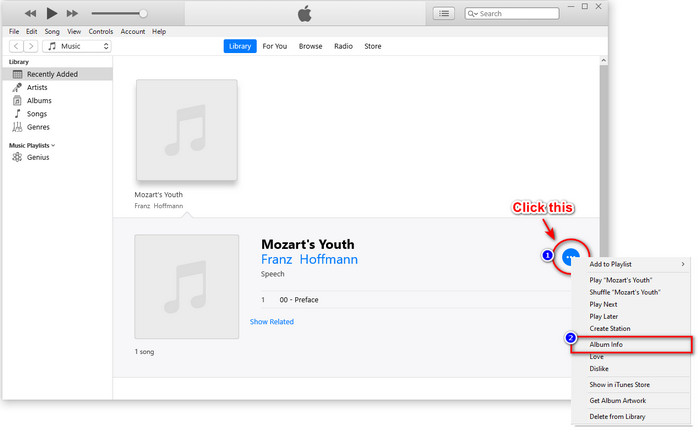
Adım 3. Ekranınızda, ID3 etiketinizde ihtiyaç duyduğunuz önemli verileri doldurabileceğiniz bir panel görünecektir, ardından değişiklikleri kaydetmek istiyorsanız OK tuşuna basın.
Fark ederseniz, yöntemlerde önemli bir değişiklik yok, ancak yine de hepsini sizin için seçebilmeniz için dahil ediyoruz. iTunes, Mac'te kullanılabiliyor olsa da, Mac'in yükseltme sürümü artık iTunes'u desteklemiyor; peki ne kullanmalısın? Neyse ki, Mac'te iTunes meta verilerini düzeltmek yerine kullanabileceğiniz bir yazılım ekledik. Bu yazılım alternatifi hakkında daha fazla bilgi edinmek için aşağıdaki 2. bölümü okumaya devam edebilir ve nasıl kullanılacağını öğrenebilirsiniz.
Bölüm 2. Mac'te MP3 Meta Verilerini iTunes Olmadan Kolayca Düzenlemek için Nihai Alternatif [Önerilir]
Doğal olarak iTunes, Apple'daki üç farklı özellik tarafından geride bırakılıyor: müzik, podcast ve şovlar veya film. Şimdi, Mac'in modern sürümünde, yerini aldıkları için iTunes'u kullanamazsınız. Peki, iTunes olmadan Mac'te MP3 meta verilerini düzenlemek için ne yapmalısınız? Hala mümkün mü? Nihai aracın yardımıyla her şey mümkün.
FVC Video Converter Ultimate, Mac veya Windows’ta metaveriyi değiştirmek için kullanabileceğiniz en iyi alternatiftir. Bu araçla MOV, M4V, WMV, FLV, RMVB, MP4 ve 1000’den fazla başka formatı kolayca içe aktarabilirsiniz. En alışılmadık formata bile sahip olsanız, bu araç sizin formatınızı da destekler. Bu aracın sunduğu ve iTunes’ta bulamayacağınız bir diğer harika özellik ise, videolarla ilgili her şeyin Toolbox’ta toplanmış olmasıdır. Mac’inizde metaveriyi değiştirmek için bu harika aracı kullanmak istiyorsanız, aşağıdaki eğitimi okuyup adımları sırasıyla takip edebilirsiniz.
Adım 1. Lütfen aşağıdaki indirme düğmesine tıklayın ve Mac’i seçin; ancak bir Windows kullanıcısıysanız uygun düğmeye tıklamanız gerekir. Ardından kurulumu yapın ve adımları hızlıca takip edin, sonra aracı açın.
Ücretsiz İndirWindows 7 veya üstü içinGüvenli İndirme
Ücretsiz İndirMacOS 10.7 veya üstü içinGüvenli İndirme
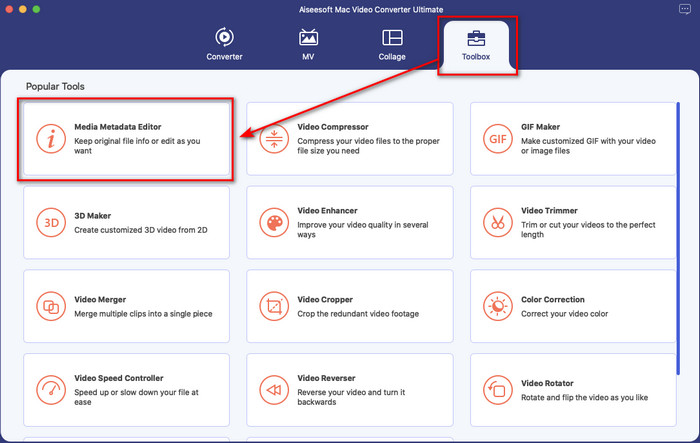
Adım 2. Ultimate aracın Toolbox bölümünü açın ve orada Media Metadata Editorü bulun.
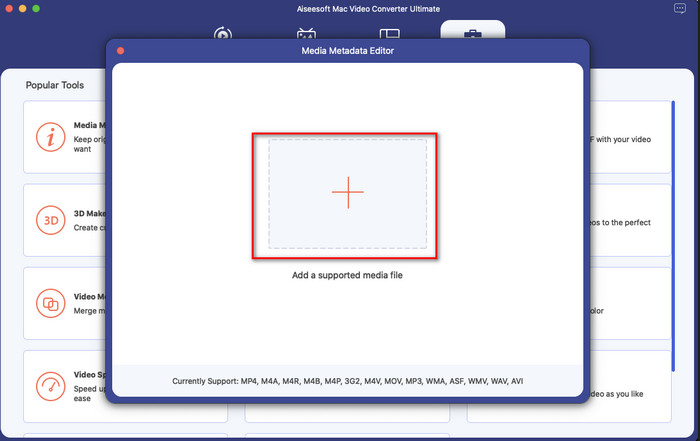
Adım 3. + düğmesine tıklayın, ardından Mac ekranınızda bir dosya klasörü açılacaktır; ortam dosyasını seçin, üzerine tıklayın ve devam etmek için Open’a basın.
Adım 4. Her bir metin kutusunun metaverisini uygun şekilde doldurun, ardından ultimate yazılımını kullanarak eklediğiniz tüm metaverileri uygulamak için Savee basın. Kolay, değil mi? Ultimate aracı sayesinde, iTunes müzik metaveri düzenleyicisi yerine bunu düşük bir maliyetle özgürce kullanabilirsiniz.
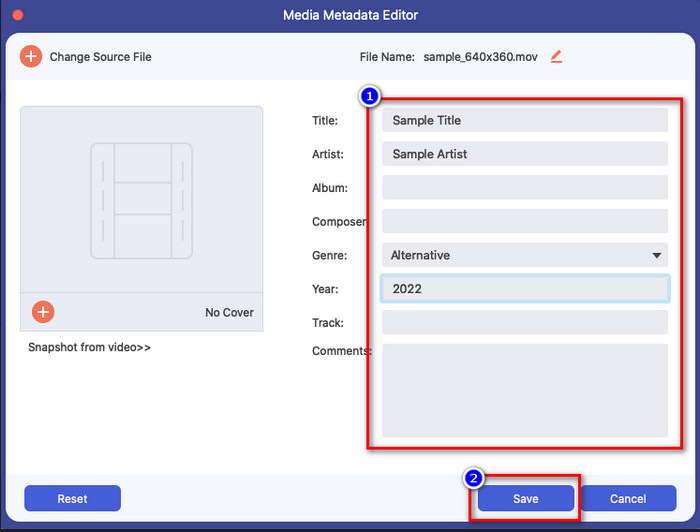
Artıları
- Sahip olduğunuz tüm medya dosyalarını kolayca yüklemenizi sağlar.
- İncelemelere göre 2022'nin en iyi meta veri editörlerinden biri.
- Video ve ses düzenlemenin yanı sıra dönüştürme yapabilir.
- Windows 10/11 veya macOS gibi tüm işletim sistemlerinde mevcuttur.
Eksileri
- Yerleşik değildir, bu nedenle aracı indirmeniz gerekecektir.
- Yazılımın tüm potansiyelini ortaya çıkarmak için satın alma esastır.
Bölüm 3. iTunes'da iD3 Etiketlerini Düzenleme hakkında SSS
Mac'imde neden iTunes'u bulamıyorum?
Mac'inizin sürümü 10.14 veya üzeriyse, yerleşik uygulama üç farklı araca ayrıldığı için iTunes orada kullanılamaz: şovlar veya filmler, müzik ve podcast. Ancak, iTunes'u 10.13 veya Mac'in daha düşük bir sürümünde kullanmaya devam edebilirsiniz.
iTunes, meta verileri değiştirme konusunda Windows işletim sistemini destekliyor mu?
Neyse ki, masaüstünüzde isterseniz iTunes'u Windows işletim sistemine indirebilirsiniz. Dolayısıyla, Windows'ta iTunes meta verilerini değiştir kullanacaksanız, yukarıdaki adımları takip edebilirsiniz. Görüntüler Mac'te araçlar olsa da, medya dosyanızdaki meta verileri kolayca değiştirmek için yukarıdaki adımları kopyalamanız yine de mümkündür.
iTunes'daki dosyalarım silinir mi?
Markanın adı değişti, ancak iTunes'unuzdaki dosya Apple Music uygulamasında. Ayrıca iTunes hediye kartı, yeni müzik mağazasından müzik satın almak için hala kullanılabilir. Müzik, podcast'ler ve filmler bölünmüş olsa da işlevleri hala aynı, ancak GUI'leri şimdi önceki iTunes'dan çok daha iyi.
iTunes'un ilk lansmanı ne zaman?
9 Ocak 2001'di; Apple, müzik, video ve podcast'ler gibi farklı medya dosyalarını içeren en iyi multimedya oynatıcıyı açtı.
Sonuç
Artık iTunes’ta ID3 etiketlerinin nasıl düzenleneceğini bildiğimize göre, yukarıdaki adımları takip ederek bunu uygulama zamanı geldi. iTunes’u kullanmaktan memnun değilseniz veya bulamıyorsanız, size önerebileceğimiz en iyi alternatif FVC Video Converter Ultimatetır. Bu araçla, Apple’da DRM ile korunan herhangi bir video veya ses dosyasının metaverisini kolayca ekleyip kaldırabilirsiniz. Bu aracı daha iyi tanımak istiyorsanız, hemen indirip kendiniz denemelisiniz.
-
 Kullanım ve İşlevsellik Üzerine FFmpeg Meta Verileri için Eksiksiz İnceleme
 FFmpeg meta veri düzenleyicisini nasıl kullanacağınızı bilmek ister misiniz? Elbette, yazılımın kullanımı kolay değil, ancak bu makale ile bunu kolaylıkla gerçekleştirebilirsiniz.
-
 iOS'ta Fotoğrafların ve Videoların Meta Verilerini Kolayca Görüntüleme
 iPhone ve iPad'de meta verileri nasıl göreceğinizi bilmek ister misiniz? O zaman bu makaleyi okumak, bu sorunu zahmetsizce çözmenize yardımcı olabilir.
-
 2022'de Önerilen 4 Sesli Kitap Meta Veri Düzenleyicisi
 Sesli Kitap etiket düzenleyicisi hakkında hiçbir fikriniz yoksa bu makale size yardımcı olacaktır. Aşağıdaki her ayrıntıyı ve kullanılacak araçları okuyarak bunu daha iyi öğrenin.
