


 Video Dönüştürücü Ultimate
 Ekran kaydedicisi
 Video Onarımı
 Güvenli İndirme
Windows ve Mac'te Bir Videoya Yavaş ve Hızlı Hareket Nasıl Eklenir
Bir videoya yavaş ve hızlı hareket uygulayarak, videonuzun insan gözüne bambaşka, yeni bir şeymiş gibi görünmesini sağlayan bir illüzyon kolayca oluşturabilirsiniz. İster akıllı telefon ister DSLR kullanın, tercihinize göre videoyu farklı hızlarda hızlıca çekebilirsiniz, ancak tüm cihazlar hareketi hızla değiştirebilen bir düzenleyiciyi desteklemez. Üzerimizdeki etkisinden dolayı, hızı değiştirme aracı talebi kısa sürede yaygınlaştı. Peki hangisini seçmelisiniz? En iyi seçeneğimizin hangisi olduğunu öğrenmek için, ulaşmak istediğiniz iki hareket türünü aşağıda daha ayrıntılı açıkladığımız bu metni okumaya devam etmelisiniz.

Bölüm 1. En İyisi Hangisi | Hızlı Hareket ve Yavaş Hareket
Bir video çektiğinizde üç tür hareket vardır: normal, hızlı ve yavaş hareketler. Çoğu zaman, bir nedenden dolayı hızı istediğimiz oynatmaya değiştiririz. Ancak, bir videoda hızlı ağır çekim efekti kullanmamızın arkasındaki nedenleri ele almayacağız. Aşağıdaki bilgiler, etkiyi birbirinden farklı kılan unsurlara ve kullanımlarına dair bir fikir verecektir.
| Hızlı hareket | VS. | Ağır çekim |
| Hızlı hareketinden dolayı videonun süresi, bu hızda ayarlanırsa, hızlı oynatıldığı için doğal olarak kısadır. | Videonun Süresi | Buradakinden farklı olarak, videonun doğal hızını bir ağır çekime değiştirdiğinizde, videonun süresi ağır çekim durumunda olduğu için daha uzundur. |
| Hızlı çekimde, projeksiyon FPS'si, yakalama FPS'sinden çok daha yüksektir. Normal hareketten farklı olarak sağladığı hız, hem yansıtma hem de yakalama FPS'sine eşittir. | Videonun FPS'si | Hızlandırmadan daha yüksek bir FPS yakalamayı desteklese de, yavaşlattıktan sonra feda edildiğinden projeksiyon FPS'sinin daha düşük olduğunu görebiliriz. |
| Çoğu sinematografi, yavaş hareketten daha hızlı hareket hızı kullanır, çünkü hareket başına gerekli eylem için mükemmeldir. Ve bu harekette bir video veya film izlediğimizde bize zaman kazandırıyor. | İçin kullanılır | Bu hareket hızında bir videoyu birincisine göre daha detaylı izleseniz bile sağladığı sürenin çok uzun olduğunu ve dosya boyutunun bir öncekine göre daha büyük olduğunu görebiliyoruz. |
Artık kurguda oluşturulan yavaş ve hızlı hareketin farklı etkilerini bildiğimize göre, kullanabileceğimiz en iyi hız kontrol cihazının hangisi olduğunu bilmenin zamanı geldi. Profesyonel bir video hız düzenleyiciniz yoksa, sonraki kısım öğrenmektir; daha fazlasını öğrenmek için bu makaleyi okumaya devam edin.
Bölüm 2. Masaüstünde Bulunması Gereken En İyi Hızlı ve Ağır Çekim Video Hız Kontrol Cihazı
Güçlü bir hız denetleyicisi, özellikle videonun hızını tıpkı FVC Video Converter Ultimate'ın sağladığı gibi etkili ve verimli biçimde değiştirmek istiyorsanız, mutlaka sahip olmanız gereken bir araçtır. Video hızı seçenekleriyle, diğer video düzenleyicilerde olmayan, .125x kadar yavaş veya 8x kadar hızlı hızları kolayca uygulayabilirsiniz. Ayrıca burada hızlandırmak istediğiniz herhangi bir video türünü yükleyebilirsiniz. Bu araç, elinizdeki videonun hareketini değiştirmenizi özellikle sınırlamaz. Gerçekten de bu hızlı ve yavaş çekim video aracı sahip olunması gereken bir yazılımdır; ilginizi çektiyse, onu edinmek ve kullanmayı öğrenmek için sıradaki bölüme eklediğimiz eğitimi mutlaka okuyup takip etmelisiniz.
1. Adım. Bilgisayarınızda en iyi yazılıma sahip olmak için aşağıdaki indirme düğmesine tıklayarak Windows veya Mac’inize doğrudan indirebilirsiniz. İndirdikten sonra yazılımı kurun, bir dakika içinde tamamlanan basit kurulum sürecini takip edin ve ardından açın.
Ücretsiz İndirWindows 7 veya üstü içinGüvenli İndirme
Ücretsiz İndirMacOS 10.7 veya üstü içinGüvenli İndirme
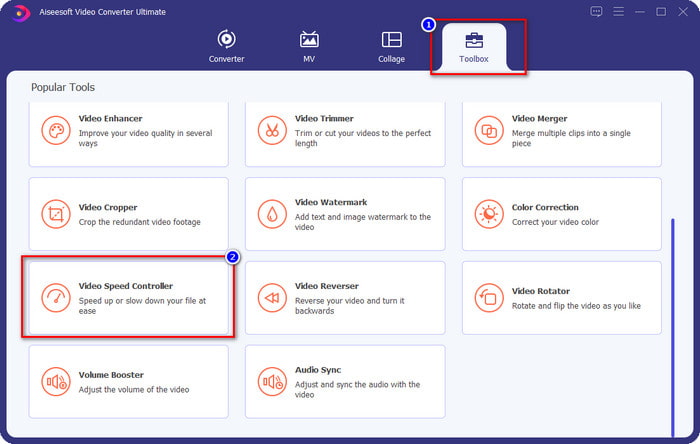
2. Adım. Toolbox’ı açın, Video Speed Controller (Video Hız Denetleyicisi) özelliğini bulun ve tıklayın.
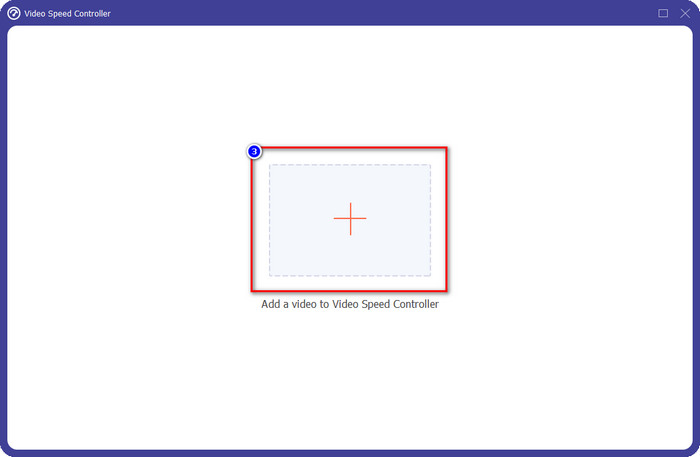
3. Adım. + düğmesine tıklayın, hareketini değiştirmek istediğiniz videoyu bulun ve buraya yüklemek için Open’a tıklayın.
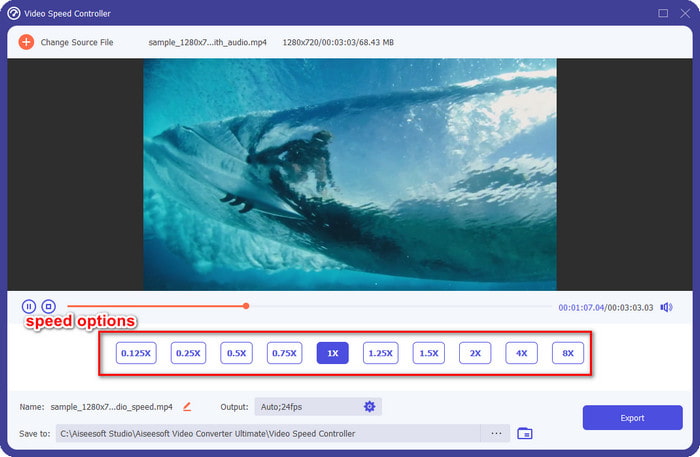
4. Adım. Dosyayı yüklediğinizde, ekranınızda hız denetleyici aracının açılacağı bir pencere belirecektir; bu yazılımda sunulan video hız seçeneklerinden birini seçerek videonuza uygulamak istediğiniz hızı belirleyin. Her birine tıklayarak, ekranda o hızda oynatılan örnek önizlemeyi görebilirsiniz.
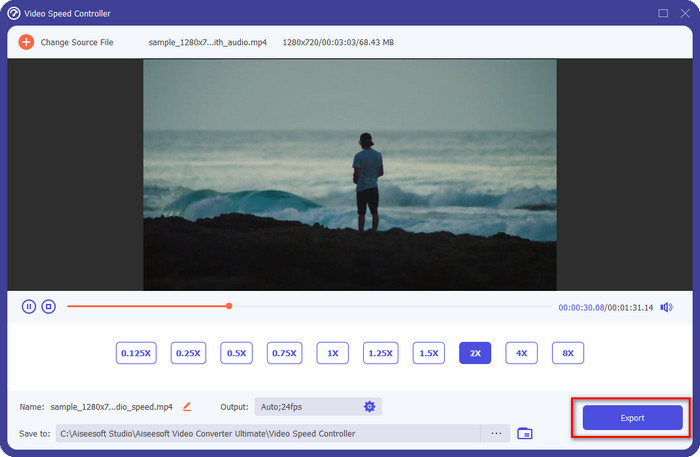
5. Adım. Hızını değiştirdiğiniz videoyu kaydetmek için Export’a tıklayın. İşte bu kadar kolay; artık Windows veya Mac’te bu gelişmiş yazılımla videonun hareketini değiştirmiş oldunuz.
Bölüm 3. Hızlı ve Ağır Çekim Hakkında SSS
Masaüstünde hızlı ve ağır çekim bir video izleyebilir miyim?
Farklı medya oynatıcılarla, izlediğiniz videonun hızını tercihlerinize göre daha yavaş veya daha hızlı hale getirmek için kolayca değiştirebilirsiniz. Blu-ray Player, VLC Media Player, Quicktime, Windows Media Player ve diğer medya oynatıcıda yerleşik olan hız denetleyicisine basarak masaüstünüzde bulundurabilirsiniz. Ancak unutmayın, videonun hızını kalıcı olarak değiştirmeyecektir, bu nedenle isterseniz bu makalede tanıttığımız aracı okuyun.
Hızlı ve ağır çekim efekti kullanmak neden gerekli hale geldi?
Videonun hızını değiştirerek diğer efekt ve filtrelerin yapamadığı bazı efektlere kolayca erişebilirsiniz. Yani, eğer bir editör iseniz ve diğer efektleri denemek istiyorsanız, hız kontrol cihazını kullanmayı denemek ve videonun hızını değiştirmek bir zorunluluktur. Profesyonel olmaya gerek yok çünkü kolay ve kesinlikle videonuzun harika görünmesini sağlayabilir.
Oynatma hızını değiştirme konusunda herhangi bir sınırlama var mı?
Oynatma hızında bazı sınırlamalar olduğunu inkâr edemeyiz. Her videoya uygulaması kolay olsa da, çok hızlı oynatılırsa geri alamayacağınız şekilde videoda donmalar görebilirsiniz. Aynı şekilde ağır çekim yaptığınızda, kareler aşırı yavaşlatmadan dolayı düşebilir ve video oldukça takılmalı hale gelebilir. Bunun yaşanmaması için, videonun oynatma hızını dikkatlice değiştirmeniz ve buna özellikle özen göstermeniz gerekir.
Sonuç
Yavaş ve hızlı hareketle ilgili tüm unsurlar dikkate alındı ve yukarıdaki ayrıntılar, yaptığımız araştırmalara ve video hızını değiştirme deneyimine dayanmaktadır. Hızı eklemek kolay olsa da, uygulamaya geçmeden önce bunları öğrenmeyi mutlaka göz önünde bulundurmalıyız. Profesyonel uzmanlık ve gelişmiş bir araç olmadan, istediğimiz hızı uygulamak hiç de kolay değildir. Diyelim ki FVC Video Converter Ultimate’ı indiriyorsunuz; o zaman en iyi hız denetleyicisine ve hepsi bir arada bir araca sahip olursunuz. Evet, doğru, bu yazılımın sunduğu çok fazla özellik var; hakkında daha fazlasını bilmek istiyorsanız, bu makalede söylediklerimizden fazlasına sahip olup olmadığını görmenin en iyi yolu, onu indirip kendiniz denemektir.
-
 QuickTime Ağır Çekim Hakkında Bilmeniz Gereken En Önemli Gerçekler
 Ağır çekimde video oynatmak için QuickTime Media Player kullanmayı denediniz mi? Bu medya oynatıcının sahip olduğu mükemmel hizmet hakkında daha fazla bilgi edinmek için bu makaleyi okuyun.
-
 Windows/Mac/Online için 5 Profesyonel Ağır Çekim Video Yapıcı
 Videonuzun ağır çekimde nasıl oynatılacağını bilmek ister misiniz? Ardından, 5 profesyonel ağır çekim video yapımcısının ne olduğunu anlamak için bu makaleyi okuyun.
-
 Ağır Çekim Videolar Hazırlarken iMovie'yi Kullanmanın En İyi Yolları [Çözüldü]
 Normal hızlı videonuzu ağır çekime dönüştürmek için iMovie uygulamasını hiç kullandınız mı? Bu, bu uygulama hakkında daha fazla bilgi edinme fırsatıdır, bu yüzden okumaya devam edin.
