


 Video Dönüştürücü Ultimate
 Ekran kaydedicisi
 Video Onarımı
iPhone'unuzda Bir Videoyu Hızlı İletmenin 3 Kolay Yolu
İPhone'da ücretsiz video oynatmayı hızlandırmak istiyor ancak nasıl yapacağınızı bilmiyor musunuz?
After recording, while the basic editing, you often need to change the video playing speed. When it comes to speeding up a video on iPhone, you can rely on the built-in editing features in the Photos app, official video editor, iMovie, or some third-party video speed changer tools. This post will share 3 effective methods to fast forward a video on iPhone.

Bölüm 1. Fotoğraflar Uygulaması ile iPhone'da Ağır Çekim Video Nasıl İleri Alınır
iOS, iPhone ve iPad kullanıcılarının bir videoyu veya fotoğrafı doğrudan düzenlemeleri için bazı temel düzenleme özellikleriyle birlikte gelir. iOS aygıtınızda ağır çekim bir videoyu ileri sarmak istediğinizde, video oynatma hızını kolayca değiştirmek için Fotoğraflar uygulamasındaki yerleşik düzenleyiciyi kullanabilirsiniz. Bu yöntemin yalnızca video hızını ağır çekimden normal hıza değiştirmek için çalıştığını unutmayın.
Step 1. Open the Photos app on your iPhone, tap Albums on the bottom screen, scroll down to the Media Types option, and then choose the Slo-mo. Here you can find the slo-mo video that you want to fast forward.
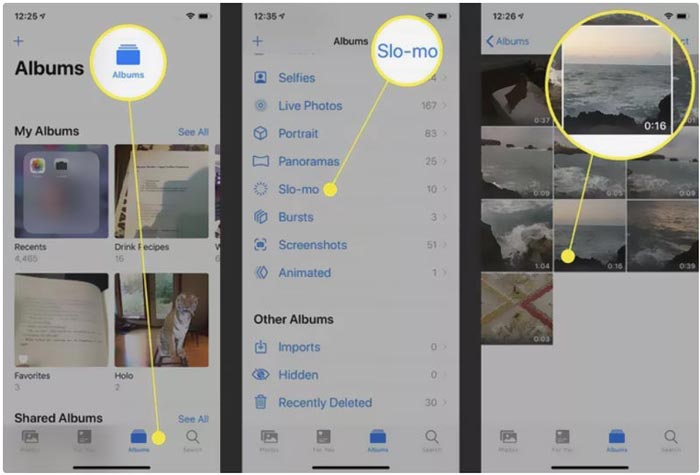
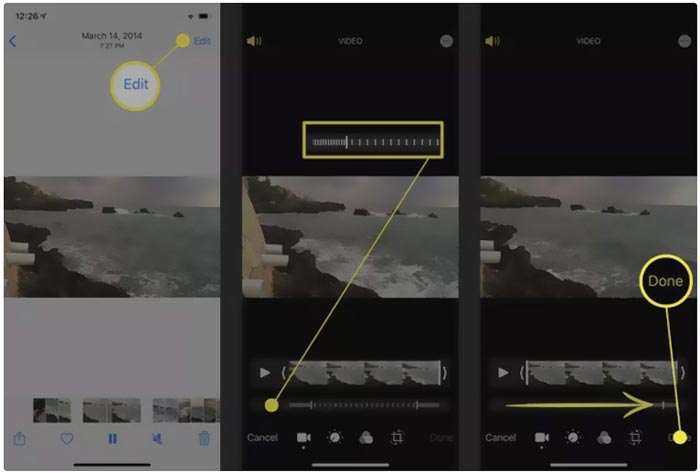
Step 2. Open the slo-mo video, and tap the Edit in the top-right corner to display more editing options.
Step 3. A set of vertical lines will appear under the slow motion video. Now you can tap on the lines and freely fast forward the video speed. After that, you can tap Done to confirm your operation and save the change.
Bölüm 2. iMovie Kullanarak iPhone ve iPad'de Videoyu Hızlı İletme
iMovie is the official video editor for iOS and macOS devices like iPhone, iPad, and Mac. It is equipped with many commonly-used editing features. You can easily fast forward or slow down a video on iPhone using iMovie.
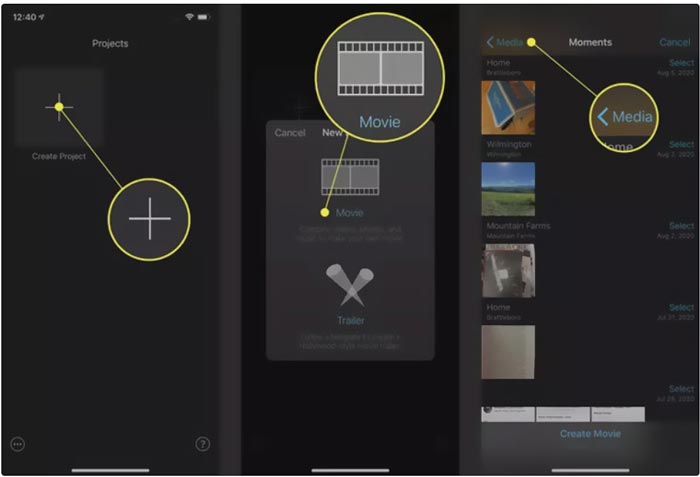
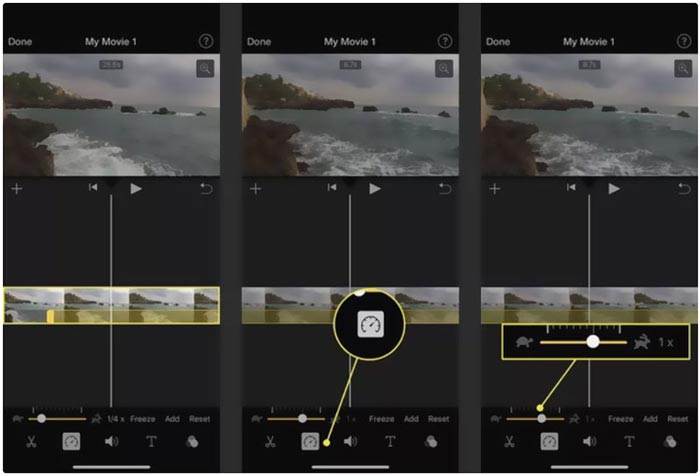
Step 1. To fast forward a video on your iPhone using iMovie, you should free install the app from App Store and then create a new project for the video speed changing. Select and load the video you want to speed up to the created project.
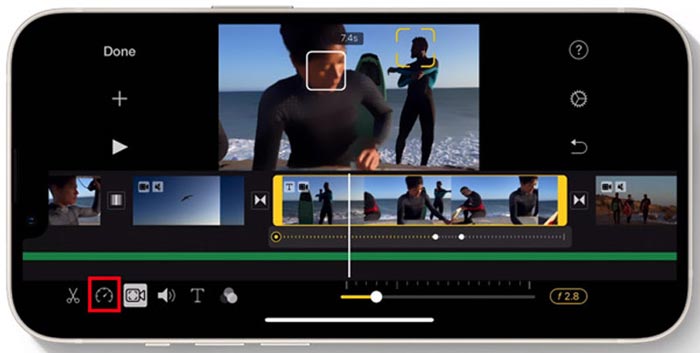
Step 2. Highlight the video clip on the timeline to reveal editing options at the bottom of the iPhone screen. You can tap on the second clock icon to access the playback speed controls. Now you can easily increase the video playback speed by dragging the bar to the right.
Bölüm 3. iPhone ile Kaydedilmiş Bir Videoyu Hızlı İletme
For these videos captured by your iPhone, you can choose to edit them on your computer and handily change the playing speed. Here we introduce you to the all-featured video editing and converting software, Video Converter Ultimate to change the video speed.

FVC Video Dönüştürücü Ultimate
5.689.200+ İndirme- Bir videoyu hızlı ileri sarmak veya yavaşlatmak için Video Hız Denetleyicisi aracını sunun.
- MP4, MOV, AVI, FLV ve MKV dahil tüm popüler video formatlarını destekleyin.
- Bir videoyu hızlandırmak veya yavaşlatmak için 10 video oynatma hızı değiştirme seçeneği.
- Video, özel görüntü/ses efektleri düzenlemek ve kaliteyi artırmak için çeşitli düzenleme işlevleri.
Ücretsiz İndirWindows 7 veya üstü içinGüvenli İndirme
Ücretsiz İndirMacOS 10.7 veya üstü içinGüvenli İndirme
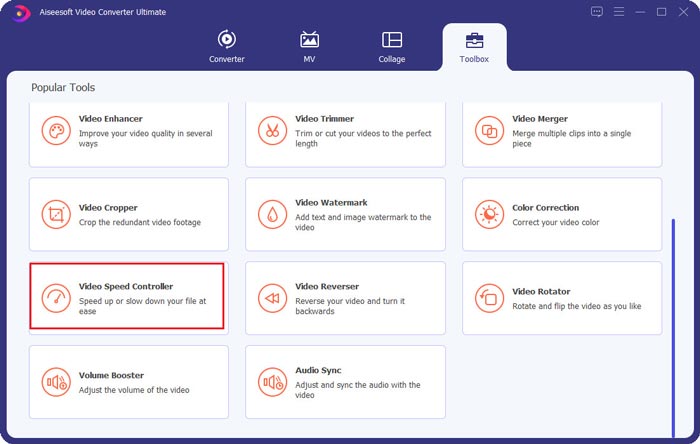
Step 1. Download and open this Video Converter Ultimate on your Windows 11/10/8/7 PC or Mac. Click on the Toolbox to access more tools. Locate and open the Video Speed Controller to fast forward a video.
Step 2. Add your video by clicking the big plus icon. After that, you have 10 options to fast forward or slow motion the video speed. With the built-in media player, you can directly view the speed changing. You can speed up a video to 1.25X, 1.5X, 2X, 4X, or 8X speed based on your need.
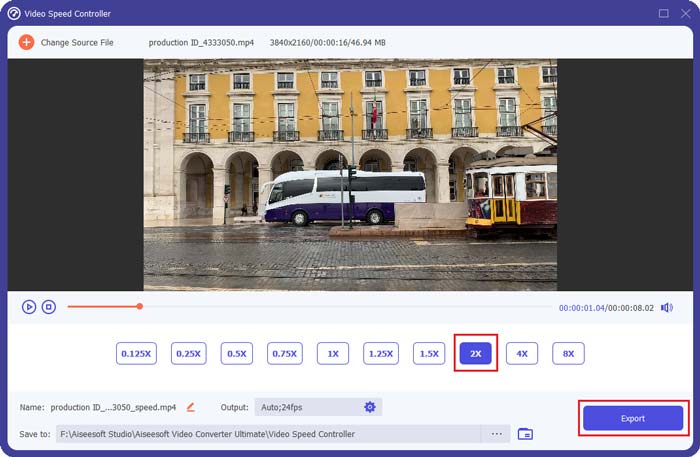
Step 3. When you are satisfied with the video playback speed, you can simply click on the Export button to save the edited video on your computer.
İlgili:
2 Effortless Ways on How to Speed up a Video on TikTok
6 Trendy Video Speed Controllers to Speed up or Slow-down Videos
Bölüm 4. iPhone'da Video Oynatma Hızını Değiştirmeyle İlgili SSS
İPhone'da çevrimiçi bir video nasıl hızlı ileri alınır?
iPhone'unuzda bir videoyu hızlandırmanız gerektiğinde, işi kolayca halletmek için Clideo, Kapwing, Media.io ve daha fazlası gibi bazı çevrimiçi video hız değiştiricileri kullanabilirsiniz.
TikTok uygulamasında bir videoyu ileri sarabilir miyim?
Evet. TikTok uygulamasını açabilir, alt ekranda daha fazla menü görünene kadar hızını hızlandırmak istediğiniz videoya dokunup basılı tutabilirsiniz. Şimdi Hız seçeneğini bulmak için bu menüleri sağdan sola kaydırmanız gerekiyor. TikTok videosunu ileri sarmak için seçin ve kullanın.
iPhone'umdaki bir videoyu 2X'ten fazla ileri sarabilir miyim?
iMovie yalnızca video hızını 2 kata kadar hızlandırmanıza izin verir. Bir iPhone'da 2 kattan daha hızlı bir video oynatma hızını ileri sarmak istediğinizde, bazı üçüncü taraf uygulamalara güvenmeniz gerekir. Ayrıca, iPhone videonuzu bir bilgisayara kopyalamayı seçebilir ve ardından video hızını ayarlamak için önerilen Video Hızı Denetleyicisine güvenebilirsiniz.
Sonuç
This post covers how to fast forward a video speed on iPhone using the Photos app, iMovie, and third-party video speed changer. You can select your preferred method to speed up or slow down the video playback speed.
-
 Çoklu Platformlarda Kullanılacak En İyi 8 Video Çözünürlüğü Dönüştürücü [Güncelleme 2022]
 Cihazınızdaki en iyi video çözünürlüğü dönüştürücü hakkında bir fikriniz yok mu? Öyleyse, mevcut video dönüştürücüler hakkında daha fazla bilgi edinmek için bu makaleyi tamamen okuyabilirsiniz.
-
 En İyi GIF Editörleri ile GIF'e Filtre Eklemenin En İyi 3 Yolu [Favori]
 GIF'i daha iyi hale getirmek için nasıl filtre ekleyeceğinizi bilmek ister misiniz? Bu blogda, GIF'lerinize filtre eklemek için farklı teknikleri kolayca öğreneceksiniz.
-
 Android ve iPhone'da İndirebileceğiniz En İyi 6 Video Filtresi Uygulaması [2022]
 En iyi video filtresi mobil uygulamalarına sahip olmak ister misiniz? Pekala, sana istediğini vereceğiz. Bu makale, indirebileceğiniz en son 6 filtre uygulamasının bir incelemesini sunacaktır.
