


 Video Dönüştürücü Ultimate
 Ekran kaydedicisi
 Video Onarımı
 Güvenli İndirme
3 Önemli Araç Kullanılarak Çevrimiçi Video Nasıl Sıkıştırılır
Yüksek çözünürlüklü, uzun bir videoyu mobil cihazda kaydetmenin zorluklarından biri, bu videoyu çevrimiçi olarak başkalarına aktarmanız gerektiğinde ortaya çıkar. Bunun nedeni, sosyal medya hesaplarının alabileceği dosya boyutunun sınırlı olmasıdır. Bu yüzden çoğu kişinin aklına gelen tek çözüm videoyu kesmek veya kırpmaktır. Bugünden itibaren, aşağıda listelenen çevrimiçi video sıkıştırıcılar sayesinde kullanıcıların uzun videolar kaydetme konusunda endişelenmesine gerek yok.

Bölüm 1. Çevrimiçi Videoyu Sıkıştırmanın 3 Yolu
1. FVC Video Kompresörü Çevrimiçi
FVC Video Compressor Online, zahmetsiz bir video sıkıştırma deneyimi arayan kullanıcılar için en ideal seçenektir. Bu çevrimiçi aracın, diğer çevrimiçi video sıkıştırıcılar arasında öne çıkmasını sağlayan benzersiz kolaylığını ve sadeliğini keşfedin. Sürgüyü (slider) soldan sağa hareket ettirerek dosyalarınız için istediğiniz sıkıştırma seviyesini zahmetsizce belirleyebilirsiniz. Dahası, bu etkileyici çevrimiçi video sıkıştırıcı, istediğiniz video sonucuna en uygun tam biçimi seçme özgürlüğü sunar. MP4, MOV, MKV, AVI, WMV ve daha pek çoğu dâhil olmak üzere çeşitli formatların sunduğu esneklik ve konforu deneyimleyebilirsiniz. Bu kadar çok seçenekle, medyanızı size en uygun formatta keyifle izleyebilirsiniz. Ayrıca, dosyanızın çözünürlüğünü ve bit hızını (bitrate) yükseltme imkânına da sahipsiniz.
Artıları
- Kullanıcılar, kullanıcı arayüzünün kolaylığını ve sadeliğini deneyimleyebilir.
- Herhangi bir filigran olmadan kesintisiz video sıkıştırmaya olanak tanır.
- Kullanıcıların video dosyaları için en uygun bit hızını ve çözünürlüğü seçmelerine olanak tanır.
- Videolarını zahmetsizce çok çeşitli formatlara dönüştürür.
Eksileri
- Sıkıştırma işlemi internet hızına bağlıdır.
Adım 1: FVC Free Video Compressor’ın ana arayüzüne ulaştığınızda, Add Files to Compress düğmesine tıklayın ve başlatıcısını (launcher) indirin. Kurulum işlemini tamamladıktan sonra düğmeye tekrar tıklayın ve sıkıştırmak istediğiniz videoyu ekleyin.
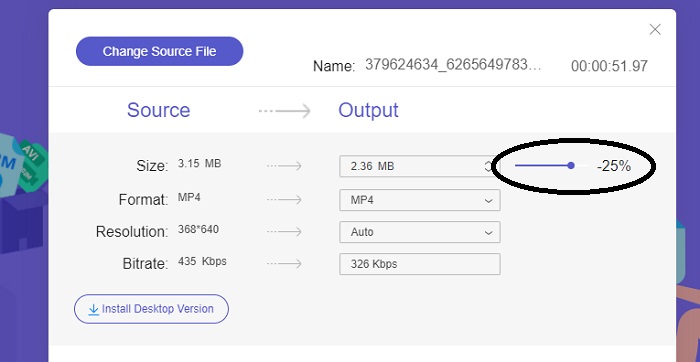
Adım 2: Videoyu sıkıştırmaya başlamak için, ekledikten sonra sürgü çubuğunu (Slider bar) sağdan sola doğru hareket ettirin. Mevcut formatlar arasından seçim yaparak videonuzun biçimini değiştirebilirsiniz.
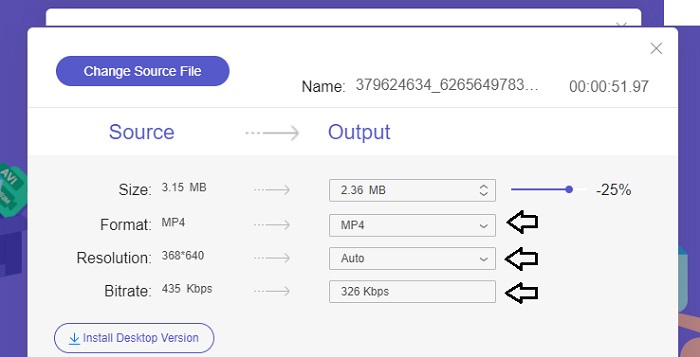
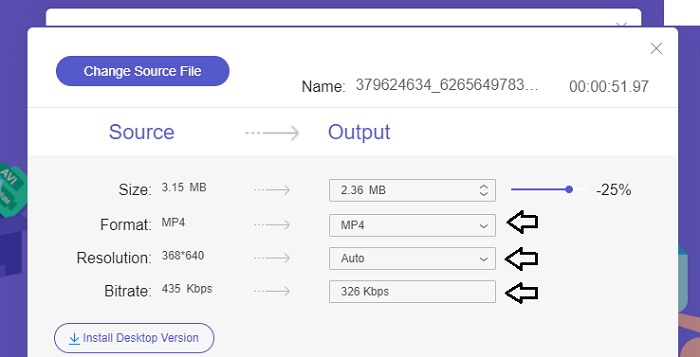
Ayrıca, mevcut seçenekler arasından seçim yaparak videonuzun Bitrate ve Resolution (Çözünürlük) değerlerini özelleştirebilirsiniz.
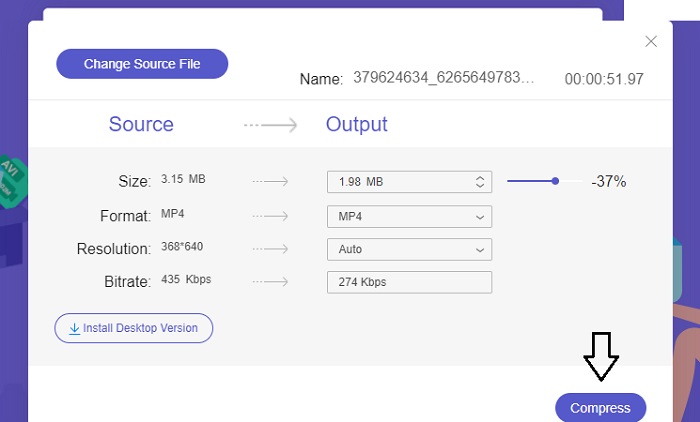
Adım 3: Gerekli tüm düzenlemeleri yaptığınızda, Compress düğmesine tıklayarak videonuzu kaydedebilirsiniz. Ardından, çıktı videosunun kaydedileceği klasörü seçin. Hepsi bu kadar!
2. Ücretsiz Dönüştürme
FreeConvert, videoları sıkıştırmak için kullanımı kolay bir çevrimiçi araçtır. Kullanıcılar sıkıştırma için dosya boyutu, video kalitesi, çözünürlük veya bit hızı gibi belirli özellikleri hedefleyebilir. Sıkıştırma işlemi hızlı ve kolaydır; takip edilmesi kolay birkaç basit adımdan oluşur. Ancak bu araç yalnızca çevrimiçi olarak mevcut olduğundan, kullanıcılar hem yükleme hem de indirme için önemli miktarda bant genişliğine ihtiyaç duyacaktır. FreeConvert'in ücretsiz sürümünün dosya boyutları ve aylık olarak dönüştürülebilecek dosya sayısı konusunda belirli sınırlamaları vardır.
Artıları
- Arayüz yeni başlayanlar için uygundur.
- Hızlı bir indirme hızına sahiptir.
Eksileri
- Büyük dosya boyutlarını sıkıştırmak için kullanıcıların premium hesap ödemesi gerekir.
- Ücretsiz sürümün dönüşümler için günlük bir sınırı vardır.
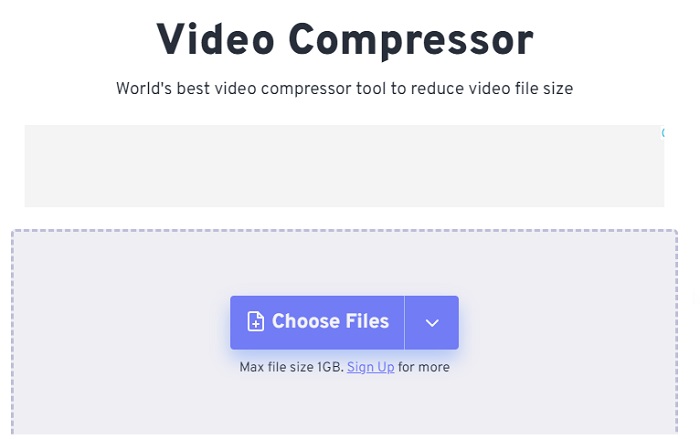
Adım 1: Arama motorunuzda FreeConvert Video Compressor’ı arayın. Ana arayüze ulaştıktan sonra, sıkıştırmak istediğiniz videoyu yüklemek için Choose Files düğmesine dokunun.
Adım 2: Videonuzu yükledikten sonra Compress düğmesine tıklayın ve işlemin tamamlanmasını sabırla bekleyin.
Adım 3: Sıkıştırılmış videoyu kaydetmek için Download düğmesine dokunun ve videoyu saklamak istediğiniz klasörü seçin.
3. Zemzar
Zamzar, dosyaları ücretsiz olarak dönüştürmenize ve sıkıştırmanıza olanak tanıyan kullanışlı bir çevrimiçi araçtır. İnternet bağlantısı olan herhangi bir PC'den erişilebilir. Bu çevrimiçi video boyutu küçültücü, ister yeni başlayan ister profesyonel olsun, kullanıcıların video kliplerini hızlı ve zahmetsizce sıkıştırmasına olanak tanır. Yazılım çok çeşitli dosya türlerini destekleme yeteneğine sahiptir. Ancak ücretsiz sürümün 24 saatlik süre içinde yalnızca iki sıkıştırmayı veya dönüştürmeyi kısıtladığını unutmamak önemlidir.
Artıları
- Herhangi bir teknik sorun olması durumunda e-posta desteği mevcuttur.
- Dosyalar maksimum 24 saat süreyle saklanır.
- Navigasyon oldukça kullanıcı dostudur.
Eksileri
- Ücretsiz sürümde kullanıcılar 24 saat içinde en fazla iki dosyayla sınırlandırılmıştır.
- 400 MB'tan büyük dosyalara erişmek için premium sürüme yükseltme yapılması gerekir.
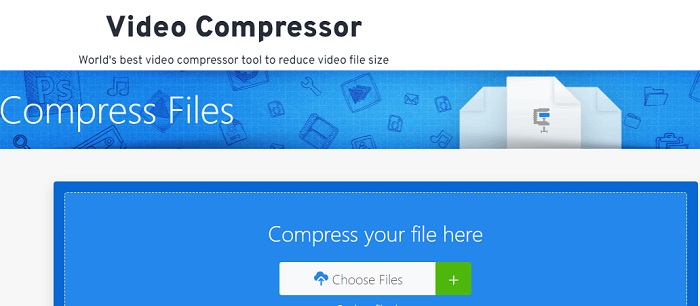
Adım 1: Öncelikle, tam arayüzü görebileceğiniz Zamzar’ın ana sayfasına gidin. Masaüstünüzden video eklemek için Choose Files düğmesine tıklayın.
Adım 2: Videoyu yükledikten sonra, sıkıştırma işleminin tamamlanması ve durumun güncellenmesi için birkaç saniye beklemeniz gerekir.
Adım 3: Son olarak, sıkıştırılmış dosyayı masaüstünüze indirebilirsiniz.
Bölüm 2. En İyi Çevrimdışı Video Kompresörü
Video sıkıştırma, dönüştürme ve düzenleme özelliklerini bir arada sunan bir yazılım istiyorsanız, Video Converter Ultimate’a geçmeyi düşünebilirsiniz. Bu yazılım; temel video düzenleme, dönüştürme ve sıkıştırma özelliklerini içeren kapsamlı bir çözüm sunar. Ayrıca, kullanıcıların yüksek kaliteli ve profesyonel videoları zahmetsizce oluşturmalarını sağlayan gelişmiş işlevler de sunmaktadır. Geniş bir yelpazede güçlü özellikler barındırır. Çözüm ayrıca, etkileyici videoları çok daha kısa sürede verimli bir şekilde oluşturmanızı sağlayan bir araç da içerir. Bu araçla bir videoyu dönüştürmek basit bir üç adımlı süreçtir.
Adım 1: Bu güçlü video sıkıştırma yazılımından yararlanmak için, bilgisayarınıza indirip kurun. Ardından, özelliklerini kullanmaya başlamak için yazılımı başlatın.
Ücretsiz İndirWindows 7 veya üzeri içinGüvenli İndirme
Ücretsiz İndirMacOS 10.7 veya üzeri içinGüvenli İndirme
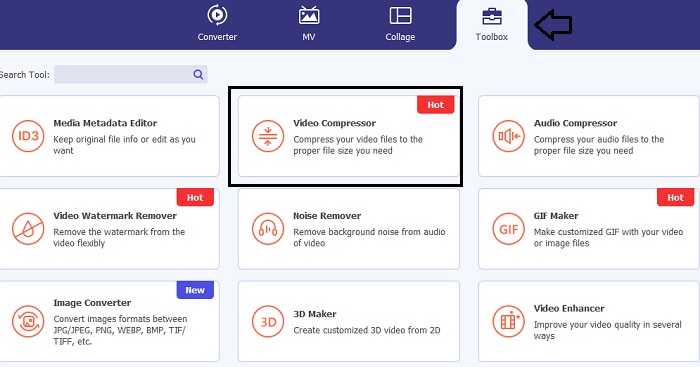
Adım 2: Başlamak için Toolbox (Araç Kutusu) bölümüne gidin ve Video Compressor seçeneğine tıklayın. Bundan sonra videonuzu yükleyebilirsiniz.
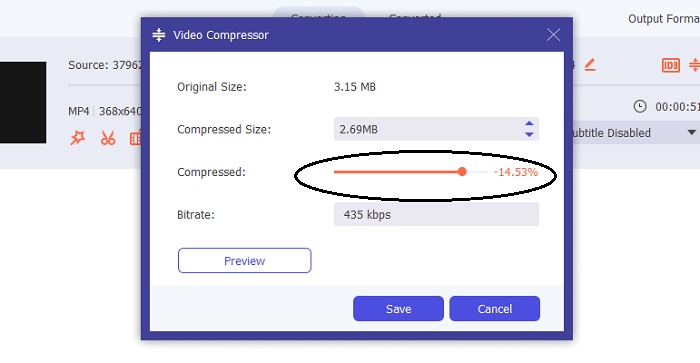
Video Compressor ayarına girdiğinizde, hedef boyuta ulaşana kadar Slider çubuğunu hareket ettirin. Ardından, değişiklikleri uygulamak için Save düğmesine tıklayın.
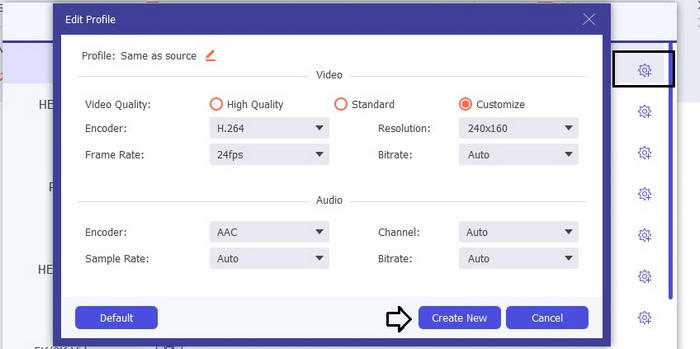
Uygun video formatını seçmek için Profile seçeneğine tıklayın ve açılır listede bulunan formatlardan birini seçin. Ayrıca Encoder, Resolution, Bitrate ve çeşitli ses ayarları gibi seçenekleri de düzenleyebilirsiniz. Bu ayarları onaylamak için Create New düğmesine tıklamayı unutmayın.
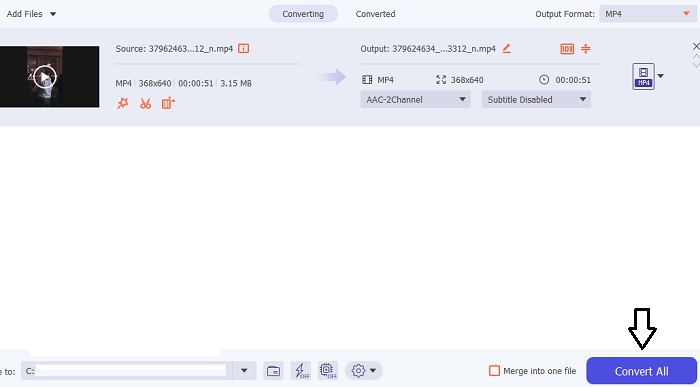
Adım 3: Videoyu sıkıştırmaya başlamak için Compress düğmesine tıklayın.
Daha Fazla Okuma:
Kaliteden Ödün Vermeden Web için Video Nasıl Verimli Şekilde Sıkıştırılır
Google Drive Videoları Sıkıştırır mı? Buradan Öğrenin
Bölüm 3. Çevrimiçi Video Kompresörü Hakkında SSS
Bir videonun MB boyutunu nasıl azaltabilirim?
Mümkün olduğunca hem görüntü çözünürlüğünü hem de kare hızını düşük tutun. Dosyanızın MB boyutunu azaltmak için videonuzun bit hızını ve çözünürlüğünü düşürmeyi düşünün. Ancak MB'yi düşürdükçe kalitenin de tehlikeye girdiğini unutmayın.
Kaliteyi kaybetmeden videonun boyutunu nasıl küçültebilirim?
Kalitesinden ödün vermeden bir video dosyasının boyutunu küçültmek için çok sayıda yöntem mevcuttur. Video sıkıştırıcı kullanarak, uzunluğunu kısaltarak, bit hızını ayarlayarak veya web için uygun bir formata dönüştürerek videonuzu geliştirebilirsiniz.
Video boyutunu küçültmek kaliteyi düşürür mü?
Lütfen videonuzu sıkıştırmanın kalitesini etkileyeceğini unutmayın. Bu nedenle, uygun aletin elinizin altında olması çok önemlidir. Video Converter Ultimate veya FVC Video Compressor Online'ı kullanabilirsiniz.
Sonuç
Videoları sıkıştırmak için çevrimiçi video boyutu küçültücüler dâhil sayısız yöntem mevcuttur. Video dosyalarınızın kalitesinin sıkıştırma sonrasında da korunmasını istiyorsanız, Video Converter Ultimate mutlaka denemeniz gereken bir araçtır.
-
 MP4 Videoyu Daha Küçük Boyuta Sıkıştırma
 MP4 video yüklemek için çok mu büyük? Video boyutunu küçültmek mi istiyorsunuz? MP4 dosyasını sınırsız olarak daha küçük boyuta sıkıştırmanın 3 etkili yolu.
-
 İPhone / Android / Online'da E-posta İçin Videoyu Sıkıştırma Eğitimi
 Çok büyük e-postayla video gönderemiyor musunuz? Bu sorunu yaşıyorsanız, burada e-posta için bir videoyu sıkıştırmanın uygulanabilir yollarını bulabilirsiniz. Bu makale, büyük video dosyalarını ücretsiz olarak nasıl küçülteceğinizi ayrıntılı olarak gösterecektir.
-
 YouTube için Videoyu Sıkıştırmanın 2 Yolu
 YouTube videoları büyük ve yüklenmesi yavaş mı? YouTube için video dosyası boyutunu çevrimiçi olarak ve bilgisayarda 2 şekilde daha küçük hale getirin.
