


 Video Dönüştürücü Ultimate
 Ekran kaydedicisi
 Video Onarımı
 Güvenli İndirme
Etkili Yöntemlerle Android'de Bir Videoyu Yeniden Boyutlandırmayı Keşfedin
İster bir sosyal medya fenomeni olun ister sadece son seyahat maceranızı arkadaşlarınız ve ailenizle paylaşmak isteyin, videolarınızı yeniden boyutlandırmak her şeyi değiştirebilir. Bu işlem, dosya boyutunu kolay paylaşım için optimize etmeye yardımcı olmanın yanı sıra, izleyicileriniz için görüntüleme deneyimini de iyileştirebilir. Bu yazıda, en-boy oranını ayarlamaktan video çözünürlüğünü değiştirmeye kadar, Android’de videoları nasıl yeniden boyutlandıracağınızı göstereceğiz. Basit ve kolay takip edilebilir rehberimizle, videolarınızı profesyonelce yeniden boyutlandırabilir ve içeriklerinizi bir üst seviyeye taşıyabilirsiniz.

Bölüm 1. Öğretici Samsung Gallery ile Android'de Video Kırpma
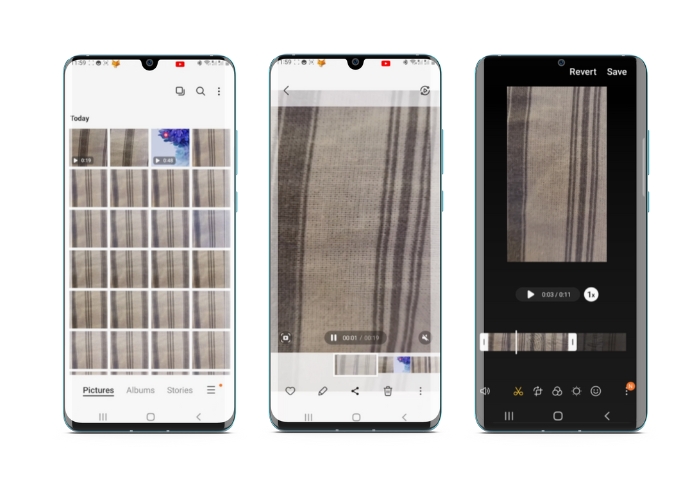
Samsung Gallery uygulaması, bir Samsung cihazınız varsa görsel içeriğinizi yönetmek ve düzenlemek için sahip olmanız gereken bir uygulamadır. Uygulamanın kullanışlı özelliklerinden biri, hareket halindeyken videoları kırpma yeteneğidir. Kullanıcıların bir videonun istenmeyen kısımlarını kaldırmasına veya en boy oranını ayarlamasına olanak tanır. Kırpma özelliği bunu kolay ve sezgisel hale getirir. Samsung Gallery ile, ihtiyaçlarınıza uygun yüksek kaliteli videoları kolayca oluşturabilir ve paylaşabilirsiniz. Bu Android video düzenleyici kırpma aracını kullanmanıza yardımcı olması için aşağıdaki adımlara bakın.
Adım 1. Cihazınızda Samsung Galeri uygulamasını açın ve kırpmak istediğiniz videoyu bulun.
Adım 2. Videoyu açmak için üzerine dokunun, ardından ekranın alt kısmındaki kalem simgesi olan Düzenle düğmesine dokunun. Düzenle ekranından Kırp seçeneğini seçin.
Adım 3. Şimdi, köşelerinde tutamaçlar bulunan bir dikdörtgenin videonun üzerine yerleştirildiğini göreceksiniz. Videoyu kırpmak için bu tutamaçları sürükleyerek dikdörtgeni ihtiyaçlarınıza göre yeniden boyutlandırın. Kırpılmış videoyu önizlemek için Oynat düğmesine dokunun.
Adım 4. Sonuçtan memnunsanız, kırpılmış videoyu Galeri’nize kaydetmek için Kaydet düğmesine dokunun.
Bölüm 2. Google Fotoğraflar ile Android'de Bir Video Nasıl Kırpılır?
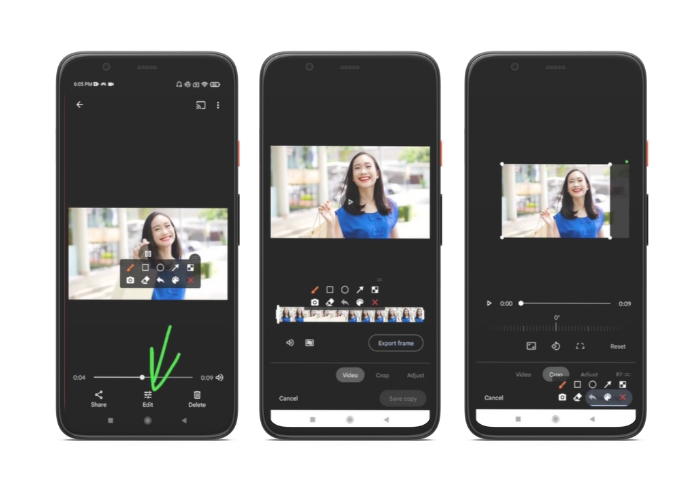
Google Fotoğraflar, Android kullanıcıları için popüler bir fotoğraf ve video yönetimi uygulamasıdır ve görsel içeriğinizi düzenlemenize ve geliştirmenize yardımcı olacak çok çeşitli özelliklerle birlikte gelir. Bu aracın harika bir özelliği, istenmeyen kısımları çıkarmanıza ve en önemli anlara odaklanmanıza olanak tanıyan videoları kırpma yeteneğidir. Videoları yalnızca birkaç dokunuşla kırparak Android cihazınızda gösterişli ve profesyonel görünümlü video içeriği oluşturmayı kolay ve sezgisel hale getirebilirsiniz. Burada, Google Fotoğraflar ile videoları nasıl adım adım kırpacağınızı göstereceğiz.
Adım 1. Android cihazınızda Google Fotoğraflar uygulamasını başlatın ve kırpmak istediğiniz videoyu bulun. Ardından, ekranın alt kısmında yer alan Düzenle düğmesine dokunun.
Adım 2. Düzenle ekranından Kırp ve döndür seçeneğini belirleyin.
Adım 3. Şimdi videonun üzerinde, köşelerinde tutamaçlar bulunan bir dikdörtgen yer alacak. Filmi kırpmak için bu tutamaçları kullanarak dikdörtgeni ihtiyaç duyduğunuz şekilde yeniden boyutlandırın.
Adım 4. Son olarak, videoda yaptığınız değişiklikleri kaydetmek için Kaydet seçeneğine dokunun.
Bölüm 3. Üçüncü Taraf Uygulaması ile Android'de Bir Videonun Nasıl Kırpılacağına Yönelik Kılavuz
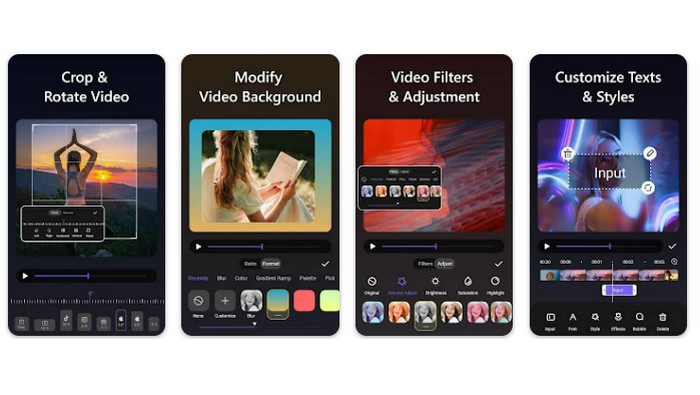
Android telefon kullanan herkes için, Vid.fun sayesinde artık kolay video oluşturma ve düzenleme mümkün. Bu program, kullanıcıların videolarını pek çok şekilde düzenlemesine imkân tanır; müzik, metin ve efekt ekleme, kırpma ve bölümleri birleştirme gibi daha birçok özellik sunar. Aşağıdaki adımları izleyerek bu programla Android’de bir videoyu nasıl yeniden boyutlandıracağınızı öğrenebilirsiniz.
Adım 1. Vid.fun uygulamasını Google Play Store’dan indirin ve yeni bir proje başlatın.
Adım 2. Cihazınızın galerisinden veya film rulonuzdan kırpmak istediğiniz klibi seçin ve zaman çizelgesine ekleyin.
Adım 3. Zaman çizelgesinde istediğiniz video bölümüne dokunarak onu seçin; ardından, bölümü düzenlemek için ekranın alt kısmındaki Kırp düğmesini kullanın.
Adım 4. Videonun üzerine bir dikdörtgen bindirilir ve köşelerini sürükleyerek ayarlamalar yapabilirsiniz. Filmi kırpmak için köşe tutamaçlarını tutup istediğiniz konuma çekmeniz yeterlidir. İşiniz bittiğinde videoyu sevdiklerinize gönderebilir veya çevrimiçi olarak paylaşabilirsiniz.
Bölüm 4. Uygulama Önerisi
Elbette mobil uygulamaların yanı sıra bir de masaüstü uygulama önerimiz var. FVC imzalı Video Converter Ultimate, video formatlarını dönüştürmeye yönelik, pek çok düzenleme aracı da içeren kapsamlı bir yazılımdır. Videonun en-boy oranını ayarlama seçeneği öne çıkan işlevlerindendir.
Bu program ile en boy oranını değiştirerek videonun şeklini ve boyutunu kolayca değiştirebilirsiniz. Belirli bir en boy oranına sahip bir videoyu sosyal medyada paylaşmak istiyorsanız veya videoyu belirli bir ekran boyutuna sığdırmanız gerekiyorsa, FVC Video Converter Ultimate size yardımcı olur. Bu programın yardımıyla Android'de videoları nasıl kırpacağınızı öğrenin.
Adım 1. FVC Video Converter Ultimate’ı indirin ve kurun
Aşağıdaki Ücretsiz İndir düğmelerinden birine tıklayarak uygulamayı indirebilirsiniz. Program indirildikten sonra bilgisayarınıza kurun ve başlatın.
Ücretsiz İndirWindows 7 veya üzeri içinGüvenli İndirme
Ücretsiz İndirMacOS 10.7 veya üzeri içinGüvenli İndirme
Adım 2. Kırpılacak videoyu içe aktarın
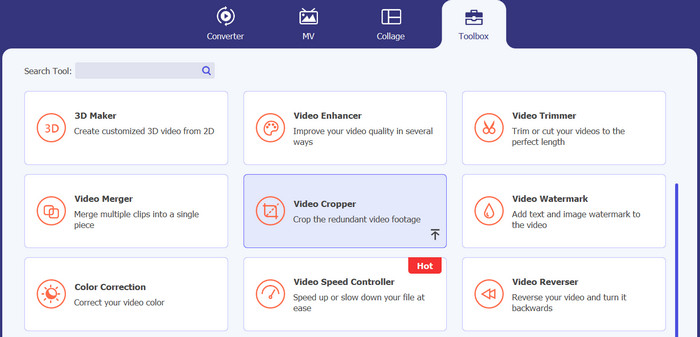
Sonra, programın üst arayüzünde yer alan Araç Kutusu sekmesine gidin. Ardından Video Kırpıcı seçeneğini seçin ve artı simgesi düğmesine tıklayarak bir dosya ekleyin.
Adım 3. Video dosyasını kırpın
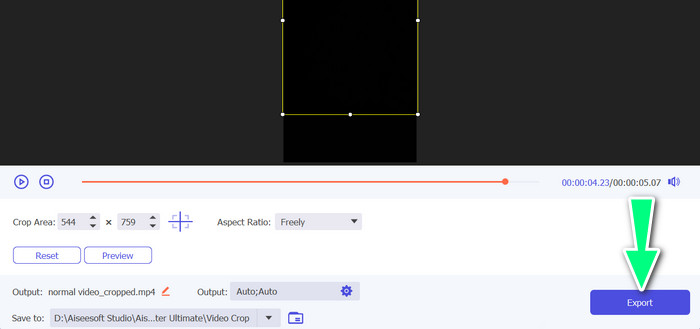
Artık içe aktarılan videoyu kırpabilirsiniz. Kırpma alanı kaydırıcılarını kullanarak videodan kırpmak istediğiniz alanı ayarlayın. Açılır menüden belirli bir en boy oranı da seçebilirsiniz. Videonun istenen bölümünün kırpıldığından emin olmak için kırpılan videoyu önizleyin.

Adım 4. Kırpılmış videoyu dışa aktarın
Son olarak, kırpma işlemini tamamlamak ve kırpılmış videoyu kaydetmek için sağ alt köşedeki Dışa aktar düğmesine tıklayın.
Bölüm 5. Android'de Videoları Kırpma Hakkında SSS
Videoları kaliteden ödün vermeden nasıl kırparım?
Videoları kaliteden ödün vermeden kırpmanın bir yolu, tahribatsız kırpmayı destekleyen bir video düzenleme aracı kullanmaktır. Bu, orijinal video dosyasının değiştirilmediği ve yalnızca kırpılan kısmın yeni bir dosya olarak kaydedildiği anlamına gelir.
Android'de bir videoyu kırpmak kalitesini veya çözünürlüğünü etkiler mi?
Evet, Android'de bir videonun kırpılması, orijinal videonun bir kısmının kaldırılmasını içerdiğinden, kalitesini veya çözünürlüğünü etkileyebilir. Ancak kalitenin veya çözünürlüğün etkilenme derecesi, kesme boyutu, orijinal videonun kalitesi ve videoyu kırpmak için kullanılan yöntem gibi çeşitli faktörlere bağlıdır.
Android'de aynı anda bir videoyu kırpıp efektler veya filtreler eklemek mümkün mü?
Evet, Android’de bir videoyu kırparken aynı anda efekt veya filtre eklemek mümkündür. Google Play Store’da, hem kırpma hem de video efektleri ve video filtre seçenekleri sunan çeşitli video düzenleme uygulamaları mevcuttur. FVC Video Converter Ultimate, Filmora vb. popüler örnekler arasındadır.
Sonuç
Android’de bir videoyu nasıl kırpacağınızı öğrenmek, çeşitli uygulama ve yazılımlarla yapılabilecek basit bir süreçtir. Samsung Galeri, Google Fotoğraflar ve FVC Video Converter Ultimate, Android cihazlarda videoları kırpmanıza yardımcı olabilecek araçlardan sadece birkaçıdır.
-
 Android Telefonlarda Oynatılmayan Videoları Onarma Rehberi
 Android cihazınızda videoların oynatılamamasının sebeplerinin neler olduğunu bilmek ister misiniz? Ve eğer öyleyse, sorunu kendi başınıza çözmenin herhangi bir yolu var mı? Daha fazlasını öğrenmek için okumaya devam edin.
-
 Android Cihazlarınızda Bir Videoyu Hızlandırmanın En Kolay Yolları [2023]
 Android'inizde bir videoyu hızlandırabileceğinizi biliyor muydunuz? Bu nedenle, Android telefonunuzda bir videoyu nasıl hızlandıracağınızı bilmek istiyorsanız, bu yazıyı okuyun.
-
 Android'de Videonun Nasıl Kırpılacağına İlişkin 3 Mükemmel Yöntem
 Bir videoyu kesmek için Android cihazınızı kullanmak istiyor musunuz? O zaman bu yazı tam size göre. Android'de bir videoyu kısaltmanın değerli yollarını tartışacağız.
