


 Video Dönüştürücü Ultimate
 Ekran kaydedicisi
 Video Onarımı
 Güvenli İndirme
M4V Dosyaları Nasıl Birleştirilir? İşte En Hızlı 2 Çözüm
M4V dosyaları, MPEG-4 video dosyaları olarak da bilinir ve genellikle iTunes’tan indirilir. Hem MPEG-4 kapsayıcı formatını kullandıkları için MP4 dosyalarına çok benzerler. iTunes’tan M4V biçiminde birkaç eksik video klip indirip ardından bunları kesintisiz tek bir hikâye hâline getirmek için M4V dosyalarını birleştirmek istemeniz çok olasıdır. Peki M4V dosyaları nasıl birleştirilir? Bu makale bunu verimli ve görüntü kalitesini kaybetmeden yapmanız için iki yöntem sunmayı amaçlıyor.

Bölüm 1: En Hızlı Çözüm - Çevrimiçi Ücretsiz M4V Birleşme Kullanın
En hızlı çözüm için, adımları ve ayarları öğrenmek için uzun zaman gerektirmeyen FVC Free Online Video Merger aracını kullanabilirsiniz. Aracı tarayıcınızda açın, M4V dosyalarınızı ekleyin ve ardından M4V dosyalarını birleştirmek için tek tıklama yeterli olacaktır.
Öne Çıkan Özellikler
- • Herhangi bir miktarda ve boyuttaki M4V dosyalarını ücretsiz olarak tek bir dosyada birleştirin.
- • Kullanımı kolay arayüz ve sezgisel ön birleştirme süreçleri.
- • Birleştirilmiş M4V dosyalarını diğer 9 ana format olarak kaydedebilirsiniz.
- • Birleştirilmiş M4V videolarında filigran bırakmayın.
- • Her boyuttaki dosyalarınızı sadece 1 saniyede yükleyin.
M4V dosyalarını çevrimiçi ve ücretsiz birleştirme adımları
Adım 1. Buraya tıklayarak FVC Free Online Video Merger aracını açın. Çevrimiçi aracın sayfasında, ekranın ortasındaki Upload Videos to Merge düğmesine tıklayın.

Not: Aracı ilk kez kullanıyorsanız, bir başlatıcı indirip kurmanız istenecektir. Başlatıcıyı kurduktan sonra, tekrar Upload Videos to Merge düğmesine tıklayın.
Adım 2. Şimdi Open penceresi açılacaktır. Burada M4V dosyalarını seçmeniz ve pencerenin altındaki Open düğmesine tıklamanız gerekir.
Adım 3. M4V dosyalarını yükledikten sonra, mevcut dosyaları kaldırıp yenilerini istediğiniz konumlara ekleyerek M4V dosyalarının sırasını ayarlayabilirsiniz.
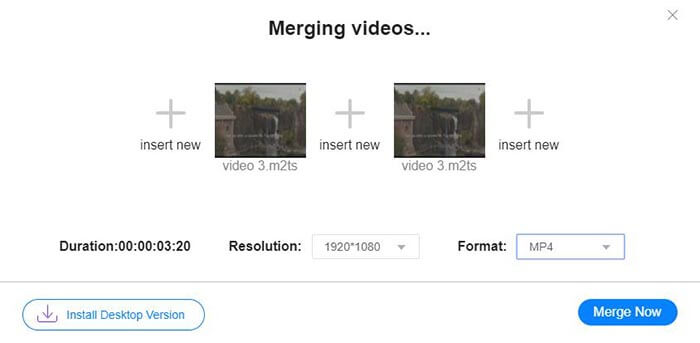
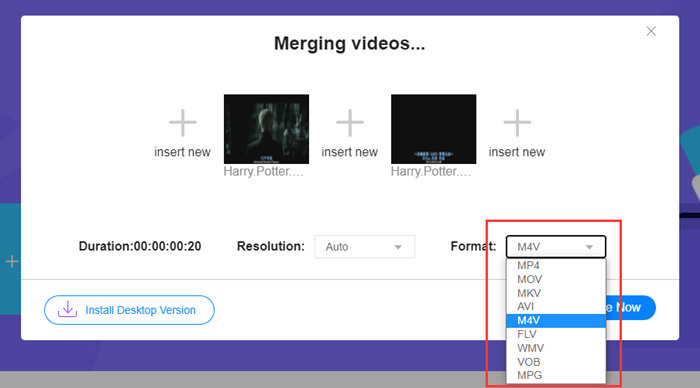
Adım 4. Birleştirilmiş dosyanın M4V formatında kalmasını istiyorsanız, Format listesinden M4V seçmeniz gerekir. Ayrıca birleştirilmiş M4V videoyu dönüştürmek için listelenen diğer biçimlerden herhangi birini de seçebilirsiniz.
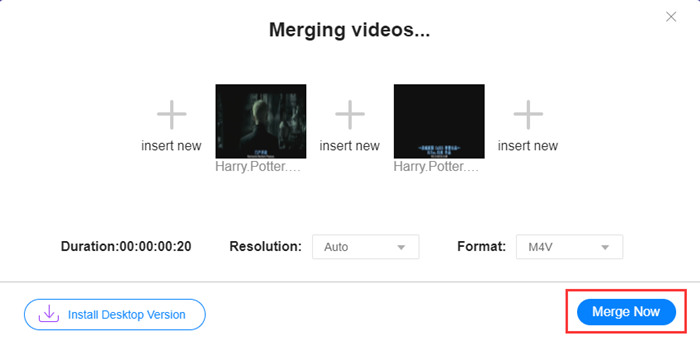
Adım 5. M4V dosyalarını birleştirmeye başlamak için Merge Now düğmesine tıklayın. Araç daha sonra çıktı dosyasının kaydedileceği hedef klasörü seçmenizi isteyecektir.
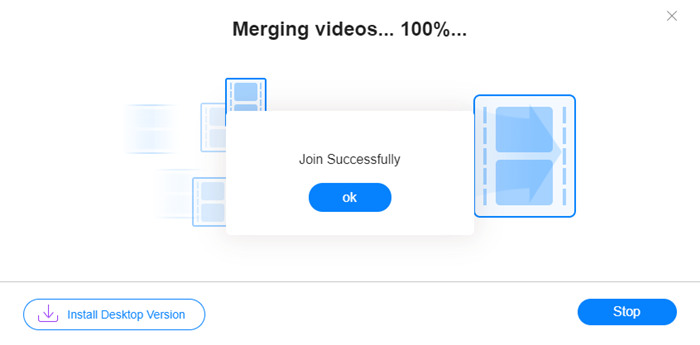
Aşağıdaki başarı bildirimini gördüğünüzde, birleştirilen video bilgisayarınıza kaydedilir.
M4V dosyalarını birleştirmenin en hızlı yolunu öğrenmiş oldunuz. Ancak bu yöntem, videoları yalnızca uç uca eklemenize izin verir; istenmeyen başlangıç ve bitiş kısımlarını kırpmanıza yardımcı olmaz, bu da videoda siyah ekranlı bölümlere yol açabilir. M4V dosyalarını yalnızca birleştirmek değil, aynı zamanda bunları kesintisiz şekilde kırpmak için de ikinci yönteme ihtiyaç duyabilirsiniz. Buradan M4V dosyalarını sıkıştırabilirsiniz.
Bölüm 2: M4V Dosyalarını Sorunsuz Bir Şekilde Birleştirme Yöntemi
Tam ve kesintisiz bir video elde etmek için M4V dosyalarını yalnızca uç uca eklemek yeterli değildir. Başlangıç ve bitişlerdeki istenmeyen kısımları da kırpmanız gerekir. Bu yüzden bir video düzenleme aracı devreye girer. Seçebileceğiniz pek çok araç vardır ancak biz burada Video Converter Ultimate programını önermek istiyoruz. Sebebi basit: Kullanımı kolaydır ve özellikleri fazlasıyla güçlüdür.
Öne Çıkan Özellikler
- • M4V videoları birleştirin, kırpın, döndürün, kırpın ve efektler ekleyin.
- • Donanım hızlandırma teknolojisi, birleştirme M4V dosyalarının 70 kat daha hızlı tamamlanmasına yardımcı olur.
- • Videolarınızı güzelleştirmek için bol miktarda filtre ve efekt koleksiyonu
- • Video kalitenizi iyileştirmek için yerleşik video geliştiriciyi kullanın
- • Videolarınızı 3D'ye dönüştürün ve 3D gözlüğünüzle keyfini çıkarın
Ücretsiz İndirWindows 7 veya üstü içinGüvenli İndirme
Ücretsiz İndirMacOS 10.7 veya üstü içinGüvenli İndirme
M4V dosyalarını kesintisiz birleştirme adımları
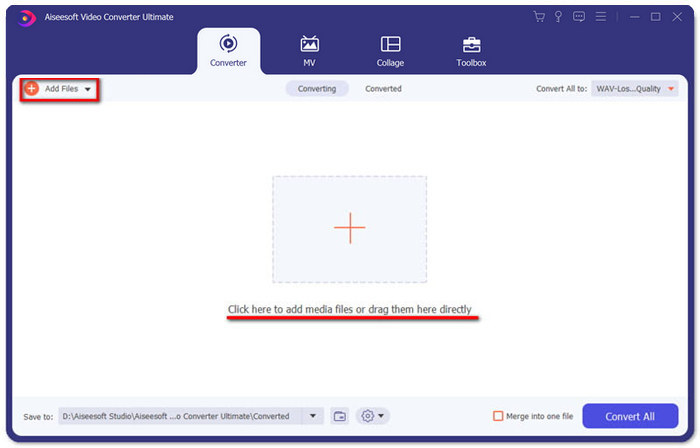
Adım 1. Video Converter Ultimate programını kurup başlatın. Videoları eklemek için Add Files düğmesine tıklayın veya dosyaları doğrudan arayüze sürükleyin.
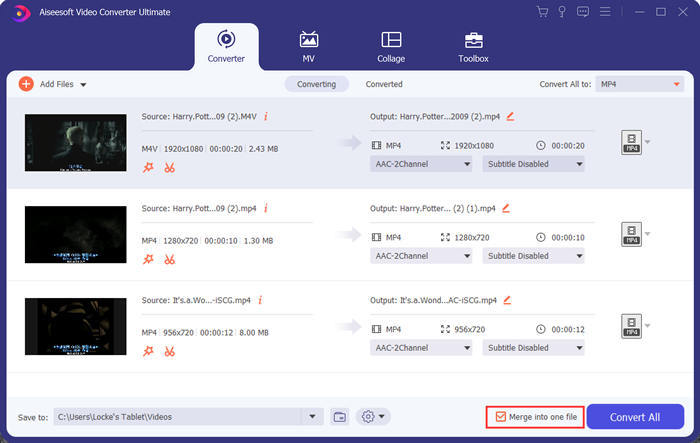
Dosyaları ekledikten sonra, sıralarını ayarlamak için onları yukarı veya aşağı sürükleyebilirsiniz. Ayrıca, programın eklenen videoları ayrı ayrı dönüştürmemesi için Merge into one file kutusunu işaretlemeniz gerekir.
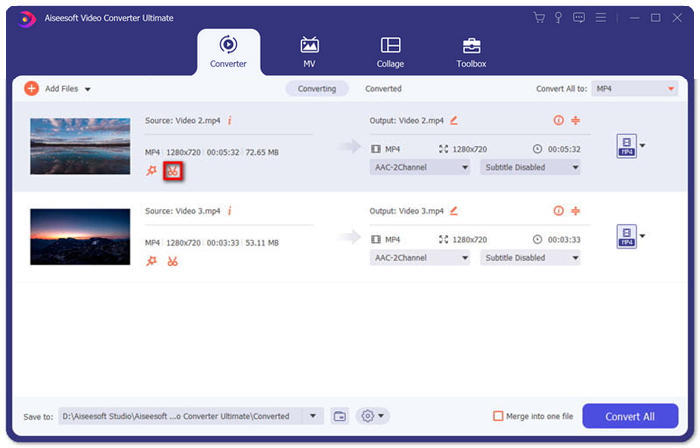
Adım 2. Kırpma özelliğini kullanmak için, eklenmiş bir videonun üzerindeki Cut simgesine tıklayabilirsiniz.
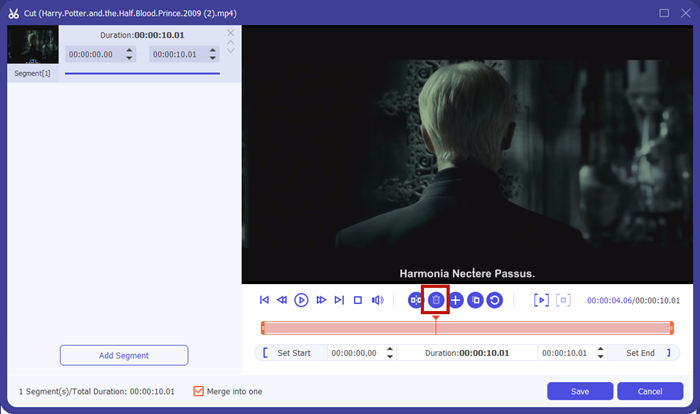
Cut arayüzünde, videonun istenmeyen kısımlarını kolayca kesebilirsiniz. Sadece başlangıç ve bitiş noktalarını ayarlayarak bir segment seçin ve ardından onu kaldırmak için çöp kutusu simgesine tıklayın.
Adım 3. Ana arayüze döndüğünüzde, çıktı dosya formatını seçebilirsiniz. Convert All to yanındaki aşağı ok simgesine tıklayın. Ardından çıktı formatı olarak M4V ya da diğer formatlardan birini seçebilirsiniz.
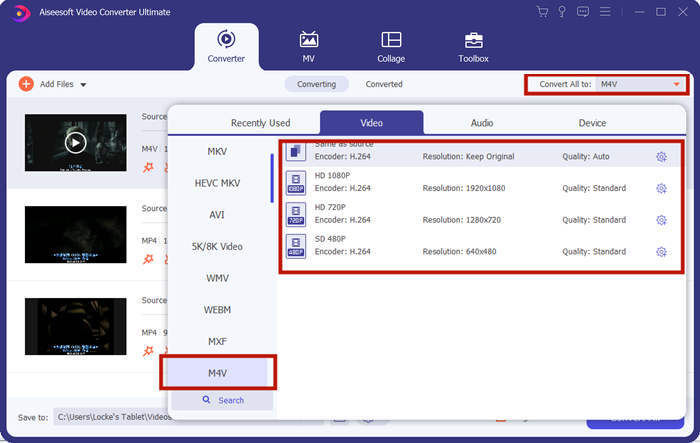
Adım 4. Programın M4V dosyalarını birleştirmesini beklerken, sağ alt köşedeki Convert All düğmesine tıklayın.

Birleştirme bittiğinde, bir başarı bildirimi göreceksiniz. Ardından, birleştirilmiş M4V dosyasını hedef klasörde bulabilirsiniz. Yukarıda M4V video dosyalarını birleştirmenin iki yöntemi vardır. Ayrıca aşağıda en sık sorulan birkaç soruyu da sonuçlandırdık.
Bölüm 3: M4V Dosyalarına Katılma Hakkında SSS
M4V dosyası nedir?
Apple tarafından tasarlanan M4V, bazen iTunes Video Dosyası olarak da adlandırılır. MP4'e benzer çünkü ikisi de MPEG-4'e dayanmaktadır. M4V'nin en özel özelliği, iTunes videolarının yetkisiz dağıtımını önlemek için iTunes'un DRM koruması ekleyebilmesidir.
M4V dosyası nasıl açılır?
DRM ile korunmuyorsa, bir M4V dosyası VLC, QuickTime, Windows Media Player ve daha birçok medya oynatıcıda açılabilir. Bazen .M4V uzantısını .MP4 olarak değiştirmek de dosyanın açılmasını sağlayabilir. Ancak DRM korumalı bir M4V dosyası yalnızca yetkilendirilmiş cihazlarda oynatılabilir.
Bir M4V dosyasından DRM korumasını kaldırabilir miyim?
Evet yapabilirsin. Piyasada sayısız DRM kaldırma programı bulabilirsiniz. İşte bunlardan bazıları: TunesKit DRM M4V Converter, Aimersoft DRM Media Converter, Requiem DRM Remover, Ondesoft iTunes Convertert, Apple Music Converter.
Sonuç
Bu yazıda, birden fazla M4V video dosyasını tek bir dosyada birleştirmenin iki etkili yöntemi tanıtıldı. En hızlı çözüm için, FVC Free Online Video Merger en iyi seçiminizdir. Herhangi bir program indirmeden kullanabilirsiniz. Yükleme süreci de anında tamamlanabilir. Ancak daha yüksek kalite istiyorsanız ya da yalnızca M4V dosyalarını birleştirmek değil, aynı zamanda kırpmak da istiyorsanız, Video Converter Ultimate programına yönelebilirsiniz. Güçlü düzenleme özellikleri sunarken arayüzü de yeni başlayanlar için son derece kullanışlıdır. Daha iyi çözümler bulduysanız, bilmek isteriz; aşağıya bir yorum bırakmanız yeterli.
-
 M4V'yi DRM'li / DRM'siz MP4'e Dönüştürme
 M4V'yi MP4'e Ücretsiz Dönüştürmenin 6 Yolu (DRM Kaldırma Dahil)
-
 M4V Dosyalarını Bilgisayarlarda / Cep Telefonlarında Kolayca Oynatmak için En İyi 5 M4V Oynatıcı
 Bilmeniz Gereken Windows / Mac / Android / iOS için En İyi 5 M4V Oynatıcı
-
 Bilmeniz Gereken 4 Mükemmel Yöntemle M4V'den MP3 Nasıl Çıkarılır
 M4V - MP3 Dönüştürücü - M4V Dosyalarından MP3 Ayıklamak için En İyi 4 Yöntem
