


 Video Dönüştürücü Ultimate
 Ekran kaydedicisi
 Video Onarımı
 Güvenli İndirme
MOV (QuickTime) Dosyalarına Ücretsiz Nasıl Katılırım
Birçok MOV video materyali topladıktan sonra, materyalleri düzenlemek ve bunları tek bir eksiksiz dosyada birleştirmek isteyebilirsiniz. Bununla birlikte, yeni başlayanlar veya amatör video üreticileri için Adobe Premiere Pro gibi teknik bir araç kullanmak çok karmaşık olabilir. Belki de programı nasıl uygulayacağınızı öğrenmek için günler hatta aylar harcayacaksınız.
Aslında, yalnızca video klipleri birleştirmek istiyorsanız, sorunuzu çözmek için basit ve etkili bir video birleştirici kullanabilirsiniz; bu da yalnızca birkaç dakikanızı alarak iki veya daha fazla MOV dosyasını birleştirmenize olanak tanır.
Aşağıdaki adımlarla hem Mac hem de Windows’ta kolayca MOV dosyalarını birleştirebilirsiniz. Bu yüzden lütfen okumaya devam edin ve yöntemleri kendiniz deneyin.

Bölüm 1. QuickTime'da MOV Videoları Nasıl Birleştirilir
MOV, QuickTime File Format (QTFF) olarak da bilinen, MPEG-4 codec’ine sahip dijital bir video kapsayıcıdır. 1998 yılında Apple tarafından QuickTime Player’ı desteklemek için tanıtılmıştır. Dolayısıyla, bir Mac’iniz varsa, aslında QuickTime Player’ı kullanarak kolayca MOV dosyalarını birleştirebilirsiniz.
Şaşırtıcı bir şekilde, QuickTime yalnızca bir medya oynatıcı değil, aynı zamanda ayrı videoları birleştirmenize, video klipleri düzenlemenize ve hatta Mac'inizde ses veya video kaydetmenize olanak tanıyan bir video düzenleyicidir. Ayrıca, kullanımı kolaydır ve videoların orijinal kalitesini korur.
QuickTime'da video kliplere nasıl katılacağınızla ilgili adımlar aşağıda verilmiştir.
Adım 1. Birleştirmek istediğiniz videoları bulun ve bunlardan birini QuickTime Player ile açın. (İşinizi kolaylaştırmak için önce hepsini tek bir klasöre veya masaüstüne taşıyabilirsiniz.)
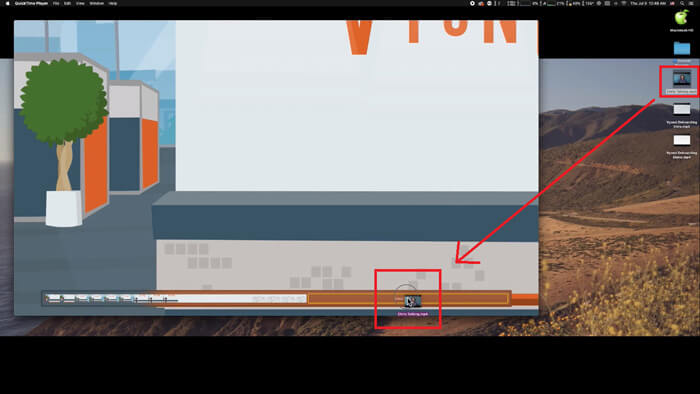
Adım 2. Dosyayı açtıktan sonra ekranda bir oynatıcı penceresi belirecektir. Şimdi diğer video klibi QuickTime Player’ın içine sürükleyin. Video klibini tutup sürükleyerek doğru sıraya yerleştirebilirsiniz. Farenin düğmesini bıraktığınızda, video kliplerinizin yanında bir Bitti düğmesi görünecektir. Buna tıklayın.
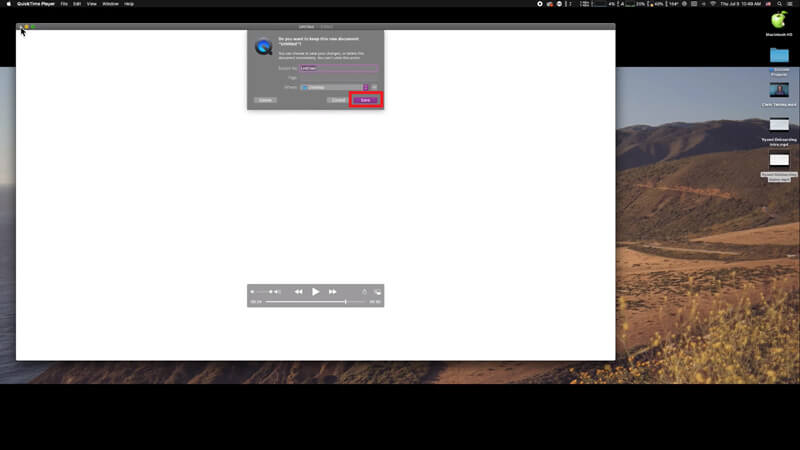
Adım 3. QuickTime’dan çıkın; birleştirilmiş videoyu kaydetmenizi hatırlatan bir uyarı hemen görünecektir. Yeni bir ad girin ve Kaydet düğmesine tıklamadan önce bir hedef klasör seçin.
Bölüm 2. MOV Dosyalarını Çevrimiçi ve Ücretsiz Olarak Birleştirme
Ancak, QuickTime; MP4, MOV, AVI, WMV, FLV vb. gibi farklı formatlardaki çeşitli video dosyalarını birleştirip tek bir MOV dosyası hâline getirmenize yardımcı olamaz. Bu durumda, birden çok video formatını destekleyen daha profesyonel bir video birleştirici kullanmanız gerekir.
O hâlde, videoları ücretsiz birleştirmek için en iyi video birleştirici olan FVC Free Online Video Merger ile tanışın. Bu aracı kullanarak, hiçbir sınır olmadan dilediğiniz kadar video yükleyebilirsiniz. MOV’un yanı sıra başka popüler video formatlarında da dışa aktarım yapabilirsiniz; bu da videoyu YouTube gibi yayın platformlarında paylaşmanız için son derece kullanışlıdır.
Bilgisayarınıza ciddi ve maliyetli bir program yüklemek yerine, bu kullanımı kolay video birleştirici ile çevrimiçi olarak harika bir video üretmek için herhangi bir videoya katılabilir, bu da filigransız bir video oluşturmanıza olanak tanır. Hangi sistemi kullanırsanız kullanın, Windows, Mac veya Linux, iyi çalışabilir. İhtiyacınız olan tek şey bir tarayıcı ve kararlı bir ağdır.
Aşağıdaki adımlar, bu video birleştirme aracını nasıl çalıştıracağınız konusunda size yol gösterecektir.
Adım 1. Tarayıcınızda FVC Free Online Video Merger sitesini açmak için yukarıdaki bağlantıya tıklayın.
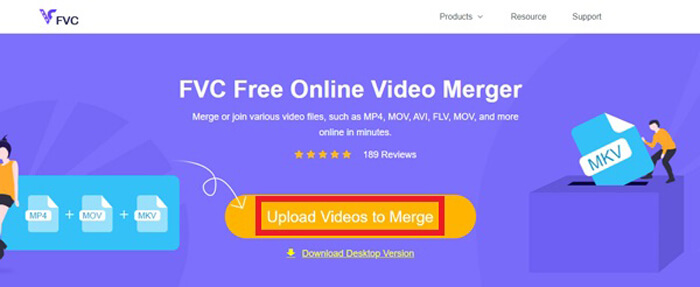
Adım 2. Önce banner’daki Videoları Birleştirmek İçin Yükle düğmesine tıklayın. Ardından ekrandaki talimatları izleyerek bilgisayarınıza bir başlatıcı indirip kurmanız gerekir.
Adım 3. Kurulum biter bitmez bir pencere açılacaktır. Şimdi, birleştirmek istediğiniz tüm MOV dosyalarını seçip video birleştiriciye ekleyebilirsiniz.
Adım 4. Yükleme tamamlandıktan sonra, lütfen video kliplerin sırasının doğru olup olmadığını kontrol edin. Ardından ihtiyacınıza göre Çözünürlük değerini ve Formatı MOV veya istediğiniz başka bir formata değiştirin.
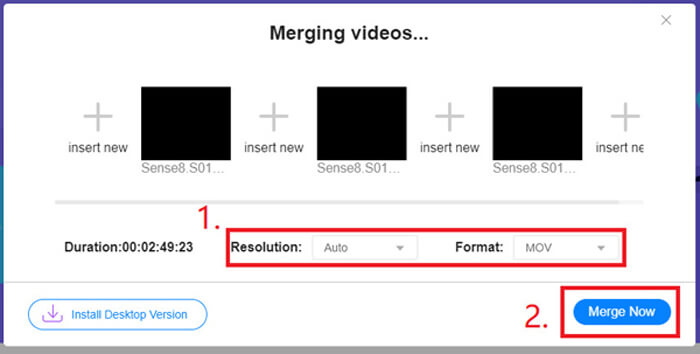
Adım 5. Birleştirme işlemini başlatmak için Şimdi Birleştir düğmesine tıklayın.
Bölüm 3. Windows 10'da MOV Dosyaları Nasıl Birleştirilir
Mac'iniz yoksa ancak Windows 10 yüklü bir PC'niz varsa, MOV dosyalarına katılmak için aşağıdaki adımları deneyebilirsiniz.
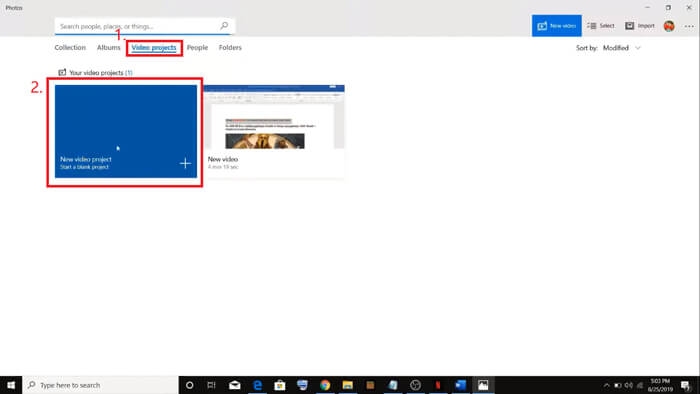
Adım 1. Bilgisayarınızda Fotoğraflar uygulamasını açın. Bunu Arama çubuğunda aratarak bulabilirsiniz. Ardından üstteki Video projeleri sekmesini seçin ve Yeni video projesine tıklayın. Video projenize bir ad verin.
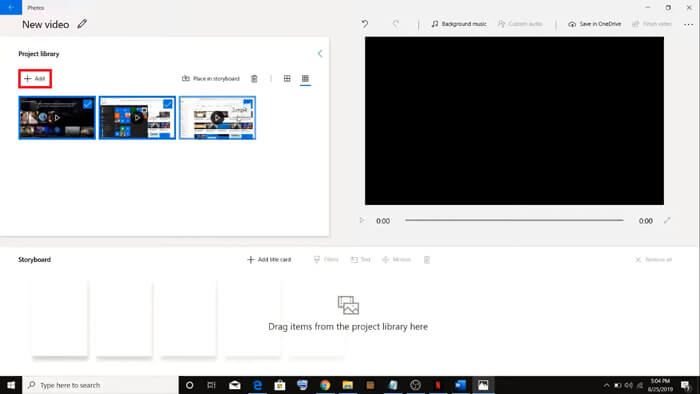
Adım 2. Sol üst köşedeki Ekle düğmesine tıklayın ve bilgisayarınızdan dönüştürmek istediğiniz tüm videoları seçin.
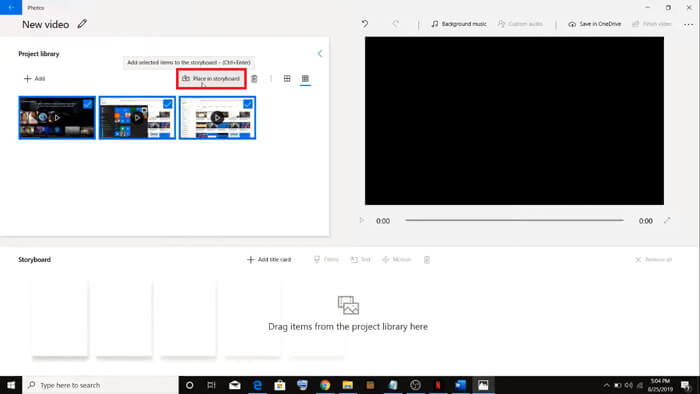
Adım 3. Ardından tüm MOV dosyalarınızı birleştirmek için Senaryo tahtasına yerleştir düğmesine tıklayın.
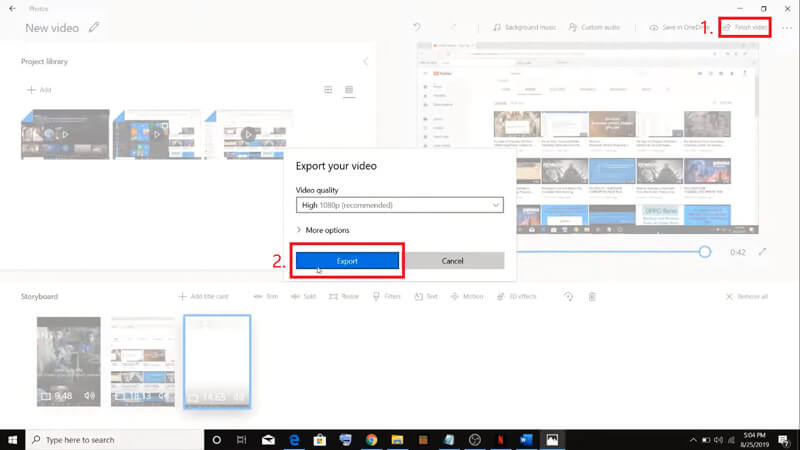
Adım 4. Video sırasını ayarladıktan sonra, sağ üst köşedeki Videoyu bitir seçeneğine tıklayın. Sonra birleştirilmiş videoyu bilgisayarınıza dışa aktarın.
Bölüm 4. MOV Birleştirme Hakkında SSS
1. QuickTime Player'ı Windows'ta kullanabilir miyim?
Apple artık Windows için QuickTime’ı desteklemese de, İnternet’te hâlâ QuickTime kurulum paketini bulabilirsiniz. Ancak, bunu yalnızca video oynatmak için kullanabileceğinizi unutmamalısınız. Yani temelde size pek faydası dokunmayan normal bir oynatıcıdır.
Eğer MOV dosyalarını birleştirmek isteyen bir Windows kullanıcısıysanız, güçlü FVC Free Online Video Mergerı kullanabilirsiniz.
2. YouTube, MOV veya MP4 için hangisi daha iyidir?
Tüm video materyallerinizi birleştirerek harika bir video oluşturduktan sonra, onu YouTube, Facebook, Instagram veya diğer platformlara yüklemek isteyebilirsiniz. Böyle bir durumda MP4 daha iyi bir seçim olacaktır; çünkü dosya boyutu daha küçüktür ve İnternet üzerinden paylaşılması daha kolaydır.
Belki de MOV ile MP4 arasındaki farklar hakkında daha fazla şey bilmek istiyorsunuz.
3. QuickTime Player, MP4 videoyu dışa aktarabilir mi?
Hem hayır hem evet. Çünkü QuickTime’ın kendisi kullanıcıların MP4 dosyası dışa aktarmasını desteklemez. Ancak QuickTime’ınızı ücret ödeyerek QuickTime Pro’ya yükselttiyseniz, MOV dosyalarını birleştirmenin keyfini çıkarabilir ve dönüştürülmüş MP4 dosyasını otomatik olarak elde edebilirsiniz. Tek kuruş ödemek istemiyor ama yine de Mac’te MOV’u MP4'e dönüştürmek istiyorsanız, hem Mac hem de Windows ile uyumlu olan FVC Free Online Video Converter adlı ücretsiz bir çevrimiçi dönüştürücüyü deneyebilirsiniz.
Sonuç
Dolayısıyla, MOV dosyalarını tek bir dosyada birleştirmeniz gerektiğinde başvurabileceğiniz yöntemler bunlardır. Mac kullanıyorsanız, yerleşik yazılım QuickTime Player’ı doğrudan kullanarak birleştirilmiş MOV dosyasını elde edebilirsiniz. Windows 10 kullanıcıları ise Fotoğraflar uygulamasını deneyebilir. Diğer Windows bilgisayarlar için kullanıcılar FVC Free Online Video Mergerı seçerek hiçbir kısıtlama, reklam veya virüs olmadan harika bir video birleştirme deneyimi yaşayabilirler.
Bu gönderiyi beğendiyseniz ve pratik buluyorsanız, arkadaşlarınızla paylaşabilirsiniz. Ve bize yorumunuzu bırakmaktan çekinmeyin. Şimdi yöntemleri deneme ve dosyalarınızı birleştirme sırası sizde.
-
 QuickTime'ı Windows / Mac / Online / iOS / Android'de MP4'e Dönüştürme
 Telefonunuzda veya bilgisayarınızda QuickTime'ı MP4 videolarına dönüştürmenin 4 yolunu okuyun ve edinin. Windows / Mac / iPhone / Android / çevrimiçi olarak dosya formatını MOV'dan MP4'e kolaylıkla değiştirebilirsiniz.
-
 MP4'ü MOV'a Ücretsiz Dönüştürmenin En İyi 4 Yolu
 MP4 Mac'te MOV'a nasıl dönüştürülür? MP4'ü MOV'a kalite kaybı olmadan dönüştürmenin ücretsiz bir yolu var mı? Bu gönderi, Mac, Windows PC ve çevrimiçi olarak MP4'ten MOV'a video dönüştürme yapmanıza yardımcı olacak 4 basit yolu paylaşıyor.
-
 Windows / Mac'te M2TS'yi MOV'a Dönüştürme (Çevrimiçi / Çevrimdışı)
 Video dosyalarını çeşitli oynatıcılarda ve platformlarda oynatmak için M2TS'yi MOV'a dönüştürmeniz mi gerekiyor? Bu makale, Windows / Mac'te M2TS'yi MOV'a dönüştürmek için en iyi Çevrimiçi / Çevrimdışı yöntemi bulmanıza yardımcı olacaktır.
