


 Video Dönüştürücü Ultimate
 Ekran kaydedicisi
 Video Onarımı
iMovie'de Videoya Hızlı Bir Şekilde Resim Eklemenin Basit Yolları
Videoya görseller eklemek, mesajı izleyiciye çok daha iyi aktarmanın en iyi yollarından biri haline geldi. Çoğu video düzenleyici, bir görseli videonun üzerine hızlıca bindirmenize yardımcı olabilir ve bir Apple kullanıcısıysanız, muhtemelen iMovie ile zaten karşılaşmışsınızdır. Apple cihazınızda kullanabileceğiniz en iyi düzenleyicilerden biri olarak bilinir. Bununla birlikte, ortalama Apple kullanıcıları, daha önce hiç kullanmadıkları için iMovie’yi kullanmayı zor buluyor. Eğer siz de iMovie kullanırken zorluk çeken ve videoya görsel eklemek isteyen bir Apple kullanıcısıysanız, bu makaleyi okuyabilirsiniz. Aşağıdaki ayrıntıları okursanız, iMovie’de videoya nasıl görsel ekleneceğini öğrenmek oldukça basittir.

Bölüm 1. iMovie'de Videonun Üzerine Resim Nasıl Bindirilir [Mac]
Mac'te bir iMovie'niz varsa, onu kullanabilir ve görüntüyü videoya ekleyebilirsiniz. Şimdi, video iMovie'ye nasıl fotoğraf koyacağınızı öğrenmek istiyorsanız, aşağıdaki adımlar size yardımcı olacaktır.
Adım 1. Finder’da iMovie’yi arayın, ardından açmak için üzerine tıklayın.
Adım 2. iMovie’nin sol üst kısmında, videoyu ve görseli kolayca içe aktarmak için Import düğmesine tıklayın. Eklediğiniz medya dosyalarını Timeline alanına sürükleyip bırakın.
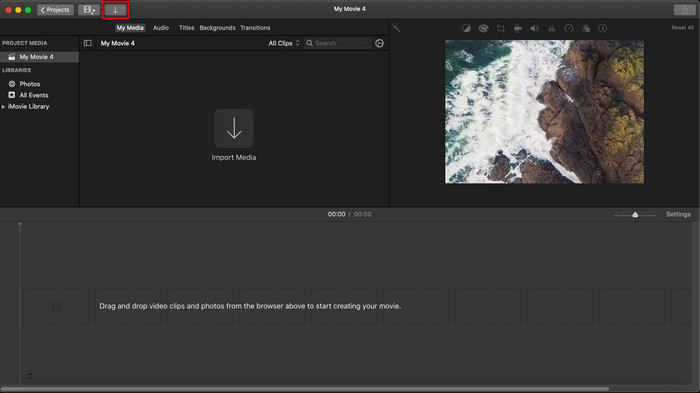
Adım 3. İçe aktardığınız görseli ve süresini ayarlayın. Bundan sonra, dosyayı bilgisayarınıza indirmek için Export düğmesine tıklayın.
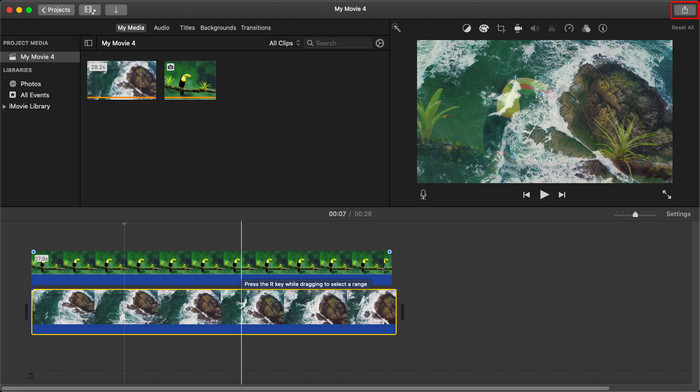
Burada sunduğumuz adımlar, iMovie'yi kullanma deneyiminden alınmıştır. Araçta bir güncelleme varsa veya kısa süre içinde bazı değişiklikler olursa adımlar değişebilir.
Bölüm 2. iMovie [iOS] ile Videoya Fotoğraf Ekleme
Ya bir iOS aygıtı kullanıyorsanız ve bir videoya resim eklemek için düzenleyici olarak iMovie'yi kullanmak istiyorsanız? Mümkün mü? Evet, öyle. Aşağıdaki ayrıntıları verdiğimiz adımlarla okuyarak iPhone'da bir video iMovie'ye nasıl resim koyacağınızı size öğretebiliriz.
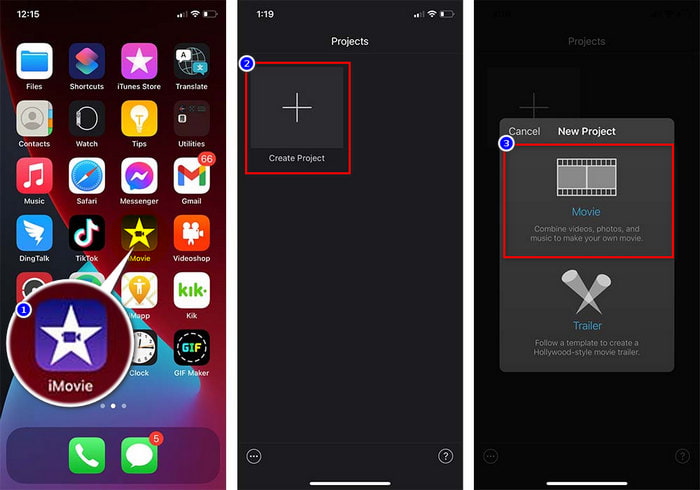
Adım 1. iOS cihazınızda iMovie uygulamasını çalıştırın, Create Project ardından Movie seçeneğine tıklayın. Kitaplığınızda bulunan videoyu ekleyin.
Adım 2. Videoya görsel filigran eklemek için + düğmesine tıklayın. Kitaplıkta arayın, üzerine tıklayın, üç noktalı çizgiye basın ve ardından Green/Blue Screeni seçin. Arka planı otomatik olarak kaldırmak için görsele dokunun.
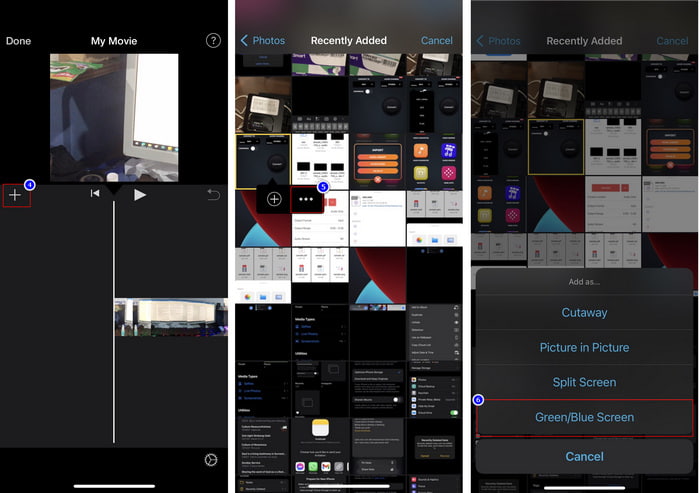
Adım 3. Done öğesine basın, Exporte tıklayın ve ardından Save Videosu seçin.
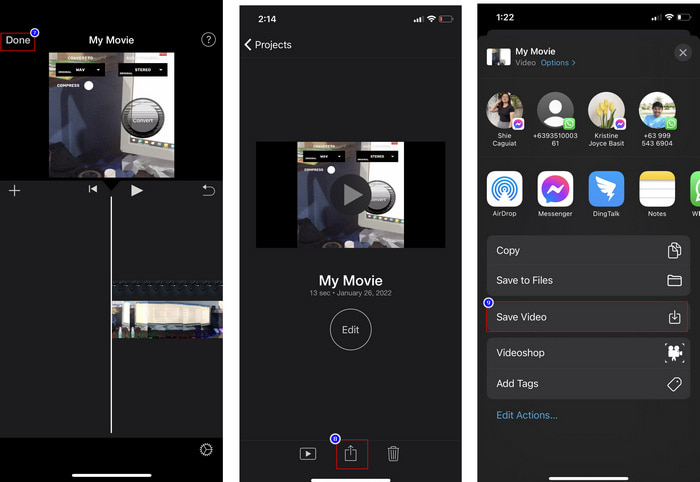
Burada sunduğumuz adımların tümü, iOS'ta iMovie kullanmanın uygulamalı deneyiminden alınmıştır. Ancak editör uygulamasında yakında bir güncelleme olursa bazı adımlar değişebilir.
Bölüm 3. Mac'teki En İyi Video Filigran Yazılımıyla Videoya Fotoğraf Eklemenin En Kolay Çözümü
iMovie’de videonun üzerine fotoğraf eklerken aynı zorlukları mı yaşıyorsunuz? Video Converter Ultimate aracını kullanmayı deneyin; çünkü bu araç iMovie için en iyi alternatiftir. Bu aracın genel performansı, onu denemiş milyonlarca kullanıcı tarafından övgüyle karşılanmıştır. Videolarında farklı sorunlar olsa bile, bu sorunları çözmek için yine de bu gelişmiş aracı tercih ediyorlar. Dahası, bu araçla kesme, görsel ekleme, birleştirme, kırpma vb. gibi videoyla ilgili neredeyse her şeyi yapabilirsiniz. Sorun ne olursa olsun, bu araç tek duraklı çözümünüzdür. Sorunu çözmek mi istiyorsunuz? O hâlde, kolayca takip edebilmeniz için aşağıya yazdığımız adımları uygulayın.
Özellikler:
◆ Nihai araç birden fazla formatı destekler, bu nedenle formatınızı yüklemek zor olmayacaktır.
◆ Herhangi bir videoya birkaç saniye içinde hızlı bir şekilde resim eklemek için anlaşılması kolay bir arayüzü destekler.
◆ Kullanıcıların tüm platformlarda eğlenmesini sağlamak için Mac ve Windows gibi farklı platformları destekler.
Adım 1. Aşağıdaki indirme düğmesine tıklayarak aracı indirebilir, ardından hızla kurup yükleme işleminden sonra açabilirsiniz.
Ücretsiz İndirWindows 7 veya üstü içinGüvenli İndirme
Ücretsiz İndirMacOS 10.7 veya üstü içinGüvenli İndirme
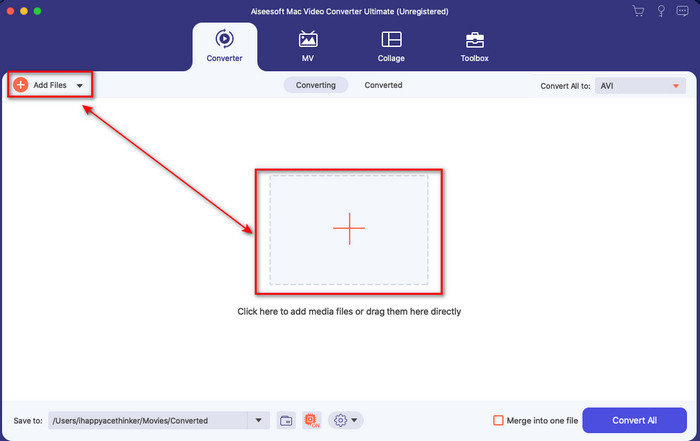
Adım 2. Açtıktan sonra, video dosyasını içe aktarmak için gösterilen + düğmesine tıklayın. Ardından, videonun bulunduğu klasör açılacak, dosyayı seçip Opena tıklayın.
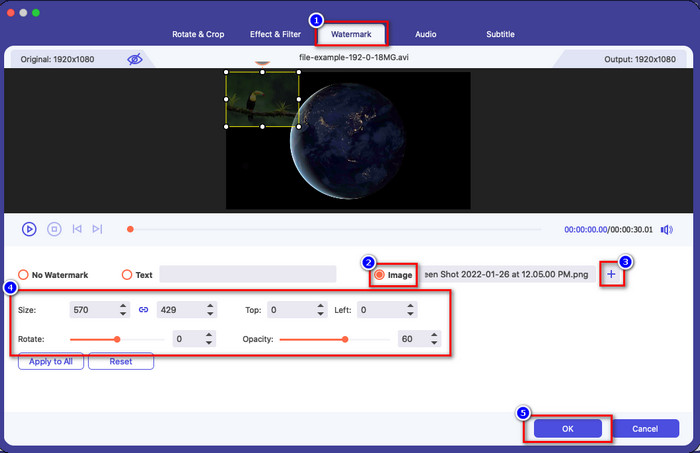
Adım 3. Dönüştürücünün düzenleme penceresini açmak için sihirli değnek simgesine basın. Watermark bölümüne gidin, görsele tıklayın ve ardından yüklemek için adde basın. Ayrıca, ihtiyacınıza göre görselin opaklığını ayarlayabilir veya döndürebilirsiniz ve değişiklikleri uygulamak için OKe tıklayın.
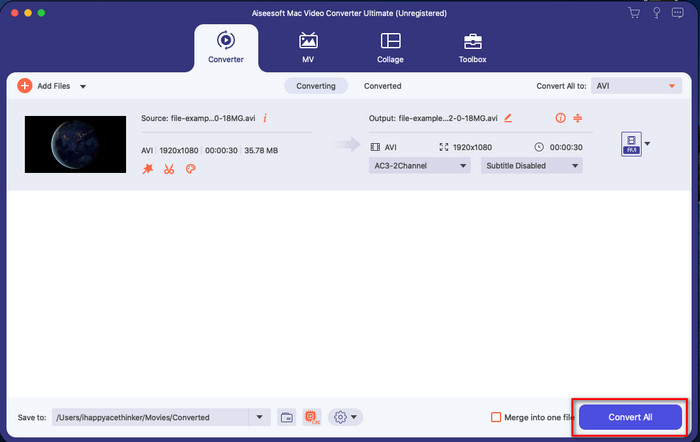
Adım 4. Video dosyasını dışa aktarmak için Convert All düğmesine tıklayın. Dışa aktarma işlemi bittikten sonra video bilgisayarınızdaki bir klasöre kaydedilecektir; bu kadar kolay, artık videonuzda bir filigran görseli var. Şimdi, Video Converter Ultimateın yeteneklerine inanıyor musunuz? Görsel filigranı videoya işte bu kadar hızlı bir şekilde eklemiş oldunuz.
İlgili:
Bölüm 4. iMovie'de Videoya Fotoğraf Ekleme Hakkında SSS
iMovie videolarına eklenen resim sayısında sınırlama var mı?
Şimdiye kadar, iMovie'yi kullanırken videoya birden fazla resim ekleme konusunda herhangi bir sıkıntı yaşamadık. Ancak, videoya çok fazla resim eklerseniz dışa aktarma işlemi zaman alır, ancak deneyime göre çökmez.
iMovie'de kullanabileceğim görüntü biçimleri nelerdir?
BMP, PNG, JPG veya JPEG, HEIF, PSD, RAW TIFF ve TGA gibi çok sayıda hareketsiz görüntü formatı iMovie desteği vardır, ancak hareketli bir görüntü istiyorsanız GIF kullanabilirsiniz. Bu biçimler çok olmasına rağmen, yine de EXIF, WebP ve benzerleri gibi tüm görüntü biçimlerini desteklemez.
Neden iMovie'yi kullanmalıyım?
Apple kullanıcıları için iMovie, kısa film, reklam, vlog ve daha fazlasını oluşturmak için en iyi seçeneklerden biridir; bunların hepsi ücretsiz. Düzenleyici, kullanıcıların gelişmiş bir arabirimin veya aracın nasıl göründüğü konusunda uygulamalı bir deneyime sahip olmalarına yardımcı olmak için yarı gelişmiş bir arabirim sağlar. Ayrıca, yazılım daha az tekniktir, ancak uzmanlaşmıştır. Nasıl kullanılacağını daha az teknik sağlayan bir düzenleyici görmek yaygın değildir, ancak bir profesyonel olmanıza ve bazı özel teknikler gelişmiş araçlar eklemenize yardımcı olabilir.
Sonuç
Sonuç olarak, iMovie’de videonun üzerine kolaylıkla fotoğraf ekleyebilmek için artık yeterli bilgiye sahibiz diyebiliriz. Apple’daki bu güçlü araçla, karmaşık görünen pek çok düzenleme işlemini burada yapabilirsiniz. Ancak ihtiyacınız olan tüm işlevler iMovie’de bulunmuyor; bu yüzden tüm platformlarda rahatça kullanabileceğiniz bir düzenleyici için Video Converter Ultimateı tercih edebilirsiniz. Belki “Neden bu gelişmiş aracı kullanmalıyım?” diye düşünüyorsunuz. Yukarıda sunduğumuz kanıtlar ortadayken uzun açıklamalara gerek yok. Peki şimdi ne yapmalısınız? İndirme düğmesine tıklayarak bu aracı bizzat deneyebilir ve bu sorunu çözebilirsiniz.
-
 Android ve iOS'ta En Çok Seçilen 5 Ses Kaydedici Uygulaması [2022 Güncellendi]
 Hangi ses kaydedici uygulamasını kullanmanız gerektiğini bilmiyor musunuz? Öyleyse, bu makale, ses kaydı görevinizde hangi uygulamanın size yardımcı olacağını seçmenize yardımcı olacaktır.
-
 iOS'ta Sesli Not – Artıları, Eksileri, Özellikler ve En İyi 4 Değiştirme
 Sesli Not nedir? İOS'taki en iyi ses kaydedici mi? Bu soruya bir cevap mı arıyorsunuz? Bu nedenle, daha fazlasını öğrenmek için bu makalenin tüm kapsamını okuyun.
-
 MOD Dosyasını Yeni Bir Biçime Değiştirmek için En Son 7 Ücretsiz MOD Dönüştürücü
 Kullanabileceğiniz MOD Dönüştürücüler nedir? Aynı soruyu mu düşünüyorsun? İşte MOD dosyalarınızı dönüştürmek için kullanabileceğiniz yedi aracı sunuyoruz.
