


 Video Dönüştürücü Ultimate
 Ekran kaydedicisi
 Video Onarımı
 Güvenli İndirme
Videolardaki Animoto Filigranını Kalıcı Olarak Kaldırmak İçin En İyi Teknikler
Animoto, videoyu görecek olan izleyicileri etkilemek için herkesin mükemmel bir video yapmak için kullanabileceği bulut tabanlı bir video yapımcısıdır. Milyonlarca kullanıcısı olan Animoto, post prodüksiyon hakkında geniş bilgiye sahip olmadan videoları düzenleme ve oluşturmasıyla ünlendi. Web sitesini ziyaret eden günlük kullanım nedeniyle, birçok kullanıcı onu kullanmaktan zevk alır ve sunumları için çok sayıda harika kısa video oluşturur.
Ancak aracın ücretsiz sürümü, videonun sonunda aracın logosunu bırakıyor. Bu, bazıları için can sıkıcı olabilir ve videoyu üzerinde hiçbir filigran olmadan düzenli bir şekilde sunabilmek için bunu kaldırmamız kesinlikle gerekiyor. Size, ücretsiz olarak Animoto filigranını kaldırma imkânı verecek aracı tanıtabilmemiz için, bu makaleyi okuma hızınızı korumalısınız; çünkü kullanabileceğiniz ve size yardımcı olacak tüm araçları burada özetliyoruz.

Bölüm 1. Animoto Videodan Filigran Nasıl Kaldırılır [2022'de En Çok Kullanılan Filigran Sökücü]
FVC Video Converter Ultimate – Windows ve Mac'te Ultimate Watermark Remover
Animotica filigranını kaldırmak istiyorsanız, FVC Video Converter Ultimate aracının sunduğu özellik ve işlevlerden yararlanabilirsiniz. Bu araç, videonuzdaki filigranı ortadan kaldırmanın en etkili yolunu sağlar; yani onu kaldırarak. Bu araçla, Animoto logosunu, sizin oluşturduğunuz kişisel logoyla kapatarak aracın logosunun hazırladığınız videoda görünmesini engelleyebilirsiniz. Filigranı kaldırma konusundaki genel performansına bakarak, piyasada bulduğumuz en iyi seçenek olduğunu rahatlıkla söyleyebiliriz.
Ayrıca, filigranı kaldırmak ve eklemek dışında düzenleme, dönüştürme, MV oluşturma ve daha fazlası gibi diğer özelliklerden ve işlevlerden de yararlanabilirsiniz. Tüm özellikleri ve işlevleriyle, nihai bir amaç için masadaki doğru tabağa hizmet ettiğini kabul edebiliriz. Yani bir Animoto videosundan bir filigranın nasıl kaldırılacağını öğrenmek istiyorsanız aşağıdaki bilgileri okuyabilirsiniz.
Adım 1. Aşağıdaki indirme düğmesine basarak aracı Windows veya Mac’inize indirin. İşletim sisteminize uygun sürümü indirmek için doğru düğmeyi seçin. Ardından indirdiğiniz dosyaya tıklayarak kurulum işlemini başlatın, kurulum adımlarını izleyin ve programı açın.
Ücretsiz İndirWindows 7 veya üstü içinGüvenli İndirme
Ücretsiz İndirMacOS 10.7 veya üstü içinGüvenli İndirme
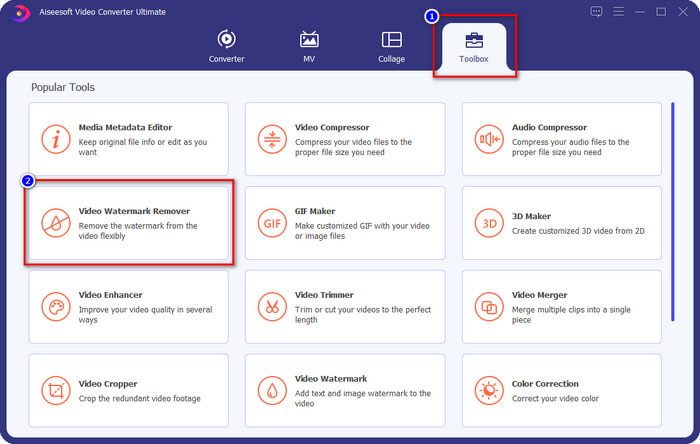
Adım 2. Araç Kutusuna giderek aracın sunduğu Video Filigran Kaldırıcı özelliğini açın.
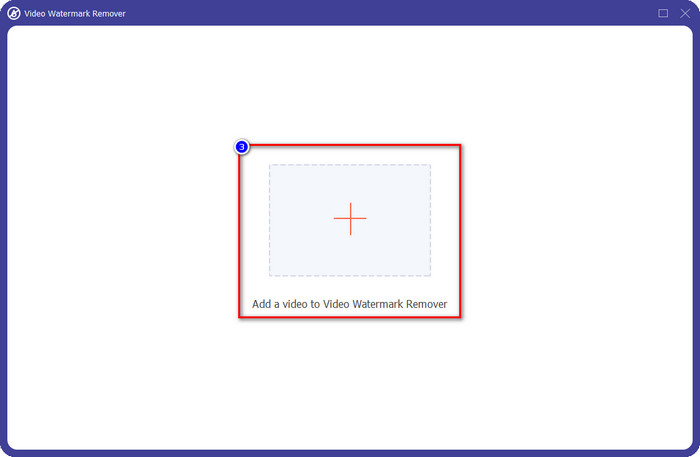
Adım 3. Ekranda göreceğiniz + düğmesine tıklayarak, Animoto’da düzenlediğiniz ve üzerinde filigran bulunan videoyu yükleyin.
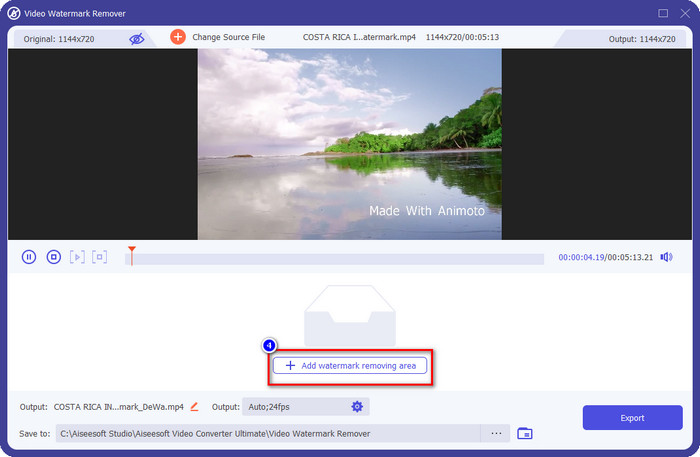
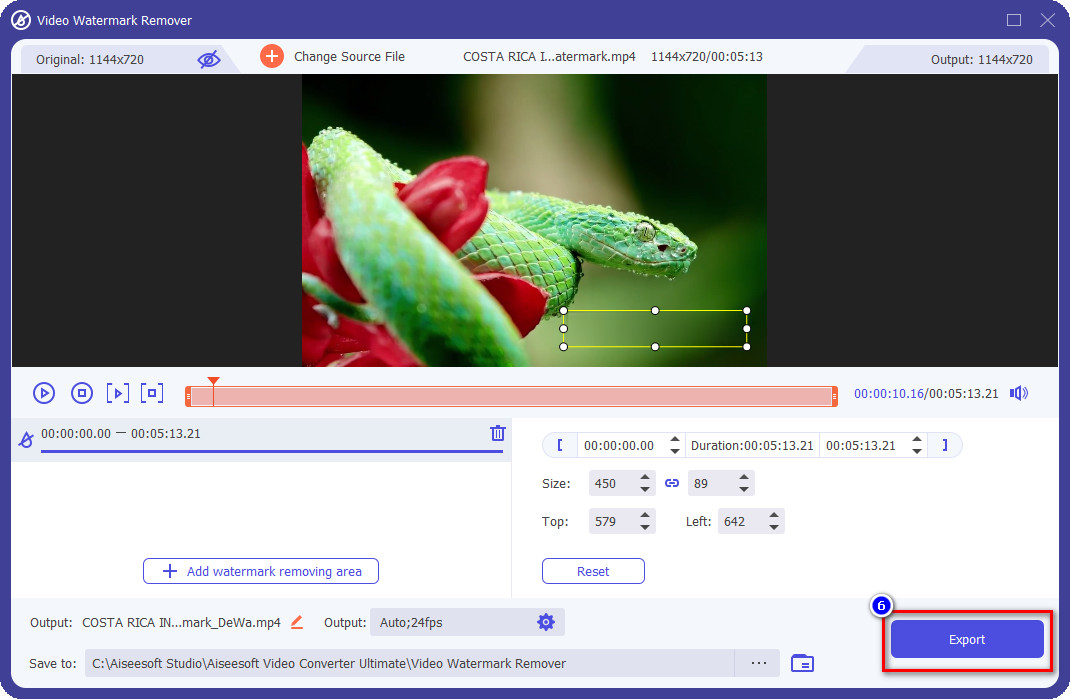
Adım 4. Videoyu yüklediğinizde ekranınızda buna benzer yeni bir pencere göreceksiniz. Arayüzün orta-alt kısmındaki Filigran Kaldırma Alanı Ekle seçeneğine tıklayın.
Adım 5. Lütfen seçim kutusunu filigrana uyacak şekilde ayarlayın ve konumlandırın.
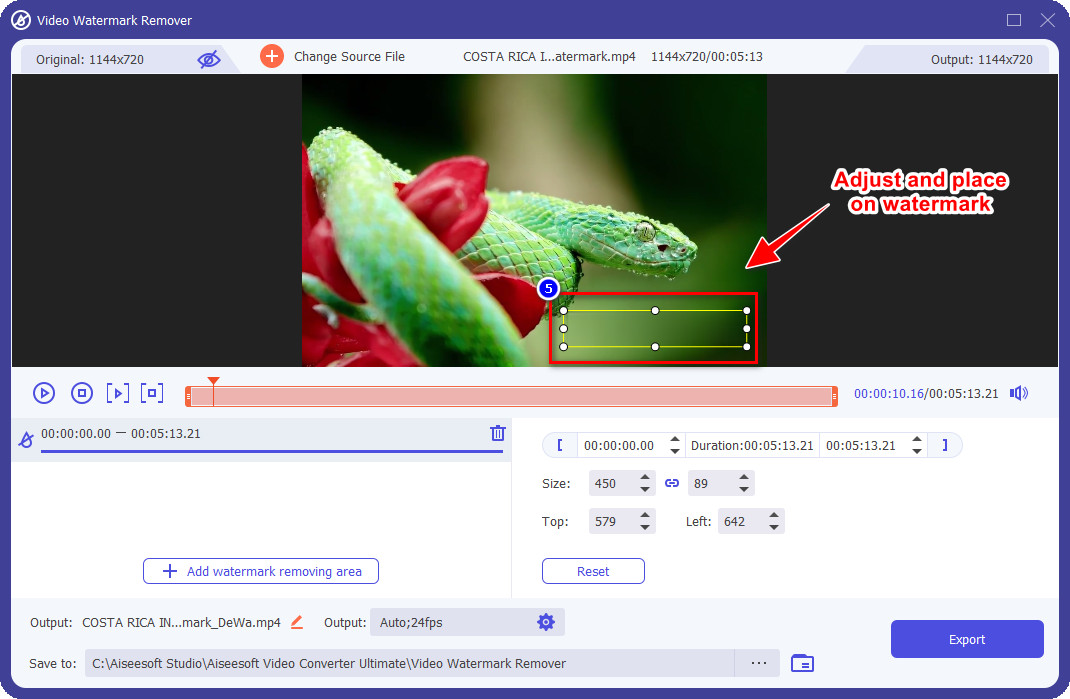
Adım 6. Seçim kutusunu filigranın üzerine yerleştirdikten sonra, videonun filigransız son çıktısını kaydetmek için Dışa Aktar düğmesine tıklayabilirsiniz.
Mac'te iMovie
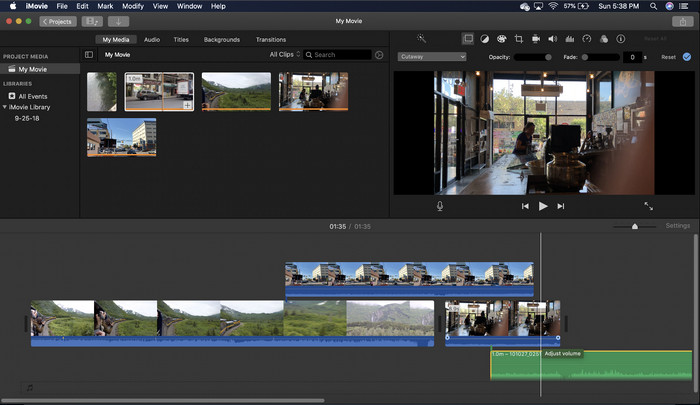
iMovie, videonuzdaki filigranı kırparak kaldırmak için kullanabileceğiniz popüler bir video düzenleyicidir. Her Mac kullanıcısı, yazılımı cihazlarına indirmeden potansiyelini kullanabilir, çünkü yazılım zaten önceden yüklenmiştir ve indirme ve yüklemede, hatta depolamada bile zamandan tasarruf etmenizi sağlar. Araç video düzenleme için mükemmel olsa da desteklediği filigran kaldırma özelliği ilk aracın sağladığı gibi değil. Videodaki filigranı kaldırmak için video karesini kırpar, yani filigran ortaya yerleştirilirse videonun görsel sunumunun neredeyse yarısını kırpmanız gerekecektir.
Filigranı kaldırmak için her zaman en iyi seçim değildir, ancak logo videonun sonundaysa, Animoto filigranını kırparak videodan nasıl kaldıracağınızı öğrenmek için aşağıdaki adımları izleyebilirsiniz.
Adım 1. Mac cihazınızda video düzenleyiciyi açmak için Finder’a gidin, ardından Uygulamalar’a tıklayın; burada iMovie’yi aratın ve açmak için üzerine iki kez tıklayın.
Adım 2. İçe aktar düğmesine tıklayıp yerel sürücüden video dosyasını arayarak istediğiniz videoyu yükleyin.
Adım 3. Video yüklendikten sonra, yüklediğiniz videoyu zaman çizelgesine sürüklemeniz gerekir.
Adım 4. Aracın arayüzünün sağ tarafında, pek çok düzenleme özelliği simgesi göreceksiniz; listeden kırpma simgesine tıklayın.
Adım 5. Videonuzdaki Animoto filigranını dışarıda bırakacak şekilde çerçeveyi değiştirin.
Adım 6. Sol üst kısımdaki paylaş düğmesine, ardından videoyu indirme işlemini başlatmak için Video Olarak Dışa Aktar seçeneğine tıklayın.
Bölüm 2. Animoto Videolarını Filigran Olmadan Kaydetmenin Ek Yolu
Animoto'da düzenlenen videoları filigran olmadan kaydedebilir miyim? Yapabilirsiniz. Yukarıda bahsettiğimiz yazılımı kullanmak yerine, burada düzenlediğiniz videoyu kaydetmek için bu web aracındaki abonelik ücretini satın alıyorsunuz, ancak bu sefer filigransız. Bunu yapmanıza yardımcı olmak için aşağıdaki adımları takip edebilirsiniz.
Adım 1. Tarayıcınızı açın, Animoto Video Editor’ü aratın ve ardından resmi web sitesini açın.
Adım 2. Resmi web sitesinde Fiyatlandırma seçeneğine tıklayın.
Adım 3. Bunun altında, aylık ve yıllık olmak üzere iki tür abonelik kullanabileceğinizi göreceksiniz. Yıllık aboneliğin daha düşük görünen fiyatına aldanmayın; çünkü yıllık, yılda bir kez ödendiği için toplamda aylığa göre daha pahalıya gelebilir.
Adım 4. Burada bir hesap oluşturun, fatura adresinizi ve kullanmak istediğiniz ödeme yöntemini ekleyin. Bundan sonra, bu çevrimiçi aracın profesyonel sürümünü kullanabilirsiniz.
İlişkili:
Photobucket Filigranları Nasıl Kaldırılır
GIF Üzerindeki Filigran Nasıl Kaldırılır
Bölüm 3. Animoto Filigranının Nasıl Kaldırılacağına İlişkin SSS
Animoto ve Animotoca aynı mı?
Bu iki video düzenleyici birbiriyle ilişkili değildir, ancak bunlarla ilgili makaleler genellikle her bir aracı karşılaştırmaktan bahseder. Ve ikisi de başlı başına birbirleri için en iyi alternatiftir.
Hangisi daha iyi, Animoto filigranını bulanıklaştırmak mı yoksa kırpmak mı?
Bulanıklaştırmanın videonuz üzerinde iyi ve kötü etkileri olabilir; Filigranı bulanıklaştırmanın iyi yanı, özellikle renkle iyi bir şekilde karışıyorsa veya karışıyorsa, çıplak gözle algılanamamasıdır. Ancak kötü yanı, dışa aktardıktan sonra iyi gitmediyse izlenebilir bir işaret görmenizdir. Kırpmada durum aynıdır; videoyu kırptığınızda, videoda efekt sonrası bulanıklık olmaz, ancak çerçeve boyutu daralır.
Animoto'nun bir kerelik ödemesi var mı?
Ne yazık ki, bir kerelik ödemeleri desteklemiyor. Ancak daha ucuza gitmek ve uzun süre kullanmak istiyorsanız, web aracını bir yıl boyunca kullanmak için yıllık aboneliği seçmenizi, ardından bir sonraki yıl ve ilerisi için tekrar abone olmanızı öneririz.
Sonuç
Peki, Animoto filigranını kaldırmak için hangi yolu kullanacağınızı düşünüyorsunuz? Kararınız ne olursa olsun, Animoto'da düzenlediğiniz videodaki filigranı kaldırma sorununu çözmenize yardımcı olduğumuzu umuyoruz.
-
 Herhangi Bir Videoya Hızlı Bir Şekilde Filigran Eklemenin En İyi 4 Yolu
 Bu makaleyi okuduysanız, Windows, Mac, Online, iOS ve Android'deki herhangi bir videoya nasıl filigran ekleneceğini ayrıntılı adımlarla öğrenelim.
-
 Tiktok Videolarından Tiktok Filigranlarını Kaldırmanın 4 Etkili Yolu
 Dışa aktarılan Tiktok videolarınızdan Tiktok filigranını kaldırmanız mı gerekiyor? Burada sunduğumuz araçlar yardımıyla yapabilirsiniz; kolayca yapabilirsiniz.
-
 Mac'te iMovie'de Videoya Filigran Nasıl Eklenir [All Embracing]
 iMovie'de bir videoya filigran eklemenin sırlarını bilmek ister misiniz? Kimsenin üzerine çayı dökmeyin ve bu makaleyi okuyarak öğrenin.
