


 Video Dönüştürücü Ultimate
 Ekran kaydedicisi
 Video Onarımı
 Güvenli İndirme
En İyi Çözümlerle iPhone'da Bir Videoyu Kolay ve Hızlı Bir Şekilde Yavaşlatma
Hiç en sevdiğiniz sanatçının Grammy’deki görüntülerini izlerken GlamBot’un üzerine çıktığını gördünüz mü? Çoğumuz, bu makinenin birkaç hareketi kaydedip görüntüyü ağır çekime aldığında, bir saniyeden kısa sürede ne kadar etkileyici sonuçlar çıkarabildiğini gördük. Ne yazık ki herkes Grammy’ye gidip GlamBot ile ağır çekim video çektiremiyor; ama eğer bir ünlüyseniz, onu denemenin yolu bu. GlamBot kullanamıyorum diye üzülmeyin; çünkü iPhone’unuzla da yüksek kalitede ağır çekim videolar çekip oluşturabilirsiniz. O hâlde, bahsettiğimiz makine kadar etkileyici görünen bir videoyu iPhone’da nasıl yavaşlatacağınızı öğrenip çekmeye hazır mısınız? Öyleyse bu makale tam size göre.

Bölüm 1. En İyi 3 Hız Kontrol Cihazı Uygulamasıyla iPhone'da Video Nasıl Yavaşlatılır
iMovie
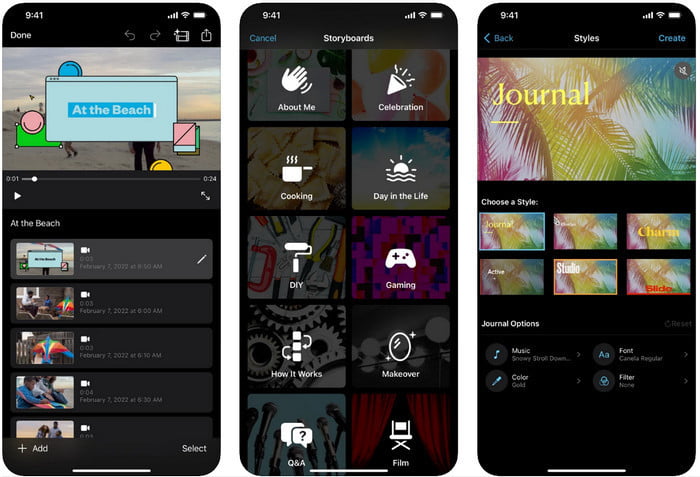
1. Adım. Uygulamayı açmak için ekrandaki iMovie simgesine dokunun, ardından ekrandaki artı simgesine dokunun. Ekranınızda yeni bir pencere belirecek ve size iki seçenek sunacak, ancak buradan Filme dokunun.
2. Adım. Ekranınızda beliren listeden videonuzu seçin ve devam etmek için Film Oluştura dokunun. Yükledikten sonra, videonuzun hızını değiştirmek için saat benzeri simgeye dokunun ve videoyu yavaşlatmak için kaydırıcıyı sola sürükleyin.
3. Adım. Videonun hızını düzenlemeyi bitirdikten sonra Bittiye, ardından cihazınıza kaydetmek için Dışa Aktara dokunun.
Ağır Çekim Video Düzenleyici
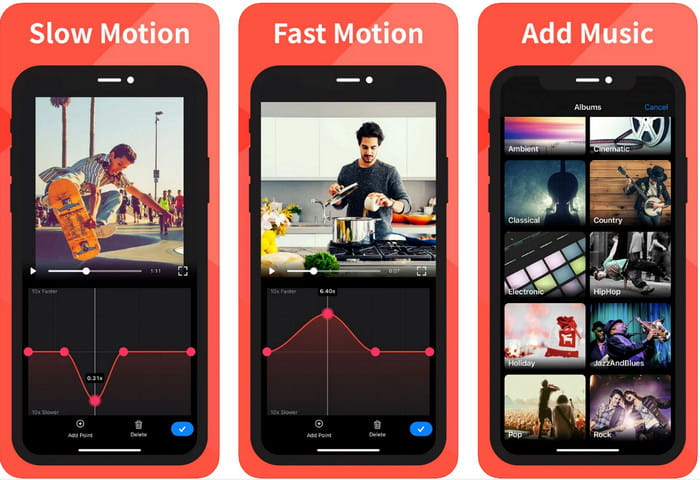
Slow Fast Motion Video Editor, videoyu harika göstermek konusunda iMovie kadar iyi değildir, fakat iPhone’da videoyu kolayca yavaşlatabilen bir uygulamadır. Çok işlevli hız düzenleyicisi sayesinde özellikle hızlandırma tarafında yapamayacağı pek bir şey yoktur. Video dikey ya da yatay olsun, iki şekilde de çalışabilir. Bu nedenle, uygulamayı kullanmayı öğrenmek, cihazınıza indirebileceğiniz diğer hız kontrol uygulamalarına kıyasla zorlayıcı değildir. Ancak uygulamayı iOS’ta kullanabilmek için abonelik ücreti ödemeniz gerekir; 3 günlük ücretsiz deneme sunar ama bu deneme sırasında her yerde reklamlar olacaktır. Uygulamayı kullanmak için aşağıdaki adımları takip edebilirsiniz.
1. Adım. Uygulamayı indirin, ardından iOS’unuzda açın ve uygulamanın Fotoğraflar’ınıza erişebilmesi için Erişime İzin Vere dokunun.
2. Adım. Cihazınızda bulunan videoyu seçin ve Seçilenleri Göstere dokunun; yüklediğiniz videoyu görmek için Tüm Videolara, ardından Seçe dokunun.
İsteğe bağlı: Videoyu tercihlerinize göre kırpıp kesebilirsiniz; bunun için oynatma başlıklarını istediğiniz uzunluğa sürükleyin. Ancak kırpma ve kesme yapmak istemiyorsanız Atlaya, düzenleme yaptıysanız İleriye dokunun.
4. Adım. Hız düğmesine dokunun, her bir hız ayarını isteğinize göre düzenleyin ve videoyu yavaşlatmak için aşağı doğru sürükleyin. Unutmayın, sürüklediğiniz her nokta yalnızca belirli bir kısmı yavaşlatır, tüm videoyu değil. Değiştirdiğiniz hızla videoyu dışa aktarmak için Kontrol Et ve Kaydete dokunun.
Ağır Çekim: Ağır Çekim Video Yapın
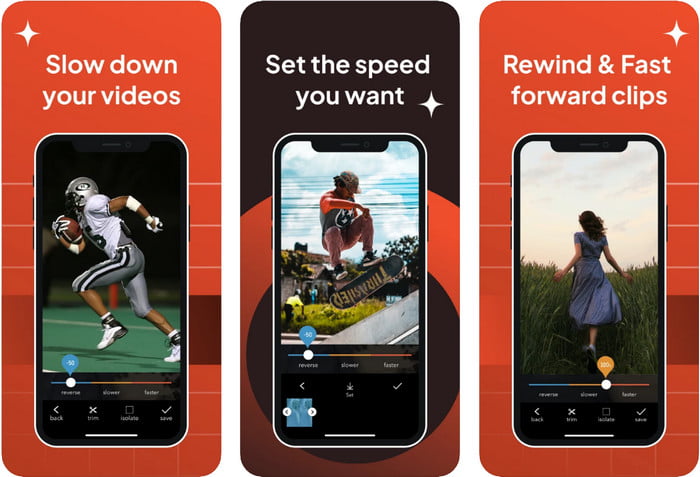
Slo-Mo: Make Slow Motion, iOS’unuza ücretsiz indirebileceğiniz, ancak uygulama içi satın almalar sunan başka bir özel uygulamadır. Slow Fast Motion Video Editor ile aynı şekilde, tüm özelliklerinden yararlanmadan önce abone olmanız gerekir. Yine de abonelik almanız gerekse bile buna değer ve çok da pahalı değildir. Bir videonun oynatma hızını değiştirme konusunda, bu aracın bu tip görevlerde gayet isabetli olduğunu görebiliyoruz. iPhone’da bir videoyu nasıl ağır çekim yapacağınızı daha detaylı öğrenmek için aşağıdaki eğitimi okuyabilirsiniz.
1. Adım. Uygulamayı indirmek için App Store’a girip uygulamayı indirin; ardından elinizdeki videoyu yavaşlatmaya başlamak için uygulamayı açın.
2. Adım. Kitaplıka dokunun, oynatma hızını değiştirmek istediğiniz videoyu seçin, başlamak için Seçe dokunun.
3. Adım. Ağırlaştırmak için kaydırıcıyı sola sürükleyin; hızdan memnun kaldıysanız Kaydete dokunun.
Bölüm 2. Windows ve Mac'te Bulunan En Üst Düzey Video Hızı Denetleyicisi
FVC Video Converter Ultimate, Windows ve Mac üzerinde depoladığınız videolar için kullanabileceğiniz en iyi hız denetleyicisine sahiptir. Videoyu hızlandırma konusunda sahip olduğu benzersiz özellikleriyle, burada bahsettiğimiz diğer uygulamalarla karşılaştırdığımızda, iyi bir hız denetleyici ile üstün bir hız denetleyici arasında büyük bir fark vardır. İşletim sistemi desteğinin sınırlı olması nedeniyle yazılımı iOS’unuza indiremezsiniz; iOS desteklenmemektedir. Yine de video ve sesle ilgili sorunlarınızı çözebilen hepsi bir arada bir yazılım olarak kabul edilir. Bu nedenle, iPhone’da kaydettikten sonra videoyu ağır çekim yapmayı öğrenmek için bir sonraki bölümde eklediğimiz eğitimi okuyup takip etmeniz gerekir.
1. Adım. Bu üstün hız denetleyici yazılımını masaüstünüze edinmek için indirme düğmesine tıklayın ve Windows mu yoksa Mac mi kullandığınızı seçin. Ardından, yükleme ve başlatma için indirdiğiniz dosyaya tıklayın.
Ücretsiz İndirWindows 7 veya üstü içinGüvenli İndirme
Ücretsiz İndirMacOS 10.7 veya üstü içinGüvenli İndirme
2. Adım. Bu aracın Araç Kutusunu açın ve buradan Video Hız Denetleyiciye erişin.
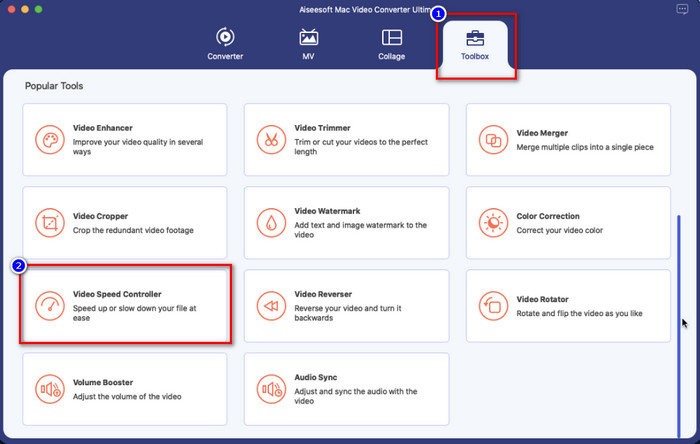
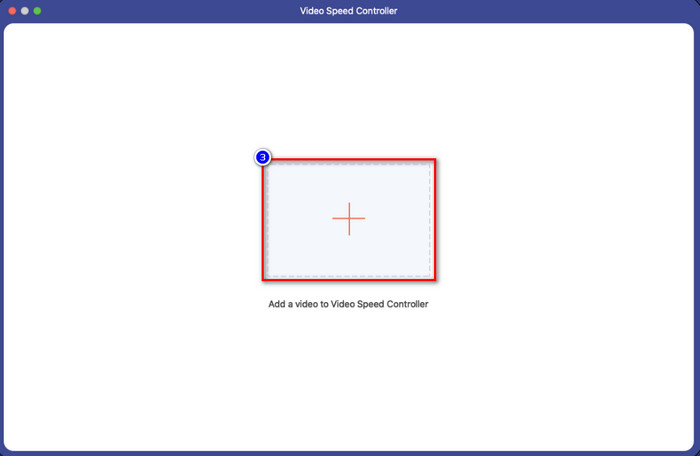
3. Adım. Artı simgesine tıklayın; ekranınızda bir dosya klasörü açılacaktır. Yüklemek istediğiniz videoyu bulun, dosyaya tıklayın ve Aça basın.
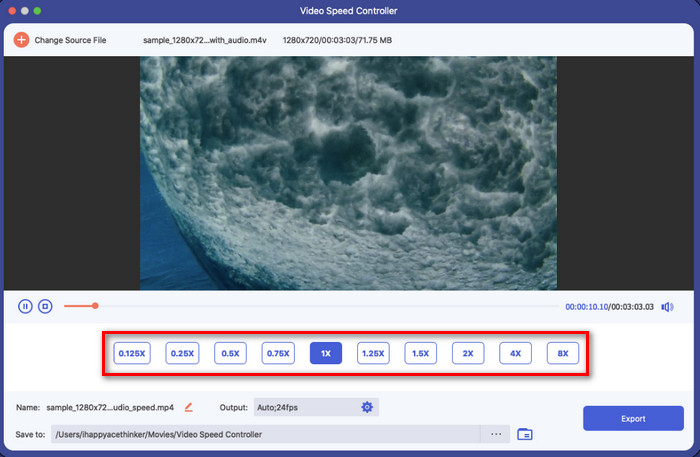
4. Adım. Bu alanda artık videonuza uygulamak istediğiniz ağır çekim hızını seçebilirsiniz. Daha önce seçtiğiniz videoda istediğiniz oynatma hızı olup olmadığını görmek için hepsini deneyin.
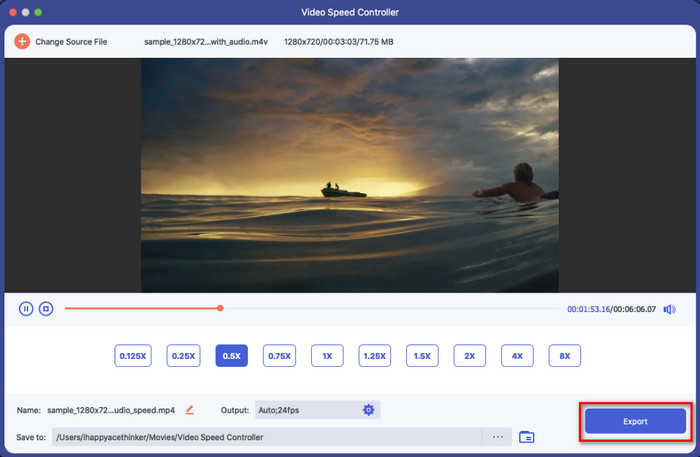
5. Adım. Son olarak, videoya uyguladığınız değişiklikleri Dışa Aktar düğmesine tıklayarak kaydedebilirsiniz. Dışa aktarma tamamlandıktan sonra, ağırlaştırılmış videoyu içeren bir klasör ekranınızda belirecektir.
Bölüm 3. iPhone'da Video Nasıl Yavaşlatılır Hakkında SSS
Videoyu yavaşlatmak kaliteyi etkiler mi?
Video oynatmanın değiştirilmesi nedeniyle, gerçek hızı bir ağır çekim efektine değiştirdiğinizde videoda bazı değişiklikler meydana gelebilir. Ancak videoya ağır çekim etkisi uygularsanız, videonun kaliteyi düşürmeyeceğinden emin olabilirsiniz, bu yüzden aşırıya kaçmadığınızdan emin olun.
Ağır çekim uyguladıktan sonra videom neden bulanıklaştı?
Seçtiğiniz araç yüksek kaliteli bir videoyu dışa aktarmayı desteklemiyorsa, bunun gibi örneklerin olması muhtemeldir. Ancak bazı ücretsiz araçlar, kalite üzerinde herhangi bir sınırlama olmaksızın ağır çekim efektinin uygulanmasına yardımcı olur. FVC Video Converter Ultimate'da elde edebileceğiniz gibi, burada videonuzu bir kez yavaşlattığınızda, yüklediğiniz videoda aynı yüksek kalite kalacaktır.
Videoyu ağır çekimde dışa aktardıktan sonra neden filigranlar var?
Bir videoyu yavaşlatmak için uygulamanın ücretsiz sürümünü kullanırsanız, videoyu dışa aktardığınızda üzerinde bir filigran bırakma ihtimali vardır. Bu nedenle, seçtiğiniz yazılımla ilgili bilgileri okumak ve dışa aktaracaksanız videoda filigran bırakıp bırakmayacağına bakmak bir zorunluluktur.
Sonuç
Grammy’deki ünlüler gibi çekim yapmak istiyorsanız, iOS cihazlarınızı kullanmak size yardımcı olabilir ve hazırladığımız bu eğitimle iPhone’da bir videoyu yavaşlatmak mümkün ve kolay hâle gelir. Seçtiğimiz uygulamalarla, ağır çekim efekti ekleme işini profesyonelce yapma imkânı bu efekti seven herkes için ulaşılabilir oldu. Uygulamalar harika olsa da, FVC Video Converter Ultimateın video hızını yavaşlatma konusunda tüm standartların üzerinde olduğunu inkâr edemeyiz. Aracı edinmek ve kullanmak isterseniz, 2. bölümde eklediğimiz talimatları okuyup uygulamayı indirebilirsiniz.
-
 Gerçekten: MP4 Videoyu Yavaşlatmak İçin En İyi Uygulama
 Yavaşlatmak, videonuzun hızını artırmanın yanı sıra, videonuzdan en iyi çıktıyı elde etmek için gereken birçok uygulamadan biridir. Makalenin geri kalanını okuyarak mümkün olan en iyi editör olmayı hedefleyin.
-
 Ağır Çekim Videoyu Normal Hıza Nasıl Değiştirirsiniz [Kolay Adımlar]
 İnternetten indirdiğiniz veya yanlışlıkla ağır çekimde kaydettiğiniz ağır çekim bir videoyu nasıl geri alacağınızı bilmek ister misiniz? Mac, Windows, iOS ve Android'de ağır çekim videoyu normal hıza nasıl dönüştüreceğinizi öğrenin.
-
 Ağır Çekim Videolar Nasıl Yapılır Hakkında Bilmeniz Gereken Her Şey
 Profesyonel bir editör gibi ağır çekim videolar yapmak istiyorsunuz ancak hangi yazılımları veya uygulamaları kullanmak istediğinizi bilmiyor musunuz? İhtiyacınız olan tüm ayrıntıları öğrenmek için bu makaleyi okuyun.
