


 Video Dönüştürücü Ultimate
 Ekran kaydedicisi
 Video Onarımı
 Güvenli İndirme
Sony Vegas'ta Videonuzu Hızlandırmanın Kolay Yolları
Sony Vegas, profesyonel düzenleme için kullanabileceğiniz, tüm özellikleriyle donatılmış bir araçtır. Bu araç, video çıktınız üzerinde pek çok işlem yapmanıza olanak tanır. Ancak yalnızca bununla kalmaz; Sony Vegas, arkadaşlarınızla paylaşmak için kusursuz geçişlere sahip bir video çıktısı elde edebilmeniz adına videonuzu hızlandırıp yavaşlatmanızı da sağlayabilir. Eğer siz de Sony Vegas’ta video nasıl hızlandırılır diye merak ediyorsanız, bu makaleyi sonuna kadar okuyun.

Bölüm 1. Sony Vegas - Sizin İçin En İyi Düzenleme Aracı
Pek çok araca sahip, en iyi düzenleme yazılımını arıyorsanız, bu araç tam size göre. Sony Vegas, internette geniş çapta bilinen bir video düzenleme yazılımıdır. Bu yazılım; TV programları, filmler ve müzik videoları için en iyi şekilde kullanılır. Bunun yanında altyazı ekleme, filtre ve efekt ekleme, görüntü iyileştirme gibi birçok gelişmiş özelliğe sahiptir. Ayrıca çoklu kamera düzenleme, görüntü sabitleme ve maskeleme de sunar.
Ve 4k, 8k ve HD çözünürlükte bir videonuz varsa, bu araç bununla çalışabilir. Bu araç, kullanımı zor bir yazılım arayüzüne sahip olsa da, bir kez kavradığınızda sezgisel hale gelir. Ayrıca videonuzu hızlandırabilecek bir araç arıyorsanız bu araç tam size göre. Bu araç hakkında daha fazla bilgi edinmek istiyorsanız, aşağıdaki özellikleri okuyun.
Özellikler:
- Altyazı ekleme, videonuza filtre ve efekt ekleme gibi gelişmiş düzenleme özelliklerine sahiptir.
- HD, 4k ve 8k videoları destekleyebilir.
- Bir Open FX eklentisini destekler.
- Olağanüstü ses ve video efektlerine sahiptir.
- Windows ve Mac dahil neredeyse tüm medya platformlarında bulunur.
Bölüm 2. Sony Vegas'ta Videoyu Hızlandırma Üzerine 3 Seçenek
Yukarıda belirtildiği gibi, Sony Vegas videonuzu hızlandırabilir veya yavaşlatabilir. Sony Vegas'ı kullanarak videonuzu hızlandırmanın üç kolay yolu vardır. Bu nedenle, Sony Vegas'ta videonuzu nasıl hızlandıracağınızı öğrenmek için bu bölümü kapsamlı bir şekilde okuyun.
Seçenek 1. Oynatma Kare Hızını Kullanın
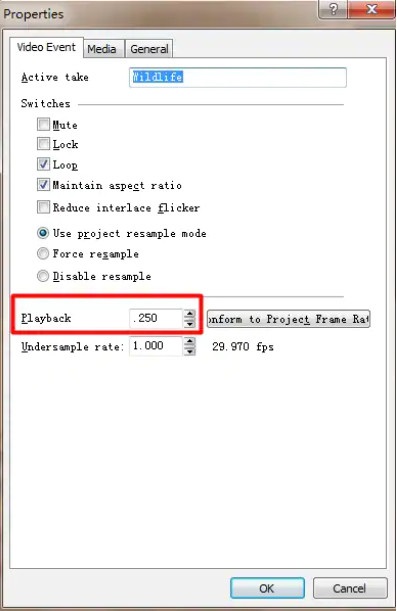
Kullanabileceğiniz ilk seçenek, videonuzun oynatma kare hızını ayarlamaktır. Öncelikle bilgisayarınızda Vegas Pro’yu açın ve ardından Properties (Özellikler) bölümüne gidin. Özellikler penceresinde Playback (Oynatma) seçeneğini göreceksiniz. Oynatma kare hızını, yukarı ve aşağı oklarına tıklayarak ayarlayın. Ardından uygulamak için OK düğmesine tıklayın.
Seçenek 2. Hızı Ayarlayın
Hızın ne olduğunu merak ediyorsanız, hız bir cismin hızı ve yönüdür. Bu yöntem, Sony Vegas'ı kullanarak videonuzun hızını nasıl ayarlayacağınızı bilmenize yardımcı olacaktır.
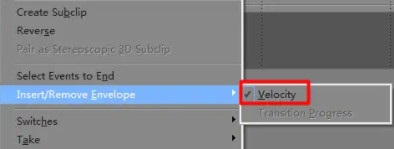
Hızlandırmak istediğiniz videoya sağ tıklayın ve açılan menüden Insert/Remove Envelop seçeneğine tıklayın. Sonrasında Velocity seçeneğini seçin.
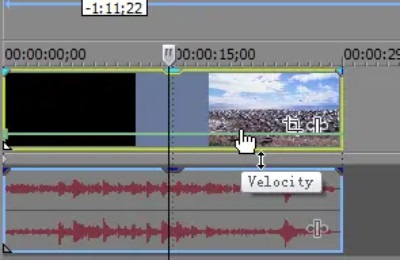
Ardından zarfı istediğiniz hızda sürükleyin. Zarfı yukarı doğru sürüklediğinizde hız artacak ve aşağı doğru sürüklediğinizde videonuz yavaşlayacaktır.
Seçenek 3. Kırpma Uzatması
Bu, üç seçenek üzerinde yapılması en kolay olanıdır. Ctrl tuşuna basın ve videonuzun herhangi bir ucunu sürükleyin; videonuzu uzattığınızda daha yavaş olacaktır. Ancak videonuzu sıkıştırdığınızda hızı daha da artacaktır.
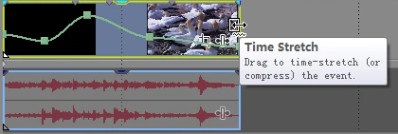
Değişikliklerin uygulanıp uygulanmadığını kontrol etmek için özelliklere gidin, ardından videonuzun oynatma hızını kontrol edin.
Bölüm 3. Videonuzu Hızlandırmanın 2 Daha Kolay Yolu
Sony Vegas'ın kullanması gereken birçok gelişmiş düzenleme özelliği olmasına ve birçok profesyonel editör bunu kullanmasına rağmen, insanlar aracın arayüzünü anlamakta zorlanıyor. Bu nedenle, kullanımı kolay bir yazılım arayüzü ile internette popüler bir video hız değiştirici aracı aradık. Videonuzu hızlandırmak için kullanımı kolay üç araç daha.
FVC Video Dönüştürücü Ultimate
FVC Video Converter Ultimate, videonuzun hızını değiştirmek için kullanabileceğiniz en iyi yazılım uygulamasıdır. Bu yazılım, video filigran kaldırma, videoyu tersine çevirme, ses senkronizasyonu vb. pek çok özelliğe sahip çevrimdışı bir araçtır. İnternette yaygın olarak bulunan MP4, AVI, WMV, MOV, FLV ve 1000’den fazla formatı destekler.
Ayrıca, basit bir kullanıcı arayüzüne sahip olması onu yeni başlayanlar için uygun bir araç haline getiriyor. Ayrıca videonuzun hızını 0.125x, 0.25x, 0.5x, 0.75x, 1.25x, 1.5x, 2x, 4x ve 8x olarak değiştirebilir. Bu nedenle, bu aracı kullanmakla ilgileniyorsanız, aşağıda verilen basit adımları izleyin.
Adım 1. FVC Video Converter Ultimate’ı indirmek için aşağıdaki Download (İndir) düğmesine tıklayın. Ardından kurulum adımlarını izleyin ve uygulamayı çalıştırın.
Ücretsiz İndirWindows 7 veya üstü içinGüvenli İndirme
Ücretsiz İndirMacOS 10.7 veya üstü içinGüvenli İndirme
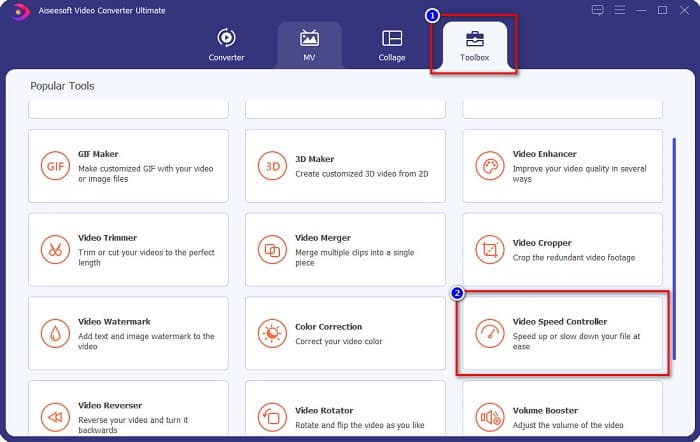
Adım 2. Sonra, yazılımın ilk arayüzünün üst kısmında yer alan Toolbox (Araç Kutusu) paneline tıklayın. Ardından Video Speed Controller (Video Hız Denetleyici) seçeneğine tıklayın.
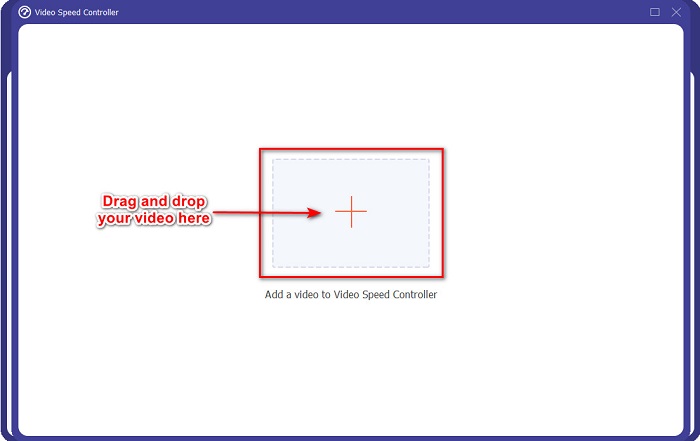
Adım 3. Sonraki arayüzde, + simgesine tıklayın ya da videonuzu artı simgesinin üzerine sürükleyip bırakın.
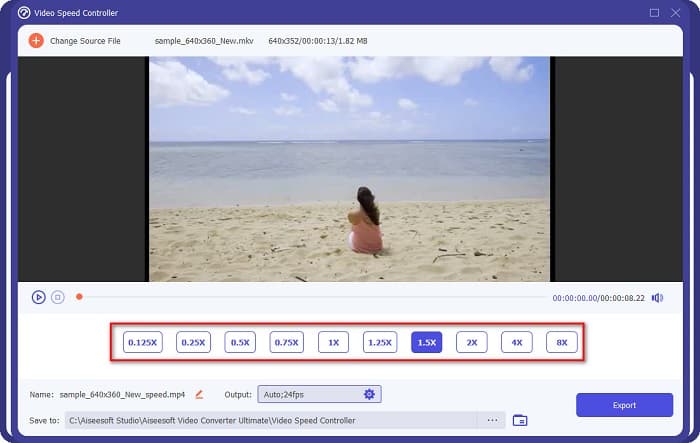
Adım 4. Daha sonra, videonuzun önizlemesinin altında yer alan video hız seçeneklerinden seçim yaparak videonuz için istediğiniz hızı belirleyin. Videonuzu daha fazla hızlandırmak isterseniz, 1.25x ile 8x arası hızlardan birini seçin.
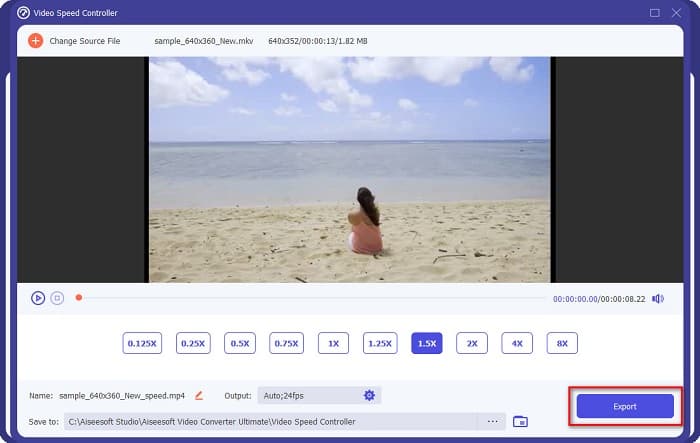
Adım 5. Son olarak, video hızınızdaki değişikliği uygulamak için Export (Dışa Aktar) düğmesine tıklayın.
Artıları
- gibi birçok gelişmiş özelliğe sahiptir. GIF yapımcısı, 3D yapımcısı, video birleştirme, vb.
- MP4, WebM, WMV, M4V, MKV, AVI ve 1000+ format dahil olmak üzere çoklu dosya formatlarını destekler.
- Kullanımı kolay bir yazılım arayüzüne sahiptir.
- Windows ve Mac dahil tüm çapraz medya platformlarında kullanılabilir.
Eksileri
- Özel özelliklerine erişmeden önce uygulamayı satın alın.
hızlı makara
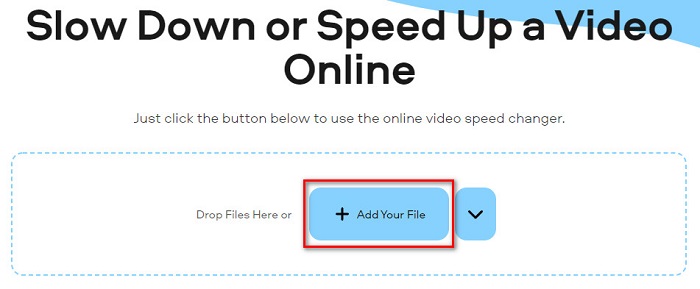
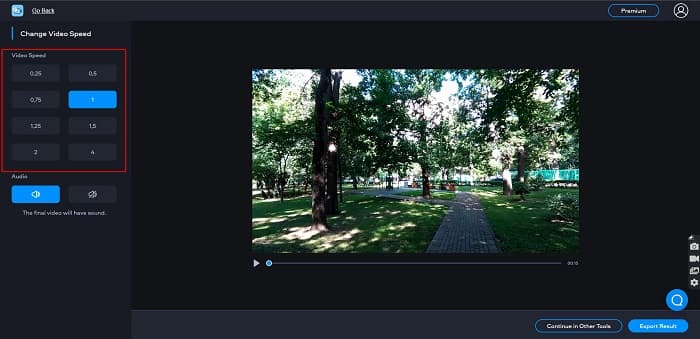
Fastreel, videonuzun hızını 0.25 ile 4x arasında değiştirmenizi sağlayan çevrimiçi bir araçtır. Bu aracın kullanımı son derece kolay bir arayüzü vardır ve yüksek güvenlik seviyesi sunar. Ayrıca, video çıktınızı filigranlı olarak otomatik bir şekilde dosyalarınıza kaydetmenize olanak tanır.
Adım 1. Tarayıcınızda Fastreel video hız değiştiricisini aratın. Ardından, videonuzu yüklemek için Add Your File düğmesine tıklayın. Bilgisayarınızdaki dosyalar açılacak ve yüklemek istediğiniz videoyu buradan seçeceksiniz.
Adım 2. Sonra, yazılım arayüzünün sol tarafında yer alan bölümden istediğiniz video hızını seçin.
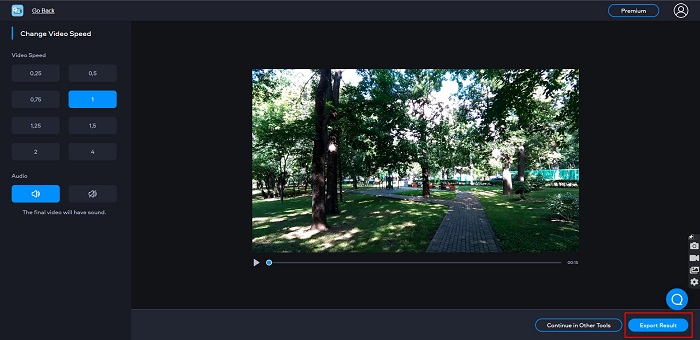
Adım 3. Son olarak, videonuzun hızını değiştirmek için Export Result (Sonucu Dışa Aktar) düğmesine tıklayın.
Artıları
- Basit bir GUI'ye sahiptir.
- Ücretsiz ve kullanımı güvenlidir.
Eksileri
- İnternet bağlantısı yavaş olduğunda yavaş yükleme işlemi yaşayabilirsiniz.
Bölüm 4. Sony Vegas Hızlandırma Videosu hakkında SSS
Sony Vegas'ın ücretsiz deneme sürümü var mı?
Evet. Sony Vegas, 30 gün boyunca ücretsiz deneme sürümüne sahiptir. 30 günlük ücretsiz deneme süresi sona erdiğinde, sürekli olarak kullanmak için uygulamayı satın almalısınız; aylık $16.67 maliyeti.
Hangisi daha iyi, Sony Vegas veya Filmora?
Birçok profesyonel, Filmora'nın Sony Vegas'tan daha iyi olduğunu söylüyor çünkü Filmora, Sony Vegas'tan daha kolay bir kullanıcı arayüzüne sahip. Profesyonel editörler ayrıca Filmora'nın Sony Vegas'tan daha kaliteli çıktı üretebileceğini söylüyor.
Sony Vegas'ta video hızını değiştirmek videonuzun kalitesini etkiler mi?
Hayır. Sony Vegas'ta video hızını değiştirmek videonuzun kalitesini etkilemez.
Sonuç
Özetle, Sony Vegas’ta videoyu nasıl hızlandıracağınız sorusu yanıtlanmış oldu. Sony Vegas, en iyi video düzenleme yazılımlarından biridir. Sahip olduğu harika özellikler nedeniyle pek çok kişi bu aracı kullanmaktadır. Ancak, kullanımı daha pratik ve daha kolay bir video hız değiştirici istiyorsanız, birçok kişinin de önerdiği FVC Video Converter Ultimate’ı deneyebilirsiniz.
-
 [4 Yol] Videolarınızı Çevrimiçi Olarak Kolayca Hızlandırmanın Yolları
 Çevrimiçi bir videoyu hızlandırmak ister misiniz? Bir videoyu mümkün olan farklı şekillerde hızlandırma hakkında daha fazla bilgi edinmek için bu makaleyi okuyun.
-
 MP4 Formatındaki Videoları Hızlandırmanın Daha Kolay Yolları [Çevrimdışı ve Çevrimiçi]
 Videonuzu hızlandırmak mı istiyorsunuz, ancak video MP4 Formatında mı? Bu makale, videonuzu çevrimiçi veya çevrimdışı olarak nasıl hızlandıracağınıza ilişkin farklılıkları bilmenize yardımcı olabilir.
-
 [Ücretsiz ve Ücretli] GIF Hız Değiştirici: 2021'in Popüler Seçimleri
 Sıkıcı ve yavaş olduğu için çevrimiçi yaptığınız GIF'ten memnun değil misiniz? Bu sizin şanslı gününüz olacak çünkü GIF hız değiştirici ve onu kullanmanıza ve ustalaşmanıza yardımcı olacak ayrıntılar hakkında bir makale sunuyoruz.
