


 Video Dönüştürücü Ultimate
 Ekran kaydedicisi
 Video Onarımı
 Güvenli İndirme
Basit Ama Etkili Döndürme Araçları ile Videolar Nasıl Döndürülür?
Yan veya baş aşağı videoları izlemekten bıktınız mı? Ya da belki bir şeyi garip bir açıdan filme aldınız ve düzeltmek mi istiyorsunuz? Şans eseri, bir videoyu döndürmek hem Windows hem de Mac bilgisayarlarda yapılabilecek basit bir işlemdir. İster profesyonel bir kameraman olun, ister sadece bazı kişisel çekimleri düzenlemek isteyin, videoları döndürebilmek, sahip olunması gereken yararlı bir beceridir.
Bu rehberde, Windows ve Mac bilgisayarlarda videoları döndürmek için en popüler yöntemlerden bazılarını inceleyeceğiz. Farklı yazılım seçeneklerini ele alacak ve her bir video döndürücü için basit adımları size adım adım göstereceğiz.

Bölüm 1. Windows ve Mac için Video Döndürücüler
Belki telefonunuzda bir video çektiniz ve yanlışlıkla videoyu yan tuttunuz ya da görsel olarak daha çekici bir kompozisyon oluşturmak istiyorsunuz. Sebep ne olursa olsun, Windows ve Mac'te videolar arasında gezinmenize yardımcı olacak bir dizi farklı yazılım seçeneği vardır. Burada bunları tek tek ele alacağız.
1. Video Dönüştürücü Ultimate
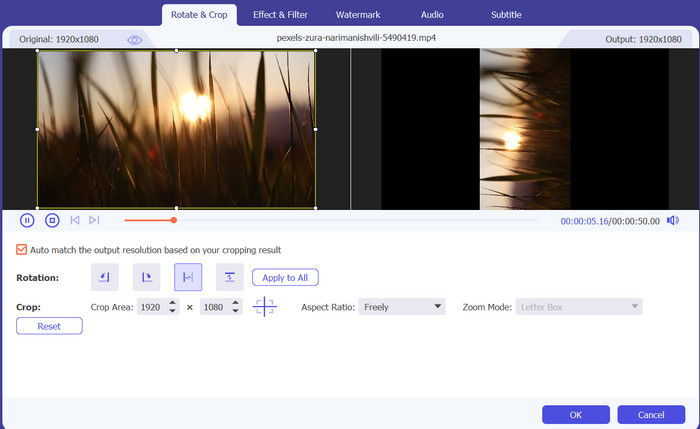
Videolarınızı döndürmenize yardımcı olacak, güvenilir ve kullanımı kolay bir video düzenleme yazılımı arıyorsanız, FVC Video Converter Ultimate mükemmel bir seçimdir. Bu çok yönlü yazılım, yalnızca birkaç tıklamayla videolarınızı istediğiniz açıya döndürmenizi sağlar. Videoları döndürmenin yanı sıra, bu uygulama kırpma, kesme, altyazı ekleme ve parlaklık ile kontrast gibi video ayarlarını düzenleme gibi çeşitli diğer video düzenleme özellikleri de sunar.
FVC Video Converter Ultimate’ın Temel Özellikleri:
◆ Videoları herhangi bir açıda döndürün
◆ Yatay veya dikey olarak çevirin
◆ Kullanıcı dostu arayüz
◆ Toplu dönüştürme veya video döndürme
◆ Ek video düzenleme özellikleri
Yatay veya dikey videoların nasıl yapılacağına ilişkin adımlar aşağıdaki gibidir:
Adım 1. Bilgisayarınıza FVC Video Converter Ultimate’ı indirin ve kurun.
Ücretsiz İndirWindows 7 veya üzeri içinGüvenli İndirme
Ücretsiz İndirMacOS 10.7 veya üzeri içinGüvenli İndirme
Adım 2. Yazılımı başlatın ve döndürmek istediğiniz videoyu eklemek için Add File (Dosya Ekle) düğmesine tıklayın.
Adım 3. Video düzenleme panelini açmak için video dosyasının yanındaki Edit (Düzenle) düğmesine tıklayın.
Adım 4. Rotate (Döndür) sekmesine tıklayın ve videonuz için istediğiniz döndürme açısını seçin. Gerekirse videoyu yatay ya da dikey olarak da çevirebilirsiniz.
Adım 5. Döndürülen videoyu önizleyerek iyi göründüğünden emin olun, ardından değişiklikleri kaydetmek için OK (Tamam) düğmesine tıklayın.
2. VLC Media Player
VLC Media Player, dünyanın her yerinden insanlar tarafından yaygın olarak kullanılan ücretsiz ve açık kaynaklı bir medya oynatıcıdır. VLC'nin göze çarpan özelliklerinden biri, videoları döndürme yeteneğidir. VLC ile garip bir açıda veya yönde kaydedilmiş videoları kolayca döndürebilirsiniz.
VLC’nin Başlıca Özellikleri:
◆ Özelleştirilebilir video döndürme açıları
◆ Toplu video döndürme
◆ Klavye kısayolları
VLC'de videoların nasıl döndürüleceği aşağıda açıklanmıştır:
Adım 1. VLC ile video döndürmek için, videoyu VLC’de açmanız yeterlidir.,
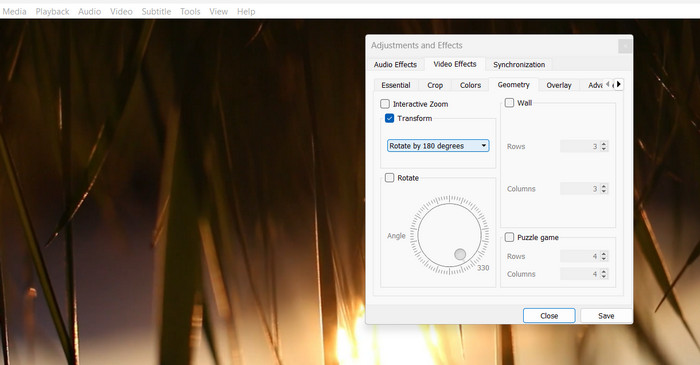
Adım 2. Araçlar (Tools) menüsüne tıklayın ve Effects and Filters (Efektler ve Filtreler) seçeneğini seçin.
Adım 3. Video Effects (Video Efektleri) sekmesinde, Geometry (Geometri) sekmesine tıklayın ve ardından istediğiniz döndürme açısını seçin.
3. Prömiyer
Adobe Premiere, hem profesyoneller hem de amatörler tarafından kullanılan popüler bir video düzenleme yazılımıdır. Premiere'in video döndürme özelliğinin harika yanı, daha hassas ayarlamalar için ana kareler de dahil olmak üzere çok çeşitli özelleştirme seçenekleri sunmasıdır. Videolarınızı kırpıp yeniden boyutlandırmak, geçişler eklemek ve renk düzeltme ve diğer efektleri uygulamak için Premier'i de kullanabilirsiniz.
Premiere’in Başlıca Özellikleri:
◆ Video Sabitleme
◆ En Boy Oranı Düzeltmesi
◆ Hassas Dönüş
Premiere'de videoların nasıl döndürüleceğine ilişkin adımlar şunlardır:
Adım 1. Premiere ile bir videoyu döndürmek için, video klibini içe aktarıp zaman çizelgesine sürüklemeniz yeterlidir.
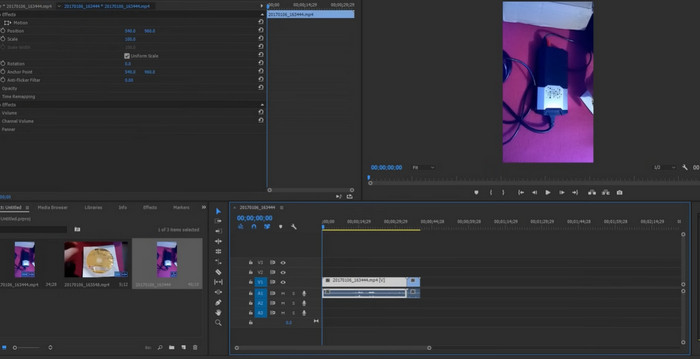
Adım 2. Ardından, klibe tıklayarak onu seçin ve Effect Controls (Efekt Denetimleri) paneline gidin.
Adım 3. Motion (Hareket) sekmesinde yer alan Rotation (Döndürme) seçeneği, videonun açısını gerektiği gibi ayarlamanıza olanak tanır.
4. Güç Direktörü
PowerDirector, videoları döndürme yeteneği de dahil olmak üzere bir dizi özellik sunan çok yönlü bir video düzenleme yazılımıdır. PowerDirector ile yanlış yönde veya garip bir açıyla kaydedilmiş videoları kolayca düzeltebilirsiniz.
PowerDirector’ın Başlıca Özellikleri:
◆ Ana Kare Kontrolü
◆ Çoklu Kamera Düzenleme
◆ Yaratıcı Video Efektleri
İşte PowerDirector döndürme videolarını gerçekleştirmek için kısa bir kılavuz:
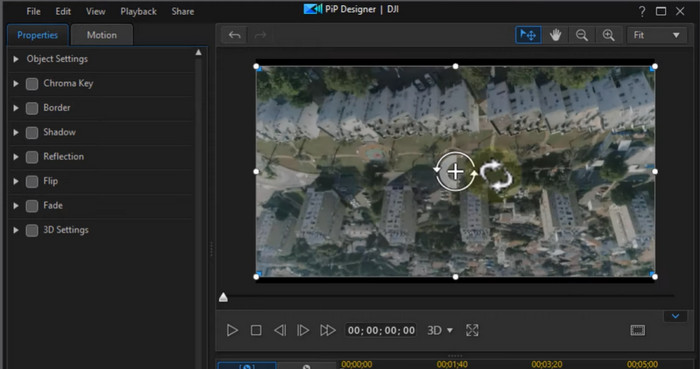
Adım 1. PowerDirector’da bir videoyu döndürmek için, video klibinizi yazılıma içe aktarın ve zaman çizelgesine sürükleyin.
Adım 2. Ardından, klibi seçmek için üzerine tıklayın ve Fix/Enhance (Düzelt/Geliştir) sekmesine gidin. Burada, videonun açısını ihtiyacınıza göre ayarlayabileceğiniz Rotation (Döndürme) seçeneğini bulacaksınız.
5. DaVinci Çözümü
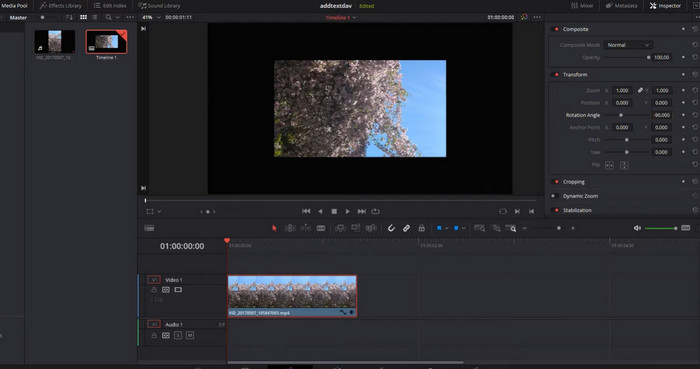
DaVinci Resolve'nin video döndürmeyle ilgili en iyi özelliklerinden biri, videoları hassas ve kontrollü bir şekilde döndürme yeteneğidir. İhtiyacınız olan dönüş derecesini tam olarak girmenizi sağlayan Dönüştürme panelini kullanarak dönüş açısını kolayca ayarlayabilirsiniz. DaVinci Resolve ayrıca, zaman içinde düzgün ve hassas dönüş animasyonları oluşturmanıza olanak tanıyan ana kare kontrolü sunar.
DaVinci Resolve’un Başlıca Özellikleri:
◆ Hassas Dönüş Kontrolü
◆ Gelişmiş Renk Düzeltme
◆ Görsel Efektler
DaVinci Resolve döndürme videolarını gerçekleştirme adımları şunlardır:
Adım 1. DaVinci Resolve’u açın ve yeni bir proje oluşturun. Ardından, Import Media (Ortam İçe Aktar) düğmesine tıklayarak videonuzu ortam havuzuna aktarın. Videonuzu ortam havuzundan zaman çizelgesine sürükleyin.
Adım 2. Inspector Panelini açmak için Inspector düğmesine tıklayın. Transform sekmesini seçin: Inspector Panelinde Transform (Dönüştür) sekmesini seçin.
Adım 3. Döndürme açısını ayarlayın: Transform sekmesinde, Rotation (Döndürme) değerini değiştirerek döndürme açısını ayarlayabilirsiniz. Ayrıca, zaman içinde yumuşak ve hassas döndürme animasyonları oluşturmak için anahtar kare (keyframe) kontrolünü kullanabilirsiniz.
Kısım 2. Yalnızca Windows için Video Döndürücü
Şimdi, Windows kullanıcılarına özel video döndürücüler ararken, aşağıdaki programa bakabilirsiniz.
1.Windows Medya Oynatıcı
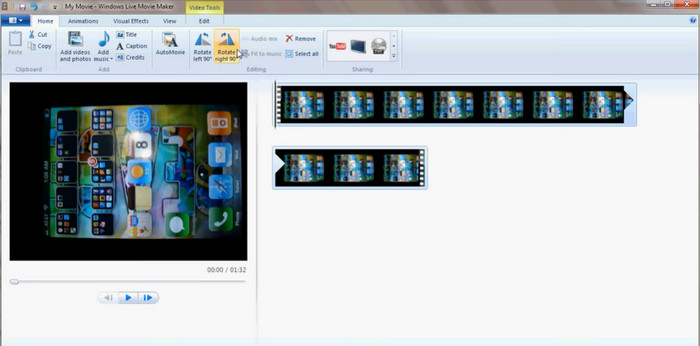
Windows Media Player, Windows bilgisayarlarda önceden yüklü olarak gelen ve videolar için bir VLC Alternatif oynatıcı olabilir. Çeşitli video ve ses dosya formatlarını oynatabilir ve video döndürme de dahil olmak üzere bazı temel video düzenleme özellikleri sunar. Ayrıca videolarınızı sola veya sağa 90 derece döndürebilirsiniz; bu, videoyu yanlış yönde kaydettiyseniz oldukça kullanışlıdır. Manzara (yatay) modundaki bir videoyu dikey (portre) moda çevirebilirsiniz.
Windows Media Player’ın Başlıca Özellikleri:
◆ Çeşitli ortam biçimlerinin oynatılması
◆ Yerleşik codec desteği
◆ Videoları 90 derece döndürün
Windows Media Player'da bir videonun nasıl döndürüleceğine ilişkin talimat aşağıda verilmiştir:
Adım 1. Videoyu oynatıcıda açın ve ardından pencerenin üst kısmındaki Organize (Düzenle) düğmesine tıklayın.
Adım 2. Açılır menüden Options (Seçenekler) seçeneğini seçin ve ardından Performance (Performans) sekmesine tıklayın.
Adım 3. Video Acceleration (Video Hızlandırma) bölümünün altında, Rotate Video by 90 degrees (Videoyu 90 derece döndür) seçeneğini görmelisiniz.
Adım 4. Video döndürmeyi etkinleştirmek için bu seçeneğin yanındaki kutuyu işaretleyin ve ardından değişiklikleri kaydetmek için Apply (Uygula) ve OK (Tamam) düğmelerine tıklayın.
2. Klip Şampiyonu
Clipchamp, tamamen çevrimiçi çalışan bir video düzenleme ve dönüştürme uygulamasıdır. Kullanıcıların videolarını, video döndürme, kırpma, kesme, metin ekleme ve filtreler gibi çeşitli araç ve özelliklerle düzenleyip geliştirmelerine olanak tanır.
ClipChamp’in Başlıca Özellikleri:
◆ Bulut depolama
◆ Sosyal medya ile entegrasyon
◆ Özelleştirilebilir video çıkışı
ClipChamp döndürme videosunu gerçekleştirme adımları şunlardır:
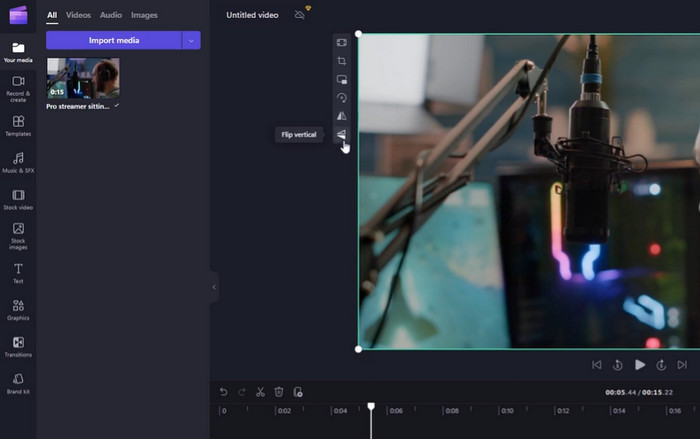
Adım 1. ClipChamp hesabınıza giriş yapın, kontrol panelinde Create a video (Video oluştur) düğmesine tıklayın ve bilgisayarınızdan döndürmek istediğiniz videoyu seçin.
Adım 2. Video yüklendikten sonra, Clipchamp video düzenleyicisini açmak için Edit (Düzenle) düğmesine tıklayın.
Adım 3. Videoyu çevirmek için, düzenleyicinin sol panelindeki Rotate (Döndür) düğmesine tıklayın.
Adım 4. Videoyu döndürdükten sonra, değişiklikleri kaydetmek için düzenleyicideki Save (Kaydet) düğmesine tıklayın.
Bölüm 3. Yalnızca Mac için Video Döndürücü
Mac bilgisayarlarda videoları döndürmek için özel araçlar da bulunur. Aşağıda önerilenlerden bazıları bulunmaktadır.
1. iMovie
iMovie, Apple tarafından geliştirilen ve macOS, iOS ve iPadOS için kullanılabilen mükemmel bir video düzenleme yazılımıdır. Kullanıcıların, video döndürme de dahil olmak üzere bir dizi özellik ve araçla videolarını düzenlemelerine ve geliştirmelerine olanak tanıyan sağlam ve kullanıcı dostu bir uygulamadır.
iMovie’nin Başlıca Özellikleri:
◆ Başlıklar ve metin kaplamaları
◆ Özel efektler
◆ Apple ürünleriyle sorunsuz entegrasyon
iMovie video döndürme işlemini gerçekleştirmek için aşağıdaki kılavuzu izleyin.
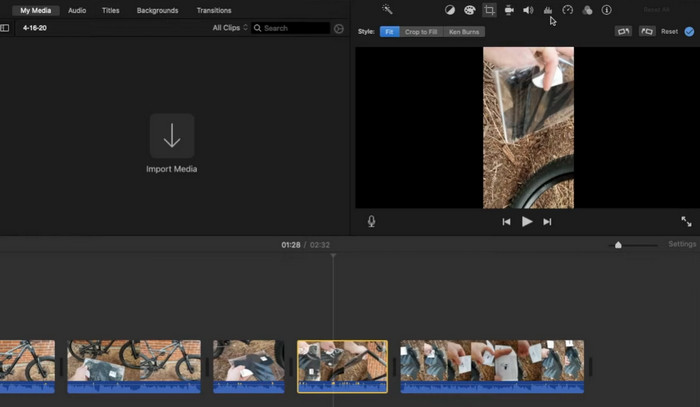
Adım 1. iMovie’yi açın ve düzenlemek istediğiniz projeyi seçin. Zaman çizelgesinde döndürmek istediğiniz video klibini bulun ve seçin.
Adım 2. Görüntüleyicinin üzerindeki araç çubuğunda yer alan ve etrafında iki ok dönen bir kareye benzeyen Crop (Kırp) düğmesine tıklayın. Açılan menüden Rotate (Döndür) seçeneğini seçin.
Adım 3. Video klibinin açısını ayarlamak için döndürme kontrollerini kullanın. Ayrıca kaydırıcıyı kullanarak videoyu yatay veya dikey olarak çevirebilirsiniz.
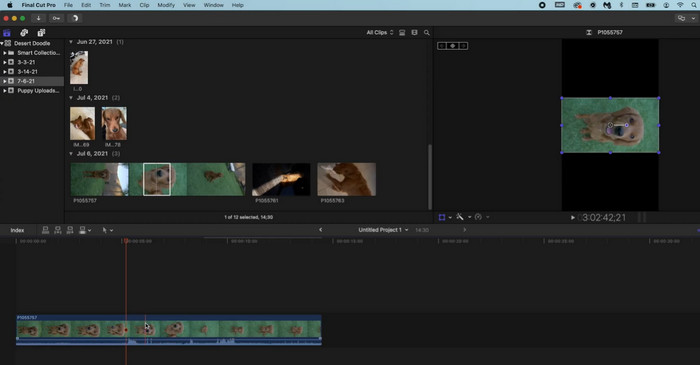
2. Final Cut Pro
Final Cut Pro, Mac kullanıcıları için tasarlanmış harika bir video düzenleme yazılımıdır. Videoları döndürme yeteneği de dahil olmak üzere çok çeşitli video düzenleme araçları ve özellikleri sunar. Videolarınızı istediğiniz yöne kolayca döndürebilir ve kolaylıkla yüksek kaliteli videolar oluşturabilirsiniz.
Final Cut Pro’nun Başlıca Özellikleri:
◆ Çoklu Kamera Desteği
◆ 360 Derece Video Desteği
◆ Ses Düzenleme Araçları
İşte Final Cut Pro Rotate Videoları için adım adım bir kılavuz:
Adım 1. Final Cut Pro’yu başlatın ve istediğiniz görüntüleri projenize aktarın. Video içe aktarıldıktan sonra, ekranın alt kısmındaki zaman çizelgesine sürükleyin.
Adım 2. Görüntüyü kırpmak için, ekranın üst kısmındaki araç çubuğunda bulunan Crop (Kırp) düğmesine tıklayın.
Adım 3. Crop açılır menüsünden Rotate (Döndür) seçeneğini seçin. Video klibinin yönünü ayarlamak için döndürme kadranını kullanın.
Bölüm 4. Video Döndürücüler hakkında SSS
Bir videoyu kalite kaybı olmadan döndürebilir miyim?
Evet, kayıpsız döndürmeye izin veren video düzenleme yazılımını kullanarak bir videoyu kalite kaybı olmadan döndürebilirsiniz.
FFmpeg döndürme videolarını gerçekleştirebilir miyim?
Evet, videoları döndürmek için FFmpeg'i kullanabilirsiniz. Bir videoyu FFmpeg ile döndürmek için devrik veya döndürme filtrelerini kullanmanız gerekir.
Portre videolarını manzaraya dönüştürmek mümkün mü?
Evet, video düzenleme yazılımı veya araçları kullanılarak bir portre videosunu manzaraya dönüştürmek mümkündür. Bunu yapmanın bir yolu, portre videosunun kenarlarına siyah çubuklar ekleyerek onu manzara videolarının 16:9 en boy oranına sığdırmaktır.
Sonuç
Videolarınızı döndürerek, izleyicileriniz için izleme deneyimini iyileştirebilir ve videolarınızı görsel olarak daha çekici ve profesyonel hale getirebilirsiniz. Sosyal medya içeriklerinden iş sunumlarına ve kişisel videolara kadar, video döndürücüler görsel içeriklerinizin kalitesi ve etkisi üzerinde büyük bir fark yaratabilir.
-
 [Ücretsiz ve Ücretli] Kullanabileceğiniz 11 Olağanüstü Video Kırpıcı
 Bir videoyu kırpmak için kullanabileceğiniz video düzenleme yazılımlarının listesi buradadır. Bu programları gerçekten inceleyeceğiz ve aradığınız tüm ayrıntıları sağlayacağız.
-
 Profesyoneller ve Yeni Başlayanlar İçin En İyi 5 Windows Video Düzenleyici İpuçları [2023]
 Yüksek kaliteli düzenleme özellikleri sağlayan bir Windows video düzenleyici mi arıyorsunuz? Ardından, seçebileceğiniz farklı araçları optimize ederken bu yazıyı okuyun.
-
 Medya/Fotoğraflar/Belgeler için En İyi 7 Meta Veri Düzenleyicisi [Web ve Çevrimdışı]
 En iyi meta veri düzenleyicisini bilmek ister misiniz? Neyse ki bu makale, her dosyadaki etiketleri kolayca değiştirmek için kullanabileceğiniz en iyi meta veri düzenleyicisini sağlar.
