


 Chuyển đổi video Ultimate
 Trình ghi màn hình
 Sửa chữa video
Cách tạo video chuyển động chậm với ý tưởng tốt nhất được cung cấp
Tất cả chúng ta đều từng muốn tạo video chuyển động chậm, vì nhờ các video slow motion mà chúng ta học cách trân trọng từng chi tiết nhỏ được thiết bị ghi lại chỉ trong một khoảng thời gian ngắn. Chúng ta xem chuyển động chậm như một trong nhiều cách để lưu giữ ký ức, bên cạnh việc quay video ở tốc độ bình thường. Tuy nhiên, trên một số thiết bị lại không có sẵn chức năng quay video slow motion tức thì. Và thật khó để tìm được giải pháp tối ưu cho những người không có tính năng này trên thiết bị của họ. Hãy đọc bài viết này để tìm hiểu cách làm video chuyển động chậm.

Phần 1. Cách tạo video chuyển động chậm trên Windows
Phần mềm như Video Converter Ultimate gần như đáp ứng mọi mong muốn của người chỉnh sửa trong một phần mềm miễn phí như thế này. Nó có trên Windows và Mac, nhưng luôn nổi bật giữa các phần mềm có trên Windows. Phần mềm có thể chỉnh sửa video của bạn lên một tầm cao mới và có tính năng Trình điều khiển tốc độ video (Video Speed Controller) cho phép điều chỉnh tốc độ phát lại hoặc chuyển video sang dạng chuyển động chậm. Phần mềm này dễ truy cập và tương thích với rất nhiều định dạng. Dưới đây là các bước hướng dẫn để sử dụng phần mềm đúng cách:
Bước 1. Để lưu phần mềm vào PC của bạn, hãy nhấp vào Tải miễn phí (Free Download). Sau khi tải về máy tính, hãy cài đặt phần mềm và chuẩn bị khởi chạy.
Tải xuống miễn phí cho Windows 7 trở lên. Tải xuống an toàn.
Tải xuống miễn phí cho MacOS 10.7 trở lên. Tải xuống an toàn.
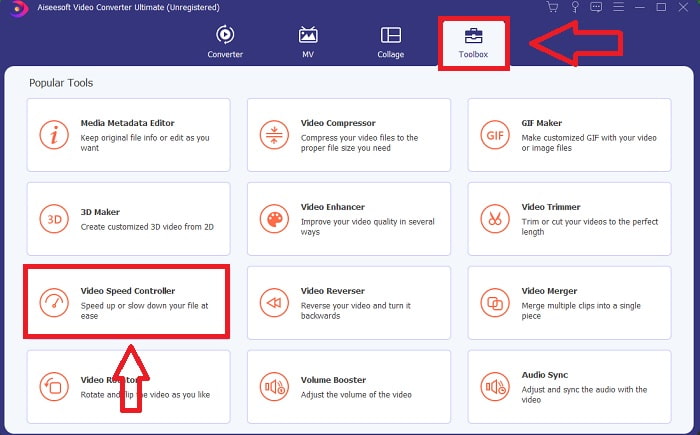
Bước 2. Sau khi cài đặt xong, hãy mở phần mềm, chọn mục Hộp công cụ (Toolbox) rồi nhấp vào Video Speed Controller để bắt đầu chỉnh tốc độ phát lại của video.
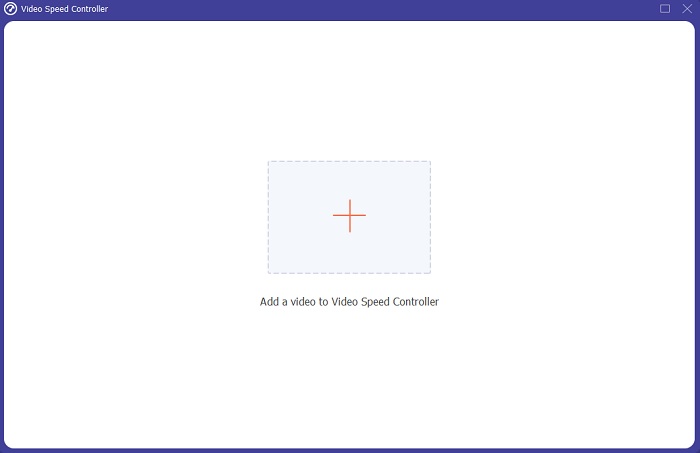
Bước 3. Thêm bất kỳ tệp nào bằng cách nhấp vào biểu tượng dấu + ở vị trí bạn muốn, sau đó tiến hành chỉnh sửa đoạn video đó.
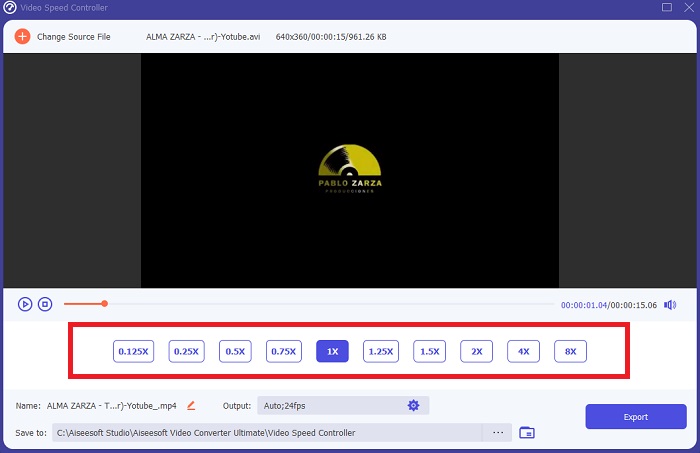
Bước 4. Thay đổi tốc độ phát lại bằng cách chỉ định số lần khung hình của video sẽ được tăng hoặc giảm.
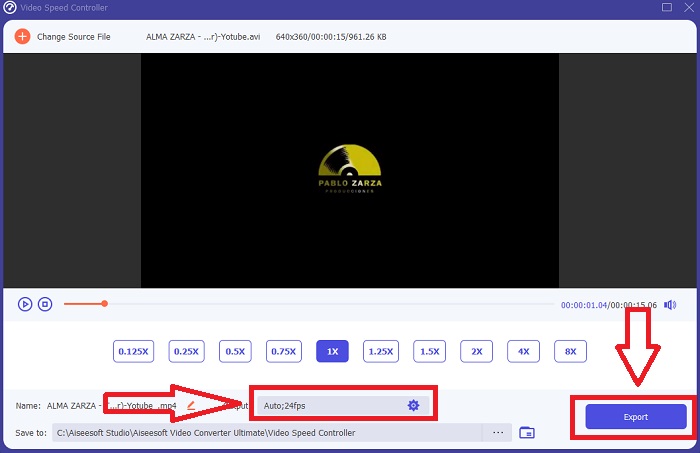
Bước 5. Sau khi điều chỉnh xong tốc độ phát lại của đoạn video, bạn có thể chọn đầu ra mong muốn bằng cách thay đổi định dạng, độ phân giải, chất lượng, v.v. Khi đã sẵn sàng, nhấp vào Xuất (Export) và chọn vị trí lưu file.
Ưu điểm
- Đây là phần mềm miễn phí tải xuống có sẵn trong Windows và Mac.
- Nó có rất nhiều công cụ giúp chỉnh sửa video và bạn có thể sử dụng chúng một cách thoải mái.
Nhược điểm
- Nó có thể được mua để mở khóa các tính năng độc quyền, nhưng nó không quá đắt.
Có liên quan:
Phần 2. Cách tạo video chuyển động chậm trên máy Mac
Tạo trailer phong cách Hollywood với iMovie trên Mac của bạn ở độ phân giải 4K. Sau khi chỉnh sửa video, hãy thêm những nét hoàn thiện cuối cùng với tiêu đề động, nhạc, bộ lọc và hiệu ứng. Hãy tạo một video trau chuốt, chuyên nghiệp bằng phần mềm iMovie của Apple và chia sẻ với gia đình, bạn bè. Việc này không hề khó. Nếu dùng các mẫu (template) và công cụ hoàn thiện đa dạng của iMovie, video của bạn sẽ trông bắt mắt hơn. Với tính năng mới này, bạn có thể thay đổi tốc độ phát lại video trên Mac, thậm chí tạo video chuyển động chậm, vì hầu hết trình chỉnh sửa đều phải ưu tiên xử lý các vấn đề đặt ra; dưới đây là các bước dùng công cụ này trên Mac để đạt được tốc độ mong muốn.
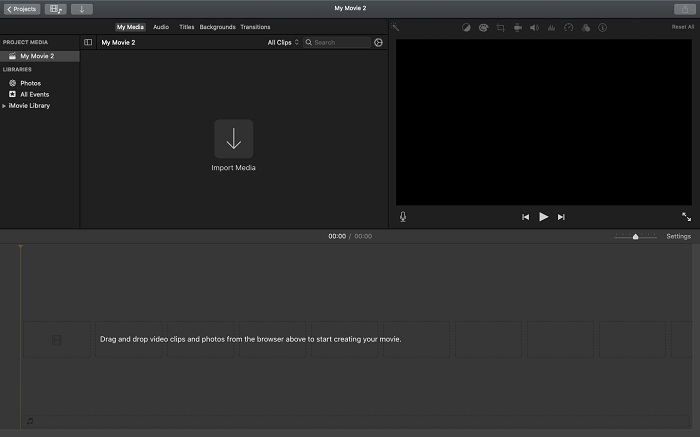
Bước 1. Mở ứng dụng iMovie trên Mac và chọn một đoạn video để làm việc trong bảng Timeline.
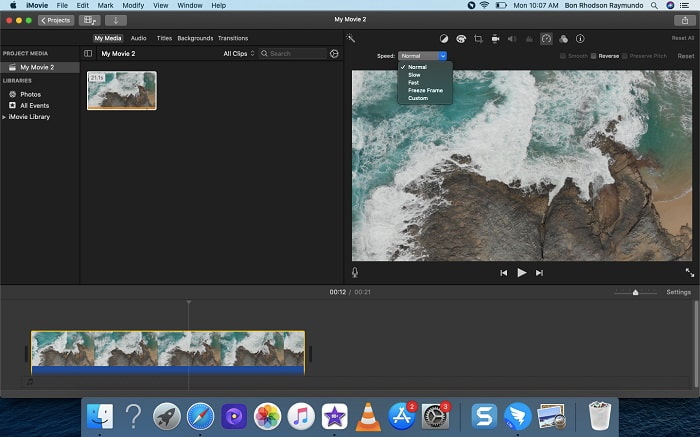
Bước 2. Nhấp vào nút Speed ở góc trên bên trái giao diện để xem các thiết lập tốc độ. Bạn có thể chọn giữa tốc độ Slow (chậm) và Fast (nhanh) từ nút tốc độ để tinh chỉnh.
Bước 3. Nhấp vào biểu tượng Upload ở góc trên bên phải giao diện để lưu file về ổ cứng máy tính.
Ưu điểm
- Đây là phần mềm miễn phí tải xuống trên máy Mac.
- Nó có thể hiển thị bản nhạc của video clip có thể giúp chỉnh sửa dễ dàng.
Nhược điểm
- Một số tính năng dựa trên chuyên nghiệp; nó thiếu các công cụ giúp video phát huy hết tiềm năng của nó.
- Bạn không thể tùy chỉnh tốc độ phát lại video của mình bằng phần mềm này vì bạn sẽ chỉ chọn các tùy chọn nhất định.
Phần 3. Cách tạo video chuyển động chậm trực tuyến
Phương pháp 1. Sử dụng VEED
Nếu bạn đang tìm công cụ online đơn giản nhất để làm video chuyển động chậm, VEED là lựa chọn phù hợp. Tuy nhiên, để sử dụng được, bạn cần có kết nối Internet mạnh vì đây là công cụ web và chỉ hoạt động trực tuyến. Với giao diện dễ tiếp cận và các công cụ thân thiện, bạn có thể tạo video slow motion rất dễ dàng. Một trong những tính năng chính là làm chậm tốc độ của video; để tạo video chuyển động chậm, bạn cần giảm tốc độ bình thường của video, và với VEED, bạn không cần lo lắng về quy trình thực hiện. Để hỗ trợ bạn trong quá trình sử dụng công cụ web này, dưới đây là các bước hướng dẫn:
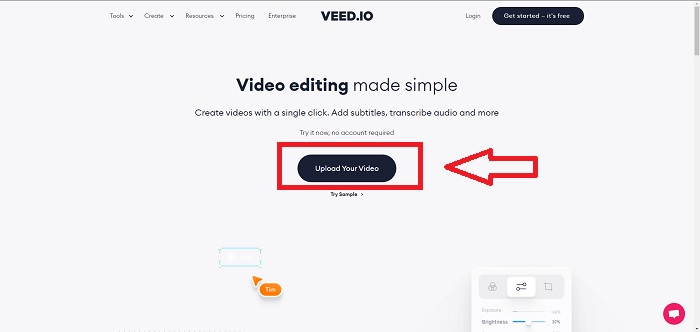
Bước 1. Nhấp vào nút Upload Your Video để tải một file video từ máy tính lên kho lưu trữ trên máy chủ.
Bước 2. Khi bạn di chuột vào giao diện chỉnh sửa của webtool, sẽ xuất hiện một track video. Hãy tìm và nhấp vào tùy chọn Speed để thay đổi tốc độ phát lại. Chọn Custom cho phép bạn phát video với tốc độ tùy chỉnh, dù tốc độ bạn muốn không nằm trong các tùy chọn sẵn có.
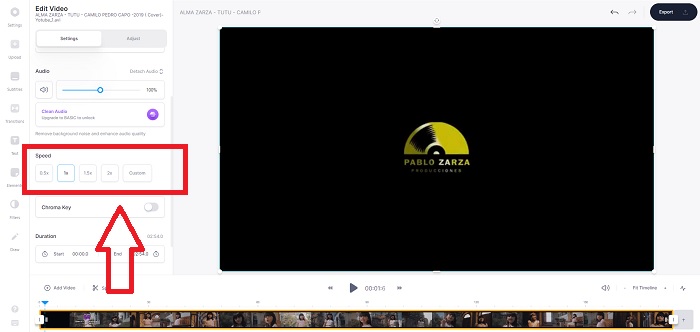
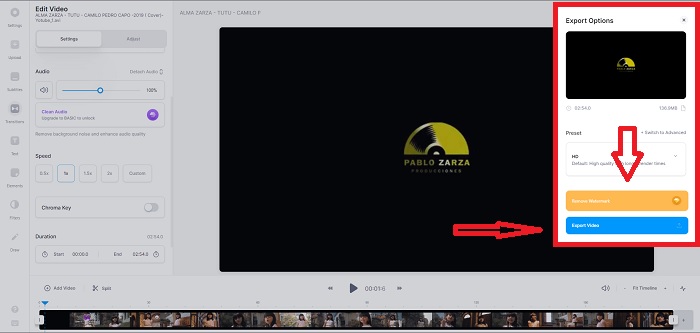
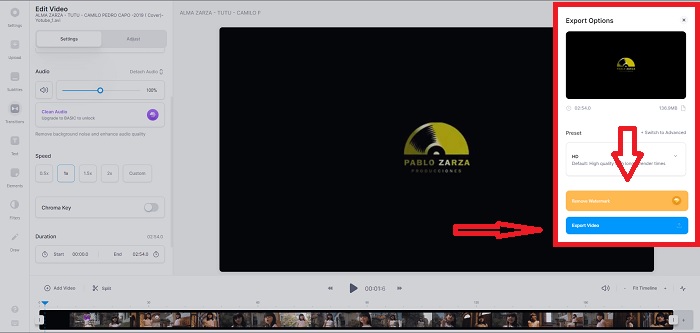
Bước 3. Sau khi chỉnh video đến tốc độ mong muốn, hãy nhấp Export để tiếp tục sang thẻ xuất video. Đồng thời, bạn có thể nâng cấp lên phiên bản Premium của webtool để chọn chất lượng video mong muốn và loại bỏ watermark. Khi mọi thứ đã xong, bạn có thể xuất video về máy tính.
Ưu điểm
- Nó có các hướng dẫn để trợ giúp trong việc sử dụng công cụ web.
- Nó là một công cụ web tốt chứa thông tin về các công cụ, giá cả, tài nguyên và doanh nghiệp.
Nhược điểm
- Nó chỉ có một số lượng nhỏ các công cụ được sử dụng.
Phương pháp 2. Sử dụng InVideo
InVideo là một công cụ online cho hiệu suất video tốt hơn nhiều công cụ trực tuyến khác nhờ các mẫu sáng tạo và nhiều công cụ mà nó cung cấp. Dịch vụ web này được xem là bộ chuyển đổi MP4 sang chuyển động chậm, với một trong các tính năng chính là chỉnh sửa video và khả năng chuyển đổi bất kỳ clip video định dạng MP4 nào. InVideo đóng vai trò như chỗ dựa cho mọi biên tập viên khi họ gặp khó khăn trong việc chọn công cụ web phù hợp để tạo video chuyển động chậm. Để hỗ trợ bạn tốt hơn với vấn đề này, dưới đây là các bước cần làm:
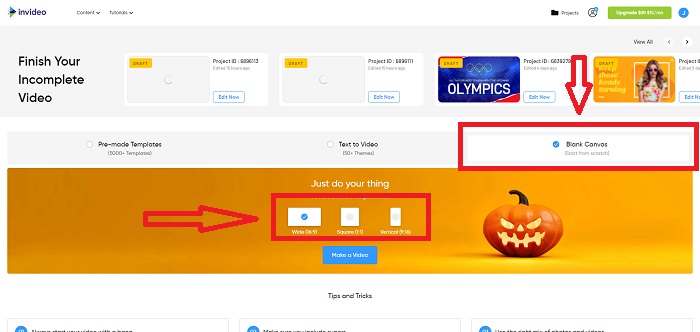
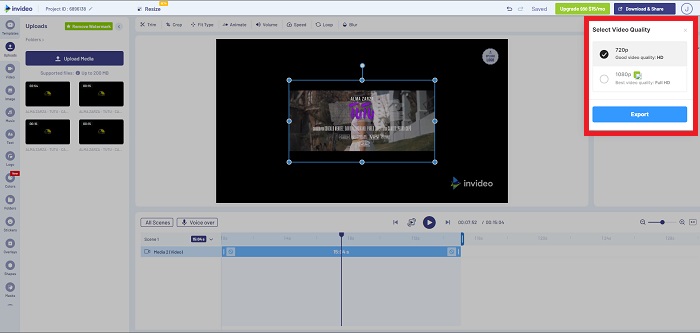
Bước 1. Để dùng công cụ web, bạn cần đăng ký một tài khoản. Bước tiếp theo là chọn một mẫu (template) để làm việc. Để bắt đầu tải video lên, nhấp nút Upload ở góc trên bên trái giao diện. Quá trình tải sẽ bắt đầu.
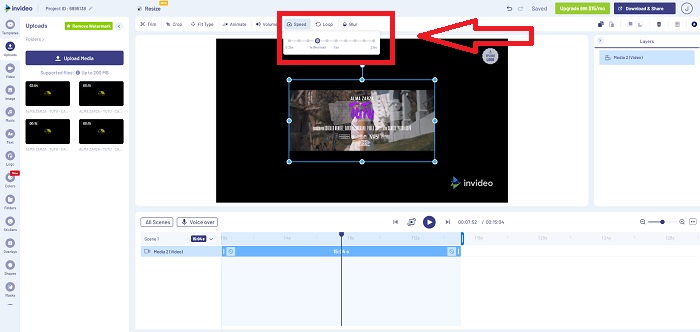
Bước 2. Nhấp vào thẻ Speed ở góc trên bên phải giao diện và kéo nó vào track để chỉnh tốc độ phát lại của video. Chỉ cần nhấp và kéo Slider để thay đổi tốc độ phát.
Bước 3. Tải xuống và chia sẻ sản phẩm khi bạn chỉnh sửa xong, sau đó hãy nâng cấp lên gói Premium để có kết quả tốt hơn nữa.
Ưu điểm
- Nó có sẵn các mẫu tùy chỉnh để sử dụng miễn phí.
- Nó chứa các tính năng chuyên nghiệp.
Nhược điểm
- Nó cần phải được mua để mở khóa tất cả các tính năng.
Phương pháp 3. Sử dụng Typito
Nếu bạn đang thắc mắc trình chỉnh sửa online nào có thể giải quyết nhu cầu đưa video về dạng chuyển động chậm, hãy thử dùng Typito. Typito giúp bạn dễ dàng tạo các video bắt mắt để video của bạn nổi bật giữa những video khác và trong đám đông. Về bản chất, nó giống như Canva nhưng dành cho chỉnh sửa video. Ứng dụng web này không chỉ dành cho dân chuyên nghiệp. Bạn có thể dùng cho bài tập ở trường hay các dự án đa phương tiện bán chuyên. Bạn cũng sẽ cần một địa chỉ email để sử dụng và chuyển đổi video theo các thiết lập mong muốn.
Bước 1. Kéo thả các file media từ màn hình desktop của máy tính hoặc nhấp vào biểu tượng thư mục để thêm chúng.
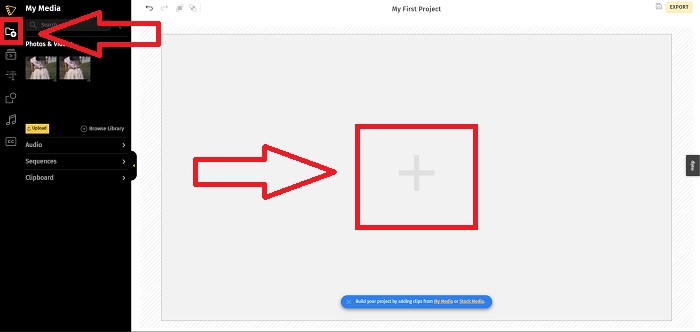
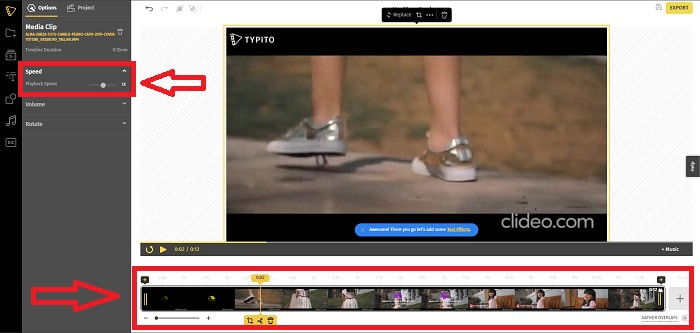
Bước 2. Để bắt đầu chỉnh sửa video, hãy đi tới track video và chọn file video. Sau đó nhấp Add Projects. Để thay đổi tốc độ phát lại, hãy tìm tính năng Speed ở góc trái giao diện và dùng Slider để điều chỉnh tốc độ video.
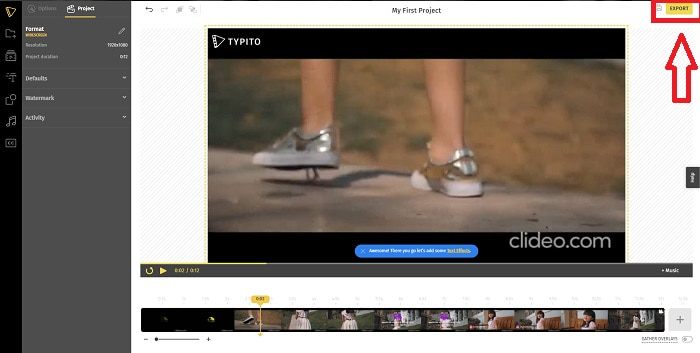
Bước 3. Nhấp Export ở góc trên bên phải giao diện để tải file đã chuyển đổi về desktop. Khi file đã sẵn sàng, hãy tải xuống.
Ưu điểm
- Nó là một công cụ web trực tuyến rất dễ sử dụng.
- Nó chứa các định dạng và mẫu để sử dụng trong việc chỉnh sửa video của bạn.
Nhược điểm
- Giao diện của công cụ web quá đơn giản.
- Nó có sẵn ít công cụ.
Phần 4. Câu hỏi thường gặp về Cách tạo video chuyển động chậm
Tôi có làm giảm chất lượng video nếu tôi chạy chậm lại không?
Không, tương tự với việc tăng tốc độ phát lại video của bạn; làm chậm video của bạn không làm mất chất lượng video của bạn. Đối với một số lý do tại sao một số video trở nên hơi trục trặc sau khi giảm tốc độ phát lại của video đó là chất lượng video của chúng đã bị mờ và thấp. Ngoài ra, nếu bạn tăng cường để giảm tốc độ phát lại video clip, tốc độ khung hình sẽ bị chia đôi, gây ra độ trễ và giảm chất lượng.
Ứng dụng nào tốt nhất cho video chuyển động chậm?
Video Converter Ultimate là trình chuyển đổi kiêm biên tập video tốt nhất, miễn phí tải về cho Windows và Mac. Nó cũng có các tính năng giúp nâng cấp và cải thiện video của bạn, và mọi người dùng đều có thể dễ dàng truy cập, sử dụng trình chuyển đổi này.
Google Photos có phải là ứng dụng tốt nhất để chuyển đổi video chuyển động chậm sang tốc độ bình thường không?
Như người ta tưởng tượng, có một số hạn chế khi sử dụng ứng dụng miễn phí này. Trước hết, tốc độ xử lý video tương đối chậm, đặc biệt là khi chỉnh sửa một video clip dài. Ngoài ra, nếu bạn chia video trước khi thay đổi tốc độ phát, âm thanh nền hoặc tường thuật bằng giọng nói sẽ bị tắt tiếng. Bất kể, nó là một ứng dụng Android miễn phí tuyệt vời. Bạn vẫn có thể sử dụng các ứng dụng của bên thứ ba, nhưng hầu hết các ứng dụng tiện lợi để sử dụng đều không miễn phí.
Phần kết luận
Vì vậy, để kết thúc bài viết một cách ấn tượng, việc tạo một video chuyển động chậm sẽ trở nên vô cùng đơn giản với những giải pháp được nêu ở trên. Video Converter Ultimate có thể được xem là một trình chỉnh sửa video chuyển động chậm giúp công việc làm slow motion trở nên nhẹ nhàng và dễ quản lý hơn bao giờ hết. Số lượng tính năng mà phần mềm này cung cấp xứng đáng để nó được gọi là trình biên tập mang tính chuyên nghiệp mà bạn sẽ sử dụng.
-
 [Đã giải quyết] Cách sửa video không phát trên iPhone với các bước chi tiết
 Không thể phát video cục bộ trên thư viện trên iPhone của bạn thông qua trình phát video mặc định? Video YouTube trực tuyến không phát trên iPhone luôn xảy ra? Dưới đây là 5 giải pháp giúp bạn trong bài viết này.
-
 5 phương pháp khả thi để khắc phục QuickTime không thể mở tệp MOV
 Định dạng MOV chủ yếu được tạo để phát lại trong QuickTime Player. Tuy nhiên, đôi khi bạn có thể thấy rằng họ không chơi trong đó. Tìm hiểu cách khắc phục QuickTime sẽ không phát tệp MOV từ bài đăng này.
-
 Cách chuyển đổi tệp MKV sang chơi trên PS3 một cách trơn tru [Đã giải quyết]
 Bạn muốn phát video MKV trên PS3 của mình? Tuy nhiên, PS3 không thể phát trực tiếp các tệp MKV. Bài viết này sẽ hướng dẫn bạn cách chuyển đổi video MKV sang định dạng video hỗ trợ PS3 để phát trên PS3 mà không gặp bất kỳ rắc rối nào.
