


 Chuyển đổi video Ultimate
 Trình ghi màn hình
 Sửa chữa video
Thảo luận ngắn gọn về cách thêm ảnh vào bài đăng video trên Tiktok giống như một chuyên gia
Tiktok has already received more than one billion downloads worldwide, and it is still growing up to date. Users became delighted to use this app because it allows us to film videos for 3 minutes or less and watch other people in the entire world. As it pursues to become better, there are many features you can use to make your Tiktok video unique; one of them is to add an image on a video. However, adding images while filming on Tiktok could be a little bit tricky for some users. Luckily, we found a way to teach you how to add a picture to a Tiktok video with the three methods and learn from it.

Phần 1. Cách đưa ảnh lên video TikTok bằng hai tính năng Tiktok tích hợp sẵn
Trước khi bắt đầu, chúng tôi muốn thông báo với bạn rằng hai cách mà chúng tôi đã thêm trong bài viết này đã có trong Tiktok. Vì vậy, bây giờ, vui lòng chọn cách bạn phù hợp nhất và thích quay video bằng hình ảnh của nó.
Cách thứ nhất. Cách sử dụng ảnh làm nền trên video Tiktok
Giả sử bạn muốn sử dụng hình ảnh bạn có làm nền; tốt, chúng tôi đã giúp bạn. Vui lòng đọc các bước chi tiết mà chúng tôi cung cấp dưới đây và tìm hiểu cách ghép các video và hình ảnh lại với nhau trên Tiktok.
Step 1. Download the Tiktok app from the Play Store or App Store, then open it next.
Step 2. After that, click the + button, and go to the Effects.
Step 3. Slide the menu to see the options, look for the Green Screen and click it. Hit the choose one in the options, then choose the image you want to use as a background.
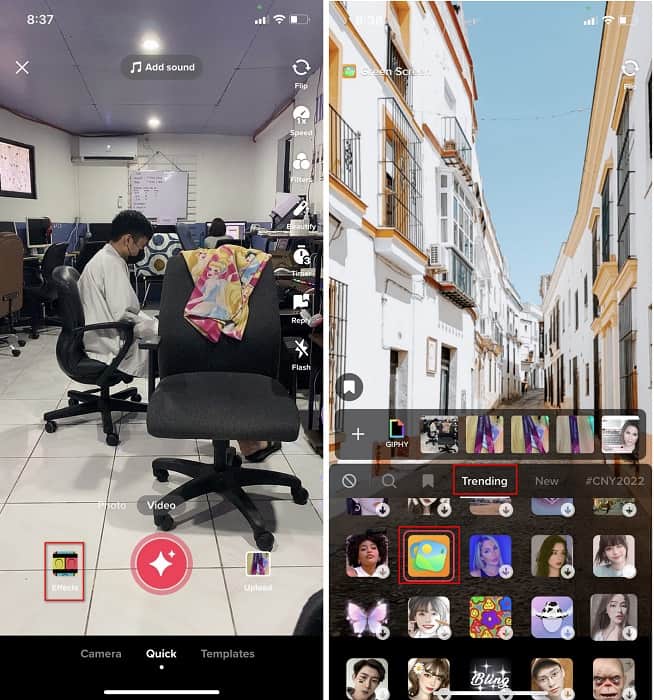
Step 4. Click the round REC button to record the video with the image background, re-click it to stop, click Next, then Drafts to save it on your accounts folder.
Cách thứ 2. Cách thêm hình ảnh trên Tiktok khi quay video
Cách này hợp thời trang vì hầu hết người dùng sử dụng hình ảnh được thêm này của nghệ sĩ, bạn bè, gia đình, tiện ích yêu thích của họ, v.v. Có thể bạn đã có ý tưởng và bây giờ để hướng dẫn bạn cách thêm ảnh vào video TikTok, hãy làm theo các bước dưới đây.
Step 1. On your Play Store or App Store, download the Tiktok, and after that, open it to follow the following steps.
Step 2. Press the + button and click the Effects next.
Step 3. Click the Trending and look for this image icon and click it. Next, please select the image you want and place it where you desire on the screen.
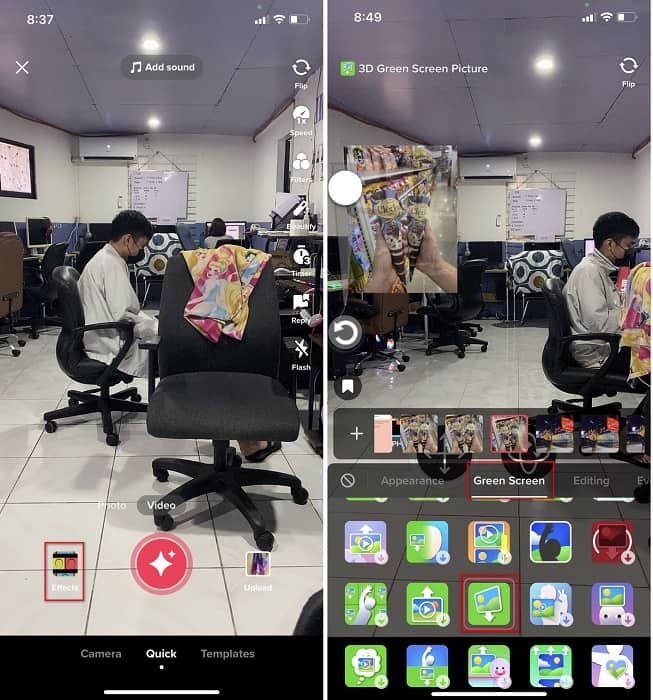
Step 4. Tap the red button to start the recording; if you've done recording, click the same button again to stop it. Press Next then Drafts to not post it yet on your TikTok account.
Phần 2. Cách thêm ảnh vào video TikTok bằng cách tối ưu trên Windows và Mac
Want to know the secret and learn how to put a picture in a TikTok video? Not satisfied with the built-in editor Tiktok provides? In that case, you must use the Video Converter Ultimate. If you enjoy doing editing, you can use this tool to add images, effects, filters, and more to your Tiktok videos before posting them on Tiktok.
Với công cụ này, bạn có thể tạo một video ấn tượng để gây ấn tượng với những người dùng khác với kết quả cuối cùng. Tuy nhiên, bạn không thể tải xuống công cụ này trên điện thoại của mình vì nó không được hỗ trợ. Nhưng bạn có thể làm được nhiều việc hơn nếu có máy tính để bàn và công cụ này. Bạn có muốn thêm hình ảnh vào video Tiktok của mình không? Hãy làm theo hướng dẫn dưới đây để biết cách thêm hình ảnh vào video Tiktok.
Step 1. You can now directly download the ultimate on your Windows and Mac by clicking the download button below. Next, install it promptly, then run the tool on your system by opening the tool. Before we proceed to the following steps, you'll need to get familiarized with the tool interface first. If you've already gotten familiarized, move to the next step.
Tải xuống miễn phí cho Windows 7 trở lên. Tải xuống an toàn.
Tải xuống miễn phí cho MacOS 10.7 trở lên. Tải xuống an toàn.
Step 2. Click the Toolbox part and find the Video Watermark.
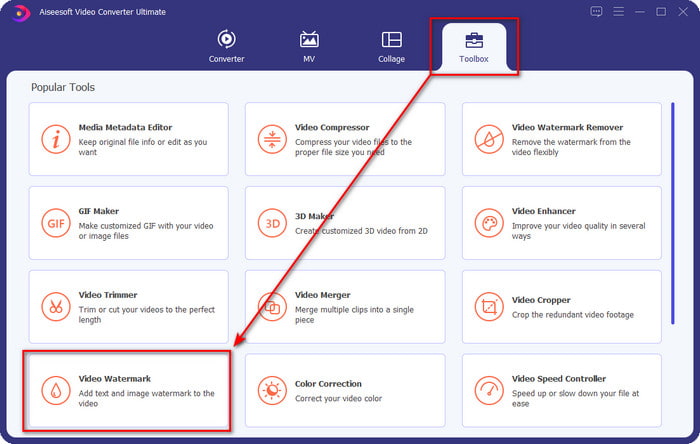
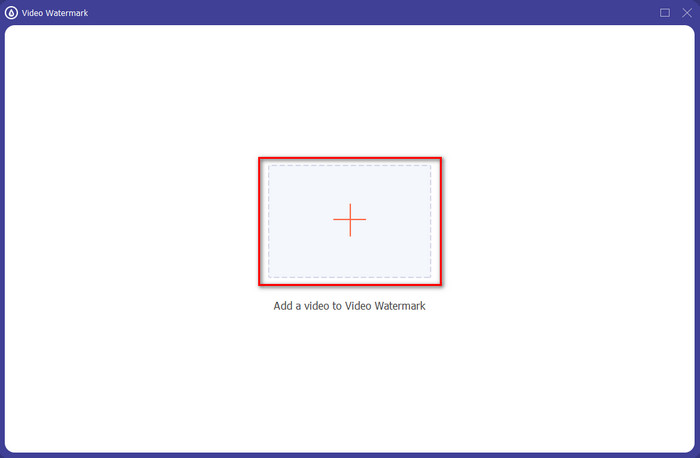
Step 3. Add the video file by clicking the + sign, locate the file on the folder that will show on your screen, click it, and press Open to upload the file.
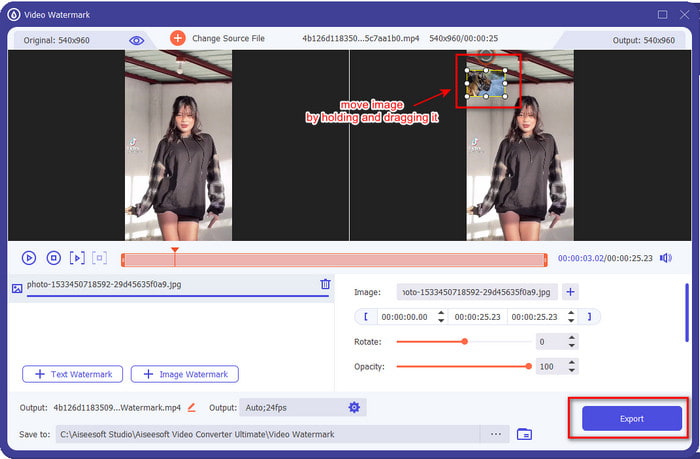
Step 4. On the new window, click the Image Watermark. Another computer folder will show on your screen; find the image you've wanted to add and press Open.
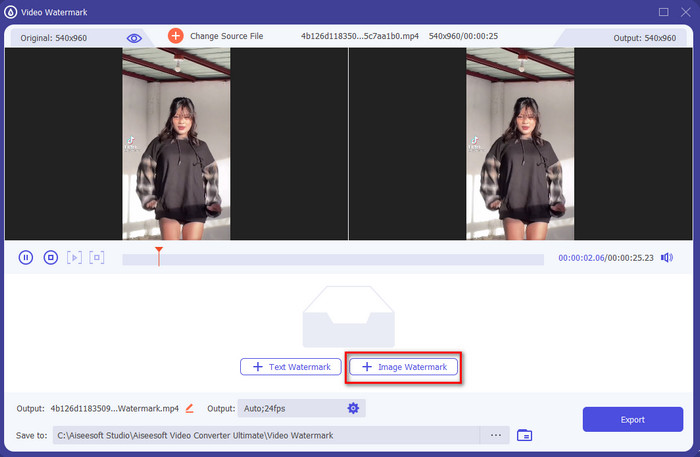
Step 5. Adjust the image size by dragging the frame ratio of the image. Hold and move the image and place it where you want it to be. After all, click the Export button to save the TikTok video with the picture included.
Phần 3. Câu hỏi thường gặp về Cách thêm ảnh trên video TikTok
Làm cách nào để xóa hình mờ Tiktok?
To learn how to remove the watermark of the Tiktok, you can click and read this article to know the method on how to do it. The details in this post will provide an effective way of removing the watermark of the TikTok on the exported video; no need to worry because it is easy to follow and understand.
Sử dụng TikTok có an toàn không?
Nó là an toàn để sử dụng TikTok. Tuy nhiên, một số video thách thức những người dùng khác thực hiện các pha nguy hiểm bất chấp tử thần không an toàn cho mọi lứa tuổi. Ngoài ra, ứng dụng không có mã hóa end-to-end, vì vậy giao tiếp giữa người nhận và người gửi không được mã hóa hoặc nói một cách đơn giản là nó được bảo vệ. Ngoài ra, một số bằng chứng cho thấy TikTok đã thu thập sinh trắc học của người dùng; cụ thể là nó đánh cắp các dấu giọng nói và khuôn mặt. Vì vậy, hãy nhớ sử dụng ứng dụng một cách khôn ngoan và đừng bao giờ thêm quá nhiều thông tin quan trọng về bản thân.
Tại sao Tiktok trở nên độc hại?
Văn hóa mà người dùng Tiktok tạo ra trong thế hệ này đã trở nên độc hại và một số người dùng coi ứng dụng chia sẻ video là không lành mạnh, đặc biệt là đối với trẻ nhỏ. Không thể tránh khỏi việc xem nội dung không phù hợp, chẳng hạn như định kiến về quốc tịch của một người, phân biệt giới tính, tiêu chuẩn vẻ đẹp cho tất cả mọi người và bắt nạt. Mặc dù điều này là không thể tránh khỏi, nhưng vẫn có những nội dung chứng minh rằng không phải tất cả người dùng TikTok đều độc hại. Và chúng tôi vẫn tin rằng có một cơ hội để thay đổi sự độc hại này và biến nó thành một cộng đồng hòa bình và yêu thương.
Phần kết luận
Now that we know how to add a picture to a Tiktok video, it is time to share your Tiktok videos with images to bring good vibes or unique videos to everyone. However, filming with the picture will limit your movements because the image becomes a blockage on the screen. But wait, don't be sad, because you can film first, transfer it to your computer, and use the Video Converter Ultimate to add the image later. With it, you can do more on your Tiktok videos and make them look outstanding than the other videos. So, what are you waiting for? Download it now on your desktop to start making the ultimate and most impressive Tiktok video ever!
-
 Cách tốt nhất Cách thêm hình mờ vào video trong Photoshop trên Windows và Mac
 Bạn muốn biết cách thêm hình mờ vào video trên Photoshop? Trong trường hợp đó, bài viết này sẽ cung cấp cho bạn những điều bạn cần biết.
-
 3 giải pháp tốt nhất về cách xóa hình mờ khỏi video một cách dễ dàng
 Bạn muốn xóa hình mờ khó chịu trên video? Với blog này, bạn có thể tìm hiểu các ý tưởng khác nhau về cách xóa hình mờ trên video.
-
 4 cách tốt nhất về cách thêm hình mờ trên bất kỳ video nào một cách nhanh chóng
 Hãy cùng tìm hiểu cách thêm hình mờ vào bất kỳ video nào trên Windows, Mac, Online, iOS và Android với các bước chi tiết nếu bạn đọc bài viết này.
