


 Chuyển đổi video Ultimate
 Trình ghi màn hình
 Sửa chữa video
Cách xóa hình mờ khỏi GIF trực tuyến [Hướng dẫn từng bước]
Adding a watermark on a GIF became one of the ways to secure the GIF, but what if you need to remove the watermark you add to your GIF? What should you do? Does your GIF Maker have this feature? Doesn't have a watermark remover? We know it is troublesome to have this problem, right? But no need to worry because all of these questions will have an answer later, as we found the four watermark remover you can use offline and online. These tools are handpicked from the market to provide you with the best you can see to remove the watermark on GIF.

Một cái nhìn thoáng qua về những ứng dụng này
| Chuyển đổi video Ultimate | Công cụ GIF trực tuyến | WatermarkRemover.io | Pixlr | PhotoShop | |
| Độ phân giải | 8K | 1080P | 5K | 8K | 300K |
| Tốc độ xử lý | Nhanh | Trung bình | Trung bình | Nhanh | Phụ thuộc vào phần cứng của bạn |
| Yêu cầu phần cứng | Thấp | N / A | Trung bình | Cao | Rất cao |
Phần 1. Cách dễ nhất để xóa Watermark khỏi GIF trên Windows và Mac một cách nhanh chóng
Video Converter Ultimate can successfully help you remove the watermark from GIF, whether you want it. This tool can help you add a watermark and remove it; basically, it is an all-in-one tool you will need on your Windows or Mac. Not only that, with this tool, you can create your GIF and add the watermark you want to secure the GIF you've made. To test it out, you can follow the simple steps we provide, and that's it. With that, you've readily used the GIF without a watermark in less than a minute.
Advantages of the Video Converter Ultimate:
◆ Đây là lựa chọn tốt nhất để xóa và thêm hình mờ trên ảnh GIF của bạn.
◆ GUI thân thiện với người dùng có thể nhanh chóng giúp bạn hiểu điều gì đang xảy ra với giao diện của công cụ.
◆ Quá trình chuyển đổi cực nhanh và tăng tốc phần cứng được tích hợp sẵn có thể giúp bạn nhập và xuất với tốc độ cực nhanh.
◆ Có sẵn trên tất cả các nền tảng như Windows và Mac để tải xuống.
◆ Nó có các tính năng nâng cao của trình tạo GIF tốt nhất mà bạn có thể sử dụng trên máy tính để bàn của mình để tạo GIF được cá nhân hóa.
Steps on How to Remove Watermark From GIF with the Ultimate Watermark Remover
Step 1. Download the software to your computer drive by clicking the below button. Then launch it and upload a gif or video.
Tải xuống miễn phí cho Windows 7 trở lên. Tải xuống an toàn.
Tải xuống miễn phí cho MacOS 10.7 trở lên. Tải xuống an toàn.
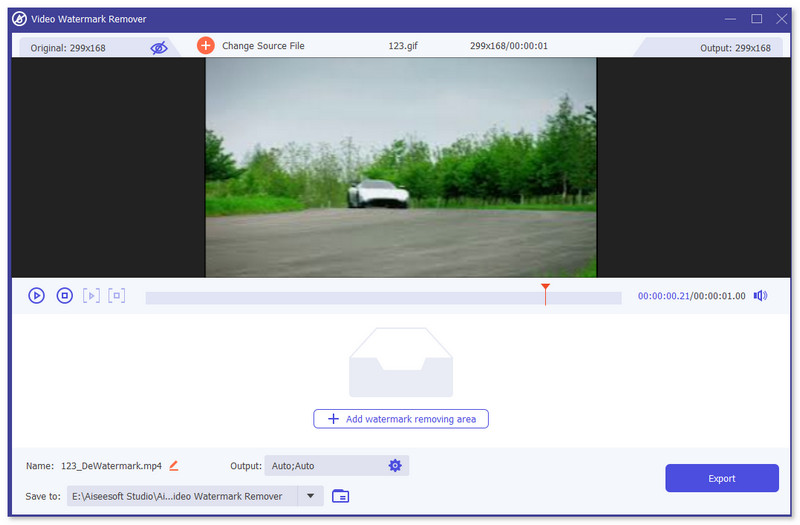
Step 2. Open the watermark remover, go to Toolbox, and look for Video Watermark Remover.

Step 3. Upload a gif or video and click Export.
Có liên quan:
Thêm watermark vào video
Xóa hình mờ khỏi GIF bằng Adobe Photoshop
Nếu bạn đã cài đặt Adobe PhotoShop trên máy tính, bạn cũng có thể dựa vào nó để xóa hình mờ hoặc bóng đổ khỏi ảnh. PhotoShop có thể được công nhận là một trong những công cụ chỉnh sửa ảnh phổ biến và mạnh mẽ nhất cho phép bạn thêm hiệu ứng, lọc, xóa đối tượng, v.v. Mặc dù không phải là trình chỉnh sửa ảnh miễn phí, nhưng nó cung cấp cho bạn bản dùng thử miễn phí 30 ngày. Bây giờ bạn có thể làm theo hướng dẫn bên dưới để xóa các đối tượng không mong muốn khỏi ảnh.
Step 1. Launch PhotoShop on your computer. You can go to the official Adobe site to free download PhotoShop and have a free trial.
Step 2. You can directly drag and drop to import the image file you want to edit. Also, you can click File on the menu bar and then click Open to select a local photo on your computer.
Step 3. You can use the Select and Mask tool to choose the unwanted objects. During this step, you can freely select a suitable tool to select the region you want to remove.
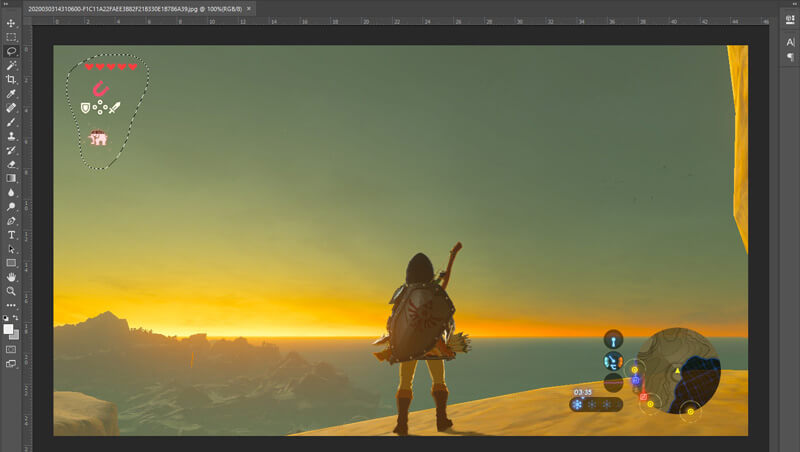
Step 4. Now you can rely on the Photoshop's Content-Aware Fill tool to remove object from photo and replace this part with suitable content. Relatively speaking, if you don't want to simple erase some objects in a photo, Content-Aware Fill feature can give you a better output effect.
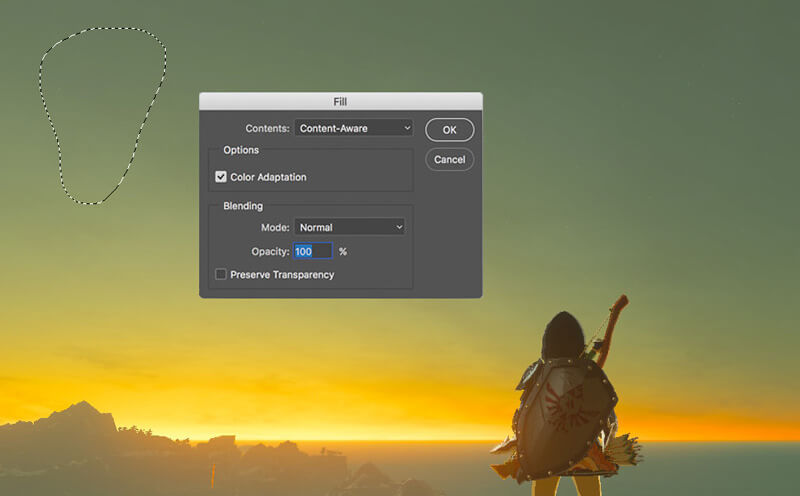
Step 5. After the PhotoShop remove object, you can click File and then Save to save the edited picture on your computer. You can pick any popular image format like JPG, PNG, GIF, and more as the output format. Here you can also press Ctrl + S to save and export your image file from PhotoShop.
Phần 2. Cách xóa hình mờ khỏi GIF trực tuyến
Với các công cụ trực tuyến miễn phí này, bạn có thể xóa hình mờ trên ảnh GIF. Tuy nhiên, bạn cần nhớ rằng những công cụ này sẽ không hoạt động nếu bạn không có kết nối internet vì tất cả các công cụ này đều phụ thuộc vào mạng. Ngoài ra, việc sử dụng chúng có thể mất thời gian vì nó đệm khi bạn sử dụng các công cụ web này. Vì vậy, nếu bạn muốn biết công cụ xóa GIF miễn phí trực tuyến, hãy đọc chi tiết bên dưới.
Xóa hình mờ khỏi GIF bằng Công cụ GIF trực tuyến
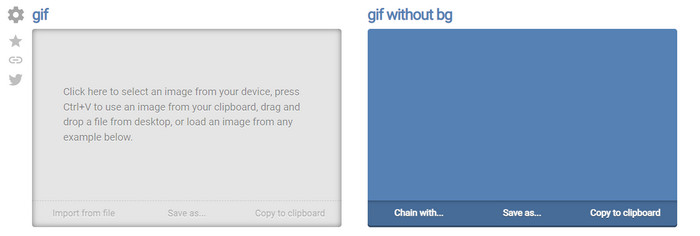
Online GIF Tools is a free tool you can use to remove watermarks on GIFs. This tool provides the users an advance removing features like removing the background watermark of the GIF. Although the tool is impressive, removing the watermark can be complicated because it eliminates the per color pixels in the frame.
Step 1. Open the Online GIF Tools on your web browser.
Step 2. Click Import File to upload the GIF. Under background color, click the options color coder to locate the watermark color.
Step 3. Click Save As and Download after this to save the GIF on your drive.
Xóa hình mờ khỏi GIF bằng Watermark Remover Online
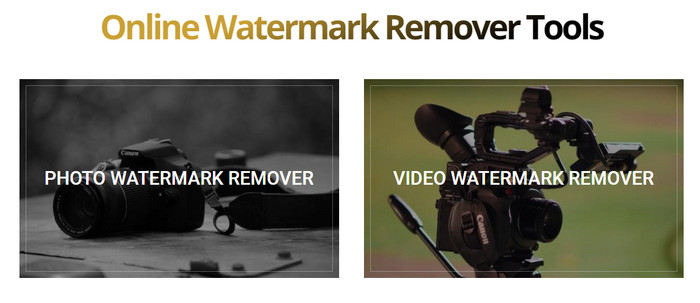
With the WatermarkRemover.io, your watermark will automatically remove on the GIF. This tool is excellent for eliminating watermarks for free. It allows the users to have less hassle removing the watermark because you won't need to do it as the tools do it for you. However, some regions aren't in reach with this tool; basically, you can't download the remove watermark GIF.
Step 1. Launch the WatermarkRemover.io and add the GIF file by clicking the below part of the logo.
Step 2. After adding the file, the process will begin automatically and wait for it.
Step 3. Click the download button to save it to your computer.
Xóa hình mờ khỏi GIF bằng Pixlr

If you want the best web tool to cancel the watermark on your GIF, then use Pixlr. Unlike the two mentioned web tools, this tool is far different because it has many functions you may want to use to remove the watermark. Although the tool is similar to Photoshop, some parts here aren't as effective as Photoshop can bring to you, especially on removing watermark from GIF, and it has a watermark at the end of export.
Step 1. Search the Pixlr and open it.
Step 2. Hit Advance Editor, add the GIF, click Open Image. After adding the GIF, click the droplet icon to blur the watermark, click on the watermark repeatedly and make sure to remove it.
Step 3. Click File then Save.
Phần 3. Câu hỏi thường gặp về cách xóa Watermark khỏi GIF
Xóa hình mờ có làm cho kích thước tệp nhỏ hơn không?
Kích thước tệp sẽ thay đổi nhưng không có tác động đáng kể vì bạn chỉ cần xóa một chút hình mờ trên video của mình. Vì vậy, nếu kích thước tệp gốc và hình mờ được trích xuất gần như không giống nhau, thì vấn đề là ở những gì bạn đã sử dụng.
Tại sao video của tôi bị mờ sau khi xóa hình mờ?
Video của bạn bị mờ sau khi bạn đã xóa hình mờ vì đó là cách xóa hình mờ của công cụ. Đây là một trong những phương pháp mà các công cụ cung cấp để xóa hình mờ trên bất kỳ video hoặc hình ảnh nào bằng cách làm mờ nó.
Chất lượng của ảnh GIF có thay đổi sau khi xóa hình mờ không?
Bạn sẽ không nhận thấy sự thay đổi về chất lượng sau khi xóa hình mờ trên GIF của mình. Nhưng một số công cụ làm giảm chất lượng ảnh GIF của bạn vì chúng không hỗ trợ ảnh GIF chất lượng cao. Vì vậy, hãy nhớ chọn đúng công cụ hỗ trợ xuất đầu ra chất lượng cao ngay cả khi bạn đã xóa hình mờ khỏi nó.
Phần kết luận
After all, this blog gives us the chance to effectively remove the watermark on the GIF or video we’ve been using. Thus, the tools we present are effective and perfect for removing the watermark on our GIF. And yet, the Video Converter Ultimate still provides the strong suits in removing or adding a watermark on your GIF. So, if we are on the same page about the tool, then you must use it, and if we're not, you must try to download it and remove the watermark on your GIF. After that, the tool will help you quickly do it, and your mind will change about the tool's capability.
-
 Cách tốt nhất Cách thêm hình mờ vào video trong Photoshop trên Windows và Mac
 Bạn muốn biết cách thêm hình mờ vào video trên Photoshop? Trong trường hợp đó, bài viết này sẽ cung cấp cho bạn những điều bạn cần biết.
-
 3 giải pháp tốt nhất về cách xóa hình mờ khỏi video một cách dễ dàng
 Bạn muốn xóa hình mờ khó chịu trên video? Với blog này, bạn có thể tìm hiểu các ý tưởng khác nhau về cách xóa hình mờ trên video.
-
 5 cách tốt nhất để thay đổi hình ảnh thành GIF động [Cập nhật năm 2022]
 Cần một hình ảnh chuyển đổi sang GIF? Bài viết này sẽ cung cấp năm bộ chuyển đổi tốt nhất mà chúng tôi có thể tìm thấy trên thị trường. Vì vậy, hãy & #039; s tìm hiểu những công cụ này bằng cách đọc bài viết này.
