


 Chuyển đổi video Ultimate
 Trình ghi màn hình
 Sửa chữa video
4 phương pháp dễ nhất Cách thay đổi độ phân giải video với các bước toàn diện
Có nhiều lý do khiến bạn cần phải thay đổi độ phân giải video. Một trong những lý do có thể là để tiết kiệm dung lượng cho video. Dù lý do của bạn là gì, hướng dẫn này sẽ chỉ cho bạn bốn cách để giảm hoặc tăng chất lượng video. Không dài dòng nữa, hãy cùng tìm hiểu các công cụ đổi độ phân giải video mà bạn có thể dùng để thay đổi độ phân giải cho video của mình.

Phần 1. Phương pháp thứ nhất: Công cụ máy tính để bàn cuối cùng để thay đổi độ phân giải video trên Windows và macOS
Video Converter Ultimate là công cụ tối ưu cho nhiệm vụ này, vì nó có thể giúp bạn không chỉ chuyển đổi định dạng video mà còn cả chất lượng video chỉ với vài cú nhấp chuột. Công cụ này hỗ trợ quá trình chuyển đổi siêu nhanh để bạn dễ dàng chuyển chất lượng video sang độ phân giải cao nhất hoặc chuẩn. Thật tuyệt khi sử dụng phần mềm này, phải không? Muốn biết thêm nữa? Nếu vậy, công cụ này hỗ trợ cả hai nền tảng máy tính để bàn. Dù bạn dùng Windows hay Mac, những tính năng bạn thấy trên Windows cũng có trên Mac và ngược lại. Chúng tôi biết công cụ này có những điểm đặc biệt, nên đã đưa nó vào danh sách này. Bây giờ, nếu bạn muốn hướng dẫn từng bước, hãy làm theo phần hướng dẫn dưới đây để học cách thay đổi độ phân giải video thành công.
Bước 1. Nhấp vào nút phù hợp để tải chương trình về máy. Mở tệp đã tải và làm theo quá trình cài đặt hiện trên màn hình. Sau khi cài đặt thành công, hãy mở trình đổi độ phân giải video và chuyển sang các bước tiếp theo.
Tải xuống miễn phí cho Windows 7 trở lên. Tải xuống an toàn.
Tải xuống miễn phí cho MacOS 10.7 trở lên. Tải xuống an toàn.
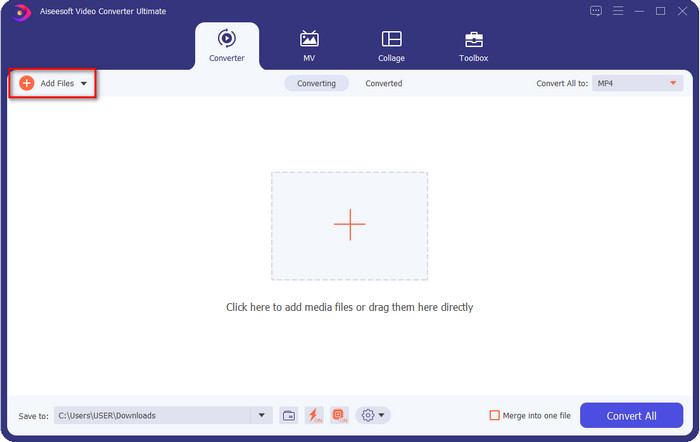
Bước 2. Để chèn tệp video bạn muốn thay đổi độ phân giải, hãy nhấp vào nút Add File. Duyệt tệp trong thư mục máy tính hiện ra, nhấp vào tệp đó và chọn Open.
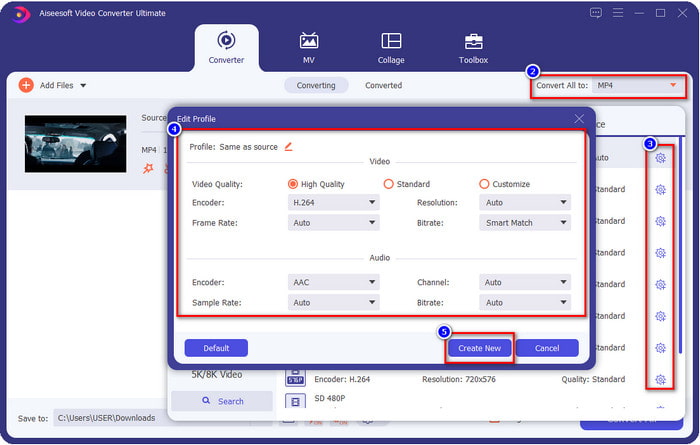
Bước 3. Nhìn lên phần góc trên bên phải và nhấp vào nút drop-down trên giao diện chính. Chọn định dạng video bạn muốn, ở đây có sẵn MP4, MOV, AVI, MKV, FLV và hơn 200 định dạng khác. Sau khi chọn định dạng, nhấp nút widget để chỉnh sửa hồ sơ (profile) của định dạng. Tại đây bạn có thể tăng hoặc giảm độ phân giải, thay đổi bộ mã hóa (encoder), chất lượng, bitrate và nhiều thông số khác để tăng hoặc không tăng độ phân giải video. Để lưu các chỉnh sửa, nhấp Create New.
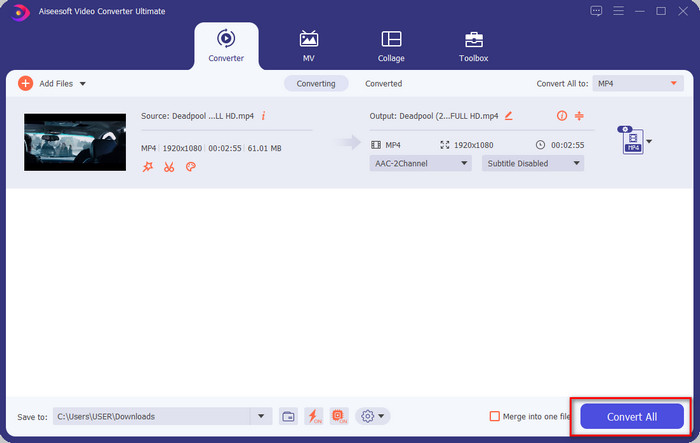
Bước 4. Cuối cùng, nhấp vào Convert All để bắt đầu quá trình chuyển đổi độ phân giải. Như vậy, bạn đã chuyển đổi độ phân giải video với sự trợ giúp của Video Converter Ultimate.
Phần 2. Methode thứ 2: Phương pháp đơn giản và miễn phí để thay đổi độ phân giải video trực tuyến
Muốn đổi độ phân giải video online? Trong trường hợp đó, bạn nên dùng phiên bản online miễn phí của công cụ tối ưu này, đó là FVC Free Video Converter Online. Công cụ này có thể giúp bạn đổi độ phân giải video miễn phí. Vì là công cụ trực tuyến nên bạn cần kết nối internet để sử dụng. Ngoài ra, công cụ này không hỗ trợ tất cả các định dạng video, nên sẽ có giới hạn về định dạng video có thể thêm vào. Bây giờ, hãy thử dùng công cụ này để thay đổi độ phân giải bằng cách làm theo các bước dưới đây.
Bước 1. Để mở trình đổi độ phân giải video online, hãy nhấp vào liên kết này để mở trực tiếp công cụ.
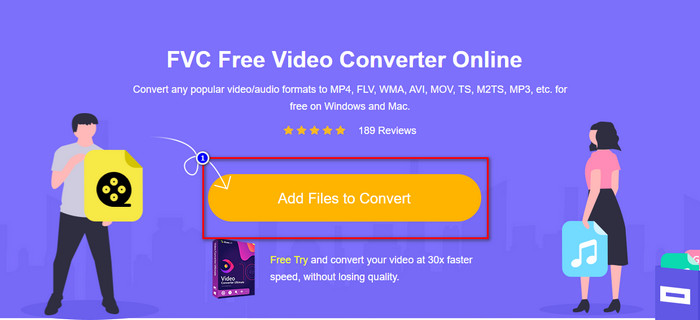
Bước 2. Nhấn Add Files to Convert để tải launcher lần đầu tiên, sau khi tải trình cài đặt, hãy nhấn lại lần nữa. Sau khi nhấn, một thư mục sẽ hiện ra, hãy tìm tệp video trong thư mục và nhấp Open.
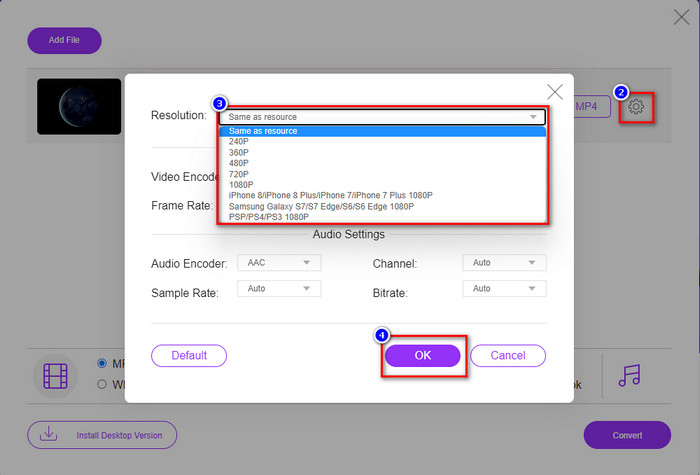
Bước 3. Nhấp nút gear để mở một cửa sổ mới cho phép bạn thay đổi độ phân giải video. Ở phía trên của cửa sổ mới, nhấp Resolution, chọn độ phân giải video bạn muốn rồi nhấp OK để lưu.
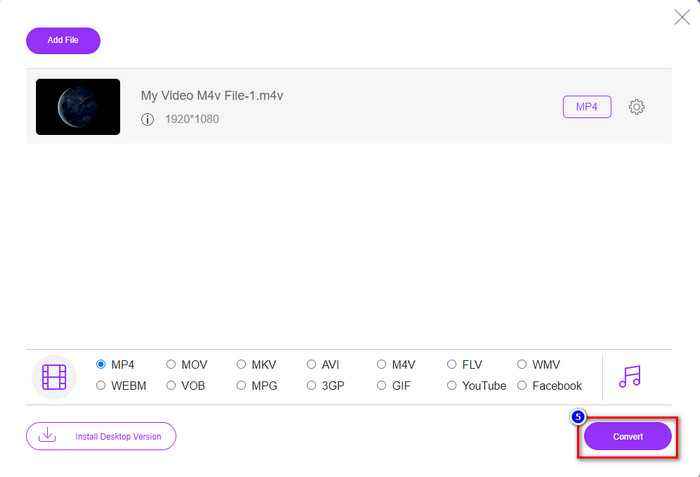
Bước 4. Chọn định dạng trong danh sách cài đặt và nhấp Convert để bắt đầu quá trình chuyển đổi độ phân giải.
Có liên quan:
Thêm phụ đề vào video
Thêm watermark vào video
Phần 3. Phương pháp thứ 3: Cách thay đổi độ phân giải video trên iPhone và Android dựa trên thiết bị di động
Các phương pháp này không thể chuyển đổi độ phân giải video của bạn, nhưng bạn có thể tạo video có độ phân giải thấp hơn hoặc cao hơn. Hơn nữa, hãy xem cách chúng tôi có thể thay đổi độ phân giải video khi quay video.
1. Độ phân giải video tích hợp trên iPhone
Nếu bạn là người dùng iOS, bạn có thể thay đổi độ phân giải video mà bạn chụp nếu muốn. Tuy nhiên, bạn không thể tìm thấy trên Camera nên nếu không tìm được, bạn có thể làm theo các bước hướng dẫn dưới đây để biết cách thay đổi độ phân giải video trên iPhone trước khi quay video.
Các bước này được thực hiện từ kiểu máy iPhone X nên các bước có thể hơi khác so với các phiên bản khác của tên hoặc chức năng giống iPhone.
Bước 1. Mở phần Settings trên iPhone của bạn.
Bước 2. Trong đó, tìm mục Camera và nhấn vào.
Bước 3. Nhấn Record Video và chọn độ phân giải bạn muốn khi quay video. Quay lại màn hình Home, mở Camera và quay video với độ phân giải bạn đã đặt trong phần cài đặt.
2. Độ phân giải video Android tích hợp
Đối với người dùng Android, bạn có thể truy cập trực tiếp vào độ phân giải video trên Máy ảnh của mình. Các bước chúng tôi cung cấp không phức tạp như đối với iPhone vì bạn sẽ không cần thiết lập cài đặt. Vì vậy, bây giờ, để thay đổi độ phân giải video trên Android, hãy làm theo hướng dẫn dưới đây.
Các bước này được thực hiện từ Redmi 10, vì vậy các bước có thể hơi khác với một số thiết bị Android khác như tên hoặc chức năng.
Bước 1. Trên điện thoại, nhấn vào ứng dụng Camera để mở.
Bước 2. Sau khi mở, chuyển sang chế độ Video, nhấn biểu tượng ba gạch song song và chọn độ phân giải video bạn muốn.
Bước 3. Nhấn nút màu đỏ để quay video với độ phân giải đã đặt.
Phần 4. Câu hỏi thường gặp về thay đổi độ phân giải video
Độ phân giải video là gì?
Số lượng pixel chứa trên mỗi khung hình được chúng tôi gọi là độ phân giải video. Nó cũng kiểm soát các chi tiết bạn có thể thấy trên một video, chẳng hạn như hình ảnh có thể rõ ràng hơn như thế nào. Hơn nữa, có nhiều loại độ phân giải video khác nhau; chúng tôi gọi độ phân giải cao hơn bắt đầu từ HD trở lên sử dụng nhiều khung hình chất lượng hơn mỗi giây. Trong khi độ phân giải thấp hơn bắt đầu từ SD trở xuống, độ phân giải video này nhận được ít băng thông hơn độ phân giải cao hơn, nhưng nó có chất lượng khung hình trên giây nhỏ hơn.
1080 có phải là độ phân giải video tốt nhất?
Nó tạo ra một trong những độ phân giải video được người dùng lựa chọn phổ biến nhất trên Youtube và các ứng dụng phát trực tuyến video khác. Nhưng không phải lúc nào cũng là lựa chọn tốt nhất để xem video chất lượng cao vì có thể mất nhiều thời gian để đệm video hơn so với 720. Vì vậy, lần tới khi bạn xem video trực tuyến, chúng tôi thích sử dụng 720 hơn 1080 để tải video nhanh hơn nhiều và không có thay đổi đáng kể về cả chất lượng nếu bạn thay đổi nó.
Giảm độ phân giải có ảnh hưởng đến chất lượng không?
Có, sẽ có thay đổi sau khi bạn hạ chất lượng video xuống. Ví dụ, nếu video của bạn ở định dạng HD, bạn đổi thành SD, chất lượng sẽ thay đổi đáng kể. Vì vậy, nếu bạn thay đổi độ phân giải video, bạn sẽ thấy sự thay đổi đột ngột, nhưng nó vẫn có thể xem được ngay cả sau đó.
Phần kết luận
Cuối cùng, bây giờ chúng ta có thể thay đổi độ phân giải video theo ý muốn của mình. Mặc dù bạn có thể sử dụng nhiều công cụ khác nhau để thay đổi chất lượng video, chúng tôi vẫn cung cấp các công cụ trực tuyến, ngoại tuyến và tích hợp an toàn nhất và tốt nhất. Chúng tôi hy vọng rằng bài viết này sẽ giúp bạn thay đổi độ phân giải; Nếu bạn có thêm câu hỏi, bạn có thể để lại bình luận bên dưới, và thực sự chúng tôi sẽ trả lời ý kiến của bạn.
-
 Đánh giá về 10 phần mềm chuyển đổi video HD hàng đầu (Miễn phí & Thương mại)
 Đọc và So sánh để nhận phần mềm chuyển đổi video HD tốt nhất từ 10 đề xuất. Dưới đây là các đánh giá chi tiết về từng bộ chuyển đổi video HD cho đa nền.
-
 Hướng dẫn về cách chuyển đổi M4A sang WAV [PC và Mac]
 Tìm hiểu thêm về cách chuyển đổi M4A sang WAV với các bước chi tiết và các công cụ khác nhau mà bạn có thể chọn.
-
 Lựa chọn tuyệt vời để chuyển đổi MKV sang định dạng AVI
 Nắm vững cách chuyển đổi video MKV với các bước đơn giản được cung cấp dành riêng cho bạn. Bạn có muốn biết làm thế nào không? Sau đó nhấp vào liên kết này để tìm hiểu thêm.
