


 Chuyển đổi video Ultimate
 Trình ghi màn hình
 Sửa chữa video
 Tải xuống an toàn
Hướng dẫn từng bước về cách thêm ảnh bìa album vào MP3 bằng phần mềm tốt nhất trên máy tính để bàn
Việc gắn ảnh bìa album có thể trở nên rất hữu ích, đặc biệt nếu bạn muốn giúp người nghe cảm thấy gắn bó hơn với bản nhạc mà họ đang thưởng thức. Với ảnh bìa album, người dùng có thể hình dung sơ bộ về nội dung của bản nhạc, nhất là các bản nhạc dạng số. Trong một số trường hợp, file MP3 không có ảnh bìa phù hợp hoặc chưa được gắn vào file. Nếu bạn cũng gặp tình trạng này, điều quan trọng là phải biết cách thêm ảnh bìa album vào nhạc MP3 trên máy tính. Để tìm hiểu kỹ hơn về chủ đề này, hãy tiếp tục đọc bài viết vì chúng tôi sẽ cung cấp những thông tin cô đọng về vấn đề này.

Phần 1. Cách thêm ảnh bìa album vào MP3 với Video Converter Ultimate [Trình chỉnh sửa thẻ được đề xuất]
Bạn đang tìm một phần mềm mạnh mẽ để thêm ảnh bìa album cho MP3? FVC Video Converter Ultimate là trình chỉnh sửa thẻ (tag editor) được khuyến nghị cho công việc này. Phần mềm này không phải ngẫu nhiên mà được đề xuất. Khác với các phần mềm khác thường chỉ hỗ trợ một số định dạng ảnh bìa hạn chế để làm cover cho nhạc MP3, công cụ này thì không như vậy. Với phần mềm “Ultimate” này, bạn có thể thêm ảnh bìa cho MP3, WAV, WMA, AAC, FLAC và hơn 1000 định dạng video, âm thanh khác. Thật ấn tượng phải không? Đây là lựa chọn hàng đầu để thêm ảnh bìa cho album của bạn. Bạn muốn biết cách sử dụng phần mềm này? Nếu vậy, hãy đọc và làm theo phần hướng dẫn chi tiết mà chúng tôi trình bày bên dưới.
Bước 1. Nhấp nút tải về bên dưới, chọn hệ điều hành bạn đang sử dụng. Sau khi tải xuống phần mềm, hãy tiến hành cài đặt. Khi hoàn tất, nhấp Start Now để khởi chạy phần mềm trên máy tính của bạn.
Tải xuống miễn phí cho Windows 7 trở lên. Tải xuống an toàn.
Tải xuống miễn phí cho MacOS 10.7 trở lên. Tải xuống an toàn.
Bước 2. Chuyển đến mục Toolbox rồi nhấp vào Media Metadata Editor bên trong.
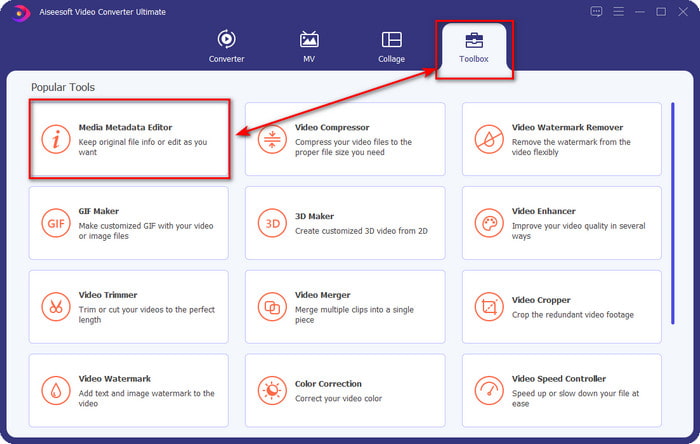
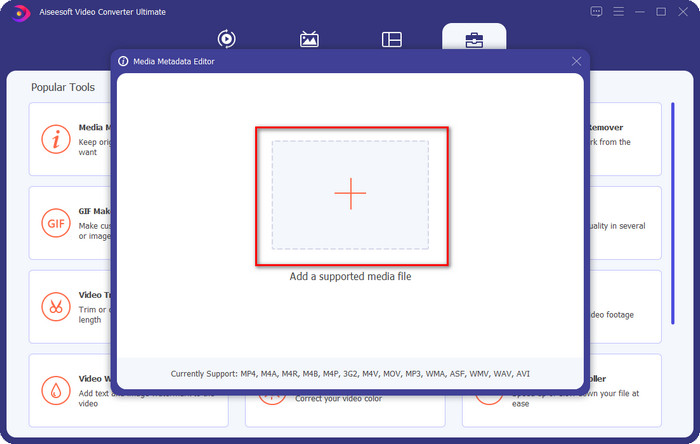
Bước 3. Chọn file nhạc mà bạn muốn thêm ảnh bìa bằng cách nhấp vào nút +. Để chèn file nhạc đã chọn, nhấp Open.
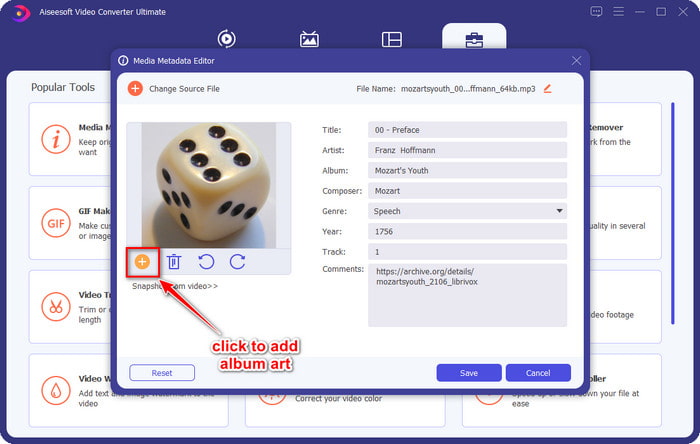
Bước 4. Tiếp theo, nhấp nút + ở góc dưới bên trái giao diện, tìm ảnh bìa album bạn muốn dùng rồi nhấp Open. Nếu cần, hãy thêm các thông tin metadata khác trong textbox.
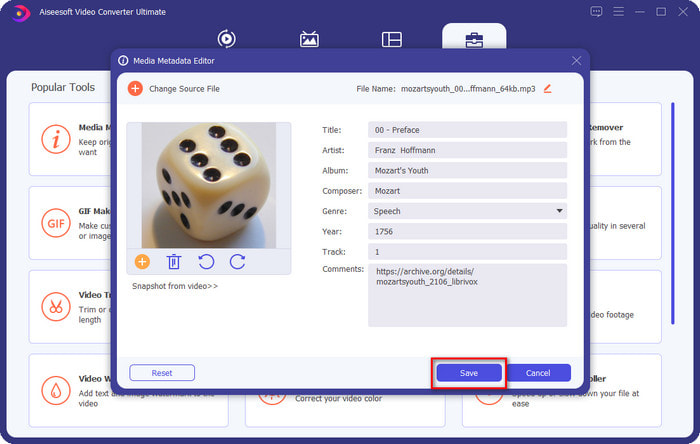
Bước 5. Khi đã thêm xong ảnh bìa album và metadata cho file MP3, bạn có thể nhấp Save để gắn ảnh bìa vào file MP3 vừa tải lên. Thật dễ phải không? Mọi thứ trở nên đơn giản và dễ dàng nếu bạn dùng phần mềm Ultimate để giải quyết vấn đề.
Phần 2. Cách thêm ảnh bìa album vào MP3 bằng Trình chỉnh sửa siêu dữ liệu miễn phí của VLC Media Player]
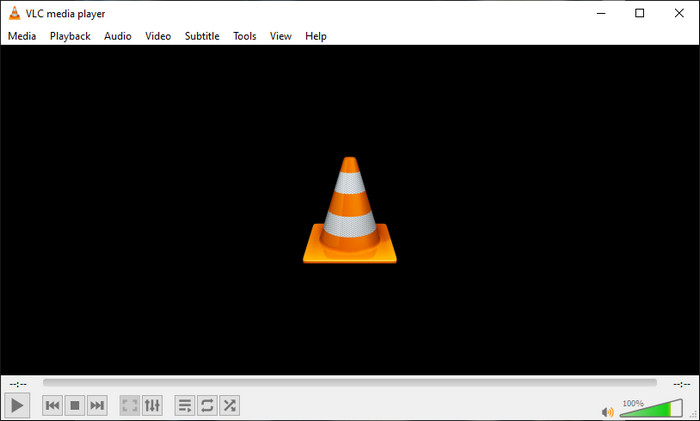
VLC Media Player là trình phát media tốt nhất mà hầu hết chúng ta đều có. Công cụ này có thể phát gần như mọi file video, và cũng có khả năng chỉnh sửa metadata, chẳng hạn như thêm ảnh bìa album cho file nhạc. Với trình phát này, bạn có thể thoải mái chỉnh sửa hoặc thêm metadata. Nếu bạn muốn một hướng dẫn về cách thêm ảnh bìa album cho MP3 trên Windows 10/11 hoặc Mac bằng công cụ này, hãy làm theo các bước dưới đây.
Bước 1. Tải trình phát media về máy tính và mở nó lên.
Bước 2. Ở giao diện chính, nhấp Tools, rồi bên dưới đó chọn Information.
Bước 3. Nhấp chuột phải vào biểu tượng VLC ở góc dưới bên phải, thêm ảnh bìa album rồi nhấp Save.
Phần 3. Cách thêm ảnh bìa album vào MP3 trong iTunes [Trình chỉnh sửa siêu dữ liệu tích hợp trên máy Mac]
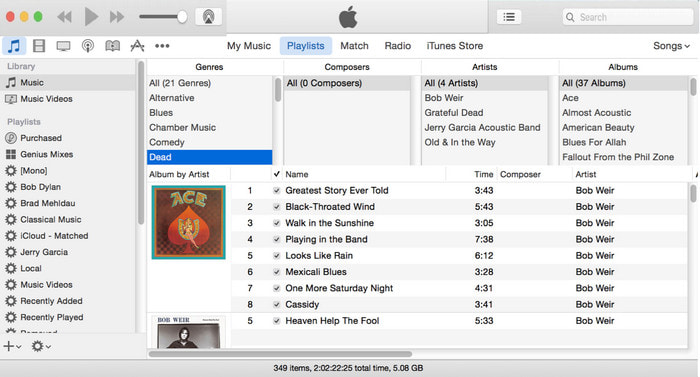
Với người dùng Mac, iTunes là trình chỉnh sửa metadata quen thuộc để thêm ảnh bìa cho file MP3. Ứng dụng tích hợp sẵn này có thể giúp chúng ta chỉnh sửa metadata của các file có trên Mac. Tuy nhiên, phần mềm này hiện không còn có sẵn trên một số phiên bản Mac vì đã được tách thành ba ứng dụng riêng biệt, đảm nhiệm các chức năng tương tự iTunes. Nhưng trên một số máy Mac phiên bản cũ thì vẫn còn. Nếu bạn là người dùng Mac và muốn biết cách thêm ảnh bìa album vào MP3 bằng iTunes, hãy làm theo các bước dưới đây.
Bước 1. Mở ứng dụng iTunes trên máy Mac của bạn.
Bước 2. Nhấp vào Music rồi chọn Library, sau đó nhấp chuột phải vào file nhạc chưa có ảnh bìa.
Bước 3. Trong các tùy chọn phía trên, nhấp Artwork, rồi chọn Add Artwork, chọn hình ảnh bạn muốn tải lên và nhấp OK để áp dụng.
Phần 4. Câu hỏi thường gặp về Cách thêm ảnh bìa album trên MP3
Tôi có thể thêm ảnh bìa album vào MP3 trên Audacity không?
Rất tiếc, bạn không thể thêm hình ảnh nghệ thuật trên tệp MP3 mà bạn có bằng Audacity. Công cụ này không hỗ trợ bất kỳ định dạng hình ảnh hoặc video nào vì công cụ này được thiết kế để sử dụng như một trình chỉnh sửa nhạc. Nhưng bạn vẫn có thể sử dụng Audacity làm trình chỉnh sửa siêu dữ liệu nếu bạn muốn chỉnh sửa siêu dữ liệu MP3 của mình.
Tại sao ảnh bìa album của tôi bị thiếu trong tệp âm thanh của tôi?
Có ba lý do khiến ảnh bìa album của bạn bị thiếu trong tệp âm thanh của bạn. Lý do đầu tiên là tệp bạn tải xuống không bao gồm ảnh bìa album, đặc biệt nếu đây là tệp vi phạm bản quyền. Hầu hết tệp nhạc chúng tôi đã tải xuống trên web không có bìa album để tránh các vấn đề về sao chép. Tiếp theo, tệp bị thiếu do hình ảnh không được đính kèm đúng cách. Một số người dùng gặp phải vấn đề này và rất khó để xử lý nó, vì vậy việc sử dụng trình thêm ảnh bìa album chuyên nghiệp là điều cần thiết. Cuối cùng, hình ảnh bị hỏng; nếu tệp bạn đã tải lên không có sẵn dưới dạng ảnh bìa album hoặc tệp nhạc bạn đã bị hỏng, thì đây có thể là lý do đằng sau nó.
Siêu dữ liệu tốt nhất mà tôi có thể sử dụng là gì?
Nếu các trình chỉnh sửa metadata mà chúng tôi giới thiệu ở trên vẫn còn hạn chế, bạn có thể nhấp vào liên kết này để chuyển sang một bài viết mới, nơi tổng hợp tất cả các trình chỉnh sửa metadata tốt nhất mà bạn có thể sử dụng.
Phần kết luận
Bây giờ chúng tôi có ý tưởng thêm ảnh bìa album trên MP3, đã đến lúc chọn công cụ nào chúng tôi nghĩ phù hợp với chúng tôi nhất. Nếu bạn là người dùng Mac và không muốn tải xuống bất kỳ phần mềm nào trên máy tính để bàn của mình, bạn phải chọn iTunes. Nhưng iTunes đã bị loại bỏ dần trên phiên bản cập nhật của Mac. Nếu bạn muốn tải xuống một công cụ miễn phí có thể giúp bạn thêm bìa vào âm nhạc của mình, thì VLC là một lựa chọn tuyệt vời. Tuy nhiên, công cụ này không phải là một công cụ chuyên nghiệp. Vì vậy, nếu bạn muốn phần mềm chuyên nghiệp có thể đáp ứng bạn trong tác vụ này có sẵn trên cả hai hệ điều hành, Windows và Mac, thì hãy sử dụng phần mềm tối ưu. Tải xuống phần mềm trên máy tính để bàn của bạn để có công cụ chuyên nghiệp trong tầm tay của bạn bằng cách nhấp vào nút tải xuống được trình bày ở trên.
-
 Cách dễ dàng xem siêu dữ liệu của ảnh và video trên iOS
 Bạn có muốn biết cách xem siêu dữ liệu trên iPhone và iPad không? Sau đó, đọc bài viết này có thể giúp bạn giải quyết vấn đề này một cách dễ dàng.
-
 Các kỹ thuật tốt nhất về cách chỉnh sửa thẻ iD3 trên iTunes [Mẹo hiệu quả]
 Bạn cần biết cách chỉnh sửa thẻ trên iTunes? Sau đó, bạn đang ở đúng nơi. Như chúng ta đã thảo luận về các phương pháp, bạn có thể làm theo để chỉnh sửa các thẻ bằng iTunes.
-
 Cách chỉnh sửa thuộc tính của tệp WAV trên Windows 10/11 và Mac [Đã giải quyết]
 Bạn đang tìm cách chỉnh sửa các thuộc tính của tệp WAV của mình trên Windows 10/11? Câu hỏi này sẽ có câu trả lời nếu bạn tiếp tục đọc bài viết này.
