


 Chuyển đổi video Ultimate
 Trình ghi màn hình
 Sửa chữa video
 Tải xuống an toàn
Cách dễ dàng xóa hình mờ khỏi ảnh tốt nghiệp
Hình mờ gây chướng mắt bất cứ khi nào bạn nhìn thấy chúng trong bất kỳ bức ảnh nào và chúng làm hỏng chất lượng của bức ảnh. Bạn sẽ thấy hình mờ trên ảnh bất cứ khi nào người sáng tạo không muốn tác phẩm của mình bị đánh cắp. Và nếu bạn là sinh viên, bạn có thể sẽ thấy hình mờ trên bức ảnh tốt nghiệp của mình, cho biết tên của studio hoặc nhiếp ảnh gia đã chụp nó.
Nếu bạn muốn xóa hình mờ trên ảnh tốt nghiệp của mình, bạn cần những công cụ có thể giúp bạn xóa hình mờ đó. Trong bài viết này, chúng tôi đã liệt kê ba công cụ xóa hình mờ được sử dụng nhiều nhất, và bạn cũng sẽ biết các bước để xóa hình mờ khỏi ảnh tốt nghiệp.

Phần 1. Cách xóa Watermark khỏi ảnh tốt nghiệp trực tuyến
Có rất nhiều công cụ xóa hình mờ mà bạn sẽ thấy trên internet. Tuy nhiên, không phải tất cả đều miễn phí và dễ sử dụng. Ngoài ra, trong phần này, bạn sẽ biết cách xóa hình mờ một cách tiện lợi và hiệu quả.
FVC Free Watermark Remover là một công cụ xóa hình mờ trực tuyến cho phép bạn xóa hình mờ trên ảnh tốt nghiệp của mình một cách dễ dàng. Công cụ trực tuyến này rất phổ biến vì bạn không cần tải xuống bất cứ thứ gì trước khi sử dụng. Ngoài ra, nó hỗ trợ các định dạng ảnh phổ biến nhất như PNG, JPG, JPEG, BMP, và nhiều hơn nữa. Và ngay cả khi bạn xóa hình mờ trên ảnh, khi tải xuống, ảnh vẫn giữ nguyên định dạng như ban đầu.
Sử dụng loại bỏ hình mờ này, bạn có thể chọn trong số các cài đặt trước của loại bỏ trong việc chọn khu vực hình mờ. Bạn có thể chọn giữa đa giác, hình chữ nhật hoặc bàn chải. Hơn nữa, bạn có thể sử dụng công cụ này để xóa những thứ không cần thiết khác trên hình ảnh của mình.
Ưu điểm
- Nó có một giao diện phần mềm hoạt động nhanh chóng.
- Nó là an toàn để sử dụng.
- Nó là 100% miễn phí để sử dụng.
- Có sẵn trên tất cả các trình duyệt web, bao gồm Google, Firefox và Safari.
Nhược điểm
- Nó phụ thuộc vào internet.
Cách loại bỏ hình mờ trên ảnh tốt nghiệp bằng FVC Free Watermark Remover:
Bước 1. Trên trình duyệt bạn sử dụng, hãy tìm kiếm FVC Free Watermark Remover. Bạn có thể nhấp vào liên kết này để đi thẳng đến trang web của họ.
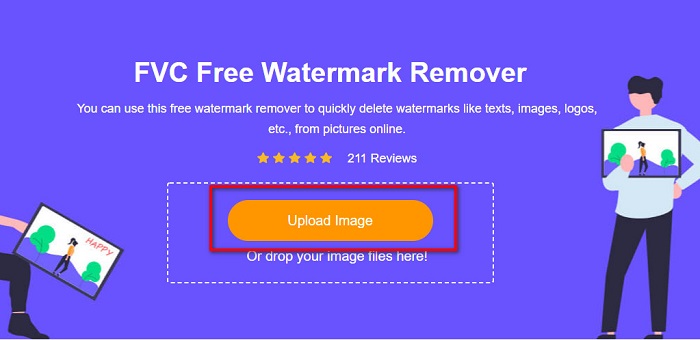
Bước 2. Trên giao diện chính của phần mềm, nhấp nút Upload Image. Thư mục trên máy tính sẽ hiện lên, bạn hãy chọn ảnh tốt nghiệp và tải lên.
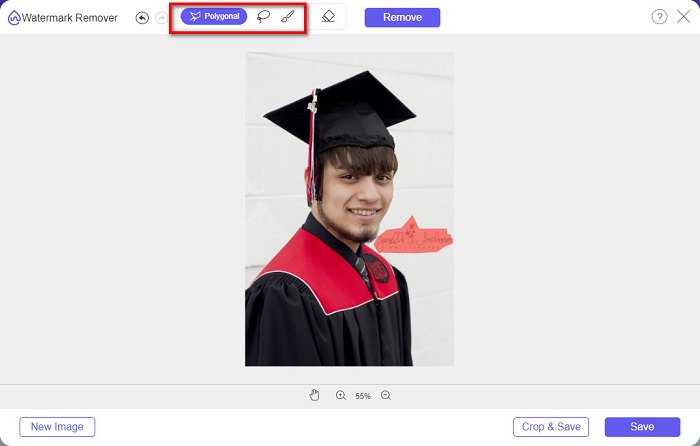
Bước 3. Tiếp theo, chọn công cụ xóa mà bạn muốn dùng để xóa hình mờ. Chọn giữa Polygonal, Lasso, hoặc Brush. Sau đó, chọn vùng chứa hình mờ mà bạn muốn xóa.
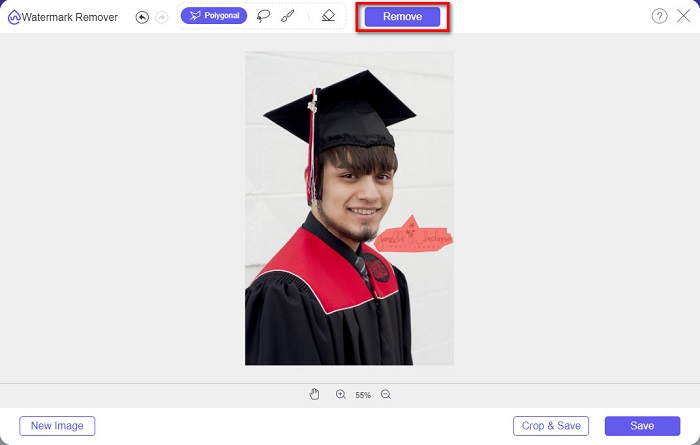
Bước 4. Sau khi chọn vùng hình mờ, nhấp nút Remove để xóa hình mờ.
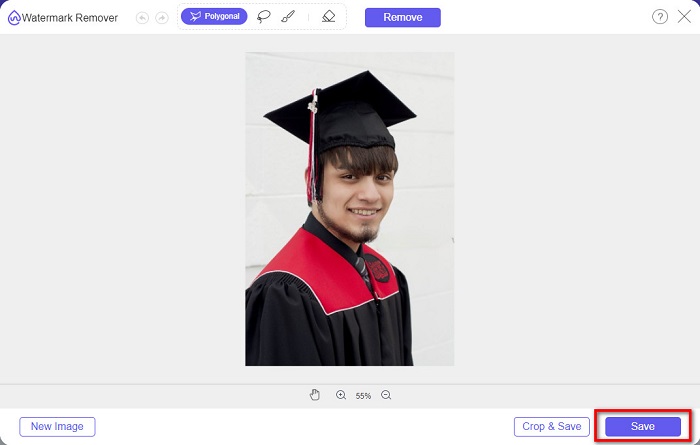
Bước 5. Bạn sẽ thấy hình mờ đã được xóa. Nhấp nút Save để tải ảnh về thiết bị của bạn. Hơn nữa, công cụ xóa hình mờ trực tuyến này cũng là một trình xóa hình mờ Photobucket.
Phần 2. Cách xóa hình mờ khỏi ảnh tốt nghiệp bằng cách sử dụng Inpaint
Đôi khi, mọi người chỉnh sửa hình mờ để ảnh về hình dạng ban đầu. Nhưng làm thế nào để họ làm điều đó? Các chuyên gia sử dụng trình chỉnh sửa ảnh và vẽ nhãn từng pixel một, dẫn đến mất một vài giờ làm việc. Tuy nhiên, có một công cụ khác sẽ giúp bạn thực hiện cuộc sống của mình dễ dàng. Trong phần này, bạn sẽ học cách sử dụng Inpaint và những ưu điểm của nó.
Inpaint là một công cụ xóa hình mờ trực tuyến khác sẽ giúp bạn xóa hình mờ trên ảnh tốt nghiệp. Ứng dụng trực tuyến này cũng có phiên bản tải về cho Windows và Mac. Ngoài ra, nó cho phép bạn xóa những chi tiết không mong muốn trên ảnh như logo, chữ, vật thể, v.v. Điều đáng ngạc nhiên là nó còn có tính năng phục hồi ảnh cũ và đưa chúng về chất lượng ban đầu. Nó cũng có các công cụ xóa để bạn chọn vùng hình mờ muốn loại bỏ.
Ưu điểm
- Nó có một giao diện phần mềm dễ sử dụng.
- Nó cho phép bạn chỉnh sửa khuôn mặt kỹ thuật số.
- Nó cho phép bạn lấp đầy các vùng đen của Ảnh toàn cảnh.
- Có thể truy cập trên hầu hết các trình duyệt web, chẳng hạn như Google và Firefox.
Nhược điểm
- Nó phụ thuộc vào internet.
Cách xóa hình mờ khỏi ảnh tốt nghiệp bằng Inpaint:
Bước 1. Tìm kiếm Inpaint trên trình duyệt của bạn, sau đó vào trang web của họ. Tiếp đó, trên giao diện chính của phần mềm, nhấp nút Upload Image để tải ảnh tốt nghiệp của bạn lên.
Bước 2. Tiếp theo, chọn công cụ xóa mà bạn muốn dùng để chọn vùng hình mờ. Chọn giữa marker tool, lasso tool, và polygonal lasso tool.
Bước 3. Sau đó, dùng công cụ bạn đã chọn để khoanh vùng hình mờ mà bạn muốn xóa.

Bước 4. Cuối cùng, nhấp nút Erase để xóa hình mờ trên ảnh tốt nghiệp. Sau đó nhấp nút Download để tải ảnh xuống.
Phần 3. Cách xóa Watermark khỏi ảnh tốt nghiệp bằng Photoshop
Adobe Photoshop là phần mềm chỉnh sửa nổi tiếng nhất mà nhiều chuyên gia sử dụng. Nhưng điều mà nhiều người dùng không biết là nó không chỉ là một phần mềm chỉnh sửa; nó cũng có thể xóa các hình mờ không mong muốn trên ảnh của bạn. Để tìm hiểu cách xóa hình mờ khỏi ảnh của bạn, hãy đọc toàn bộ phần này.
Adobe Photoshop là phần mềm chỉnh sửa ảnh phổ biến nhất với rất nhiều tính năng chỉnh sửa. Nhiều chuyên gia sử dụng ứng dụng này vì bạn có thể chỉnh sửa hình ảnh của mình theo nhiều cách chuyên nghiệp. Nó có những công cụ cho phép bạn chỉnh sửa ảnh một cách chi tiết. Hơn nữa, nó tạo ra sản phẩm đầu ra chất lượng cao mà bạn có thể chia sẻ trên mọi nền tảng mạng xã hội.
Ưu điểm
- Nó có nhiều tính năng chỉnh sửa nâng cao để sử dụng.
- Nó chứa nhiều công cụ để sử dụng để chỉnh sửa.
- Nó tạo ra đầu ra chất lượng cao.
- Nó cho phép bạn chỉnh sửa và tạo hình ảnh cả in và web.
Nhược điểm
- Nó có một giao diện phần mềm khó sử dụng.
- Bạn cần mua ứng dụng để tải xuống.
Cách xóa mọi hình mờ trên ảnh của bạn bằng Adobe Photoshop:
Bước 1. Tải Adobe Photoshop về thiết bị của bạn rồi mở ứng dụng. Trên giao diện chính, mở ảnh trong Photoshop.
Bước 2. Chọn vùng hình mờ. Bạn có thể dùng Pen tool, Quick Selection tool hoặc Magic Wand tool.
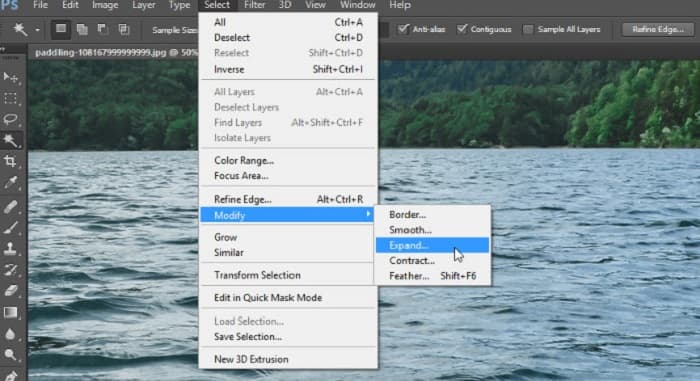
Bước 3. Vào Select > Modify > Expand để bao gồm thêm điểm ảnh nền.
Bước 4. Vào Edit > Fill, sau đó chọn Content-Aware trong phần Contents.
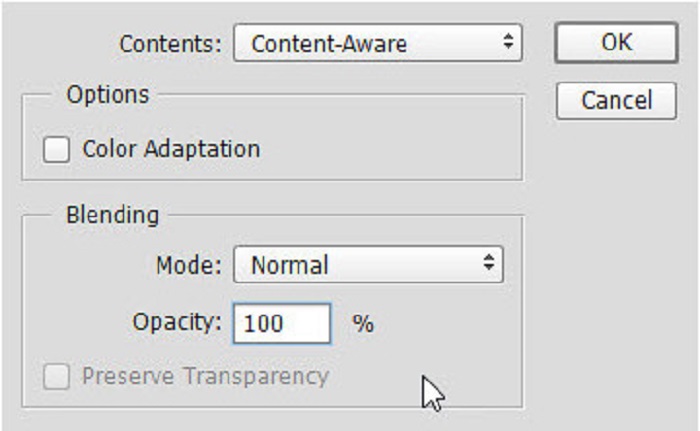
Bước 5. Tiếp theo, nhấn CTRL+D. Bạn sẽ thấy vùng hình mờ được lấp bằng nền. Sau đó, để xóa viền còn lại của hình mờ, hãy dùng Clone Stamp Tool.
Bước 6. Giữ phím Alt và tô theo đường viền của hình mờ. Khi bạn xóa xong các dấu vết, bạn sẽ thấy hình mờ đã biến mất.
Phần 4. Những câu hỏi thường gặp về cách xóa hình mờ khỏi ảnh tốt nghiệp
Xóa hình mờ khỏi ảnh tốt nghiệp có làm hỏng chất lượng không?
Xóa hình mờ khỏi ảnh tốt nghiệp sẽ không nhất thiết làm hỏng chất lượng. Tuy nhiên, khi bạn xóa hình mờ, một số công cụ vẫn để lại dấu vết.
Bạn có thể xóa hình mờ trên Canva không?
Đúng. Canva có một tính năng mà bạn có thể xóa hình mờ miễn phí. Chỉ cần nhấp vào nút Xóa hình mờ để làm như vậy.
Bạn có thể xóa các hình mờ trên PDF không?
Với các công cụ ở trên, bạn có thể xóa mọi hình mờ khỏi tệp PDF của mình.
Phần kết luận
Vì bạn đã biết cách xóa hình mờ khỏi ảnh tốt nghiệp, giờ đây bạn có thể tự thực hiện và thử các công cụ được giới thiệu ở trên. Việc xóa hình mờ trở nên dễ dàng hơn nhờ trình xóa hình mờ. Tuy nhiên, nhiều người khuyên dùng FVC Free Watermark Remover vì nó tiện lợi và dễ sử dụng.
-
 Cách xóa hình mờ Lumion trên Windows và Mac một cách dễ dàng
 Bạn cần xóa hình mờ Lumion để trình bày nó một cách chuyên nghiệp? Chà, có những công cụ bạn có thể sử dụng để loại bỏ hình mờ mà nó để lại.
-
 Cách xóa hình mờ Weibo trên video và hình ảnh một cách dễ dàng
 Bạn gặp sự cố khi xóa Hình mờ Weibo trên video và hình ảnh đã xuất? Trong trường hợp đó, bạn phải có một loại bỏ hình mờ mà chúng tôi liệt kê dưới đây có thể giúp bạn.
-
 Tìm hiểu cách xóa Movavi Watermark miễn phí $91; Phải có! $93;
 Xuất video hoặc hình ảnh trên Movavi sẽ để lại hình mờ, nhưng liệu có thể xóa nó không? Để dạy cách xóa hình mờ miễn phí, hãy đọc phần này.
