


 Chuyển đổi video Ultimate
 Trình ghi màn hình
 Sửa chữa video
 Tải xuống an toàn
Adobe Thay đổi kích thước hình ảnh - Cách dễ nhất để thay đổi kích thước hình ảnh trực tuyến và ngoại tuyến
Nếu bạn muốn thay đổi kích thước hình ảnh trên Adobe, thì chúng tôi có giải pháp mà bạn đang tìm kiếm. Adobe là một cái tên nổi tiếng về các ứng dụng chỉnh sửa hình ảnh và video. Adobe có rất nhiều ứng dụng cho phép bạn tăng cường, cắt, chỉnh sửa và còn nhiều hơn thế nữa; bạn cứ nêu ra là có! Adobe gần như có đầy đủ ứng dụng để chỉnh sửa video và ảnh. Nhưng bạn có biết là Adobe cũng có một ứng dụng cho phép bạn thay đổi kích thước hình ảnh không? Bạn không nghe nhầm đâu! Adobe Express là một công cụ trực tuyến để thay đổi kích thước ảnh. Và nếu bạn muốn chỉnh sửa ngoại tuyến, bạn có thể dùng Adobe Photoshop. Chúng tôi sẽ giới thiệu chi tiết các công cụ bên dưới và hướng dẫn bạn cách thay đổi kích thước hình ảnh bằng Adobe Express và Adobe Photoshop.
Phần 1. Cách thay đổi kích thước hình ảnh trong Adobe Express Online
Nếu bạn thích sử dụng thay đổi kích thước hình ảnh trực tuyến, có rất nhiều công cụ bạn có thể tìm kiếm trên internet. Tuy nhiên, tìm kiếm trên internet đôi khi sẽ không phải là lựa chọn tốt nhất vì có những công cụ không cung cấp kết quả đầu ra chất lượng tuyệt vời. Ngoài ra, nhiều người đang tìm kiếm hình ảnh thay đổi kích thước trực tuyến của Adobe Photoshop. Vấn đề là Adobe Photoshop không có phiên bản trực tuyến. Vì vậy, chúng tôi sẽ giới thiệu một công cụ khác của Adobe để thay đổi kích thước hình ảnh.
Adobe Express có lẽ là công cụ chỉnh kích thước ảnh trực tuyến tốt nhất mà bạn có thể tìm thấy trên internet. Ứng dụng trực tuyến này cho phép bạn thay đổi kích thước hình ảnh bằng cách chọn các thiết lập tỷ lệ có sẵn. Bạn có thể chọn giữa 9:16 (Story), 1:1 (Vuông), 4:5 (Dọc) và 1.91:1 (Ngang). Ngoài ra, giao diện của nó rất đơn giản, giúp đây trở thành một ứng dụng thân thiện với người dùng. Bạn cũng có thể tự điều chỉnh kích thước ảnh bằng cách giữ và kéo thanh trượt. Hơn nữa, nếu bạn muốn thay đổi kích thước hình ảnh cho Instagram, Facebook, Twitter hoặc Pinterest, Adobe Express sẽ hỗ trợ bạn. Tuy nhiên, không giống như các ứng dụng chỉnh sửa khác của Adobe, công cụ này không có thêm các tính năng chỉnh sửa khác.
Cách thay đổi kích thước hình ảnh bằng Adobe Express:
Bước 1. Mở trình duyệt của bạn và tìm Adobe Express image resizer trong ô tìm kiếm. Sau đó, nhấp nút Upload your Photo trên giao diện chính để tải lên hình ảnh bạn muốn thay đổi kích thước.
Bước 2. Sau đó, hãy kéo và thả hình ảnh từ các thư mục trên máy tính của bạn. Bạn cũng có thể chỉ cần nhấp vào nút Browse on your device để tải ảnh lên.
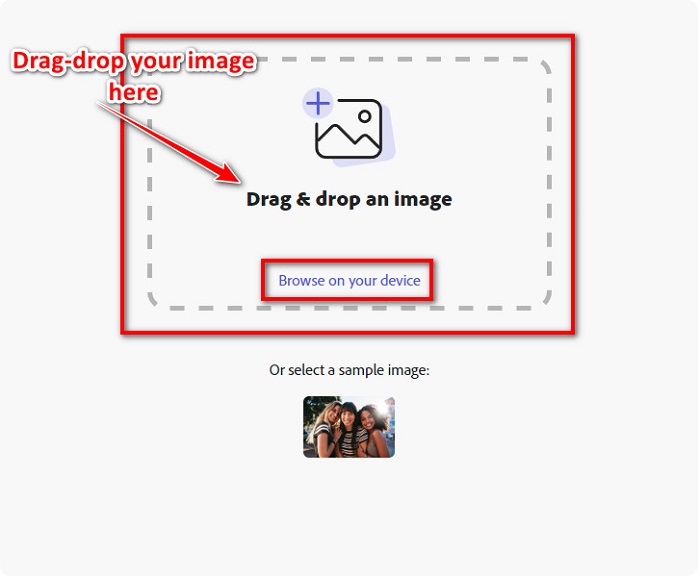
Bước 3. Cuối cùng, chọn nơi bạn muốn đổi kích thước bằng cách nhấp vào mũi tên thả xuống bên cạnh Resize for. Sau đó, chọn kích thước bạn muốn ở phía bên trái giao diện. Bạn cũng có thể tự tay thay đổi kích thước bằng cách giữ và kéo thanh trượt bên dưới các kích thước thiết lập sẵn.
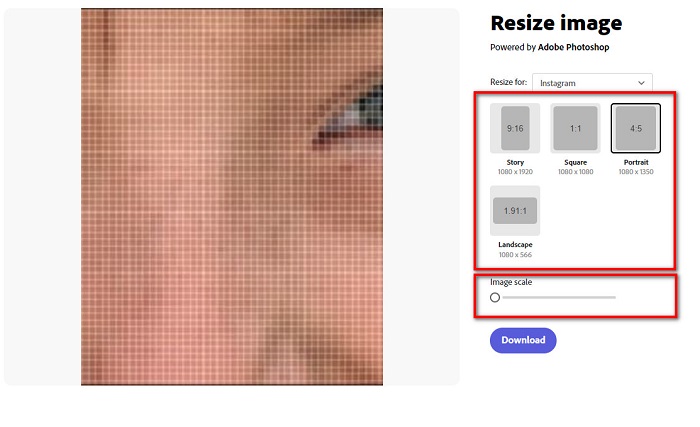
Bước 4. Nhấp nút Download để tải hình ảnh đã được thay đổi kích thước về máy.
Phần 2. Cách thay đổi kích thước hình ảnh bằng Adobe Photoshop ngoại tuyến
Mặc dù vậy, việc sử dụng công cụ trực tuyến là tốt vì nó cho phép bạn tiết kiệm dung lượng trên thiết bị của mình, nhưng sử dụng công cụ ngoại tuyến vẫn là lựa chọn tốt nhất. Hầu hết các trình thay đổi kích thước hình ảnh ngoại tuyến đều chứa nhiều tính năng chỉnh sửa. Ngoài ra, lợi thế của việc sử dụng các công cụ ngoại tuyến là bạn không cần truy cập internet để thay đổi kích thước hình ảnh của mình. Trong phần này, chúng tôi sẽ trình bày công cụ chỉnh sửa video ngoại tuyến nổi bật nhất.
Adobe Photoshop là ứng dụng chỉnh sửa ảnh tốt nhất mà bạn có thể cài trên PC. Ứng dụng chỉnh sửa ảnh này có rất nhiều công cụ và chức năng mà bạn có thể dùng để chỉnh sửa hình ảnh. Ngoài ra, bạn có thể dùng công cụ này để thay đổi kích thước bất kỳ hình ảnh nào. Ứng dụng này cho phép bạn nâng cấp hình ảnh kỹ thuật số, bản vẽ, tranh vẽ và hoạt hình để sử dụng cho mục đích kinh doanh. Hơn nữa, nhiều chuyên gia lựa chọn ứng dụng chỉnh sửa ảnh này vì các chức năng và chất lượng mà nó mang lại.
Hơn nữa, bạn có thể sử dụng ứng dụng này để thêm văn bản, tạo 3D và thêm độ sắc nét cho hình ảnh của mình. Nhưng nhược điểm của Adobe Photoshop là bạn phải mua ứng dụng trước khi sử dụng. Và nó cũng khó sử dụng, đặc biệt là đối với những người mới bắt đầu. Tuy nhiên, ứng dụng này đáng giá và bạn chắc chắn sẽ thích sử dụng ứng dụng này.
Cách thay đổi kích thước hình ảnh bằng Adobe Photoshop ngoại tuyến:
Bước 1. Tải Adobe Photoshop về thiết bị của bạn. Sau đó, làm theo quy trình cài đặt của ứng dụng và chạy nó trên thiết bị.
Bước 2. Mở hình ảnh của bạn trong Photoshop, sau đó vào mục Image ở góc trên bên trái giao diện. Tiếp theo, chọn Image Size.
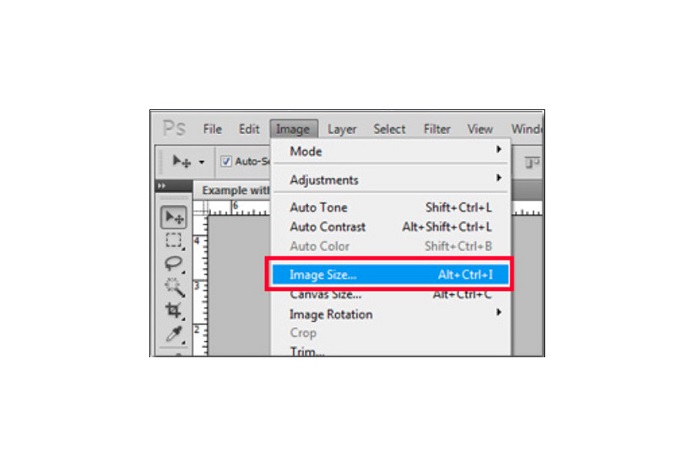
Bước 3. Tiếp đó, một cửa sổ mới sẽ xuất hiện, tại đây bạn sẽ tích vào ô bên cạnh Constrain Proportions.
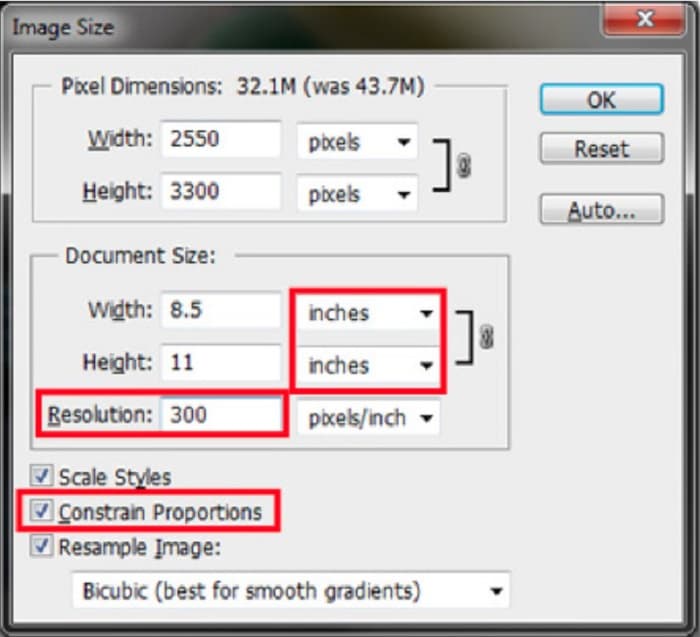
Bước 4. Và dưới mục Document Size, hãy chọn đơn vị đo là inches. Đảm bảo rằng độ phân giải không thấp hơn 200 pixel mỗi inch.
Bước 5. Nhập chiều rộng (width) và chiều cao (height) mà bạn muốn cho hình ảnh. Sau đó, nhấp nút OK để lưu các thay đổi.
Bước 6. Cuối cùng, hãy lưu tệp của bạn vào máy tính.
Giờ khi bạn đã biết cách thay đổi kích thước hình ảnh bằng trình thay đổi kích thước ảnh tốt nhất của Adobe, chúng tôi sẽ giới thiệu cho bạn một công cụ thay đổi kích thước ảnh thay thế.
Phần 3. Thay thế cho Adobe Photoshop về Thay đổi kích thước hình ảnh
Vì Adobe Photoshop không phải là một công cụ thân thiện với người dùng, chúng tôi đã tìm kiếm một giải pháp thay thế mà bạn có thể sử dụng để thay đổi kích thước hình ảnh của mình. Vì vậy, chúng tôi sẽ giới thiệu một ứng dụng phần mềm mà bạn có thể tải xuống trên thiết bị Windows hoặc Mac của mình. Chúng tôi cũng sẽ hướng dẫn bạn cách thay đổi kích thước hình ảnh bằng ứng dụng tối ưu này.
FVC Free Image Resizer là một trình thay đổi kích thước ảnh trực tuyến mạnh mẽ khác mà bạn có thể dùng nếu muốn thay đổi kích thước hình ảnh. Bạn cũng có thể dùng các ứng dụng chỉnh kích thước ảnh để cải thiện chất lượng ảnh, và đó chính là điều mà FVC Free Image Resizer thực hiện. Công cụ trực tuyến này có thể phóng to hình ảnh của bạn lên đến 2x, 4x, 6x và 8x. Ngoài ra, nó hỗ trợ mọi định dạng hình ảnh, như JPG, JPEG, PNG và BMP. Điều tuyệt vời hơn ở ứng dụng này là giao diện phần mềm rất dễ sử dụng. Hơn nữa, nó dùng công nghệ AI có thể tự động phát hiện phần bị mờ trong ảnh rồi tăng cường chúng.
Cách thay đổi kích thước hình ảnh bằng FVC Free Image Upscaler:
Bước 1. Tìm FVC Free Image Upscaler trên trình duyệt, rồi đi tới trang chính của ứng dụng. Nhấn nút Upload Photo trên giao diện chính để tải lên hình ảnh bạn muốn thay đổi kích thước.

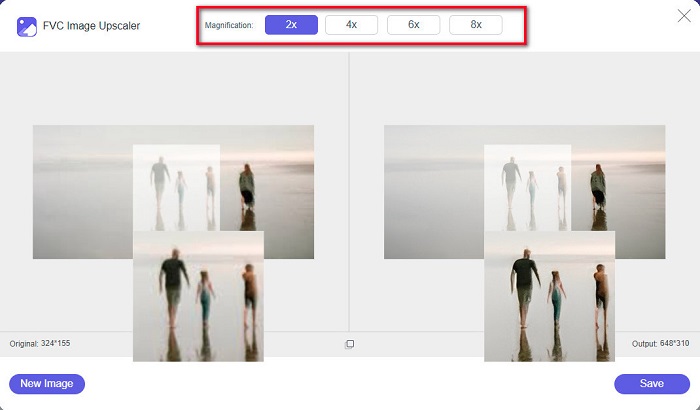
Bước 2. Sau khi tải hình ảnh lên, hãy chọn mức phóng đại bạn muốn cho ảnh. Bạn có thể chọn giữa 2x, 4x, 6x và 8x. Con số càng lớn thì chất lượng càng tốt.
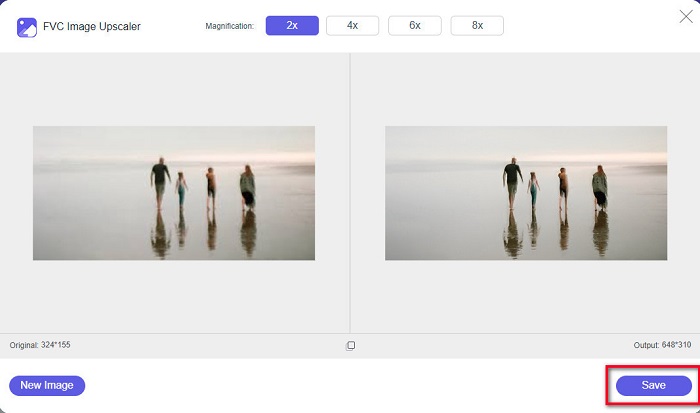
Bước 3. Sau đó, nhấp nút Save để lưu kết quả về thiết bị của bạn.
Phần 4. Câu hỏi thường gặp về Cách thay đổi kích thước hình ảnh trong Adobe Photoshop
Adobe có dễ dàng thay đổi kích thước hình ảnh không?
Sử dụng Adobe Photoshop, bạn có thể thay đổi kích thước hình ảnh của mình mà không làm giảm chất lượng. Ngoài ra, nó tạo ra đầu ra chất lượng cao.
Adobe Photoshop hỗ trợ những định dạng tệp nào?
Adobe Photoshop chấp nhận hầu hết các định dạng hình ảnh đã biết, như JPG, JPEG, PNG, BMP, TIFF, EPS, PDF, v.v.
Giá của Adobe Photoshop là bao nhiêu?
Bạn có thể mua Adobe Photoshop với giá $19,99 mỗi tháng. Bạn có thể sử dụng bản dùng thử miễn phí 30 ngày của nó để kiểm tra ứng dụng trước.
Phần kết luận
Giờ khi thắc mắc của bạn về việc thay đổi kích thước ảnh bằng Adobe đã được giải quyết, bạn có thể thay đổi kích thước hình ảnh bằng Adobe Express hoặc Adobe Photoshop. Dù bạn chọn ứng dụng nào trong số các công cụ nêu trên, bạn đều có thể thay đổi kích thước ảnh thành công. Nhưng nếu bạn muốn một cách đơn giản và hiệu quả hơn để vừa thay đổi kích thước vừa nâng cao chất lượng hình ảnh, hãy dùng FVC Free Image Upscaler.
-
 Làm thế nào để làm sắc nét hình ảnh trực tuyến và ngoại tuyến với 4 cách dễ dàng
 Có nhiều phương pháp mà bạn có thể thực hiện nếu muốn làm sắc nét hình ảnh. Chúng tôi sẽ thảo luận bên dưới những cách tốt nhất và dễ nhất để làm sắc nét hình ảnh trực tuyến và ngoại tuyến.
-
 Khôi phục ảnh cũ trực tuyến và ngoại tuyến [Các bước dễ dàng]
 Bạn muốn khôi phục một bức ảnh cũ? Với những công cụ này, bạn sẽ biết được quy trình khôi phục ảnh cũ. Đọc bài đăng này để tìm hiểu các phương pháp đơn giản nhất.
-
 Cách thay đổi kích thước ảnh cho Facebook [Các bước nhanh chóng và dễ dàng]
 Nếu bạn đang gặp khó khăn khi tải một hình ảnh có kích thước lớn lên Facebook, chúng tôi có giải pháp cho bạn. Kết thúc bài viết này để biết cách thay đổi kích thước ảnh cho Facebook.
