


 Chuyển đổi video Ultimate
 Trình ghi màn hình
 Sửa chữa video
 Tải xuống an toàn
Các bước đơn giản về cách thay đổi kích thước ảnh cho Facebook
Nhiều người thuộc thế hệ millennial và người lớn sử dụng Facebook như nền tảng mạng xã hội phổ biến nhất. Facebook là một ứng dụng nơi bạn có thể tải lên hình ảnh và chia sẻ hoặc gửi chúng cho bạn bè. Và rất nhiều người muốn có ảnh chất lượng cao để đăng lên Facebook. Nếu bạn cũng muốn đăng ảnh có độ phân giải cao và chất lượng tốt, chúng tôi có công cụ để giúp bạn. May mắn là chúng tôi đã tìm được các ứng dụng trên iPhone, Android và trực tuyến có thể thay đổi kích thước ảnh nhanh chóng và hiệu quả. Vậy nên, hãy ngồi vững vì trong bài viết này, bạn sẽ nhanh chóng học được cách thay đổi kích thước ảnh cho Facebook.

Phần 1. Làm thế nào để thay đổi kích thước ảnh trên iPhone cho Facebook
Nếu bạn đang sử dụng thiết bị iPhone, các ứng dụng có thể được tải xuống trên AppStore để giúp bạn thay đổi kích thước ảnh của mình. Ngoài ra, có những ứng dụng miễn phí mà bạn có thể sử dụng trên thiết bị iPhone của mình. Tuy nhiên, không phải tất cả các ứng dụng đều tạo ra kết quả đầu ra chất lượng cao. Đó là lý do tại sao chúng tôi đã tìm kiếm ứng dụng tốt nhất để thay đổi kích thước hình ảnh ngay lập tức.
Remini là ứng dụng thay đổi kích thước ảnh phổ biến nhất mà bạn có thể tải xuống trên iPhone. Ứng dụng này có giao diện thân thiện với người dùng vì các chức năng rất trực quan. Ngoài ra, Remini có thể nâng cấp chất lượng ảnh của bạn bằng công nghệ tăng cường AI (Trí tuệ nhân tạo), tự động thay đổi kích thước và cải thiện ảnh lên chất lượng tốt nhất. Không chỉ vậy, với ứng dụng này, bạn còn có thể cải thiện video bằng tính năng tăng cường video. Hơn nữa, nó hỗ trợ tất cả các định dạng ảnh phổ biến như JPEG, JPG và PNG. Điều tuyệt vời nữa là bạn có thể tải ứng dụng này miễn phí trên AppStore. Vì vậy, nếu bạn muốn dùng ứng dụng này để đổi kích thước ảnh cho ảnh bìa Facebook, hãy làm theo các bước dưới đây.
Cách thay đổi kích thước hình ảnh bằng ứng dụng Remini:
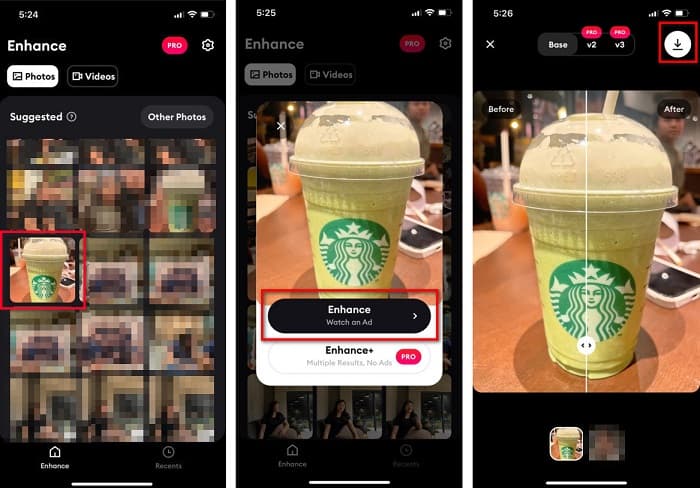
Bước 1. Mở AppStore, tìm ứng dụng Remini và tải về thiết bị của bạn. Sau khi cài đặt xong, hãy mở ứng dụng.
Bước 2. Sau khi mở ứng dụng, bạn sẽ thấy ảnh của mình và hãy chọn bức ảnh bạn muốn nâng cấp. Sau đó, chạm vào nút Enhance để chuyển sang giao diện tiếp theo.
Bước 3. Trước khi chuyển sang giao diện tiếp theo, bạn cần xem một quảng cáo. Sau đó, bạn sẽ thấy ảnh trước và sau khi chỉnh sửa. Nhấn vào biểu tượng Tải xuống ở góc trên bên phải màn hình.
Phần 2. Làm thế nào để thay đổi kích thước ảnh trên Android cho Facebook
Bạn là người dùng Android? Đừng lo; chúng tôi cũng sẽ giới thiệu một ứng dụng mà bạn có thể sử dụng để thay đổi kích thước hình ảnh. Mặc dù có nhiều ứng dụng bạn có thể tải xuống từ PlayStore, nhưng chúng tôi đã chọn những ứng dụng tốt nhất trong số đó để giới thiệu cho bạn. Đọc dưới đây để tìm hiểu cách thay đổi kích thước hình ảnh cho Facebook trên Android.
AI Photo Enhancer & PixelLeap là một ứng dụng tuyệt vời khác giúp bạn thay đổi kích thước ảnh để có chất lượng tốt hơn. Ứng dụng thay đổi kích thước ảnh này được tải miễn phí trên PlayStore và an toàn để sử dụng. Thêm vào đó, nếu bạn muốn nâng cấp hoặc khôi phục ảnh cũ, hãy dùng AI Photo Enhancer & PixelLeap. Với công nghệ AI, bạn chỉ cần tải lên ảnh muốn đổi kích thước, ứng dụng sẽ tự động nâng cấp ảnh cho bạn. Hơn nữa, nó có giao diện đơn giản, rất phù hợp nếu bạn là người mới bắt đầu. Ngoài ra, nó còn có nhiều tính năng chỉnh sửa khác mà bạn có thể dùng, như chỉnh méo (rectify), tô màu (colorize), tạo chuyển động (animate), thêm biểu cảm (emote) và làm sáng ảnh (brighten). Tuy nhiên, nhược điểm của ứng dụng là chứa nhiều quảng cáo mất thời gian và để lại watermark trên ảnh xuất ra. Dù vậy, ứng dụng này vẫn là giải pháp nếu bạn muốn thay đổi kích thước ảnh cho Facebook mà không cần cắt.
Cách thay đổi kích thước hình ảnh bằng AI Photo Enhancer & PixelLeap:
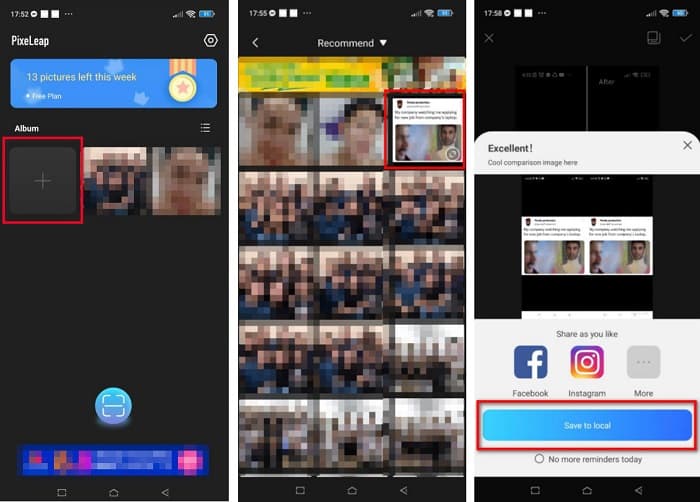
Bước 1. Cài đặt AI Photo Enhancer & PixelLeap trên thiết bị Android của bạn.
Bước 2. Sau đó, tại giao diện chính của ứng dụng, chạm vào ô dấu + để tải lên ảnh bạn muốn đổi kích thước. Ứng dụng sẽ yêu cầu bạn xem một quảng cáo trước khi chuyển sang giao diện tiếp theo.
Bước 3. Duyệt và chọn ảnh bạn muốn thay đổi kích thước rồi chạm vào đó. Sau khi chọn ảnh, chạm vào tùy chọn Enhance. Ứng dụng sẽ tự động nâng cấp ảnh cho bạn. Nhấn Save to local để tải ảnh đã xử lý về máy.
Phần 3. Làm thế nào để thay đổi kích thước ảnh trực tuyến cho Facebook
Ưu điểm của việc sử dụng ứng dụng trực tuyến là nó cho phép bạn tiết kiệm dung lượng trên thiết bị của mình. Ngoài ra, có rất nhiều ứng dụng web truy cập miễn phí mà bạn có thể sử dụng trên trình duyệt của mình. Vì vậy, nếu bạn muốn sử dụng một ứng dụng trực tuyến để thay đổi kích thước ảnh để tải lên Facebook, chúng tôi sẽ hướng dẫn bạn cách thay đổi kích thước ảnh cho Facebook.
FVC Free Image Upscaler là trình thay đổi kích thước ảnh trực tuyến tốt nhất, cho phép bạn phóng to ảnh lên 2x, 4x, 6x và 8x. Với giao diện đơn giản, người mới bắt đầu cũng có thể dễ dàng thay đổi kích thước ảnh. Ngoài ra, nó hỗ trợ mọi định dạng ảnh, bao gồm JPEG, JPG, PNG và BMP. Điều ấn tượng hơn nữa là ứng dụng này sử dụng công nghệ AI có thể tự động phát hiện những phần có độ phân giải thấp trong ảnh rồi nâng cấp chúng. Bên cạnh đó, nó có thể khôi phục điểm ảnh bị mất, kết cấu màu sắc và nhiều chi tiết khác một cách đầy đủ và hoàn hảo. Công cụ này cũng có thể truy cập trên mọi trình duyệt web như Google, Firefox và Safari. Do đó, nếu bạn muốn dùng FVC Free Image Upscaler để thay đổi kích thước hoặc nâng cấp ảnh, hãy làm theo các bước đơn giản dưới đây.
Cách thay đổi kích thước hình ảnh cho Facebook bằng FVC Free Image Upscaler:
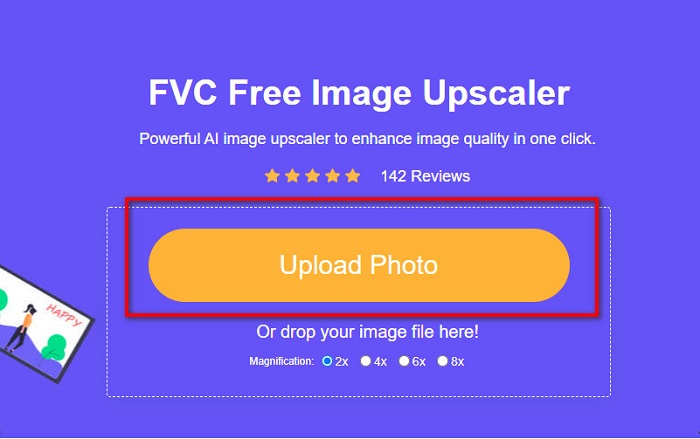
Bước 1. Mở trình duyệt và gõ FVC Free Image Upscaler vào ô tìm kiếm. Bạn cũng có thể nhấp vào đường dẫn được cung cấp để truy cập thẳng vào trang web. Nhấp vào Upload Photo để khởi chạy ứng dụng.
Bước 2. Tại giao diện chính của phần mềm, nhấp vào Upload Photo để nhập ảnh bạn muốn thay đổi kích thước.
Bước 3. Ở giao diện tiếp theo, chọn mức độ phóng đại mà bạn muốn cho ảnh xuất ra. Bạn có thể chọn giữa các mức 2x, 4x, 6x và 8x. Sau đó chuyển sang bước tiếp theo.
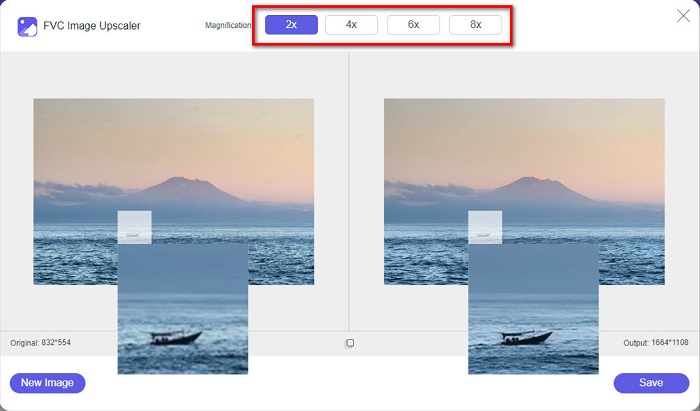
Bước 4. Cuối cùng, đánh dấu chọn nút Save để lưu ảnh xuất ra vào máy tính. Bạn sẽ thấy sự khác biệt giữa tệp gốc và ảnh đã thay đổi kích thước. Chỉ trong giây lát, ảnh của bạn sẽ được lưu.
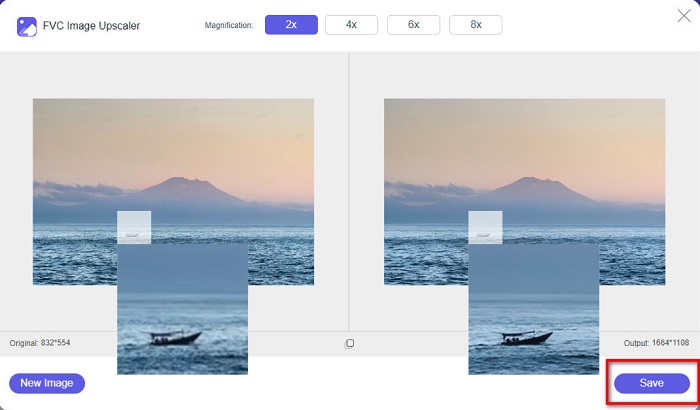
Và đó là nó! Dễ dàng như ABC, hình ảnh của bạn hiện đã được nâng cao và thay đổi kích thước.
Có liên quan:
Cách Làm Sắc Nét Ảnh Trực Tuyến và Ngoại Tuyến Với 4 Cách Đơn Giản
Cách Thay Đổi Kích Thước Ảnh – Adobe Resize Image [Trực tuyến và Ngoại tuyến]
Phần 4. Câu hỏi thường gặp về Cách thay đổi kích thước ảnh cho Facebook
Tỷ lệ ảnh tốt nhất cho Facebook là gì?
Về tỷ lệ ảnh, sử dụng ảnh dọc có tỷ lệ khung hình 4: 5 và 1200 x 1500 px là tốt nhất. Và nếu bạn muốn hình ảnh vuông, độ phân giải phải là 1080 x 1080 px.
Kích thước của một bài đăng trên Facebook là bao nhiêu?
Kích thước hình ảnh được đề xuất cho một bài đăng trên Facebook là 1200 x 630 pixel để tránh bị pixel và có thời gian tải nhanh hơn.
Định dạng hình ảnh tốt nhất để tải lên Facebook là gì?
Định dạng hình ảnh tốt nhất và được khuyến khích để tải lên Facebook là định dạng JPG. Tốt nhất là tải lên định dạng JPG có màu RGB dưới 15MB.
Phần kết luận
Chúng tôi đã giới thiệu các giải pháp trên nếu bạn muốn thay đổi kích thước ảnh cho Facebook. Bằng cách đọc kỹ bài viết này, hy vọng bạn đã nắm được mọi điều cần thiết. Bạn chắc chắn có thể thay đổi kích thước bất kỳ ảnh nào bằng ứng dụng trên iPhone, Android hoặc trực tuyến. Nhưng để có kết quả tốt hơn, hãy dùng FVC Free Image Upscaler, công cụ cũng giúp bạn tiết kiệm dung lượng trên thiết bị.
-
 Ứng dụng chỉnh sửa ảnh tốt nhất trực tuyến, ngoại tuyến, Android và iPhone
 Ứng dụng chỉnh sửa ảnh tốt nhất là gì? Nhấp vào trang để tìm hiểu năm ứng dụng thay đổi kích thước ảnh mạnh mẽ nhất mà bạn có thể sử dụng để nâng cao hoặc thay đổi kích thước tệp của mình.
-
 Cách thay đổi kích thước hình ảnh - Adobe Resize Image [Trực tuyến và Ngoại tuyến]
 Nếu bạn đang tìm kiếm hình ảnh thay đổi kích thước Adobe, thì chúng tôi có giải pháp cho bạn. Xem kỹ bài đăng này để tìm hiểu cách thay đổi kích thước hình ảnh bằng Adobe trên PC của bạn.
-
 Top 4 trình phóng to GIF ngoại tuyến và trực tuyến mà bạn không nên bỏ lỡ
 Bài đăng này dành cho bạn nếu bạn đang tìm kiếm các trình phóng to GIF tốt nhất. Chúng tôi đã liệt kê các trình phóng to GIF trực tuyến và ngoại tuyến hoạt động hàng đầu cho máy tính của bạn.
