


 Chuyển đổi video Ultimate
 Trình ghi màn hình
 Sửa chữa video
 Tải xuống an toàn
3 Trình xóa hình mờ màn hình Shutterstock để sử dụng và xóa hình mờ trên video
Are you needing high-quality, licensed Shutterstock videos for your project, yet there is a Shutterstock watermark on them? With the help of Shutterstock watermark remover, you can easily erase the watermark on the downloaded video. Professionally and personally, we don’t like our videos to have a watermark because it ruins the whole idea of the video. So, if you want to get rid of the Shutterstock watermark, you can continue reading the information and brief tutorial we state in this article.

Phần 1. Cách xóa hình mờ Shutterstock bằng công cụ xóa hình mờ tối ưu trên thị trường [Lựa chọn của biên tập viên]
FVC Video Converter Ultimate can accurately help and lead you on how to remove the Shutterstock watermark on the video you have saved. It is an all-inclusive solution you can download on your Windows and Mac to adjust your video, such as removing watermarks. Despite being an all-arounder software, the developer of this program keeps the user-friendly at a low level so that everyone who wants to use it can do it without having vast knowledge.
Ngay cả với các kỹ năng cấp thấp, bạn có thể có đầu ra hàng đầu ở cuối khi bạn sử dụng trình chỉnh sửa này. Bạn vẫn chưa thấy thuyết phục với những thông tin mà chúng tôi đã thêm vào? Để chứng minh điều đó, chúng tôi sẽ hướng dẫn bạn cách xóa hình mờ Shutterstock miễn phí bằng trình chỉnh sửa video này.
Step 1. To remove the watermark on the video you have downloaded, you will need to download this editor first by clicking the appropriate download button for your operating system. There will be a short installation process you’ll need to go through; after that, you can start using the software.
Tải xuống miễn phí cho Windows 7 trở lên. Tải xuống an toàn.
Tải xuống miễn phí cho MacOS 10.7 trở lên. Tải xuống an toàn.
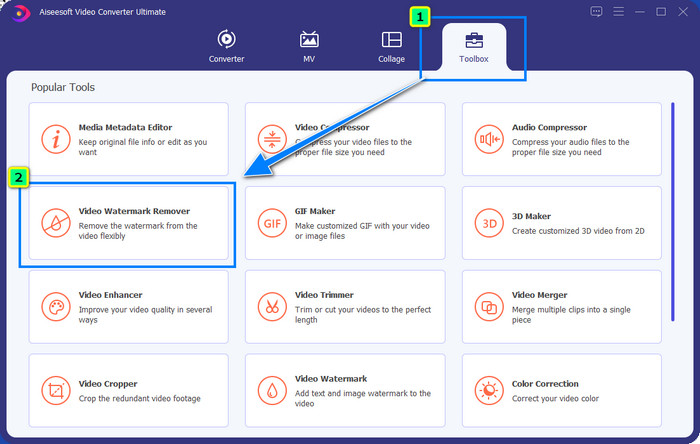
Step 2. Next is to use the Video Watermark Remover; you can find this feature under the Toolbox. As you can see, you can use multiple editing features and functions to adjust your image to your preferred imagery.
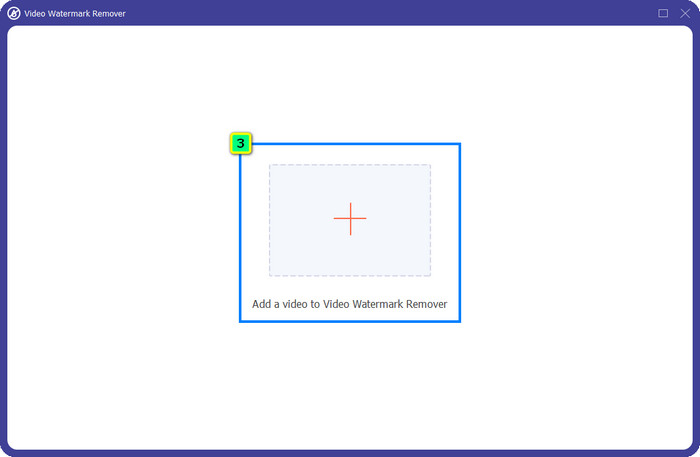
Step 3. Hit the plus icon, and a file manager will appear on your screen. Choose the video file with a watermark, then click Open to upload it.
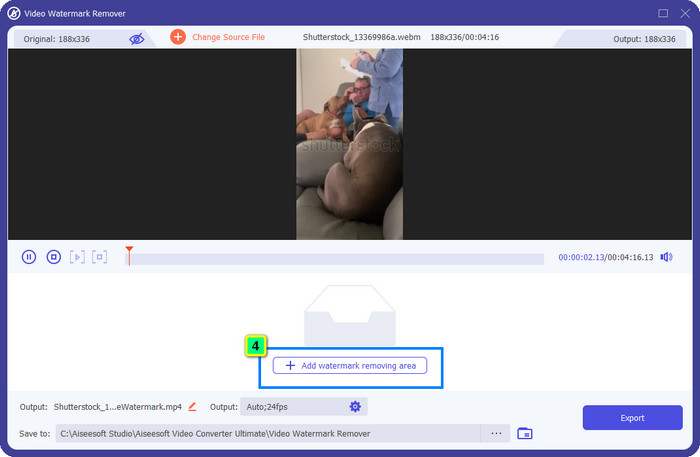
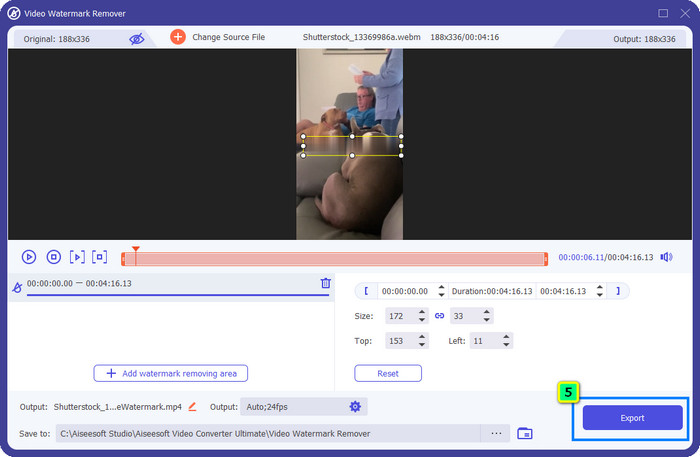
Step 4. To erase the watermark on the video you have uploaded, press, Add Watermark Removing Area, and a new window will appear.
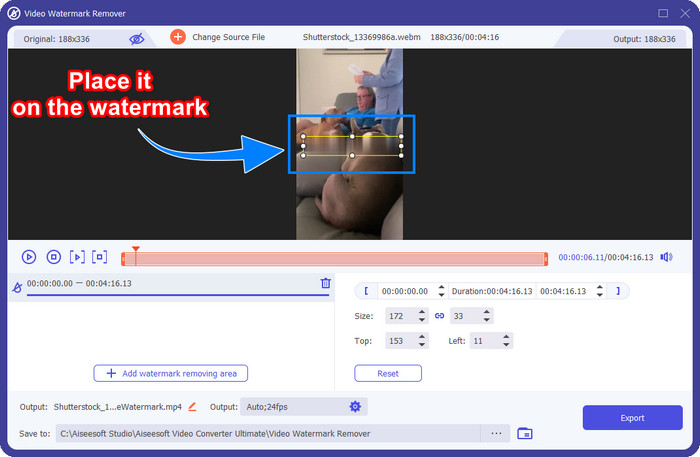
Step 5. In this part, there will be a square-shaped on your video; place it on the watermark. You can either resize, drag, shrink, or enlarge it so that it will become fit to the watermark that you want to delete.
Step 6. Finally, click the Export button to download the final output of the Shutterstock video you download on your device. You can now enjoy it without worrying about the watermark because it has been deleted.
Phần 2. Làm thế nào để loại bỏ Shutterstock Watermark trực tuyến miễn phí
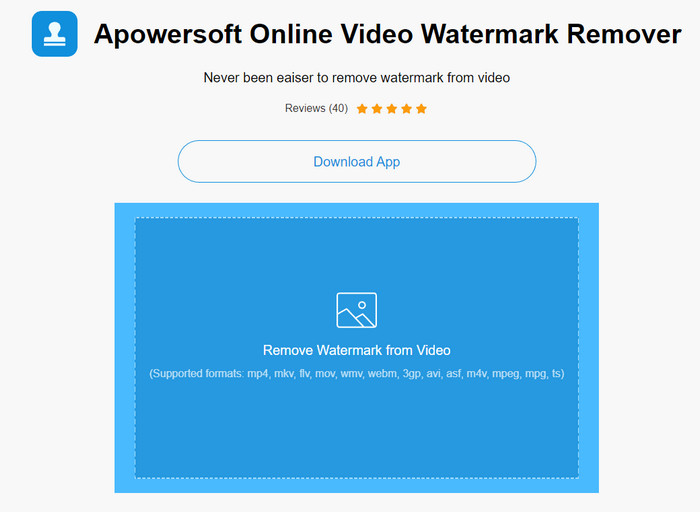
Doesn’t like the idea of downloading a watermark remover on your desktop? If so, you can use the Apowersoft Online Watermark Remover, and we are here to teach you how to remove the Shutterstock watermark online. It is an excellent pick-up for everyone who needs to remove the watermark on the video they have or on the image. The reason why we add this is that this software is accessible, and it is compatible with the different operating systems you have on your hand.
Không giống như các công cụ ngoại tuyến, bạn sẽ cần một kết nối internet ổn định và mạnh mẽ để sử dụng chúng. Như chúng tôi đã hứa, dưới đây là hướng dẫn sử dụng công cụ xóa hình mờ này để xóa hình mờ mà Shutterstock để lại trên đó.
Step 1. Open the official website of Apowersoft Online Watermark Remover using your favorite search engine, then click the + button on the right side to upload the video file.
Step 2. Put the selection box to the Shutterstock watermark on the video.
Step 3. After that, click Erase to remove the watermark and see the result.
Step 4. Press the Download File to have the Shutterstock video without the watermark.
Phần 3. Làm thế nào để loại bỏ Shutterstock Watermark bằng Photoshop [Có trả phí]
Many users ask how to remove the Shutterstock watermark using Photoshop, and we are here to help you! Adobe Photoshop supports a professional watermark-removing feature that you would love to use. Like the software introduced in this article, it does the job; however, its approach to removing watermarks is frame by frame. It means you will need to spend time eliminating the watermark per frame of the video; the longer the video is, the more frame it will be. If you want to know how the tool works, read the informative steps below.
Step 1. Download the application on your desktop, then click File. Under it, press Open to upload the video saved on your computer.
Step 2. On the left side, choose the Magic Wand Tool, then click the watermark you want to remove. This feature will automatically trace the watermark on the frame.
Step 3. Go to Edit and press Content-Aware Fill after you trace the watermark.
Step 4. After you open the Content-Aware Fill, it will automatically remove the watermark you select earlier, then press OK.
Đọc thêm:
Những cách đơn giản để xóa hình mờ Shootproof
How to Remove the Bandicam Watermark Effortlessly [3 Effective Ways]
Phần 4. Những câu hỏi thường gặp về cách loại bỏ Shutterstock Watermark
Làm thế nào để xóa hình mờ Shutterstock mà không cần Photoshop?
Bạn có thể sử dụng FVC Video Converter Ultimate để loại bỏ Shutterphoto liên kết với video của bạn. Nó có một công cụ xóa hình mờ mạnh mẽ mà bạn rất muốn thử. Hãy làm theo các bước mà chúng tôi thêm trong bài viết này để làm điều đó hiệu quả như Photoshop.
Cắt hình mờ Shutterstock có hoạt động trên video không?
Nếu bạn muốn thay đổi kích thước video bằng cách thay đổi kích thước, bạn có thể cắt video với sự trợ giúp của nhiều trình chỉnh sửa video trực tuyến và ngoại tuyến. Vì hình mờ của Shutterstock nằm ở giữa, tốt hơn hết là bạn không nên sử dụng các tính năng cắt xén. Nhiều công cụ xóa hình mờ sẵn sàng trợ giúp; bạn có thể đọc và sao chép hướng dẫn mà chúng tôi thêm để bạn có thể xóa nó một cách hiệu quả mà không để lại vết nhòe trên đó.
Xóa hình mờ Shutterstock có hợp pháp không?
Xóa hình mờ của Shutterstock là không hợp pháp, nhưng nếu bạn muốn sử dụng nó cho mục đích phi thương mại, bạn có thể thực hiện với sự trợ giúp của công cụ xóa hình mờ. Tốt hơn là mua ảnh bạn muốn trên Shutterstock nếu bạn định sử dụng nó cho mục đích thương mại; mặc dù bạn sẽ phải trả phí nhưng ít nhất nó sẽ cho phép bạn có quyền hợp pháp để sử dụng nó.
Phần kết luận
Now, you know how to remove the Shutterstock watermark with the included software in this article. So, which software do you prefer, the paid, free online, or the ultimate software? Whatever your choice, you can achieve the Shutterstock photo without the product logo. But if you are about to ask us what to use, without a doubt, we will pick the FVC Video Converter Ultimate, for it provides the most satisfactory job of finishing the task. Despite being an ultimate watermark remover, it is still easy to use. So, if you want to try out this software, you can click the download button to have this tool on your desktop.
-
 Các công cụ cuối cùng để xóa Watermark khỏi các Video đã xuất của Renderforest
 Để xóa hình mờ khỏi Renderforest, bạn sẽ cần một trình xóa hình mờ trên thiết bị của mình, tất cả các công cụ bạn có thể sử dụng đều có ở đây.
-
 Các bước đơn giản về cách xóa hình mờ WOW Slider [Đã giải quyết]
 WOW Slider là một ứng dụng để tạo trình chiếu tuyệt vời. Tuy nhiên, nó nhúng các hình mờ trên đầu ra của nó. Đọc bên dưới để tìm hiểu cách xóa hình mờ WOW Slider.
-
 Cách thoát khỏi hình mờ Power Director miễn phí [Hoàn thành]
 Làm cách nào để loại bỏ hình mờ Power Director miễn phí? Các công cụ tốt nhất để loại bỏ hình mờ có ở đây, vì vậy hãy tìm hiểu chúng bằng cách đọc phần này.
