


 Chuyển đổi video Ultimate
 Trình ghi màn hình
 Sửa chữa video
 Tải xuống an toàn
Cách xóa hình nền PPT: Máy tính để bàn & Trực tuyến
Khi làm PPT, chúng ta thường cần thiết lập nhiều mẫu theo nhiều phong cách khác nhau và chèn các biểu tượng hoặc hình ảnh đã chuẩn bị. Nhưng nhiều hình ảnh tài liệu có màu nền. Khi có quá nhiều màu sắc khác nhau trên một trang, nó sẽ trông lộn xộn. Tất cả các thành phần được xếp chồng ngẫu nhiên và không tạo nên một thiết kế hoàn chỉnh.
Vì vậy, chúng ta phải xử lý vấn đề này một cách nghiêm túc và thực hiện thao tác xóa nền ảnh trong PPT. Bản thân PowerPoint có hai cách để thực hiện thao tác này. Nhưng nếu bạn muốn trải nghiệm dịch vụ xóa nền ấn tượng hơn, bạn có thể thử các công cụ trực tuyến tốt nhất được khuyến nghị trong bài viết. Chúng ta sẽ không dài dòng nữa; hãy bắt đầu ngay để xem phải làm như thế nào.

Phần 1. Cách xóa nền trong PPT
Bạn có thể xử lý hình ảnh trong PowerPoint bằng tay khi tạo PPT. Có hai công cụ trên giao diện của nó sẽ giúp bạn xóa nền hình ảnh. Chúng ta hãy xem cách thực hiện trong hai tình huống này tiếp theo.
Xóa Nền bằng tính năng Đặt Màu Trong Suốt
Đầu tiên là thêm hiệu ứng màu trong suốt vào ảnh. Phương pháp này rất phù hợp với ảnh có màu đơn sắc, hiệu ứng ngay lập tức.
Sau đây là cách xóa nền trắng khỏi hình ảnh trong PPT bằng tính năng màu trong suốt.
Bước 1. Mở file PPT của bạn. Tìm đến hình ảnh bạn muốn chỉnh sửa. Hãy chọn hình đó rồi nhấp vào Định dạng (Format) trên thanh công cụ.
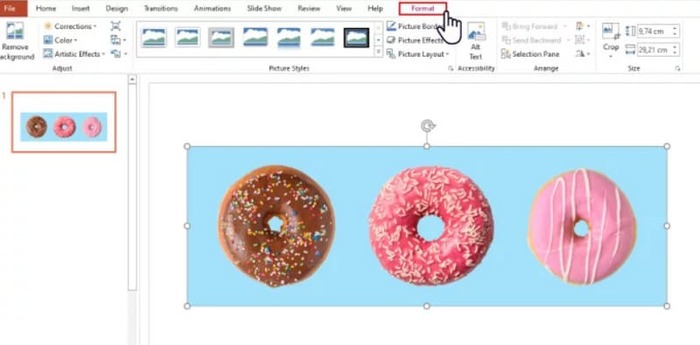
Bước 2. Tìm mục Màu sắc (Color) ở góc trên bên trái. Mở rộng menu và chọn Đặt màu trong suốt (Set Transparent Color).
Bước 3. Con trỏ chuột của bạn sẽ biến thành hình cây bút. Di chuột lên hình và nhấp. Màu nền của hình sẽ trở nên trong suốt.
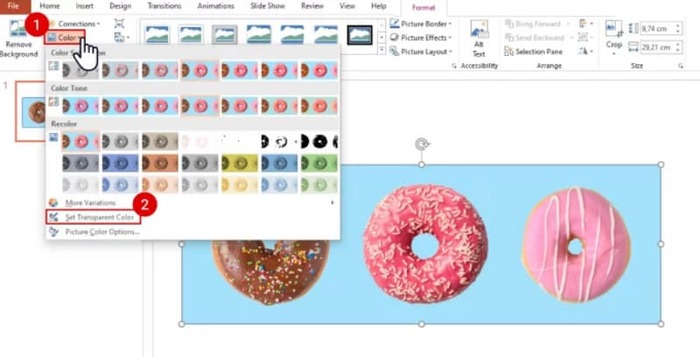
Lưu ý rằng phương pháp này không hiệu quả với hình ảnh có bóng ở nền. Ngoài ra, nếu các đối tượng trong ảnh có màu quá gần với nền, chức năng Độ trong suốt có thể xóa cả nền và các đối tượng.
Xóa Nền bằng Tính năng Xóa Nền`
Bạn sẽ thấy nút Remove Background ở góc trên bên trái của trang PowerPoint. Nhấp vào nút đó và PPT Remove Background sẽ tự động nhận dạng nền và đánh dấu phần cần xóa.
Sau đây là cách xóa hình nền khỏi trang chiếu PPT bằng Tính năng Xóa Nền.
Bước 1. Sau khi chèn hình ảnh vào slide, hãy chọn hình đó.
Bước 2. Nhấp vào Định dạng Ảnh (Picture Format) > Xóa Nền (Remove Background).
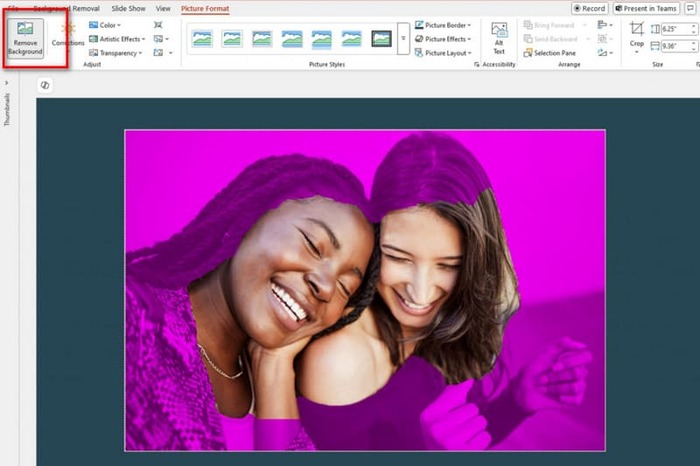
Bước 3. Nền tảng sẽ tự động chạy và nhận diện phần nền. Phần nền sẽ được tô màu tím. Bạn cũng có thể chọn Đánh dấu vùng giữ lại (Mark Areas to Keep) hoặc Đánh dấu vùng cần xóa (Mark Areas to Remove) để điều chỉnh khung thủ công.
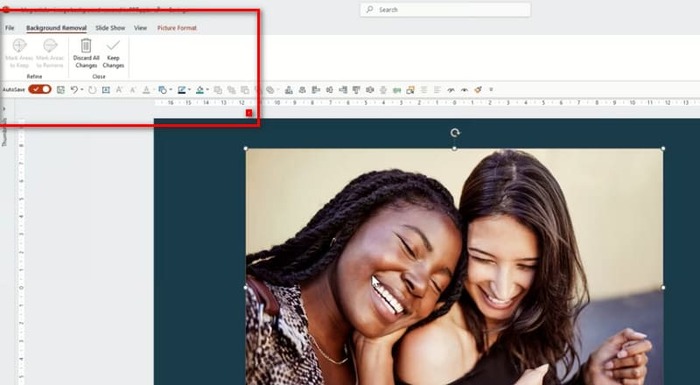
Đáng tiếc là có một vấn đề phổ biến với tính năng này cũng như với tính năng Hiệu ứng trong suốt. Cả hai đều nhận diện nền khá kém và rất dễ xóa nhầm cả đối tượng chính trong hình. Ngay cả khi bạn cố gắng điều chỉnh thủ công, PowerPoint vẫn sẽ xử lý theo cách 'của riêng nó' khi thực thi. Nếu nền hình ảnh của bạn tối hoặc không phải là một màu đơn, hãy thử tìm một công cụ sáng tạo hơn để xóa hoặc thêm nền cho ảnh của bạn.
Phần 2. Cách xóa nền trắng khỏi ảnh trực tuyến và tải lên PowerPoint
Miễn phí: FVC Background Remover
Qua phần trên, có thể thấy các công cụ do PowerPoint cung cấp tuy dễ dùng nhưng không thể xử lý được những bức ảnh có nền phức tạp. Nếu bạn có những tác vụ như vậy, chúng tôi khuyên bạn nên dùng FVC Free Background Remover làm trợ lý. Công cụ này hoàn toàn miễn phí. Tất cả những gì bạn cần làm là tải ảnh lên nền tảng, có thể ở định dạng PNG, JPG hoặc JPEG, và FVC Free Background Remover thậm chí còn có thể được dùng để thay đổi nền cho ảnh trong slide. Hãy tải lên nền mới bạn muốn hoặc chọn một màu trơn.
Sau đây là cách xóa đồ họa nền trong PPT bằng FVC Free Background Remover.
Bước 1. Mở FVC Free Background Remover trên trình duyệt. Nhấp vào Tải ảnh lên (Upload Image) để thêm hình ảnh vào slide.
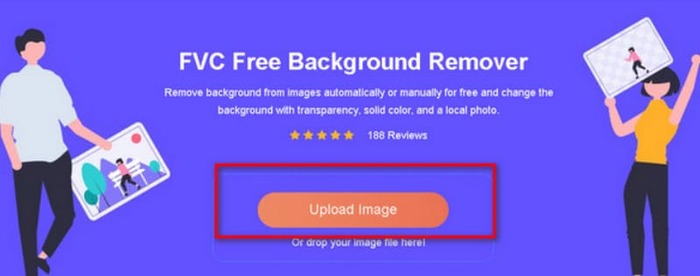
Bước 2. FVC Free Background Remover sẽ tải hình và tự động thực hiện xóa nền. Bạn có thể chỉnh sửa ảnh và tùy chỉnh các thiết lập khi quá trình hoàn tất.
Bước 3. Cuối cùng, nhấp Tải xuống (Download) để lưu video đã chỉnh sửa.
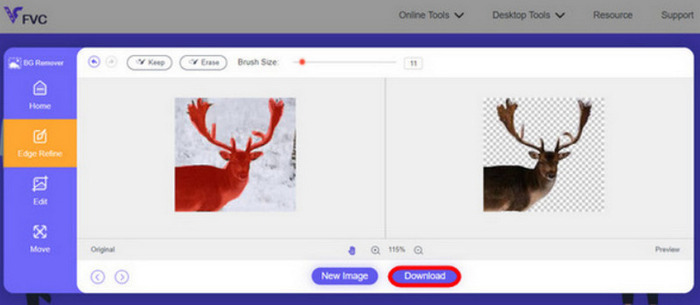
Phương pháp PPT xóa nền hình ảnh ở trên chủ yếu áp dụng cho ảnh tĩnh. Nếu trên ảnh của bạn có watermark, logo, v.v., hãy tìm hiểu cách xóa watermark khỏi ảnh để đạt hiệu quả hiển thị tối ưu.
Phần 3. Các câu hỏi thường gặp về PPT Xóa hình nền
Làm thế nào để xóa nền trắng khỏi hình ảnh trong PPT?
PowerPoint có các tính năng Xóa nền và Hiệu ứng màu trong suốt để giúp bạn. Tuy nhiên, có khả năng chúng sẽ phá hỏng tính toàn vẹn của màn hình. Bạn có thể sử dụng FVC Free Background Remover để xử lý hình ảnh.
Tại sao PowerPoint của tôi không có màu trong suốt?
Trước tiên, bạn cần đảm bảo rằng bạn đã chọn hình ảnh mục tiêu. Nếu hình ảnh không được chọn, bạn không thể thêm hiệu ứng màu trong suốt vào đó.
Tôi nên làm gì nếu công cụ Remove Background không hoạt động?
Trước tiên, hãy kiểm tra xem định dạng hình ảnh của bạn có tương thích với PowerPoint không, tức là JPG, JPEG hoặc PNG. Nếu không, vui lòng chuyển đổi định dạng trước. Sự cố này cũng có thể xảy ra vì PowerPoint của bạn không phải là phiên bản mới nhất. Trước tiên, hãy cập nhật, sau đó mở lại thao tác.
Phần kết luận
Mặc dù PowerPoint có các chức năng cho phép PPT xóa nền ảnh, nhưng chúng quá cơ bản. Rất có thể các thành phần hiện có trên màn hình sẽ bị phá hỏng. Nếu ảnh của bạn có nền đơn giản hoặc nền trắng, thì các công cụ trong PowerPoint có thể là đủ. Tuy nhiên, nếu ảnh có nhiều chi tiết, chúng tôi khuyên bạn nên dùng một công cụ chuyên nghiệp như FVC Free Background Remover. Công cụ này dễ dùng và không cần cài thêm phần mềm.
-
 Hướng dẫn từng bước để thay đổi nền hình ảnh theo 4 cách
 Bạn đang tìm công cụ thay đổi hình nền? Trong bài viết này, hãy tìm hiểu các công cụ chỉnh sửa hình ảnh khác nhau mà bạn có thể sử dụng để thay đổi hình nền một cách dễ dàng.
-
 Xóa nền GIF bằng các công cụ hiệu quả và hữu ích
 Việc xóa nền mà không có công cụ phù hợp có thể gây khó chịu. Kiểm tra bài đăng này để biết các đề xuất ứng dụng về cách làm cho nền GIF trong suốt.
-
 Cách xóa nền khỏi hình ảnh bằng GIMP
 Bắt đầu với GIMP và quy trình từng bước xóa nền khỏi hình ảnh. Khám phá những cách hiệu quả để tạo hình ảnh trong suốt bằng GIMP ngay hôm nay!
