


 Chuyển đổi video Ultimate
 Trình ghi màn hình
 Sửa chữa video
 Tải xuống an toàn
Video MP4 không hiển thị trong Premiere Pro: Nguyên nhân và giải pháp cần biết
Premiere Pro is a great professional tool for editing videos. However, sometimes, it acts up, causing playback problems that interrupt your work. It is also frustrating when you are trying to edit smoothly, and the video keeps lagging or glitching, or worse, not showing up. It is a common issue that many users of Adobe Premiere Pro face. Thankfully, there are ways to tackle this problem. By identifying the specific issue as to why MP4 video is not showing in Premiere Pro and following the steps outlined in this guide, you can get back to edit and playback without headaches. So, let's dive in and cut to this chase!
Phần 1. Tại sao video MP4 không hiển thị trong Premiere Pro
Đối với những ai gặp lỗi trong Premiere Pro khi hiển thị video MP4, chúng tôi đã tổng hợp một số lý do tại sao điều này xảy ra.
Software Version:
Có thể là do phiên bản Premiere Pro mà bạn sử dụng. Nói cách khác, bạn có thể đang sử dụng phần mềm lỗi thời không hỗ trợ một số định dạng hoặc tính năng tệp MP4.
Hardware Limitations:
Cũng có thể là do phần cứng hệ thống của bạn. Thiết bị của bạn có thể không đáp ứng được các yêu cầu để giải mã và hiển thị tệp MP4 trong Premiere Pro đúng cách.
File Location:
Tiếp theo là vị trí tệp. Tệp MP4 của bạn có thể nằm trong thư mục mà Premiere Pro không thể truy cập do cài đặt quyền hoặc sự cố đường dẫn tệp.
Corrupted File:
Một yếu tố khác khiến video MP4 không hiển thị trong Premiere Pro là do tệp có thể bị hỏng. Điều này có thể khiến Premiere Pro không đọc được tệp đúng cách.
Codec Incompatibility:
If the MP4 file is not corrupted, then maybe it may be encoded with a codec that Premiere Pro does not support.
Incorrect Import Settings:
Bạn cũng có thể muốn cân nhắc kiểm tra cài đặt nhập. Cài đặt nhập không đúng hoặc siêu dữ liệu liên quan đến tệp MP4 có thể khiến tệp đó không hiển thị trong Premiere Pro.
Cache Corruption:
Tất nhiên, giống như các chương trình khác, bộ nhớ đệm phương tiện trong Premiere Pro có thể bị hỏng. Nếu vậy, điều này sẽ gây ra sự cố khi nhập hoặc hiển thị tệp MP4.
Part 2. Methods to Fix the Issue of Premiere Pro Not Showing MP4 Videos
Convert MP4 to a Compatible Format:
Nếu tệp MP4 của bạn là lý do chính gây ra sự cố này, hãy cân nhắc chuyển đổi tệp sang các định dạng video khác. Tuy nhiên, chúng tôi thực sự khuyên bạn nên sử dụng một công cụ chuyển đổi video mạnh mẽ chắc chắn sẽ tạo ra đầu ra video tuyệt vời để sử dụng trong Premiere Pro.
Bonus: Use FVC Video Converter Ultimate for Video Conversion
Video Converter Ultimate, recommended by FVC, is available for both Windows and Mac, making it accessible to everyone. It comes with a user-friendly interface while boasting an incredibly advanced ultrafast hardware acceleration technology that speeds up the conversion up to 120 times faster. Furthermore, it is not just limited to converting MP4; it supports over 1000 other formats that you can choose from as your output format.
Ngoài việc chuyển đổi định dạng đơn giản, nó còn cung cấp một loạt các công cụ chỉnh sửa mạnh mẽ trong Hộp công cụ của mình. Các công cụ này, được điều khiển bởi trí tuệ nhân tạo, đảm bảo cải thiện và chỉnh sửa video của bạn một cách liền mạch mà không gặp bất kỳ rắc rối nào! Bây giờ, hãy cùng tìm hiểu sâu hơn về quy trình chuyển đổi video hàng loạt mà nó có bằng các bước được nêu dưới đây.
Tải xuống miễn phí cho Windows 7 trở lên. Tải xuống an toàn.
Tải xuống miễn phí cho MacOS 10.7 trở lên. Tải xuống an toàn.
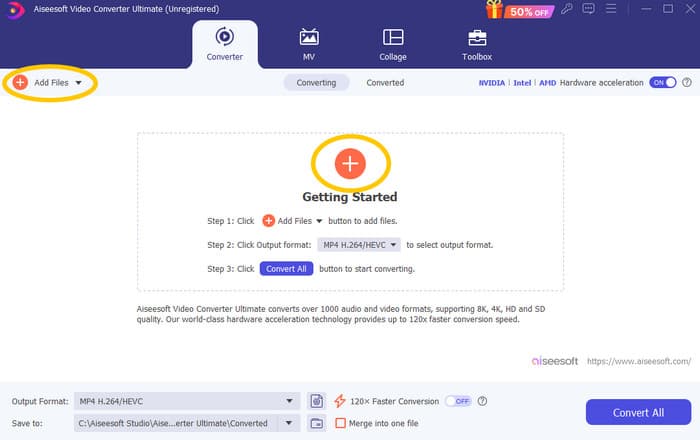
Step 1. Let’s say you already installed the software on your computer. You can now launch it and click the Add button to import files. You can also use the Add Files tab or drag files from your folder.
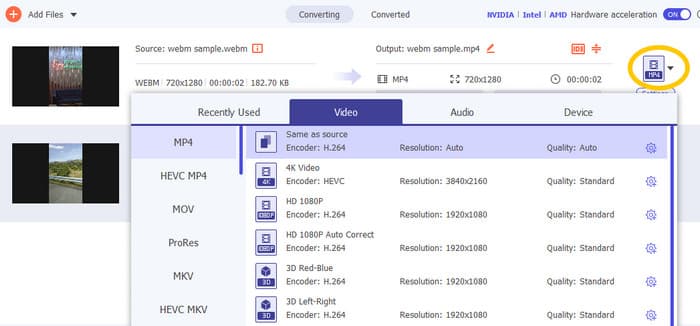
Step 2. Next, click the drop-down arrow from the output format section and choose your desired format from the Video menu. Click your chosen encoder to apply.
Step 3. When all is good, click the Convert All button to start the conversion.

Repair Corrupt MP4 Files:
If the MP4 video is not showing in Premiere Pro, it might be corrupted. Thus, you may use a dedicated video repair tool such as Video Repair to address any corruption issues. You can quickly repair and play a messed-up file without any hassle. It boasts a perfect success rate, and it's so easy to use with just a few clicks. Moreover, the software works by copying the good parts from a sample video to patch up the broken ones to ensure smooth playback. Plus, it supports fixing MP4 and many other various formats while keeping your information safe. Here is how to fix your corrupted MP4 file.
Step 1. Get the video repair tool on your computer and open it to begin.
Tải miễn phíDành cho Windows 7 trở lênTải xuống an toàn
Tải miễn phíDành cho MacOS 10.7 trở lênTải xuống an toàn
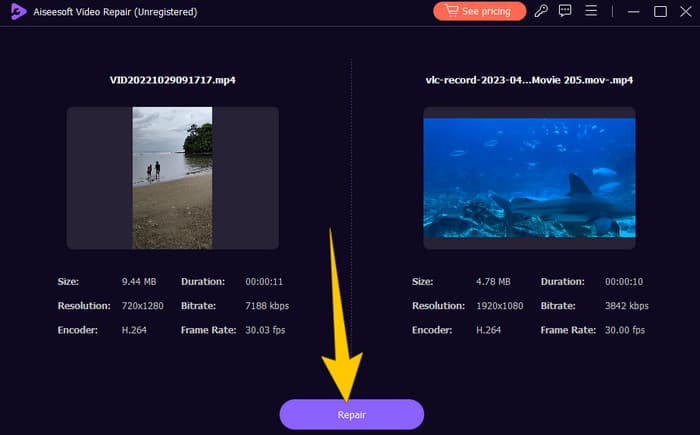
Step 2. On the main interface, click the red Plus button to upload the corrupted MP4 video. Then, click the blue one to upload the sample video.
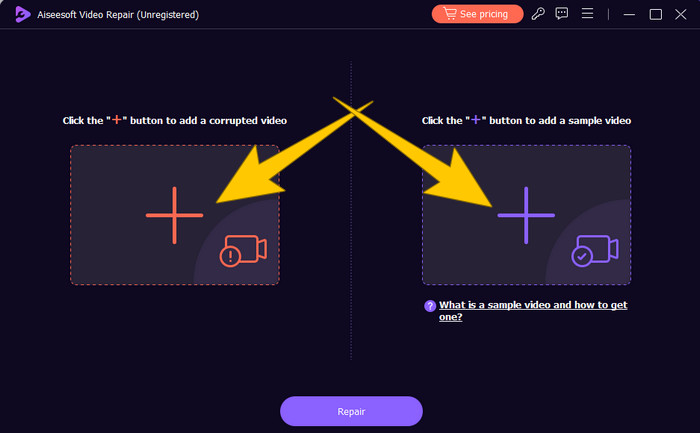
Step 3. After the importation of the files, it’s time to fix it. To do so, click the Repair button.
Restart Computer and Reset Premiere Pro:
Hãy cân nhắc việc đặt lại Premiere Pro và khởi động lại máy tính để làm mới tài nguyên hệ thống. Bằng cách này, bạn cũng có thể đặt lại tùy chọn về cài đặt mặc định, đôi khi có thể giải quyết các vấn đề về khả năng tương thích.
Clear Cache Files:
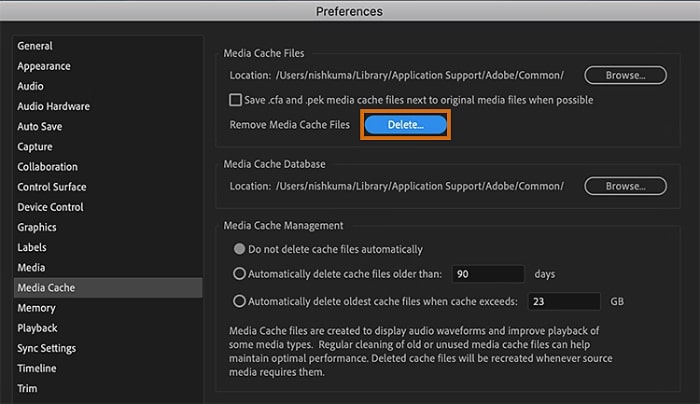
Luôn khuyến khích xóa các tệp bộ nhớ đệm Premiere Pro của bạn. Vì vậy, hãy xóa các tệp bộ nhớ đệm để xóa bất kỳ dữ liệu bị hỏng hoặc lỗi thời nào có thể gây ra sự cố. Bạn chỉ cần điều hướng đến Edit>Preferences>Media Cache>Delete.
Change Settings in Premiere Pro:
Cuối cùng, hãy kiểm tra cài đặt của Premiere Pro và đảm bảo chúng khớp với thông số kỹ thuật của tệp MP4. Bao gồm tốc độ khung hình, độ phân giải và codec. Đúng vậy, khi bạn điều chỉnh các cài đặt này để khớp với tệp MP4, đôi khi có thể giải quyết được các vấn đề về khả năng tương thích.
Part 3. FAQs about Premiere Pro and the Issue of MP4 Not Showing
Tôi phải làm gì nếu tệp MP4 của tôi có codec không tương thích, dẫn đến không hiển thị trong Premiere Pro?
If your MP4 files have an incompatible codec, you can use an HD video converter like Video Converter Ultimate to convert them to a compatible format.
Tại sao tệp MP4 của tôi không hiển thị trong Premiere Pro?
Tệp MP4 có thể không hiển thị trong Premiere Pro vì nhiều lý do. Chẳng hạn như codec không tương thích, sự cố với cài đặt Premiere Pro và tệp bị hỏng.
Tôi có thể khắc phục sự cố tệp MP4 không hiển thị trong Premiere Pro không?
Yes, you can troubleshoot the issue by checking the codec of the MP4 files. This ensures that the MP4 files match Premiere Pro's supported codecs. Also, you can try to repair any corrupt MP4 files and adjust Premiere Pro settings if necessary.
Conclusion
This post contains the reasons why MP4 video files are not showing in Premiere Pro. Also, the fixations are given so you can get an idea of how to solve the problem at hand. Most often, it is the video file that makes the problem show. Thus, you must ensure that it is in good condition every time you open it on your Premiere Pro.
-
 Fast & Easy Ways on How to Sync Audio and Video in Adobe Premiere Pro
 Bạn muốn biết cách đồng bộ hóa âm thanh và video trong Premiere Pro? Thì bài viết này sẽ phù hợp với nhu cầu của bạn. Khi chúng tôi tự mình thử nó bằng các bước thực tế và đơn giản.
-
 How to Speed up Video in Premiere Pro and with Its Alternatives
 Bạn có muốn biết cách sử dụng phiên bản chuyên nghiệp để tăng tốc độ video không? Sau đó, bạn đang ở đúng bài viết khi chúng tôi cung cấp các bước và các lựa chọn thay thế hợp lý khác.
-
 Instagram Not Playing Videos? Here’s How You Can Fix Them
 Mô tả Meta:Bạn đang tải video lên Instagram và chúng không phát? Đừng lo lắng vì bài viết này sẽ cung cấp cho bạn thông tin chi tiết và cách khắc phục nhanh chóng cho vấn đề này. Đọc ngay!
