


 Chuyển đổi video Ultimate
 Trình ghi màn hình
 Sửa chữa video
 Tải xuống an toàn
Cách nén tệp PDF cho email 3 cách hiệu quả để lựa chọn
Thật vậy, gửi các tệp dung lượng lớn qua email có thể khá phiền phức. Thực tế, điều này có thể gây rắc rối cho bạn, hoặc thậm chí khiến email không được gửi đi. Ngoài ra, nhiều nhà cung cấp dịch vụ email còn giới hạn kích thước tệp đính kèm, điều rất dễ bị vượt quá với một file PDF phức tạp. Điều này đặc biệt đúng với những PDF có nhiều hình ảnh hoặc tài liệu rất dài. Để khắc phục, hầu hết mọi người trong tình huống này sẽ tìm đến các dịch vụ chia sẻ tệp như Dropbox hoặc Google Drive. Tuy nhiên, họ gần như quên mất một mẹo rất tiện lợi, đó là nén tệp. Có rất nhiều công cụ trực tuyến miễn phí có thể làm việc này, và một số còn khá phổ biến. Nhưng làm thế nào để nén PDF để gửi qua email một cách hiệu quả? Đó chính là điều bạn sắp được biết khi tiếp tục đọc toàn bộ nội dung bên dưới.

Phần 1. Kích thước PDF nào là tốt nhất cho Email
Đây là sự thật: không có con số kỳ diệu nào cho kích thước PDF lý tưởng cho email. Điều cần lưu ý là giới hạn tệp đính kèm của nền tảng email của bạn. Các dịch vụ phổ biến giới hạn tệp đính kèm khoảng 20MB, có thể dễ dàng đạt được một cách đáng ngạc nhiên, đặc biệt là với các tệp PDF chứa nhiều hình ảnh hoặc là các tài liệu rất dài. Do đó, nếu tệp PDF của bạn lớn hơn giới hạn 20MB đã nêu, email của bạn có thể sẽ không được gửi và bạn sẽ nhận được thông báo lỗi. Tuy nhiên, thay vì nhắm đến một kích thước cụ thể hoặc kích thước PDF tốt nhất cho email, tốt nhất là bạn nên chơi an toàn và giữ kích thước dưới 20MB. Bằng cách đó, bạn có thể tự tin rằng tệp sẽ được đính kèm và gửi thành công.
Phần 2. Một cú nhấp chuột để nén tệp PDF cho Email
Dưới đây là một cách tuyệt vời và nhanh chóng để nén các tệp gửi qua email. Hãy sẵn sàng trải nghiệm công cụ miễn phí có tên FVC Free PDF Compressor, có thể thu nhỏ các tệp PDF cồng kềnh của bạn mà không làm chúng bị lỗi. Do hầu hết các dịch vụ email chỉ cho phép tệp đính kèm khoảng 20MB, những file PDF có nhiều hình ảnh hoặc nhiều chữ rất dễ chạm tới giới hạn đó. Trình nén này có thể giúp tệp PDF của bạn nhỏ đi rất nhiều, thậm chí xuống dưới 100 kilobyte! Bạn không cần lo lắng việc nó nén PDF để gửi email quá mạnh, vì nó vẫn giữ được chất lượng của tệp. Thực tế, có thể bạn còn khó nhận ra sự khác biệt giữa bản gốc và bản đã nén.
Hơn nữa, công cụ tuyệt vời này cực kỳ dễ sử dụng và bất kỳ ai có bất kỳ trình độ chuyên môn nào cũng có thể sử dụng. Tất cả những gì bạn phải làm là kéo và thả tệp PDF vào chương trình và nó sẽ tự động thu nhỏ tệp đó lại. Sau đó, chỉ với một cú nhấp chuột, bạn có thể lưu tệp PDF nhỏ hơn vào máy tính của mình. Theo cách này, bạn có thể nhanh chóng nén PDF thành kích thước email trực tuyến thành kích thước hoàn hảo để gửi email hoặc tải lên mà không có bất kỳ hình mờ nào trên tài liệu cuối cùng. Để hiểu rõ hơn về quy trình này, hãy xem hướng dẫn chi tiết bên dưới.
Bước 1. Trên giao diện chính, nhấp vào tab Add PDF File và chọn tệp PDF mà bạn cần nén.
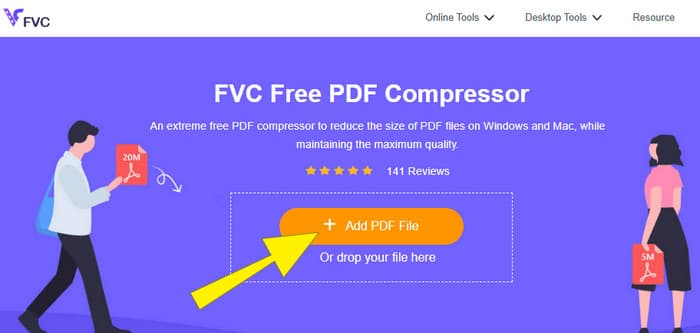
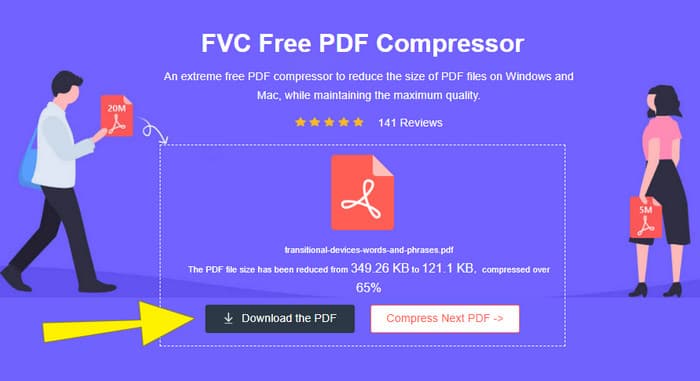
Bước 2. Trong khi tệp PDF đang được tải lên, công cụ cũng đồng thời tiến hành nén tệp.
Bước 3. Khi hoàn tất, hãy nhấp nút Download the PDF.
Phần 3. Nén tệp PDF để gửi qua email bằng các tính năng chỉnh sửa
Nếu bạn thích một công cụ đi kèm tính năng chỉnh sửa, thì Adobe Acrobat chính là thứ bạn cần cho tác vụ này. Adobe Acrobat là một chương trình nổi tiếng với khả năng tạo, chỉnh sửa và quản lý tệp PDF. Nó giống như một bộ công cụ mạnh mẽ được thiết kế riêng để làm việc với PDF. Một trong những tính năng hữu ích của nó là nén PDF, tính năng bạn có thể dùng khi có một file PDF quá nặng không thể gửi qua email do giới hạn dung lượng. Adobe Acrobat có cả bản trực tuyến và bản cài trên máy tính, có thể giúp bạn nén các tệp PDF lớn để gửi email mà không làm giảm chất lượng quá nhiều. Nó thực hiện điều này bằng một số cách, như giảm kích thước hình ảnh trong PDF hoặc loại bỏ các font chữ không cần thiết. Tuy nhiên, với đặc trưng của Adobe và bộ ứng dụng của hãng, bạn cũng không nên ngạc nhiên nếu thấy nó khá khó làm quen. Vì vậy, dưới đây là các bước giúp bạn đơn giản hóa quá trình này.
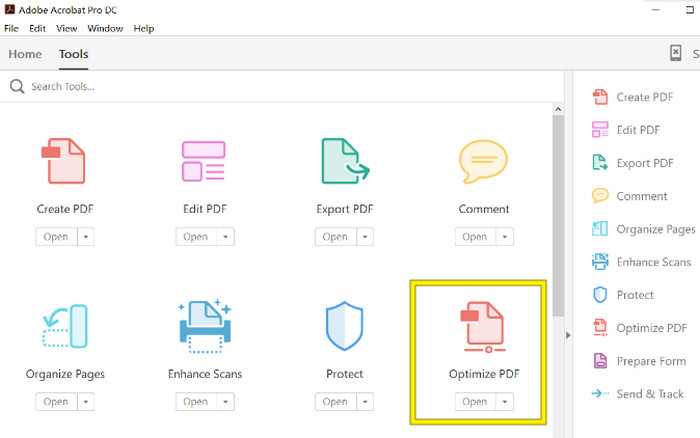
Bước 1. Mở Acrobat và mở tệp PDF mà bạn cần xử lý. Để làm điều đó, hãy vào Tools - Optimize PDF - Open.
Bước 2. Khi đã mở tệp PDF, nhấp vào tùy chọn Reduce File Size từ thanh điều hướng mới hiện ra. Sau đó, thiết lập hoặc sử dụng các tùy chọn chỉnh sửa được cung cấp để đạt được mức nén và tối ưu như mong muốn.
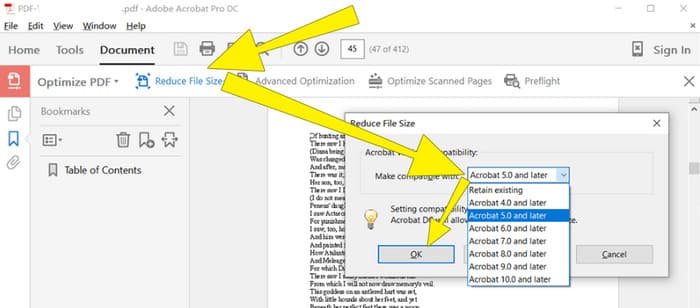
Bước 3. Sau đó, lưu tệp PDF đã được nén.
Phần 4. Nén tệp PDF để gửi qua email bằng cách chuyển đổi
Bạn muốn học một mẹo mới về cách nén PDF để gửi qua email? Hãy chuyển đổi tệp sang JPG. Mẹo chuyển đổi này có thể được thực hiện rất tốt bằng PowerPoint. PowerPoint là một chương trình mà bạn có lẽ thường dùng để tạo bài thuyết trình. Hãy tưởng tượng một bản trình chiếu với văn bản, hình ảnh, và thậm chí cả video. PowerPoint cho phép bạn xây dựng những bản trình chiếu này bằng các trang slide riêng lẻ mà bạn bấm để trình chiếu cho khán giả. Đây là một công cụ phổ biến với giáo viên, sinh viên, dân văn phòng và bất kỳ ai muốn truyền tải thông tin bằng hình ảnh.
Bây giờ, việc chèn PDF vào bài thuyết trình PowerPoint của bạn có thể tiện lợi, nhưng có thể không phải là quá trình trực quan nhất. Nhưng một khi bạn đã làm được, việc tạo tệp JPG sẽ trở nên dễ dàng. Tuy nhiên, đừng lo lắng! Chúng tôi có thể hướng dẫn bạn từng bước, bạn cần làm theo để có thể nhúng PDF của mình vào trong thời gian ngắn.
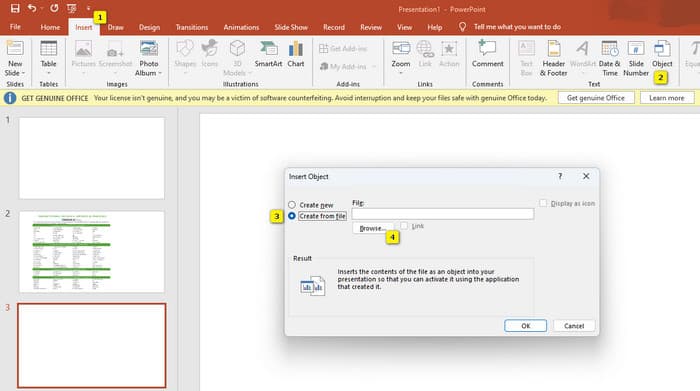
Bước 1. Mở PowerPoint trên máy tính và chọn đúng slide nơi bạn có thể mở tệp PDF.
Bước 2. Bây giờ, điều hướng đến menu tab Insert và tìm tùy chọn Object trong phần Text. Nhấp vào tùy chọn này, một cửa sổ mới sẽ xuất hiện. Tại cửa sổ đó, bật mục Create from File ở phía bên trái giao diện. Sau đó, nhấp nút Browse để nhập tệp PDF vào trong slide.
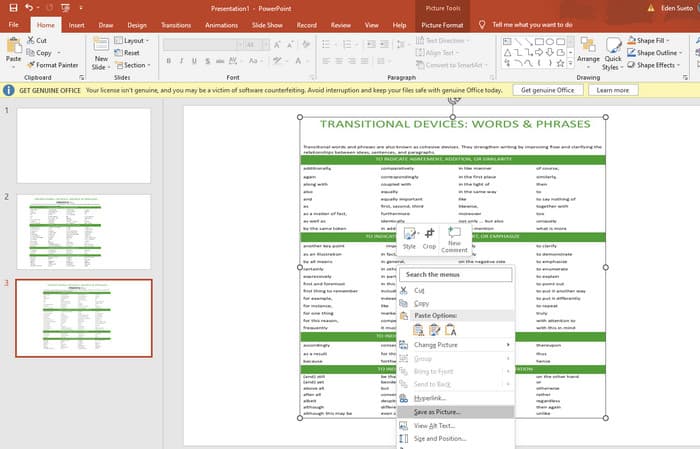
Bước 3. Khi tệp PDF đã được tải lên, bạn có thể chuyển nó sang JPG. Để làm vậy, hãy nhấp chuột phải vào PDF trên slide, chọn Save As Picture và lưu nó dưới dạng JPEG.
Phần 5. Câu hỏi thường gặp về PDF và Nén
Bạn có thể gửi email tệp đính kèm PDF có kích thước bao nhiêu?
Điều đó tùy thuộc vào nhà cung cấp dịch vụ email của bạn, nhưng hầu hết đều giới hạn tệp đính kèm ở mức khoảng 20MB.
Phần mềm nén PDF miễn phí nào tốt nhất?
Có nhiều trình nén PDF miễn phí, nhưng trình nén tốt nhất luôn phụ thuộc vào sở thích của người dùng. Cho đến nay, FVC Free PDF Compressor là công cụ trực tuyến miễn phí được khuyên dùng nhiều nhất.
Làm thế nào để nén tệp PDF để gửi qua email?
Trên thực tế, việc nén có hiệu quả với các tệp PDF vì chúng vốn đã là các tệp được nén.
Phần kết luận
Bài viết này nói về cách nén tệp PDF để gửi qua email theo những cách hiệu quả nhất. Giờ đây, bạn có thể đảm bảo việc gửi PDF qua email trơn tru và thuận lợi hơn, miễn là bạn nén chúng đúng cách để đáp ứng giới hạn dung lượng tệp.
-
 3 giải pháp tốt nhất về cách xóa hình mờ khỏi video một cách dễ dàng
 Bạn muốn xóa hình mờ khó chịu trên video? Với blog này, bạn có thể tìm hiểu các ý tưởng khác nhau về cách xóa hình mờ trên video.
-
 4 cách tốt nhất về cách thêm hình mờ trên bất kỳ video nào một cách nhanh chóng
 Hãy cùng tìm hiểu cách thêm hình mờ vào bất kỳ video nào trên Windows, Mac, Online, iOS và Android với các bước chi tiết nếu bạn đọc bài viết này.
-
 3 cách dễ nhất để thêm hình mờ vào ảnh GIF Trực tuyến và Ngoại tuyến
 Thêm hình mờ vào ảnh GIF có thể dễ dàng như 1-2-3 nếu bạn sử dụng đúng công cụ phù hợp. Các công cụ trên thị trường quá rộng, nhưng chúng tôi sẽ trình bày ba công cụ mà bạn có thể phụ thuộc vào.
