


 Chuyển đổi video Ultimate
 Trình ghi màn hình
 Sửa chữa video
 Tải xuống an toàn
Ghép nối các tệp WAV một cách liền mạch với các công cụ và mẹo phần mềm
Cho dù bạn là người mới bắt đầu chỉnh sửa âm thanh hay là dân chuyên, thì việc kết hợp các tệp WAV bằng đúng công cụ và kỹ thuật là cần thiết để đảm bảo hai tệp WAV khác nhau được ghép lại và xuất ra với chất lượng không suy hao. Ngược lại, việc tìm đúng công cụ có thể tốn thời gian và công sức của người dùng. Tuy vậy, với sự hỗ trợ của bài viết này, chúng ta sẽ khám phá nhiều công cụ khác nhau kèm theo các bước sử dụng chi tiết và một số mẹo giúp bạn bắt đầu, khiến quá trình trở nên đơn giản và hiệu quả hơn.

Phần 1. Kết hợp các tệp WAV không mất dữ liệu trong vài giây [Với khả năng tăng tốc GPU]
Khi bạn muốn kết hợp hai tệp WAV thành một tệp duy nhất để xuất, cách tốt nhất và dễ nhất là sử dụng Video Converter Ultimate do FVC đề xuất. Phần mềm của Aiseesoft này phù hợp với mọi đối tượng người dùng vì hoàn toàn miễn phí tải về từ trang web chính thức. Công cụ này tích hợp các tính năng chỉnh sửa video và âm thanh với khả năng gộp nhiều tệp WAV thành một tệp duy nhất. Ngoài ra, phần mềm còn được tích hợp công nghệ xử lý tốc độ cao giúp việc gộp và xuất tệp WAV trở nên hiệu quả hơn nhiều cho người dùng. Để dễ dàng thao tác nhiệm vụ gộp tệp WAV, hãy làm theo hướng dẫn dưới đây.
Bước 1. Tải xuống và cài đặt trình gộp tệp WAV trên máy tính của bạn, sau đó mở chương trình.
Tải xuống miễn phí cho Windows 7 trở lên. Tải xuống an toàn.
Tải xuống miễn phí cho MacOS 10.7 trở lên. Tải xuống an toàn.
Bước 2. Sau khi vào giao diện phần mềm, nhấp vào nút Add Files ở góc trên bên trái. Sau đó mở và chọn các tệp WAV bạn muốn gộp thành một tệp, rồi nhấp vào nút Open.
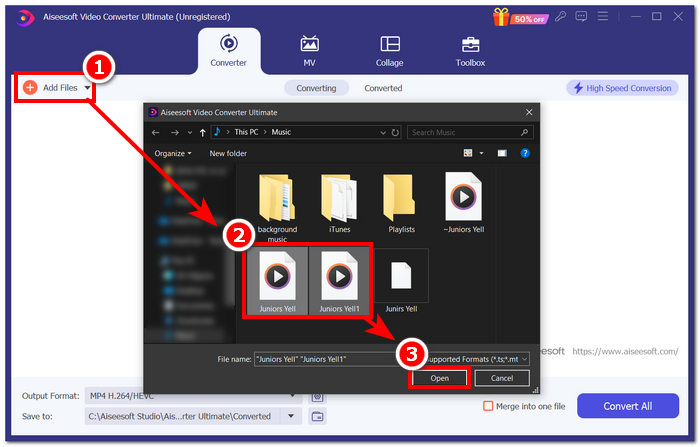
Bước 3. Khi bạn đã tải các tệp WAV cần gộp vào phần mềm, hãy tiến hành gộp bằng cách đánh dấu chọn vào mục Merge into one file, nằm bên cạnh nút Convert All ở góc dưới bên phải giao diện phần mềm.
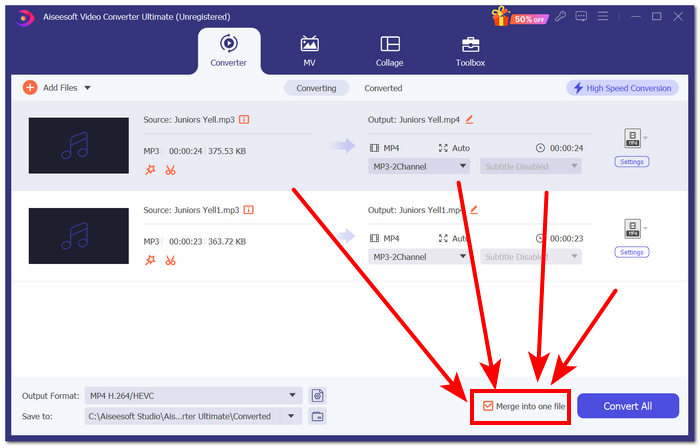
Bước 4. Nhấp vào nút Convert All để bắt đầu quá trình gộp và tự động xuất tệp đã gộp vào thư mục tải xuống của bạn.

Mẹo
• Bạn có thể ghép nhiều tệp WAV trong công cụ phần mềm cùng lúc.
• Ở góc dưới bên trái của giao diện phần mềm, bạn có thể kiểm soát định dạng đầu ra thành định dạng tệp mong muốn trước khi xuất tệp đó.
• Bạn cũng có thể thay đổi đích đến của tệp WAV đã hợp nhất bằng cách truy cập và chọn thư mục được chỉ định nằm ở góc dưới bên trái của giao diện phần mềm.
• Để tối đa hóa công nghệ xử lý tốc độ cao khi ghép và xuất tệp WAV, hãy bật cài đặt Chuyển đổi tốc độ cao nằm ở góc trên bên phải của giao diện phần mềm.
• Công cụ này cũng hỗ trợ nhiều định dạng khác, bạn có thể kết hợp MP4, MKV, FLV, MP3, FLAC và nhiều định dạng khác với nhau.
Phần 2. Kết hợp các tệp WAV trực tuyến
Khi bạn thấy việc ghép các tệp WAV của mình thông qua một công cụ dựa trên phần mềm khá khó khăn, một giải pháp trực tuyến có thể là giải pháp bạn cần. Descript là một công cụ dựa trên web có chức năng như một công cụ biên tập âm thanh, video và phiên âm trong một. Ghép các tệp WAV tương đối dễ vì công cụ dựa trên web sử dụng AI để tự động ghép các tệp WAV đầu vào của bạn ngay khi bạn tải chúng lên và cho phép người dùng xem trước chúng trước khi tải xuống.
Bước 1. Truy cập trang web chính thức của Descript và tạo tài khoản để bạn có thể sử dụng công cụ này nhằm kết hợp các tệp WAV của mình.
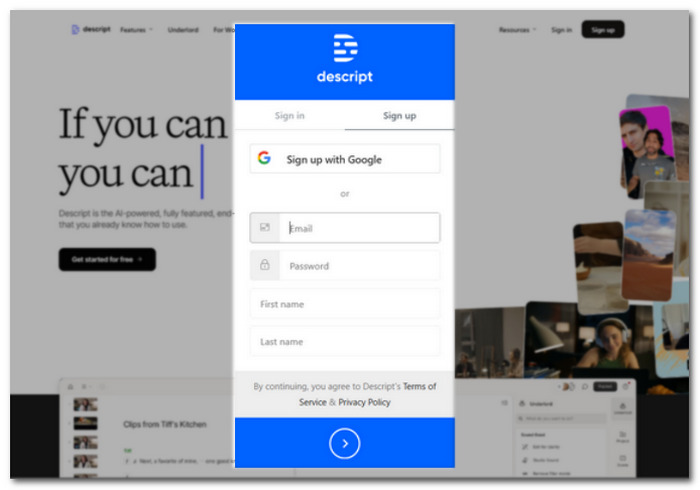
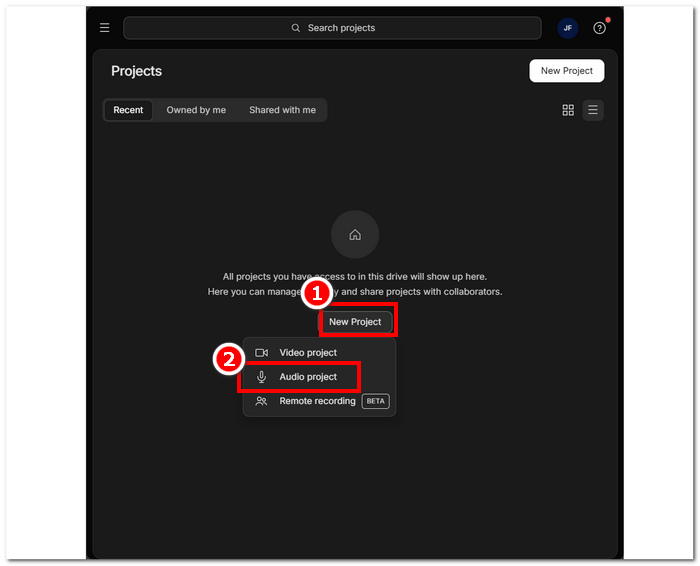
Bước 2. Sau khi đăng nhập vào giao diện công cụ, nhấp vào New Project > Audio Project.
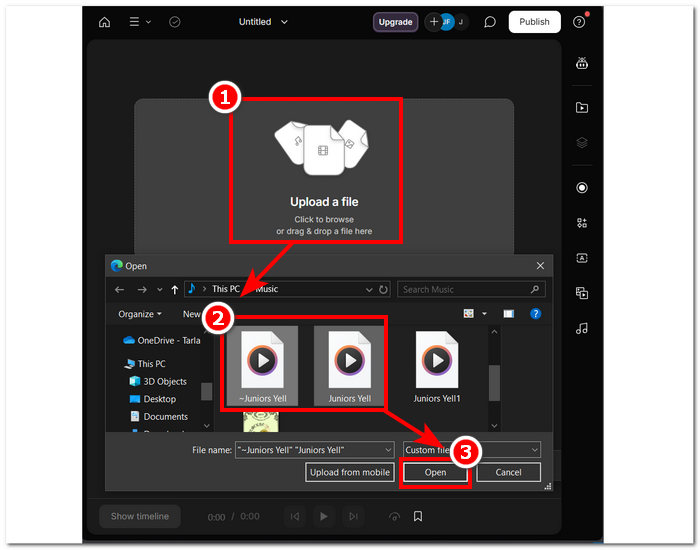
Bước 3. Tải lên các tệp WAV bạn muốn kết hợp và gộp thành một tệp duy nhất vào mục Upload a file được cung cấp trong giao diện công cụ.
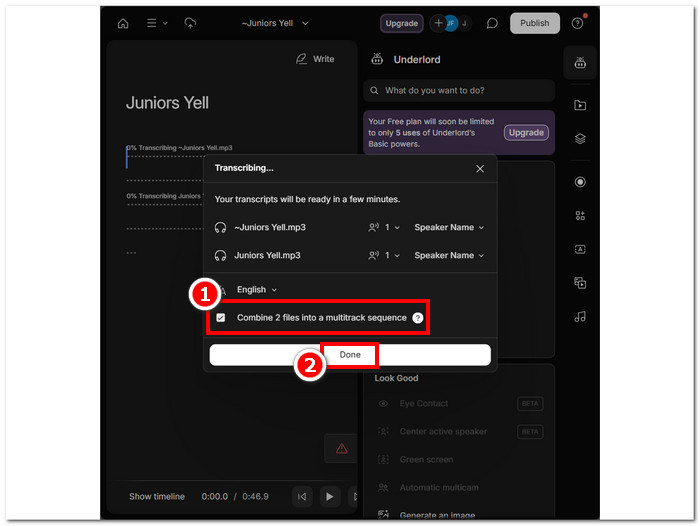
Bước 4. Khi các tệp WAV đang được tải lên trong giao diện công cụ, một cửa sổ sẽ xuất hiện cho phép bạn quyết định có muốn gộp tự động hay không. Đánh dấu chọn để bật quá trình gộp bằng AI, sau đó nhấp nút Done.
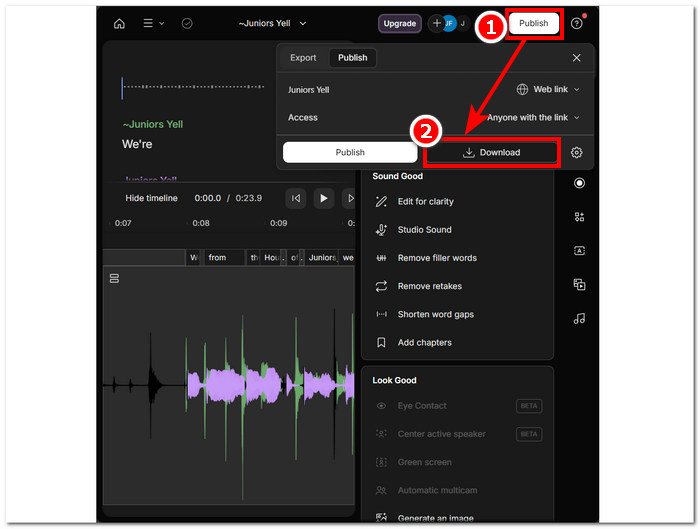
Bước 5. Chờ công cụ hoàn tất việc gộp các tệp WAV. Khi xong, bạn có thể phát file đầu ra để kiểm tra xem AI đã gộp các tệp WAV tốt chưa và chỉnh sửa nếu cần. Khi đã hài lòng, hãy nhấp vào Publish > Download để tải tệp WAV đã gộp về máy tính.
Mẹo
• Trước khi tải xuống các tệp WAV kết hợp, hãy đảm bảo kiểm tra kỹ bản âm thanh để tránh bị cắt xén.
• Việc quen thuộc với công cụ này có thể giúp đẩy nhanh quá trình ghép tệp WAV của bạn một cách hiệu quả.
Phần 3. Kết hợp các tệp WAV với Audacity
Là một trình chỉnh sửa âm thanh mã nguồn mở, Audacity cũng có thể gộp các track như tệp WAV mà không mất thêm chi phí. Phần mềm miễn phí tải về này đã hỗ trợ người dùng trong các tác vụ chỉnh sửa âm thanh và giúp việc gộp tệp WAV trở nên dễ dàng hơn nhiều. Audacity cho phép người dùng thêm nhiều tệp WAV cùng lúc, đồng thời hỗ trợ nhập nhiều định dạng âm thanh khác nhau. Hơn nữa, nó có một tính năng nhanh để sắp xếp từng track chính xác nối tiếp nhau, giúp việc gộp trở nên đơn giản hơn mà không lo bị chồng lấn. Do đó, làm theo hướng dẫn chi tiết bên dưới sẽ giúp bạn sử dụng phần mềm hiệu quả hơn.
Bước 1. Tải phần mềm Audacity về máy tính. Sau khi có, hãy mở chương trình và nạp các tệp WAV bạn muốn gộp thành một tệp.
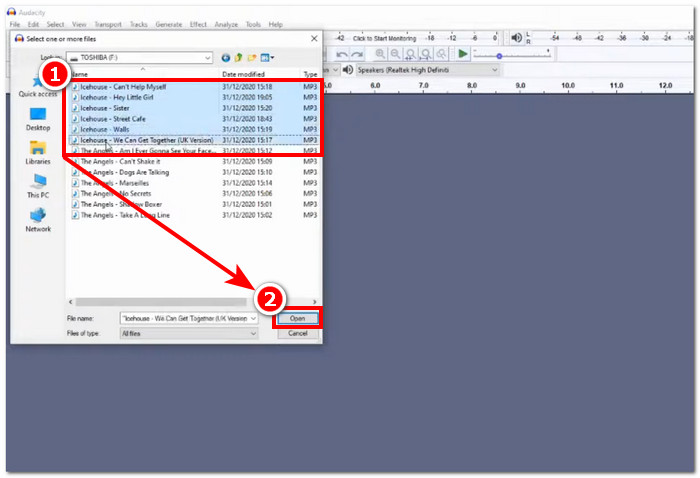
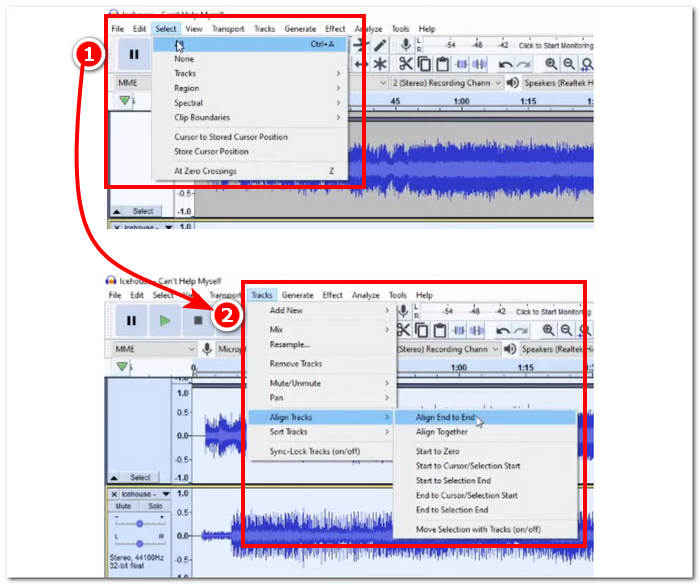
Bước 2. Khi các tệp WAV đã được nạp vào giao diện công cụ, bắt đầu bằng cách chọn toàn bộ track bằng cách nhấp vào Select > All ở thanh menu trên cùng của công cụ. Tiếp theo là căn chỉnh track WAV đã chọn, nhấp vào mục Track và trong phần Align Tracks, chọn Align End to End.
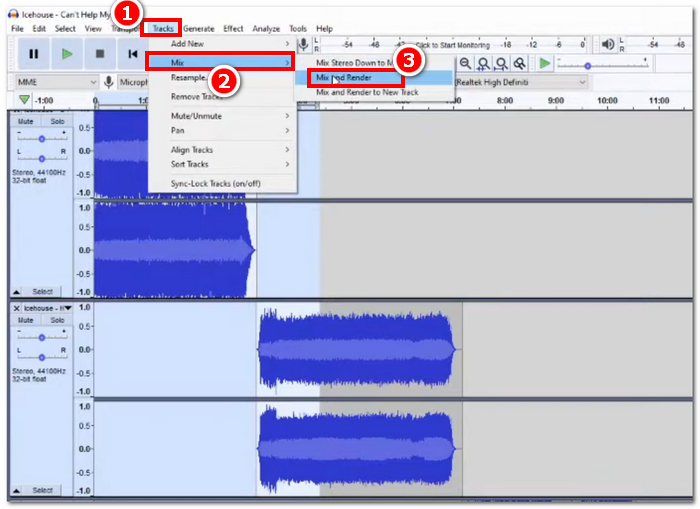
Bước 3. Khi các tệp WAV đã được căn chỉnh nối tiếp nhau, nhấp vào mục Track và trong phần Mix, chọn tính năng Mix and Render để bắt đầu quá trình gộp.
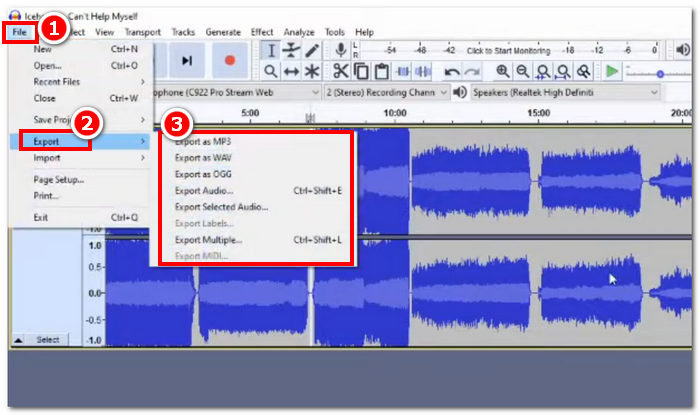
Bước 4. Khi quá trình gộp hoàn tất, bạn có thể xuất tệp WAV bằng cách nhấp File > Export và tùy ý chọn định dạng đầu ra mong muốn trong danh sách có sẵn.
Mẹo
• Khi xuất các tệp WAV đã kết hợp, hãy chọn xuất dưới dạng WAV vì nó vẫn giữ nguyên chất lượng âm thanh gốc.
Phần 4. Kết hợp các tệp WAV bằng FFmpeg
Một công cụ phần mềm nguồn mở khác để xử lý âm thanh và video là FFmpeg. Khung đa phương tiện mạnh mẽ này có thể được sử dụng như một trình chuyển đổi và để chỉnh sửa đa phương tiện, chẳng hạn như video, âm thanh và các tệp phương tiện khác. Khi xử lý các tác vụ như hợp nhất các tệp WAV, phần mềm sẽ nhập một mã cụ thể vào dấu nhắc lệnh để bắt đầu quá trình hợp nhất được gọi là nối các tệp WAV thành một tệp đầu ra duy nhất. Dưới đây là hướng dẫn chi tiết về cách sử dụng FFmpeg làm trình hợp nhất tệp WAV.
Bước 1. Truy cập trang web FFmpeg và cài đặt chương trình phù hợp với thiết bị bạn đang sử dụng.
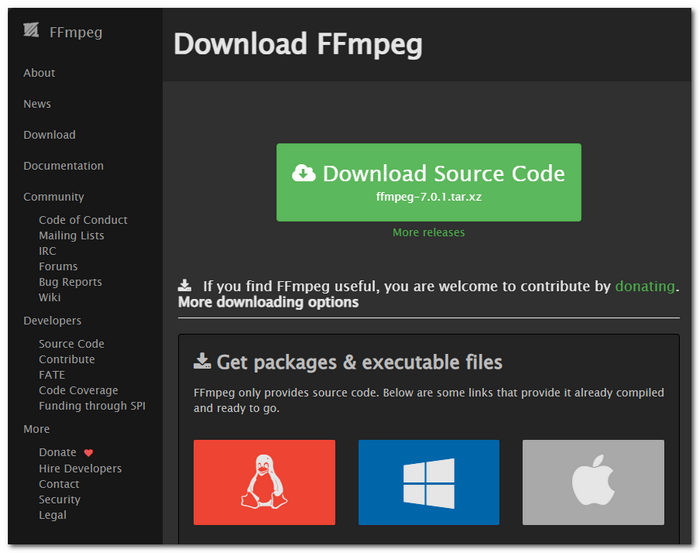
Tải xuống tệp zip từ trang web và tạo một thư mục mới trong đường dẫn hệ thống của bạn để lưu trữ tất cả các tệp thực thi FFmpeg, bao gồm cả việc di chuyển tệp zip vào thư mục đó.
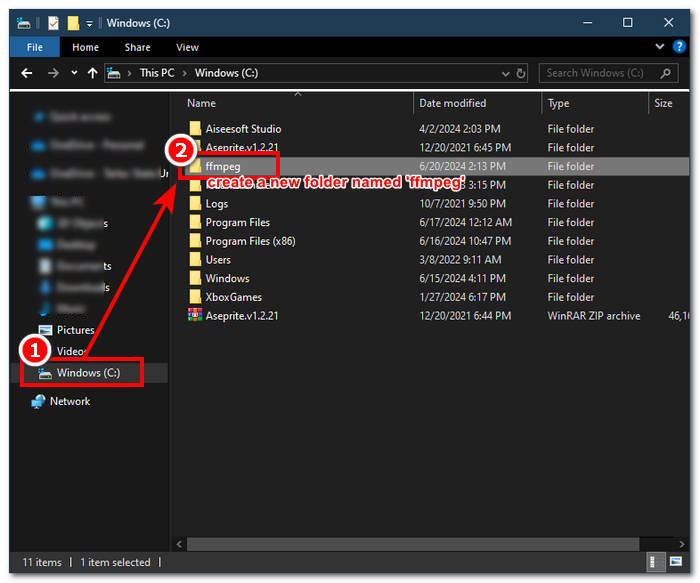
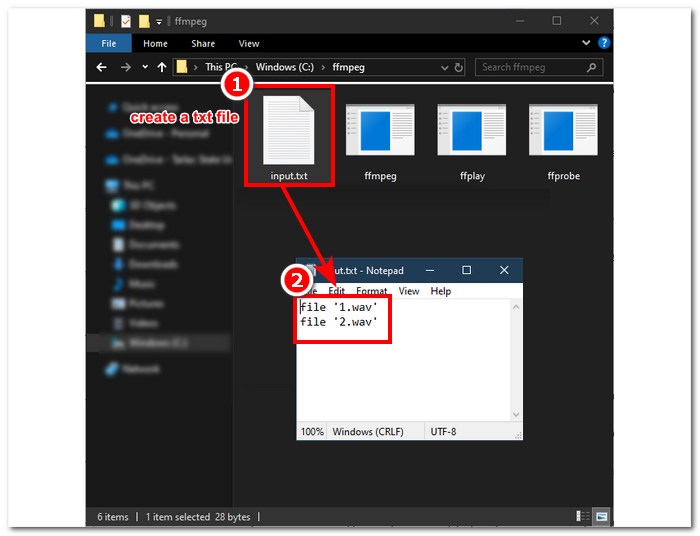
Bước 2. Chuyển tệp WAV của bạn vào thư mục ffmpeg vừa tạo và chuẩn bị các tệp WAV bằng cách đổi tên chúng thành ‘input1.wav’ và ‘input2.wav’ trong thư mục đó.

Lưu ý: Sau đó, trong cùng thư mục, tạo một tệp tên là ‘input.txt’ và nhập nội dung sau:;
file 'input1.wav'
file 'input2.wav'
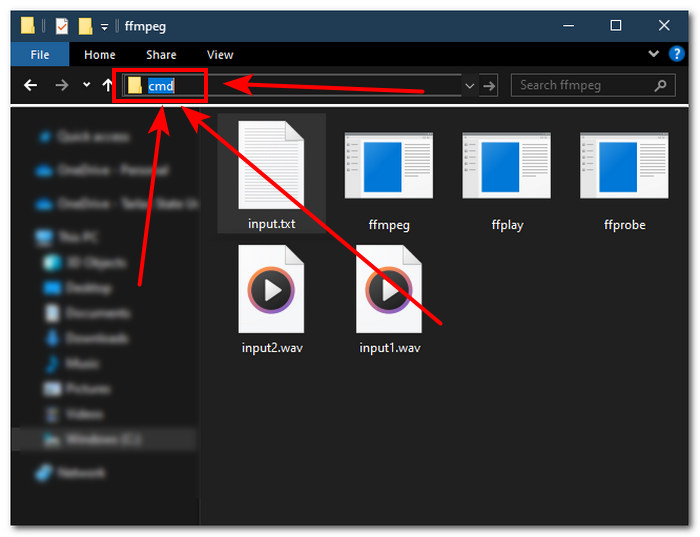
Bước 3. Chạy cửa sổ lệnh FFmpeg bằng cách gõ ‘cmd’ vào ô đường dẫn thư mục ở phía trên cùng cửa sổ, rồi nhấn Enter.
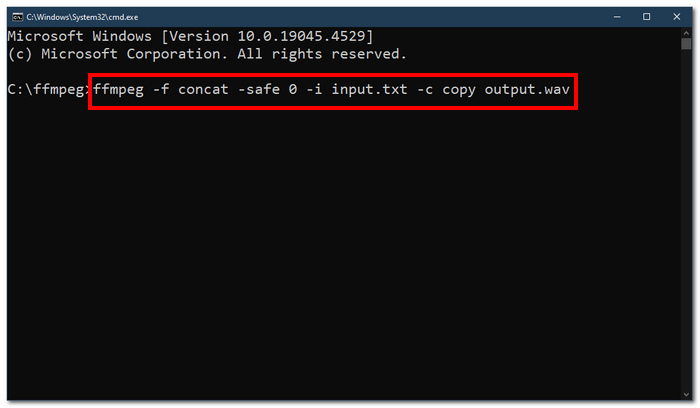
Bước 4. Khi đã vào cửa sổ dòng lệnh của FFmpeg, nhập lệnh sau và nhấn Enter:;
ffmpeg -f concat -safe 0 -i input.txt -c copy output.wav
Bước 5. Một tệp WAV mới xuất hiện trong thư mục của bạn, cho thấy bạn đã gộp thành công các tệp WAV thành một tệp duy nhất.
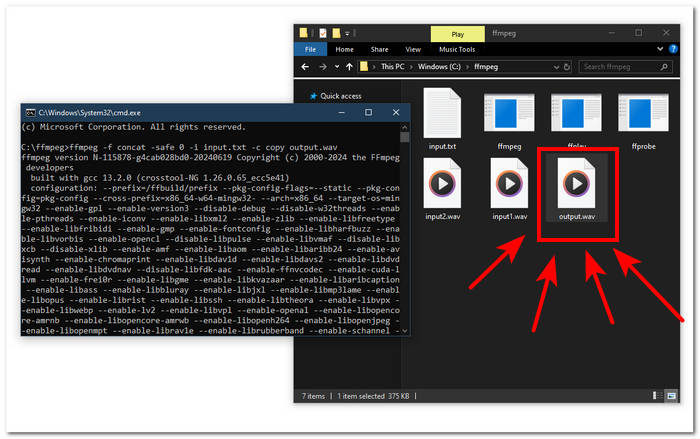
Mẹo
• Vì công cụ này dựa trên dòng lệnh nên điều quan trọng là phải quen thuộc và biết dòng lệnh cơ bản để điều hướng công cụ hiệu quả.
• Lưu trữ tất cả các thư mục và tệp liên quan đến FFmpeg trong một thư mục duy nhất để dễ sắp xếp và truy cập.
• Xem hướng dẫn và đọc hướng dẫn trên Internet khi bạn muốn thực hiện các tác vụ khác ngoài việc hợp nhất các tệp WAV.
Phần 5. Câu hỏi thường gặp về cách kết hợp các tệp WAV
Bạn có thể trộn các tệp WAV không?
Có, bạn có thể trộn các tệp WAV bằng phần mềm của bên thứ ba được thiết kế để trộn các tệp WAV, chẳng hạn như Video Converter Ultimate và Audacity do FVC chọn.
VLC có thể ghép các tệp âm thanh không?
Trình phát phương tiện VLC không có khả năng ghép các tệp WAV vì nó chỉ được thiết kế để phát trực tuyến phương tiện và chuyển đổi phương tiện.
Làm thế nào để ghép các tập tin video trong Windows Media Player?
Windows Media Player không hỗ trợ chỉnh sửa tệp WAV chứ đừng nói đến việc ghép các tệp WAV. Windows Media Player là phần mềm được xây dựng cho các thiết bị Windows được thiết kế để phát nội dung phương tiện.
Cách dễ nhất để kết hợp các tệp âm thanh là gì?
Cách dễ nhất để ghép các tệp WAV là sử dụng Video Converter Ultimate do FVC chọn; phần mềm này được thiết kế với công nghệ xử lý tốc độ cao để thuận tiện cho những người dùng có ít kinh nghiệm nhất trong các tác vụ chỉnh sửa âm thanh, chẳng hạn như ghép các tệp WAV.
Việc kết hợp các tệp WAV có ảnh hưởng đến chất lượng âm thanh không?
Có, các công cụ phần mềm có thể ảnh hưởng rất nhiều đến chất lượng tệp WAV tùy thuộc vào chất lượng phần mềm bạn đang sử dụng. Nó có thể có chất lượng kém nhất khi sử dụng một công cụ không tốt. Khi bạn sử dụng các công cụ phần mềm đáng tin cậy và đáng tin cậy như Video Converter Ultimate do FVC chọn, Audacity, v.v., nó có thể giúp duy trì chất lượng ban đầu.
Phần kết luận
Tổng kết lại, hãy gộp các tệp WAV bằng những phần mềm được giới thiệu để kết hợp hiệu quả và xuất ra với chất lượng không suy hao. Cần lưu ý rằng việc tìm đúng công cụ và học cách sử dụng chúng là một phần quan trọng của quy trình. Vì vậy, từ việc sử dụng những phần mềm đầy đủ tính năng như Video Converter Ultimate do FVC đề xuất cho đến công cụ dòng lệnh nâng cao FFmpeg, bài viết đã liệt kê các bước và mẹo hữu ích để bạn chỉ cần làm theo là có thể gộp tệp một cách trực quan, nhanh chóng và không gặp rắc rối.
-
 Làm cách nào để chuyển MP4 sang WAV trực tuyến miễn phí
 Bạn đang cố gắng chuyển đổi MP4 sang WAV? Không biết bộ chuyển đổi nào có thể giúp bạn điều đó một cách hoàn hảo mà không phải trả một xu? Đọc bài đăng này và tất cả các câu hỏi của bạn sẽ được trả lời.
-
 Đánh giá 10 máy nghe nhạc MP3 miễn phí tốt nhất
 Máy nghe nhạc MP3 tốt nhất là gì? Làm cách nào để đưa nhạc vào máy nghe nhạc MP3? Làm thế nào để tải xuống máy nghe nhạc MP3? Bài đăng này cung cấp cho bạn đánh giá chi tiết về 10 máy nghe nhạc MP3 miễn phí tốt nhất cho Windows PC và Mac.
-
 8 trình phát MOV tốt nhất cho PC và Mac để phát các tệp video QuickTime MOV
 Chỉ cần tìm hiểu thêm về 8 trình phát MOV tốt nhất có sẵn cho cả Windows và Mac. Bạn có thể chọn cái mong muốn và thích hợp để phát các tệp MOV với chất lượng gốc.
