


 Chuyển đổi video Ultimate
 Trình ghi màn hình
 Sửa chữa video
 Tải xuống an toàn
4 mẹo hữu ích để sửa lỗi VLC Player sẽ không phát MKV
MKV (Matroska Video file) là một định dạng tệp đa phương tiện miễn phí và mã nguồn mở. Tuy nhiên, định dạng này không được hỗ trợ bởi nhiều trình phát thường dùng như Windows Media Player và QuickTime Player. Vì thế, bạn có thể chuyển sang dùng VLC Media Player nổi tiếng để phát tệp MKV. Tuy nhiên, nhiều người dùng lại gặp phải vấn đề VLC không phát được MKV.

Các lỗi phát MKV có thể rất khác nhau, chẳng hạn như âm thanh của tệp MKV bị trễ, phát bị giật, hình ảnh bị mờ, giao diện lỗi và nhiều trục trặc khác. Trong bài viết này, chúng tôi muốn chia sẻ 4 mẹo hữu ích giúp bạn khắc phục lỗi không phát được tệp MKV trên VLC.
Phần 1. Đặt tùy chọn để sửa lỗi VLC Player sẽ không phát MKV
VLC là một công cụ phát tệp đa phương tiện rất phổ biến có thể hỗ trợ hầu hết các định dạng video và âm thanh kỹ thuật số bao gồm MKV, MP4, AVI, FLV, MP3, AAC, M4A, FLAC, v.v. và VCD, Audio CD và DVD.
VLC Media Player thu hút hàng triệu người dùng vì nó có thể phát bất kỳ tệp phương tiện nào bạn có. Nhưng trình phát VLC sẽ không phát các tệp MKV. Vấn đề xảy ra theo thời gian. Nếu trình phát VLC chỉ bỏ qua tệp MKV hoặc HD MKV của bạn, bạn có thể tùy chỉnh các tùy chọn để khắc phục.
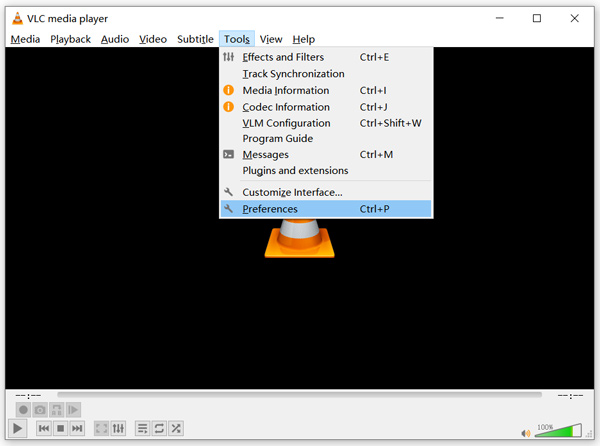
Bước 1. Mở VLC Media Player và chọn menu Tools (Công cụ). Từ danh sách thả xuống, chọn mục Preferences (Tùy chọn).
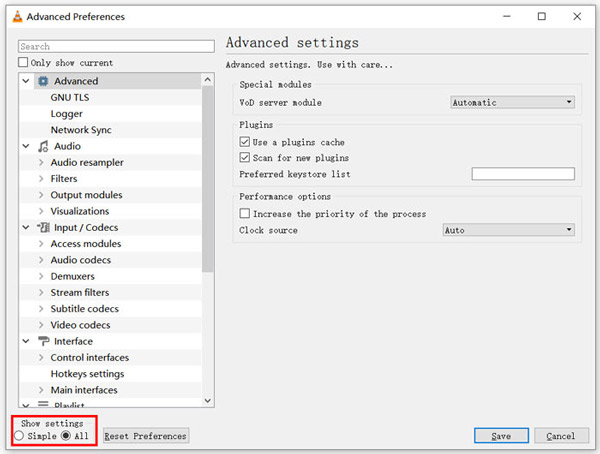
Bước 2. Đánh dấu chọn All (Tất cả) dưới phần Show settings (Hiển thị cài đặt) ở góc dưới bên trái cửa sổ hộp thoại. Bằng cách này, bạn sẽ hiển thị cửa sổ Advanced Preferences (Tùy chọn nâng cao).
Bước 3. Chọn mục Input/Codecs (Đầu vào/Bộ giải mã) ở bên trái, sau đó tìm tùy chọn File Caching(ms) (Bộ nhớ đệm tệp (ms)) ở bên phải. Bạn có thể cần cuộn xuống để tìm thấy mục này.
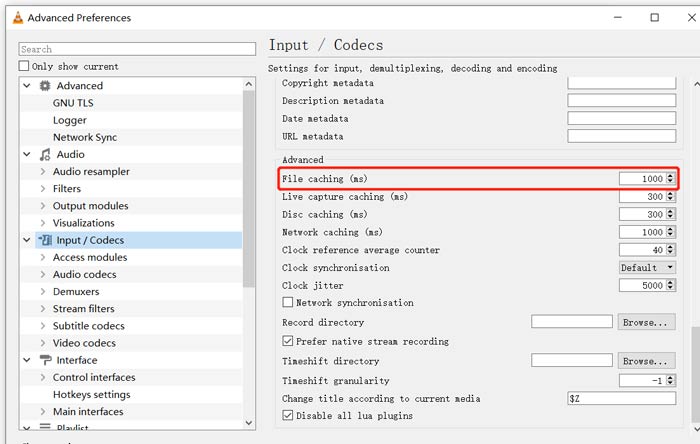
Bước 4. Đặt File Caching (Bộ nhớ đệm tệp) thành 1000 rồi nhấp vào nút Save (Lưu) để xác nhận thao tác. Sau đó, hãy khởi động lại VLC và phát lại tệp MKV của bạn.
Phần 2. Cập nhật hoặc cài đặt lại VLC để sửa lỗi Player sẽ không phát MKV
Nếu trình phát VLC không phát MKV, vấn đề vẫn còn tồn tại, bạn có thể chọn nâng cấp lên phiên bản mới nhất. Bạn nên biết rằng, một phiên bản mới sẽ luôn sửa được nhiều lỗi của các phiên bản cũ. Bạn có thể làm theo các bước bên dưới để cập nhật VLC Media Player của mình.
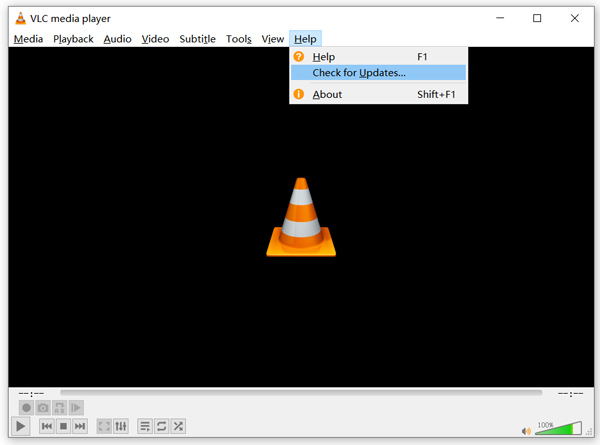
Mở VLC và nhấp vào menu Help (Trợ giúp). Chọn tùy chọn Check for Updates (Kiểm tra bản cập nhật) từ danh sách thả xuống. VLC sẽ bắt đầu kiểm tra xem có phiên bản cập nhật khả dụng hay không. Sau đó bạn có thể làm theo hướng dẫn để nâng cấp VLC lên phiên bản mới nhất.
Bạn cũng có thể gỡ hoàn toàn VLC khỏi máy tính, rồi truy cập trang chính thức của VLC là VideoLAN để cài đặt phiên bản phù hợp. Khi đã cài đặt phiên bản VLC Media Player mới, bạn có thể phát tệp MKV và kiểm tra xem tệp có hoạt động bình thường không.
Phần 3. Kích hoạt âm thanh để sửa lỗi máy nghe nhạc VLC không có âm thanh khi phát MKV
Nếu VLC Media Player của bạn có thể phát tệp MKV nhưng không có âm thanh, bạn nên kiểm tra xem cài đặt âm thanh của nó có chính xác hay không.
Bước 1. Chọn tùy chọn Tools (Công cụ) trên thanh menu của VLC. Từ menu thả xuống, chọn Preferences (Tùy chọn). Sau đó, bạn sẽ được đưa đến cửa sổ Simple Preferences (Tùy chọn đơn giản).
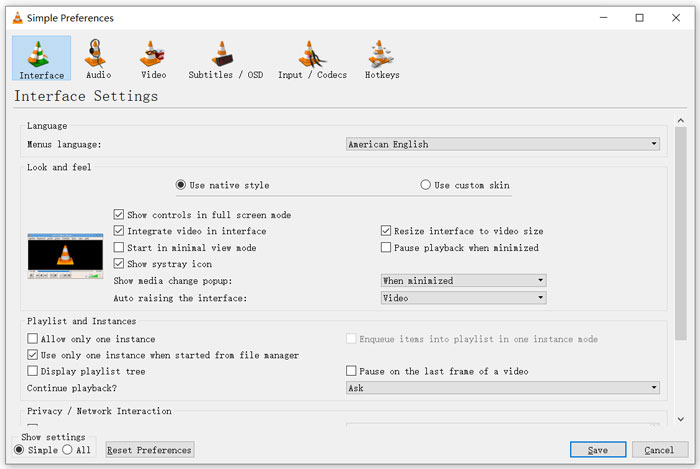
Bước 2. Nhấp vào thẻ Audio (Âm thanh), rồi đánh dấu chọn tùy chọn Enable Audio (Bật âm thanh). Ở bước này, bạn cũng có thể tùy chỉnh Output Module, HDMI/SPDIF audio passthrough và Device theo nhu cầu. Nhấp nút Save (Lưu) để lưu thay đổi.
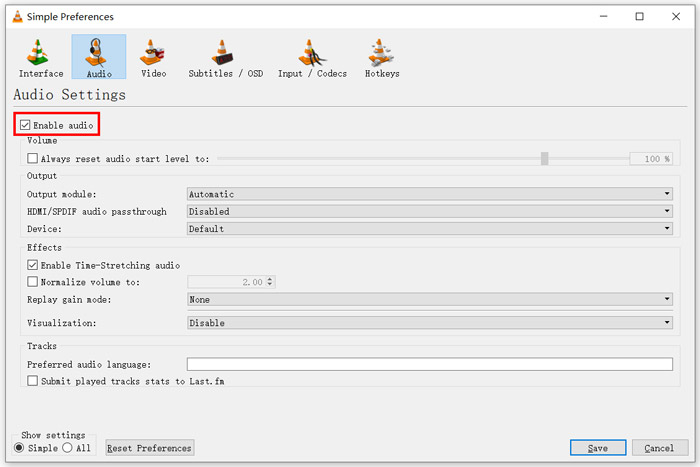
Bây giờ bạn sẽ quay lại giao diện chính của VLC, bạn có thể nhấp vào Media rồi chọn Open File để phát tệp MKV của mình.
Phần 4. Chọn một trình phát VLC thay thế để phát các tệp MKV
Khi muốn xem phim MKV, bạn cũng có thể chọn một trình phát khác để thay thế VLC. Bạn có thể dùng thử Trình phát video trực tuyến miễn phí đang rất được ưa chuộng. Dù bạn dùng PC Windows 10/8/7 hay máy Mac, bạn đều có thể dựa vào công cụ này để phát bất kỳ tệp MKV nào với chất lượng cao.
Trình phát trực tuyến miễn phí này có khả năng phát video 4K, 1080p / 720p HD, SD, video 3D và các tệp âm thanh một cách mượt mà. Bên cạnh MKV, nó cũng hỗ trợ nhiều định dạng khác bao gồm MP4, MOV, FLV, AVI, MPEG, WMV, WMA, AAC, MP3, v.v.
Bước 1. Khi muốn xem tệp MKV, bạn có thể truy cập trang Trình phát video trực tuyến miễn phí này. Công cụ tương thích với mọi trình duyệt web như Chrome, IE, Firefox và Safari. Nhấp vào nút Play Now (Phát ngay) để nhanh chóng cài đặt một trình khởi chạy nhỏ phục vụ việc phát MKV.
Bước 2. Sau khi cài đặt xong, trình phát tệp MKV trực tuyến miễn phí này sẽ tự động khởi chạy. Nhấp nút Open File (Mở tệp) để nhập tệp MKV của bạn. Tại đây, bạn cũng có thể nhấp Open Disc (Mở đĩa) để xem phim DVD.
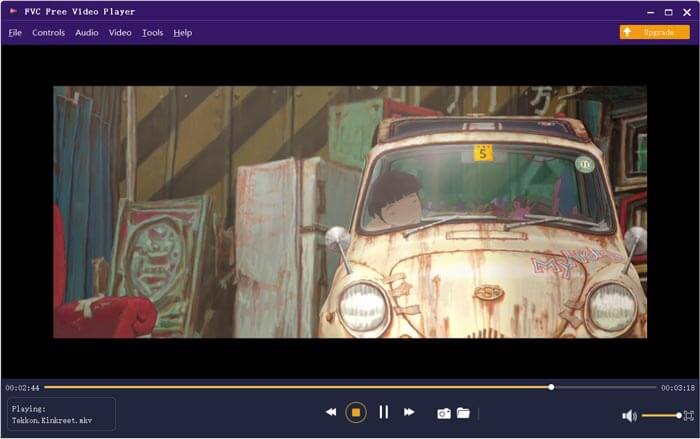
Video MKV của bạn sẽ tự động được phát sau đó. Bạn được toàn quyền điều khiển quá trình phát MKV. So với VLC Media Player, công cụ này mang đến cách đơn giản hơn để thưởng thức tệp MKV. Trình trình phát MKV trực tuyến miễn phí này hỗ trợ cả DTS-HD và Dolby TrueHD để đảm bảo bạn có trải nghiệm âm thanh tuyệt vời.
Phần 5. Những câu hỏi thường gặp về VLC Player sẽ không chơi MKV
TV thông minh có phát tệp MKV không?
Đúng. Nhiều TV thông minh như Sony và Samsung có thể hỗ trợ tệp MKV. Bạn có thể phát MKV của mình thông qua ổ cứng ngoài hoặc thiết bị UBS
Làm thế nào để phát DVD với VLC Media Player?
Khi bạn muốn phát một bộ phim DVD với VLC, trước tiên bạn nên đưa đĩa DVD vào ổ đĩa máy tính của mình. Mở VLC, nhấp vào Media trên thanh menu, sau đó chọn Open Disc. Duyệt và tải phim DVD này sang VLC và phát nó.
Làm thế nào để vô hiệu hóa giải mã tăng tốc phần cứng trên VLC?
Để vô hiệu hóa giải mã tăng tốc phần cứng trên VLC Media Player, bạn nên chuyển đến Tùy chọn từ menu Công cụ. Chọn danh mục Đầu vào / Codec và sau đó chọn Codec. Tìm tùy chọn giải mã tăng tốc phần cứng và tắt nó ở đó.
Phần kết luận
Khi gặp vấn đề VLC không phát được MKV, bạn có thể chuyển sang dùng một trình phát khác, chẳng hạn như Trình phát video trực tuyến miễn phí được khuyến nghị, để xem tệp MKV. Ngoài ra, bạn cũng có thể nâng cấp VLC Media Player hoặc tùy chỉnh nhiều cài đặt khác nhau để khắc phục lỗi.
-
 Các cách miễn phí và chuyên nghiệp để chuyển đổi MKV sang MOV
 Làm cách nào để chuyển MKV sang MOV trên Mac? IMovie có thể đọc MKV không? Định dạng MOV có nghĩa là gì? Bài đăng này cho biết 2 cách đơn giản để giúp bạn chuyển đổi MKV sang MOV bằng các trình chuyển đổi video trực tuyến và chuyên nghiệp miễn phí.
-
 Làm thế nào để chuyển đổi M2TS sang MKV mà không làm giảm chất lượng
 Bạn muốn chuyển đổi M2TS sang MKV mà vẫn giữ nguyên chất lượng ban đầu? Bài đăng này chỉ cho bạn các phương pháp trực tuyến và miễn phí để thay đổi M2TS sang MKV một cách dễ dàng.
-
 VLC Media Player - Trình phát video đánh giá ngắn gọn và các giải pháp thay thế tốt nhất trên Windows và Mac
 Tại sao âm thanh không hoạt động trên VLC Media Player? Nếu bạn muốn tìm hiểu thêm về trình phát đa phương tiện phổ biến, bạn có thể tìm hiểu thêm về bài đánh giá và các lựa chọn thay thế tốt nhất từ bài viết.
