


 Chuyển đổi video Ultimate
 Trình ghi màn hình
 Sửa chữa video
 Tải xuống an toàn
Bạn có thể làm gì khi iPad ngừng phát video
Theo một khảo sát gần đây, iPad phổ biến hơn điện thoại thông minh khi nói đến việc phát video, một phần là nhờ màn hình lớn. Tuy nhiên, iPad không phải là hoàn hảo và nhiều người dùng gặp phải vấn đề iPad không phát được video. Người dùng thông thường không thể tìm ra nguyên nhân gây ra lỗi này, chứ đừng nói đến cách khắc phục. Vì vậy, bài viết này sẽ xác định và chia sẻ các giải pháp 100% hiệu quả, để bạn có thể thưởng thức lại các video yêu thích một cách mượt mà.

Phần 1: Tại sao iPad không phát video
Có nhiều lý do khiến iPad ngừng phát video trong bộ nhớ của bạn hoặc trên YouTube. Các nguyên nhân phổ biến nhất bao gồm:
- 1. Định dạng video không được iPad hỗ trợ. Nó tương thích với H.264, MPEG-4 và JPEG chuyển động.
- 2. Kết nối internet kém.
- 3. Phần mềm hoặc ứng dụng lỗi thời. Apple tiếp tục phát hành các bản cập nhật cho iOS, để sửa lỗi và giới thiệu các tính năng mới. Nếu bạn chưa cập nhật phần mềm và ứng dụng video của mình, điều này có thể dẫn đến video không phát trên iPad.
- 4. Không có đủ không gian. Cần rất nhiều bộ nhớ và bộ nhớ trong để phát video trên iPad, đặc biệt là các video có độ phân giải cao.
- 5. iPad bị đơ hoặc bị kẹt. Đôi khi, iPad không phản hồi đủ nhanh và video sẽ không phát.
Phần 2: 5 giải pháp để sửa chữa iPad không phát video
Giải pháp 1: Chuyển đổi sang định dạng video iPad
Nếu một video cục bộ không phát được trên iPad Pro, nguyên nhân chính là vấn đề tương thích. FVC Free FLV Converter có thể giúp bạn chuyển đổi bất kỳ video nào cho iPad, như chuyển MP4 sang iPad, M2TS sang iPad, v.v. Mặc dù đây là phần mềm miễn phí, trình chuyển đổi video này vẫn cung cấp cho bạn rất nhiều tính năng ở cấp độ chuyên nghiệp theo cách mà ai cũng có thể nhanh chóng làm quen.
Tải Miễn PhíDành cho Windows 7 hoặc mới hơnTải xuống An toàn
Tải Miễn PhíDành cho MacOS 10.7 hoặc mới hơnTải xuống An toàn
Cách chuyển đổi video sang định dạng iPad
Bước 1: Thêm video
Chạy trình chuyển đổi video iPad tốt nhất sau khi bạn cài đặt nó trên máy tính. Sau đó nhấp vào menu Add File(s) và nhập video không phát được trên iPad. Phần mềm có thể chuyển đổi hàng loạt tệp video.
Mẹo: Trước tiên bạn cần chuyển video từ iPad sang máy tính.

Bước 2: Đặt iPad làm định dạng đầu ra
Nhấp và mở rộng tùy chọn Output format, cuộn xuống để tìm Apple iPad và chọn nó, sau đó chọn mẫu iPad của bạn. Khi đó, trình chuyển đổi sẽ tự động thiết lập định dạng, codec và các thông số khác.

Bước 3: Chuyển đổi video cho iPad
Quay lại giao diện chính, nhấp nút Open Folder và đặt một vị trí cụ thể để lưu file đầu ra. Cuối cùng, nhấp vào nút Convert để bắt đầu chuyển đổi video nhằm phát trên iPad. Khi hoàn tất, hãy chuyển các file này sang iPad và xem chúng.

Giải pháp 2: Khởi động lại iPad
iPad có thể bị kẹt ở chế độ cụ thể và video sẽ không phát. May mắn thay, nó là rất dễ dàng để thoát khỏi vấn đề.
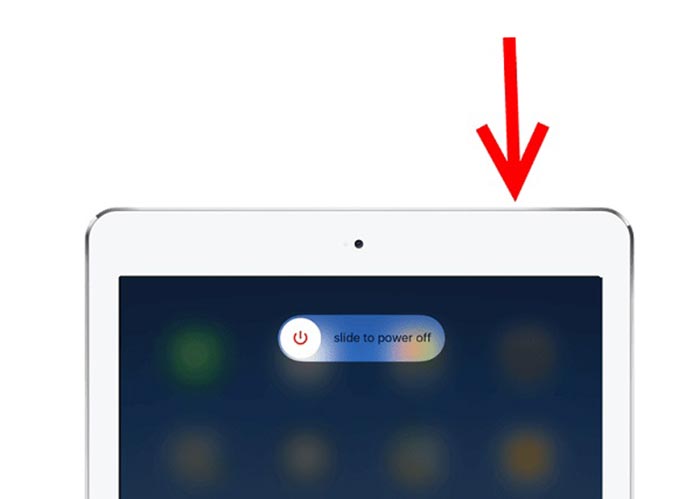
Bước 1: Nhấn và giữ nút Power hoặc Side cho đến khi bạn vào màn hình tắt máy.
Bước 2: Kéo thanh trượt sang bên phải và màn hình iPad sẽ chuyển sang màu đen.
Bước 3: Đợi ít nhất 20 giây rồi nhấn giữ lại nút Power cho đến khi logo Apple xuất hiện trên màn hình. Bây giờ, hãy thử phát lại video.
Giải pháp 3: Xóa bộ nhớ cache của iPad
Thiếu bộ nhớ là một lý do khác khiến iPad không phát video trên các trang web. Giải pháp rất đơn giản, đóng ứng dụng nền và xóa bộ nhớ cache trong Safari.
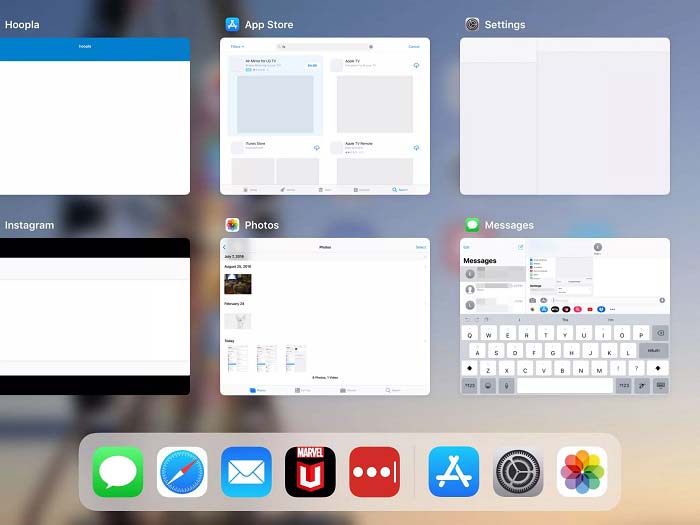
Bước 1: Dùng ngón tay vào chế độ đa nhiệm và đóng tất cả các ứng dụng đang chạy nền.
Bước 2: Mở ứng dụng Cài đặt (Settings), chạm vào Safari rồi chọn Clear History and Website Data (Xóa lịch sử và dữ liệu trang web).
Bước 3: Phát lại video trên iPad, khi đó nó sẽ hoạt động bình thường.
Giải pháp 4: Cập nhật phần mềm
Phần mềm lỗi thời có thể gây ra nhiều vấn đề, bao gồm cả video ngừng phát trên iPad. Trong thực tế, nó rất dễ dàng để cập nhật phần mềm.
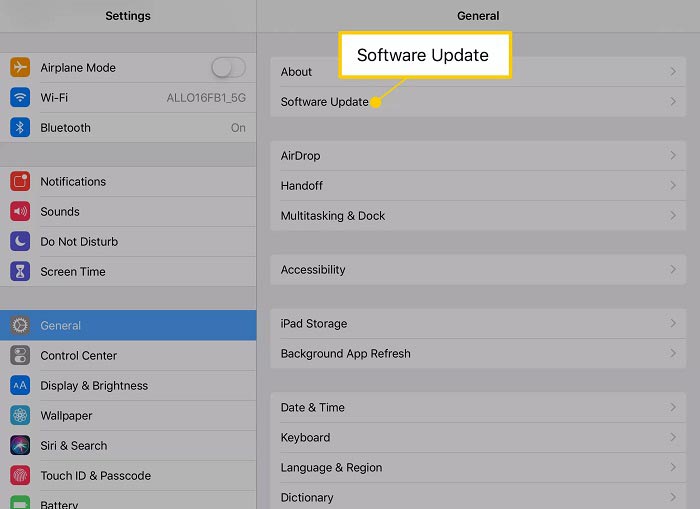
Bước 1: Mở ứng dụng Cài đặt từ màn hình chính, chạm vào General (Cài đặt chung) và Software Update (Cập nhật phần mềm).
Bước 2: Nếu có bản cập nhật, hãy chạm vào nút Download and Install (Tải về và Cài đặt). Khi được yêu cầu, nhập mật mã của bạn.
Bước 3: Đợi quá trình cài đặt hoàn tất rồi phát lại video của bạn.
Giải pháp 5: Kiểm tra Dịch vụ của Apple
Mặc dù hiếm khi xảy ra nhưng dịch vụ của Apple có thể ngừng hoạt động và video sẽ không phát trên iPad trong trường hợp như vậy. Nếu bạn đã thử các giải pháp ở trên và sự cố vẫn tiếp diễn, hãy thực hiện các bước bên dưới để kiểm tra.
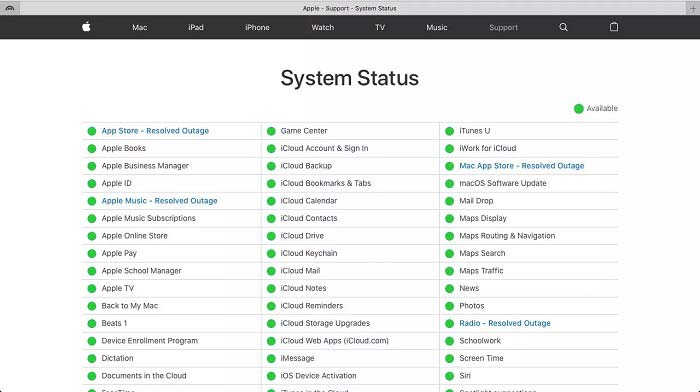
Bước 1: Mở trình duyệt và truy cập https://www.apple.com/support/systemstatus/.
Bước 2: Nếu biểu tượng trạng thái của một dịch vụ Apple chuyển sang màu vàng hoặc đỏ, điều đó có nghĩa là dịch vụ đang bị gián đoạn. Tất cả những gì bạn có thể làm là chờ cho đến khi dịch vụ hoạt động trở lại.
Phần 3: Câu hỏi thường gặp về iPad không phát video
Tại sao tôi không thể phát MKV trên iPad của mình?
iPad không hỗ trợ phát video MKV. Bạn phải chuyển đổi video MKV sang các định dạng video được iPad hỗ trợ, chẳng hạn như MOV, rồi mới phát được trên iPad. Hãy đọc tiếp 2 Cách Đơn Giản để Phát Tệp MKV trên iPad để tìm hiểu chi tiết hơn,
Tại sao video TikTok không phát?
Trước tiên, hãy kiểm tra kết nối internet của bạn khi video TikTok ngừng phát. Sau đó, cập nhật ứng dụng TikTok của bạn lên phiên bản mới nhất. Hơn nữa, bạn nên xem TikTok bằng mạng Wi-Fi chứ không phải dữ liệu di động.
Làm thế nào để chơi MP4 trên iPad Air?
iPad Air hỗ trợ video MP4 với codec âm thanh AAC. Bạn có thể thử chơi trực tiếp trên thiết bị cầm tay của mình.
Phần kết luận
Phần khắc phục sự cố này giúp bạn khắc phục sự cố iPad không phát video trên bộ nhớ. FVC Free FLV to MP4 Converter là bản sửa lỗi tốt nhất cho các video cục bộ không phát được. Nó có thể điều chỉnh codec video và cung cấp các cài đặt trước cho hầu hết các thiết bị iPad. Quan trọng hơn, công cụ chuyển đổi khá dễ sử dụng. Nếu bạn gặp vấn đề gì khác, đừng ngại để lại lời nhắn trong phần bình luận bên dưới bài viết này.
-
 3 cách hàng đầu để phát MP4 trên Chromebook
 Bạn có thể phát video trên Chromebook không? Làm cách nào để phát tệp MP4 từ USB trên Chromebook? Bài đăng này chia sẻ 3 cách để chơi MP4 trên Chromebook.
-
 Đánh giá WebM Player - 5 phần mềm tốt nhất để chơi các tệp WebM một cách mượt mà
 Nếu bạn muốn chơi WebM thành công trên thiết bị của mình, bạn nên tìm hiểu thêm về top 5 trình phát WebM tốt nhất cho Android, iPhone, Windows, Mac từ bài viết này.
-
 10 trình phát video FLV tốt nhất cho Windows 10/8/7, Mac, iOS và Android mà bạn phải thử (Mới nhất năm 2021)
 Trình phát FLV giúp bạn dễ dàng truy cập các tệp FLV của mình trên thiết bị Windows, Mac, Android, iOS. Kiểm tra các trình phát tệp FLV tốt nhất mà bạn có thể tải xuống ngay bây giờ.
