


 Chuyển đổi video Ultimate
 Trình ghi màn hình
 Sửa chữa video
Bộ chuyển đổi video GIF sang video có thể truy cập tốt nhất trên thiết bị kỹ thuật số [2021]
GIF là một trình tạo meme nổi tiếng dành cho thiết bị Android và iOS. Mặc dù có danh tiếng như vậy, một số nền tảng như Instagram và Twitter lại không chấp nhận định dạng này. Thay vì dùng GIF, chúng ta sử dụng các định dạng hợp lệ khác như MOV, MP4, AVI và nhiều hơn nữa. Tuy nhiên, chúng ta vẫn có thể chuyển đổi và giữ nguyên chất lượng như GIF. Vì vậy, nếu bạn đã sẵn sàng bắt đầu chuyển đổi và muốn biết những ứng dụng làm video GIF tốt nhất là gì, hãy tiếp tục đọc bài viết này để xác định những công cụ bạn nên dùng để chuyển đổi tệp GIF sang định dạng video mới.

Phần 1. 2 Ứng dụng chuyển đổi GIF sang video tốt nhất cho iOS
1. GIF sang MP4
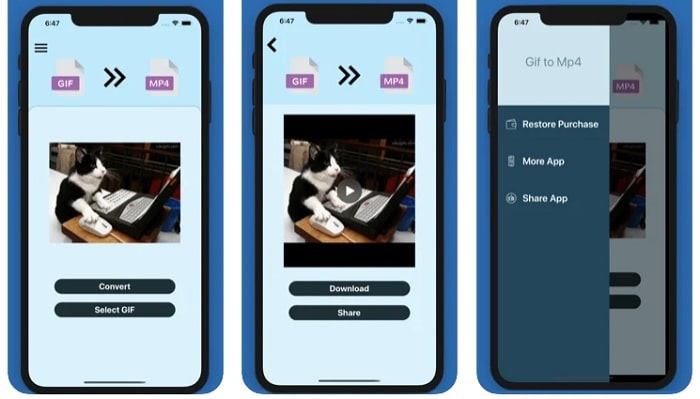
Bạn có thể dùng ứng dụng làm video GIF này trên iOS. GIF to MP4 có đánh giá 4.7 sao, nghĩa là đây là một trình chuyển đổi GIF khá tốt. Công cụ này rất trực quan nên bạn có thể sử dụng dù không hề biết cách chuyển đổi trước đó. Tuy nhận được rất nhiều lời khen, dịch vụ chăm sóc khách hàng của ứng dụng này lại khá tệ. Hầu như không có phản hồi đối với các thắc mắc của người dùng để cải thiện công cụ. Vì thế, nếu bạn có câu hỏi về ứng dụng này, bạn có thể để lại bình luận bên dưới nhưng đừng mong đợi sẽ được phản hồi ngay lập tức.
2. GIF Cracker - GIF thành video
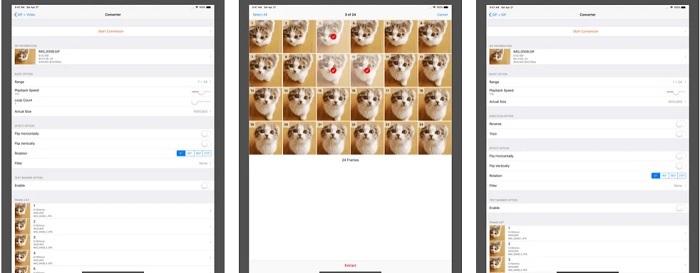
Một công cụ iOS khác mà bạn có thể dùng để chuyển GIF sang bất kỳ định dạng video nào bạn muốn chính là GIF Cracker. Công cụ này hỗ trợ nhiều định dạng hơn ứng dụng đầu tiên. Ngoài ra, nó còn cho phép chuyển GIF thành ảnh, vì vậy nếu bạn muốn tạo JPG từ GIF thì có thể dùng ứng dụng này. Nhìn qua thì có vẻ ứng dụng hoàn hảo, nhưng thực tế nó vẫn gặp một số lỗi. Một vài lỗi nhỏ đã được sửa nhưng không phải tất cả. Tuy nhiên, bạn có thể mua phiên bản pro để có trải nghiệm tốt hơn.
Phần 2. 3 Ứng dụng chuyển đổi GIF sang video tốt nhất cho Android
1. GIF Maker - Video to GIF, Trình chỉnh sửa GIF
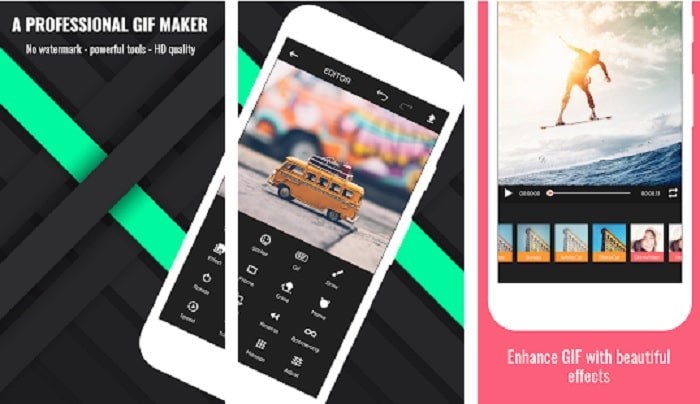
Bạn có thể dùng ứng dụng làm video GIF này. Không chỉ vậy, nó còn hỗ trợ các tính năng chỉnh sửa, vì thế bạn có thể tạo GIF ngay trên điện thoại. Một số tính năng nâng cao trên các công cụ chỉnh sửa dành cho máy tính không có trong ứng dụng này vì dung lượng sẽ quá lớn. Hơn nữa, bạn có thể tạo GIF độc đáo của riêng mình bằng công cụ này vì nó cung cấp hơn 30 hiệu ứng, 20 khung hình mỗi giây cho mỗi ảnh, thêm biểu tượng cảm xúc hoặc văn bản và cắt video. Tuy nhiên, ứng dụng có hiển thị quảng cáo, nên nếu muốn loại bỏ quảng cáo bạn sẽ cần mua ứng dụng.
2. GIF sang video
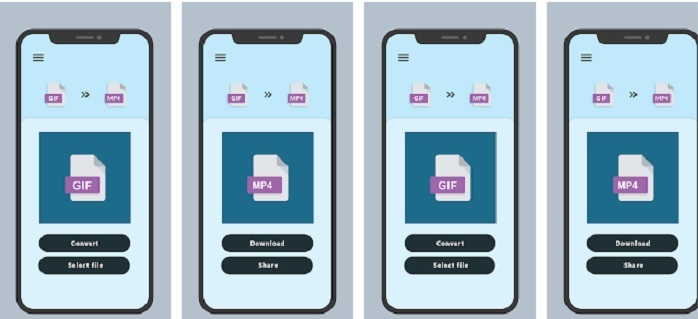
Đây là một trong những công cụ tốt nhất để chuyển GIF sang định dạng mới. Hãy chọn bất kỳ GIF nào trong thư viện của bạn và chuyển đổi tất cả bằng GIF to VIDEO. Tương tự như công cụ iOS đầu tiên ở trên, nó chỉ hỗ trợ chuyển GIF sang định dạng MP4. Tuy vậy, bạn có thể chuyển đổi GIF rất dễ dàng với sự trợ giúp của công cụ này. Các thao tác lệnh khá đơn giản, nên bạn không cần lo lắng vì nó chỉ tập trung vào nhiệm vụ chuyển đổi. Ngoài ra, ứng dụng này vừa được cập nhật gần đây bởi nhà phát triển RAYO INNOVATIONS PRIVATE LIMITED.
3. GIF2VIDEO- chuyển GIF sang VIDEO
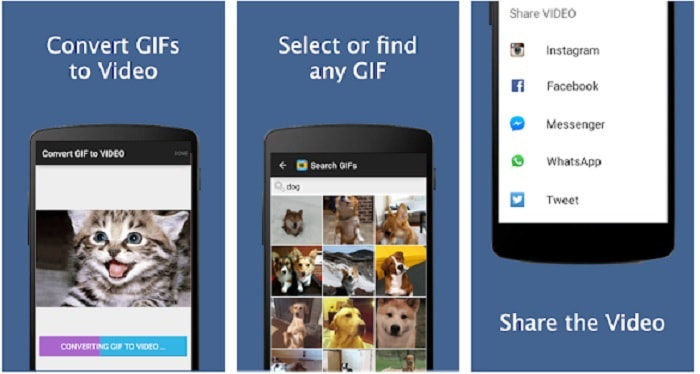
Hãy chuyển GIF của bạn sang định dạng video mới có thể chia sẻ trên các nền tảng khác. Đồng thời, bạn có thể dễ dàng tìm GIF của mình trong thanh tìm kiếm với sự trợ giúp của GIF2VIDEO. Bạn cũng có thể đặt tỉ lệ đầu ra video thành 1:1 hoặc 4:3 một cách dễ dàng. Mặc dù khá hiệu quả trong công việc, giao diện của ứng dụng lại hơi kém so với tiêu chuẩn. Trong một số trường hợp, bạn không thể tải GIF về, hoặc nếu tải được thì chất lượng sẽ bị giảm.
Phần 3. Bộ chuyển đổi GIF sang video được đề xuất trên Windows hoặc Mac
Ví dụ: nếu bạn muốn có một phương pháp chính xác hơn để chuyển đổi và muốn thêm điểm nhấn đặc biệt của riêng bạn vào video. Bạn có thể sử dụng công cụ Video Converter Ultimate có sẵn trên PC và Mac và bắt buộc phải làm theo các bước theo trình tự thích hợp.
Ai cũng biết rằng điện thoại di động ngày nay giống như những chiếc máy tính mini. Nhưng không phải tất cả ứng dụng bạn thấy trên điện thoại đều có bản dành cho máy tính, và ngược lại. Video Converter Ultimate – một ứng dụng chuyển GIF sang video trên máy tính – vượt trội hơn hẳn so với mọi trình chuyển đổi có trên Play Store hoặc App Store. Không có phần mềm di động nào có thể làm được nhiều hơn việc chỉ chuyển đổi. Bạn cũng có thể cải thiện chất lượng video và âm thanh trong quá trình chỉnh sửa hoặc sau đó. Vì vậy, nếu bạn muốn trải nghiệm sức mạnh của công cụ này, bạn phải làm theo chính xác các bước dưới đây. Tất cả đều quan trọng để tạo ra quá trình chuyển đổi hoàn hảo mà bạn muốn.
Bước 1. Tải công cụ về máy tính của bạn. Thay đổi cài đặt theo nhu cầu và nhấp Hoàn tất để lưu các điều chỉnh.
Tải xuống miễn phí cho Windows 7 trở lên. Tải xuống an toàn.
Tải xuống miễn phí cho MacOS 10.7 trở lên. Tải xuống an toàn.
Bước 2. Chạy chương trình trên máy tính để bàn. Nhấp nút Add Files để thêm tệp. Nhưng nếu bạn có nhiều hơn hai tệp GIF thì tốt hơn là hãy kéo và thả chúng vào giao diện công cụ.
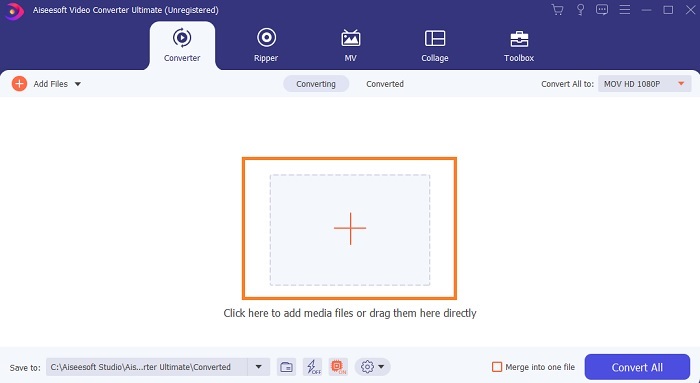
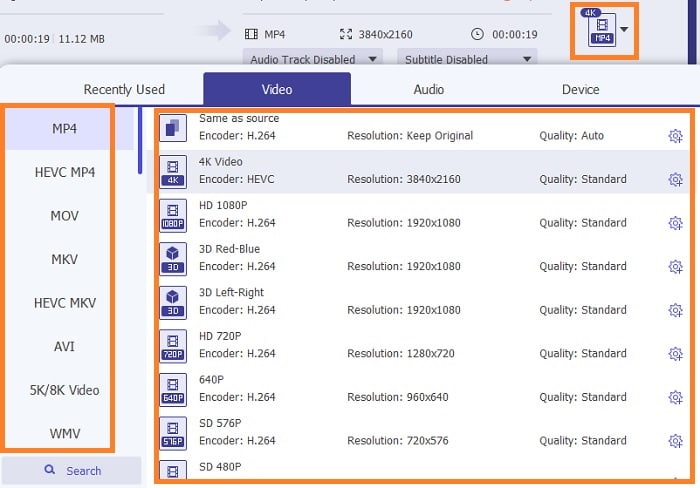
Bước 3. Chọn định dạng bạn muốn trong menu thả xuống của mục Convert All to. Sau đó, nhấp nút Convert All để bắt đầu chuyển đổi.
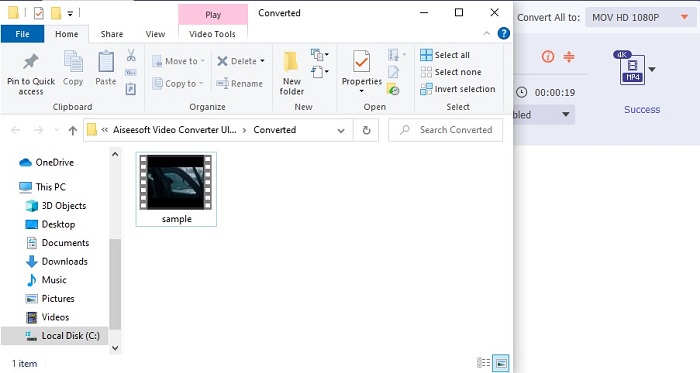
Bước 4. Quá trình chuyển đổi chỉ tốn một ít thời gian. Sau đó bạn có thể kiểm tra tệp và chuyển nó sang thiết bị di động của mình. Khi hoàn tất tất cả, bạn đã xong và có thể thưởng thức video đã được chuyển đổi.
Đọc thêm
Phần 4. Câu hỏi thường gặp về ứng dụng GIF to Video
Tốc độ fps của một tệp GIF duy nhất là bao nhiêu?
Một số GIF tiêu chuẩn có thể lên tới 15 hoặc 24 khung hình mỗi giây nhưng do công nghệ hiện nay nó có thể đạt tốc độ 30 đến 50 khung hình / giây mỗi GIF, điều này sẽ tốn nhiều dung lượng hơn nếu bạn tải chúng xuống điện thoại của mình.
Các loại GIF khác nhau là gì?
Nếu bạn không nhận thấy, có 5 loại GIF khác nhau, đó là: phát lại, GIF phản ứng, biểu đồ điện ảnh, kỹ thuật và GIF vòng lặp hoàn hảo.
Bên trong GIF là gì?
Tất cả các ảnh GIF đều chứa một loạt dữ liệu hình ảnh có thể là ảnh động, clip ngắn về phim và ảnh chuyển động nếu nó ở trên web.
Phần kết luận
Để kết luận, tất cả các công cụ được chọn trong bài viết này đều được chọn đúng cách để người dùng biết. Học cách tạo GIF là một tài năng tuyệt vời mà ngay cả bạn cũng có thể làm được nếu bạn có cống hiến và nếu bạn sử dụng đúng công cụ. Chẳng hạn, bạn có dùng búa để mở lon không? Vì vậy, nếu bạn sử dụng một cái búa, hãy mở một cái lon và lấy những thứ bên trong ra. Chất trên lon lúc này đã bị phá hủy. Cũng giống như việc chuyển đổi, nếu bạn sử dụng công cụ không đúng cách thì khả năng lớn là quá trình chuyển đổi sẽ không thành công. Vì vậy, hãy chọn công cụ phù hợp cho công việc như Video Converter Ultimate.
-
 [Hướng dẫn] Cách chuyển đổi video M4V thành ảnh động GIF trên Windows / Mac
 Nếu bạn muốn tạo tệp GIF động từ video M4V yêu thích của mình, bạn có thể tìm hiểu về 2 cách dễ dàng và hiệu quả để chuyển đổi video M4V sang GIF với cài đặt tùy chỉnh.
-
 WebM to GIF - 3 Trình chuyển đổi WebM sang GIF miễn phí để tạo GIF của riêng bạn
 WebM có phải là GIF không? Làm cách nào để biến video thành GIF? Có bất kỳ trình chuyển đổi WebM sang GIF miễn phí nào không? Bài đăng này chia sẻ 3 cách miễn phí giúp bạn chuyển đổi WebM sang GIF.
-
 Cách chuyển đổi video MKV thành GIF động mà không cần Photoshop / FFmpeg
 Sau khi tải xuống và xem phim MKV trên máy tính, bạn có thể muốn chia sẻ những khoảnh khắc tuyệt vời với bạn bè hoặc trên Internet dưới dạng ảnh GIF. Trong bài viết này, bạn có thể tìm hiểu về 2 cách đơn giản nhất để chuyển đổi MKV sang GIF.
