


 Chuyển đổi video Ultimate
 Trình ghi màn hình
 Sửa chữa video
Nắm vững cách tăng tốc độ video trong Windows Media Player bằng những cách tốt nhất có thể [Dựa trên bằng chứng]
Tất cả các cảnh trong video đều khác nhau về tốc độ phát lại, nhưng chúng cũng khác nhau về mục đích khi thay đổi tốc độ. Khi bạn tăng tốc độ video, điều đó biểu thị những sự kiện không liên quan hoặc kém thú vị trong phim hay video. Ngược lại, khi bạn làm chậm video, nó nhấn mạnh những khoảnh khắc hoặc cảnh rất quan trọng cần được khắc hoạ. Những điều chỉnh về tốc độ phát lại này vô cùng quan trọng khi biên tập hoặc tạo phim/video. Hãy đọc bài viết này để hướng dẫn người dùng cách tua nhanh video, đặc biệt là trên một số trình phát đa phương tiện phổ biến trên máy tính để bàn như Windows Media Player.

Phần 1. Windows Media Player: Cách tăng tốc độ video
Windows Media Player là một trình phát đa phương tiện miễn phí của Microsoft đi kèm với mọi bản Windows. Nó còn được Microsoft gọi là WMP hoặc WM player. Ngoài việc cho phép họ xem ảnh và nghe nhạc, nó cũng cho phép họ xem video. Có thể tách đĩa CD âm thanh và sắp xếp thư viện nhạc của bạn với Windows Media Player (WMP). Nó cũng có một tab chỉnh sửa giúp điều chỉnh video, hình ảnh và âm nhạc. Nếu bạn muốn tăng tốc video bằng Windows Media Player, hãy làm theo các bước sau:
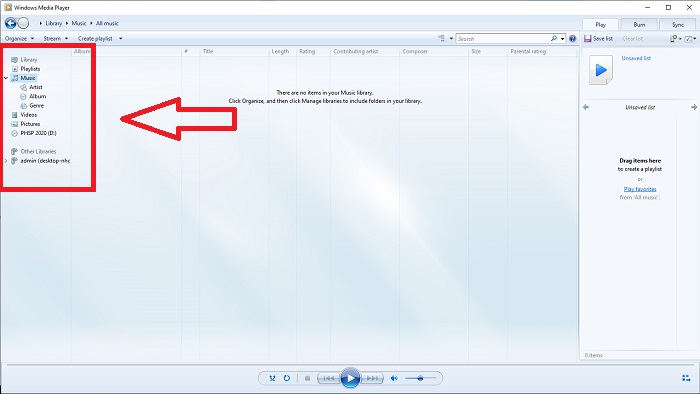
Bước 1: Mở Windows Media Player; ở góc bên trái, chọn thẻ Video.
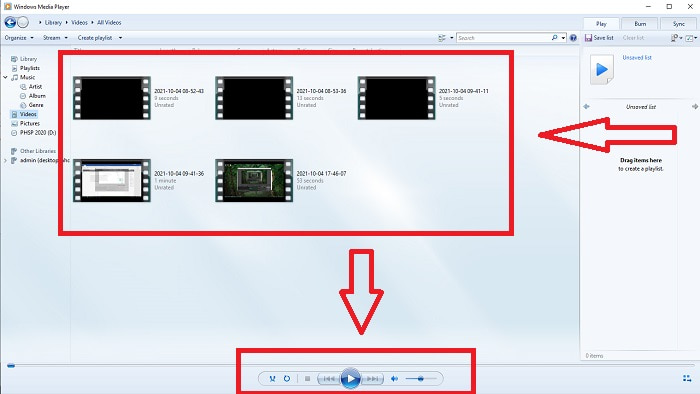
Bước 2: Phát video bằng cách nhấp đúp chuột trái hoặc nhấp chuột phải, hoặc bạn có thể bấm nút Play ở góc giữa phía dưới giao diện.
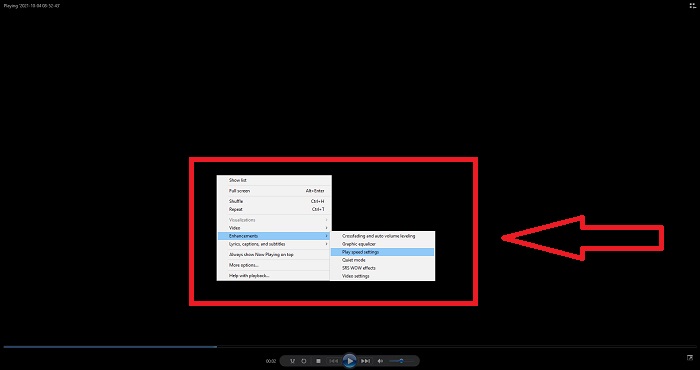
Bước 3: Sau đó, nhấp chuột phải vào màn hình để truy cập thẻ chỉnh sửa. Tiếp tục bằng cách nhấn vào Enhancements và Play Speed Settings. Sau đó, bạn có thể điều chỉnh tốc độ phát lại của đoạn video bằng cách kéo Thanh trượt (Slider).
Phần 2. Điều gì sẽ xảy ra nếu tốc độ phát lại của Windows Media Player không hoạt động?
Khi phát các tệp video AVI, WAV hoặc MOV, bạn có thể chạy vào trình phát phương tiện Windows và gặp sự cố khi phát tệp bị lỗi. Video có chất lượng tầm thường thường được xem ở định dạng AVI. Các trình phát đa phương tiện khác không gặp vấn đề gì khi phát AVI. Mặt khác, WMP có thể gặp trục trặc khi phát tệp AVI. Windows Media Player không hỗ trợ các tệp AVI vì chúng được mã hóa bằng codec. Bạn có thể đã nhận được thông báo sau: Windows Media Player không thể phát tệp. Trình phát có thể không hỗ trợ loại tệp hoặc có thể không hỗ trợ codec được sử dụng để nén tệp. Có hai cách giải thích cho hiện tượng này.
1. Vì nó không khớp với tệp được yêu cầu, trình phát phương tiện Windows (WMP) không thể hỗ trợ codec cho tệp.
2. Windows media player không hỗ trợ codec nén.
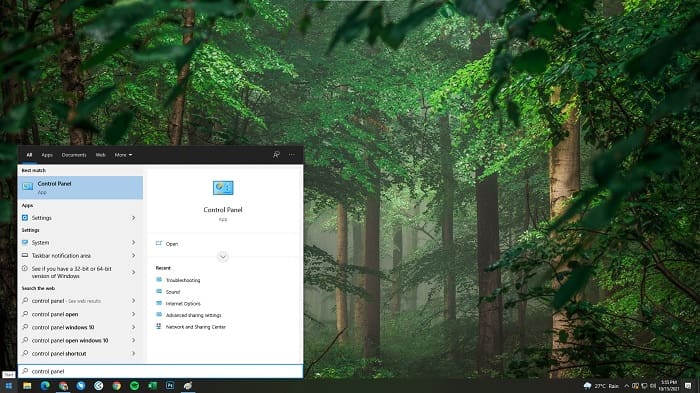
Bước 1: Mở bảng điều khiển (Control Panel) trên máy tính và tìm View By, sau đó bấm vào Large Icons để truy cập toàn bộ các tính năng của bảng điều khiển.
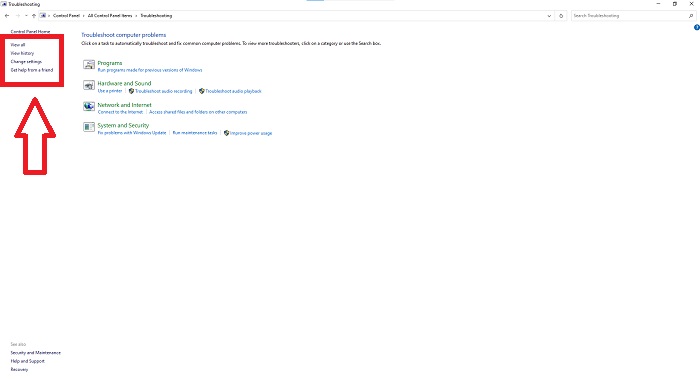
Bước 2: Tiếp tục bấm vào Troubleshooting. Ở góc bên trái, nhấp View all và tìm Windows Media Player Library.
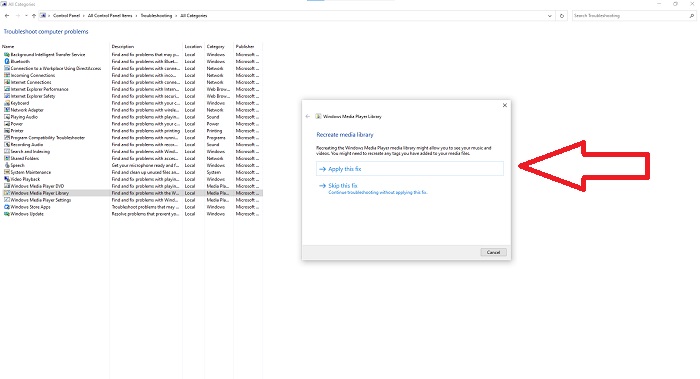
Bước 3: Cuối cùng, khắc phục lỗi Windows Media Player của bạn bằng cách bấm Next sau khi một tab xuất hiện. Sau đó tiếp tục chọn Apply this Fix. Nếu quá trình xử lý sự cố đã hoàn tất, hãy chọn đóng trình xử lý sự cố hoặc gửi đánh giá về nó.
Phần 3. Một cách khả thi khác để tăng tốc độ video
Giả sử bạn đang gặp sự cố khi sửa tốc độ phát lại video do các bước phức tạp. Ngoài ra, nếu việc khắc phục sự cố không hoạt động và bạn vẫn không thể phát video. Có các công cụ web có sẵn trên internet và một số trong số chúng cần phải được mua trước khi có quyền truy cập vào công cụ hoàn chỉnh. Video Converter Ultimate là giải pháp thay thế tốt nhất để tăng tốc video và sử dụng miễn phí. Phần mềm này có thể chỉnh sửa video của bạn lên cấp độ tiếp theo và đây là các bước được cung cấp:
Bước 1: Chọn Tải miễn phí (Free Download) phần mềm trực tiếp về máy tính của bạn. Sau đó tùy chỉnh và cài đặt chương trình.
Tải xuống miễn phí cho Windows 7 trở lên. Tải xuống an toàn.
Tải xuống miễn phí cho MacOS 10.7 trở lên. Tải xuống an toàn.
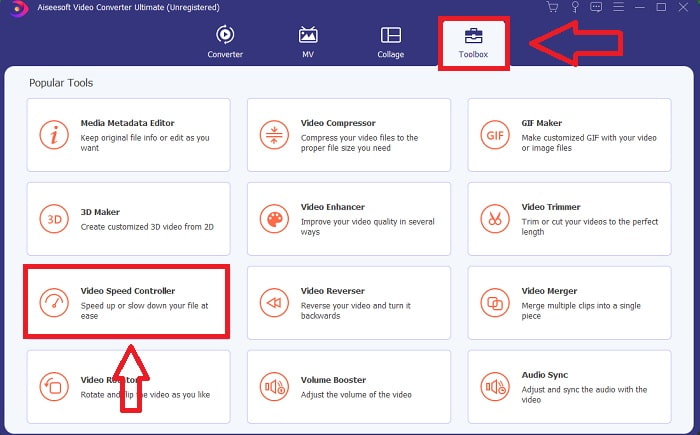
Bước 2: Khi phần mềm đã được cài đặt, hãy chạy nó bằng cách chọn tùy chọn Toolbox từ thanh menu rồi chọn Video Speed Controller từ danh sách hiện ra.
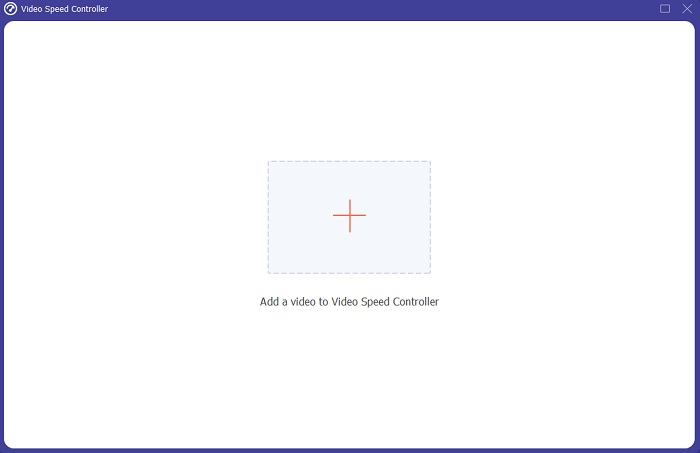
Bước 3: Nhấp nút + theo ý bạn để thêm tệp rồi tiếp tục chỉnh sửa video.
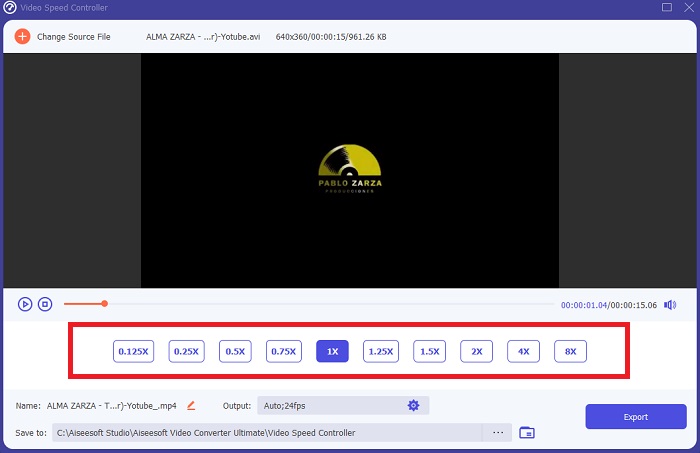
Bước 4: Chọn số lần tốc độ khung hình của video sẽ tăng hoặc giảm để thay đổi tốc độ phát lại.
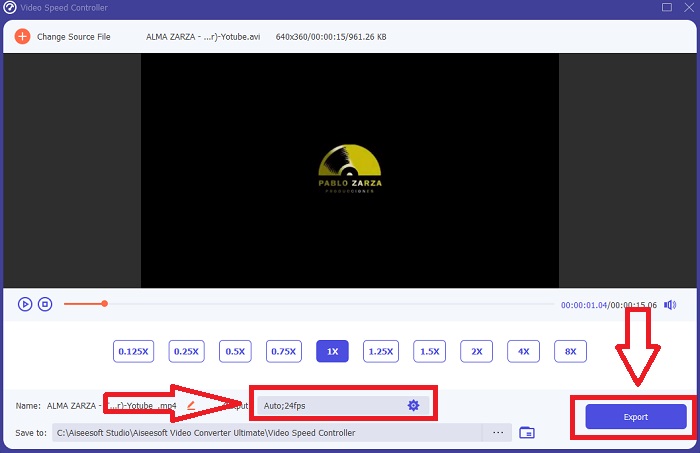
Bước 5: Thay đổi định dạng, độ phân giải, chất lượng, v.v. sẽ cho phép bạn chọn đầu ra mong muốn sau khi đã điều chỉnh xong tốc độ phát lại của video. Nhấn Export rồi chọn vị trí lưu lại sản phẩm khi hoàn tất.
Phần 4. Câu hỏi thường gặp về Cách tăng tốc video trong Windows Media Player
Làm cách nào để sửa video MP4 không phát được trên Windows Media Player?
Như bài viết đã đề cập trước đó, Windows Media Player không hỗ trợ nhiều định dạng video. Vì nó chỉ hỗ trợ hầu hết các định dạng phù hợp với Windows nên rất khó khắc phục lỗi khi sử dụng trình phát này. Đó là lý do bạn cần học cách chuyển đổi hoặc biết cách phát các định dạng video MP4. Liên kết này là một bài viết hữu ích giúp bạn giải quyết vấn đề đó.
Làm thế nào để phát DVD trong Windows Media Player?
Một số phim được lưu trên DVD, và để phát chúng, bạn cần tìm trình phát đa phương tiện phù hợp để phát DVD. Windows Media Player là một trong những trình phát phổ biến có thể phát DVD. Ngoài ra, trình phát này cũng cung cấp một số cài đặt hỗ trợ chỉnh sửa trong khi phát DVD. Dưới đây là thông tin chi tiết hơn về cách phát DVD trong Windows Media Player.
Kích thước tệp của video có trở nên nhỏ hơn nếu bạn tăng tốc độ phát lại không?
Chỉ khung sẽ được chia mỗi khi bạn tăng hoặc giảm tốc độ phát lại video của mình. Nếu bạn tăng nhanh hơn 0,5 lần, khung hình sẽ là 60 khung hình trên 1/120 giây. Tóm lại, nó không thể ảnh hưởng đến video trừ khi video đã có tốc độ khung hình thấp.
Phần kết luận
Tóm lại, Windows Media Player có thể là phần mềm còn hạn chế và chỉ hỗ trợ một vài định dạng. Tuy vậy, nó vẫn có một số tính năng có thể khắc phục các vấn đề liên quan đến định dạng video. Tuy nhiên, nếu bạn muốn tăng tốc độ phát lại của đoạn video, hãy tải Video Converter Ultimate, không chỉ để tua nhanh video. Phần mềm này có thể nâng tầm video của bạn lên một mức độ khác. Với tất cả các tính năng sẵn có, đây sẽ là phần mềm tốt và dễ tiếp cận nhất mà chúng tôi khuyên bạn nên dùng.
-
 WebM to GIF - 3 Trình chuyển đổi WebM sang GIF miễn phí để tạo GIF của riêng bạn
 WebM có phải là GIF không? Làm cách nào để biến video thành GIF? Có bất kỳ trình chuyển đổi WebM sang GIF miễn phí nào không? Bài đăng này chia sẻ 3 cách miễn phí giúp bạn chuyển đổi WebM sang GIF.
-
 Cách chuyển đổi video MKV thành GIF động mà không cần Photoshop / FFmpeg
 Sau khi tải xuống và xem phim MKV trên máy tính, bạn có thể muốn chia sẻ những khoảnh khắc tuyệt vời với bạn bè hoặc trên Internet dưới dạng ảnh GIF. Trong bài viết này, bạn có thể tìm hiểu về 2 cách đơn giản nhất để chuyển đổi MKV sang GIF.
-
 Tạo GIF động đẹp nhất của bạn thông qua Trình tạo GIF trực tuyến [2021]
 Một bài đánh giá nhiều thông tin, về cách tạo ảnh GIF bằng cách sử dụng các nhà tạo ảnh GIF trực tuyến đơn giản này mà bạn đã gặp hoặc chưa tìm thấy trên web.
