


 Chuyển đổi video Ultimate
 Trình ghi màn hình
 Sửa chữa video
 Tải xuống an toàn
Cắt tập tin WMA: Hướng dẫn tối ưu cho người dùng Windows và Mac
Việc chỉnh sửa các tệp âm thanh rất thú vị, cho đến khi bạn phải xử lý những bản nhạc WMA dài tưởng như không thể cắt ngắn được. Dù bạn là một podcaster, nhạc sĩ hay chỉ là người thích nghịch với âm thanh, thì cắt tệp WMA có thể là một nhiệm vụ khó nhằn nếu không có công cụ và kiến thức phù hợp. Bài viết này nhằm đơn giản hóa quy trình cho cả người dùng Windows và Mac, cung cấp hướng dẫn từng bước cùng những công cụ tốt nhất để giúp hành trình chỉnh sửa âm thanh của bạn trở nên mượt mà và hiệu quả hơn. Hãy đọc bài viết này để biết thêm chi tiết.

Phần 1: Cách tốt nhất để cắt tệp WMA trên Windows/Mac
Cách tốt nhất và tối ưu nhất để cắt tệp WMA trên cả Windows và Mac là sử dụng công cụ được FVC lựa chọn Video Converter Ultimate. Trình chuyển đổi video và âm thanh “tất cả trong một” này hoạt động đặc biệt hiệu quả với định dạng WMA, nhất là trong việc cắt tệp. Công cụ này có một tính năng chuyên dụng giúp cắt ngắn tệp âm thanh dễ dàng. Điều này rất hữu ích, đặc biệt cho những ai cần cắt các tệp WMA quá dài hoặc chứa những phần/đoạn không mong muốn. Hơn nữa, với công cụ này, bạn có thể tự tay chọn phần của tệp WMA muốn cắt hoặc để nó tự động cắt bằng tính năng Fast Slip tốc độ cao.
Bước 1. Trước hết, trên máy tính Mac hoặc Windows của bạn, hãy tải xuống và cài đặt Video Converter Ultimate.
Tải xuống miễn phí cho Windows 7 trở lên. Tải xuống an toàn.
Tải xuống miễn phí cho MacOS 10.7 trở lên. Tải xuống an toàn.
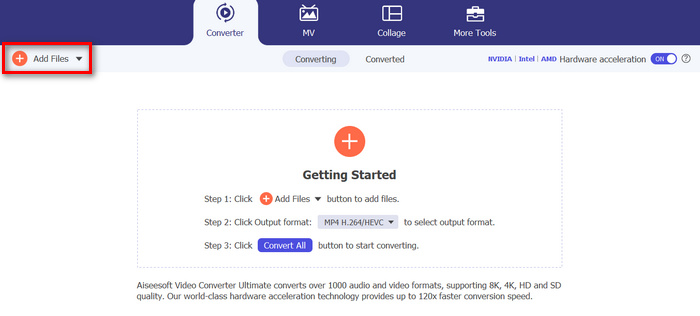
Bước 2. Để nhập các tệp WMA mà bạn muốn cắt, hãy nhấp vào nút Add Files.
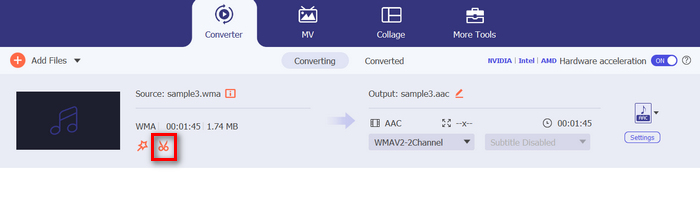
Bước 3. Sau đó, nhấp vào nút Cut.
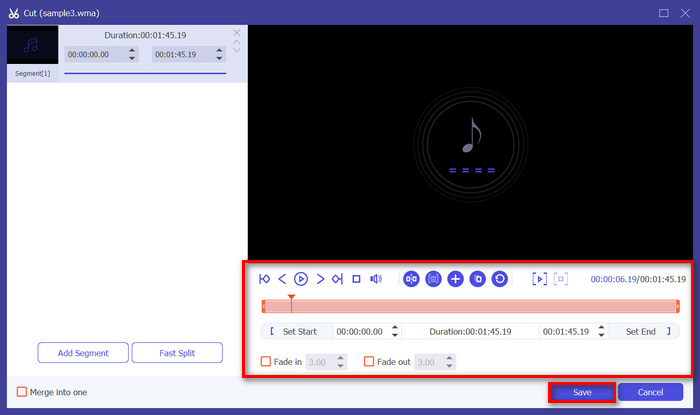
Bước 4. Để cắt tệp WMA, bạn có thể thực hiện thủ công bằng cách điều chỉnh hoặc di chuyển thanh bắt đầu và kết thúc của đoạn clip bằng cách kéo, di chuyển từ trái sang phải, hoặc gõ trực tiếp thời gian bắt đầu và kết thúc của phần tệp WMA mà bạn muốn cắt.
Quá trình đó sẽ tự động cắt phần âm thanh dựa trên thời gian bạn muốn bắt đầu và kết thúc việc cắt.
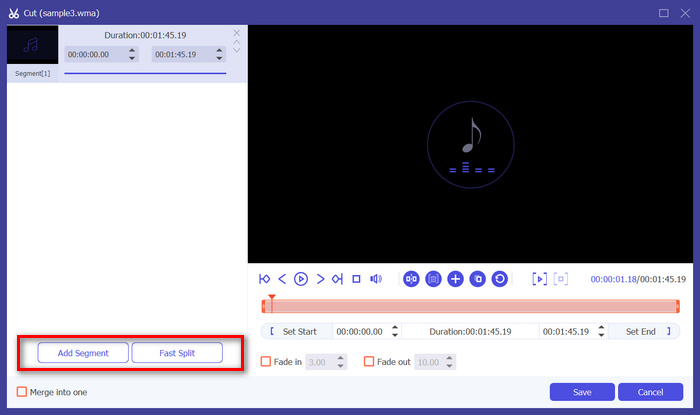
Bước 5. Trong khi đó, nếu bạn muốn cắt bằng tính năng Fast Slip trimmer, bạn chỉ cần nhấp vào nút Fast Slip bên cạnh nút Add Segment. Tiếp theo, hãy chọn chế độ mà bạn muốn chia đoạn. Nếu bạn chọn chia theo trung bình (Split by average), chỉ cần nhập số đoạn; còn nếu muốn chia theo thời gian (Split by time), hãy nhập mốc thời gian. Sau đó, nhấp vào nút Save.
Bước 6. Cuối cùng, để xuất tệp WMA đã được cắt, hãy nhấp vào nút Convert All.
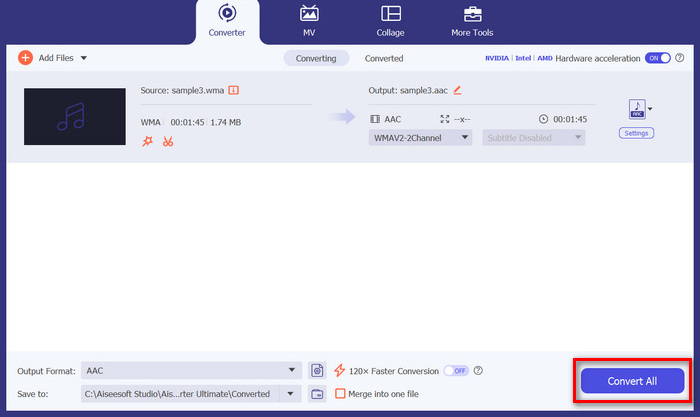
Khi nói đến việc cắt các tệp WMA, Video Converter Ultimate được FVC chọn thực sự là giải pháp không thể thiếu. Giao diện đơn giản và thân thiện với người dùng đảm bảo rằng bạn có thể dễ dàng và chính xác cắt các tệp WMA của mình, và các tùy chọn cắt khác nhau của nó cung cấp cho bạn sự linh hoạt về cách bạn muốn cắt các tệp âm thanh của mình một cách dễ dàng.
Phần 2: Cắt file WMA trực tuyến miễn phí
Audio Trimmer là một công cụ miễn phí cho phép người dùng cắt các tệp âm thanh ngay lập tức. Công cụ này hỗ trợ nhiều định dạng âm thanh phổ biến, bao gồm WMA, khiến công cụ này trở thành một trong những lựa chọn thay thế tốt nhất nếu bạn muốn cắt các tệp WMA trực tuyến.
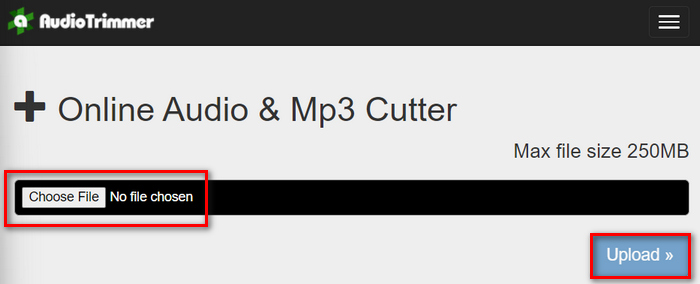
Bước 1. Để nhập các tệp WMA mà bạn muốn cắt, hãy nhấp vào nút Choose File rồi nhấp nút Upload.
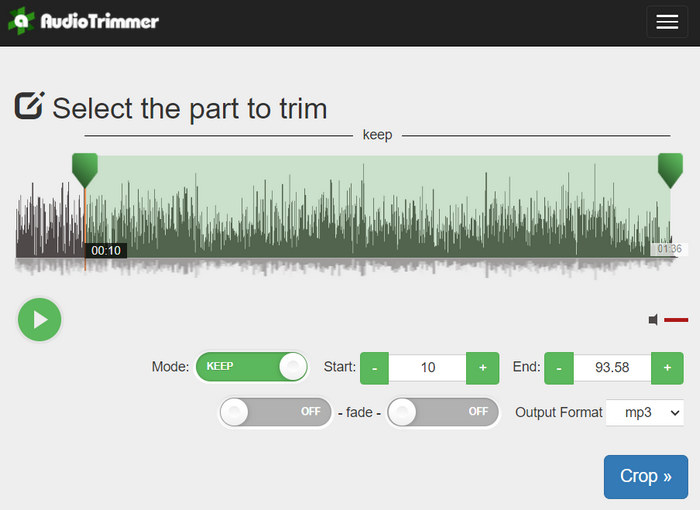
Bước 2. Bây giờ, chỉ cần kéo thanh trượt xuống và chọn phần của đoạn âm thanh mà bạn muốn cắt. Khi xong, hãy nhấp vào nút Crop.
Bước 3. Cuối cùng, để lưu tệp WMA đã được cắt, bạn chỉ cần nhấp vào nút Download.
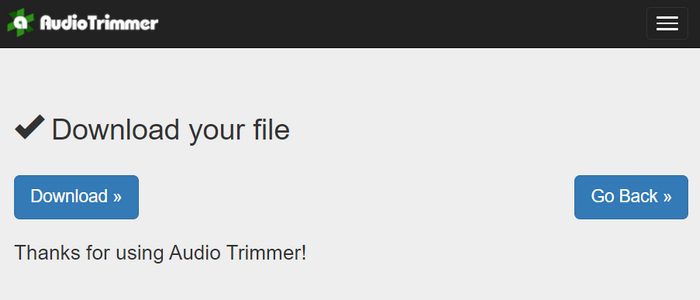
Vậy là xong, bạn có thể phát các đoạn clip bằng trình phát WMA để xem mình đã cắt chính xác chưa. Với giao diện đơn giản và rất trực quan, việc cắt tệp WMA chỉ mất 3 bước. Tuy mang lại sự tiện lợi khi cắt tệp âm thanh, nhưng không phải ai cũng có thể tận hưởng công cụ trực tuyến miễn phí này, vì nó bị giới hạn chỉ xử lý các tệp dưới 250MB.
Phần 3: Cắt WMA bằng VLC Media Player
VLC Media Player là trình phát phương tiện nguồn mở được sử dụng rộng rãi vì tính linh hoạt của nó. Công cụ này hỗ trợ nhiều định dạng âm thanh và video, bao gồm cả tệp WMA. Ngoài các tính năng phát, phát trực tuyến và ghi phương tiện, công cụ này cũng có thể được sử dụng để cắt tệp WMA. Với công cụ này, người dùng có thể dễ dàng cắt các phần bằng cách ghi theo thời gian thực mà không cần phải thay đổi thời gian phát lại theo cách thủ công.
Bước 1. Mở VLC Media Player. Chỉ cần kéo và thả tệp WMA mà bạn muốn cắt vào.
Bước 2. Âm thanh sẽ tự động phát. Tạm dừng phát trong giây lát, sau đó nhấp vào nút View và chọn tuỳ chọn Advanced Controls. Lúc này bạn sẽ thấy bốn nút mới xuất hiện phía trên biểu tượng phát lại.
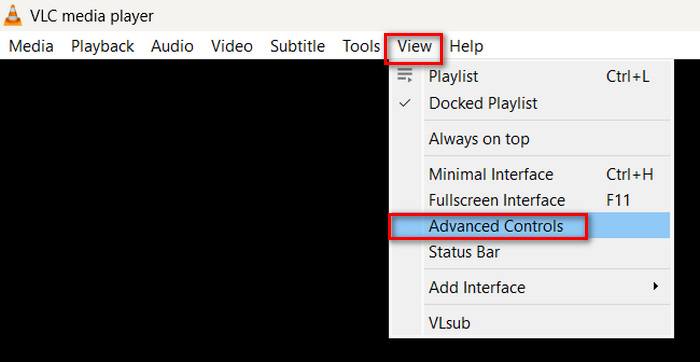
Bước 3. Kéo thanh tiến trình đến điểm mà bạn muốn bắt đầu đoạn clip. Giờ hãy điều chỉnh thanh này đến vị trí bạn muốn bắt đầu cắt tệp WMA. Khi xong, hãy phát và nhấp vào nút Record.
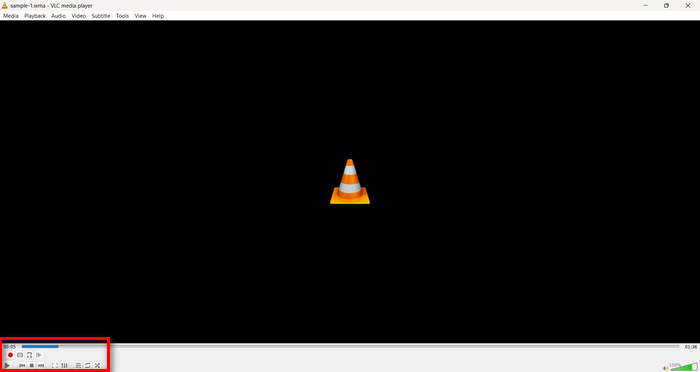
Bước 4. Khi đến cuối đoạn mà bạn muốn lưu, hãy nhấp lại vào nút Record để dừng ghi.
Tránh kéo thanh tiến trình để thay đổi thời gian phát trong lúc đang ghi, vì VLC cần ghi lại đoạn đó theo thời gian thực. Nếu bạn thích công cụ này, đừng bỏ lỡ các trình thay thế VLC tại đây.
Phần 4: Câu hỏi thường gặp về việc cắt WMA
Làm thế nào để cắt một phần khỏi tệp âm thanh?
Để cắt một phần từ tệp âm thanh, bạn có thể sử dụng các công cụ như Video Converter Ultimate. Để thực hiện, bạn chỉ cần nhập tệp WMA, nhấp vào nút Cắt và điều chỉnh thời gian bắt đầu và kết thúc.
WMA có tốt hơn MP3 không?
WMA thường có chất lượng âm thanh tốt hơn ở mức bitrate thấp so với MP3, dẫn đến kích thước tệp nhỏ hơn mà vẫn giữ được chất lượng âm thanh tốt. Tuy nhiên, MP3 được hỗ trợ rộng rãi hơn trên nhiều thiết bị và nền tảng. Việc lựa chọn giữa WMA và MP3 phụ thuộc vào nhu cầu của bạn về chất lượng và khả năng tương thích. Ngoài ra, bạn có thể chuyển WMA sang MP3 bằng các công cụ chuyển đổi WMA sang MP3 để thực hiện nhanh chóng.
Làm thế nào để cắt file âm thanh trong Windows Media Player?
Để cắt các tệp âm thanh trong Windows Media Player, bạn sẽ cần sử dụng một plugin có tên là SolveigMM WMP Trimmer Plugin Home Edition. Plugin này cho phép người dùng dễ dàng cắt các tệp âm thanh trực tiếp trong giao diện của Windows Media Player, cung cấp giải pháp thuận tiện cho các tác vụ chỉnh sửa âm thanh.
Phần kết luận
Cắt tệp WMA không nhất thiết phải căng thẳng. Dù bạn thích dùng phần mềm như Video Converter Ultimate, công cụ trực tuyến như Audio Trimmer hay trình phát đa năng VLC Media Player, đều có các phương pháp hiệu quả dành cho cả người dùng Windows và Mac. Hãy chọn phương pháp phù hợp nhất với bạn và bắt đầu chỉnh sửa tệp âm thanh một cách dễ dàng. Sẵn sàng để việc chỉnh sửa âm thanh trở nên nhẹ nhàng hơn? Hãy thử một trong những cách này ngay hôm nay!
-
 2 phương pháp chuyển đổi FLV sang âm thanh WMA [Miễn phí & Trực tuyến]
 Bạn muốn trích xuất âm thanh WMA từ video FLV? Đây là 2 trình trích xuất âm thanh WMA miễn phí để chuyển đổi FLV (Flash Video) sang WMA (Windows Media Audio) với tốc độ chuyển đổi nhanh chóng trên Mac OS X và Windows 10/8/7.
-
 Lựa chọn hàng đầu Trình chỉnh sửa siêu dữ liệu WMA bạn không nên bỏ lỡ [2024]
 Tại sao tôi'không thể chỉnh sửa thẻ WMA? Vấn đề này thường gặp ở người dùng' truy vấn. Nhưng hôm nay chúng tôi sẽ cung cấp cho bạn trình chỉnh sửa meta WMA mà bạn có thể sử dụng vào năm 2024.
-
 8 cách chuyển đổi âm thanh MP4 sang MP3 (Chuyển đổi hàng loạt & kích thước lớn)
 Nếu bạn muốn trích xuất âm thanh MP3 từ video MP4, bạn có thể kiểm tra bài viết này và nhận được 8 giải pháp. Có nhiều cách trực tuyến và ngoại tuyến để chuyển đổi MP4 sang MP3 trên điện thoại hoặc máy tính của bạn một cách dễ dàng.
