


 Chuyển đổi video Ultimate
 Trình ghi màn hình
 Sửa chữa video
 Tải xuống an toàn
Tạo nhạc chuông trên iPhone bằng GarageBand và Alternative
Bạn đã chán ngấy việc phải thức dậy với những tiếng nhạc chuông nhàm chán lặp đi lặp lại trên iPhone? Dù iPhone hạn chế việc sử dụng những nhạc chuông “hot trend”, điều đó cũng không thể ngăn bạn tìm cách thay đổi. Vì nhạc chuông đã trở thành một phần trong cuộc sống của chúng ta cho các mục đích thông báo hay báo thức đơn giản, nên khả năng dùng hoặc thay đổi chúng phần nào phản ánh cá tính và gu thẩm mỹ của mỗi người. Vậy thì ai lại không muốn được thông báo hay thức dậy bằng âm thanh mình yêu thích, đúng không? Nghe có vẻ phức tạp, nhưng cuối cùng chúng tôi cũng đã tìm ra cách tự tạo nhạc chuông bằng GarageBand. Hãy khám phá cách tạo mới, chuyển đổi một đoạn âm thanh có sẵn và cài đặt nó lên iPhone bằng GarageBand và một công cụ thay thế ngay hôm nay, để bắt đầu thể hiện cá tính và gu của bạn qua những nhạc chuông thật bắt tai.

Phần 1. Cách tạo nhạc chuông trong GarageBand
Trước khi chúng tôi chỉ cho bạn cách tạo nhạc chuông trong GarageBand, điều quan trọng là phải biết GarageBand là gì trước. GarageBand là một máy trạm âm thanh kỹ thuật số do Apple phát triển dành riêng cho iOS, macOS và iPadOS. Do đó, nó rất thân thiện với người dùng và có thể được sử dụng miễn phí trên hệ điều hành đã đề cập ở trên.
Bước 1. Mở GarageBand trên máy Mac của bạn hoặc tải ứng dụng về iPhone hay bất kỳ thiết bị Apple nào bạn muốn dùng.
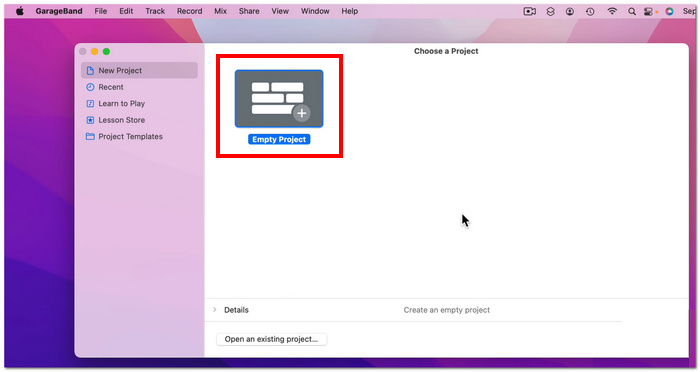
Bước 2. Trên giao diện ứng dụng, hãy nhấn vào biểu tượng + rồi chọn tùy chọn Dự án mới (New project).
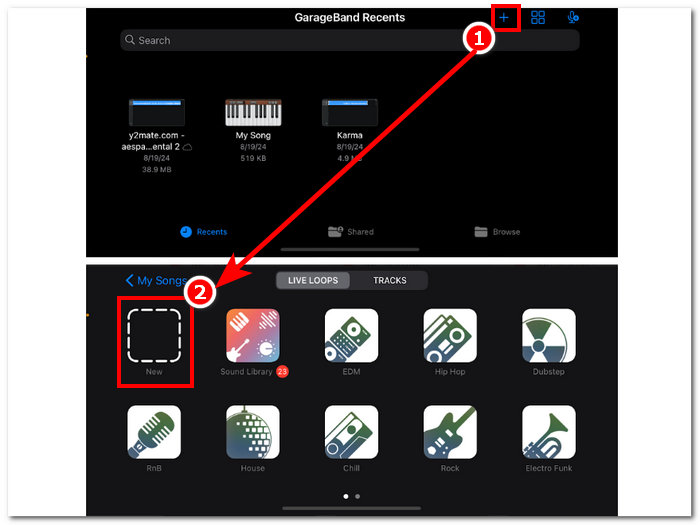
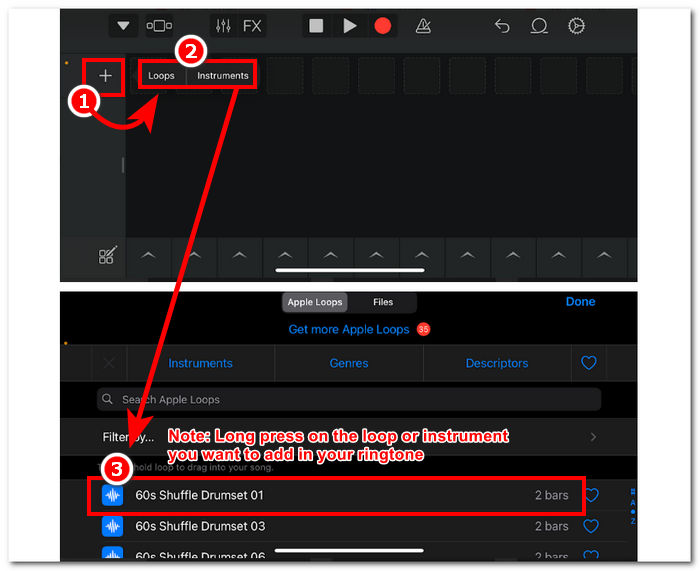
Bước 3. Sau đó bạn sẽ được chuyển đến phần timeline của GarageBand. Tại đây, để thêm Nhạc cụ hoặc Loop mà bạn muốn đưa vào nhạc chuông, chỉ cần nhấn nút +, rồi nhấn giữ đoạn loop hoặc nhạc cụ cụ thể bạn muốn thêm vào timeline.
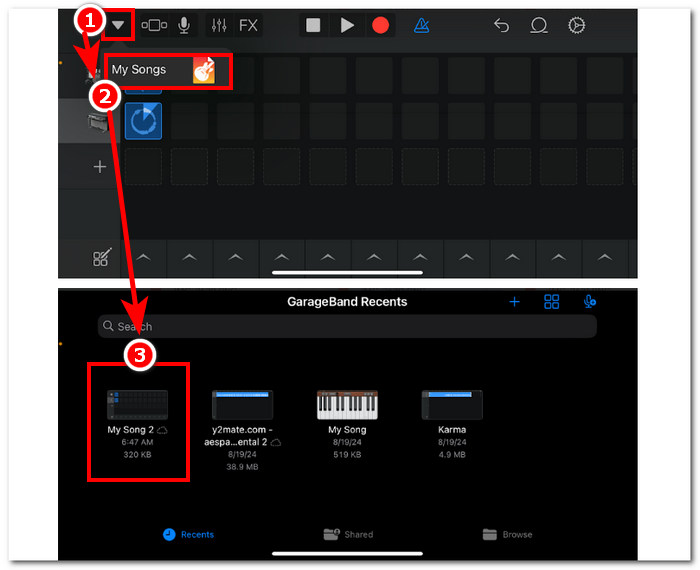
Bước 4. Cuối cùng, để lưu nhạc chuông vừa tạo, hãy nhấn vào nút mũi tên hướng xuống ở góc trên bên trái màn hình rồi chọn My Songs. Tệp của bạn sẽ được tự động lưu trong bộ nhớ tệp của thiết bị.
Phần 2. Cách tạo nhạc chuông cho bài hát hiện có trên GarageBand
Để tạo một bài hát thú vị làm nhạc chuông, chúng tôi đã chọn nhạc từ Apple Music vì có một số hạn chế nhất định cấm sử dụng nhạc trên iPhone, liên quan đến vấn đề bảo vệ DRM.
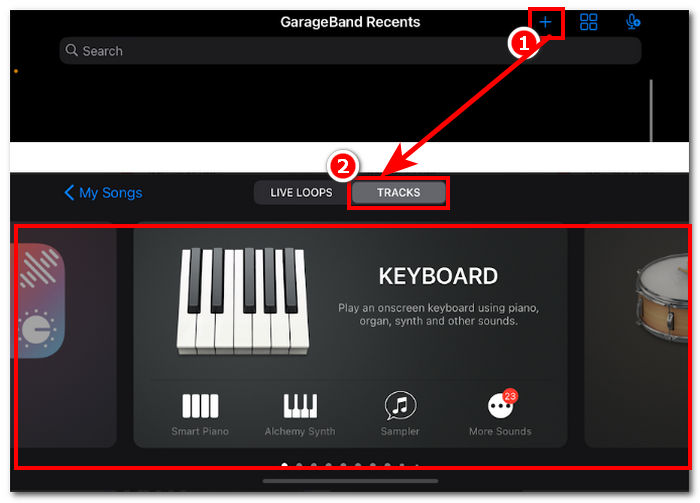
Bước 1. Mở ứng dụng GarageBand trên iPhone, nhấn nút + và chọn bất kỳ nhạc cụ nào bạn muốn.
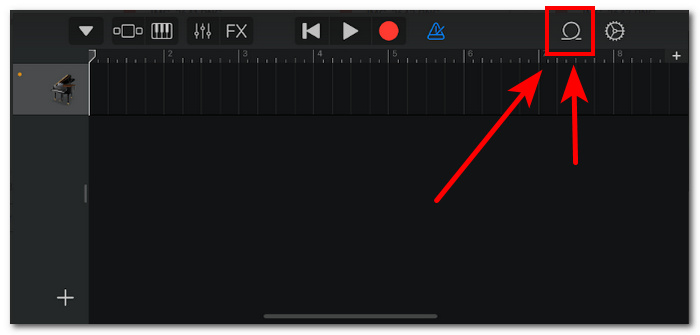
Bước 2. Khi đang ở chế độ xem đa track của ứng dụng, hãy nhấn vào biểu tượng Loop ở góc trên bên phải màn hình.
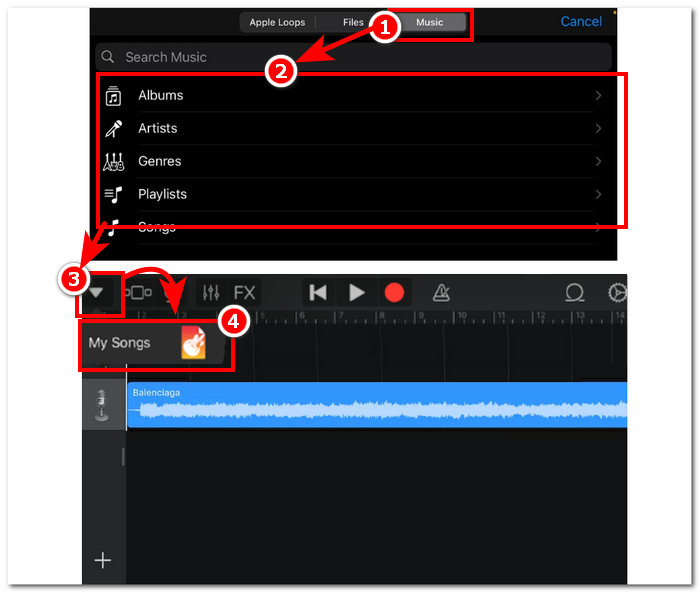
Bước 3. Trong phần loop, nhấn vào mục Music, rồi chọn bài hát bạn muốn dùng để tạo nhạc chuông. Hãy thêm bài hát đó vào timeline bằng cách nhấn hoặc nhấn giữ vào nó. Khi đã ở trong timeline, vui lòng nhấn vào nút mũi tên xuống và vào mục My Songs.
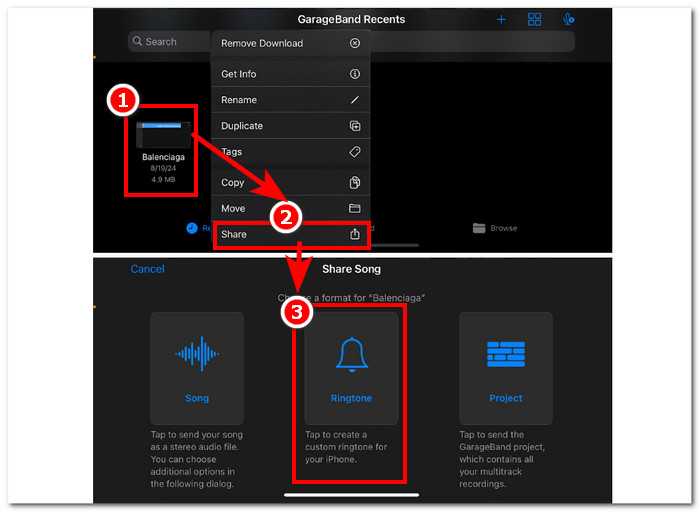
Bước 4. Nhấn giữ vào nhạc chuông bạn vừa tạo, nhấn Share (Chia sẻ), rồi chọn Ringtone (Nhạc chuông) để đặt nó làm nhạc chuông tùy chỉnh trên iPhone.
Phần 3. GarageBand thay thế để tạo nhạc chuông
Một công cụ dựa trên phần mềm là lựa chọn tốt nhất nếu bạn muốn tạo nhạc chuông và cá nhân hóa nó để tạo dấu ấn riêng. Với khả năng hỗ trợ tới 1000 định dạng tệp, FVC-picked Video Converter Ultimate là một chương trình “tất cả trong một”, không chỉ để tạo nhạc chuông mà còn có thể chuyển đổi, chỉnh sửa, nâng cao chất lượng và nén video lẫn âm thanh. Đây là công cụ hoàn hảo cho việc tùy chỉnh nhạc chuông, khác với GarageBand vốn hơi hạn chế về tính năng tùy biến. Ngoài ra, công nghệ xử lý tốc độ cao được tích hợp tốt trong hệ thống của FVC-picked Video Converter Ultimate để đảm bảo chất lượng âm thanh không suy hao và tốc độ chuyển đổi nhanh chóng.
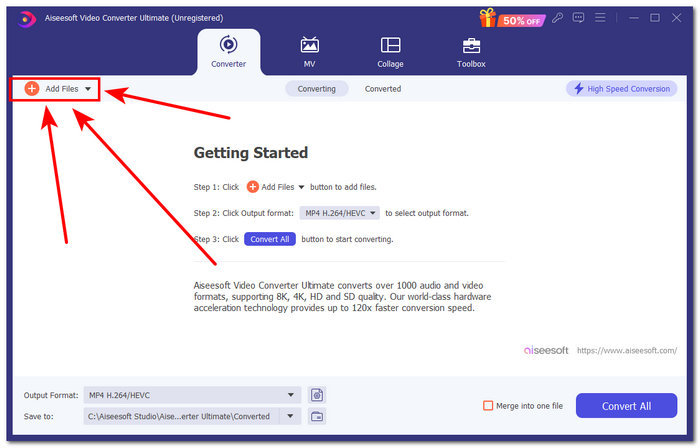
Bước 1. Trên máy Mac, hãy tải xuống và cài đặt FVC-picked Video Converter Ultimate. Mở chương trình trên thiết bị, tải tệp âm thanh/bài hát bạn muốn tạo và tùy chỉnh thành nhạc chuông bằng cách nhấp vào liên kết Add Files ở góc trên bên trái giao diện.
Tải xuống miễn phí cho Windows 7 trở lên. Tải xuống an toàn.
Tải xuống miễn phí cho MacOS 10.7 trở lên. Tải xuống an toàn.
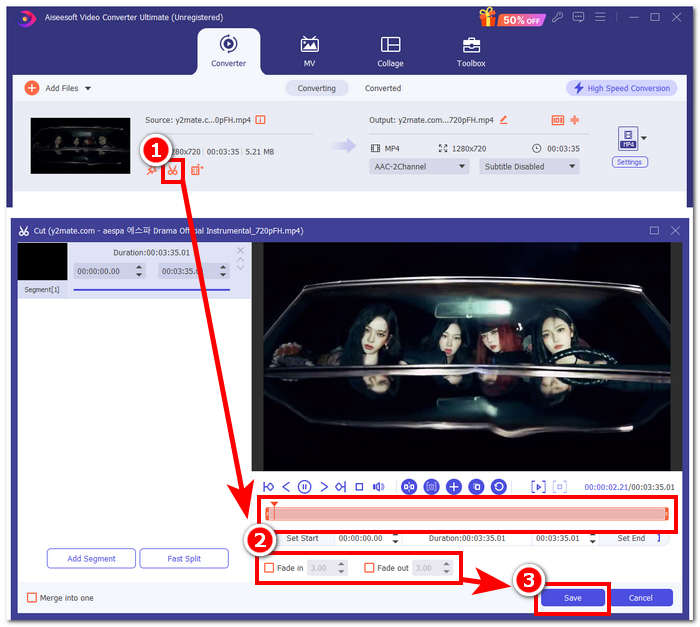
Bước 2. Nhấp vào biểu tượng cây kéo gần ảnh thu nhỏ của tệp âm thanh. Một cửa sổ mới sẽ hiện ra, cho phép bạn thêm hiệu ứng fade và cắt sửa tệp âm thanh. Khi đã hài lòng với phần tùy chỉnh, chỉ cần nhấn nút Save để hoàn tất.
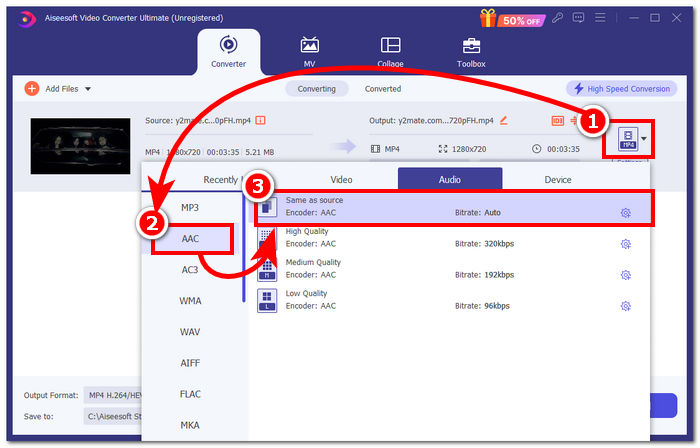
Bước 3. Sau khi chỉnh sửa xong tệp âm thanh, hãy đổi định dạng tệp từ MP4 hoặc MP3 sang AAC, là định dạng mà iPhone dùng cho nhạc chuông.
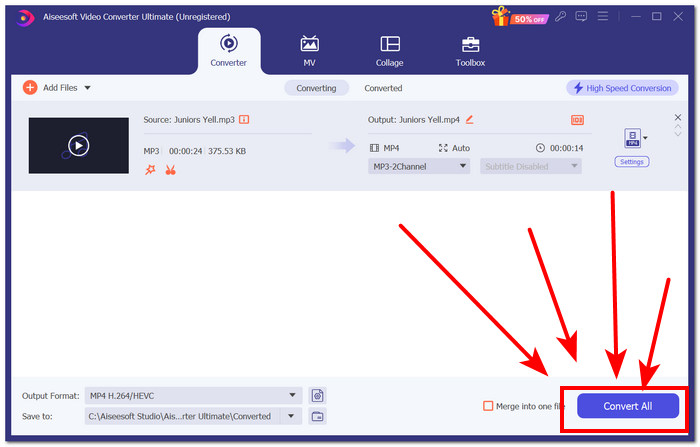
Bước 4. Nhấn nút Convert All, và nhạc chuông của bạn sẽ được tự động lưu vào thiết bị. Sau khi chuyển đổi hoàn tất, bạn có thể tìm thấy nhạc chuông trong thư mục tải xuống.
Phần 4. Cách cài nhạc chuông trong iPhone từ tập tin bằng GarageBand
Để cài một bài hát làm nhạc chuông bằng GarageBand từ Files của bạn có thể là một quá trình khá phức tạp. Điều này có nghĩa là bạn phải tải bài hát xuống trước rồi mới đưa nó vào ứng dụng RingtoneMaker, ứng dụng mà bạn phải cài đặt trên thiết bị của mình.
Bước 1. Tải bài hát bạn muốn dùng về thiết bị.
Bạn có thể tìm kiếm một bài hát trên YouTube và tải xuống bằng trình tải xuống YouTube sang MP3 trực tuyến.
Bước 2. Để biến bài hát thành nhạc chuông, hãy mở ứng dụng RingtoneMaker và đơn giản là nhập bài hát đã tải vào ứng dụng. Sau khi tải xong, nhấn nút Make Ringtone và tiếp tục bằng cách chọn ứng dụng GarageBand.
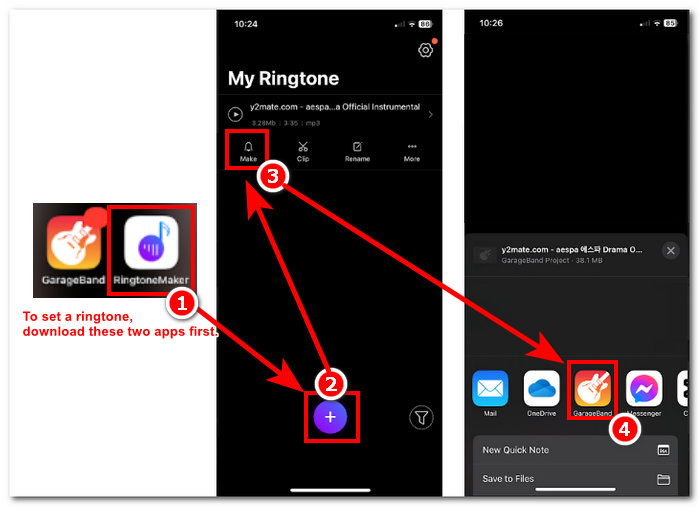
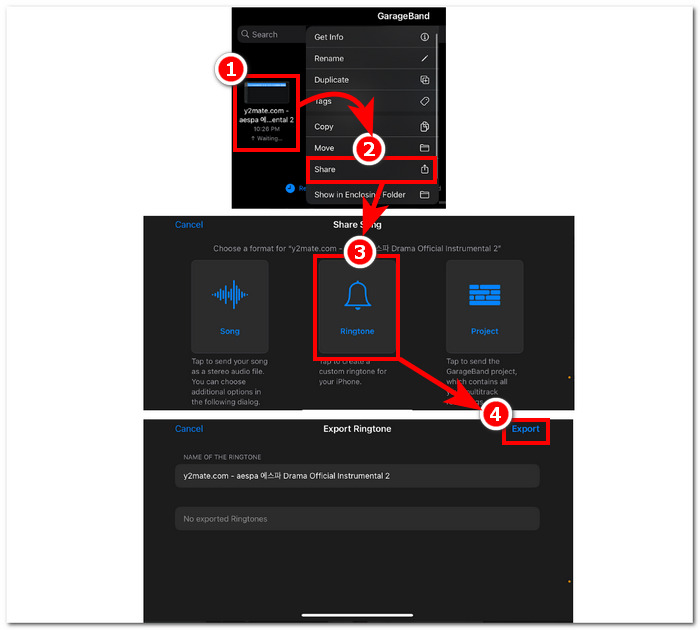
Bước 3. Sau khi được chuyển sang ứng dụng GarageBand, hãy tìm bài hát bạn đã nhập và nhấn vào đó. Sau đó làm theo đường dẫn: Share > Ringtone > Export. Chỉ đơn giản vậy thôi là bạn đã biến một bài hát có sẵn thành nhạc chuông thành công.
Phần 5. Câu hỏi thường gặp về Cách tạo nhạc chuông trong GarageBand
GarageBand có đủ tốt cho người mới bắt đầu không?
Có, GarageBand là một trình tạo nhạc chuông tốt, nếu không muốn nói là tốt hơn, cho hệ sinh thái Apple. Giao diện đơn giản của nó hoàn hảo cho mọi loại người dùng, từ người mới bắt đầu đến chuyên gia. Các công cụ tích hợp chỉ dành để tạo ra những giai điệu hấp dẫn và hợp thời trang cùng nhiều hướng dẫn có sẵn trực tuyến khiến nó trở thành một công cụ thân thiện với người mới bắt đầu.
Nhạc chuông Garage có miễn phí không?
Có, GarageBand miễn phí sử dụng và tải xuống cho tất cả các thiết bị Apple. Nó cho phép người dùng sử dụng các tính năng của nó để tạo, soạn và xuất mà không cần bất kỳ khoản phí hoặc đăng ký bổ sung nào.
Có ứng dụng nhạc chuông miễn phí nào không?
Có, có nhiều ứng dụng nhạc chuông để bạn thử. Một số tùy chọn là RingtoneMaker, Sedge, Audiko, v.v. Do đó, việc sử dụng tất cả các loại ứng dụng và phần mềm tùy thuộc vào người dùng. Chúng tôi khuyên người dùng nên nghiên cứu về loại ứng dụng nhạc chuông mà họ muốn.
Phần kết luận
Apple đặt ra một số giới hạn nhất định về cách người dùng có thể tạo và cài nhạc chuông bằng cách sử dụng ứng dụng GarageBand của riêng họ. Bằng cách nào đó, ứng dụng này thực hiện công việc của mình một cách hiệu quả, đặc biệt là khi thiết lập một bài hát đã được tải xuống trên iPhone của bạn. Tuy nhiên, ứng dụng này có thể thiếu một số tính năng tùy chỉnh như những gì Video Converter Ultimate do FVC chọn có thể làm để làm cho bài hát trở nên cá nhân hơn. Tuy nhiên, ứng dụng này vẫn hiệu quả và là cách duy nhất mà người dùng iOS có thể tạo nhạc chuông trên thiết bị của họ.
-
 Hướng dẫn tốt nhất Cách chuyển đổi WAV thành nhạc chuông nhanh chóng
 Bạn đang tìm cách chuyển đổi WAV thành nhạc chuông một cách dễ dàng? Các công cụ thân thiện với người dùng của chúng tôi hoàn thành công việc! Tận hưởng chuyển đổi âm thanh chất lượng cao trong tích tắc - không phải đau đầu về công nghệ. Hãy thử chúng ngay hôm nay!
-
 Cách biến bản ghi âm thành nhạc chuông trên iPhone và Android
 Nếu bạn muốn biến bản ghi nhớ giọng nói thành nhạc chuông, hãy đọc bài viết này. Cho dù bạn là người dùng iPhone hay người dùng Android, bạn đều có thể tìm thấy giải pháp trong nội dung của chúng tôi.
-
 5 máy cắt MP3 để cắt mọi âm thanh một cách dễ dàng [Đã cập nhật 2024]
 Bạn có cần máy cắt MP3 để cắt âm thanh không? Trong trường hợp đó, hãy đọc bài viết này vì chúng tôi cung cấp các công cụ giúp bạn dễ dàng cắt âm thanh.
