


 Chuyển đổi video Ultimate
 Trình ghi màn hình
 Sửa chữa video
Tìm hiểu chuyển đổi MTS sang WMV với các cách khác nhau

Phần 1. Công cụ tốt nhất chuyển đổi MTS sang WMV trực tuyến
Hầu hết chúng ta đều không muốn phải đối mặt với những sự bất tiện, đó là lý do vì sao chúng ta không muốn cài đặt phần mềm chuyển đổi. Họ đang tìm một công cụ chuyển đổi trực tuyến có thể chuyển đổi các loại tệp của họ. FVC Free Video Converter Online là một trình chuyển đổi video trực tuyến hoàn toàn miễn phí. Mặc dù chương trình này miễn phí sử dụng, bạn không cần lo lắng về chất lượng vì FVC Free Video Converter không làm giảm chất lượng trong quá trình chuyển đổi.
Bước 1: Để bắt đầu, hãy nhấp vào liên kết này, và bạn sẽ được chuyển hướng đến trang web. Từ đó, nhấp vào nút Add Files to Convert để tải trình khởi chạy; bạn sẽ cần tải lên các tệp muốn chuyển đổi.
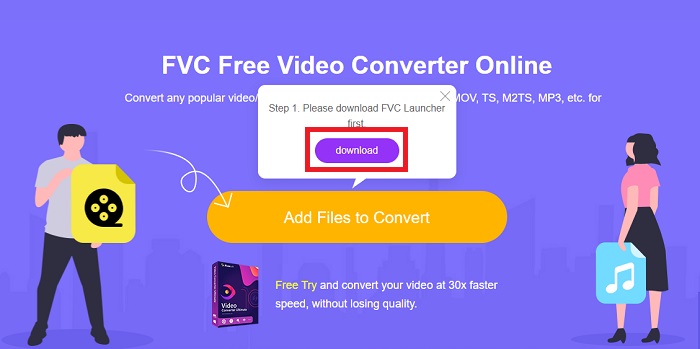
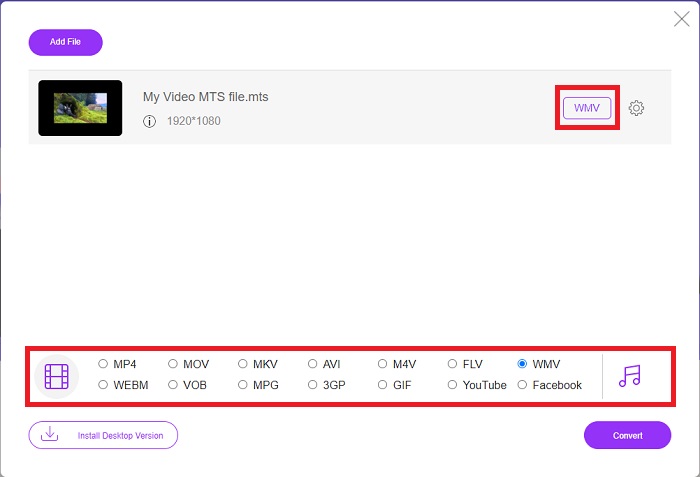
Bước 2: Sau đó, bạn có thể nhấp lại vào nút đó để tải lên tệp video. Bạn sẽ thấy tất cả các định dạng được cung cấp ở phía dưới và chọn WMV trong số đó.
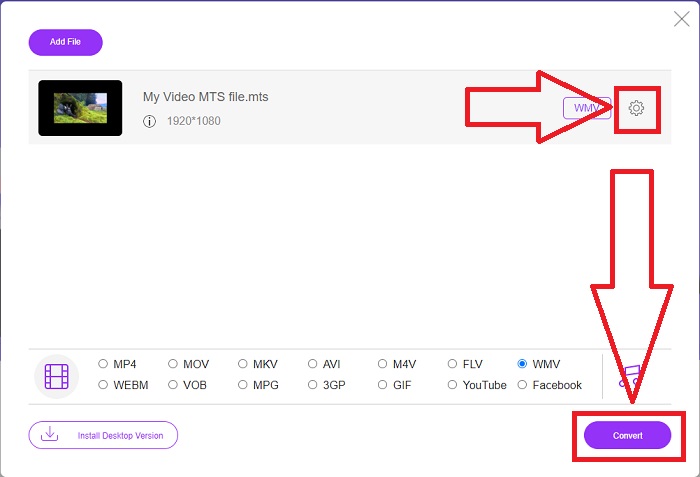
Bước 3: Các tùy chọn bổ sung vẫn ở đó. Nhấp vào biểu tượng bánh răng, và nó sẽ hiển thị tất cả những tinh chỉnh bạn có thể thực hiện cho video của mình. Chỉ cần nhấp OK sau khi bạn đã chọn xong định dạng để lưu thay đổi, rồi nhấp Convert để cuối cùng bắt đầu quá trình chuyển đổi.
Phần 2. Làm thế nào để chuyển đổi MTS sang WMV với Best Converter Offline
Khi chọn một trình chuyển đổi, chúng ta phải cân nhắc yếu tố đơn giản, vì chúng ta không muốn một công cụ vừa đắt tiền vừa khó sử dụng. Chúng tôi xin giới thiệu Video Converter Ultimate và giao diện của nó. Trình chuyển đổi này có giao diện đơn giản nhất, và vì nó tối giản nên cũng là công cụ dễ sử dụng nhất. Ngoài ra, bạn có thể nhanh chóng thêm tệp và xem các định dạng được hỗ trợ. Ở đây còn có nhiều tính năng khác mà bạn có thể tin cậy, giúp trải nghiệm chỉnh sửa trở nên tiện lợi hơn. Nếu bạn muốn tự mình sử dụng, hãy làm theo các bước đơn giản sau:
Bước 1: Trước hết, bạn phải cài đặt chính phần mềm. Để làm điều này, hãy tải tệp .exe bằng cách nhấp vào nút Free Download bên dưới cho Windows hoặc Mac. Đợi tải xong và mở tệp để bắt đầu quá trình cài đặt. Nhấp Start Now và cuối cùng khởi chạy phần mềm.
Tải xuống miễn phí cho Windows 7 trở lên. Tải xuống an toàn.
Tải xuống miễn phí cho MacOS 10.7 trở lên. Tải xuống an toàn.
Bước 2: Khi mở lên, một giao diện với nút + ở giữa sẽ xuất hiện. Nhấp vào đó để tải lên tệp video MTS bạn muốn chuyển đổi, hoặc bạn chỉ cần kéo và thả để sử dụng nhanh.
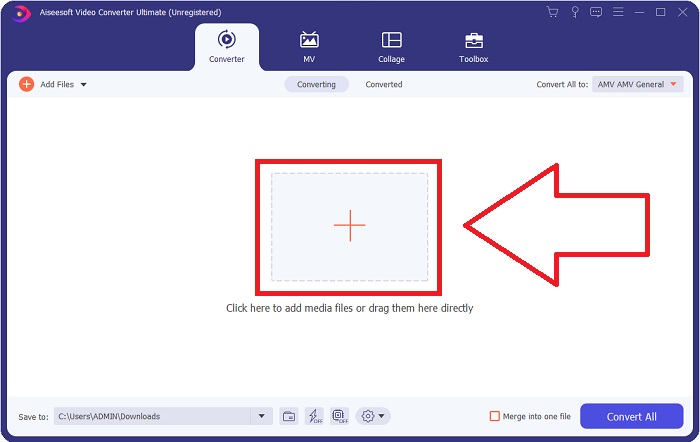
Bước 3: Nếu quá trình thêm tệp thành công và tệp đã xuất hiện trên giao diện, ở bên phải, bạn có thể thấy định dạng hiện tại của video theo yêu cầu. Nhấp vào mũi tên xổ xuống, tất cả các định dạng có sẵn sẽ hiện ra. Cuộn xuống và chọn WMV hoặc chỉ cần gõ tên định dạng vào thanh tìm kiếm. Bên cạnh đó, bạn có thể chọn chất lượng mong muốn ở bảng bên phải của thẻ.
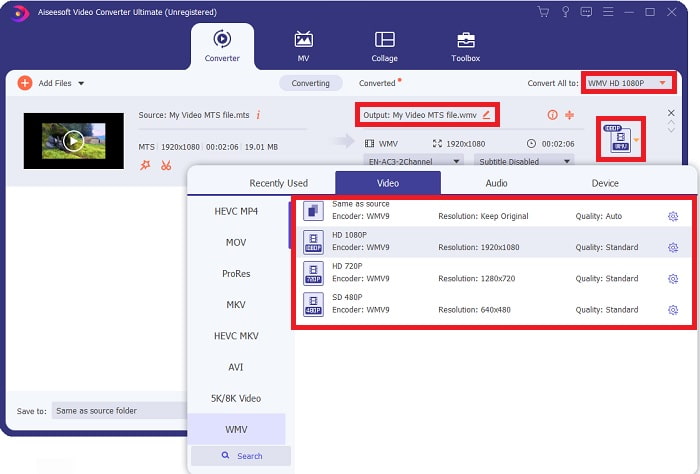
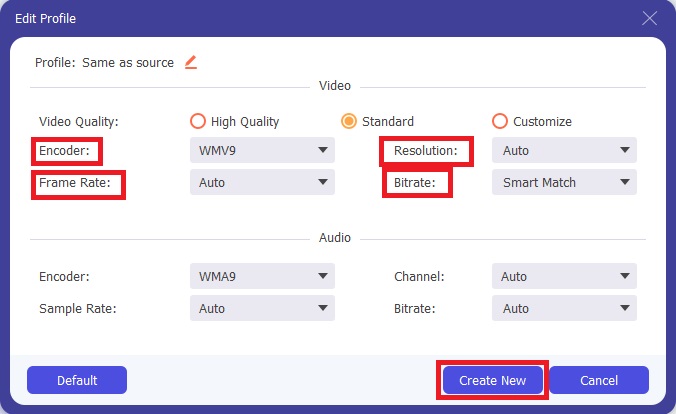
Bước 4: Để có thêm tùy chọn, hãy nhấp vào biểu tượng bánh răng ở bên phải phần chất lượng video bạn đã chọn. Tại đây, bạn có thể chỉnh sửa sâu hơn video của mình, như độ phân giải, tốc độ khung hình, bitrate và nhiều thông số khác. Chỉ cần nhấp nút Create New nếu bạn đã điều chỉnh xong.
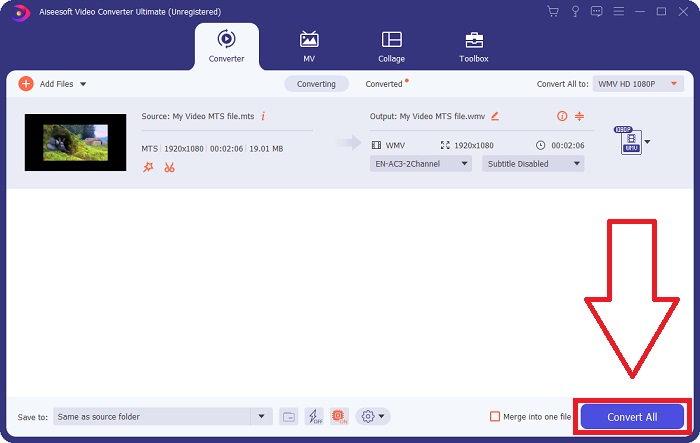
Bước 5: Nếu mọi điều chỉnh cần thiết đã hoàn tất, hãy nhấp nút Convert All ở góc dưới bên phải để bắt đầu chuyển đổi đúng cách và đợi cho đến khi hoàn thành.
Phần 3. Kiến thức mở rộng về MTS VS. WMV
| Phần mở rộng tệp | .mts | .wmv |
| Sự miêu tả | Mã hóa video nâng cao Độ nét cao (AVCHD) là định dạng video sử dụng phần mở rộng tên tệp MTS làm tên tệp của nó. Một số thương hiệu máy quay, chẳng hạn như JVC, Sony, Canon và Sanyo, sử dụng định dạng video HD MPEG và lưu tệp của họ với phần mở rộng tên tệp .mts. | Là một phần của khung Windows Media của Microsoft, WMV (Windows Media Video) bao gồm các codec video và định dạng mã hóa khác nhau. Ban đầu, mục đích của nó là cạnh tranh với định dạng RM trên các ứng dụng phát trực tuyến. Sử dụng công nghệ WMV, video có thể được lưu trữ, nén và phân phối trên Blu-ray / DVD. |
| Các chương trình liên kết | ◆ Roxio Creator NXT Pro 7 ◆ Máy xay sinh tố ◆ VLC Media Player ◆ Apple Final Cut Pro X | ◆ VLC Media Player ◆ MPlayer ◆ Media Player Classic ◆ Windows Media Player |
| Được phát triển bởi | Sony / Panasonic | Microsoft |
| Loại tệp | Video / mp2t | Video / x-ms-asf |
Phần 4. Câu hỏi thường gặp về Chuyển đổi MTS sang WMV
Trình phát nào có thể phát tệp MTS?
Nếu bạn có video MTS, bạn có thể chỉnh sửa bằng phần mềm đi kèm với máy quay HD Sony và Panasonic, hoặc bạn có thể sử dụng một trong các chương trình dưới đây: Blender – trộn hai hoặc nhiều thành phần (đa nền tảng) MAGIX Vegas – bộ phần mềm cho phép bạn tạo nhiều loại hiệu ứng hình ảnh khác nhau (Windows) CyberLink PowerDirector – chương trình chỉnh sửa video (Windows, Mac, Android).
Các tệp MTS có âm thanh không?
Một số yếu tố có thể gây mất âm thanh trong tệp MTS. Phổ biến nhất là quá trình tuân thủ không được phép hoàn tất, dẫn đến không có âm thanh hoặc cắt âm thanh và không thể sao chép toàn bộ cấu trúc thư mục (trái ngược với chỉ các tệp phương tiện) từ thẻ nhớ.
Việc sử dụng WMV là gì?
Microsoft giới thiệu định dạng tệp WMV như một loạt codec video trong Windows Media Player. WMV là viết tắt của 'Windows Media Video', một định dạng vùng chứa video nén được phát triển để sử dụng trong nền tảng Windows Media. Để bán nội dung video trực tuyến hoặc qua đĩa HD DVD và Blu-ray, các tệp video WMV là định dạng phù hợp nhất để sử dụng. Để phát tệp WMV, hãy nhấp vào đây để tìm hiểu về một số trình phát WMV hữu ích.
Phần kết luận
Tất cả các bộ chuyển đổi được nêu ở trên là các công cụ đáng tin cậy và được khuyến nghị để chuyển đổi MTS sang WMV. Video Converter Ultimate và Free Video Converter Ultimate là hai trình chuyển đổi tốt nhất không thể so sánh với các công cụ và phần mềm trực tuyến khác. Nó có các loại công cụ nổi bật khác nhau mà nó cung cấp và nhiều định dạng video mà nó hỗ trợ.
-
 [Miễn phí & Trực tuyến] 5 phương pháp chuyển đổi M2TS sang MP4
 Bạn muốn chuyển đổi video từ máy quay HD sang MP4 thông thường? Dưới đây là 5 cách đơn giản và miễn phí để thay đổi tệp M2TS thành MP4 trên Windows và Mac.
-
 Cách chuyển đổi M2TS sang MKV Miễn phí & Trực tuyến
 Bạn muốn chuyển đổi M2TS sang MKV mà vẫn giữ nguyên chất lượng ban đầu? Bài đăng này chỉ cho bạn các phương pháp trực tuyến và miễn phí để thay đổi M2TS sang MKV một cách dễ dàng.
-
 [2021] 6 cách trực tuyến và miễn phí hàng đầu để chuyển M2TS sang MP3
 Tập tin M2TS có thể được chuyển đổi thành MP3 không? Trong bài đăng này, chúng tôi đã liệt kê 6 cách trực tuyến và miễn phí hàng đầu để giúp bạn chuyển đổi M2TS sang MP3, AAC, AIFF và nhiều định dạng âm thanh khác.
