


 Chuyển đổi video Ultimate
 Trình ghi màn hình
 Sửa chữa video
 Tải xuống an toàn
Cách chuyển đổi tệp video AVI sang FLV trên máy tính để bàn và trực tuyến
Although AVI and FLV are totally different video formats, you can convert AVI files to FLV. AVI is a commonly used video format developed by Microsoft to store both video and audio. The biggest advantage is to save contents in high quality. However, it will produce large file size. FLV, on the other hand, was created for delivering videos through the web. Therefore, a FLV file is much smaller than AVI in the same condition. That may be why you need to convert AVI to FLV.

Phần 1: Phần mềm miễn phí để chuyển đổi AVI sang FLV trên PC / Mac
There are a lot of professional video converters on market. However, some freeware is as powerful as paid software, such as FVC Free FLV Converter, even though it does not ask any payment. Moreover, it is able to convert AVI files for portable devices.
Key Features of the Best AVI to FLV Converter
- 1. Chuyển đổi nhiều tệp AVI sang FLV với đa luồng.
- 2. Bảo vệ và giữ chất lượng video gốc trong khi chuyển đổi.
- 3. Cung cấp nhiều chức năng bổ sung, như chỉnh sửa video.
Tải Miễn PhíDành cho Windows 7 hoặc mới hơnTải xuống An toàn
Tải Miễn PhíDành cho MacOS 10.7 hoặc mới hơnTải xuống An toàn
Không cần phải nói, đây là cách dễ nhất để chuyển đổi các tệp AVI của bạn sang định dạng FLV mà không làm giảm chất lượng.
Làm thế nào để chuyển đổi AVI sang FLV hàng loạt
Step 1: Import AVI files
Firstly, you need to install the best AVI to FLV converter software on your computer and then launch it. The software is free to download and use. Then click the Add File(s) button in the home interface to add the AVI files that you want to convert. It supports batch converting.

Step 2: Set FLV as output format
You can edit the videos by hitting the Edit menu or preview them with the built-in media player. To select the output format, head to the bottom, click and open the Output format drop-down list. Go to the General Video tab, scroll down and select FLV or relative format.
Tip: You can also change resolution and other parameters by hitting the Settings icon on each title.

Step 3: Convert AVI to FLV
Next, click the Open Folder button next to Output folder field to select a location folder for saving the FLV files. Finally, click on the Convert button at the bottom right corner to begin the process. When it finishes, you will find the output in the location folder.

Phần 2: Làm thế nào để chuyển đổi AVI sang FLV trực tuyến
It makes sense that web video converters are increasingly popular when you considering the convenience. Most web apps have various downsides, like file size limit. However, FVC Free Online Video Converter is the exception. It is not only easy to use, but also lets you convert videos without file size, watermark or other restrictions. It works smoothly in major web browsers, like Chrome, Firefox, Safari, etc.
Step 1: When you need to convert AVI to FLV, open your browser. Copy and paste https://www.free-videoconverter.net/free-online-video-converter/ into the address bar and hit the Enter button to open the home page. Click the Add Files to Convert button to download the launcher.
Tải xuống phiên bản dành cho máy tính để bàn để chuyển đổi tập tin hàng loạt.
Step 2: When the launcher pops up, click the Add File button and upload the AVI files you intend to convert. The web app is able to convert several videos per time. Next, go to the format section at the bottom and select FLV.
Tip: To change the resolution, video codec and other options, click the Gear icon to open the Settings dialog.
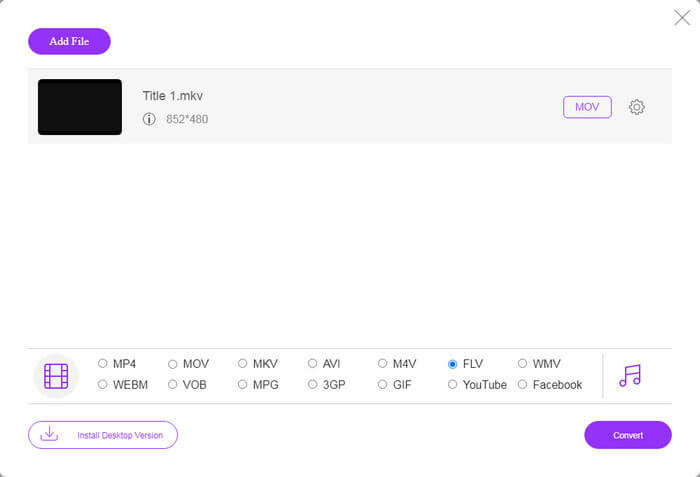
Step 3: Hit the Convert button to initiate converting AVI to FLV online. Wait for the process to complete and then download the FLV files to your hard drive.
Here you may like:
AVI so với FLV
Dựa trên Định dạng Tệp Trao đổi Tài nguyên (RIFF), định dạng AVI được Microsoft giới thiệu vào năm 1992. Nó có thể lưu video / âm thanh chất lượng cao vì nó sử dụng ít nén hơn. Nhưng điều đó cũng gây ra kích thước tệp lớn của tệp AVI, có thể là một vấn đề khi có dung lượng hạn chế.
Adobe Flash Player đã sử dụng FLV để cung cấp nội dung video như phim và chương trình truyền hình. Ngày nay, Adobe không còn phát triển trình phát nữa và khuyến nghị người dùng gỡ cài đặt vì lý do bảo mật. Tuy nhiên, bạn vẫn có thể sử dụng định dạng FLV trên nhiều chương trình không phải Adobe / Macromedia.
Phần 3: Câu hỏi thường gặp về AVI sang FLV
Tôi có thể chuyển đổi video YouTube sang FLV không?
Có hai cách để chuyển đổi video YouTube sang FLV. Khi tải xuống video YouTube, bạn có thể chọn định dạng FLV để chuyển đổi trực tiếp. Tất nhiên, bạn có thể tải xuống video và sau đó chuyển đổi nó sang FLV bằng trình chuyển đổi video.
FLV có tốt hơn AVI không?
Thật khó để nói. FLV tạo ra kích thước tệp nhỏ hơn AVI nhưng làm hỏng chất lượng video. Điều đó có nghĩa là FLV có thể giúp bạn tiết kiệm dung lượng trên thiết bị của mình trong khi AVI cung cấp trải nghiệm xem tốt hơn.
Làm thế nào để mở video FLV?
FLV là một định dạng video được sử dụng phổ biến, vì vậy hầu hết các trình phát đa phương tiện đều có thể giải mã nó, như VLC, BS Player, MK Player và hơn thế nữa. Tuy nhiên, bạn không thể phát FLV trên thiết bị di động mà không có trình chuyển đổi video.
Phần kết luận
Hướng dẫn này đã chia sẻ hai cách để chuyển đổi tệp video AVI sang định dạng FLV trên Windows và Mac. Ứng dụng chuyển đổi video trên web là một cách di động để thực hiện công việc trực tuyến. FVC Free FLV Converter có thể chuyển đổi các tệp video trên máy tính để bàn của bạn mà không cần kết nối internet. Hơn nữa, chất lượng đầu ra là tuyệt vời. Nhiều vấn đề hơn? Vui lòng liên hệ với chúng tôi bằng cách để lại lời nhắn của bạn trong khu vực bình luận bên dưới bài đăng này.
-
 2 cách dễ dàng để chuyển đổi tệp MOV sang FLV trên Windows / Mac
 Làm thế nào để chuyển đổi MOV sang FLV miễn phí? Dưới đây là các trình chuyển đổi video tốt nhất trên máy tính để bàn và trực tuyến để chuyển đổi tệp MOV của bạn sang FLV trong vài giây mà không phải trả một xu nào.
-
 4 phương pháp đã xác minh để chuyển đổi TS sang FLV trên Máy tính để bàn / Trực tuyến
 Bạn không thể mở TS trên máy tính hoặc thiết bị di động của mình theo mặc định. Cách duy nhất để xem các tệp video là chuyển đổi TS sang FLV hoặc các định dạng khác với hướng dẫn cụ thể của chúng tôi.
-
 2 cách dễ nhất để chuyển đổi tệp WMV sang FLV trên PC / Mac
 Làm thế nào bạn có thể chuyển đổi WMV sang FLV? Trước tiên, bạn cần đọc phần giới thiệu của chúng tôi và tìm ra phương pháp yêu thích của bạn, sau đó làm theo hướng dẫn của chúng tôi để thực hiện công việc một cách nhanh chóng.

