


 Chuyển đổi video Ultimate
 Trình ghi màn hình
 Sửa chữa video
 Tải xuống an toàn
Bộ kết hợp GIF ngoại tuyến và trực tuyến hàng đầu | Cách hợp nhất ảnh GIF liền mạch
Have you ever wanted to make an amusing and memorable image by splicing together several GIFs? Good news! Merging GIFs has never been simpler or more convenient than using the top-rated online and offline GIF combiner tools. With these potent apps, you can easily combine your preferred GIFs to make something totally new and unique that is sure to attract people's attention. In this tutorial guide, we'll demonstrate both online and offline methods for combining GIFs and offer advice on how to maximize the effectiveness of each method. Now is the time to begin exploring the fascinating field of GIF mashups.

Phần 1. Trình kết hợp GIF tốt nhất ngoại tuyến
Using an offline program for combining GIFs offers several advantages for users, such as not requiring an internet connection, providing better control over the process, ensuring more privacy and security, and allowing for faster processing. With an offline program, you can create and combine GIFs at your own pace and customize the output to your liking. That said, we would like to recommend FVC Video Converter Ultimate.
Công cụ này cho phép người dùng hợp nhất nhiều ảnh GIF lại với nhau và điều chỉnh cài đặt kích thước, tốc độ và phát lại của ảnh GIF thu được. Điều khiến nó khác biệt so với đối thủ cạnh tranh là nó là một phần mềm chỉnh sửa video đa chức năng bao gồm tính năng GIF Maker, cho phép người dùng thực hiện các tác vụ chỉnh sửa video khác ngoài việc hợp nhất các ảnh GIF. Ngoài ra, nó tự hào có một giao diện thân thiện với người dùng, cung cấp các hướng dẫn từng bước, giúp người dùng mới và nâng cao có thể truy cập được. Tìm hiểu cách hợp nhất nhiều GIF thành MP4 trên PC hoặc các định dạng khác bằng cách làm theo hướng dẫn đơn giản hóa.
Compatibility: Windows 11/10/8/7 & Mac OS X 10.12 or higher
Rating: 9.8 / 10
Pricing: $49.96 Lifetime
Các tính năng chính:
◆ Chuyển đổi video: FVC Video Converter Ultimate có thể chuyển đổi video sang nhiều định dạng, bao gồm MP4, AVI, WMV, MKV, v.v.
◆ Trích xuất âm thanh: Người dùng có thể trích xuất các bản âm thanh từ các tệp video.
◆ Hợp nhất các ảnh GIF: FVC Video Converter Ultimate bao gồm một công cụ GIF Maker tích hợp cho phép người dùng hợp nhất nhiều ảnh GIF, điều chỉnh tốc độ phát lại và tùy chỉnh các cài đặt khác.
◆ Đầu ra chất lượng cao: FVC Video Converter Ultimate tuyên bố sẽ duy trì chất lượng ban đầu của các tệp nguồn trong quá trình chuyển đổi, đảm bảo đầu ra có chất lượng cao.
◆ Xử lý hàng loạt: Người dùng có thể chuyển đổi và hợp nhất nhiều tệp cùng lúc, giúp tiết kiệm thời gian và tăng hiệu quả.
Steps on how to combine GIFs with this GIF merger:
Step 1. First you have to get the program by ticking any of the Free Download buttons below corresponding to your computer’s operating system. After that, open the installer and follow the setup wizard to properly install the GIF merger on your computer. Launch the program afterward.
Tải Miễn PhíDành cho Windows 7 trở lênTải xuống an toàn
Tải miễn phíDành cho MacOS 10.7 trở lênTải xuống an toàn
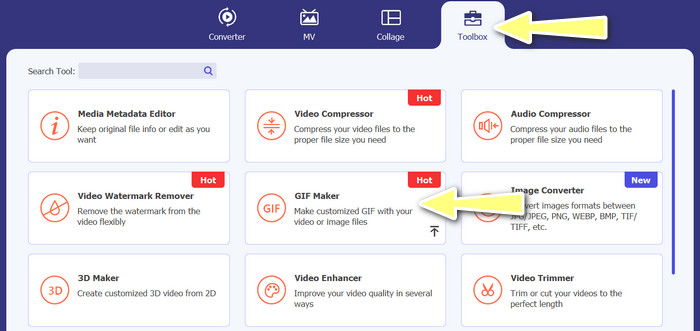
Step 2. Next, go to the Toolbox tab located from the upper interface of the program. Then, you will be redirected to a collection of options offered by the program. From here, select GIF Maker and add GIF files by ticking the Photos to GIF button. Afterward, choose all the GIF files you wish to merge into one.
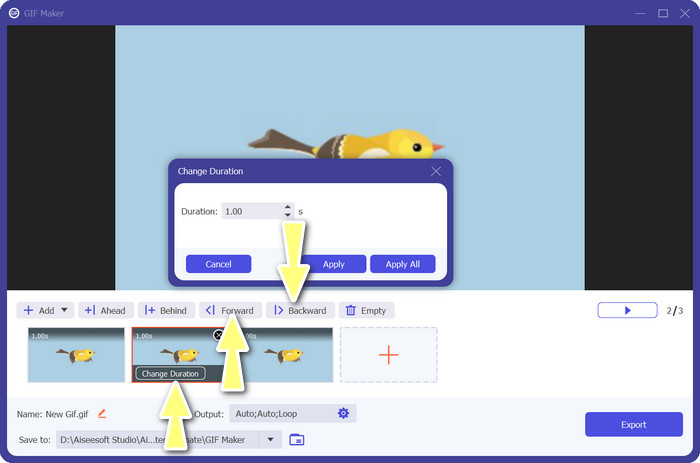
Step 3. From the editing panel, hover your mouse to each GIF to see the Change Duration option and adjust the length of each GIF. Also, you can change the sequence by choosing between the Backward and Forward buttons from the main menu.
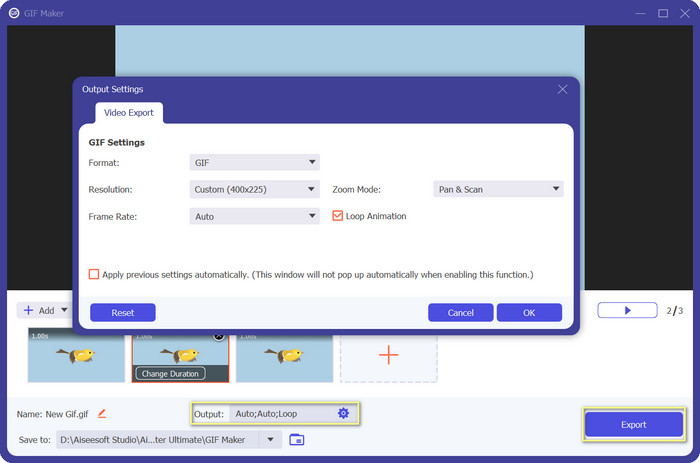
Step 4. Next, you may adjust other settings, such as the format, resolution, frame rate, and zoom mode, from the Output settings. Finally, hit the Export button to produce the final output.
Phần 2. Top 4 GIF Combiner trực tuyến
Ngoài ra còn có một số lựa chọn thay thế trực tuyến để kết hợp GIF thành một. Do đó, bạn có thể dễ dàng nối các ảnh GIF của mình mà không cần tải xuống bất kỳ chương trình nào trên máy tính. Kiểm tra chúng bằng cách kiểm tra các chương trình được giới thiệu dưới đây.
1. EZGIF
EZGIF là một dịch vụ web được sử dụng rộng rãi để tạo và sửa đổi ảnh GIF. Chức năng GIF Joiner cho phép bạn kết hợp nhiều ảnh GIF thành một ảnh duy nhất, với tùy chọn thay đổi tốc độ phát lại và các thông số khác. Dưới đây là hướng dẫn đơn giản về cách sử dụng EZGIF để kết hợp các ảnh GIF thành một.
Step 1. Launch your favorite web browser and visit the program's official site. From here, go to the GIF Maker option.
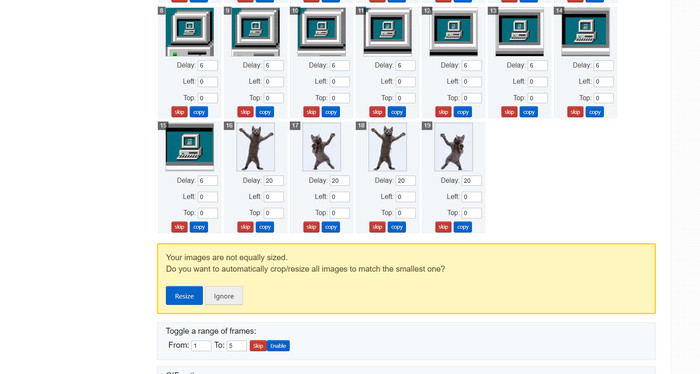
Step 2. Next, upload the GIF files you'd like to combine, and the tool will load each and every frame of your GIF file from the next page.
Step 3. Now, you can adjust which frame of a GIF you wish to include or exclude.
Step 4. Other options are available on the below page. If you are satisfied with the settings, tick the Make a GIF button.
2. GIPHY
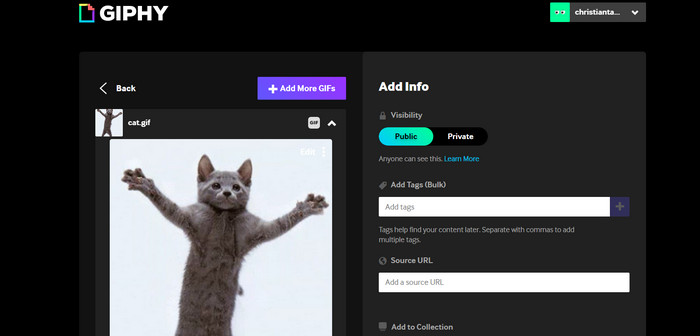
Mặc dù hầu hết mọi người biết GIPHY là nơi để tìm kiếm và chia sẻ ảnh GIF, nhưng họ có thể không nhận ra rằng trang web này cũng có Trình tạo ảnh GIF cho phép người dùng kết hợp ảnh GIF và thêm văn bản hoặc nhãn dán. Mặt khác, đây là quy trình từng bước để ghép ảnh GIF với GIPHY.
Step 1. To start making GIFs, head over to the GIPHY website and use the Create tab. Choose GIF Creator from the menu that appears.
Step 2. Select the GIFs you wish to combine from your computer by clicking the Choose Files button.
Step 3. The selected GIFs can be dropped onto the timeline at the screen's base. Simply by dragging the GIFs into a new order, you can change their display order.
Step 4. To change the length of each GIF, use the slider provided. Using GIPHY's editing tools, you can personalize your GIF with text, stickers, and more. After you're happy with the outcome, select Create GIF to save the combined GIF to your computer.
3. Kapwing
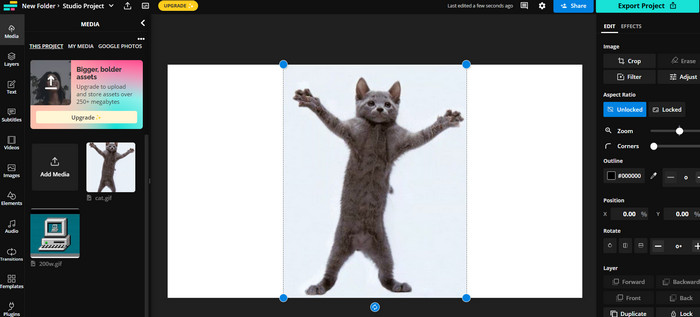
Kapwing is a free, web-based service that allows users to edit videos and create GIF from images. It allows users to submit several GIFs, combine them into one, select the playback speed, and change other parameters. To learn how to put two GIFs together with Kapwing, take a look at the instructions below.
Step 1. Go to Kapwing's website and click on Get Started to get started. Click on Click to Upload and select the GIFs you want to merge from your computer.
Step 2. Drag and drop the selected GIFs onto the timeline at the bottom of the screen. You can rearrange the order of the GIFs by dragging them to the desired position.
Step 3. Adjust the playback speed and duration of each GIF by using the editing tools provided by Kapwing. You can also add text, stickers, and other elements to your GIF by using the editing tools provided by Kapwing.
Step 4. Once you are satisfied, click on Publish to save your merged GIF to your computer.
4. Imgflip
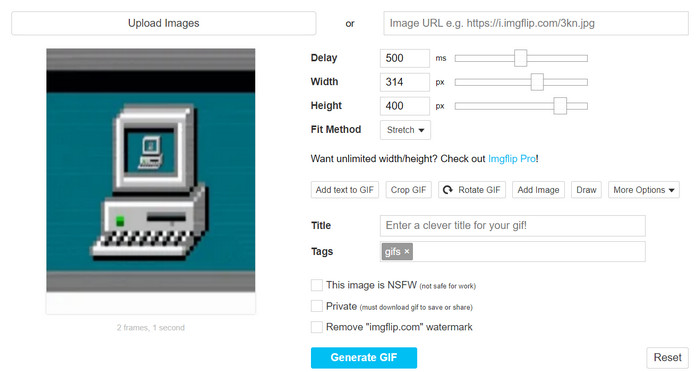
Trình tạo GIF và meme trực tuyến phổ biến Imgflip cũng có Trình tạo GIF. Người dùng có thể thêm lớp phủ văn bản, thay đổi tốc độ phát lại và đăng nhiều ảnh GIF cùng một lúc. Xem xét các bước và được thông báo về cách kết hợp các ảnh GIF thành một.
Step 1. Go to Imgflip's website and click on Create at the top of the page. Click on Video to GIF in the dropdown menu.
Step 2. Click on Upload Video and select the GIFs you want to merge from your computer. After your GIFs are uploaded, click on Join GIFs at the top of the page.
Step 3. Arrange the order of the GIFs by dragging and dropping them to the desired position. Adjust the playback speed and other settings as desired.
Step 4. Once satisfied with the final result, click Create GIF to save your merged GIF to your computer.
Phần 3. Các câu hỏi thường gặp về GIF Combiners
Tôi có thể kết hợp các ảnh GIF có kích thước khác nhau không?
Có, hầu hết các kết hợp GIF cho phép bạn kết hợp các GIF có kích thước và tỷ lệ khung hình khác nhau. Tuy nhiên, điều quan trọng cần lưu ý là đầu ra cuối cùng có thể bị cắt hoặc thay đổi kích thước tùy thuộc vào kích thước của từng ảnh GIF.
Hợp nhất các ảnh GIF không phải của tôi có hợp pháp không?
Điều quan trọng là phải tôn trọng luật bản quyền và chỉ hợp nhất các GIF mà bạn có quyền sử dụng. Điều này có thể bao gồm các ảnh GIF thuộc phạm vi công cộng hoặc ảnh GIF do chính bạn tạo.
Tôi có thể thêm văn bản hoặc nhãn dán vào GIF đã hợp nhất của mình không?
Yes, most GIF mergers offer editing features that allow you to add text, stickers, and watermarks to your GIF. This can help enhance the visual appeal and message of your GIF.
Phần kết luận
In a world where visual content is becoming increasingly important, GIF merging is a valuable skill to acquire. With the ability to combine GIFs into one file, you can create something truly unique that will grab the audience's attention and make them want to engage with your content.
-
 5 Trình thay đổi kích thước GIF tốt nhất hiện có trên mọi nền tảng [2023]
 Bạn muốn biết các công cụ thay đổi kích thước GIF mà bạn có thể sử dụng? Trong trường hợp đó, thông tin được cung cấp bên dưới sẽ nói về các công cụ thay đổi kích thước bạn có thể sử dụng trên GIF của mình trên tất cả các nền tảng.
-
 Loop GIF với Trình lặp ảnh GIF động tốt nhất trên Windows và Mac
 Bạn muốn biết bí mật để có GIF vòng lặp tốt nhất? Muốn làm một cái? Nếu vậy, bạn đang ở đúng nơi. Vì vậy, hãy học cách tạo vòng lặp với trình tạo vòng lặp tốt nhất hiện có.
-
 6 cách hàng đầu để kết hợp tệp MP4 trên Windows / Mac / Trực tuyến
 Bạn muốn hợp nhất các tệp MP4 thô cho dự án của mình? Bài đăng này tập hợp 6 cách hàng đầu giúp bạn kết hợp video MP4 trên Windows, Mac và trực tuyến một cách dễ dàng.
