


 Chuyển đổi video Ultimate
 Trình ghi màn hình
 Sửa chữa video
Nắm vững nghệ thuật chuyển đổi định dạng GIF sang video với các bước chi tiết
GIF có vai trò lớn trong việc cải thiện những thông điệp chúng ta gửi cho người khác. Ngoài ra, nếu bạn chèn GIF vào văn bản hoặc website thì nội dung sẽ trở nên thú vị hơn. Mặc dù GIF đã trở nên phổ biến trên toàn thế giới, vẫn còn một số nền tảng không hỗ trợ định dạng này. Vì vậy, cách tốt nhất để chia sẻ hoặc đăng định dạng đó là chuyển GIF sang video. Tuy nhiên, một số trình chuyển đổi không mang lại cho bạn trải nghiệm trọn vẹn khi chuyển đổi. Do đó, chúng tôi đã tổng hợp nhiều giải pháp khác nhau để giải quyết vấn đề chính này. Khi viết bài này, chúng tôi chỉ đưa ra và trình bày các thông tin thực tế về từng công cụ. Vậy nên, không chần chừ nữa, hãy tiếp tục và tìm ra giải pháp tốt nhất cho “bài toán” GIF của chúng ta.

Phần 1. 3 của những công cụ chuyển đổi tốt nhất để chuyển đổi GIF sang video trực tuyến
Ezgif
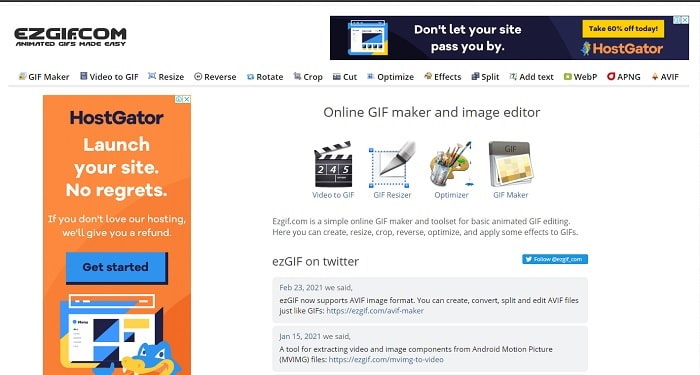
Ezgif đã giúp rất nhiều người dùng trực tuyến trong việc tạo GIF. Công cụ này cung cấp cho bạn các tính năng tuyệt vời như cắt, đảo ngược, xoay và nhiều hơn nữa. Nhưng nếu dùng nó làm trình chuyển đổi, định dạng đầu ra cuối cùng mà công cụ này hỗ trợ chỉ là MP4. Vì thế, nếu bạn muốn chuyển GIF sang MOV trên công cụ web này thì về cơ bản là không thể. Còn nếu bạn cần chuyển GIF sang MP4 thì đây chắc chắn là lựa chọn nên dùng. Mặc dù trình chuyển đổi này đã nhận được rất nhiều lời khen ngợi từ người dùng, vẫn có nhiều trình chuyển đổi khác mang lại nhiều thứ vượt trội hơn so với Ezgif.
GIPHY
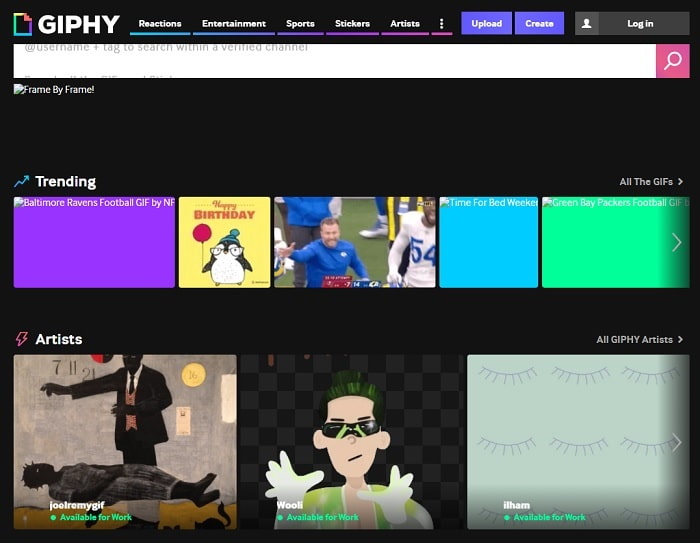
Một công cụ khác cho phép bạn tạo GIF là GIPHY. Công cụ web này cũng tạo ra nhiều GIF khác nhau mà bạn có thể sử dụng và chia sẻ với người khác. Không chỉ vậy, GIPHY còn có thể hướng dẫn bạn cách biến GIF thành video bằng tính năng của nó. Việc chuyển đổi ở đây là khả thi, nhưng không đáng để chúng ta dùng nó làm công cụ chuyển đổi chính. Dẫu vậy, đây là công cụ trực tuyến duy nhất trong danh sách này sở hữu thư viện riêng với vô số GIF để bạn lựa chọn. Hãy chọn GIF và gửi cho người khác bằng cách sao chép đường link của nó.
Zamzar
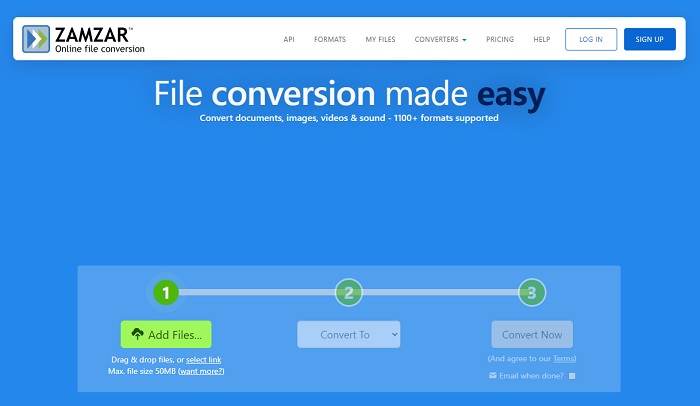
Nếu nói đến chuyển đổi định dạng thì Zamzar phải có mặt trong danh sách vì đây là một trong những trình chuyển đổi trực tuyến tốt nhất mà bạn có thể dùng. Nếu bạn là người mới bắt đầu, hãy thử công cụ này vì nó cung cấp hướng dẫn rất dễ làm theo. Tuy nhiên, công cụ web này có giới hạn về kích thước tệp và số lượng tệp có thể tải lên. Vậy nên, nếu muốn xử lý nhiều tệp cùng lúc thì bạn không thể làm ở đây vì quá trình chuyển đổi chỉ thực hiện theo kiểu một chiều, từng tệp một. Thêm nữa, nếu bạn không có Internet thì sẽ không thể truy cập bất kỳ công cụ nào kể trên vì tất cả đều phụ thuộc vào kết nối mạng.
Phần 2. Top 3 trình chuyển đổi tuyệt vời nhất để thay đổi GIF thành video ngoại tuyến
1. FVC Video Converter Ultimate
Đứng đầu danh sách là FVC Video Converter Ultimate, còn được gọi là trình chuyển đổi “thần kỳ” mà bạn có thể sở hữu. Dù là người mới hay đã chuyên nghiệp, công cụ này luôn mang lại những lần chuyển đổi ấn tượng nhất mà bạn mong muốn. Không chỉ vậy, bạn còn có thể tạo ra những GIF cực kỳ ấn tượng bằng một trong các tính năng của nó, đó là GIF Maker. Khi tìm hiểu sâu hơn, bạn sẽ thấy công cụ này tuyệt đến mức nhiều người dùng không còn muốn tìm phần mềm thay thế nào khác. Nếu sử dụng công cụ này, bạn có thể dễ dàng học cách lưu GIF dưới dạng video.
Vì nó cung cấp nhiều tính năng tương lai hơn như nâng cao video, đồng bộ hóa âm thanh và video, tăng cường âm thanh và hơn thế nữa. Tất cả các trình chuyển đổi không cung cấp các tính năng loại này, vì vậy chúng tôi có thể nói rằng nếu bạn muốn có một tính năng nâng cao thì đây phải là nó. Có thể bạn đang thắc mắc rằng công cụ này khó quản lý, nhưng nói thật với bạn công cụ này rất dễ sử dụng và dễ hiểu. Như nó được chỉ ra trên giao diện chính, cài đặt có thể làm gì. Vì vậy, để gây ấn tượng với ai đó, bạn phải học cách trở thành bậc thầy của tất cả những người chuyển đổi. Thực hiện theo các bước đơn giản nhưng chi tiết dưới đây để hoàn thành công việc một cách dễ dàng và hiệu quả.
Bước 1. Nhấn nút tải để tải chương trình về máy. Sau đó cài đặt chương trình và thay đổi phần thiết lập nếu bạn muốn. Khi mọi thứ đã xong, hãy nhấp Hoàn tất.
Tải xuống miễn phí cho Windows 7 trở lên. Tải xuống an toàn.
Tải xuống miễn phí cho MacOS 10.7 trở lên. Tải xuống an toàn.
Bước 2. Khởi chạy công cụ, sau đó nhấp Add Files và nhấn Open để chèn tệp GIF mà bạn muốn chuyển đổi.
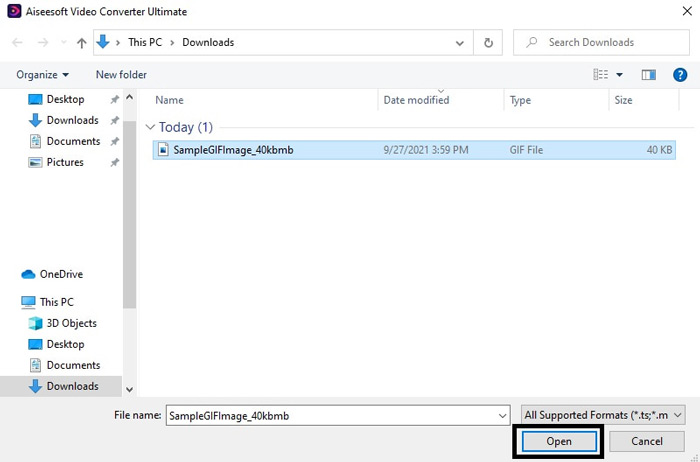
Bước 3. Sau khi thêm tệp GIF, hãy mở menu drop-down để chuyển GIF sang định dạng video mà bạn muốn.
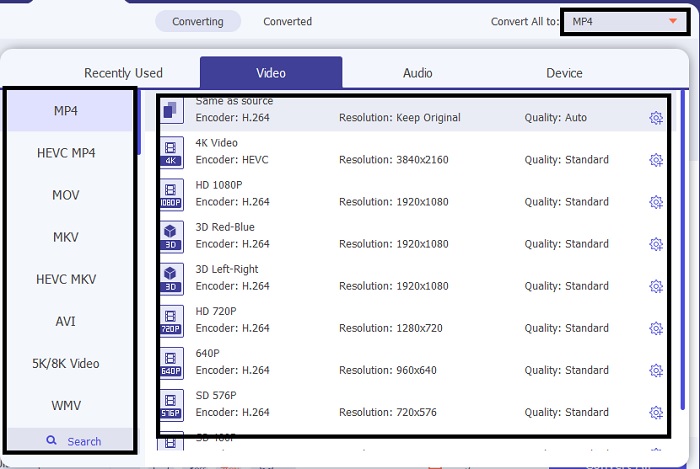
Bước 4. Sau khi đổi định dạng cho GIF, hãy nhấp nút Convert All để bắt đầu quá trình chuyển đổi định dạng.
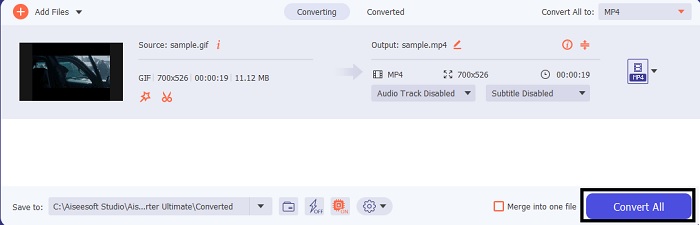
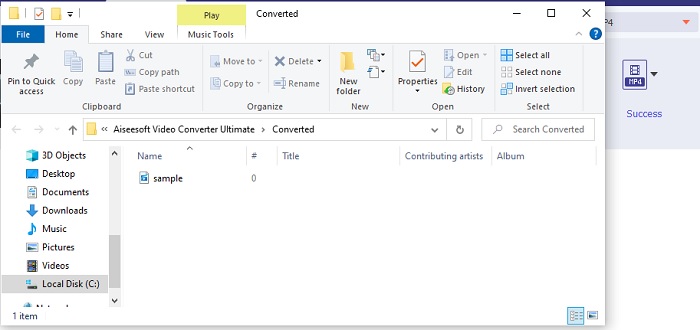
Bước 5. Để xem định dạng mới của GIF sau khi chuyển, thư mục chứa tệp sẽ tự động được hiển thị trên màn hình. Nhấp vào tệp đầu tiên để xem và chia sẻ GIF đó lên mọi nền tảng bạn muốn.
2. FVC Free Video to GIF Maker
Đây là phiên bản miễn phí của trình chuyển đổi tối ưu, có tên FVC Free Video to GIF Maker. Không giống như công cụ đầu tiên phía trên, công cụ này không có các chức năng chỉnh sửa và nâng cao. Nói cách khác, nó chỉ sở hữu những tính năng cơ bản mà bản “ultimate” có. Vì vậy, bạn không thể thêm “chất riêng” của mình ở đây, trừ khi bạn đang tạo GIF. Nhưng tốc độ chuyển đổi ở đây khá nhanh so với các công cụ web hoặc phần mềm khác. Tuy nhiên, nếu so sánh quy trình chuyển đổi của nó với bản “ultimate” thì phần mềm miễn phí này không thể đạt đến tốc độ của bản trả phí. Dù vậy, nó vẫn rất đáng dùng để chuyển đổi, đặc biệt là khi cần chuyển GIF sang video. Hãy làm theo các bước dưới đây để bắt đầu.
Bước 1. Cài đặt công cụ trên PC hoặc Mac của bạn rồi khởi chạy.
Tải miễn phíDành cho Windows 7 hoặc mới hơnTải xuống an toàn
Tải miễn phíDành cho MacOS 10.7 hoặc mới hơnTải xuống an toàn
Bước 2. Nhấp Add File để tìm tệp GIF trong thư mục của bạn.
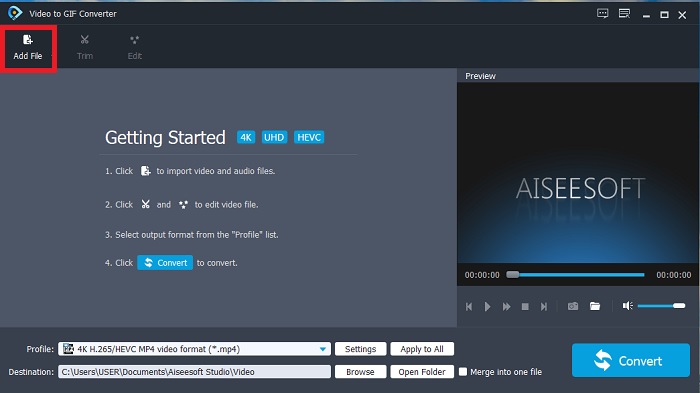
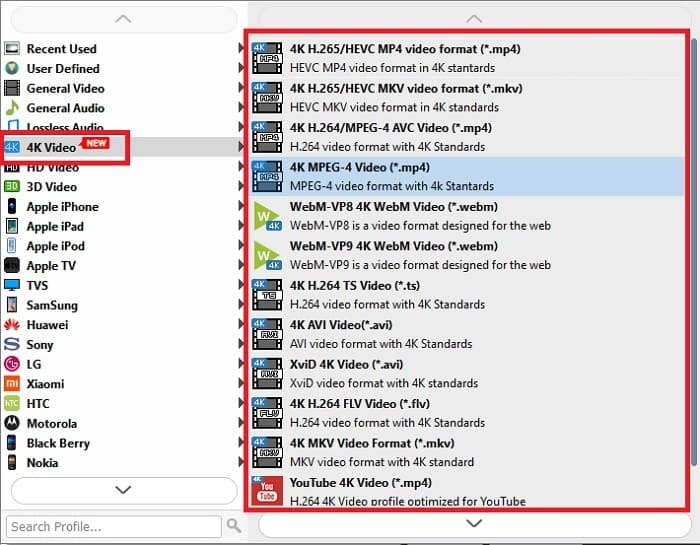
Bước 3. Để đổi định dạng, hãy nhấp Profile và chọn một trong các tùy chọn bên dưới.
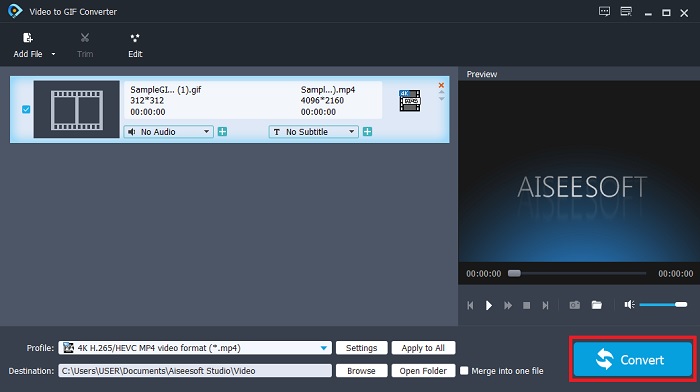
Bước 4. Khi đã sẵn sàng, hãy nhấp nút Convert để bắt đầu quá trình.
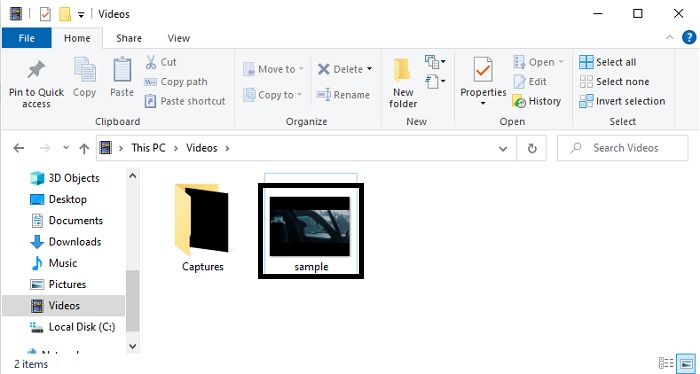
Bước 5. Để xem lại tệp GIF, hãy mở trình quản lý tệp và bạn sẽ tìm thấy nó ở đó.
3. QuickTime Media Player
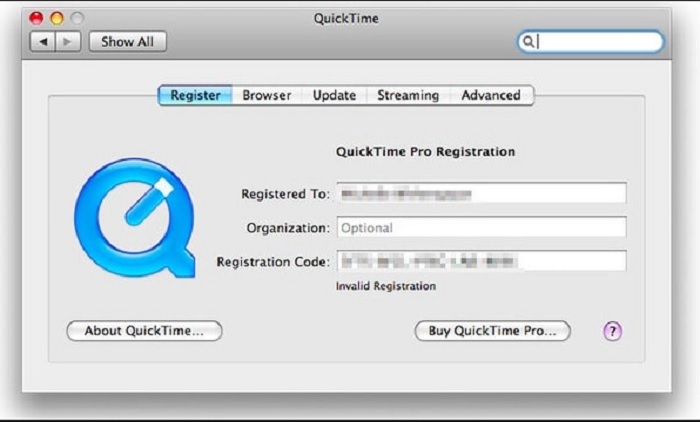
Trình phát media mặc định này chỉ được thiết kế cho Mac và cũng có thể dùng để chuyển đổi. QuickTime trở nên nổi tiếng vì là một trong những trình phát media tốt nhất, cho chất lượng hình ảnh/âm thanh cao với mọi định dạng được phát. Tuy nhiên, việc chuyển đổi ở đây hơi cứng nhắc, vì bạn phải thực hiện khá nhiều bước chỉ để chuyển đổi một GIF. Không những thế, chương trình này còn có nhược điểm khác là hỗ trợ ít định dạng khi dùng như một trình chuyển đổi. Do đó, nếu bạn dùng Mac, bạn vẫn có thể thử và tự tìm hiểu cách chuyển GIF sang video bằng QuickTime Media Player.
Phần 3. Chuyển GIF sang định dạng Video trên Chương trình iOS và Android
GIF Cracker - GIF thành video
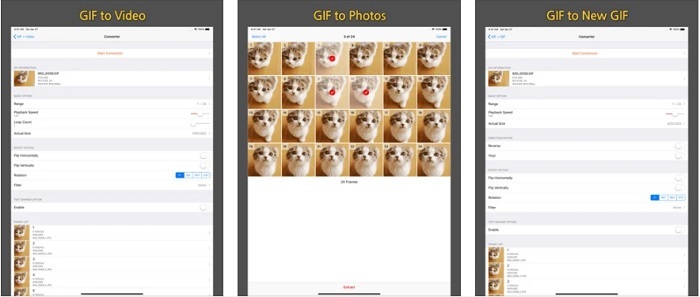
Nếu bạn muốn thử chuyển đổi trên iOS để giải quyết vấn đề này, hãy để GIF Cracker - GIF to Video giúp bạn. Công cụ này cũng có thể được truy cập trên Android nhưng lại không phải lựa chọn tốt nhất trên hệ điều hành này. Bởi vì ứng dụng trên Android là phiên bản cũ của GIF Cracker. Vậy nên, nếu bạn tải ứng dụng này về điện thoại Android, hãy chuẩn bị tinh thần gặp khá nhiều lỗi lớn nhỏ và quảng cáo phiền phức. Trong khi đó, nếu bạn là người dùng iOS thì có thể tận hưởng trải nghiệm chuyển đổi cơ bản mà bạn cần. Như đã nói, ứng dụng không có những chức năng chỉnh sửa và cải thiện nâng cao.
ImgPlay - Trình tạo GIF
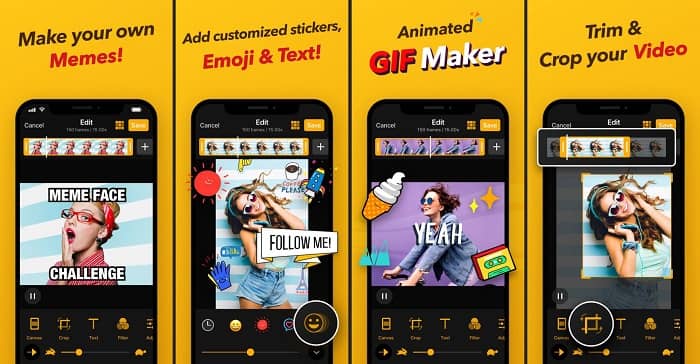
Một ứng dụng iOS khác cho phép bạn chuyển GIF thành video trên iPhone là ImgPlay – GIF Maker. Phần lớn người dùng iOS đều sử dụng ứng dụng này vì nó cho phép người dùng chỉnh sửa đơn giản nhưng hiệu quả. Tuy vậy, dù thu hút lượng người dùng lớn, ứng dụng này vẫn tồn tại một số nhược điểm. Chẳng hạn, khi bạn chuyển GIF sang định dạng MP4, chất lượng video có thể bị mờ đi đôi chút. Ngoài ra còn có vài lỗi nhỏ, nhưng nếu dùng ứng dụng ImgPlay thì bạn vẫn có thể mong đợi một quá trình chuyển đổi tốt với tốc độ khá ổn.
GIF thành video, GIF thành hình ảnh
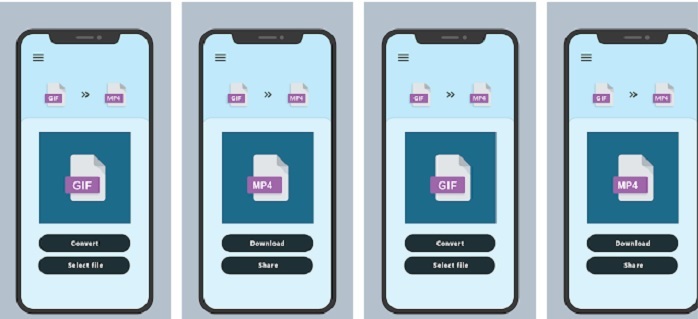
Người dùng Android cũng có thể thực hiện việc chuyển đổi ngay trên điện thoại. GIF To Video, GIF To Image đã tạo được tên tuổi trên Android vì là một trong những trình chuyển đổi tốt nhất dành cho người dùng di động. Hơn nữa, nếu sử dụng công cụ này, bạn sẽ thấy nó dễ hiểu hơn nhiều so với các ứng dụng chuyển đổi trên iOS. Tuy nhiên, giống như các ứng dụng trên iOS, tất cả chúng chỉ hỗ trợ một số ít định dạng. Vì vậy, bạn sẽ không thể khám phá thêm những định dạng khác nếu muốn dùng.
Đọc thêm
Phần mềm chỉnh sửa GIF động tốt nhất
Phần 4. Câu hỏi thường gặp về GIF to Video
Tôi có bị giảm chất lượng khi thực hiện chuyển đổi không?
Nhận định này đúng nếu bạn dùng sai trình chuyển đổi, nhưng giờ đã có giải pháp. Giải pháp cho vấn đề này là sử dụng FVC Ultimate Video Converter. Khi dùng công cụ này, bạn gần như không có khả năng bị giảm chất lượng sau khi chuyển đổi. Nhưng nếu bạn vẫn cảm thấy video hơi mờ, bạn có thể sử dụng tính năng Video Enhancer trong hộp công cụ (Toolbox).
Định dạng nào tốt hơn GIF?
APNG tốt hơn định dạng GIF vì nó hỗ trợ rất nhiều bảng màu, khung hình / giây, độ phân giải và hơn thế nữa. Nhưng APNG ít được hỗ trợ hơn, mặc dù điều này sẽ thay đổi trong tương lai dưới dạng phiên bản GIF mới.
Định dạng video nào tốt nhất có thể chứa GIF?
Đúng là tất cả các định dạng video đều có thể chứa tệp chuyển đổi GIF. Nhưng tốt nhất là MP4 vì nó là định dạng phổ biến được sử dụng để lưu trữ video và âm thanh mà vẫn giữ được chất lượng tự nhiên.
Phần kết luận
Tổng kết lại, tất cả các giải pháp được giới thiệu trong danh sách đều sở hữu những khả năng riêng. Nhưng có một công cụ nổi bật hơn cả, đó là FVC Video Converter Ultimate. Những công cụ và ứng dụng trong bài đều có thể thực hiện việc chuyển đổi, nhưng để có chất lượng đầu ra tốt nhất, bạn nên dùng bản “ultimate”. Như đã đề cập ở trên, công cụ này được biết đến như một trình chuyển đổi “thần kỳ”. Hãy lấy bất kỳ tệp GIF, video hoặc âm thanh nào và chuyển đổi bằng công cụ này để trải nghiệm phiên bản tốt nhất của tệp.
-
 Cách chuyển đổi video AVI thành tệp GIF động trên Windows / Mac
 Bạn muốn chọn các đoạn AVI thú vị để tạo các meme GIF? Bài viết này sẽ cho bạn biết 2 phương pháp tốt nhất để cắt video AVI và chuyển đổi AVI sang tệp GIF động miễn phí.
-
 [Giải quyết] Cách chuyển đổi video FLV sang tệp GIF động miễn phí
 Nếu bạn muốn tạo GIF từ các phân đoạn video FLV để gửi tốt hơn, bạn có thể tìm hiểu thêm về cách chuyển đổi video FLV sang tệp GIF dễ dàng từ bài viết này.
-
 [2 Giải pháp] Cách chuyển đổi tệp SWF thành tệp GIF một cách dễ dàng miễn phí
 Khi không xuất được định dạng GIF thông qua phần mềm Flash, trước tiên, bạn có thể thử lưu các tệp ở định dạng SWF. Sau đó, bạn có thể tìm hiểu 2 cách dễ dàng để chuyển đổi tệp SWF sang GIF từ bài viết này.
