


 Chuyển đổi video Ultimate
 Trình ghi màn hình
 Sửa chữa video
4 trong số các trình chuyển đổi PNG sang GIF tốt nhất có sẵn trực tuyến và ngoại tuyến
PNG là một loại định dạng hình ảnh và được xem là định dạng kế nhiệm của GIF. Ở thời điểm hiện tại, điều này có vẻ càng ngày càng có khả năng xảy ra hơn. Bởi vì PNG hỗ trợ rất nhiều màu sắc và cho chất lượng hiển thị tốt hơn GIF, tuy nhiên PNG lại không thể thực hiện được những gì GIF làm được. Vì vậy, trong bài viết này hãy cùng tìm hiểu cách chuyển PNG sang GIF với sự hỗ trợ của các công cụ được giới thiệu bên dưới. Không dài dòng nữa, hãy cùng xem các công cụ sau đây.

Phần 1. Làm thế nào để chuyển đổi PNG sang GIF với Top 3 Trực tuyến Miễn phí
1. Convertio
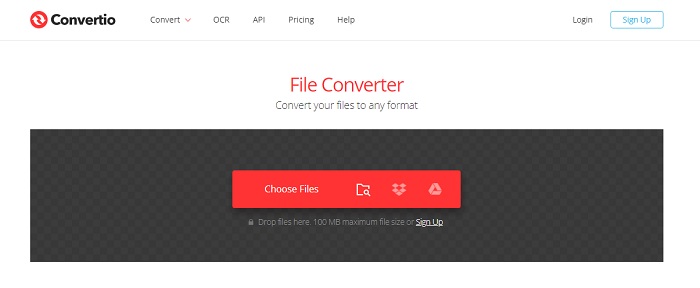
Một trong những công cụ trực tuyến tốt nhất mà bạn có thể dùng miễn phí nếu có kết nối Internet là Convertio. Công cụ web này có thể giúp bạn đổi PNG sang GIF dễ như trở bàn tay. Tuy nhiên, công cụ này không thể chuyển PNG thành ảnh GIF động nhiều khung hình, mà chỉ đổi được định dạng. Ngoài ra, nếu bạn chuyển PNG sang định dạng GIF thì dung lượng tệp sẽ nhỏ hơn và được nén nhiều hơn. Dưới đây là các bước để thay đổi định dạng hình ảnh của bạn sang GIF. Hãy làm theo lần lượt khi chúng ta tiến hành.
Bước 1. Tìm kiếm Convertio.io trên công cụ tìm kiếm của bạn rồi mở trang web.
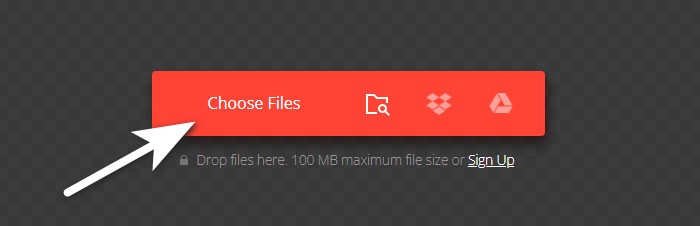
Bước 2. Nhấp vào Choose File và tìm tệp trong thư mục rồi nhấp open để tải tệp lên.
Sau đó nhấp nút drop-down để đổi định dạng sang GIF.
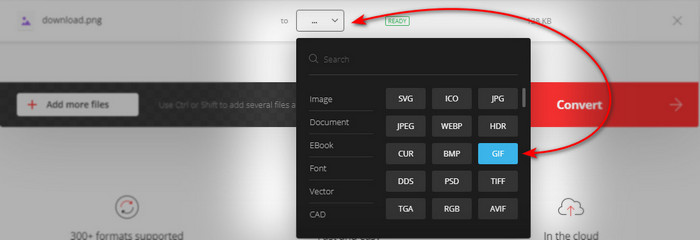
Bước 3. Nhấn nút Convert để bắt đầu quá trình và nhấn download để lưu tệp về máy.

2.AnyConv
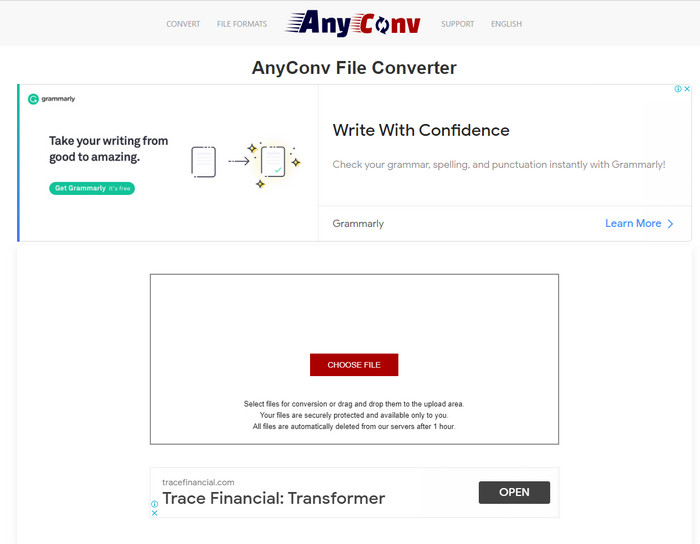
Anyconv là một công cụ web tuyệt vời khác mà bạn có thể dùng để chuyển PNG động sang GIF một cách dễ dàng và hiệu quả. Giao diện của công cụ web này không phải là tốt nhất nhưng cũng không quá tệ. Tuy công cụ có thể giúp bạn, nhưng trên trang lại có rất nhiều quảng cáo phiền phức, khá khó chịu vì quảng cáo còn to hơn cả phần công cụ. Tuy nhiên, sau khi chuyển đổi xong, tệp của bạn sẽ bị xóa khỏi web vì họ coi trọng quyền riêng tư của bạn. Nhưng công cụ này hỗ trợ ít định dạng hơn so với Convertio. Vì vậy, nếu bạn muốn thử dùng công cụ này thì hãy làm theo các bước sau.
Bước 1. Mở trình duyệt và tìm kiếm trang web Anyconv.
Bước 2. Nhấp vào Choose File rồi tìm tệp trong thư mục và nhấp open.
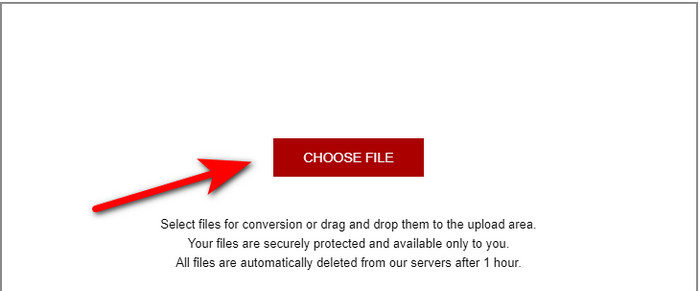
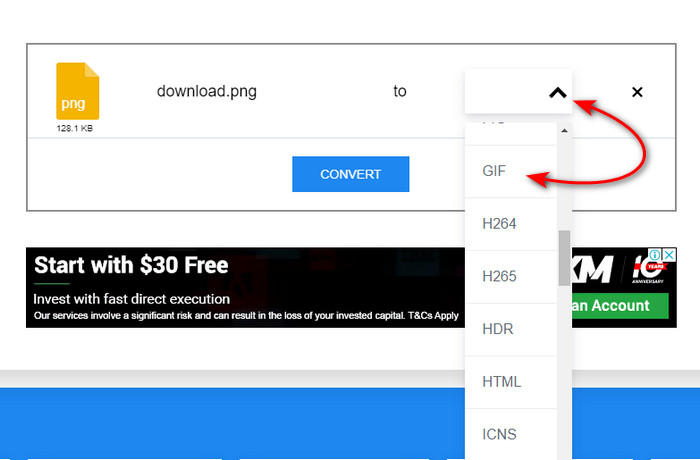
Bước 3. Đổi định dạng bằng cách nhấp nút drop-down và chọn GIF.
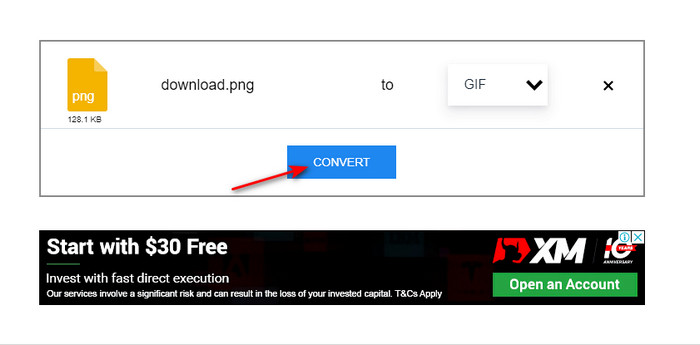
Sau đó nhấp Convert để bắt đầu tải lên và nhấp download.
3. chuyển đổi miễn phí. com
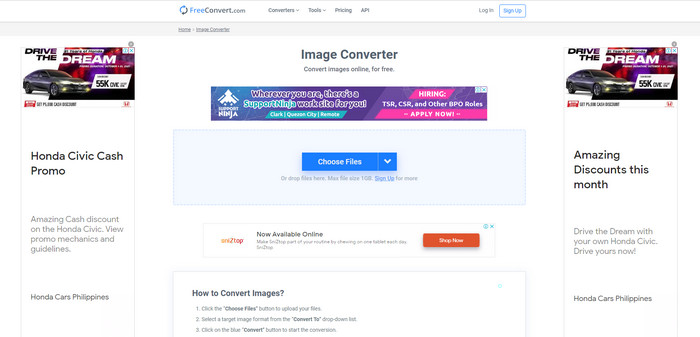
Một công cụ web khác trong danh sách có thể khiến bạn ấn tượng là Free convert. com. Vì đây là một công cụ web được xây dựng khá tốt, trực quan, bạn có thể truy cập miễn phí trên mạng. Giao diện của nó có khá nhiều quảng cáo phiền phức gây khó chịu. Tuy nhiên, công cụ này có hướng dẫn bên dưới về cách chuyển đổi bằng Free convert. com, điều mà hai công cụ trên không có. Đồng thời, cũng giống các công cụ web khác, công cụ này không thể tạo các chuỗi GIF động vì không được hỗ trợ. Vậy nên, nếu bạn muốn biết công cụ này hoạt động như thế nào thì hãy làm theo các bước bên dưới.
Bước 1. Tìm kiếm Free convert.com trên công cụ tìm kiếm để mở trang chính của nó.
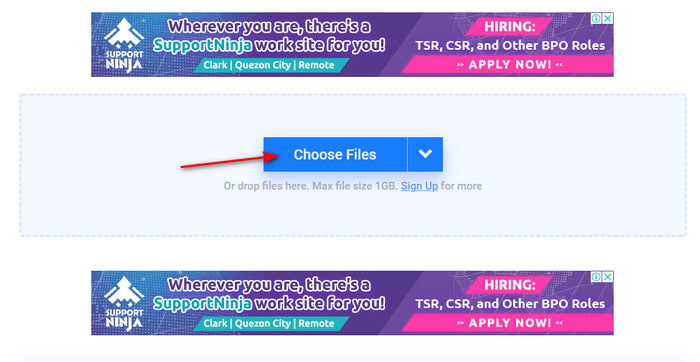
Bước 2. Nhấp vào Choose File và một cửa sổ thư mục sẽ hiện lên cạnh màn hình. Tìm tệp PNG và nhấp open để chèn tệp.
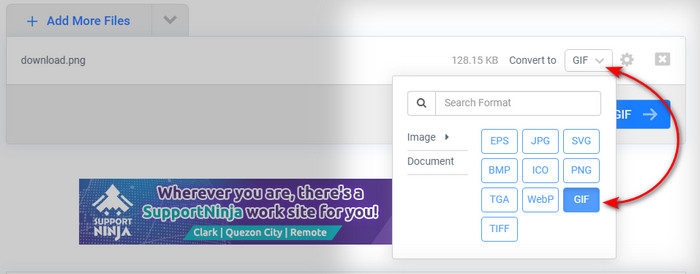
Bước 3. Đổi định dạng bằng cách nhấp nút xổ xuống Convert to rồi chọn định dạng GIF.
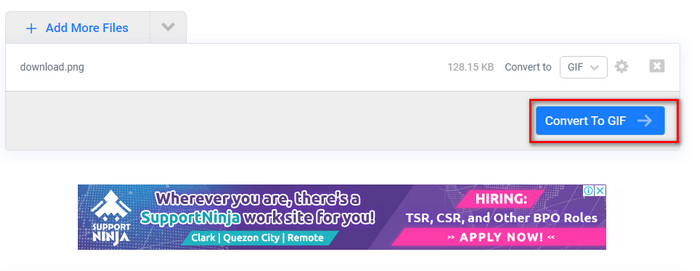
Để tải tệp xuống, nhấp Convert to GIF và đợi vài phút cho đến khi xử lý xong, sau đó nhấp Download GIF.
Phần 2. Cách tốt nhất để chuyển đổi nhiều PNG thành GIF
Khác với các công cụ web ở trên, chúng không thể tạo ảnh động như Video Converter Ultimate. Bởi vì một trong những tính năng của trình chuyển đổi mạnh mẽ này là GIF Maker, giúp bạn biến chuỗi PNG thành định dạng GIF. Rất nhiều người dùng đã hài lòng với kết quả cuối cùng khi sử dụng công cụ này. Vì thế, nếu bạn muốn hài lòng với GIF của mình thì hãy thử dùng công cụ này. Dù bạn không phải dân chuyên, bạn vẫn có thể tạo được những ảnh GIF ấn tượng như ý. Vậy nên, để tiếp tục, hãy cẩn thận làm theo các bước được nêu dưới đây.
Các bước sử dụng GIF Maker của Video Converter Ultimate
Bước 1. Tải công cụ về ổ cứng, cài đặt rồi khởi chạy.
Tải xuống miễn phí cho Windows 7 trở lên. Tải xuống an toàn.
Tải xuống miễn phí cho MacOS 10.7 trở lên. Tải xuống an toàn.
Bước 2. Tiếp theo, nhấp vào Toolbox và tìm GIF Maker.
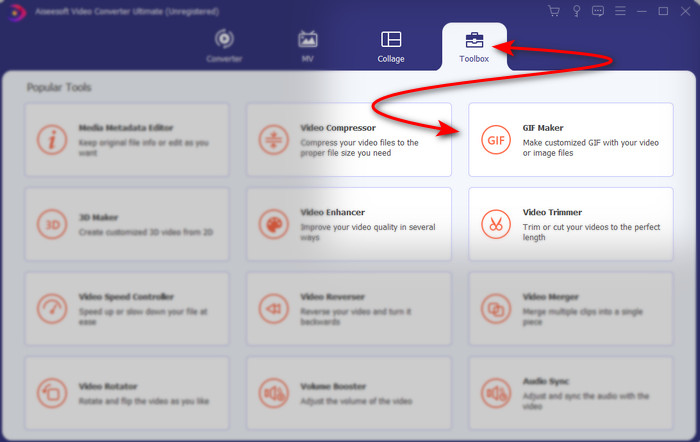
Bước 3. Để thêm tệp, nhấp Photos to GIF, sau đó trong thư mục hãy chọn các tệp PNG bạn muốn chuyển đổi và nhấp open.
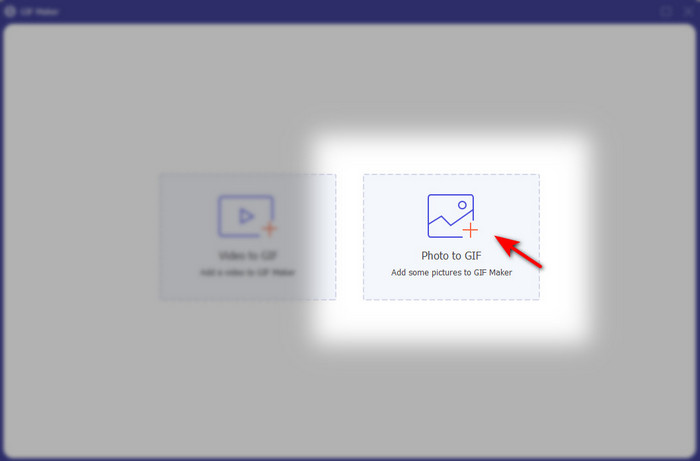
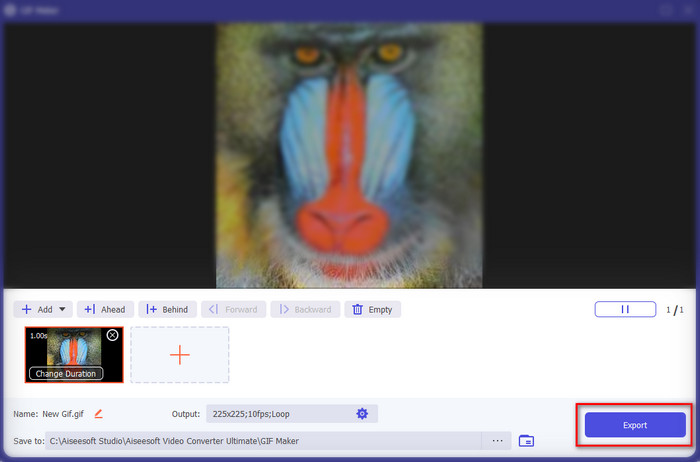
Bước 4. Output Settings sẽ hiện trên màn hình, hãy điều chỉnh thông số cho sản phẩm cuối cùng rồi nhấp OK. Để chuyển đổi hàng loạt PNG sang GIF thì nhấp vào dấu +, lưu ý là kết quả cuối cùng sẽ là một GIF động. Tuy nhiên, nếu bạn chỉ muốn chuyển một PNG duy nhất thì nhấp nút Export để lưu kết quả cuối cùng vào máy.
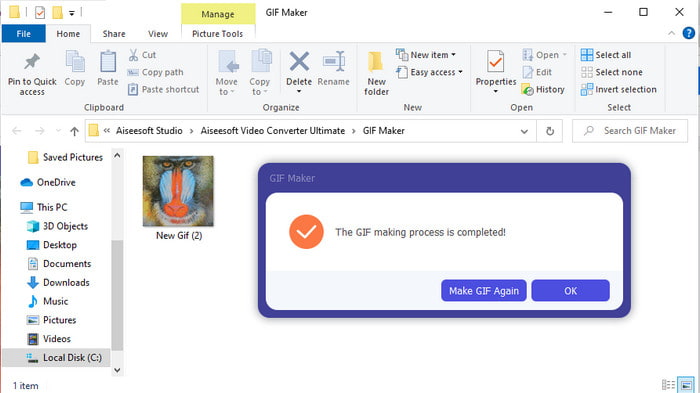
Bước 5. Đợi vài giây, một cửa sổ thư mục sẽ hiện ra trên màn hình. Nhấp vào tệp trong thư mục để xem và chia sẻ sau.
Phần 3. Câu hỏi thường gặp về PNG đến GIF
Tại sao PNG có chất lượng tốt hơn GIF?
Đơn giản là vì PNG hỗ trợ 16,8 triệu màu kết hợp với độ trong suốt 1-bit không giống như GIF chỉ hỗ trợ 256 màu mà không có kênh alpha. Tuy nhiên, màu sắc của GIF được nén nhiều hơn nếu chúng ta định so sánh nó với PNG. Ngoài ra, kích thước tệp GIF nhỏ hơn nhiều so với định dạng PNG.
Tôi có thể chuyển JPG sang GIF không?
Hoàn toàn đồng ý. Nếu bạn muốn biết JPG là gì và cách chuyển JPG sang GIF, hãy nhấp vào liên kết này để chuyển đến một trang web mới.
Nếu tôi chuyển đổi PNG thành GIF thì độ trong suốt của nó có bị xóa không?
Bạn không cần phải lo lắng vì cả PNG và GIF đều hỗ trợ độ trong suốt 1 màu. Vì vậy, nếu bạn chuyển đổi PNG thành GIF thì hãy mong đợi rằng độ trong suốt của nó sẽ không thay đổi bất kể điều gì.
Phần kết luận
Và bây giờ khi đã đến cuối bài, chúng tôi hy vọng bài viết này giúp bạn biết cách chuyển định dạng hình ảnh sang GIF. Tuy nhiên, có một công cụ có thể lưu chuỗi ảnh động giống như GIF, đó là Video Converter Ultimate tuyệt vời. Công cụ này sẽ giúp bạn trong rất nhiều tình huống, đặc biệt là với GIF. Vì vậy, nếu bạn muốn tạo một ảnh GIF đẹp, hãy làm theo các bước bên trên và tải ngay phần mềm này về.
-
 [Hướng dẫn] Cách chuyển đổi video M4V thành ảnh động GIF trên Windows / Mac
 Nếu bạn muốn tạo tệp GIF động từ video M4V yêu thích của mình, bạn có thể tìm hiểu về 2 cách dễ dàng và hiệu quả để chuyển đổi video M4V sang GIF với cài đặt tùy chỉnh.
-
 WebM to GIF - 3 Trình chuyển đổi WebM sang GIF miễn phí để tạo GIF của riêng bạn
 WebM có phải là GIF không? Làm cách nào để biến video thành GIF? Có bất kỳ trình chuyển đổi WebM sang GIF miễn phí nào không? Bài đăng này chia sẻ 3 cách miễn phí giúp bạn chuyển đổi WebM sang GIF.
-
 Cách chuyển đổi video MKV thành GIF động mà không cần Photoshop / FFmpeg
 Sau khi tải xuống và xem phim MKV trên máy tính, bạn có thể muốn chia sẻ những khoảnh khắc tuyệt vời với bạn bè hoặc trên Internet dưới dạng ảnh GIF. Trong bài viết này, bạn có thể tìm hiểu về 2 cách đơn giản nhất để chuyển đổi MKV sang GIF.
