


 Chuyển đổi video Ultimate
 Trình ghi màn hình
 Sửa chữa video
 Tải xuống an toàn
Cách chuyển đổi SVG sang JPG nhanh chóng [Cách siêu dễ dàng]
Bạn có thể muốn chuyển đổi hình ảnh SVG sang JPG vì nhiều lý do. Một khả năng là để việc chỉnh sửa trở nên đơn giản hơn. Hình ảnh SVG cần dùng trình chỉnh sửa đồ họa dạng vector. Tuy nhiên, các trình chỉnh sửa ảnh dạng raster lại phổ biến với người dùng hơn, chẳng hạn như Microsoft Paint và Adobe Lightroom. Việc dùng Lightroom để chỉnh sửa SVG có thể thực hiện được nếu bạn chuyển nó sang JPG trước. Chia sẻ trực tuyến là một lý do khác để đổi SVG sang JPG. Các trang web và ứng dụng cho phép tải ảnh lên gần như luôn chấp nhận JPG. Tuy vậy, chúng hiếm khi chấp nhận SVG. Ví dụ, Instagram chấp nhận JPG nhưng không chấp nhận SVG. Bài viết này sẽ cung cấp cho bạn những phương pháp thực tế để đổi SVG sang JPG. Ngoài ra, bạn cũng sẽ khám phá các bộ chuyển đổi hình ảnh tốt nhất có thể dùng cả online lẫn offline.

Phần 1. So sánh SVG và JPG
| Định dạng tệp | SVG | JPG |
| Phần mở rộng tên tệp | .svg | .jng |
| Được phát triển bởi | Hiệp hội Web toàn cầu | Ủy ban JPEG |
| Được phát triển bởi | SVG là một định dạng tệp hình ảnh vector cho đồ họa 2D dựa trên XML. Hoạt hình và tương tác được hỗ trợ. Trong tệp văn bản XML, ảnh SVG và hành vi của chúng được xác định. Vì các tệp SVG chỉ là các tệp XML nên chúng có thể được chỉnh sửa bằng bất kỳ trình soạn thảo văn bản nào. | JPG được sử dụng cho các trang web và email vì chúng đã giảm kích thước tệp. Tuy nhiên do JPG bị lossy nên sẽ ảnh hưởng đến chất lượng ảnh sau khi nén. Tập tin "mất dữ liệu" có nghĩa là chất lượng bị mất. Thẻ nhớ cho máy ảnh kỹ thuật số sử dụng định dạng JPG. |
| chi tiết kỹ thuật | SVG là một định dạng được sử dụng để xác định đồ họa dựa trên vectơ dựa trên XML cho Web. Tệp này sẽ không làm giảm chất lượng hình ảnh ngay cả khi được phóng to hoặc thay đổi kích thước. Tất cả các phần tử và thuộc tính của tệp SVG đều có thể được làm động. | JPG là một định dạng tệp hình ảnh để chỉnh sửa ảnh tĩnh. Nó cung cấp một kỹ thuật nén đối xứng chuyên sâu về bộ xử lý. Nó cũng tốn thời gian trong cả quá trình nén và giải nén. JPEG là một tiêu chuẩn chung của Liên minh Viễn thông Quốc tế. Nó cũng bao gồm Tổ chức Tiêu chuẩn hóa Quốc tế. |
| Các chương trình liên kết | Adobe Photoshop Adobe Preview Cửa hàng sơn Corel Pro Trình xem Corel SVG | Trình xem thư viện ảnh Microsoft Windows Adobe Photoshop Adobe Preview Cửa hàng sơn Corel Pro |
Phần 2. Cách tốt nhất để chuyển đổi SVG sang JPG trực tuyến
Công cụ tốt nhất bạn có thể sử dụng là FVC Free Image Converter. Nó có thể chuyển đổi SVG sang JPG một cách dễ dàng. Ngoài ra, bạn còn có thể chuyển đổi nhiều tệp SVG sang JPG cùng lúc. Công cụ cung cấp giao diện và hướng dẫn dễ hiểu, rất lý tưởng cho người dùng. Trình chuyển đổi ảnh này có khả năng chuyển đổi hàng loạt. Bên cạnh đó, bạn có thể tải về nhiều tệp đã chuyển đổi chỉ với một lần nhấp chuột. Một điểm tích cực khác của công cụ này là không có quảng cáo gây phiền nhiễu. Bạn có thể tập trung chuyển đổi tệp mà không gặp bất kỳ quảng cáo nào. Thêm vào đó, nó chấp nhận tệp đầu vào với nhiều định dạng khác nhau như PNG, BMP, TIFF, GIF, v.v. Bạn cũng không cần cài đặt trình chuyển đổi này. Nó được vận hành ngay trên trình duyệt của bạn. Hơn nữa, sau khi chuyển đổi, chất lượng hình ảnh sẽ giữ nguyên như bản gốc. Nhờ vậy, bạn có thể đảm bảo ảnh vẫn có vẻ ngoài tuyệt vời. Đồng thời, thông tin của bạn cũng được bảo mật trên website này. Sau khi chuyển đổi và lưu ảnh, trang sẽ tự động xóa toàn bộ dữ liệu của bạn.
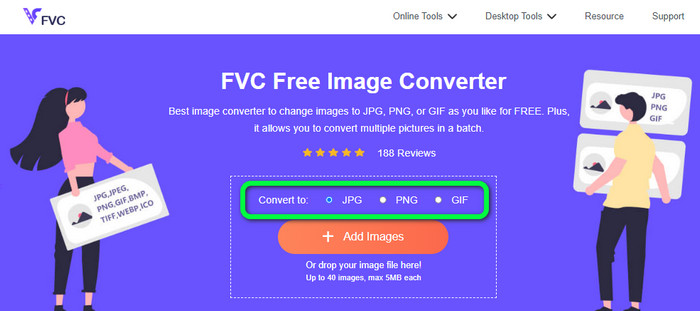
Bước 1: Truy cập trang web chính của FVC Free Image Converter. Trước khi thêm tệp ảnh SVG, hãy chọn định dạng đầu ra mà bạn muốn. Nhấp vào định dạng JPG trong phần tùy chọn định dạng.
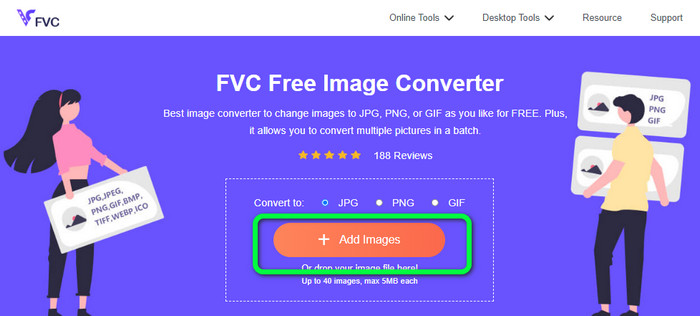
Bước 2: Nhấp nút Add Images ở giữa giao diện. Sau đó, thư mục tệp của bạn sẽ hiện trên màn hình. Chọn ảnh SVG bạn muốn chuyển đổi rồi mở nó. Bạn cũng có thể kéo thả trực tiếp tệp SVG vào trong khung. Nhấp nút Add Images lần nữa để thực hiện quá trình chuyển đổi hàng loạt.
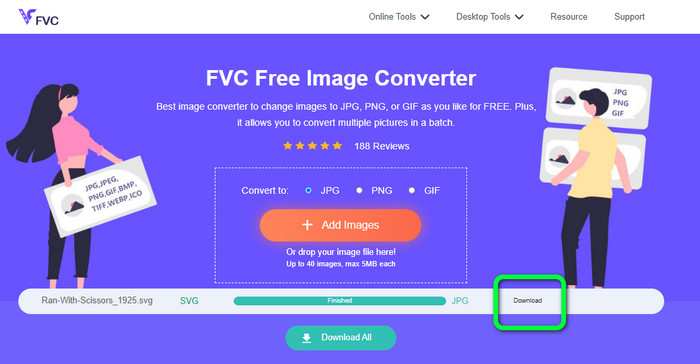
Bước 3: Trong khi tệp đang được tải lên, hình ảnh sẽ được chuyển đổi tự động. Ở bước cuối, nhấp nút Download ở phía bên phải giao diện. Sau khi lưu xong, hãy mở ảnh đã chuyển đổi trên máy tính của bạn.
Phần 3. Phương pháp dễ dàng để chuyển đổi SVG sang JPG trên Windows
Trong phần này, bạn sẽ khám phá phương pháp tốt nhất để chuyển đổi SVG sang JPG ngoại tuyến trên máy tính Windows. Sử dụng HitPaw Video Converter là một trong những phương pháp hiệu quả. Tính năng Image Convert của HitPaw Video Converter giúp việc chuyển đổi ảnh hàng loạt trở nên đơn giản. Bạn có thể nhập ảnh và đồ họa ở nhiều định dạng khác nhau và chuyển chúng sang định dạng mong muốn. Đây là lựa chọn tuyệt vời cho việc đổi định dạng ảnh hàng loạt hoặc riêng lẻ. Công cụ cũng hỗ trợ tất cả các định dạng ảnh phổ biến như PNG, JPG, HEIC, RAW, BMP và nhiều hơn nữa. Do đó, bạn cũng có thể dùng công cụ này để chuyển BMP sang JPG hoặc PNG. Thêm vào đó, chương trình có thể tải xuống này còn cung cấp các chức năng khác ngoài chuyển đổi. Bạn có thể tải nhạc và video bằng phần mềm này. Bạn cũng có thể chỉnh sửa video bằng cách xoay, cắt và áp dụng bộ lọc. Tuy nhiên, HitPaw Video Converter khó sử dụng, đặc biệt với người mới bắt đầu. Giao diện rối rắm khiến người dùng khó nắm bắt. Hơn nữa, quá trình cài đặt cũng mất khá nhiều thời gian.
Bước 1: Cài đặt HitPaw Video Converter trên máy tính Windows của bạn. Sau khi cài xong, hãy chạy ứng dụng.
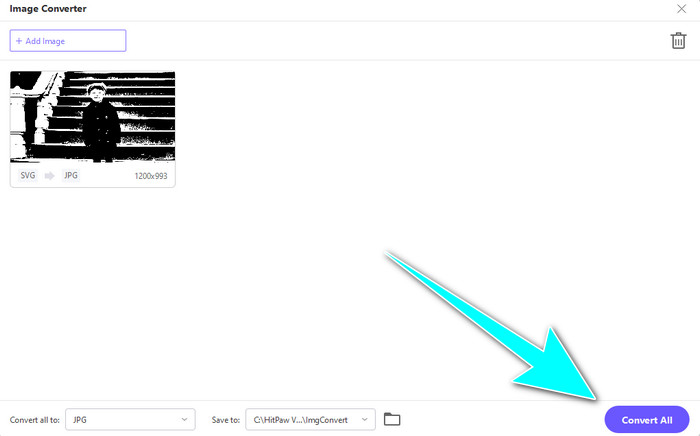
Bước 2: Điều hướng đến bảng Toolbox và chọn công cụ Image Converter. Chọn tệp ảnh SVG bạn muốn chuyển đổi từ thư mục trên máy tính.
Bước 3: Nhấp vào tùy chọn Convert All to ở góc dưới bên trái giao diện. Sau đó, chọn định dạng JPG làm định dạng đầu ra.
Bước 4: Cuối cùng, nhấp nút Convert All ở góc dưới bên phải giao diện. Chờ quá trình chuyển đổi hoàn tất. Sau đó, bạn đã có thể mở ảnh của mình ở định dạng PNG.
Phần 4. Cách chuyển đổi SVG sang JPG trên máy Mac
Nếu bạn muốn chuyển đổi SVG sang JPG trên Mac, hãy dùng BatchPhoto Pro. Công cụ này hỗ trợ nhiều định dạng ảnh, bao gồm JPG, PNG, ICO, SVG, EPS và hơn 170 định dạng khác. Bạn thậm chí có thể lưu ảnh dưới dạng PDF. Nó cũng hỗ trợ quá trình chuyển đổi hàng loạt, giúp bạn chuyển đổi nhiều tệp cùng lúc. Thêm vào đó, ngoài việc chuyển đổi ảnh, nó còn có các tính năng chỉnh sửa như thay đổi kích thước, xoay và điều chỉnh màu sắc. Tuy nhiên, bạn phải mua bản quyền nếu muốn sử dụng lâu dài. Công cụ chỉ cung cấp bản dùng thử trong vài ngày. Quy trình chuyển đổi cũng khó hiểu, khiến người dùng không chuyên gặp nhiều khó khăn khi chuyển đổi ảnh.
Bước 1: Tải xuống và cài đặt BatchPhoto Pro. Bạn có thể dùng thử bản miễn phí. Sau khi cài đặt xong, hãy khởi chạy ứng dụng.
Bước 2: Ở phần trên của giao diện, chọn tùy chọn Add Photos. Sau khi nhấp, hãy thêm các ảnh SVG bạn muốn chuyển sang định dạng JPG. Bạn có thể thêm nhiều tệp cùng một lúc.
Bước 3: Truy cập tùy chọn Set Up ở phần trên giao diện. Đi đến phần Output Format và chọn định dạng JPG.
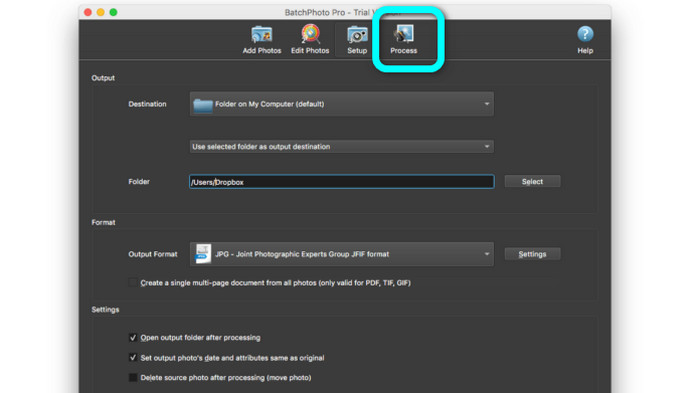
Bước 4: Nhấp vào tùy chọn Process để bắt đầu quá trình chuyển đổi. Khi hoàn tất, hãy mở thư mục đầu ra và kiểm tra ảnh đã được chuyển đổi.
Phần 5. Câu hỏi thường gặp về Chuyển đổi SVG sang JPG
1. Tại sao nên chuyển SVG sang JPG?
So với SVG, JPG phù hợp hơn với mạng xã hội và các thiết bị khác. Đây là một trong những định dạng hình ảnh phổ biến mà bạn có thể sử dụng hiện nay. Trong SVG, bạn chỉ có thể mở tệp này trên trình duyệt web. Vì vậy, việc chuyển đổi SVG sang JPG là cần thiết để sử dụng tương thích hơn.
2. Ưu điểm và nhược điểm của tệp SVG là gì?
Bạn có thể mở rộng hoặc thu nhỏ tệp SVG thành bất kỳ kích thước nào mà không làm giảm chất lượng. SVG không quan tâm đến loại hiển thị hoặc kích thước hình ảnh. Cách họ dường như là không đổi. SVG cũng cung cấp cho các nhà thiết kế và nhà phát triển nhiều quyền kiểm soát đối với giao diện của chúng. Nó tốt hơn là chỉnh sửa chúng trong trình soạn thảo văn bản. Ngay cả các yếu tố hình ảnh khác như bóng đổ và chuyển màu cũng có thể điều chỉnh được. Tuy nhiên, có những định dạng tốt hơn SVG để có ảnh chi tiết, chất lượng cao. Người dùng xây dựng đồ họa vector bằng cách sử dụng các điểm và đường dẫn thay vì pixel. Mã cũng là cần thiết.
3. Làm cách nào để mở tệp SVG?
Cách tốt nhất để mở tệp SVG là dùng trình duyệt của bạn. Nhấn ctrl+o trên bàn phím. Sau đó, chọn tệp SVG bạn muốn xem và nhấp Open.
Phần kết luận
Vậy là xong! Những thông tin trên là các cách chuyển đổi SVG sang JPG trên Windows, Mac và online. Tuy nhiên, việc tải xuống trình chuyển đổi ảnh khá phiền phức. Vì thế, nếu bạn muốn một cách đơn giản hơn để chuyển đổi hình ảnh, hãy dùng FVC Free Image Converter. Trình chuyển đổi ảnh trực tuyến này cho phép bạn đổi định dạng ảnh ngay trên trình duyệt.
-
 Các phương pháp hữu ích về cách chuyển đổi TIFF sang JPG/PNG một cách dễ dàng
 Đừng bỏ lỡ những cách tuyệt vời này để chuyển định dạng TIF sang JPG/PNG. Bài viết này sẽ cung cấp những thông tin cần thiết mà bạn cần biết. Nó bao gồm sự khác biệt của họ.
-
 Chuyển đổi JPEG sang JPG một cách hiệu quả [Năm phương pháp được liệt kê]
 Hãy đến và nhận các hướng dẫn đơn giản nhất về cách chuyển đổi định dạng tệp hình ảnh JPEG sang JPG. Nhấp vào hướng dẫn này và bắt đầu tìm hiểu các phương pháp ưa thích của bạn
-
 Top 5 hướng dẫn hàng đầu để chuyển đổi PNG sang JPG nhanh chóng
 Nếu cần chuyển đổi tệp PNG sang định dạng JPG, bạn có thể tìm hiểu những cách tốt nhất tại đây. Bạn cũng sẽ tìm hiểu sự khác biệt giữa định dạng tệp PNG và JPG
