


 Chuyển đổi video Ultimate
 Trình ghi màn hình
 Sửa chữa video
3 cách để thêm nền vào ảnh trực tuyến, trên iPhone, Android và máy tính
Khi chỉnh sửa một bức ảnh, bạn thường cần xóa nền gốc và thêm một nền khác vào. Đối với ảnh có nền trong suốt, bạn có thể dễ dàng thay đổi nền bằng trình chỉnh sửa ảnh. Trong hầu hết các trường hợp, bạn phải xóa nền hiện tại trước, rồi mới thêm nền mới cho bức ảnh. Bạn có đang tìm một ứng dụng chỉnh sửa ảnh tốt để thêm nền cho ảnh không?
Bài đăng này cho biết 3 phương pháp hiệu quả để thêm nền vào ảnh. Cho dù bạn muốn thêm nền trắng vào ảnh trực tuyến, thêm nền cho ảnh trên iPhone hoặc thay đổi nền ảnh trên thiết bị Android, bạn có thể làm theo phương pháp cụ thể để thực hiện điều đó.

Phần 1. Cách Thêm Nền vào Ảnh Trực tuyến Miễn phí
Để nhanh chóng thêm nền cho ảnh, trước tiên bạn có thể thử một số trình chỉnh sửa ảnh trực tuyến. Ở đây chúng tôi đặc biệt giới thiệu cho bạn công cụ Free Background Remover Online dễ sử dụng, giúp bạn xóa nền gốc của bức ảnh và thêm một nền khác vào đó. Công cụ thay nền ảnh miễn phí này hỗ trợ tất cả các định dạng ảnh thường dùng như JPG, PNG, GIF và nhiều định dạng khác. Nó mang đến cho bạn cách đơn giản để thêm nền trắng cho ảnh hoặc thay nền hiện tại bằng một hình ảnh khác.
Bước 1. Mở trình duyệt web như Chrome, Safari, Yahoo, IE hoặc Firefox và truy cập trang web thay nền ảnh miễn phí này. Khi vào trang, bạn chỉ cần nhấp vào nút Upload Portrait để chọn và thêm ảnh của bạn cho bước chỉnh sửa tiếp theo.

Bước 2. Nhờ công nghệ AI tiên tiến, công cụ sẽ tự động chọn đối tượng chính trong bức ảnh bạn đã tải lên. Sau đó, bạn có thể dùng tính năng Keep hoặc Erase để chỉnh sửa chi tiết hơn.
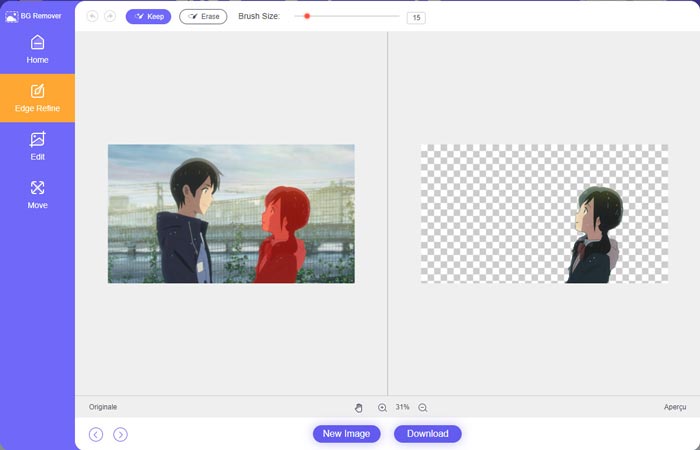
Bước 3. Nhấp vào tùy chọn Edit ở bên trái, sau đó bạn có thể chọn thay đổi màu nền hoặc thêm một nền mới cho ảnh. Trong bước này, bạn cũng có thể sử dụng tính năng Crop để tùy chỉnh kích thước hình ảnh theo nhu cầu.
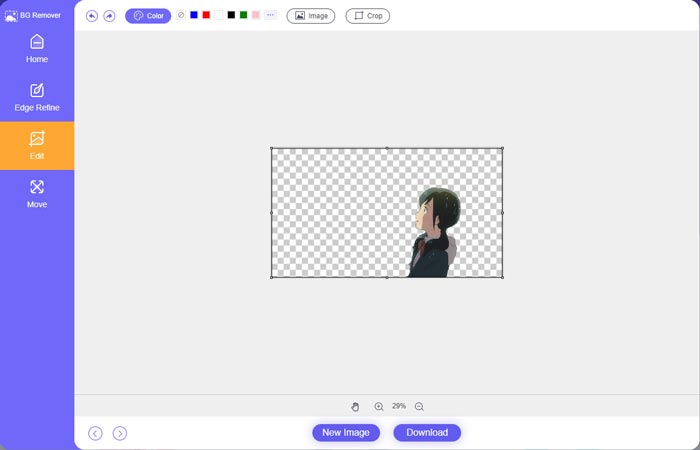
Bước 4. Sau khi bạn thêm một nền phù hợp cho ảnh, hãy nhấp vào nút Download để lưu về máy tính. Tệp ảnh đã chỉnh sửa của bạn sẽ được lưu ở định dạng PNG theo mặc định.
Phần 2. Cách thêm nền vào ảnh bằng Adobe Photoshop
Adobe Photoshop là một trong những trình chỉnh sửa hình ảnh nổi tiếng nhất mang nhiều tính năng để bạn chỉnh sửa hình ảnh, hiệu ứng tùy chỉnh và thực hiện các thao tác khác. Nếu bạn đã cài đặt Photoshop trên máy tính của mình, bạn có thể chọn thêm nền cho ảnh trong Photoshop.
Bước 1. Mở phần mềm Photoshop trên máy tính và thêm ảnh của bạn vào. Bạn có thể tự do tải phiên bản Photoshop mới nhất từ trang web chính thức của Adobe. Lưu ý Adobe chỉ cung cấp bản dùng thử miễn phí 7 ngày cho Photoshop.
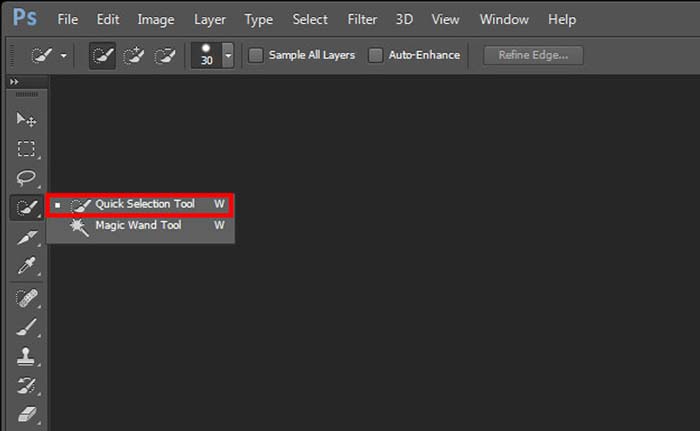
Bước 2. Khi ảnh đã được tải vào Photoshop, bạn có thể nhấp vào biểu tượng Quick Selection Tool hoặc Magic Wand Tool trong hộp công cụ bên trái để chọn vùng nền bạn muốn thay đổi.
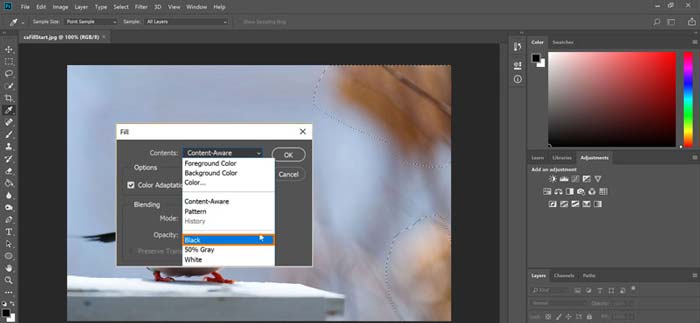
Bước 3. Sau khi chọn nền ảnh, bạn có thể nhấp chuột phải vào đó và chọn tùy chọn Fill. Lúc này bạn có thể dễ dàng thêm nền trắng cho ảnh hoặc đổi nền sang màu khác như đen, xanh dương, xám, hoặc bất kỳ màu nào bạn cần.
Bước 4. Nếu bạn muốn thêm một hình ảnh mới làm nền, trước hết bạn cần xóa nền đã chọn. Bạn có thể nhấn phím Delete trên bàn phím để loại bỏ nền hiện tại. Sau đó, hãy thêm tệp ảnh mới vào Photoshop và kéo layer của nó xuống dưới layer nền. Bằng cách đó, bạn có thể dễ dàng thay thế nền gốc bằng một hình ảnh mới.
Bước 5. Sau khi thêm nền cho ảnh trong Photoshop, bạn có thể nhấp vào menu File phía trên rồi chọn tùy chọn Save As trong danh sách thả xuống. Chọn định dạng ảnh phù hợp cho bức ảnh này và lưu nó vào máy tính.
Phần 3. Cách Thêm Nền vào Ảnh trên iPhone và Điện thoại Android
Khi bạn muốn thêm nền vào ảnh trên iPhone, iPad hoặc điện thoại Android, bạn cần tìm một ứng dụng chỉnh sửa nền ảnh tốt.
LightX là một ứng dụng chỉnh sửa ảnh đầy đủ tính năng dành cho cả người dùng iOS và Android. Nó cung cấp cách tiện lợi để xóa nền không mong muốn, thêm nền mới cho ảnh, thêm nhiều hiệu ứng khác nhau, tạo ảnh selfie chất lượng cao và nhiều hơn nữa trực tiếp trên điện thoại. Nhiều công cụ chỉnh sửa ảnh nâng cao được tích hợp trong LightX như trộn màu, tùy chỉnh độ bão hòa, độ tương phản, sắc độ, đường cong và nhiều tính năng khác. Bạn có thể tải ứng dụng từ App Store hoặc Google Play Store.
Bước 1. Cài đặt và mở ứng dụng LightX trên iPhone, iPad hoặc điện thoại Android của bạn. Cấp quyền cho ứng dụng truy cập ảnh trên thiết bị. Thêm ảnh của bạn vào để chỉnh sửa nền.
Bước 2. Để xóa nền hiện tại và thay bằng nền khác, bạn có thể vuốt sang trái để hiển thị nhiều tùy chọn. Trong mục Creative, bạn chọn tính năng Cutout để thêm nền cho ảnh. Lúc này, bạn cần tự tay chọn đối tượng chính và xóa nền gốc.
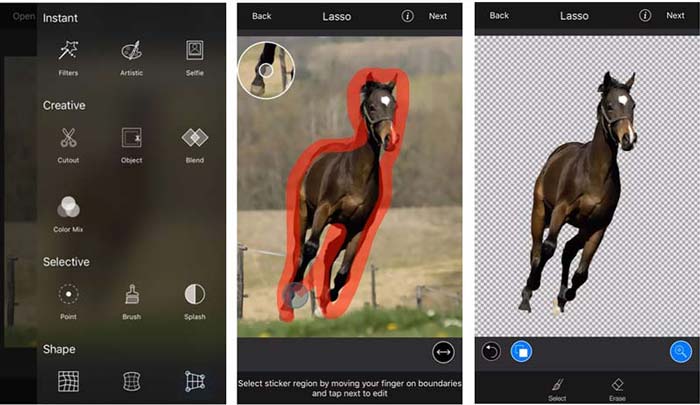
Bước 3. Sau khi xóa nền, bạn có thể chạm Next ở góc trên bên phải để tiếp tục. Sau đó, bạn có thể dùng tính năng Crop để thay đổi kích thước ảnh. Chạm Done để xác nhận thao tác. Tiếp theo, bạn có thể chạm vào BG Image ở phía dưới màn hình để thêm một nền khác cho ảnh. Bạn được thoải mái điều chỉnh hiệu ứng của nền mới theo nhu cầu.
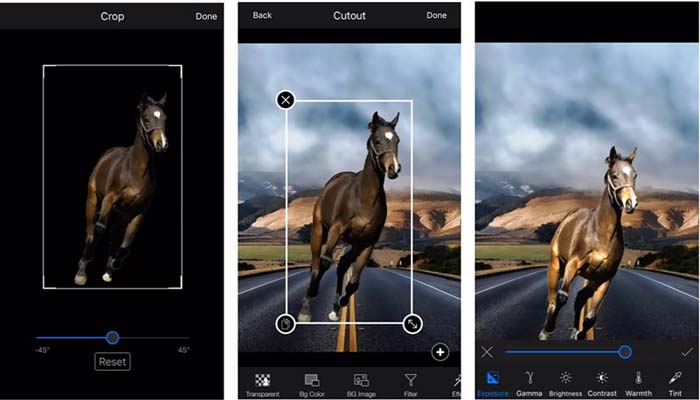
Cho dù bạn đang sử dụng thiết bị iOS hay Android, bạn có thể làm theo các bước tương tự để thêm nền cho ảnh bằng ứng dụng LightX. Lưu ý rằng với tư cách là người dùng iOS, bạn cần phải trả $3.99 cho ứng dụng thêm nền này. Nếu bạn là người dùng Android, bạn có thể cài đặt nó từ Cửa hàng Google Play. Để nâng cấp lên phiên bản cao cấp, bạn cần phải trả cùng một mức giá.
Có liên quan:
Độ phân giải video là gì: Phân tích chuyên sâu về độ phân giải & nhiều hơn nữa
6 Bộ lọc Snapchat động được yêu thích nhất trên Snapchat
Phần 4. Những câu hỏi thường gặp về Cách Thêm Nền vào Ảnh
Làm cách nào để thêm nền khác vào ảnh trên máy Mac của tôi?
Bạn có thể dùng 2 phương pháp đầu tiên để đơn giản thay đổi nền ảnh trên máy Mac. Bên cạnh Free Background Remover Online và Adobe Photoshop được khuyên dùng, bạn cũng có thể dựa vào một số trình chỉnh sửa ảnh khác để thêm nền mới cho ảnh của mình.
Làm thế nào để thay đổi hình nền trên iPhone?
iOS cung cấp một cách đơn giản để thay đổi hình nền trên iPhone hoặc iPad. Bạn có thể đi tới ứng dụng Cài đặt, chạm vào tùy chọn Hình nền, sau đó chạm vào Chọn hình nền mới.
Tôi có thể thêm nền vào ảnh trực tiếp trên iPhone của mình không?
Không. IPhone không cung cấp cho bạn một cách trực tiếp để thay đổi nền của một bức ảnh trực tiếp. Bạn chỉ được phép cắt nó, áp dụng bộ lọc, điều chỉnh hiệu ứng và thay đổi nó thành ảnh tĩnh.
Phần kết luận
Bài đăng này chia sẻ 3 phương pháp hữu ích để thêm nền vào ảnh. Khi có nhu cầu xóa nền ảnh gốc và thêm ảnh mới, bạn có thể chọn trình chỉnh sửa ảnh ưa thích của mình để thực hiện điều đó.
-
 3 cách hàng đầu để thêm bộ lọc trên GIF với các trình chỉnh sửa GIF tốt nhất [Yêu thích]
 Bạn có muốn biết cách thêm bộ lọc vào GIF để làm cho nó tốt hơn không? Trong blog này, bạn sẽ dễ dàng tìm hiểu các kỹ thuật khác nhau để thêm bộ lọc vào ảnh GIF của mình.
-
 3 cách dễ nhất để thêm hình mờ vào ảnh GIF Trực tuyến và Ngoại tuyến
 Thêm hình mờ vào ảnh GIF có thể dễ dàng như 1-2-3 nếu bạn sử dụng đúng công cụ phù hợp. Các công cụ trên thị trường quá rộng, nhưng chúng tôi sẽ trình bày ba công cụ mà bạn có thể phụ thuộc vào.
-
 5 cách tốt nhất để thay đổi hình ảnh thành GIF động [Cập nhật năm 2022]
 Cần một hình ảnh chuyển đổi sang GIF? Bài viết này sẽ cung cấp năm bộ chuyển đổi tốt nhất mà chúng tôi có thể tìm thấy trên thị trường. Vì vậy, hãy & #039; s tìm hiểu những công cụ này bằng cách đọc bài viết này.
