


 Chuyển đổi video Ultimate
 Trình ghi màn hình
 Sửa chữa video
 Tải xuống an toàn
Các cách đáng chú ý về cách xóa hình mờ khỏi ảnh
Bạn có muốn học cách xóa watermark khỏi ảnh không? Đôi khi những bức hình bạn muốn lưu lại lại có watermark, gây chướng mắt và khiến bạn không thể thấy trọn vẹn vẻ đẹp của bức ảnh. May mắn là bạn có thể dùng các phần mềm để xóa những watermark không cần thiết đó trên máy tính, iPhone và Android. Bằng cách này, bạn có thể lưu lại những bức ảnh mình thích thông qua các ứng dụng xóa watermark. Đọc bài viết này là lựa chọn tốt nhất để tìm hiểu thêm về những phương pháp đơn giản để xóa watermark.

Phần 1. Cách xóa Watermark khỏi ảnh trên máy tính của bạn
1. FVC Free Watermark Remover
Nếu bạn muốn xóa watermark khỏi ảnh miễn phí trực tuyến, bạn có thể dùng FVC Free Watermark Remover. Ứng dụng này có thể giúp bạn xóa mọi loại watermark trên ảnh, như logo, chữ, hình ảnh, v.v. Ngoài ra, nó còn hỗ trợ nhiều định dạng ảnh khác nhau, như JPG, PNG, JPEG, BMP, v.v. Hơn nữa, phần mềm này dễ sử dụng và dễ hiểu vì có giao diện trực quan, hướng dẫn chi tiết và các nút bấm đơn giản. Khi thực sự xóa watermark, FVC Free Watermark Remover cho phép bạn dùng chuột để vẽ đường đa giác hoặc vùng dây thừng (lasso) lên ảnh để chọn watermark cần xóa. Cọ vẽ (Brush) cũng là một lựa chọn khác để loại bỏ watermark trên ảnh. Nếu bạn muốn xóa watermark khỏi ảnh miễn phí, hãy làm theo các bước đơn giản dưới đây.
Bước 1: Truy cập trang web FVC Free Watermark Remover và nhấp vào Upload Image. Sau đó thêm ảnh có watermark mà bạn muốn xóa.

Bước 2: Sau khi mở ảnh có watermark, bạn có thể dùng các tùy chọn xóa watermark như Polygonal tool, Lasso và công cụ Brush để xóa watermark.
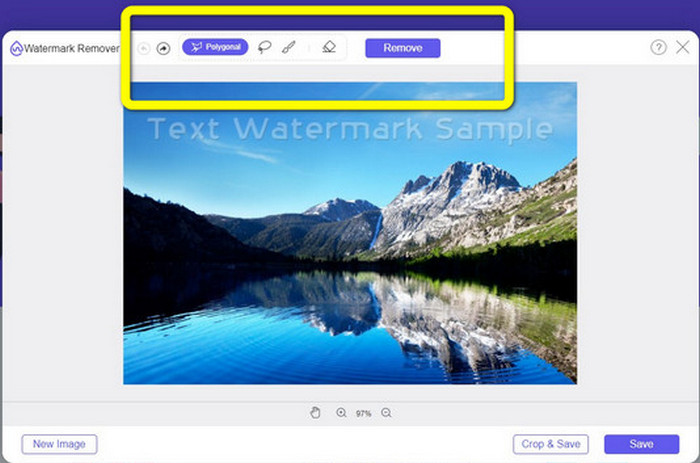
Bước 3: Sử dụng công cụ Brush, Lasso hoặc Brush để tô vùng có watermark trên ảnh của bạn.
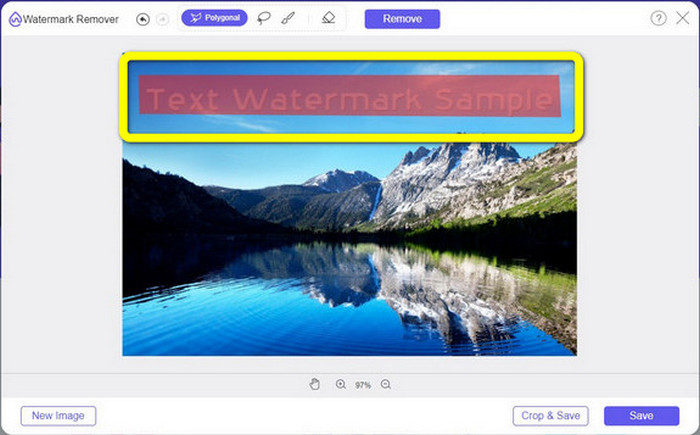
Bước 4: Khi tô xong vùng watermark trên ảnh, nhấp vào nút Remove.
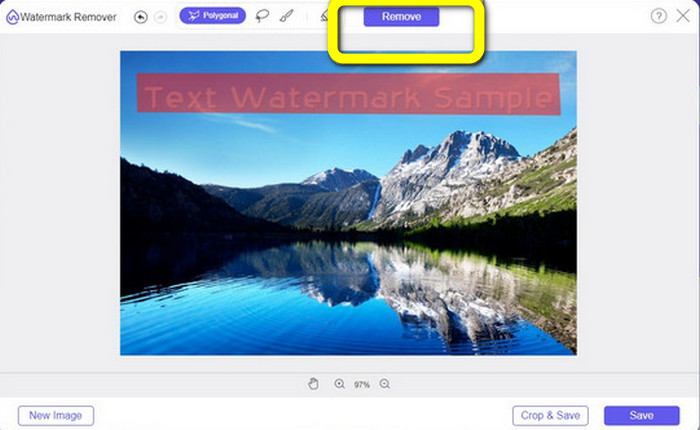
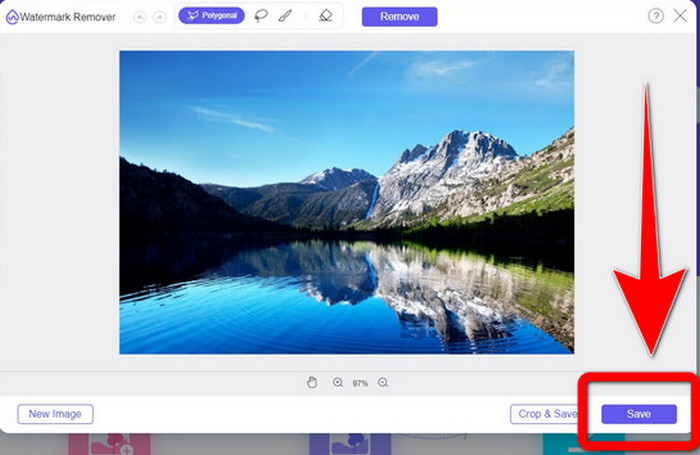
Bước 5: Khi watermark đã được xóa khỏi ảnh, nhấp vào nút Save để tải ảnh về, và giờ bạn có thể thưởng thức bức hình của mình mà không còn khó chịu vì watermark nữa.
2. Photoshop
Nếu bạn cũng đang tìm một ứng dụng tuyệt vời và đáng tin cậy để tải về máy tính, thì Adobe Photoshop là một trong những chương trình đáng tin cậy bạn có thể dùng. Phần này sẽ hướng dẫn bạn cách Photoshop xóa watermark khỏi ảnh. Ứng dụng này phù hợp với nhiếp ảnh gia, nhà thiết kế web, nhà thiết kế đồ họa, người làm meme, v.v. Tuy nhiên, bạn cần mua Adobe Photoshop vì nó chỉ cho dùng thử miễn phí 7 ngày. Ngoài ra, Photoshop không phù hợp cho xử lý hàng loạt ảnh và có đường cong học tập phức tạp. Nếu bạn muốn biết cách đơn giản nhất để xóa watermark trên ảnh, hãy làm theo các bước dưới đây.
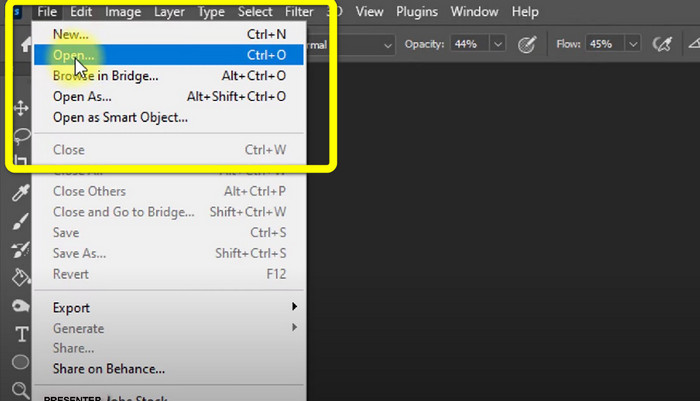
Bước 1: Mở Adobe Photoshop. Chọn File > Open và thêm ảnh có watermark của bạn.
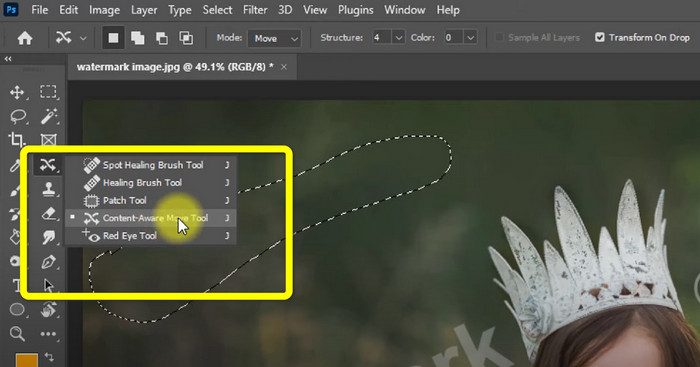
Bước 2: Nhấp vào Content-Aware Move Tool trong thanh công cụ chỉnh sửa.
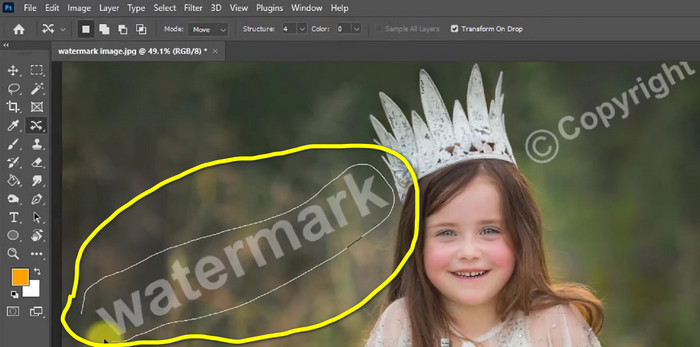
Bước 3: Sau khi nhấp vào Content-Aware Move Tool, hãy chọn vùng watermark trên ảnh và nhấn phím Delete trên bàn phím.
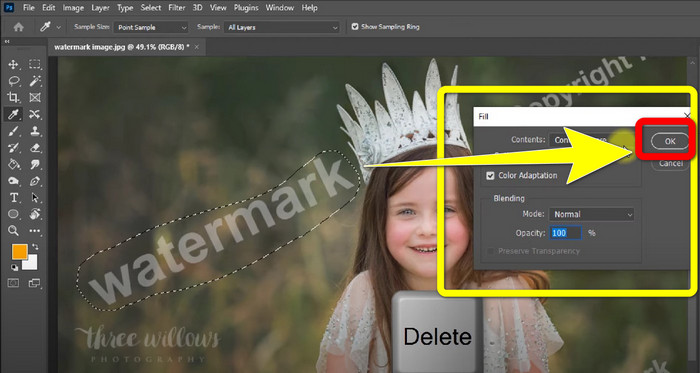
Bước 4: Sau khi bạn nhấn Delete, một giao diện nhỏ khác sẽ xuất hiện, sau đó nhấp vào OK.
3. GIMP
Một ứng dụng phù hợp khác để xóa watermark trên ảnh là GIMP. Đây là phần mềm chỉnh sửa đồ họa raster mã nguồn mở dùng để xử lý và chỉnh sửa hình ảnh, rất hữu ích cho việc chỉnh sửa ảnh. Ngoài ra, nó hỗ trợ nhiều định dạng tệp như JPG, PNG, TIFF, GIF, v.v. Tuy nhiên, đôi khi chương trình có thể bị treo đột ngột và việc sắp xếp các lớp (layer) cũng khá khó khăn. Nếu bạn muốn biết cách xóa watermark trên ảnh bằng GIMP, hãy làm theo các bước đơn giản dưới đây.
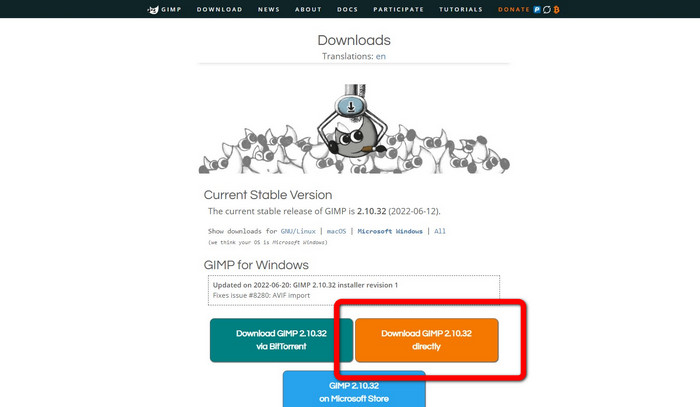
Bước 1: Khi đang ở trên trang web của GIMP, nhấp vào Download Directly để tải ứng dụng và làm theo quá trình cài đặt.
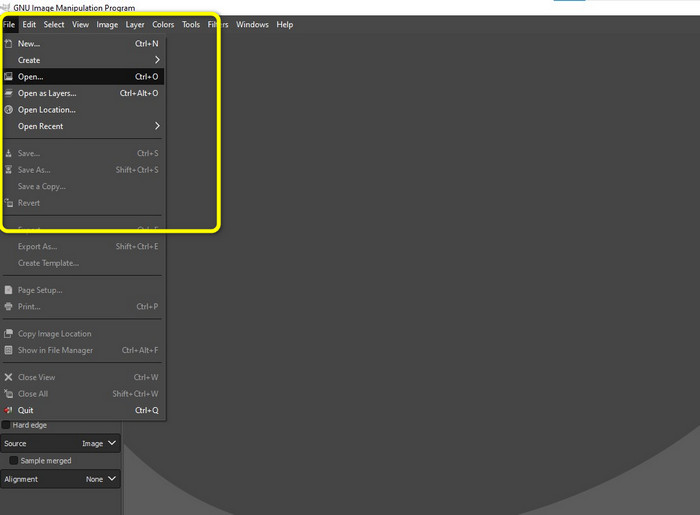
Bước 2: Mở ứng dụng và nhấp File > Open để thêm ảnh có watermark.
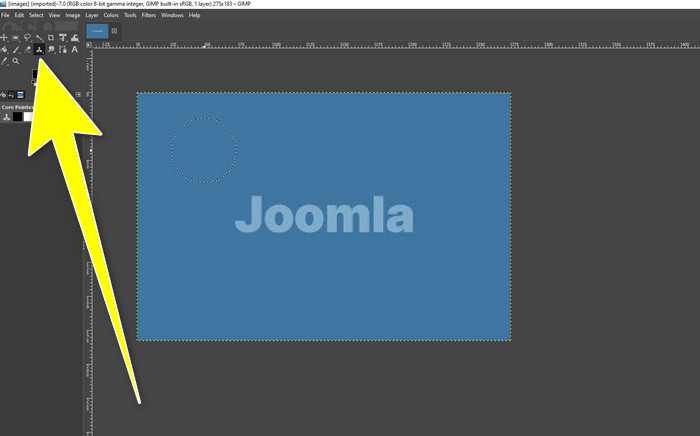
Bước 3: Nhấp vào công cụ Clone và đặt con trỏ lên vùng trống. Nhấn Ctrl và nhấp vào vùng trống đó.
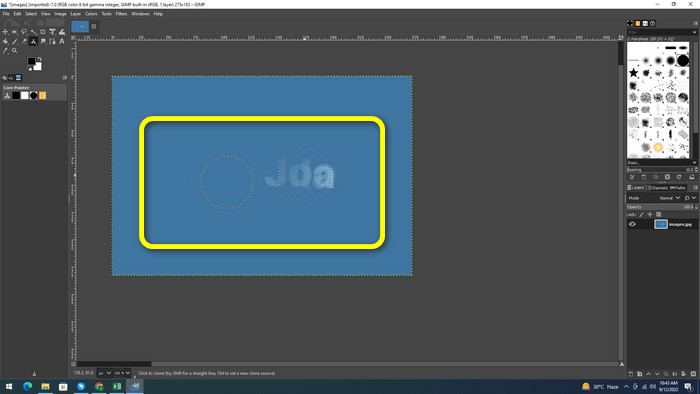
Bước 4: Kéo con trỏ của bạn qua vùng watermark để xóa chúng. Watermark đã biến mất. Bây giờ bạn có thể lưu ảnh của mình.
4. Aiseesoft Free Watermark Remover Online
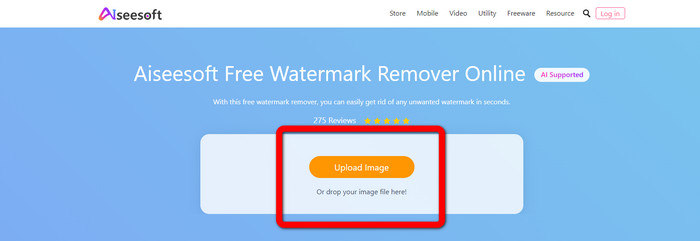
Nếu bạn muốn một trình xóa watermark ảnh trực tuyến tốt nhất, thì Aiseesoft Free Watermark Remover Online là dành cho bạn. Ứng dụng này có thể giúp xóa nhiều watermark, chữ, ngày tháng, logo và nhiều thứ khác trên ảnh. Hơn nữa, nó dễ sử dụng, rất phù hợp cho người mới bắt đầu. Ngoài ra, nó hỗ trợ nhiều định dạng ảnh như PNG, JPEG, BMP, JPG, v.v. Tuy nhiên, ứng dụng này không hoàn toàn miễn phí; bạn cần mua bản quyền để sử dụng các tính năng nâng cao. Nếu bạn muốn xóa watermark trên ảnh, hãy làm theo các bước sau.
Bước 1: Truy cập trang web Aiseesoft Free Watermark Remover Online. Sau đó nhấp vào Upload Image để thêm ảnh có watermark.
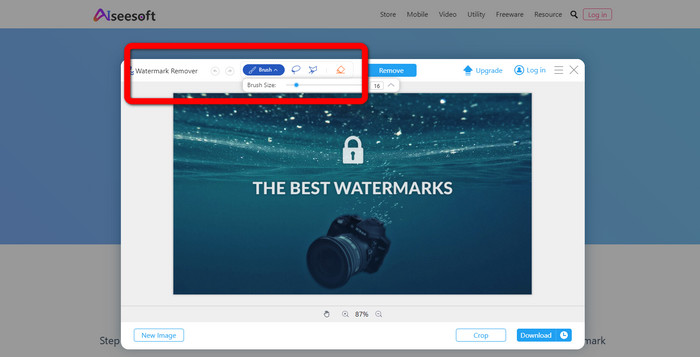
Bước 2: Khi bạn đã thêm ảnh, hãy chuyển đến watermark remover tool. Tại đây, bạn sẽ thấy các công cụ xóa như Brush, Polygonal và Lasso.
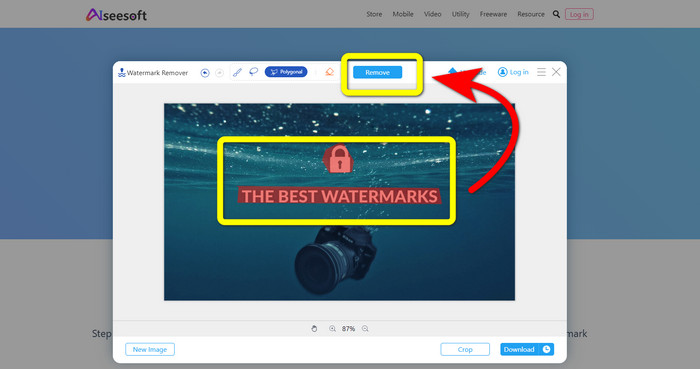
Bước 3: Dùng các công cụ này để tô vùng watermark trên ảnh rồi nhấp vào Remove.
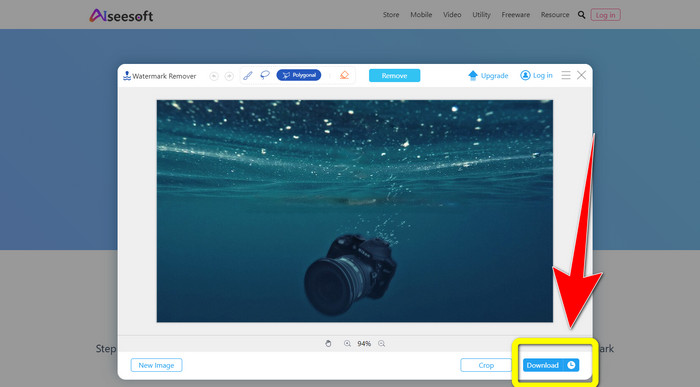
Bước 4: Nếu bạn đã hài lòng với kết quả, nhấp Download để lưu ảnh.
5. Pixlr
Pixlr là một công cụ trực tuyến khác bạn có thể dùng để xóa watermark trên ảnh. Nó dễ sử dụng và phù hợp cho người mới. Công cụ này hỗ trợ nhiều định dạng ảnh như PSD, PNG, JPEG, WEBP và PXZ. Ngoài ra, bạn có thể dùng ứng dụng trên nhiều thiết bị như iPhone, Android, máy tính để bàn và laptop. Tuy nhiên, nó không có nhiều tùy chọn như các ứng dụng khác và hiệu ứng khá hạn chế. Nếu bạn muốn học cách xóa watermark trên ảnh, hãy làm theo các bước dưới đây.
Bước 1: Truy cập trang web Pixlr. Nhấp Open Image để thêm ảnh có watermark.

Bước 2: Sau khi thêm ảnh, vào công cụ retouch > heal.
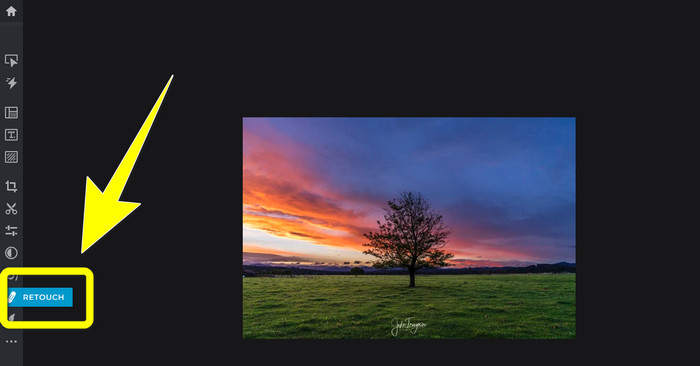
Bước 3: Sau khi nhấp vào công cụ retouch > heal, hãy nhấp lên watermark trên ảnh.
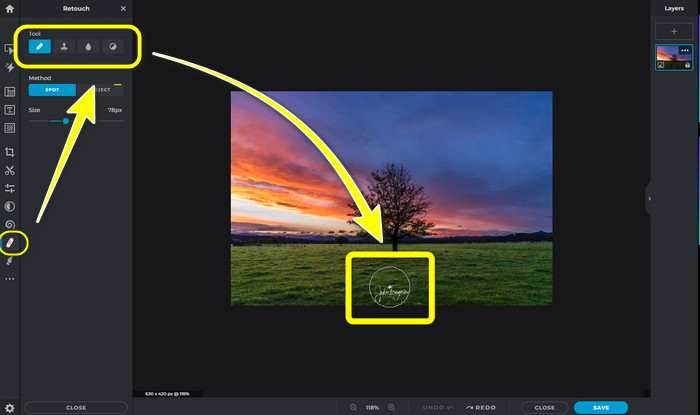
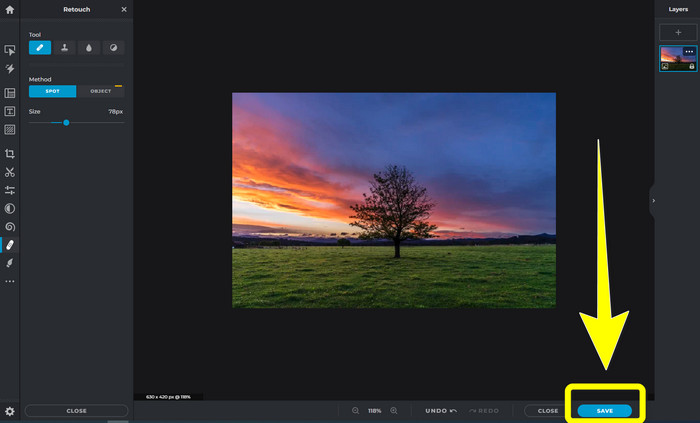
Bước 4: Khi watermark đã biến mất, nhấp nút Save.
6. Inpaint
Inpaint là một ứng dụng trực tuyến khác bạn có thể dùng nếu muốn xóa watermark trên ảnh. Không chỉ watermark mà còn cả logo và chữ. Nó cũng hỗ trợ các định dạng ảnh như JPG, PNG và WEBP. Tuy nhiên, nếu bạn muốn có ảnh chất lượng cao, bạn phải mua ứng dụng. Nếu bạn muốn xóa watermark trên ảnh, hãy làm theo các bước đơn giản dưới đây.
Bước 1: Truy cập trang web Inpaint. Nhấp Upload Image và tải lên ảnh có watermark.

Bước 2: Khi đã tải ảnh lên, chọn các watermark remover tools như Marker, Polygonal, Lasso và Eraser tool rồi tô vùng watermark trên ảnh.
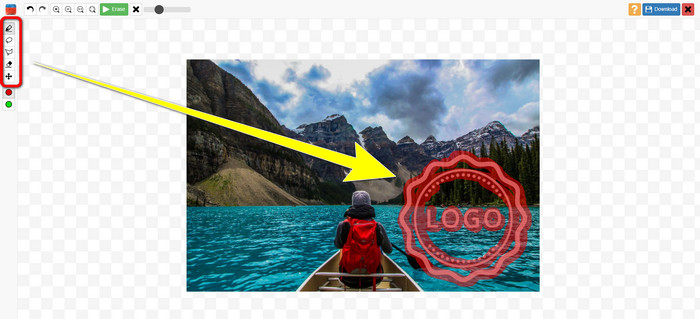
Bước 3: Khi đã tô xong vùng watermark, nhấp Erase.
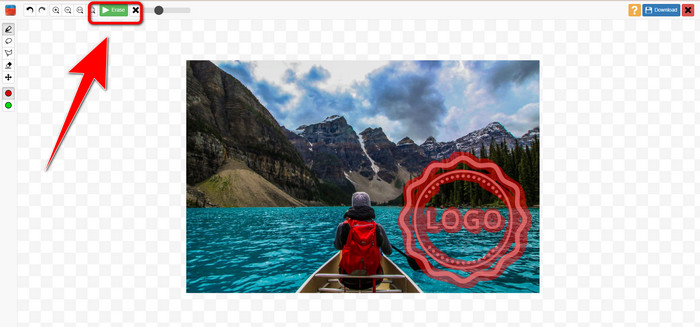
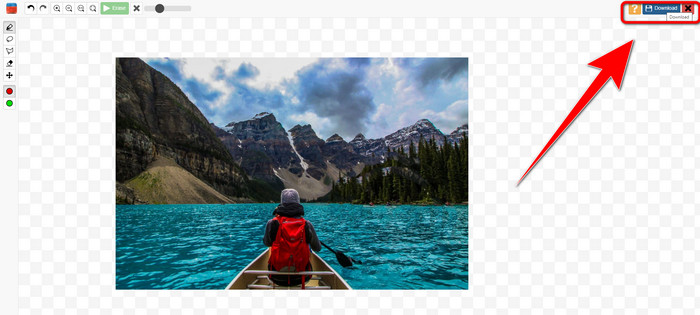
Bước 4: Khi watermark đã biến mất, nhấp nút Download để lưu ảnh.
7. Photo Stamp Remover
Photo Stamp Remover là một ứng dụng mà bạn có thể sử dụng với máy tính của mình. Bạn có thể tải về miễn phí. Ứng dụng này có thể nhanh chóng xóa các đối tượng không cần thiết trên hình ảnh của bạn, chẳng hạn như logo, văn bản, hình mờ và ngày tháng. Tuy nhiên, nó không hoạt động tốt trên ảnh có nền phức tạp. Hơn nữa, phần mềm này có thể khôi phục màu sắc và kết cấu của ảnh gốc để che các hình mờ để nó trông chân thực. Làm theo các bước sau để xóa hình mờ trên hình ảnh của bạn.
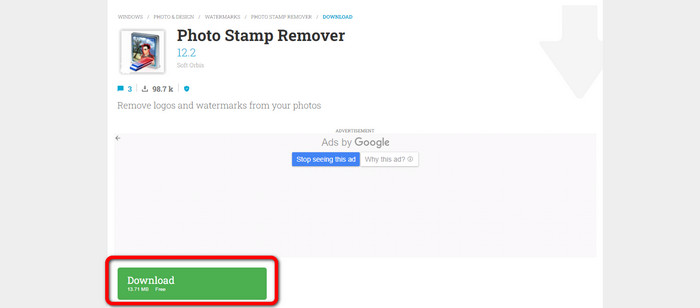
Bước 1: Nhấp nút Download để tải Photo Stamp Remover về Windows của bạn và làm theo quá trình cài đặt.
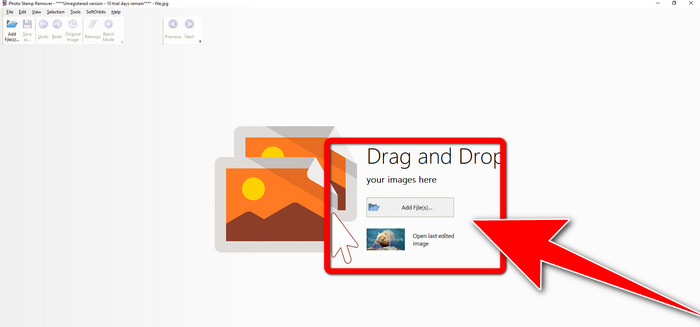
Bước 2: Khởi chạy ứng dụng và nhấp Add File để thêm ảnh có watermark.
Bước 3: Vào Remover tools và nhấp Selection Marker. Tô vùng watermark rồi nhấp Remove.
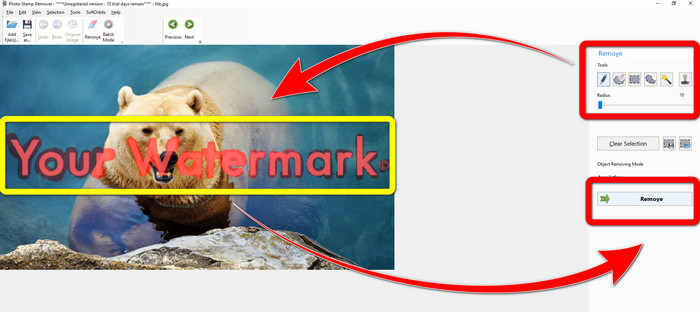
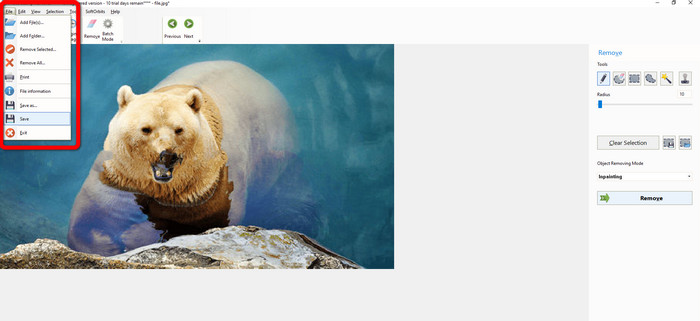
Bước 4: Khi bạn đã xóa watermark trên ảnh, nhấp File > Save. Như vậy là bạn đã hoàn tất việc xóa watermark trên ảnh.
Phần 2. Cách xóa Watermark khỏi ảnh trên iPhone và Android
1. Video Eraser
Nếu bạn muốn biết ứng dụng nào có thể giúp bạn học cách xóa watermark khỏi ảnh trên Android, thì Video Eraser là lựa chọn phù hợp. Ứng dụng này có thể xóa các đối tượng không cần thiết trên ảnh như chữ, watermark, v.v. Ngoài ra, với ứng dụng này, bạn cũng có thể xóa watermark trên video. Tuy nhiên, khu vực từng có watermark có thể bị loang lổ, nhòe hình. Nếu bạn muốn học cách dùng Video Eraser, hãy làm theo các bước dưới đây.
Bước 1: Cài đặt Video Eraser trên Android của bạn. Mở ứng dụng sau khi cài đặt xong.

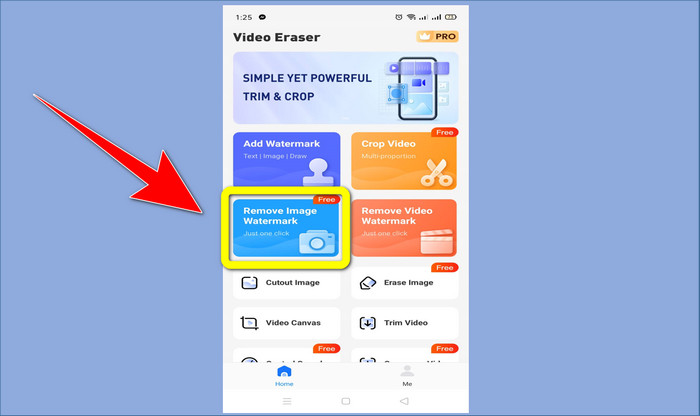
Bước 2: Nhấp Remove Image Watermark để thêm ảnh có watermark.
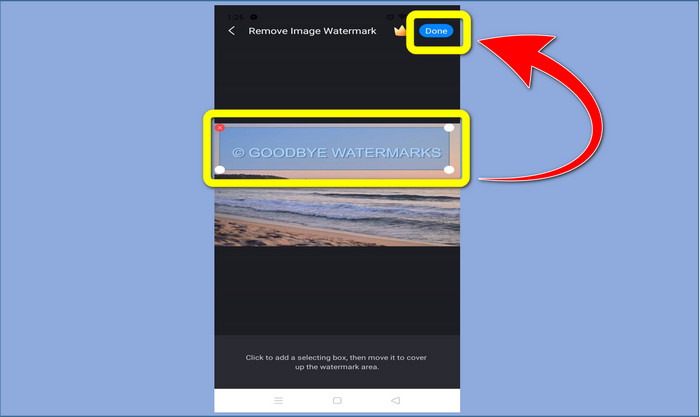
Bước 3: Tô vùng watermark trên ảnh và nhấp Done.
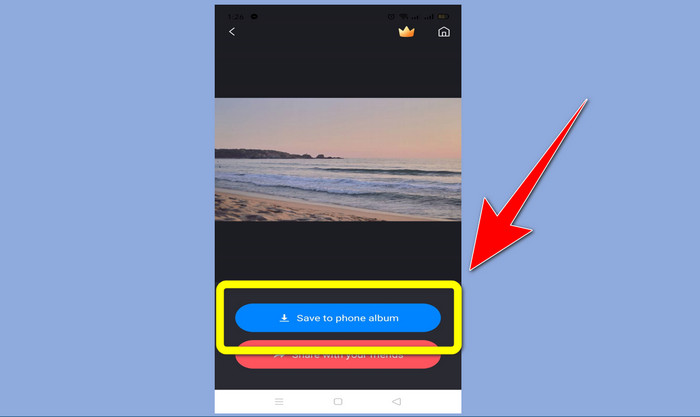
Bước 4: Sau khi nhấp Done, watermark sẽ biến mất. Nhấp Save to Photo Album để lưu ảnh.
2. Snapseed
Snapseed là một trình chỉnh sửa tuyệt vời bạn có thể dùng, đặc biệt nếu bạn muốn học cách xóa watermark khỏi ảnh trên iPhone. Ứng dụng này rất tốt nếu bạn muốn xóa watermark trên ảnh. Ngoài ra, nó có nhiều công cụ chỉnh sửa khác nhau như cắt, xoay, v.v. Ứng dụng này cũng không hẳn dành cho người mới bắt đầu, nhất là với các thao tác chỉnh sửa nâng cao, và dù thân thiện với người dùng, nó vẫn có một chút đường cong học tập. Hãy làm theo các bước dưới đây để xóa watermark trên ảnh bằng ứng dụng này.
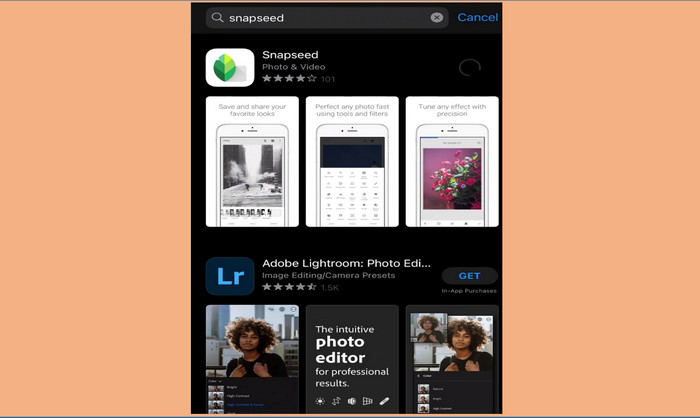
Bước 1: Cài đặt Snapseed trên iPhone của bạn. Khi cài đặt xong, mở phần mềm.
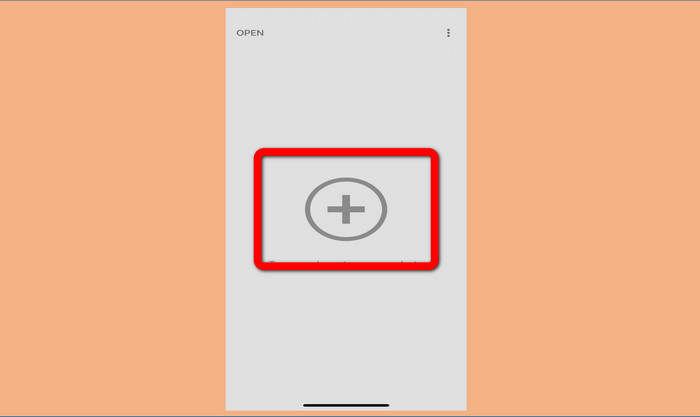
Bước 2: Nhấp nút Dấu cộng (Plus sign) để thêm ảnh có watermark.
Bước 3: Khi bạn đã thêm ảnh, chọn Tools > Healing và tô vùng watermark trên ảnh. Sau khi tô, watermark sẽ tự động biến mất.
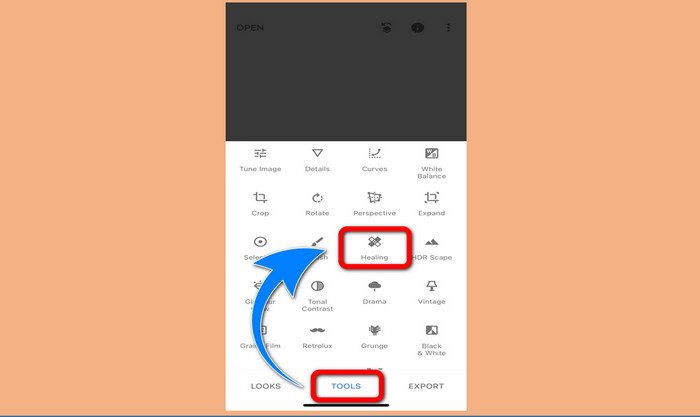
Bước 4: Sau khi bạn tô vùng watermark, chúng sẽ tự động biến mất.
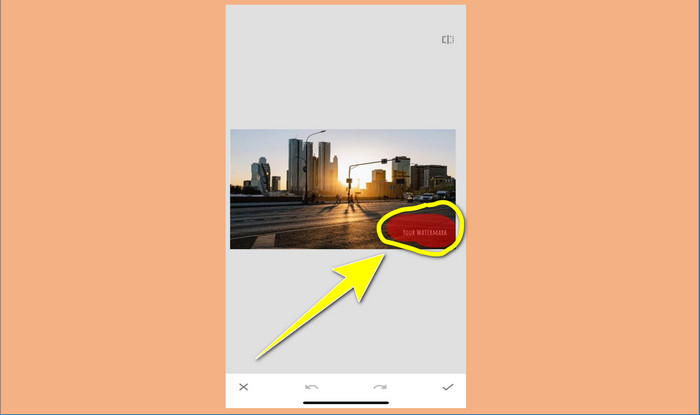
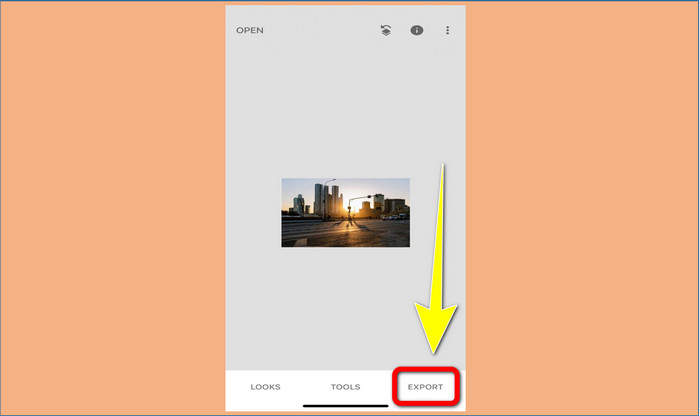
Bước 5: Khi đã xóa xong watermark trên ảnh, nhấp biểu tượng Check và Export để lưu ảnh vào iPhone của bạn.
Có liên quan:
Mẹo nhanh nhất để xóa watermark Adobe Stock khỏi Video [Hướng dẫn]
5 cách xóa watermark khỏi video một cách chuyên nghiệp
Phần 3. Câu hỏi thường gặp về Xóa Hình mờ khỏi Ảnh
Có công cụ xóa hình mờ nào mà tôi có thể sử dụng miễn phí, đặc biệt là cho Mac không?
Có chứ! Bạn có thể dùng nhiều công cụ xóa watermark trên Mac, như FVC Free Watermark Remover. Đây là một ứng dụng trực tuyến để xóa watermark trên Mac của bạn.
Có cách nào để xóa hình mờ khỏi video không?
Chắc chắn! Đó là một điều dễ dàng để làm. Một số ứng dụng xóa hình mờ bạn có thể sử dụng hiện nay có thể xóa hình mờ trên ảnh và video. Tất cả những gì bạn cần làm là tìm kiếm công cụ xóa hình mờ trên hộp tìm kiếm và xem trang kết quả.
Xóa hình mờ có dễ dàng không?
Vâng tất nhiên! Nếu bạn đã có ứng dụng sẽ sử dụng, bạn cần tìm các công cụ xóa, như công cụ cọ vẽ, bút đánh dấu, laser và đa giác. Sau đó, đánh dấu các hình mờ và hoàn tất.
Phần kết luận
Như đã trình bày ở trên, bài viết này cung cấp nhiều cách hữu ích để xóa watermark khỏi ảnh. Nhưng nếu bạn muốn một công cụ tuyệt vời để xóa watermark, FVC Free Watermark Remover là lựa chọn tốt nhất dành cho bạn.
-
 Cách thoát khỏi hình mờ Power Director miễn phí [Hoàn thành]
 Làm cách nào để loại bỏ hình mờ Power Director miễn phí? Các công cụ tốt nhất để loại bỏ hình mờ có ở đây, vì vậy hãy tìm hiểu chúng bằng cách đọc phần này.
-
 Các kỹ thuật tốt nhất để xóa hình mờ phiên bản dùng thử Canvasjs mà bạn phải biết
 Cách tốt nhất để xóa hình mờ Canvasjs bạn sẽ cần sử dụng một công cụ. Nếu bạn chưa chọn một công cụ thì bạn có thể chọn nó trong bài viết này.
-
 Cách xóa hình mờ Animaker mà không tốn chi phí [Các cách đã được chứng minh]
 Làm cách nào để xóa hình mờ Animaker? Với những công cụ tốt nhất mà chúng tôi tranh thủ trong blog này, bạn có thể sử dụng chúng để loại bỏ hình mờ.
