


 Chuyển đổi video Ultimate
 Trình ghi màn hình
 Sửa chữa video
 Tải xuống an toàn
Cách chuyển đổi AIFC sang MP3 bằng các bộ chuyển đổi âm thanh tốt nhất
AIFC, viết tắt của Định dạng tệp trao đổi âm thanh, là định dạng âm thanh được phát triển ban đầu bởi Apple Inc. Đây là tiêu chuẩn để lưu trữ dữ liệu âm thanh và bạn thường có thể tìm thấy các tệp AIFF trên hệ thống Mac. AIFC là phần mở rộng của AIFF, trong đó các biến thể nén được xác định bằng phần mở rộng tệp .aifc.
Thách thức với các tệp AIFC nằm ở khả năng tương thích hạn chế của chúng với nhiều thiết bị và trình phát media. Hơn nữa, khi chỉnh sửa tệp AIFC, các vấn đề tương thích có thể gây trở ngại lớn nếu trình chỉnh sửa không hỗ trợ định dạng này. Để giải quyết, chúng tôi đã tổng hợp một số phương pháp hiệu quả giúp bạn chuyển đổi tệp AIFC sang định dạng MP3 được hỗ trợ rộng rãi. Việc chuyển đổi tệp AIFC của bạn sang MP3 giúp tăng khả năng tương thích trên nhiều thiết bị và mang lại cơ hội chỉnh sửa dễ dàng hơn. Hãy cùng khám phá các phương pháp chuyển đổi này để vượt qua những trở ngại về tương thích với tệp âm thanh của bạn.

Phần 1. 5 Cách Chuyển AIFC sang MP3
1. Chuyển đổi video cuối cùng
Video Converter Ultimate là một công cụ chuyển đổi AIFC sang MP3 chuyên nghiệp và đáng tin cậy, được thiết kế để chuyển đổi định dạng AIFC sang MP3 và nhiều định dạng khác một cách liền mạch. Phần mềm này cho phép bạn chuyển đổi tệp video và âm thanh dễ dàng, an toàn, nâng cao trải nghiệm giải trí ngoại tuyến đồng thời đảm bảo khả năng tương thích tối ưu. Hãy tận dụng các tính năng ấn tượng của nó bằng cách tải phần mềm về và dùng thử miễn phí ngay hôm nay.
Tải Miễn PhíDành cho Windows 7 trở lênTải xuống an toàn
Tải Miễn PhíDành cho MacOS 10.7 trở lênTải xuống an toàn
Hãy làm theo các bước đơn giản sau để chuyển đổi tệp AIFC của bạn sang MP3 bằng Video Converter Ultimate:
Bước 1. Nhập tệp AIFC
Khởi động phần mềm sau khi cài đặt Video Converter Ultimate trên máy Windows hoặc Mac của bạn. Nhấp nút Add Files nằm trên thanh công cụ phía trên và nhập các tệp AIFC bạn muốn chuyển đổi.
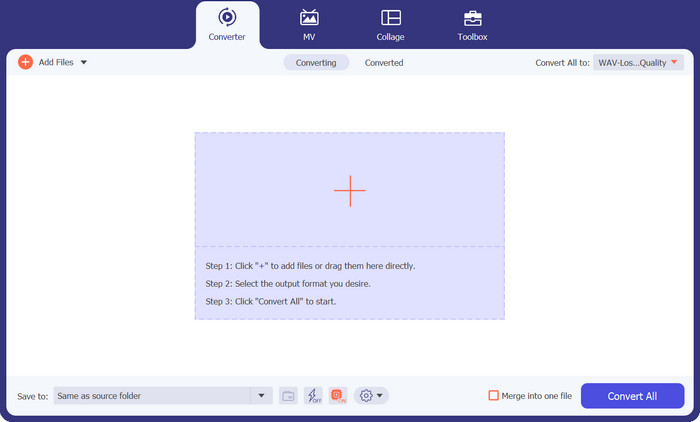
Bước 2. Chọn MP3 làm định dạng đầu ra
Tìm tệp âm thanh AIFC trong thư viện và nhấp vào menu xổ xuống Convert All to nằm ở bên phải. Chọn thẻ Audio và chọn MP3 làm định dạng đầu ra mong muốn. Sau đó, nhấp nút xổ xuống ở phía dưới để duyệt và chỉ định thư mục lưu các tệp MP3 đã chuyển đổi.
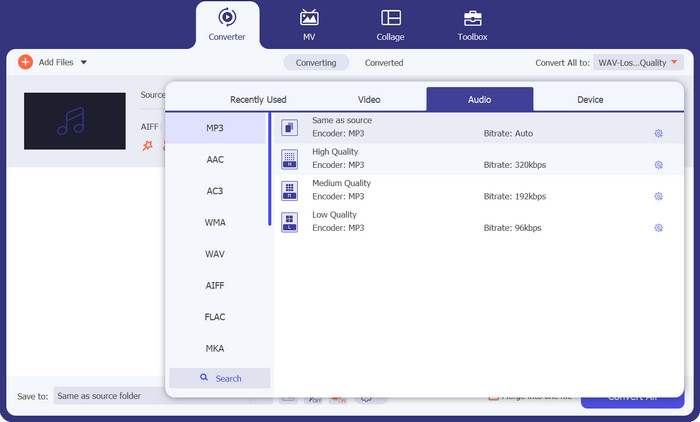
Bước 3. Chuyển đổi AIFC sang MP3
Sau khi cấu hình xong thiết lập đầu ra, hãy chọn tất cả tệp AIFC bạn muốn chuyển đổi trong khu vực thư viện. Nhấp nút Convert All ở góc dưới bên phải để bắt đầu quá trình chuyển đổi, biến các tệp AIFC của bạn sang định dạng MP3. Sau khi chuyển đổi, bạn có thể dễ dàng truyền và thưởng thức các tệp MP3 trên bất kỳ thiết bị tương thích nào.
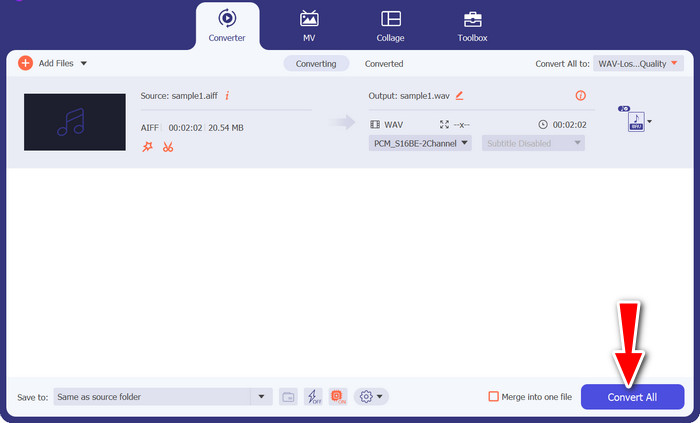
2. iTunes
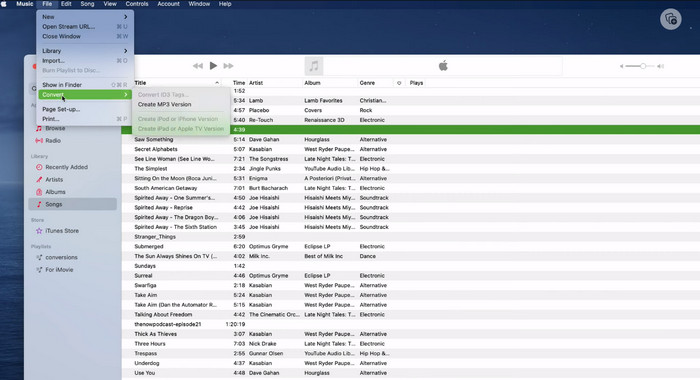
iTunes là một nền tảng đa năng để phát, quản lý và tải xuống nhạc và video trên Mac OS X và Windows OS. Ngoài ra, nó còn có khả năng tích hợp để chuyển đổi các tệp âm thanh AIFC. Dưới đây, bạn sẽ tìm thấy hướng dẫn từng bước toàn diện về cách chuyển đổi AIFC sang MP3 trên máy Mac một cách hiệu quả bằng iTunes.
Bước 1. Mở iTunes trên máy tính của bạn. Trên máy Mac, truy cập iTunes bằng cách chọn iTunes > Preferences từ thanh menu ở phía trên màn hình.
Bước 2. Trong cửa sổ tùy chọn iTunes, đi tới General rồi nhấp vào Import Settings ở phía dưới. Trong hộp thoại Import Settings, nhấp vào menu xổ xuống cạnh Import Using và chọn MP3 Encoder. Nhấp OK để xác nhận lựa chọn. Nếu bạn dùng Mac, hãy giữ phím Option, nhấp File > Convert > Convert to MP3 và chọn thư mục chứa các bài hát AIFC bạn muốn chuyển đổi.
Bước 3. Sau khi hoàn tất quá trình chuyển đổi, các bài hát sẽ được chuyển sang định dạng MP3 và xuất hiện trong thư viện iTunes của bạn, sẵn sàng để phát hoặc chuyển sang thiết bị. Đến đây, bạn đã biết cách chuyển đổi AIFC sang MP3 trên Mac.
3. Chuyển đổi MP3 miễn phí trực tuyến
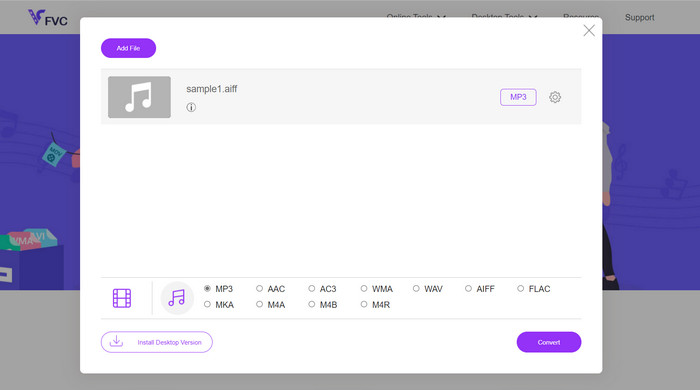
Giải pháp đơn giản và tiện lợi nhất là sử dụng một trình chuyển đổi AIFC sang MP3 trực tuyến đáng tin cậy, và lựa chọn ưa thích của tôi là Free MP3 Converter Online. Dịch vụ web này không yêu cầu đăng nhập hay cung cấp email, cho phép người dùng thêm tệp để chuyển đổi trực tiếp mà không phiền phức. Một tính năng nổi bật đáng nhắc tới là khả năng hỗ trợ rất nhiều định dạng khác nhau.
Bước 1. Bắt đầu bằng cách truy cập trang chính thức của chương trình. Nhấp nút Add Files to Convert và chọn tệp AIFC mong muốn từ ổ cứng máy tính của bạn.
Bước 2. Sau khi tệp được thêm vào, truy cập menu định dạng và chọn định dạng đầu ra MP3 làm định dạng tệp mong muốn.
Bước 3. Cuối cùng, nhấp nút Convert để bắt đầu quá trình chuyển đổi. Chỉ trong vài giây, tệp sẽ được chuyển sang định dạng MP3 thành công và được lưu trực tiếp về máy tính để bạn dễ dàng truy cập.
4. Zamzar
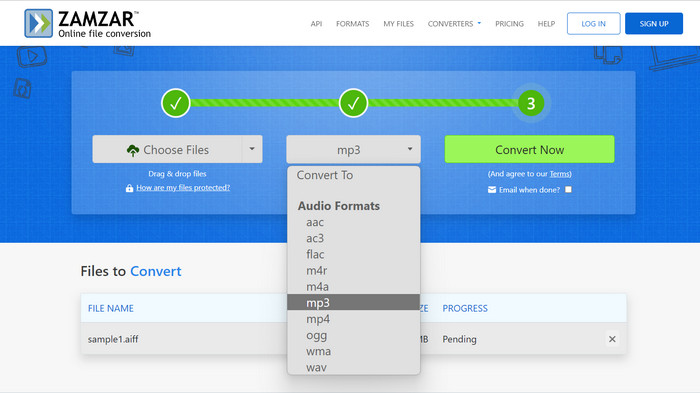
Việc chọn các ứng dụng chuyển đổi âm thanh dựa trên web là một giải pháp thay thế hấp dẫn để chuyển đổi AIFC sang MP3. Không cần cài đặt, các ứng dụng này xử lý hiệu quả tác vụ chuyển đổi âm thanh. Để minh họa quy trình, chúng tôi sẽ sử dụng Zamzar làm ví dụ.
Bước 1. Mở trang chuyển đổi AIFC sang MP3 trong trình duyệt web của bạn. Tải lên các tệp AIFC từ ổ cứng máy tính, từ một URL hoặc trực tiếp từ tài khoản lưu trữ đám mây của bạn.
Bước 2. Để chỉnh định dạng đầu ra, nhấp vào menu xổ xuống của định dạng và chọn MP3 làm định dạng mong muốn.
Bước 3. Sau khi thiết lập xong, nhấp nút Convert Now để bắt đầu quá trình chuyển đổi. Chờ quá trình hoàn tất, sau đó tải các tệp MP3 đã chuyển đổi về máy tính để sử dụng ngay lập tức.
5. Convertio
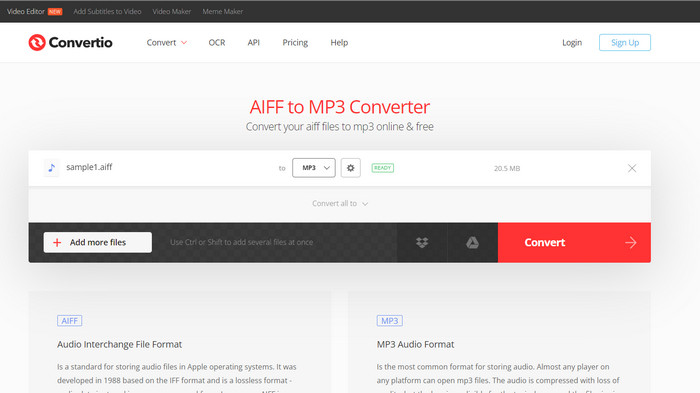
Convertio không chỉ giới hạn ở việc chuyển đổi AIFC sang MP3. Trên thực tế, nó cung cấp nhiều khả năng để chuyển đổi tệp AIFC sang nhiều định dạng phổ biến khác, bao gồm WAV, WMA, AAC, AC3, FLAC, OGG, RA, v.v. Với Convertio, bạn có thể dễ dàng chuyển đổi các tệp AIFC sang định dạng âm thanh ưa thích, biến nó thành một công cụ linh hoạt và có giá trị để chuyển đổi âm thanh.
Bước 1. Truy cập trang web Convertio (https://convertio.co/aifc-mp3/) trong trình duyệt của bạn.
Bước 2. Nhấp nút Choose Files để tải các tệp AIFC từ máy tính của bạn lên. Ngoài ra, bạn cũng có thể kéo và thả trực tiếp tệp vào trang web.
Bước 3. Sau khi tải các tệp AIFC lên, nhấp vào menu xổ xuống của định dạng đầu ra. Chọn MP3 từ danh sách các định dạng âm thanh có sẵn.
Bước 4. Nhấp nút Convert để bắt đầu quá trình chuyển đổi AIFC sang MP3. Chờ đến khi quá trình chuyển đổi hoàn tất.
Đọc thêm:
Đánh giá các chương trình chuyển đổi AIF sang WAV tốt nhất [2023]
FLAC vs. MP3: Định dạng tệp âm thanh nào vượt trội hơn?
Phần 2. Câu hỏi thường gặp về chuyển đổi AIFC sang MP3
QuickTime có chuyển đổi AIFC sang MP3 không?
Mặc dù QuickTime có thể đọc các tệp AIFC nhưng nó không có khả năng chuyển đổi AIFC sang MP3.
AIFC có tốt hơn AIFF không?
AIFC là một biến thể phổ biến của AIFF sử dụng tính năng nén, dẫn đến kích thước tệp nhỏ hơn so với AIFF. Tuy nhiên, việc nén này cũng dẫn đến chất lượng âm thanh thấp hơn định dạng AIFF gốc.
Cái nào tốt hơn, MP3 hay AIFC?
AIFC là định dạng bị mất dữ liệu và chất lượng của nó được xác định bởi tốc độ bit đã chọn. Việc sửa đổi tốc độ bit có thể ảnh hưởng đến việc AIFC vượt qua hay tụt lại phía sau MP3 về chất lượng âm thanh. Mặc dù vậy, MP3 có khả năng tương thích rộng rãi với nhiều thiết bị. Tùy chọn tốt hơn giữa MP3 và AIFC tùy thuộc vào yêu cầu và sở thích cụ thể của bạn.
Tôi có thể chuyển đổi tập tin AIFC sang MP3 trên thiết bị di động của mình không?
Có, một số ứng dụng di động hoặc trình chuyển đổi trực tuyến cung cấp tính năng chuyển đổi AIFC sang MP3 trực tiếp trên thiết bị di động của bạn để thuận tiện.
Làm cách nào để đảm bảo chất lượng âm thanh tốt nhất trong quá trình chuyển đổi?
Để đạt được chất lượng âm thanh tốt nhất, hãy sử dụng tốc độ bit cao hơn trong quá trình chuyển đổi. Tuy nhiên, hãy nhớ rằng kích thước tệp lớn hơn sẽ dẫn đến tốc độ bit cao hơn.
Phần kết luận
Chuyển đổi AIFC sang MP3 mang lại sự linh hoạt và khả năng tương thích rộng rãi hơn với nhiều thiết bị, khiến nó trở thành lựa chọn phổ biến cho việc chuyển đổi âm thanh. Mặc dù AIFC có thể cho chất lượng tốt hơn ở các bitrate cao, MP3 vẫn là lựa chọn thực tế và được chấp nhận rộng rãi cho nhu cầu sử dụng hàng ngày.
-
 4 cách tốt nhất để chuyển đổi AIFF sang MP3 trên Mac & PC
 Bạn gặp khó khăn vì tệp AIFF quá lớn không thể lưu được? Vì vậy, bạn phải tiếp tục đọc khi chúng tôi giải thích cách khắc phục bằng cách chuyển đổi AIFF sang định dạng MP3.
-
 Tải xuống trình phát MP3 – 10 Trình phát nhạc MP3 miễn phí tốt nhất năm 2023
 hat là máy nghe nhạc MP3 tốt nhất? Làm cách nào để đưa nhạc vào máy nghe nhạc MP3? Làm cách nào để tải xuống máy nghe nhạc MP3? Bài đăng này cung cấp cho bạn đánh giá chi tiết về 10 máy nghe nhạc MP3 miễn phí tốt nhất cho Windows PC và Mac.
-
 5 công cụ cắt MP3 để cắt bất kỳ âm thanh nào một cách dễ dàng [Cập nhật năm 2023]
 Bạn có cần một máy cắt MP3 để cắt âm thanh không? Trong trường hợp đó, hãy đọc bài viết này vì chúng tôi cung cấp các công cụ mà bạn có thể tin cậy để giúp bạn dễ dàng cắt âm thanh.
