


 Chuyển đổi video Ultimate
 Trình ghi màn hình
 Sửa chữa video
 Tải xuống an toàn
Cách chuyển đổi MP3 thành nhạc chuông trên iPhone một cách dễ dàng
Bạn cảm thấy các nhạc chuông mặc định trên iPhone không đúng gu và mong muốn dùng một bài từ các tệp MP3 của mình làm nhạc chuông iPhone thay thế? Nếu chúng tôi nói với bạn rằng hoàn toàn có thể chuyển MP3 thành nhạc chuông trên iPhone thì sao?
Trong bài viết này, chúng ta sẽ tìm hiểu 3 cách khác nhau để biến các tệp nhạc MP3 trên iPhone của bạn thành nhạc chuông. Việc chuyển đổi chúng có chút khó khăn, nhưng với công cụ và phương pháp phù hợp, hãy làm cho việc này trở nên đơn giản và thuận tiện nhất có thể. Bạn còn chờ gì nữa? Hãy cùng bắt đầu nào!

Phần 1. Chuyển đổi MP3 thành nhạc chuông cho iPhone trên Mac/Windows
Một trong những cách dễ và nhanh nhất để chuyển MP3 thành nhạc chuông trên iPhone là sử dụng Video Converter Ultimate do FVC lựa chọn trên máy tính Windows hoặc macOS. Công cụ chuyển đổi tất cả‑trong‑một này hỗ trợ tới 300 định dạng khác nhau, bao gồm cả định dạng M4R, khiến nó trở thành một công cụ đáng tin cậy để biến các tệp nhạc MP3 thành nhạc chuông iPhone. Hơn nữa, trình chuyển đổi này có tốc độ nhanh hơn tới 120 lần so với nhiều công cụ khác, giúp quá trình chuyển đổi diễn ra nhanh chóng và không rắc rối.
Cách sử dụng Video Converter Ultimate do FVC lựa chọn để chuyển MP3 thành nhạc chuông:
Bước 1. Trước hết, hãy tải xuống và cài đặt công cụ trên máy tính của bạn, dù là Windows hay Mac.
Bước 2. Mở công cụ, và khi đã ở giao diện chính, hãy nhấp vào nút Add Files. Thao tác này cho phép bạn nhập tệp MP3 mà bạn muốn chuyển thành nhạc chuông iPhone.
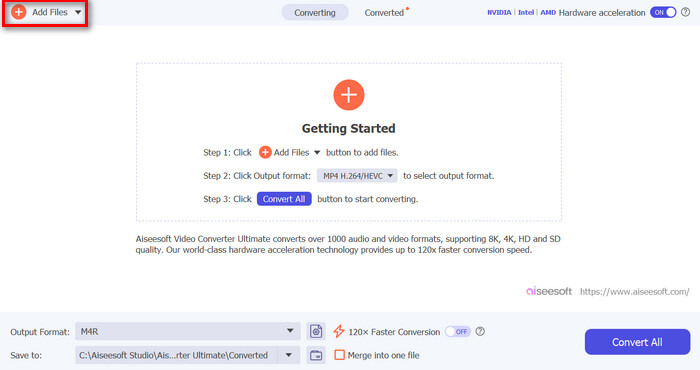
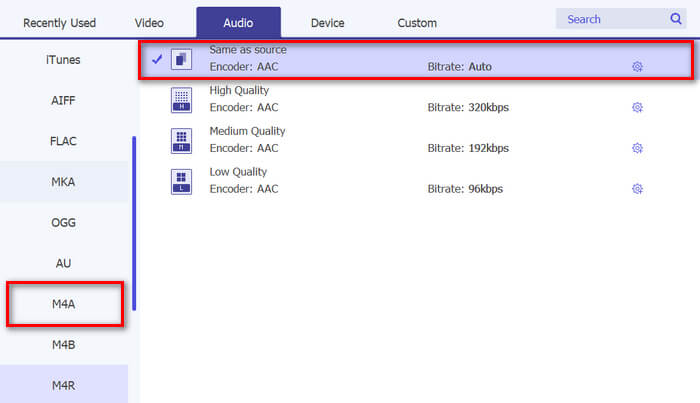
Bước 3. Tiếp theo, đi tới mục Output format, và từ danh sách các định dạng âm thanh, hãy chọn M4R. M4R là định dạng tệp dành cho nhạc chuông iPhone.
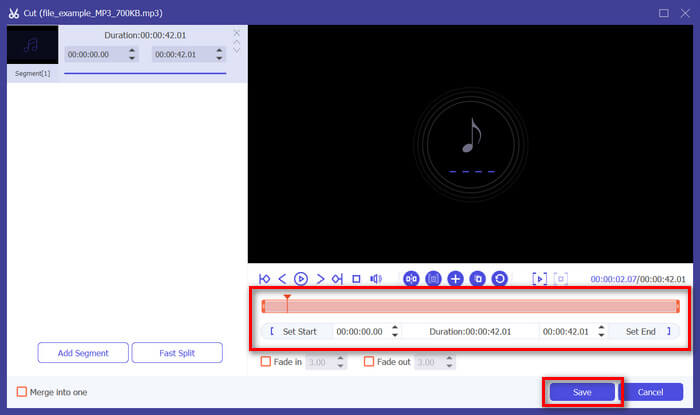
Bước 4. Sau đó, hãy đảm bảo tệp MP3 của bạn chỉ dài 30 giây. Nếu dài hơn, hãy vào nút Cut và điều chỉnh độ dài tệp bằng cách kéo thanh trên timeline hoặc đặt thủ công thời điểm kết thúc của tệp ở mốc 30 giây.
Bước 5. Bây giờ, hãy nhấp nút Convert All để bắt đầu chuyển đổi các tệp MP3 thành nhạc chuông iPhone. Các tệp đã chuyển đổi sẽ được lưu trực tiếp vào thư mục trên máy tính của bạn.
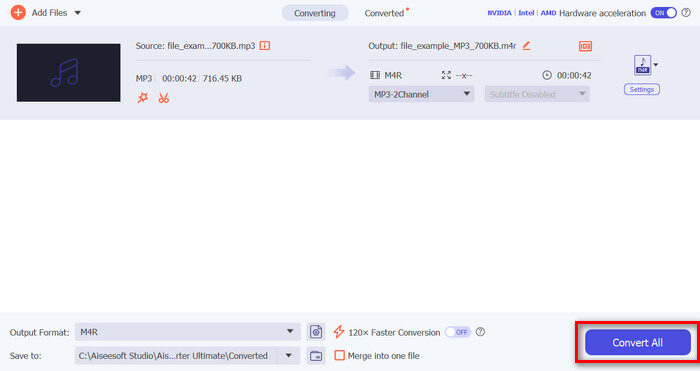
Nhanh quá phải không? Thật đáng kinh ngạc khi công cụ Video Converter Ultimate do FVC chọn này giúp chuyển đổi MP3 thành nhạc chuông iPhone dễ dàng và nhanh chóng. Vì vậy, nếu bạn đang tìm kiếm một công cụ chuyển đổi có thể giúp bạn tiết kiệm thời gian, hãy thử công cụ này ngay.
Phần 2. Chuyển đổi MP3 thành nhạc chuông trên iPhone
Nếu bạn thích phương pháp trực tiếp mà không cần dùng máy tính, GarageBand cung cấp giải pháp tiện lợi để chuyển đổi MP3 thành nhạc chuông trực tiếp trên iPhone của bạn. Công cụ này là ứng dụng tạo nhạc mạnh mẽ được cài đặt sẵn trên hầu hết các iPhone. Công cụ này không chỉ thân thiện với người dùng mà còn cung cấp nhiều tính năng khác nhau để tùy chỉnh tệp âm thanh của bạn một cách hiệu quả.
Cách sử dụng GarageBand để chuyển MP3 thành nhạc chuông:
Bước 1. Trước hết, hãy mở ứng dụng GarageBand trên iPhone. Nếu chưa cài ứng dụng, hãy vào App Store để cài đặt.
Bước 2. Nhấn vào biểu tượng Project rồi nhấn tiếp biểu tượng Loop gần góc trên bên phải.
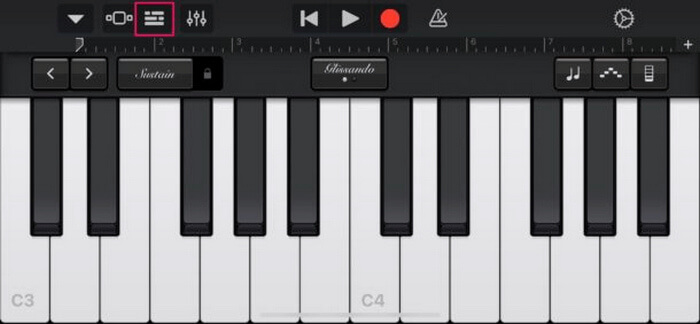
Bước 3. Sau đó, nhấn Music hoặc Files để chọn tệp MP3 và chạm giữ để nhập tệp đó vào GarageBand.
Bước 4. Tiếp theo, nhấn vào đoạn track và kéo hai đầu để cắt âm thanh. Hãy đảm bảo nhạc chuông ngắn hơn 30 giây.
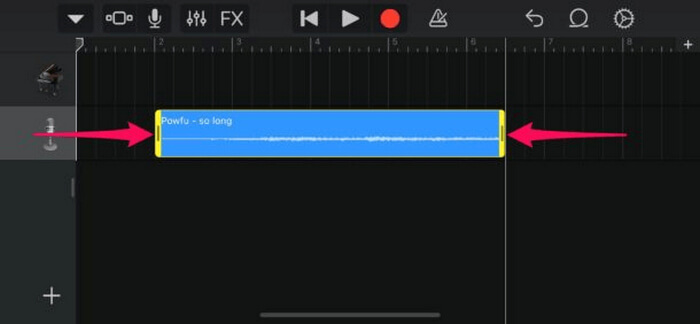
Bước 5. Bạn sẽ thấy mũi tên hướng xuống ở góc trên bên trái. Nhấn vào đó, rồi chọn My Songs để lưu đoạn cắt.
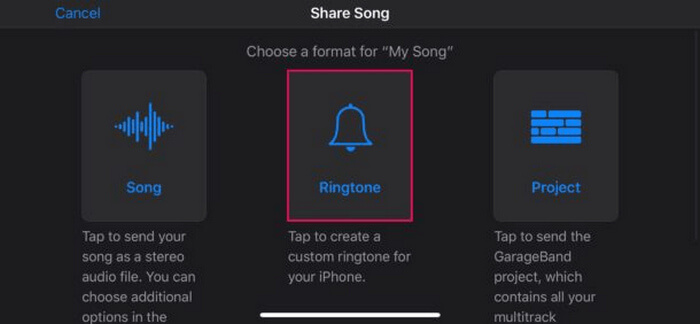
Bước 6. Tìm đoạn clip bạn vừa tạo, chạm giữ, nhấn Share, rồi chọn tùy chọn Ringtone. Đừng quên đặt tên cho nhạc chuông và nhấn Export.
Bước 7. Để dùng tệp MP3 đã chuyển đổi làm nhạc chuông trên iPhone, hãy nhấn Use Sound As để đặt nhạc chuông làm âm báo mặc định hoặc cho một liên hệ cụ thể. Ngoài ra, bạn cũng có thể vào Settings, Sounds & Haptics, rồi Ringtone để thay đổi nhạc chuông trên iPhone.
Nếu bạn thích chuyển đổi tệp MP3 trực tiếp thành nhạc chuông trên iPhone, phương pháp này hoàn toàn phù hợp với bạn. Tuy nhiên, người dùng mới sẽ cần một chút thời gian để tìm hiểu phương pháp này vì nó chứa các tính năng phức tạp có thể khiến họ choáng ngợp lúc đầu.
Phần 3. Chuyển đổi MP3 sang nhạc chuông iPhone [Trực tuyến & Miễn phí]
Trong khi đó, nếu bạn thích một phương pháp trực tuyến và miễn phí để chuyển MP3 thành nhạc chuông iPhone, thì FVC Free Audio Converter là lựa chọn phù hợp. Với công cụ này, bạn có thể dễ dàng chuyển đổi mọi định dạng tệp âm thanh, đặc biệt là MP3 sang M4R, vì nó hỗ trợ các định dạng MP3, AAC, AC3, WMA, WAV, AIFF, FLAC, MKA, M4A, M4B và M4R. Hơn nữa, công cụ này rất lý tưởng cho những ai cần một trình chuyển đổi âm thanh tiện dùng mọi lúc mọi nơi nhờ giao diện cực kỳ trực quan và đơn giản.
Cách sử dụng FVC Free Audio Converter để chuyển MP3 thành nhạc chuông:
Bước 1. Nhấp nút Add Files để nhập các tệp MP3 mà bạn muốn chuyển thành nhạc chuông.
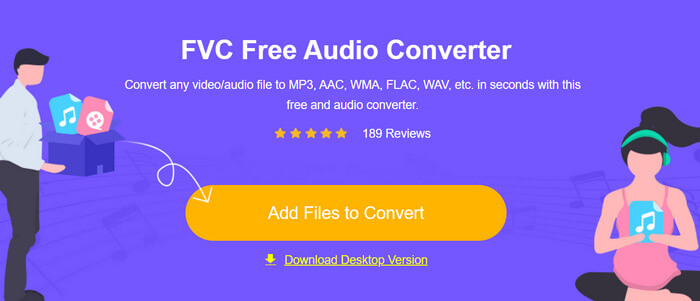
Bước 2. Chọn M4R làm định dạng âm thanh đầu ra.
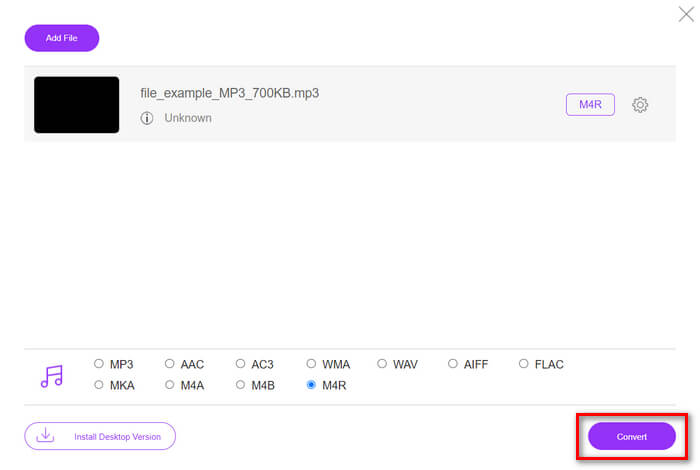
Bước 3. Cuối cùng, để tiến hành chuyển đổi tệp MP3 thành nhạc chuông, hãy nhấp nút Convert. Tệp đã chuyển đổi sẽ được lưu trực tiếp vào máy tính của bạn.
Nếu bạn đang tìm một cách miễn phí và trực tuyến khác để chuyển MP3 sang nhạc chuông M4R trên iPhone, thì FVC Free Audio Converter là giải pháp hoàn hảo. Giao diện trực quan giúp đơn giản hóa quá trình chuyển đổi, đồng thời nó hỗ trợ nhiều định dạng âm thanh, bảo đảm khả năng tương thích với các loại tệp khác nhau.
Phần 4. Cách chuyển nhạc chuông đã chuyển đổi sang iPhone từ máy tính
Bây giờ bạn đã chuyển đổi xong các tập tin MP3 thành nhạc chuông trên máy tính, cách nhanh nhất để chuyển chúng sang iPhone là sử dụng iTunes.
Cách chuyển nhạc chuông đã chuyển đổi sang iPhone bằng iTunes:
Bước 1. Mở iTunes trên máy tính và kết nối iPhone của bạn bằng cáp USB.
Bước 2. Kéo tệp nhạc chuông đã chuyển đổi vào thư viện iTunes. Hãy đảm bảo nó xuất hiện trong mục Tones.
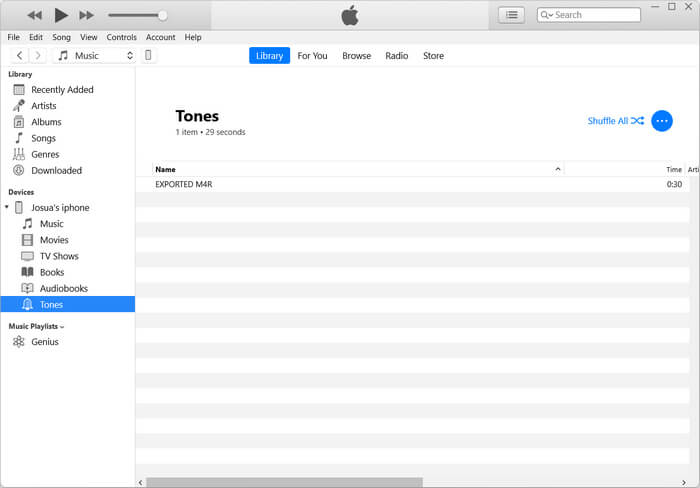
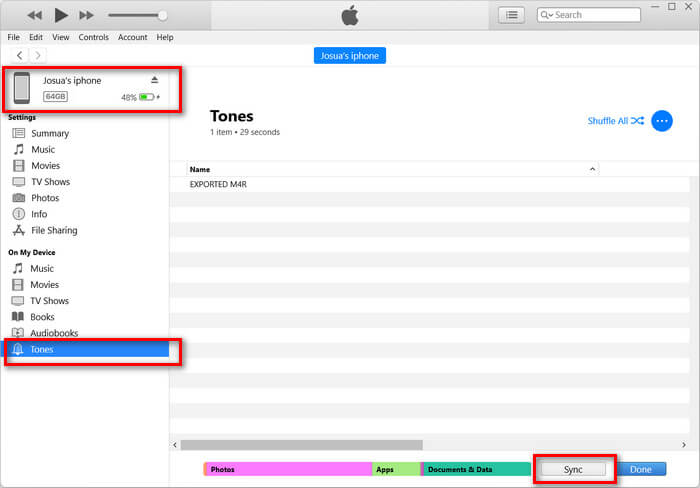
Bước 3. Chọn biểu tượng iPhone của bạn trong iTunes, đi tới thẻ Tones, và đánh dấu chọn Sync Tones. Sau đó, chọn tệp nhạc chuông bạn đã nhập và nhấp Apply để đồng bộ.
Bước 4. Bây giờ, trên iPhone, hãy vào Cài đặt (Settings), chọn Âm thanh & Phản hồi xúc giác (Sounds & Haptics), nhấn Nhạc chuông (Ringtone), rồi chọn nhạc chuông mới của bạn.
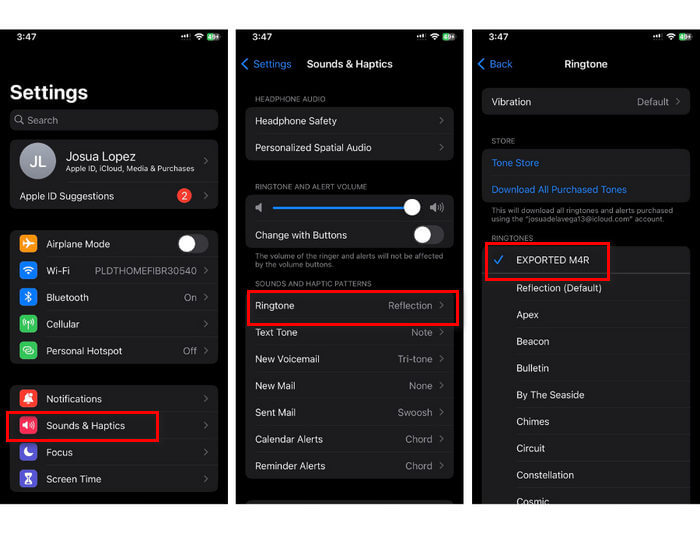
Vậy là xong. Bây giờ bạn có thể dễ dàng chuyển và sử dụng MP3 đã chuyển đổi thành nhạc chuông trên iPhone, mang đến cho thiết bị của bạn nét cá nhân với những âm thanh yêu thích.
Phần 5. Câu hỏi thường gặp về Chuyển đổi MP3 sang Nhạc chuông
Trang web nhạc chuông miễn phí nào là tốt nhất?
Nhiều trang web cung cấp nhạc chuông miễn phí, nhưng một số trang web phổ biến và đáng tin cậy bao gồm Zedge, Mobile9 và Tones7. Các trang web này cung cấp nhiều loại nhạc chuông mà bạn có thể tải xuống và sử dụng trên điện thoại của mình.
Định dạng nhạc chuông MP3 cho iPhone là gì?
Định dạng nhạc chuông iPhone là M4R. Khi chuyển đổi tệp MP3 để sử dụng làm nhạc chuông trên iPhone, tệp đó phải được lưu ở định dạng M4R.
Làm thế nào để thêm MP3 vào nhạc chuông iPhone?
Để thêm MP3 vào nhạc chuông iPhone, trước tiên bạn phải chuyển đổi tệp MP3 sang M4R bằng công cụ chuyển đổi như Video Converter Ultimate do FVC chọn. Sau khi chuyển đổi tệp MP3, hãy sử dụng iTunes để chuyển tệp đó sang iPhone và sử dụng làm nhạc chuông mới.
Phần kết luận
Giờ đây bạn có thể dùng các tệp MP3 yêu thích để tạo nhạc chuông cho iPhone. Chỉ cần chọn công cụ chuyển đổi phù hợp nhất với nhu cầu của bạn. Mỗi công cụ đều mang lại cách đơn giản để chuyển MP3 thành nhạc chuông trên iPhone. Vậy còn chần chừ gì nữa? Hãy bắt đầu tạo nhạc chuông độc đáo của riêng bạn và khiến chiếc iPhone thực sự mang dấu ấn cá nhân!
-
 MOV VS MP4 - Bạn chọn cái nào?
 MOV VS MP4, cái nào tốt hơn? Bài đăng này cho biết sự khác biệt giữa MP4 và MOV, để bạn có thể có được lựa chọn tốt hơn để sử dụng cho các tệp video của mình.
-
 FLAC so với MP3: Định dạng tệp âm thanh nào thống trị tối cao
 Bài đăng này sẽ so sánh sự khác biệt chính giữa FLAC và MP3. Điều đó bao gồm chất lượng âm thanh, kích thước tệp, khả năng tương thích, v.v.
-
 Cách chuyển đổi MP3 sang M4A để có chất lượng âm thanh được nâng cao
 Cải thiện chất lượng tệp nhạc của bạn bằng cách chuyển đổi MP3 sang M4A bằng các mẹo và thủ thuật chuyên môn của chúng tôi. Hướng dẫn của chúng tôi cung cấp hướng dẫn từng bước và phần mềm được đề xuất.
