


 Chuyển đổi video Ultimate
 Trình ghi màn hình
 Sửa chữa video
 Tải xuống an toàn
Cách chuyển đổi WebP sang MP4 trên PC để tạo video hoạt hình
Có nhiều lý do khác nhau khiến chúng ta chuyển WebP sang MP4. Một trong những lý do chính là khi bạn có một bộ sưu tập hình ảnh động ở định dạng WebP nhưng thiết bị của bạn lại không hỗ trợ. Thật khó chịu khi biết rằng bạn không thể thưởng thức chính các tệp của mình trên thiết bị của mình. Vì lý do đó, hầu hết người dùng trong cùng tình huống đều chọn chuyển các tệp WebP sang định dạng như MP4 để nội dung số của họ tương thích hơn và dung lượng nhỏ hơn. Nhưng lần đầu tiên thì phải làm thế nào? Rất may, bài viết này đã tổng hợp những trình chuyển đổi đáng tin cậy sẽ giúp bạn rất nhiều. Ngoài ra, chúng tôi còn giới thiệu một cách tiếp cận chuyên nghiệp để hỗ trợ bạn trong vấn đề này.

Phần 1. Cách chuyển đổi WebP sang MP4 trực tuyến
Phần này sẽ giới thiệu 3 giải pháp hàng đầu của chúng tôi để chuyển đổi WebP sang MP4 trực tuyến.
1. EZGIF
Giải pháp trực tuyến hàng đầu đầu tiên là EZGIF. Đây là một công cụ tiện dụng, miễn phí mà bạn có thể truy cập trên web. Công cụ này giúp bạn tạo, thay đổi và chỉnh sửa GIF. Nhưng không chỉ có GIF vì nó còn xử lý các định dạng WebP, AVIF và APNG. Hơn nữa, EzGIF cho phép bạn chuyển đổi các định dạng này sang GIF, JPG, PNG và tất nhiên là MP4. Như tên gọi của nó, EZGIF là tất cả về việc làm cho mọi thứ trở nên đơn giản. Cho dù bạn muốn tạo ảnh động hay biến hoạt hình thành video, công cụ này đều hỗ trợ bạn. Do đó, bạn cũng có thể sử dụng nó để chuyển đổi các tệp WebP, cả tệp tĩnh và tệp chuyển động, sang MP4. Do đó, đây là các bước đơn giản để thực hiện với EZGIF.
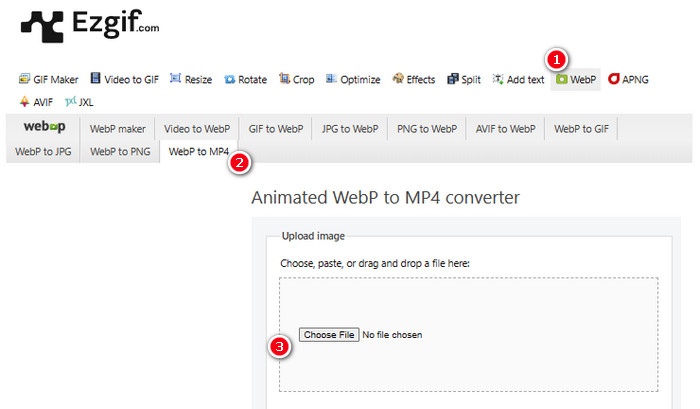
Bước 1. Trên trang web EZGIF, hãy điều hướng đến công cụ WebP>WebP to MP4 để truy cập trình chuyển đổi WebP sang MP4 của nó. Khi đã vào trang, nhấp nút Choose File để tải tệp WebP của bạn lên.
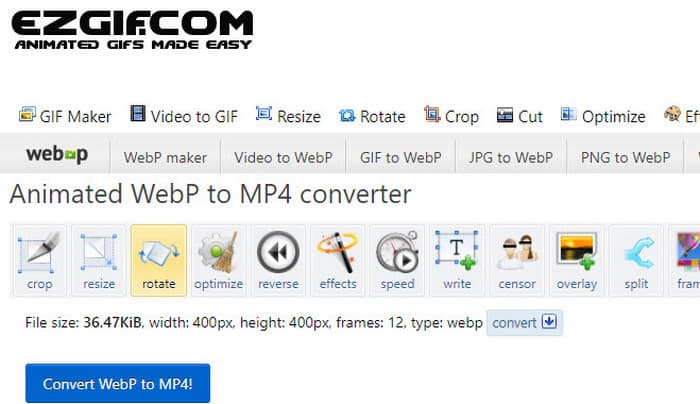
Bước 2. Sau khi tải tệp WebP lên, bạn có thể tiến hành quá trình chuyển đổi. Nhấp nút Convert để bắt đầu.
Bước 3. Khi hoàn tất, hãy tải xuống tệp vừa được chuyển đổi.
2. MConverter
Công cụ tiếp theo là MConverter. Công cụ chuyển đổi này là một công cụ thực sự tiện dụng trên web giúp bạn chuyển đổi các tệp từ loại này sang loại khác. Đáng chú ý là nếu bạn có một loạt ảnh WebP muốn chuyển thành video MP4, MConverter cho phép bạn thực hiện tất cả cùng một lúc. Nó không tiết kiệm được nhiều thời gian sao? Hơn nữa, nó có một loạt các định dạng mà nó có thể xử lý - như video, bài hát, hình ảnh, phụ đề, v.v. Nhưng có một nhược điểm với phiên bản miễn phí - nó chỉ cho phép bạn thực hiện các tệp có kích thước lên đến 200MB. Trong khi chờ đợi, chúng ta hãy xem MConvert hoạt động như thế nào khi bạn chuyển đổi WebP sang MP4 bằng nó.
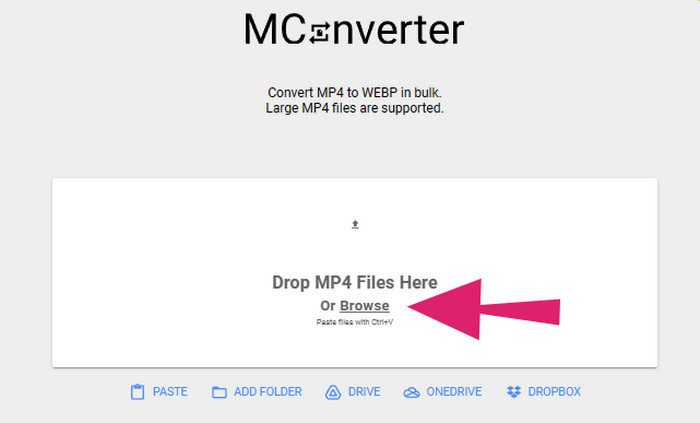
Bước 1. Trên công cụ trực tuyến, nhấp nút Browse để tải lên các tệp WebP mà bạn cần chuyển đổi.
Bước 2. Khi tệp đã được tải lên thành công, hãy nhấp chọn định dạng MP4 trong số các lựa chọn được cung cấp.
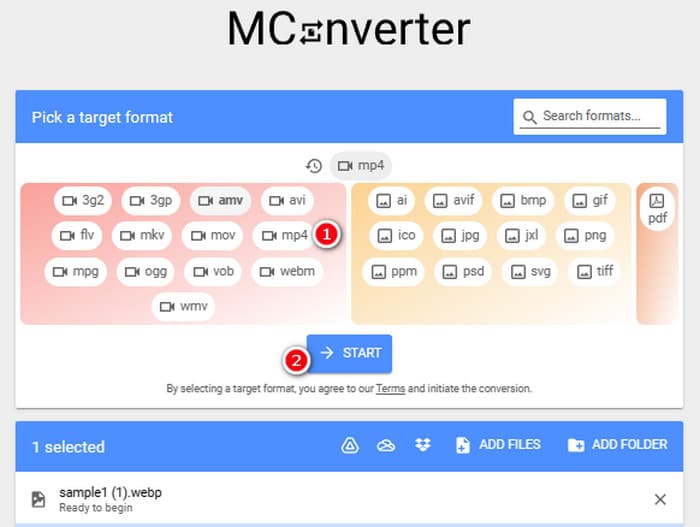
Bước 3. Sau đó, nhấp nút START để tiến hành chuyển đổi.
3. Chuyển đổi trực tuyến
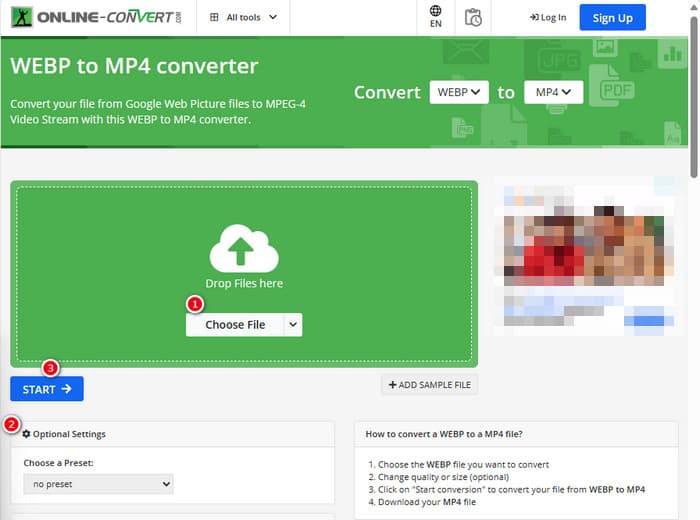
Cuối cùng, hãy để Online Convert điền vào vị trí trực tuyến cuối cùng. Online Convert này là một trình chuyển đổi đáng chú ý có thể thay đổi hầu như mọi loại tệp phương tiện cho bạn. Mặc dù vậy, bạn sẽ không mất một xu nào cho bất kỳ chuyển đổi nào bạn muốn thực hiện miễn là nó hỗ trợ. Hơn nữa, nó hoạt động khá nhanh, ngoại trừ khi internet của bạn có vấn đề. Bây giờ, nếu bạn muốn chuyển đổi tệp WebP thành MP4, bạn có thể thực hiện trên trang web của họ. Không chỉ vậy, bạn có thể điều chỉnh các thông số video như kích thước, tốc độ khung hình và chất lượng và thậm chí lật ngược, cắt bớt hoặc cắt bỏ các phần bạn không cần. Vì vậy, nếu tệp WebP của bạn đã sẵn sàng để chuyển đổi, hãy làm theo các bước dưới đây ngay lập tức.
Bước 1. Đảm bảo bạn sử dụng công cụ chuyển đổi WebP sang MP4 khi truy cập trang web chính thức.
Bước 2. Nhấp nút Choose File và đưa tệp WebP vào. Sau đó, bạn có thể tinh chỉnh nó bằng cách sử dụng các thiết lập được cung cấp trên giao diện.
Bước 3. Nếu không cần, hãy nhấp nút START để bắt đầu quá trình chuyển đổi.
Phần 2. Phương pháp chuyên nghiệp để chuyển đổi tệp WebP sang MP4: FFmpeg
Để có cách tiếp cận chuyên nghiệp trong việc chuyển đổi tệp hình ảnh thành video, bạn có thể sử dụng FFmpeg. Đây là một công cụ phần mềm mạnh mẽ dùng để xử lý các tệp đa phương tiện. Chương trình này cho phép bạn chuyển đổi các định dạng âm thanh, video, và hình ảnh giữa rất nhiều bộ mã hóa khác nhau. Tuy nhiên, nó hoạt động bằng dòng lệnh, nên khá 'khó nhằn' đối với người mới. Vì vậy, dưới đây là các bước đơn giản hóa mà bạn có thể làm theo. Xin lưu ý, FFmpeg, với tư cách một bộ chuyển mã video chuyên nghiệp, còn có thể sửa video bị hỏng.
Bước 1. Mở FFmpeg sau khi cài đặt trên PC của bạn. Sau đó, bắt đầu bằng cách nhấn CD để khởi tạo Command Prompt.
Bước 2. Bây giờ bạn có thể điều hướng đến thư mục chứa tệp WebP. Sau đó, sử dụng lệnh ffmpeg -i input.webp output.mp4.
Bước 3. Bắt đầu quá trình chuyển đổi bằng cách nhấn phím ENTER trên bàn phím của bạn.

Phần 3. Mẹo thưởng: Cách tốt nhất để chuyển đổi tệp MP4 sang bất kỳ loại video/âm thanh nào trực tuyến
Còn việc chuyển các tệp MP4 sang định dạng video và âm thanh mà bạn mong muốn trực tuyến thì sao? Điều đó sẽ trở nên đơn giản, nhanh chóng và hiệu quả nếu bạn sử dụng FVC Free Video Converter Online. Đây là giải pháp miễn phí cho phép bạn đổi các video MP4 sang nhiều định dạng video và âm thanh khác như WMV, MOV, FLV, AVI, MKV, AAC, MP3, WAV, và nhiều hơn nữa. Đồng thời, bạn có thể dễ dàng nén các video độ phân giải cao thành MP4 dung lượng nhỏ hơn mà không làm giảm chất lượng. Hơn thế, bạn có thể chuyển đổi nhiều tệp cùng lúc, trong khi toàn bộ quá trình vẫn dễ dàng và nhanh chóng. Thêm vào đó, bạn không cần lo video bị gắn watermark hay mất dữ liệu trong quá trình chuyển đổi, vì trình chuyển đổi trực tuyến này cam kết mang đến cho bạn các tệp đầu ra sạch và an toàn! Dưới đây là ba bước đơn giản để chuyển các tệp MP4 của bạn sang nhiều loại định dạng khác nhau.
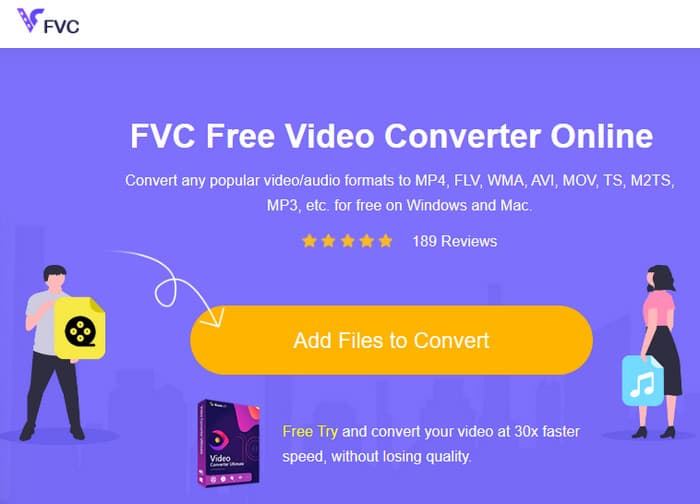
Bước 1. Nhấp vào thẻ Add Files to Convert khi bạn truy cập vào trang web. Thao tác này sẽ cho phép bạn tải các tệp MP4 lên.
Bước 2. Sau khi quá trình nhập tệp hoàn tất, hãy đặt định dạng đầu ra mong muốn cho các tệp.
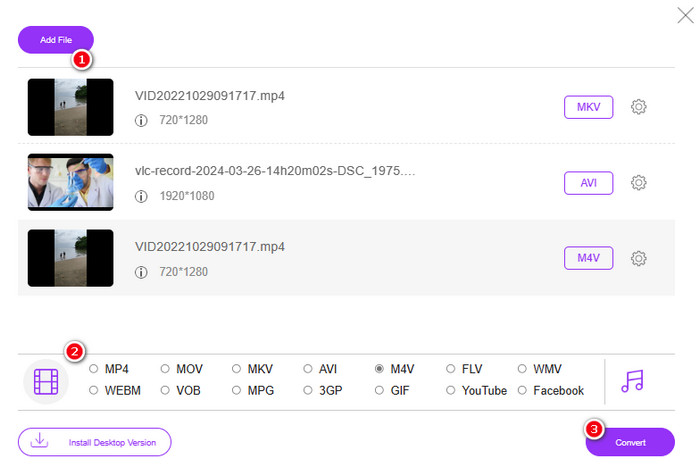
Bước 3. Ngay khi đã thiết lập xong, hãy nhấp nút Convert để bắt đầu chuyển đổi.
Dưới đây là một số mẹo để chuyển đổi hình ảnh sang MP4.
Đọc thêm
Cách chuyển VLC sang MP4: Các quy trình nhanh nhất để nắm vững
Chuyển đổi video iPhone sang MP4 trên PC mà không làm giảm chất lượng một cách dễ dàng
Phần 4. Câu hỏi thường gặp về Chuyển đổi Webp và MP4
Tại sao tôi phải chuyển đổi một tệp hình ảnh như WebP sang video như MP4?
-Bạn phải chuyển đổi hình ảnh thành video để có khả năng tương thích và bảo quản rộng rãi hơn.
Hình ảnh định dạng WebP có thể hiển thị trên tất cả các trình duyệt web không?
-Không. Một số trình duyệt cũ hơn, đặc biệt là Internet Explorer, không hỗ trợ WebP. Tuy nhiên, các trình duyệt hiện đại hỗ trợ hiển thị WebP.
Làm thế nào để chuyển đổi hình ảnh sang WebP?
-Bạn phải sử dụng trình tạo WebP chuyên dụng. Ngoài ra, có một số công cụ và thư viện có sẵn để chuyển đổi hình ảnh sang định dạng WebP.
Phần kết luận
Với các trình chuyển đổi WebP sang MP4 được giới thiệu ở trên, trải nghiệm chuyển đổi của bạn giờ đây sẽ trở nên đơn giản. Ba phương pháp thường được sử dụng này sẽ giúp bạn đạt được việc chuyển đổi như mong muốn. Nếu bạn gặp khó khăn khi thao tác với một trong số chúng, hãy thoải mái dùng các phương pháp còn lại để thực hiện chuyển đổi.
-
 Tìm hiểu các phương pháp dễ dàng nhất để chuyển đổi WebP sang JPG một cách nhanh chóng
 Hãy để tất cả chúng ta tìm hiểu những cách hiệu quả để chuyển đổi hình ảnh Web sang JPG một cách dễ dàng. Bài viết này sẽ cung cấp cho bạn những công cụ chuyển đổi hình ảnh tuyệt vời mà bạn có thể sử dụng để chuyển đổi các tệp hình ảnh.
-
 Phương pháp hoàn hảo để chuyển đổi WebP sang PNG dễ dàng
 Hiểu biết về các phương pháp đáng chú ý để chuyển đổi WebP sang PNG. Bài hướng dẫn này sẽ cung cấp cho bạn những công cụ chuyển đổi hình ảnh hữu ích nhất mà bạn có thể thử.
-
 Các phương pháp cơ bản về cách chuyển đổi WebP thành GIF một cách hoàn hảo
 Bạn có muốn chuyển đổi WebP thành GIF nhưng không biết phải làm gì không? May mắn thay, bài đăng này sẽ trình bày nhiều cách về cách chuyển đổi WebP thành GIF ngay lập tức.
